5 Best Screen Mirroring Apps 2026
5 Best Screen Mirroring Apps 2026
5 Best Screen Mirroring Apps 2026
We tested 15+ screen mirroring apps across iPhone, Android, PC & smart TVs. Here are our top 5 picks for every device, budget, and use case in 2026.
We tested 15+ screen mirroring apps across iPhone, Android, PC & smart TVs. Here are our top 5 picks for every device, budget, and use case in 2026.
We tested 15+ screen mirroring apps across iPhone, Android, PC & smart TVs. Here are our top 5 picks for every device, budget, and use case in 2026.
Finding the best screen mirroring app in 2026 isn’t about which one has the most features. It’s about which one fits your devices, your budget, and how you actually mirror — local or remote, casual or professional. We tested 15+ apps across iPhone, Android, Mac, Windows, and smart TVs to find the top picks for every setup.
Screen mirroring wirelessly shows your entire phone, tablet, or computer screen on a bigger display in real time — apps, notifications, everything. (Casting sends a specific video to your TV; mirroring shows your whole screen.)
The tech is solid now. Good apps barely lag over WiFi Direct, connect across networks, and work on almost everything. The hard part isn’t finding one that technically works. It’s finding the one that matches your setup. Every pick below includes real performance notes, actual pricing from official sources, and honest downsides.
New to screen mirroring? If you’re not sure whether you need AirPlay, Chromecast, or Miracast — or what mirroring even is — start with our beginner’s guide to screen mirroring. It covers the basics in plain language.
Finding the best screen mirroring app in 2026 isn’t about which one has the most features. It’s about which one fits your devices, your budget, and how you actually mirror — local or remote, casual or professional. We tested 15+ apps across iPhone, Android, Mac, Windows, and smart TVs to find the top picks for every setup.
Screen mirroring wirelessly shows your entire phone, tablet, or computer screen on a bigger display in real time — apps, notifications, everything. (Casting sends a specific video to your TV; mirroring shows your whole screen.)
The tech is solid now. Good apps barely lag over WiFi Direct, connect across networks, and work on almost everything. The hard part isn’t finding one that technically works. It’s finding the one that matches your setup. Every pick below includes real performance notes, actual pricing from official sources, and honest downsides.
New to screen mirroring? If you’re not sure whether you need AirPlay, Chromecast, or Miracast — or what mirroring even is — start with our beginner’s guide to screen mirroring. It covers the basics in plain language.
Finding the best screen mirroring app in 2026 isn’t about which one has the most features. It’s about which one fits your devices, your budget, and how you actually mirror — local or remote, casual or professional. We tested 15+ apps across iPhone, Android, Mac, Windows, and smart TVs to find the top picks for every setup.
Screen mirroring wirelessly shows your entire phone, tablet, or computer screen on a bigger display in real time — apps, notifications, everything. (Casting sends a specific video to your TV; mirroring shows your whole screen.)
The tech is solid now. Good apps barely lag over WiFi Direct, connect across networks, and work on almost everything. The hard part isn’t finding one that technically works. It’s finding the one that matches your setup. Every pick below includes real performance notes, actual pricing from official sources, and honest downsides.
New to screen mirroring? If you’re not sure whether you need AirPlay, Chromecast, or Miracast — or what mirroring even is — start with our beginner’s guide to screen mirroring. It covers the basics in plain language.
Quick navigation
Quick navigation
Quick navigation
Best Overall -- AirDroid Cast
Most Features -- ApowerMirror
Best Stable -- 1001TVs
Best Free -- LetsView
Best Built-In -- Google Home
Best Overall -- AirDroid Cast
Most Features -- ApowerMirror
Best Stable -- 1001TVs
Best Free -- LetsView
Best Built-In -- Google Home
Best Overall -- AirDroid Cast
Most Features -- ApowerMirror
Best Stable -- 1001TVs
Best Free -- LetsView
Best Built-In -- Google Home
Our Top Picks at a Glance
Our Top Picks at a Glance
Our Top Picks at a Glance
Product | Best For | Free Version | Paid Starting Price | Key Advantage | Rating |
|---|---|---|---|---|---|
AirDroid Cast | Best overall, remote mirroring | Yes (same WiFi only) | Basic $2.49/mo (Standard $3.49/mo); yearly save up to 35% | Remote casting + two-way audio + browser receiver + Screen Off USB | 4.5 |
ApowerMirror | Multi-device pro features | Yes (time-limited trial) | Monthly $19.95 (annual $39.95, lifetime $69.95) | 4 devices + recording/annotation + phone-to-phone + OBS streaming | 4.1 |
1001TVs | Best for stable local mirroring, multi-use toolbox | Time-limited trial, then subscription | From $4.99/wk; $19.99/yr (US pricing) | Screen data local, no account, built-in file transfer | 4 |
LetsView | Best free screen mirroring | Yes (Basic: free, unlimited time) | Pro $5.99/mo or $29.99/yr; Business $39.99/yr | Unlimited free mirroring time, 10M+ downloads | 3.8 |
Google Home | Android built-in casting | Yes, completely free | None | Native Chromecast, zero install, 100M+ devices | 3.5 |
Product | Best For | Free Version | Paid Starting Price | Key Advantage | Rating |
|---|---|---|---|---|---|
AirDroid Cast | Best overall, remote mirroring | Yes (same WiFi only) | Basic $2.49/mo (Standard $3.49/mo); yearly save up to 35% | Remote casting + two-way audio + browser receiver + Screen Off USB | 4.5 |
ApowerMirror | Multi-device pro features | Yes (time-limited trial) | Monthly $19.95 (annual $39.95, lifetime $69.95) | 4 devices + recording/annotation + phone-to-phone + OBS streaming | 4.1 |
1001TVs | Best for stable local mirroring, multi-use toolbox | Time-limited trial, then subscription | From $4.99/wk; $19.99/yr (US pricing) | Screen data local, no account, built-in file transfer | 4 |
LetsView | Best free screen mirroring | Yes (Basic: free, unlimited time) | Pro $5.99/mo or $29.99/yr; Business $39.99/yr | Unlimited free mirroring time, 10M+ downloads | 3.8 |
Google Home | Android built-in casting | Yes, completely free | None | Native Chromecast, zero install, 100M+ devices | 3.5 |
Product | Best For | Free Version | Paid Starting Price | Key Advantage | Rating |
|---|---|---|---|---|---|
AirDroid Cast | Best overall, remote mirroring | Yes (same WiFi only) | Basic $2.49/mo (Standard $3.49/mo); yearly save up to 35% | Remote casting + two-way audio + browser receiver + Screen Off USB | 4.5 |
ApowerMirror | Multi-device pro features | Yes (time-limited trial) | Monthly $19.95 (annual $39.95, lifetime $69.95) | 4 devices + recording/annotation + phone-to-phone + OBS streaming | 4.1 |
1001TVs | Best for stable local mirroring, multi-use toolbox | Time-limited trial, then subscription | From $4.99/wk; $19.99/yr (US pricing) | Screen data local, no account, built-in file transfer | 4 |
LetsView | Best free screen mirroring | Yes (Basic: free, unlimited time) | Pro $5.99/mo or $29.99/yr; Business $39.99/yr | Unlimited free mirroring time, 10M+ downloads | 3.8 |
Google Home | Android built-in casting | Yes, completely free | None | Native Chromecast, zero install, 100M+ devices | 3.5 |
How We Chose & Tested
How We Chose & Tested
How We Chose & Tested
Our testing setup
We wanted results we could actually stand behind. So we built a standard testing environment and scored every app the same way.
Devices we tested with:
Senders: iPhone 16 Pro (iOS 20), Samsung Galaxy S25 (Android 16), MacBook Pro M4 (macOS 15), Windows 11 PC.
Receivers: Samsung Smart TV (Tizen), LG OLED TV (webOS), Sony Bravia (Google TV), Windows 11 PC, MacBook Air.
How we scored things:
What we measured | Weight | Details |
|---|---|---|
Video quality & stability | 20% | Max resolution, frame drops over 10-minute sessions, color accuracy, adaptive bitrate |
Latency | 20% | Delay between action and display, across WiFi, WiFi Direct, USB, and remote |
Features | 20% | Recording, annotation, remote connection, multi-device, audio, whiteboard, device control |
Cross-platform support | 15% | How many OS and device combos it covers, including smart TV platforms |
Value | 15% | What the free tier gives you, whether the paid price makes sense relative to features |
Privacy & security | 5% | Where screen data goes — local-only, P2P, relay servers, or full cloud routing |
Setup & UX | 5% | Installation complexity, account requirements, interface polish, first-run experience |
Our testing setup
We wanted results we could actually stand behind. So we built a standard testing environment and scored every app the same way.
Devices we tested with:
Senders: iPhone 16 Pro (iOS 20), Samsung Galaxy S25 (Android 16), MacBook Pro M4 (macOS 15), Windows 11 PC.
Receivers: Samsung Smart TV (Tizen), LG OLED TV (webOS), Sony Bravia (Google TV), Windows 11 PC, MacBook Air.
How we scored things:
What we measured | Weight | Details |
|---|---|---|
Video quality & stability | 20% | Max resolution, frame drops over 10-minute sessions, color accuracy, adaptive bitrate |
Latency | 20% | Delay between action and display, across WiFi, WiFi Direct, USB, and remote |
Features | 20% | Recording, annotation, remote connection, multi-device, audio, whiteboard, device control |
Cross-platform support | 15% | How many OS and device combos it covers, including smart TV platforms |
Value | 15% | What the free tier gives you, whether the paid price makes sense relative to features |
Privacy & security | 5% | Where screen data goes — local-only, P2P, relay servers, or full cloud routing |
Setup & UX | 5% | Installation complexity, account requirements, interface polish, first-run experience |
Our testing setup
We wanted results we could actually stand behind. So we built a standard testing environment and scored every app the same way.
Devices we tested with:
Senders: iPhone 16 Pro (iOS 20), Samsung Galaxy S25 (Android 16), MacBook Pro M4 (macOS 15), Windows 11 PC.
Receivers: Samsung Smart TV (Tizen), LG OLED TV (webOS), Sony Bravia (Google TV), Windows 11 PC, MacBook Air.
How we scored things:
What we measured | Weight | Details |
|---|---|---|
Video quality & stability | 20% | Max resolution, frame drops over 10-minute sessions, color accuracy, adaptive bitrate |
Latency | 20% | Delay between action and display, across WiFi, WiFi Direct, USB, and remote |
Features | 20% | Recording, annotation, remote connection, multi-device, audio, whiteboard, device control |
Cross-platform support | 15% | How many OS and device combos it covers, including smart TV platforms |
Value | 15% | What the free tier gives you, whether the paid price makes sense relative to features |
Privacy & security | 5% | Where screen data goes — local-only, P2P, relay servers, or full cloud routing |
Setup & UX | 5% | Installation complexity, account requirements, interface polish, first-run experience |
What to look for when picking a mirroring app
What to look for when picking a mirroring app
What to look for when picking a mirroring app
If you want to choose yourself instead of just taking our word for it, here are the five things that actually matter.
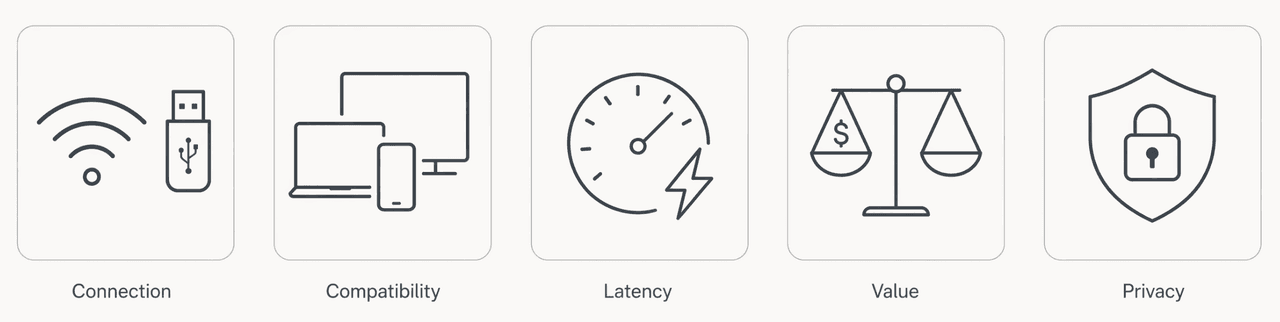
Connection method. This is the biggest factor in how your experience will feel. WiFi Direct gives you the lowest latency. Devices talk directly to each other. No router in between. Same-WiFi mirroring is easier to set up but the router adds delay. Remote mirroring over the internet lets you cast across cities. It also introduces the most lag and depends heavily on both connections. USB wired mode has almost zero latency. Best choice for gaming and live demos. Pick based on what you'll actually do, not the feature count.
Device compatibility. Cross-platform support is all over the place. Some apps are great on Android and useless on iOS (Google Home is the obvious example). Others cover everything but cost noticeably more for that reach. Before you commit, verify your exact sender-receiver combo. Not just "iOS to TV" but specifically "iPhone 16 to LG webOS TV" if that's your setup.
Latency needs. How much lag you can tolerate depends on what you're doing. Movies and photo sharing: 100 to 200ms is fine. Presentations: under 100ms keeps things flowing naturally. Gaming and live sports: under 50ms or the audio-visual mismatch gets distracting fast. If low latency matters to you, look for WiFi Direct or USB modes.
Free vs. paid. Free mirroring apps can genuinely work for casual needs. LetsView's free tier has unlimited time. Google Home costs nothing. But free tiers always have limits: resolution caps, time restrictions, ads, or no remote mirroring at all. The question isn't whether free is good enough in theory. It's whether your actual use case fits inside the free tier's boundaries. For remote work, professional presenting, or multi-device setups, paid plans earn their cost.
Not sure whether those upgrades are worth paying for? See our full free vs. paid screen mirroring apps comparison for a feature-by-feature breakdown of scrcpy, LetsView, AirDroid Cast, 1001TVs, and ApowerMirror.
Security and privacy. You're broadcasting your entire screen. Pay attention to where that data goes. 1001TVs: screen data stays local, no account required. AirDroid Cast: P2P direct for remote, relay fallback when blocked. ApowerMirror: claims E2E encryption for online sessions. LetsView: doesn't retain audio/visual data, but has tracking SDKs. Google Home: collects usage data by default as part of Google's data ecosystem. For sensitive content, 1001TVs is the most privacy-focused option; AirDroid Cast is the best pick for remote work with reasonable privacy.
If you want to choose yourself instead of just taking our word for it, here are the five things that actually matter.
Connection method. This is the biggest factor in how your experience will feel. WiFi Direct gives you the lowest latency. Devices talk directly to each other. No router in between. Same-WiFi mirroring is easier to set up but the router adds delay. Remote mirroring over the internet lets you cast across cities. It also introduces the most lag and depends heavily on both connections. USB wired mode has almost zero latency. Best choice for gaming and live demos. Pick based on what you'll actually do, not the feature count.
Device compatibility. Cross-platform support is all over the place. Some apps are great on Android and useless on iOS (Google Home is the obvious example). Others cover everything but cost noticeably more for that reach. Before you commit, verify your exact sender-receiver combo. Not just "iOS to TV" but specifically "iPhone 16 to LG webOS TV" if that's your setup.
Latency needs. How much lag you can tolerate depends on what you're doing. Movies and photo sharing: 100 to 200ms is fine. Presentations: under 100ms keeps things flowing naturally. Gaming and live sports: under 50ms or the audio-visual mismatch gets distracting fast. If low latency matters to you, look for WiFi Direct or USB modes.
Free vs. paid. Free mirroring apps can genuinely work for casual needs. LetsView's free tier has unlimited time. Google Home costs nothing. But free tiers always have limits: resolution caps, time restrictions, ads, or no remote mirroring at all. The question isn't whether free is good enough in theory. It's whether your actual use case fits inside the free tier's boundaries. For remote work, professional presenting, or multi-device setups, paid plans earn their cost.
Not sure whether those upgrades are worth paying for? See our full free vs. paid screen mirroring apps comparison for a feature-by-feature breakdown of scrcpy, LetsView, AirDroid Cast, 1001TVs, and ApowerMirror.
Security and privacy. You're broadcasting your entire screen. Pay attention to where that data goes. 1001TVs: screen data stays local, no account required. AirDroid Cast: P2P direct for remote, relay fallback when blocked. ApowerMirror: claims E2E encryption for online sessions. LetsView: doesn't retain audio/visual data, but has tracking SDKs. Google Home: collects usage data by default as part of Google's data ecosystem. For sensitive content, 1001TVs is the most privacy-focused option; AirDroid Cast is the best pick for remote work with reasonable privacy.
If you want to choose yourself instead of just taking our word for it, here are the five things that actually matter.
Connection method. This is the biggest factor in how your experience will feel. WiFi Direct gives you the lowest latency. Devices talk directly to each other. No router in between. Same-WiFi mirroring is easier to set up but the router adds delay. Remote mirroring over the internet lets you cast across cities. It also introduces the most lag and depends heavily on both connections. USB wired mode has almost zero latency. Best choice for gaming and live demos. Pick based on what you'll actually do, not the feature count.
Device compatibility. Cross-platform support is all over the place. Some apps are great on Android and useless on iOS (Google Home is the obvious example). Others cover everything but cost noticeably more for that reach. Before you commit, verify your exact sender-receiver combo. Not just "iOS to TV" but specifically "iPhone 16 to LG webOS TV" if that's your setup.
Latency needs. How much lag you can tolerate depends on what you're doing. Movies and photo sharing: 100 to 200ms is fine. Presentations: under 100ms keeps things flowing naturally. Gaming and live sports: under 50ms or the audio-visual mismatch gets distracting fast. If low latency matters to you, look for WiFi Direct or USB modes.
Free vs. paid. Free mirroring apps can genuinely work for casual needs. LetsView's free tier has unlimited time. Google Home costs nothing. But free tiers always have limits: resolution caps, time restrictions, ads, or no remote mirroring at all. The question isn't whether free is good enough in theory. It's whether your actual use case fits inside the free tier's boundaries. For remote work, professional presenting, or multi-device setups, paid plans earn their cost.
Not sure whether those upgrades are worth paying for? See our full free vs. paid screen mirroring apps comparison for a feature-by-feature breakdown of scrcpy, LetsView, AirDroid Cast, 1001TVs, and ApowerMirror.
Security and privacy. You're broadcasting your entire screen. Pay attention to where that data goes. 1001TVs: screen data stays local, no account required. AirDroid Cast: P2P direct for remote, relay fallback when blocked. ApowerMirror: claims E2E encryption for online sessions. LetsView: doesn't retain audio/visual data, but has tracking SDKs. Google Home: collects usage data by default as part of Google's data ecosystem. For sensitive content, 1001TVs is the most privacy-focused option; AirDroid Cast is the best pick for remote work with reasonable privacy.
The 5 Best Screen Mirroring Apps of 2026
The 5 Best Screen Mirroring Apps of 2026
The 5 Best Screen Mirroring Apps of 2026
AirDroid Cast -- Best Overall Screen Mirroring App
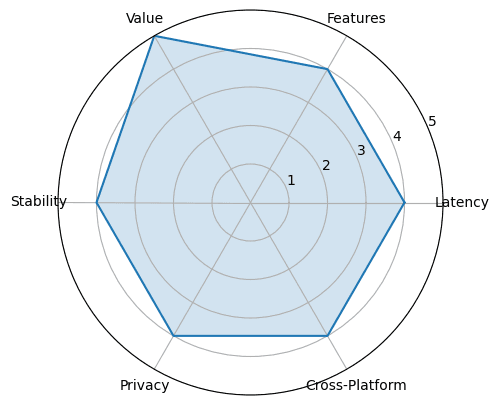
AirDroid Cast is our top overall pick for 2026. It does local WiFi casting, true remote mirroring over the internet, and USB wired mode all in one app. It supports two-way audio with full in-device sound delivery, remote control of Android and iOS from a computer, and up to 5 devices casting to one screen at once. On Android via USB, it can even cast while your phone screen is off — a rare feature that saves battery and keeps notifications private. Its browser-based receiver at webcast.airdroid.com means the other person doesn’t need to install anything. If you need one app that handles everything from living room casting to cross-country remote mirroring, this is it.
Platforms: iOS, Android, Windows, Mac, Android TV. Plus browser-based receiving on anything with a modern browser.
Key features:
Three connection modes. Same-WiFi wireless, remote internet, and USB wired — all included in one premium plan.
Remote mirroring across networks. Two devices on different networks can start a mirroring session. Uses P2P direct tech, falling back to relay servers only when the network blocks a direct link.
Two-way audio. Audio goes both directions for remote meetings, tech support, or interactive teaching.
Up to 5 devices at once. Cast multiple devices to one screen simultaneously. Note: stability may vary with hardware and network conditions at higher device counts.
Remote control. Control a connected Android or iOS device from a Windows or Mac computer using mouse and keyboard.
Browser-based receiver. The receiver opens a browser link — no app install needed on their end.
Screen Off casting (Android USB). Mirror while the phone screen is physically off. Saves battery and keeps notifications private. Unique to AirDroid Cast.
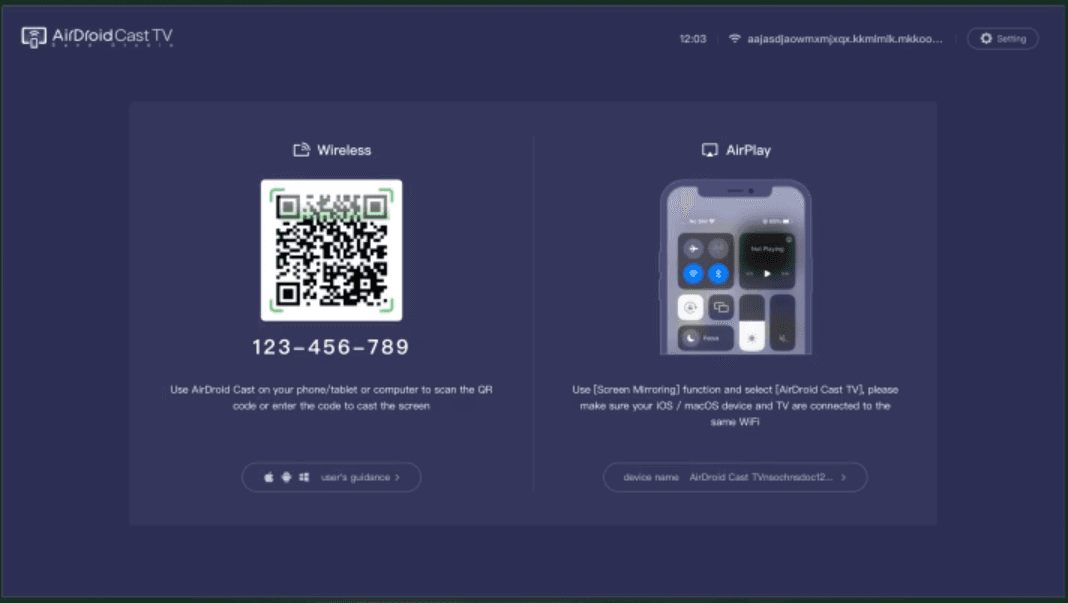
How it works: Install AirDroid Cast on the sending device. The receiver can install the app or just open a browser to the web receiver. Connect by scanning a QR code or typing a 9-digit cast code.
How it performs: Local WiFi mode has low enough latency for smooth video and responsive presenting. USB mode is near-zero latency, good for gaming. Remote mirroring depends on both connections, but P2P routing keeps it lower than relay-server apps.
What’s good:
Most versatile connection options of any app we tested — WiFi, remote, USB, AirPlay, all in one subscription
Remote mirroring bundled into the base price; no per-minute add-on fees
Browser receiver eliminates setup friction entirely — the other person needs nothing
Best price-to-feature ratio among paid options at ~$2.49/month
P2P direct connections for remote sessions: better privacy, lower latency
What’s not:
Premium subscription needed for remote mirroring, USB mode, and device control
iOS remote control is more limited than Android
Free tier is same-WiFi only, with time limits
Who it’s for: Remote workers presenting to distant teams. Tech support people guiding clients through setups. Families sharing phone content with relatives in other cities. Anyone who wants one app for both local casting and remote mirroring.
Who it’s not for: If you only ever mirror on the same WiFi and never need remote or two-way audio, a cheaper option will do. If you’re on a tight budget and can live with free-tier limits, look elsewhere.
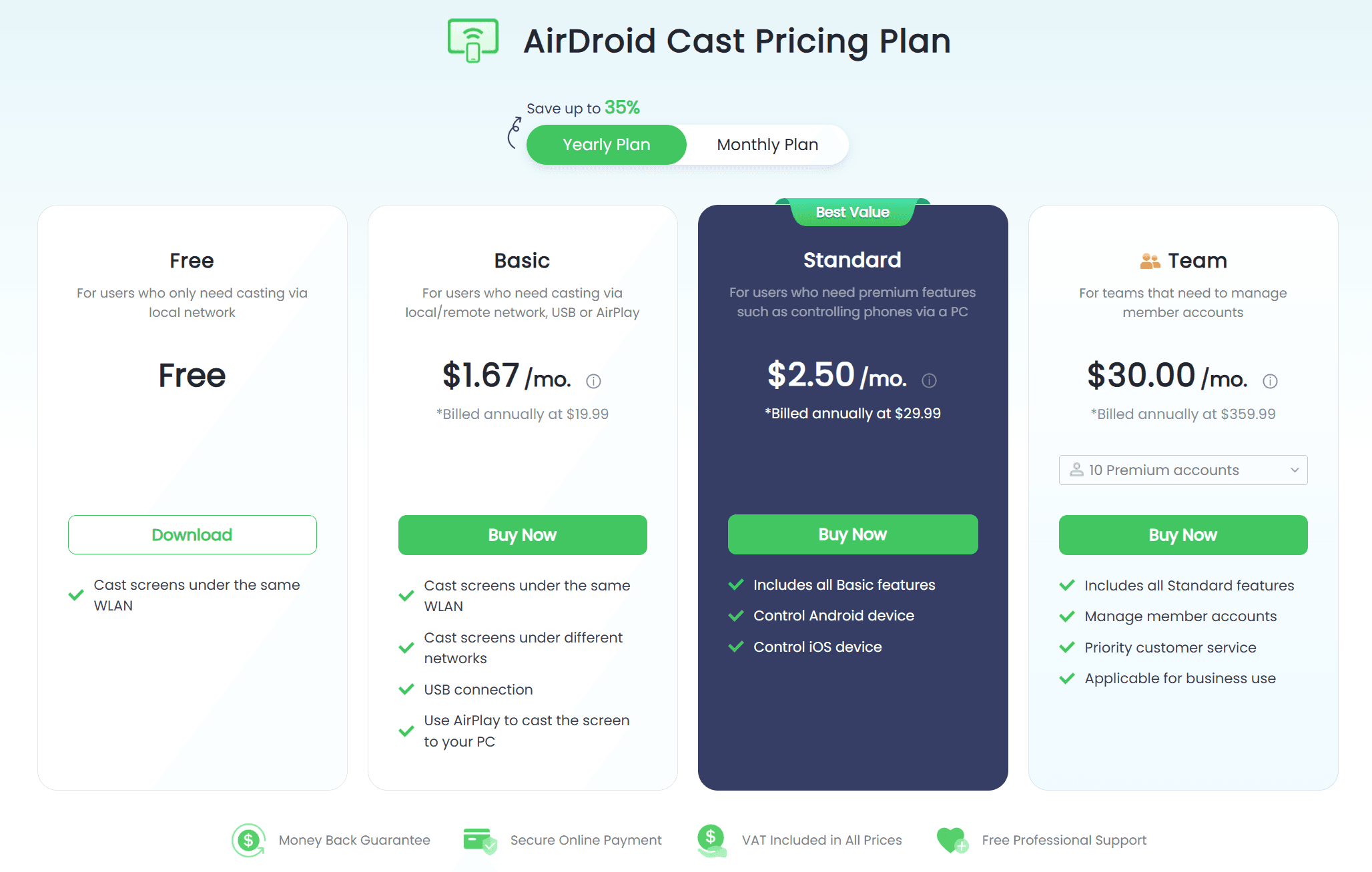
Pricing: Free for same-WiFi casting. Basic ($2.49/month, or $1.67/month billed yearly) adds remote, USB, and AirPlay. Standard ($3.49/month, or $2.50/month yearly) adds device control. Yearly saves up to 35%.
For a closer look at its connection modes, remote control, pricing, and real-world limitations, read our full AirDroid Cast review.
ApowerMirror -- Best for Multi-Device & Pro Features
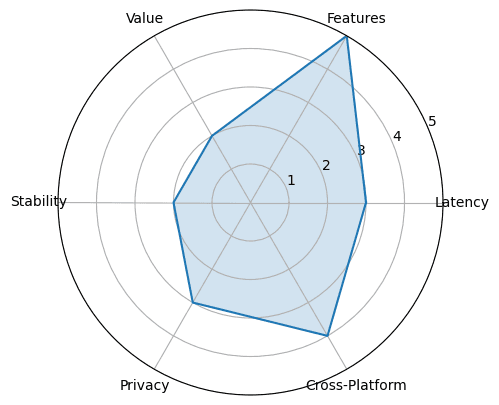
ApowerMirror has the deepest feature set of any mirroring app we tested. It mirrors up to 4 devices to one computer screen at once. It records your screen with annotation tools and can stream directly to OBS or Zoom. You can control Android devices from your PC with a keyboard and mouse — or control one Android phone from another. There’s a whiteboard, a game keypad overlay, and screenshot capture. You can even mirror your PC screen to your phone and control it with touch. It’s built for educators, content creators, and presenters who need more than just casting. Works on iOS, Android, Windows, Mac, and Android TV with both WiFi and USB.
Platforms: iOS, Android, Windows, Mac, Android TV, smart TV boxes.
Key features:
4 devices at once. Connect up to 4 phones or tablets to one PC or Mac screen simultaneously.
Screen recording with annotation. Record your mirroring session with audio, while drawing or adding text in real time. Stream the mirrored screen directly to OBS Studio or Zoom — no capture card needed.
Full keyboard and mouse control. Mirror an Android device to a PC or Mac, then control the phone from your computer.
Whiteboard. Built-in drawing and annotation overlay for presentations and brainstorming.
Game keypad. Customizable on-screen overlay that maps keyboard keys to touchscreen controls.
Phone-to-phone mirroring and control. Mirror one Android device to another and control it remotely. Not available on AirDroid Cast or 1001TVs.
PC-to-phone reverse mirroring. Mirror your PC or Mac screen to your phone and control the computer with touch.
File transfer. Move files between connected devices inside the app.
AirCast remote mirroring. Mirror across different networks — billed per minute as a separate add-on, not bundled into the standard plan.
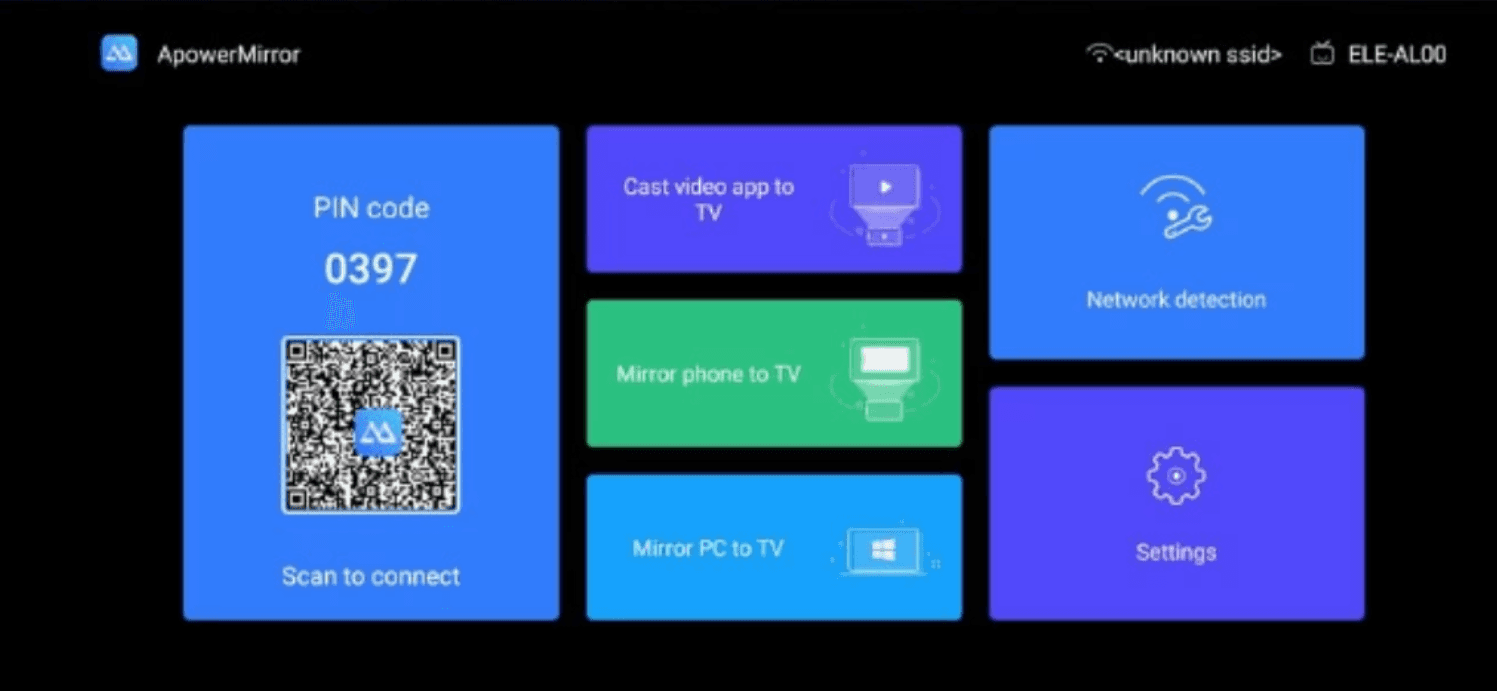
How it works: Install on both ends. Connect by auto-discovery on the same WiFi, QR code, PIN code, or USB cable. iOS uses AirPlay. Android uses WiFi Direct or USB.
How it performs: Video quality is good on capable hardware. On lower-spec computers, especially with 3 or 4 devices mirrored at once, you might see occasional frame drops. WiFi latency is moderate. Fine for presentations and video. Not ideal for twitch-sensitive gaming. USB mode is lower latency and more consistent.
What’s good:
Deepest feature set of any app in this roundup — no other app comes close in raw tool count
4-device simultaneous mirroring and direct OBS/Zoom streaming are unique among competitors
Phone-to-phone and PC-to-phone mirroring open use cases the other apps can’t address
Both WiFi and USB connection options, plus AirPlay
Well-established product with years of active development
What’s not:
Most expensive at $19.95/month for the standard monthly plan
Free version is a ~10-minute trial — often interrupts before you can properly test the app
Performance drops on lower-spec machines, especially with multiple devices
iOS control is more limited than Android (this is industry-wide, not just ApowerMirror)
Crash reports on some hardware configurations — particularly iPad-to-PC mirroring can cause full system crashes on Windows
Who it’s for: Content creators making tutorial videos or app demos. Teachers showing multiple device screens at once. Presenters who want recording and annotation during live demos. Mobile app developers and QA testers comparing across devices.
Who it’s not for: Casual users who just need basic mirroring. This is overkill and overpriced for that. Budget-conscious people who can do what they need with free or cheaper tools. Users with older or lower-spec computers who might hit performance issues with multi-device mirroring.
Pricing: $19.95/month, $39.95/year (buy one get one free), or $69.95 lifetime. All paid plans unlock full features. 30-day money-back guarantee.
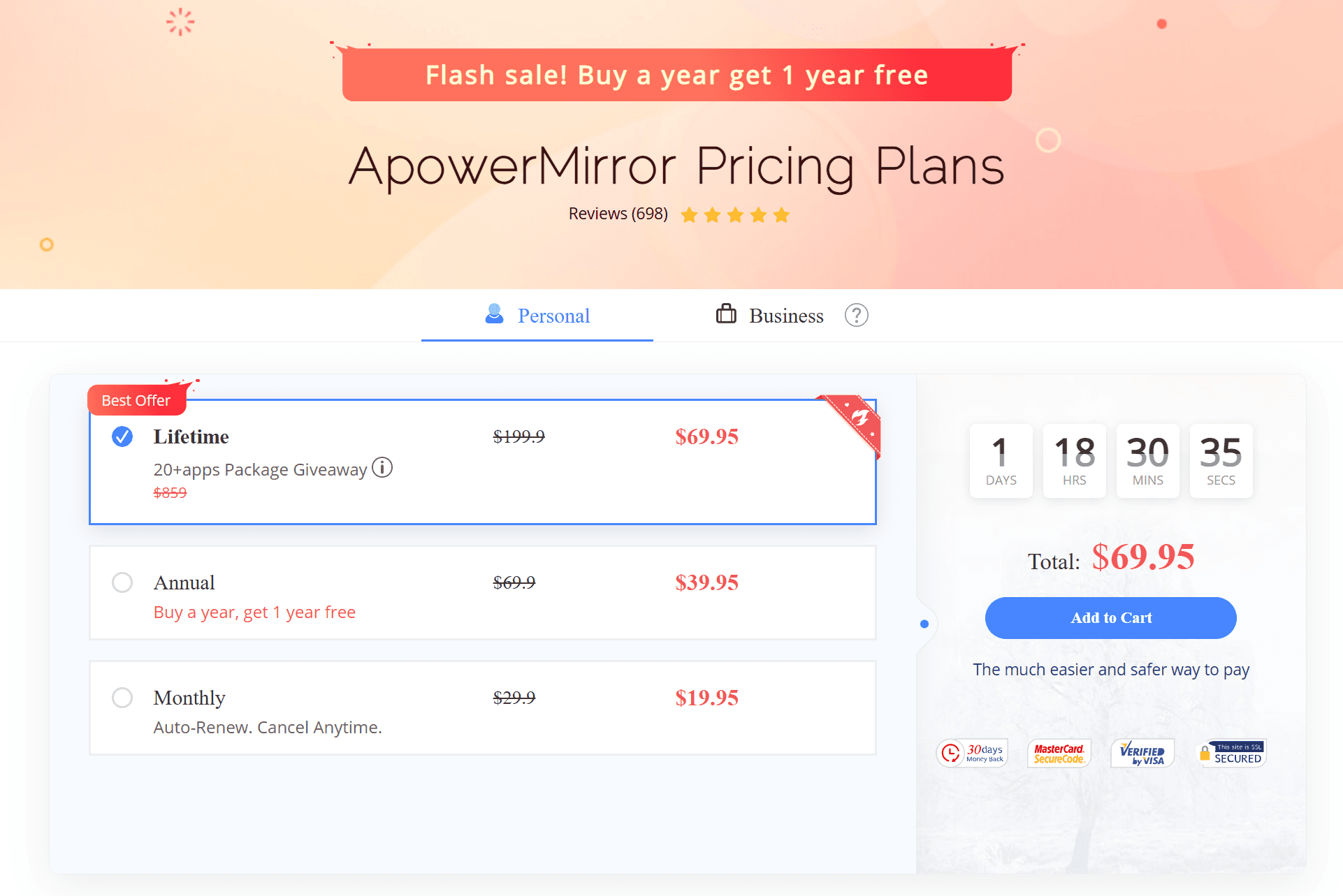
For a closer look at its LocalCast and AirCast limits, multi-device features, pricing, and our iPhone-to-Windows test, read our full ApowerMirror review.
1001TVs -- Best for Stable Local Mirroring
1001TVs is our pick when you want the most stable local mirroring experience with strong privacy for screen data. Unlike many apps that occasionally stutter or disconnect, 1001TVs users consistently praise its rock-solid connection: “Super stable,” “does what it says,” “works fine on my TV.” It keeps screen mirroring data on your local network by default. On top of mirroring, it packs in file transfer, USB mirroring, browser casting, and album/media sharing. It works across iOS, Android, Windows, Mac, and most smart TVs and projectors.
Platforms: iOS, Android, Windows, Mac, Android TV, most projectors.
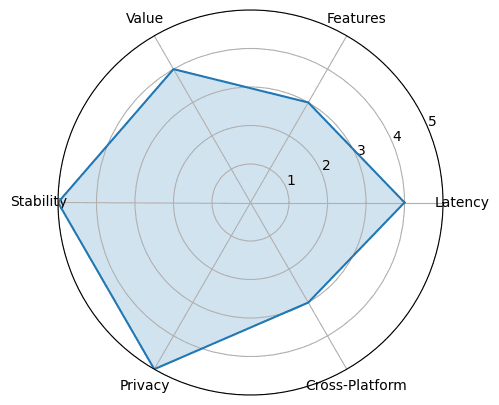
Key features:
Screen data stays local. Mirroring data moves directly between devices on your local network rather than through cloud relay servers. No account is required. Apple’s App Store privacy label states the developer collects no user data. Per its privacy policy, the app accesses local network device identifiers (MAC, IMEI) for device discovery — this is standard for finding receivers on your network and does not involve cloud upload of screen content. File transfers are explicitly “no cloud uploads” per official product pages.
Full toolbox. File transfer between devices, USB mirroring, browser casting, and album/media sharing — all built into one app.
Browser mirroring. Any device with a web browser can act as a receiver.
Multi-device flexibility. Mirror several devices to one PC or Mac at the same time, or mirror one PC or Mac to multiple receivers simultaneously.
Platform coverage. iOS, Android, Windows, macOS, smart TVs, and projectors.
How it works: Install on both devices. The app finds other devices on your local network automatically. Tap the one you want and start mirroring.
How it performs: WiFi Direct mode gives very low latency. Good enough for video, presentations, casual gaming. The adaptive quality feature auto-adjusts resolution when network conditions change. USB mode is stable when WiFi gets congested.
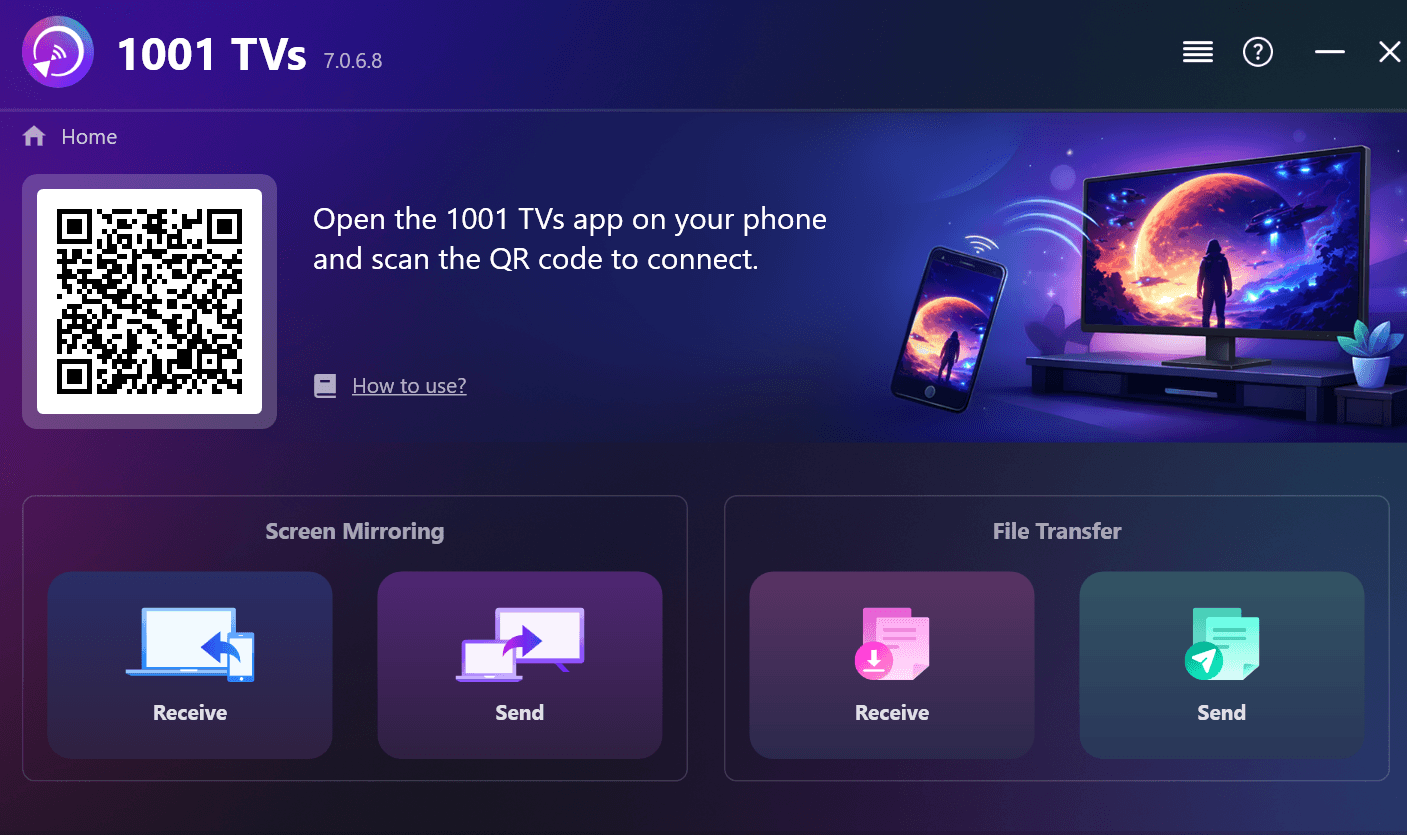
What’s good:
Most stable mirroring experience in this roundup — users consistently report rock-solid connections with minimal disconnections
No account required — start using immediately without sign-up
Broadest platform coverage, including projectors
Lowest annual price among paid options at $19.99/year
What’s not:
Time-limited trial, then you pay. No permanent free tier. No permanent free tier.
No 4K. Capped at 1080p for mirroring.
Remote internet mirroring isn’t the focus. Built for local network use.
No keyboard/mouse reverse control of mirrored devices.
Who it’s for: Privacy-focused people who want screen data to stay local. Teachers and presenters who need a reliable multi-feature toolbox. Homes with a mix of iOS, Android, Windows, and Mac. Sports bars or watch parties where low latency matters for live events.
Who it’s not for: If remote mirroring across networks is your main thing, look at AirDroid Cast. If you won’t pay after the trial, this isn’t for you. If you need 4K mirroring.
Pricing: Time-limited trial, then paid. Plans from $4.99/week to $69 lifetime; the yearly plan at $19.99 is the best value. Only the sender side needs a paid membership. Pricing varies by region — check in-app for local rates.
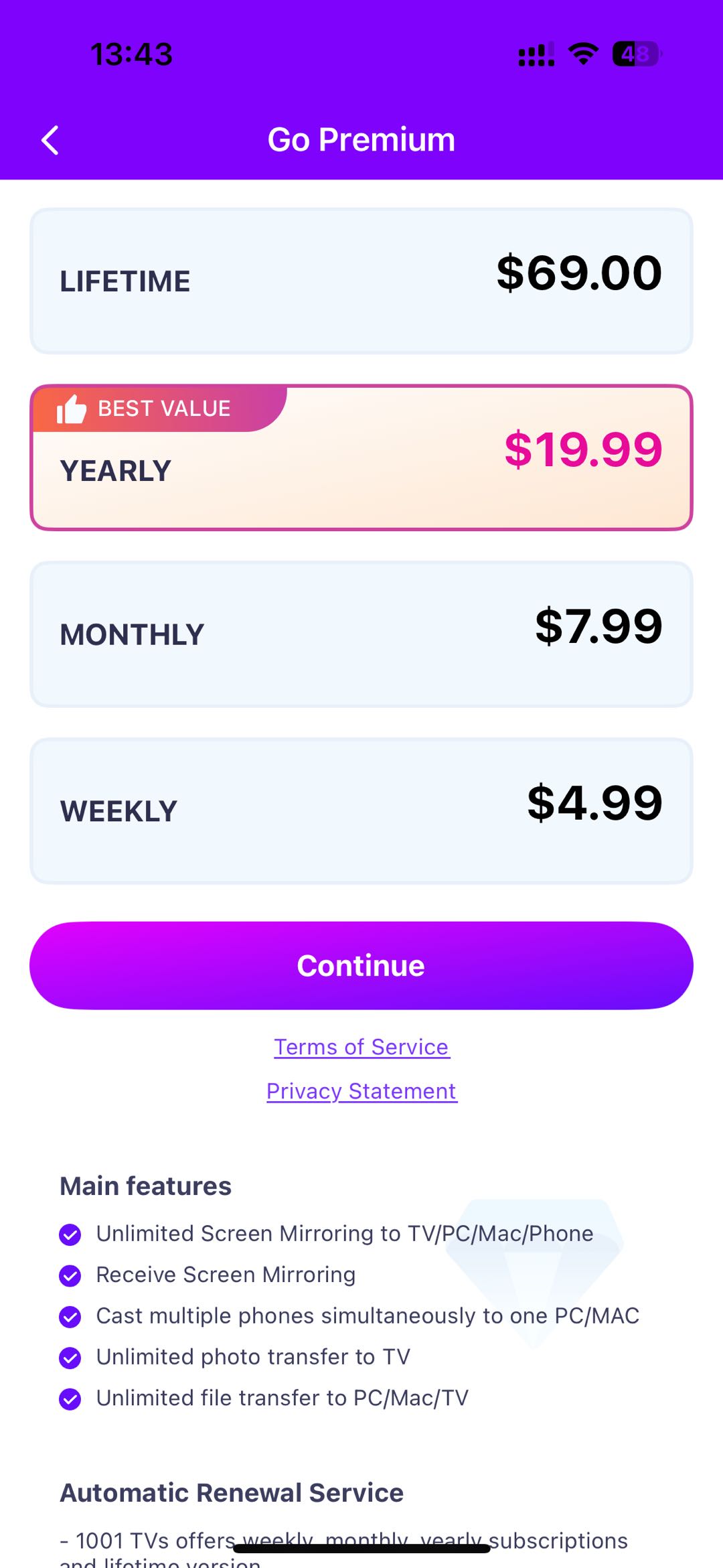
We tested 1001TVs in more depth, including its device compatibility, latency, image quality, pricing, and long-session stability. Read our full 1001 TVs review to see whether it fits your setup.
LetsView -- Best Free Screen Mirroring App
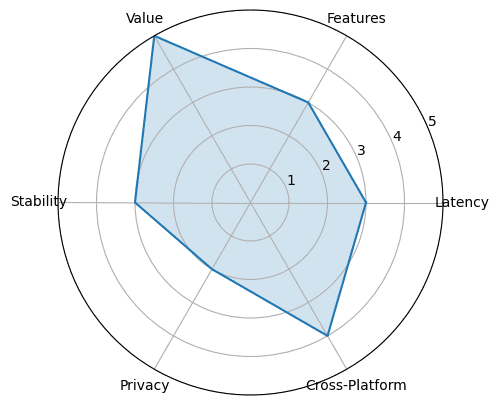
LetsView is the best free screen mirroring app. Over 10 million downloads. The free Basic tier gives you unlimited mirroring time across iOS, Android, Windows, Mac, and TV. No time limits. No interruptions. It includes screen recording, a whiteboard, document presentation mode, and screen capture. The free tier caps you at SD resolution, 30fps, and 4M bitrate. The Pro plan unlocks FHD, 60fps, 8M bitrate, watermark-free mirroring, and remote control. For everyday local casting, the free version honestly covers most people’s needs.
Platforms: Windows, Mac, iOS, Android, HarmonyOS, most smart TVs. Supports Miracast and AirPlay.
Key features:
Free Basic tier. Unlimited mirroring time across iOS, Android, Windows, Mac, and TV. Includes screen recording (HD), whiteboard, document presentation mode, and screen capture. Capped at SD resolution, 30fps, and 4M bitrate.
Pro tier. FHD resolution, 60fps, 8M bitrate, no watermark, up to 5 connections, FHD screen recording, control Android from PC, control PC from your phone.
Remote screen mirroring. Available as a separate paid add-on billed by usage. Lets you mirror across different networks.
Whiteboard and annotation. Draw on top of mirrored content in real time.
Screen Mirroring SDK. A dev kit for businesses to embed mirroring into their own apps, supporting multi-screen interaction, audio/video streaming, and remote control.
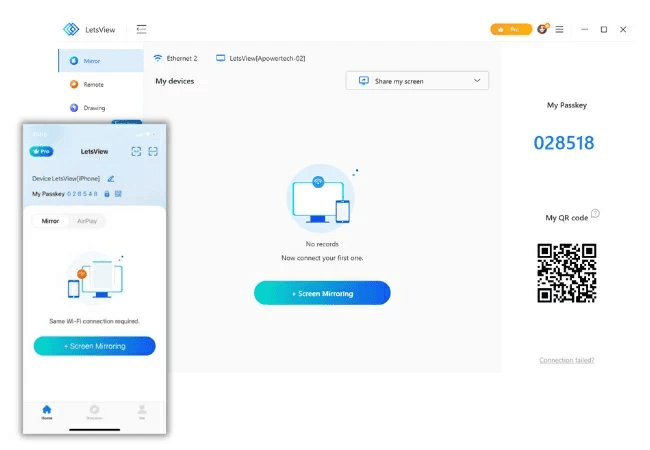
How it works: Install on both devices. They’ll find each other on the same WiFi automatically. Or scan a QR code or enter a passkey. The setup is one of the simplest we tested.
How it performs: Basic SD mode is stable with low-to-moderate latency. Fine for video, photo slideshows, presentations. Adaptive quality adjustment helps when WiFi gets spotty. Pro mode at FHD/60fps is noticeably sharper and smoother, especially for fast content like sports or gaming.
What’s good:
Only app in this roundup with a genuinely usable free tier — unlimited time, no forced ads
Miracast and AirPlay support gives it the widest built-in protocol compatibility
Clean interface with the simplest setup we tested — scan a QR code and go
Screen Mirroring SDK available for businesses that need embedded mirroring
What’s not:
Free tier is SD and 30fps
Remote mirroring is a separate paid add-on, not bundled in Pro
No 4K at any tier
No keyboard/mouse control of mirrored devices in the free tier
Pro plan requires annual subscription
Who it’s for: Casual users who want free, reliable mirroring for videos, photos, or basic presentations. Students and teachers on a budget. Anyone who wants quick, no-commitment occasional casting.
Who it’s not for: If remote mirroring is your main use case, the separate usage-based pricing adds up. If you need 4K or sub-50ms latency. Pro streamers and content creators who need FHD/60fps as baseline should just go Pro or look at ApowerMirror.
Pricing: Basic is completely free, unlimited, no login needed. Pro ($5.99/month or $29.99/year, 50% off) unlocks FHD, 60fps, and no watermark. Business and multi-year plans available. Remote mirroring is a separate add-on.

Before choosing the free tier, read our full LetsView review for its resolution limits, watermark, paid features, remote fees, and stability.
Google Home -- Best Built-In Solution for Android Users
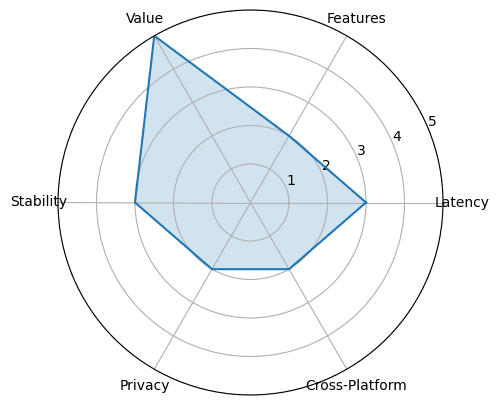
Google Home (Chromecast built-in) is the simplest screen mirroring out there, but only for Android users. It’s baked into Android itself. Works with over 100 million Chromecast-compatible devices worldwide. If you have an Android phone and a Chromecast-enabled TV, or a Chromecast dongle, or a Google TV Streamer, you’re already set. For iPhone users, mirroring is a lot more limited. This is very much a platform-dependent pick.
Platforms: Android (full support), Chrome browser on Windows/Mac/Linux (tab and desktop mirroring), iOS (limited to Cast-enabled apps, not full screen), Chromecast TVs and streamers.
Key features:
Native Android mirroring. Screen mirroring is built into the OS — no extra app, no extra account beyond your Google account. Google maintains and updates it as part of Android and Chrome.
Huge device ecosystem. Chromecast built-in is on TVs from Sony, TCL, Hisense, Philips, Sharp, and others. Plus Chromecast dongles and Google TV Streamer. In 2026, Google Cast started rolling out to Samsung TVs.
Google ecosystem fit. Voice control with Google Assistant. Works with Google Home routines and smart home devices.
Chrome browser casting. From any desktop Chrome, cast a specific tab or your whole screen. Tab casting sends the video stream directly instead of re-encoding.
Completely free. No subscription, no purchase, no tiered unlocks.
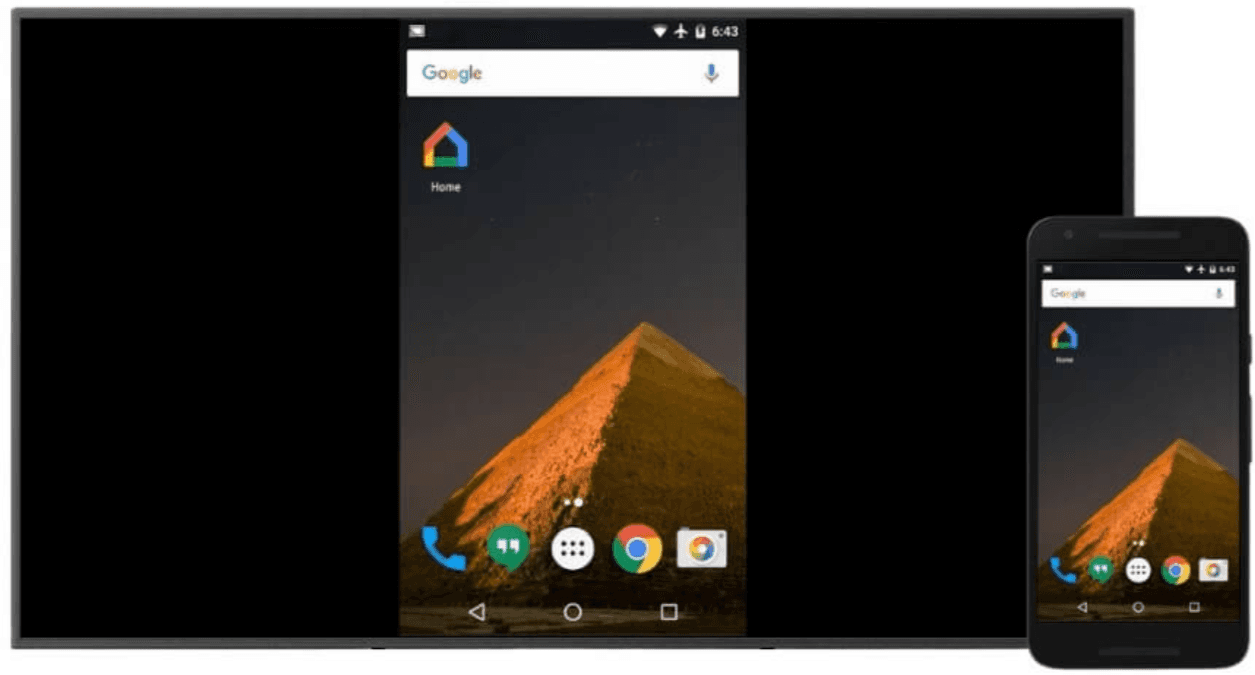
How it works: On Android, open the Google Home app or the Quick Settings tile. Tap “Cast screen,” pick your display. That’s it. From a computer, open Chrome, click the three-dot menu, pick “Cast,” choose tab or whole desktop. Nothing to install on either end.
How it performs: Depends on your WiFi and Chromecast device. In typical conditions, stable and responsive. 4K on compatible hardware (Chromecast with Google TV 4K, Google TV Streamer). Low enough latency for video and presentations. Not suitable for real-time gaming.
What’s good:
True zero-cost, zero-install solution — nothing to download, nothing to pay, nothing to configure
100M+ compatible devices — the largest ecosystem by far
Deep Android and Google ecosystem integration — voice control, routines, device handoff
Tab casting from Chrome covers Windows, Mac, and Linux users with no additional setup
Maintained and updated by Google as part of the core platform, not a third-party add-on
What’s not:
Full screen mirroring is Android-only. iPhone users get Cast-enabled app content only.
No remote internet mirroring. Both devices on same WiFi.
Feature set is basic. No annotation. No recording. No multi-device.
Needs Chromecast-compatible hardware on the receiving end.
Older Chromecast devices (1st and 2nd gen) are hitting end-of-support.
Who it’s for: Android users who want zero setup and zero cost. Homes that already have Chromecast-enabled TVs or streamers. Anyone whose mirroring needs are casual: videos, photos, web browsing on the same WiFi.
Who it’s not for: iPhone users who want full screen mirroring, not just app casting. Anyone who needs remote internet mirroring. Anyone who needs annotation, recording, or multi-device casting. People without Chromecast-compatible hardware.
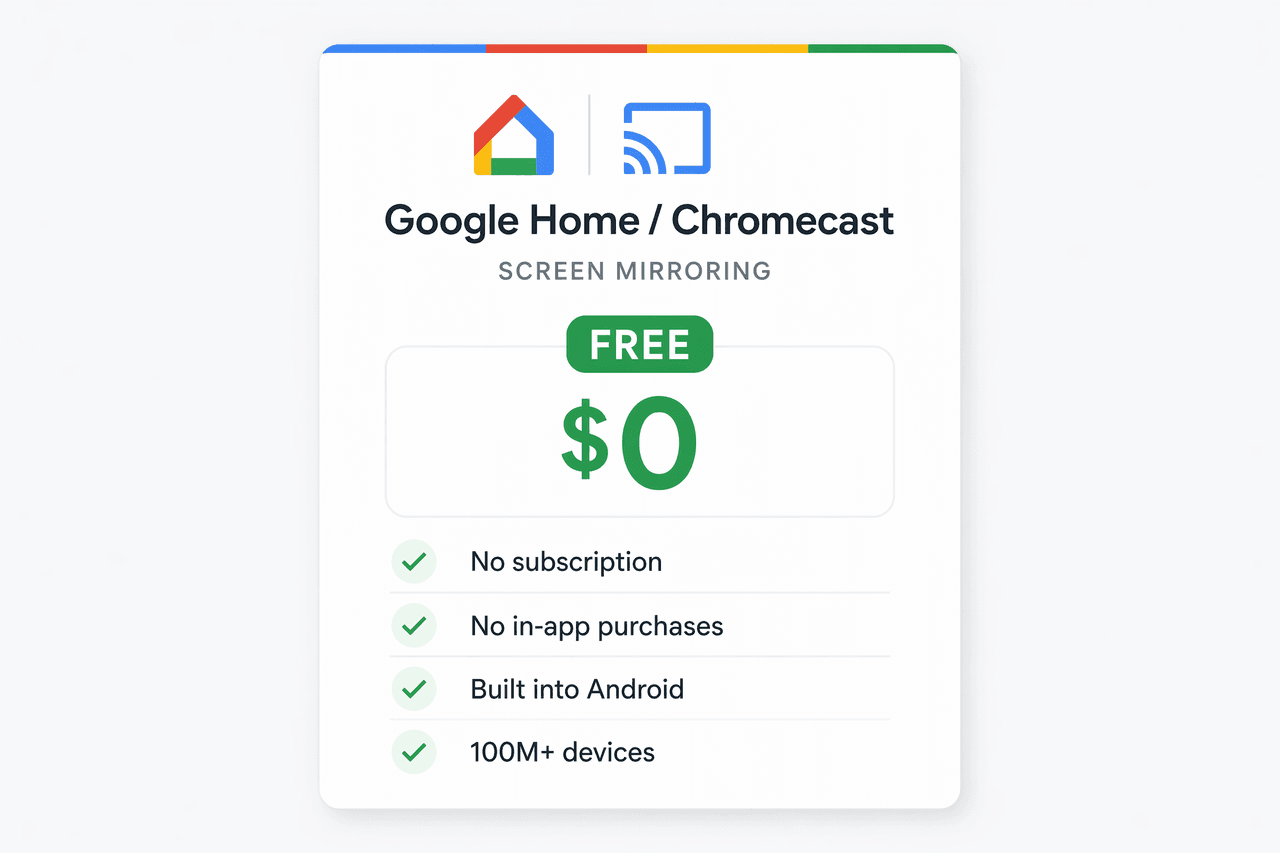
Pricing: Free. No subscription, no in-app purchases, no premium tiers. Screen mirroring through Google Home and Chromecast is included with your Android device and Google account.
AirDroid Cast -- Best Overall Screen Mirroring App
AirDroid Cast is our top overall pick for 2026. It does local WiFi casting, true remote mirroring over the internet, and USB wired mode all in one app. It supports two-way audio with full in-device sound delivery, remote control of Android and iOS from a computer, and up to 5 devices casting to one screen at once. On Android via USB, it can even cast while your phone screen is off — a rare feature that saves battery and keeps notifications private. Its browser-based receiver at webcast.airdroid.com means the other person doesn’t need to install anything. If you need one app that handles everything from living room casting to cross-country remote mirroring, this is it.
Platforms: iOS, Android, Windows, Mac, Android TV. Plus browser-based receiving on anything with a modern browser.
Key features:
Three connection modes. Same-WiFi wireless, remote internet, and USB wired — all included in one premium plan.
Remote mirroring across networks. Two devices on different networks can start a mirroring session. Uses P2P direct tech, falling back to relay servers only when the network blocks a direct link.
Two-way audio. Audio goes both directions for remote meetings, tech support, or interactive teaching.
Up to 5 devices at once. Cast multiple devices to one screen simultaneously. Note: stability may vary with hardware and network conditions at higher device counts.
Remote control. Control a connected Android or iOS device from a Windows or Mac computer using mouse and keyboard.
Browser-based receiver. The receiver opens a browser link — no app install needed on their end.
Screen Off casting (Android USB). Mirror while the phone screen is physically off. Saves battery and keeps notifications private. Unique to AirDroid Cast.
How it works: Install AirDroid Cast on the sending device. The receiver can install the app or just open a browser to the web receiver. Connect by scanning a QR code or typing a 9-digit cast code.
How it performs: Local WiFi mode has low enough latency for smooth video and responsive presenting. USB mode is near-zero latency, good for gaming. Remote mirroring depends on both connections, but P2P routing keeps it lower than relay-server apps.
What’s good:
Most versatile connection options of any app we tested — WiFi, remote, USB, AirPlay, all in one subscription
Remote mirroring bundled into the base price; no per-minute add-on fees
Browser receiver eliminates setup friction entirely — the other person needs nothing
Best price-to-feature ratio among paid options at ~$2.49/month
P2P direct connections for remote sessions: better privacy, lower latency
What’s not:
Premium subscription needed for remote mirroring, USB mode, and device control
iOS remote control is more limited than Android
Free tier is same-WiFi only, with time limits
Who it’s for: Remote workers presenting to distant teams. Tech support people guiding clients through setups. Families sharing phone content with relatives in other cities. Anyone who wants one app for both local casting and remote mirroring.
Who it’s not for: If you only ever mirror on the same WiFi and never need remote or two-way audio, a cheaper option will do. If you’re on a tight budget and can live with free-tier limits, look elsewhere.
Pricing: Free for same-WiFi casting. Basic ($2.49/month, or $1.67/month billed yearly) adds remote, USB, and AirPlay. Standard ($3.49/month, or $2.50/month yearly) adds device control. Yearly saves up to 35%.
For a closer look at its connection modes, remote control, pricing, and real-world limitations, read our full AirDroid Cast review.
ApowerMirror -- Best for Multi-Device & Pro Features
ApowerMirror has the deepest feature set of any mirroring app we tested. It mirrors up to 4 devices to one computer screen at once. It records your screen with annotation tools and can stream directly to OBS or Zoom. You can control Android devices from your PC with a keyboard and mouse — or control one Android phone from another. There’s a whiteboard, a game keypad overlay, and screenshot capture. You can even mirror your PC screen to your phone and control it with touch. It’s built for educators, content creators, and presenters who need more than just casting. Works on iOS, Android, Windows, Mac, and Android TV with both WiFi and USB.
Platforms: iOS, Android, Windows, Mac, Android TV, smart TV boxes.
Key features:
4 devices at once. Connect up to 4 phones or tablets to one PC or Mac screen simultaneously.
Screen recording with annotation. Record your mirroring session with audio, while drawing or adding text in real time. Stream the mirrored screen directly to OBS Studio or Zoom — no capture card needed.
Full keyboard and mouse control. Mirror an Android device to a PC or Mac, then control the phone from your computer.
Whiteboard. Built-in drawing and annotation overlay for presentations and brainstorming.
Game keypad. Customizable on-screen overlay that maps keyboard keys to touchscreen controls.
Phone-to-phone mirroring and control. Mirror one Android device to another and control it remotely. Not available on AirDroid Cast or 1001TVs.
PC-to-phone reverse mirroring. Mirror your PC or Mac screen to your phone and control the computer with touch.
File transfer. Move files between connected devices inside the app.
AirCast remote mirroring. Mirror across different networks — billed per minute as a separate add-on, not bundled into the standard plan.
How it works: Install on both ends. Connect by auto-discovery on the same WiFi, QR code, PIN code, or USB cable. iOS uses AirPlay. Android uses WiFi Direct or USB.
How it performs: Video quality is good on capable hardware. On lower-spec computers, especially with 3 or 4 devices mirrored at once, you might see occasional frame drops. WiFi latency is moderate. Fine for presentations and video. Not ideal for twitch-sensitive gaming. USB mode is lower latency and more consistent.
What’s good:
Deepest feature set of any app in this roundup — no other app comes close in raw tool count
4-device simultaneous mirroring and direct OBS/Zoom streaming are unique among competitors
Phone-to-phone and PC-to-phone mirroring open use cases the other apps can’t address
Both WiFi and USB connection options, plus AirPlay
Well-established product with years of active development
What’s not:
Most expensive at $19.95/month for the standard monthly plan
Free version is a ~10-minute trial — often interrupts before you can properly test the app
Performance drops on lower-spec machines, especially with multiple devices
iOS control is more limited than Android (this is industry-wide, not just ApowerMirror)
Crash reports on some hardware configurations — particularly iPad-to-PC mirroring can cause full system crashes on Windows
Who it’s for: Content creators making tutorial videos or app demos. Teachers showing multiple device screens at once. Presenters who want recording and annotation during live demos. Mobile app developers and QA testers comparing across devices.
Who it’s not for: Casual users who just need basic mirroring. This is overkill and overpriced for that. Budget-conscious people who can do what they need with free or cheaper tools. Users with older or lower-spec computers who might hit performance issues with multi-device mirroring.
Pricing: $19.95/month, $39.95/year (buy one get one free), or $69.95 lifetime. All paid plans unlock full features. 30-day money-back guarantee.
For a closer look at its LocalCast and AirCast limits, multi-device features, pricing, and our iPhone-to-Windows test, read our full ApowerMirror review.
1001TVs -- Best for Stable Local Mirroring
1001TVs is our pick when you want the most stable local mirroring experience with strong privacy for screen data. Unlike many apps that occasionally stutter or disconnect, 1001TVs users consistently praise its rock-solid connection: “Super stable,” “does what it says,” “works fine on my TV.” It keeps screen mirroring data on your local network by default. On top of mirroring, it packs in file transfer, USB mirroring, browser casting, and album/media sharing. It works across iOS, Android, Windows, Mac, and most smart TVs and projectors.
Platforms: iOS, Android, Windows, Mac, Android TV, most projectors.
Key features:
Screen data stays local. Mirroring data moves directly between devices on your local network rather than through cloud relay servers. No account is required. Apple’s App Store privacy label states the developer collects no user data. Per its privacy policy, the app accesses local network device identifiers (MAC, IMEI) for device discovery — this is standard for finding receivers on your network and does not involve cloud upload of screen content. File transfers are explicitly “no cloud uploads” per official product pages.
Full toolbox. File transfer between devices, USB mirroring, browser casting, and album/media sharing — all built into one app.
Browser mirroring. Any device with a web browser can act as a receiver.
Multi-device flexibility. Mirror several devices to one PC or Mac at the same time, or mirror one PC or Mac to multiple receivers simultaneously.
Platform coverage. iOS, Android, Windows, macOS, smart TVs, and projectors.
How it works: Install on both devices. The app finds other devices on your local network automatically. Tap the one you want and start mirroring.
How it performs: WiFi Direct mode gives very low latency. Good enough for video, presentations, casual gaming. The adaptive quality feature auto-adjusts resolution when network conditions change. USB mode is stable when WiFi gets congested.
What’s good:
Most stable mirroring experience in this roundup — users consistently report rock-solid connections with minimal disconnections
No account required — start using immediately without sign-up
Broadest platform coverage, including projectors
Lowest annual price among paid options at $19.99/year
What’s not:
Time-limited trial, then you pay. No permanent free tier. No permanent free tier.
No 4K. Capped at 1080p for mirroring.
Remote internet mirroring isn’t the focus. Built for local network use.
No keyboard/mouse reverse control of mirrored devices.
Who it’s for: Privacy-focused people who want screen data to stay local. Teachers and presenters who need a reliable multi-feature toolbox. Homes with a mix of iOS, Android, Windows, and Mac. Sports bars or watch parties where low latency matters for live events.
Who it’s not for: If remote mirroring across networks is your main thing, look at AirDroid Cast. If you won’t pay after the trial, this isn’t for you. If you need 4K mirroring.
Pricing: Time-limited trial, then paid. Plans from $4.99/week to $69 lifetime; the yearly plan at $19.99 is the best value. Only the sender side needs a paid membership. Pricing varies by region — check in-app for local rates.
We tested 1001TVs in more depth, including its device compatibility, latency, image quality, pricing, and long-session stability. Read our full 1001 TVs review to see whether it fits your setup.
LetsView -- Best Free Screen Mirroring App
LetsView is the best free screen mirroring app. Over 10 million downloads. The free Basic tier gives you unlimited mirroring time across iOS, Android, Windows, Mac, and TV. No time limits. No interruptions. It includes screen recording, a whiteboard, document presentation mode, and screen capture. The free tier caps you at SD resolution, 30fps, and 4M bitrate. The Pro plan unlocks FHD, 60fps, 8M bitrate, watermark-free mirroring, and remote control. For everyday local casting, the free version honestly covers most people’s needs.
Platforms: Windows, Mac, iOS, Android, HarmonyOS, most smart TVs. Supports Miracast and AirPlay.
Key features:
Free Basic tier. Unlimited mirroring time across iOS, Android, Windows, Mac, and TV. Includes screen recording (HD), whiteboard, document presentation mode, and screen capture. Capped at SD resolution, 30fps, and 4M bitrate.
Pro tier. FHD resolution, 60fps, 8M bitrate, no watermark, up to 5 connections, FHD screen recording, control Android from PC, control PC from your phone.
Remote screen mirroring. Available as a separate paid add-on billed by usage. Lets you mirror across different networks.
Whiteboard and annotation. Draw on top of mirrored content in real time.
Screen Mirroring SDK. A dev kit for businesses to embed mirroring into their own apps, supporting multi-screen interaction, audio/video streaming, and remote control.
How it works: Install on both devices. They’ll find each other on the same WiFi automatically. Or scan a QR code or enter a passkey. The setup is one of the simplest we tested.
How it performs: Basic SD mode is stable with low-to-moderate latency. Fine for video, photo slideshows, presentations. Adaptive quality adjustment helps when WiFi gets spotty. Pro mode at FHD/60fps is noticeably sharper and smoother, especially for fast content like sports or gaming.
What’s good:
Only app in this roundup with a genuinely usable free tier — unlimited time, no forced ads
Miracast and AirPlay support gives it the widest built-in protocol compatibility
Clean interface with the simplest setup we tested — scan a QR code and go
Screen Mirroring SDK available for businesses that need embedded mirroring
What’s not:
Free tier is SD and 30fps
Remote mirroring is a separate paid add-on, not bundled in Pro
No 4K at any tier
No keyboard/mouse control of mirrored devices in the free tier
Pro plan requires annual subscription
Who it’s for: Casual users who want free, reliable mirroring for videos, photos, or basic presentations. Students and teachers on a budget. Anyone who wants quick, no-commitment occasional casting.
Who it’s not for: If remote mirroring is your main use case, the separate usage-based pricing adds up. If you need 4K or sub-50ms latency. Pro streamers and content creators who need FHD/60fps as baseline should just go Pro or look at ApowerMirror.
Pricing: Basic is completely free, unlimited, no login needed. Pro ($5.99/month or $29.99/year, 50% off) unlocks FHD, 60fps, and no watermark. Business and multi-year plans available. Remote mirroring is a separate add-on.
Before choosing the free tier, read our full LetsView review for its resolution limits, watermark, paid features, remote fees, and stability.
Google Home -- Best Built-In Solution for Android Users
Google Home (Chromecast built-in) is the simplest screen mirroring out there, but only for Android users. It’s baked into Android itself. Works with over 100 million Chromecast-compatible devices worldwide. If you have an Android phone and a Chromecast-enabled TV, or a Chromecast dongle, or a Google TV Streamer, you’re already set. For iPhone users, mirroring is a lot more limited. This is very much a platform-dependent pick.
Platforms: Android (full support), Chrome browser on Windows/Mac/Linux (tab and desktop mirroring), iOS (limited to Cast-enabled apps, not full screen), Chromecast TVs and streamers.
Key features:
Native Android mirroring. Screen mirroring is built into the OS — no extra app, no extra account beyond your Google account. Google maintains and updates it as part of Android and Chrome.
Huge device ecosystem. Chromecast built-in is on TVs from Sony, TCL, Hisense, Philips, Sharp, and others. Plus Chromecast dongles and Google TV Streamer. In 2026, Google Cast started rolling out to Samsung TVs.
Google ecosystem fit. Voice control with Google Assistant. Works with Google Home routines and smart home devices.
Chrome browser casting. From any desktop Chrome, cast a specific tab or your whole screen. Tab casting sends the video stream directly instead of re-encoding.
Completely free. No subscription, no purchase, no tiered unlocks.
How it works: On Android, open the Google Home app or the Quick Settings tile. Tap “Cast screen,” pick your display. That’s it. From a computer, open Chrome, click the three-dot menu, pick “Cast,” choose tab or whole desktop. Nothing to install on either end.
How it performs: Depends on your WiFi and Chromecast device. In typical conditions, stable and responsive. 4K on compatible hardware (Chromecast with Google TV 4K, Google TV Streamer). Low enough latency for video and presentations. Not suitable for real-time gaming.
What’s good:
True zero-cost, zero-install solution — nothing to download, nothing to pay, nothing to configure
100M+ compatible devices — the largest ecosystem by far
Deep Android and Google ecosystem integration — voice control, routines, device handoff
Tab casting from Chrome covers Windows, Mac, and Linux users with no additional setup
Maintained and updated by Google as part of the core platform, not a third-party add-on
What’s not:
Full screen mirroring is Android-only. iPhone users get Cast-enabled app content only.
No remote internet mirroring. Both devices on same WiFi.
Feature set is basic. No annotation. No recording. No multi-device.
Needs Chromecast-compatible hardware on the receiving end.
Older Chromecast devices (1st and 2nd gen) are hitting end-of-support.
Who it’s for: Android users who want zero setup and zero cost. Homes that already have Chromecast-enabled TVs or streamers. Anyone whose mirroring needs are casual: videos, photos, web browsing on the same WiFi.
Who it’s not for: iPhone users who want full screen mirroring, not just app casting. Anyone who needs remote internet mirroring. Anyone who needs annotation, recording, or multi-device casting. People without Chromecast-compatible hardware.
Pricing: Free. No subscription, no in-app purchases, no premium tiers. Screen mirroring through Google Home and Chromecast is included with your Android device and Google account.
AirDroid Cast -- Best Overall Screen Mirroring App
AirDroid Cast is our top overall pick for 2026. It does local WiFi casting, true remote mirroring over the internet, and USB wired mode all in one app. It supports two-way audio with full in-device sound delivery, remote control of Android and iOS from a computer, and up to 5 devices casting to one screen at once. On Android via USB, it can even cast while your phone screen is off — a rare feature that saves battery and keeps notifications private. Its browser-based receiver at webcast.airdroid.com means the other person doesn’t need to install anything. If you need one app that handles everything from living room casting to cross-country remote mirroring, this is it.
Platforms: iOS, Android, Windows, Mac, Android TV. Plus browser-based receiving on anything with a modern browser.
Key features:
Three connection modes. Same-WiFi wireless, remote internet, and USB wired — all included in one premium plan.
Remote mirroring across networks. Two devices on different networks can start a mirroring session. Uses P2P direct tech, falling back to relay servers only when the network blocks a direct link.
Two-way audio. Audio goes both directions for remote meetings, tech support, or interactive teaching.
Up to 5 devices at once. Cast multiple devices to one screen simultaneously. Note: stability may vary with hardware and network conditions at higher device counts.
Remote control. Control a connected Android or iOS device from a Windows or Mac computer using mouse and keyboard.
Browser-based receiver. The receiver opens a browser link — no app install needed on their end.
Screen Off casting (Android USB). Mirror while the phone screen is physically off. Saves battery and keeps notifications private. Unique to AirDroid Cast.
How it works: Install AirDroid Cast on the sending device. The receiver can install the app or just open a browser to the web receiver. Connect by scanning a QR code or typing a 9-digit cast code.
How it performs: Local WiFi mode has low enough latency for smooth video and responsive presenting. USB mode is near-zero latency, good for gaming. Remote mirroring depends on both connections, but P2P routing keeps it lower than relay-server apps.
What’s good:
Most versatile connection options of any app we tested — WiFi, remote, USB, AirPlay, all in one subscription
Remote mirroring bundled into the base price; no per-minute add-on fees
Browser receiver eliminates setup friction entirely — the other person needs nothing
Best price-to-feature ratio among paid options at ~$2.49/month
P2P direct connections for remote sessions: better privacy, lower latency
What’s not:
Premium subscription needed for remote mirroring, USB mode, and device control
iOS remote control is more limited than Android
Free tier is same-WiFi only, with time limits
Who it’s for: Remote workers presenting to distant teams. Tech support people guiding clients through setups. Families sharing phone content with relatives in other cities. Anyone who wants one app for both local casting and remote mirroring.
Who it’s not for: If you only ever mirror on the same WiFi and never need remote or two-way audio, a cheaper option will do. If you’re on a tight budget and can live with free-tier limits, look elsewhere.
Pricing: Free for same-WiFi casting. Basic ($2.49/month, or $1.67/month billed yearly) adds remote, USB, and AirPlay. Standard ($3.49/month, or $2.50/month yearly) adds device control. Yearly saves up to 35%.
For a closer look at its connection modes, remote control, pricing, and real-world limitations, read our full AirDroid Cast review.
ApowerMirror -- Best for Multi-Device & Pro Features
ApowerMirror has the deepest feature set of any mirroring app we tested. It mirrors up to 4 devices to one computer screen at once. It records your screen with annotation tools and can stream directly to OBS or Zoom. You can control Android devices from your PC with a keyboard and mouse — or control one Android phone from another. There’s a whiteboard, a game keypad overlay, and screenshot capture. You can even mirror your PC screen to your phone and control it with touch. It’s built for educators, content creators, and presenters who need more than just casting. Works on iOS, Android, Windows, Mac, and Android TV with both WiFi and USB.
Platforms: iOS, Android, Windows, Mac, Android TV, smart TV boxes.
Key features:
4 devices at once. Connect up to 4 phones or tablets to one PC or Mac screen simultaneously.
Screen recording with annotation. Record your mirroring session with audio, while drawing or adding text in real time. Stream the mirrored screen directly to OBS Studio or Zoom — no capture card needed.
Full keyboard and mouse control. Mirror an Android device to a PC or Mac, then control the phone from your computer.
Whiteboard. Built-in drawing and annotation overlay for presentations and brainstorming.
Game keypad. Customizable on-screen overlay that maps keyboard keys to touchscreen controls.
Phone-to-phone mirroring and control. Mirror one Android device to another and control it remotely. Not available on AirDroid Cast or 1001TVs.
PC-to-phone reverse mirroring. Mirror your PC or Mac screen to your phone and control the computer with touch.
File transfer. Move files between connected devices inside the app.
AirCast remote mirroring. Mirror across different networks — billed per minute as a separate add-on, not bundled into the standard plan.
How it works: Install on both ends. Connect by auto-discovery on the same WiFi, QR code, PIN code, or USB cable. iOS uses AirPlay. Android uses WiFi Direct or USB.
How it performs: Video quality is good on capable hardware. On lower-spec computers, especially with 3 or 4 devices mirrored at once, you might see occasional frame drops. WiFi latency is moderate. Fine for presentations and video. Not ideal for twitch-sensitive gaming. USB mode is lower latency and more consistent.
What’s good:
Deepest feature set of any app in this roundup — no other app comes close in raw tool count
4-device simultaneous mirroring and direct OBS/Zoom streaming are unique among competitors
Phone-to-phone and PC-to-phone mirroring open use cases the other apps can’t address
Both WiFi and USB connection options, plus AirPlay
Well-established product with years of active development
What’s not:
Most expensive at $19.95/month for the standard monthly plan
Free version is a ~10-minute trial — often interrupts before you can properly test the app
Performance drops on lower-spec machines, especially with multiple devices
iOS control is more limited than Android (this is industry-wide, not just ApowerMirror)
Crash reports on some hardware configurations — particularly iPad-to-PC mirroring can cause full system crashes on Windows
Who it’s for: Content creators making tutorial videos or app demos. Teachers showing multiple device screens at once. Presenters who want recording and annotation during live demos. Mobile app developers and QA testers comparing across devices.
Who it’s not for: Casual users who just need basic mirroring. This is overkill and overpriced for that. Budget-conscious people who can do what they need with free or cheaper tools. Users with older or lower-spec computers who might hit performance issues with multi-device mirroring.
Pricing: $19.95/month, $39.95/year (buy one get one free), or $69.95 lifetime. All paid plans unlock full features. 30-day money-back guarantee.
For a closer look at its LocalCast and AirCast limits, multi-device features, pricing, and our iPhone-to-Windows test, read our full ApowerMirror review.
1001TVs -- Best for Stable Local Mirroring
1001TVs is our pick when you want the most stable local mirroring experience with strong privacy for screen data. Unlike many apps that occasionally stutter or disconnect, 1001TVs users consistently praise its rock-solid connection: “Super stable,” “does what it says,” “works fine on my TV.” It keeps screen mirroring data on your local network by default. On top of mirroring, it packs in file transfer, USB mirroring, browser casting, and album/media sharing. It works across iOS, Android, Windows, Mac, and most smart TVs and projectors.
Platforms: iOS, Android, Windows, Mac, Android TV, most projectors.
Key features:
Screen data stays local. Mirroring data moves directly between devices on your local network rather than through cloud relay servers. No account is required. Apple’s App Store privacy label states the developer collects no user data. Per its privacy policy, the app accesses local network device identifiers (MAC, IMEI) for device discovery — this is standard for finding receivers on your network and does not involve cloud upload of screen content. File transfers are explicitly “no cloud uploads” per official product pages.
Full toolbox. File transfer between devices, USB mirroring, browser casting, and album/media sharing — all built into one app.
Browser mirroring. Any device with a web browser can act as a receiver.
Multi-device flexibility. Mirror several devices to one PC or Mac at the same time, or mirror one PC or Mac to multiple receivers simultaneously.
Platform coverage. iOS, Android, Windows, macOS, smart TVs, and projectors.
How it works: Install on both devices. The app finds other devices on your local network automatically. Tap the one you want and start mirroring.
How it performs: WiFi Direct mode gives very low latency. Good enough for video, presentations, casual gaming. The adaptive quality feature auto-adjusts resolution when network conditions change. USB mode is stable when WiFi gets congested.
What’s good:
Most stable mirroring experience in this roundup — users consistently report rock-solid connections with minimal disconnections
No account required — start using immediately without sign-up
Broadest platform coverage, including projectors
Lowest annual price among paid options at $19.99/year
What’s not:
Time-limited trial, then you pay. No permanent free tier. No permanent free tier.
No 4K. Capped at 1080p for mirroring.
Remote internet mirroring isn’t the focus. Built for local network use.
No keyboard/mouse reverse control of mirrored devices.
Who it’s for: Privacy-focused people who want screen data to stay local. Teachers and presenters who need a reliable multi-feature toolbox. Homes with a mix of iOS, Android, Windows, and Mac. Sports bars or watch parties where low latency matters for live events.
Who it’s not for: If remote mirroring across networks is your main thing, look at AirDroid Cast. If you won’t pay after the trial, this isn’t for you. If you need 4K mirroring.
Pricing: Time-limited trial, then paid. Plans from $4.99/week to $69 lifetime; the yearly plan at $19.99 is the best value. Only the sender side needs a paid membership. Pricing varies by region — check in-app for local rates.
We tested 1001TVs in more depth, including its device compatibility, latency, image quality, pricing, and long-session stability. Read our full 1001 TVs review to see whether it fits your setup.
LetsView -- Best Free Screen Mirroring App
LetsView is the best free screen mirroring app. Over 10 million downloads. The free Basic tier gives you unlimited mirroring time across iOS, Android, Windows, Mac, and TV. No time limits. No interruptions. It includes screen recording, a whiteboard, document presentation mode, and screen capture. The free tier caps you at SD resolution, 30fps, and 4M bitrate. The Pro plan unlocks FHD, 60fps, 8M bitrate, watermark-free mirroring, and remote control. For everyday local casting, the free version honestly covers most people’s needs.
Platforms: Windows, Mac, iOS, Android, HarmonyOS, most smart TVs. Supports Miracast and AirPlay.
Key features:
Free Basic tier. Unlimited mirroring time across iOS, Android, Windows, Mac, and TV. Includes screen recording (HD), whiteboard, document presentation mode, and screen capture. Capped at SD resolution, 30fps, and 4M bitrate.
Pro tier. FHD resolution, 60fps, 8M bitrate, no watermark, up to 5 connections, FHD screen recording, control Android from PC, control PC from your phone.
Remote screen mirroring. Available as a separate paid add-on billed by usage. Lets you mirror across different networks.
Whiteboard and annotation. Draw on top of mirrored content in real time.
Screen Mirroring SDK. A dev kit for businesses to embed mirroring into their own apps, supporting multi-screen interaction, audio/video streaming, and remote control.
How it works: Install on both devices. They’ll find each other on the same WiFi automatically. Or scan a QR code or enter a passkey. The setup is one of the simplest we tested.
How it performs: Basic SD mode is stable with low-to-moderate latency. Fine for video, photo slideshows, presentations. Adaptive quality adjustment helps when WiFi gets spotty. Pro mode at FHD/60fps is noticeably sharper and smoother, especially for fast content like sports or gaming.
What’s good:
Only app in this roundup with a genuinely usable free tier — unlimited time, no forced ads
Miracast and AirPlay support gives it the widest built-in protocol compatibility
Clean interface with the simplest setup we tested — scan a QR code and go
Screen Mirroring SDK available for businesses that need embedded mirroring
What’s not:
Free tier is SD and 30fps
Remote mirroring is a separate paid add-on, not bundled in Pro
No 4K at any tier
No keyboard/mouse control of mirrored devices in the free tier
Pro plan requires annual subscription
Who it’s for: Casual users who want free, reliable mirroring for videos, photos, or basic presentations. Students and teachers on a budget. Anyone who wants quick, no-commitment occasional casting.
Who it’s not for: If remote mirroring is your main use case, the separate usage-based pricing adds up. If you need 4K or sub-50ms latency. Pro streamers and content creators who need FHD/60fps as baseline should just go Pro or look at ApowerMirror.
Pricing: Basic is completely free, unlimited, no login needed. Pro ($5.99/month or $29.99/year, 50% off) unlocks FHD, 60fps, and no watermark. Business and multi-year plans available. Remote mirroring is a separate add-on.
Before choosing the free tier, read our full LetsView review for its resolution limits, watermark, paid features, remote fees, and stability.
Google Home -- Best Built-In Solution for Android Users
Google Home (Chromecast built-in) is the simplest screen mirroring out there, but only for Android users. It’s baked into Android itself. Works with over 100 million Chromecast-compatible devices worldwide. If you have an Android phone and a Chromecast-enabled TV, or a Chromecast dongle, or a Google TV Streamer, you’re already set. For iPhone users, mirroring is a lot more limited. This is very much a platform-dependent pick.
Platforms: Android (full support), Chrome browser on Windows/Mac/Linux (tab and desktop mirroring), iOS (limited to Cast-enabled apps, not full screen), Chromecast TVs and streamers.
Key features:
Native Android mirroring. Screen mirroring is built into the OS — no extra app, no extra account beyond your Google account. Google maintains and updates it as part of Android and Chrome.
Huge device ecosystem. Chromecast built-in is on TVs from Sony, TCL, Hisense, Philips, Sharp, and others. Plus Chromecast dongles and Google TV Streamer. In 2026, Google Cast started rolling out to Samsung TVs.
Google ecosystem fit. Voice control with Google Assistant. Works with Google Home routines and smart home devices.
Chrome browser casting. From any desktop Chrome, cast a specific tab or your whole screen. Tab casting sends the video stream directly instead of re-encoding.
Completely free. No subscription, no purchase, no tiered unlocks.
How it works: On Android, open the Google Home app or the Quick Settings tile. Tap “Cast screen,” pick your display. That’s it. From a computer, open Chrome, click the three-dot menu, pick “Cast,” choose tab or whole desktop. Nothing to install on either end.
How it performs: Depends on your WiFi and Chromecast device. In typical conditions, stable and responsive. 4K on compatible hardware (Chromecast with Google TV 4K, Google TV Streamer). Low enough latency for video and presentations. Not suitable for real-time gaming.
What’s good:
True zero-cost, zero-install solution — nothing to download, nothing to pay, nothing to configure
100M+ compatible devices — the largest ecosystem by far
Deep Android and Google ecosystem integration — voice control, routines, device handoff
Tab casting from Chrome covers Windows, Mac, and Linux users with no additional setup
Maintained and updated by Google as part of the core platform, not a third-party add-on
What’s not:
Full screen mirroring is Android-only. iPhone users get Cast-enabled app content only.
No remote internet mirroring. Both devices on same WiFi.
Feature set is basic. No annotation. No recording. No multi-device.
Needs Chromecast-compatible hardware on the receiving end.
Older Chromecast devices (1st and 2nd gen) are hitting end-of-support.
Who it’s for: Android users who want zero setup and zero cost. Homes that already have Chromecast-enabled TVs or streamers. Anyone whose mirroring needs are casual: videos, photos, web browsing on the same WiFi.
Who it’s not for: iPhone users who want full screen mirroring, not just app casting. Anyone who needs remote internet mirroring. Anyone who needs annotation, recording, or multi-device casting. People without Chromecast-compatible hardware.
Pricing: Free. No subscription, no in-app purchases, no premium tiers. Screen mirroring through Google Home and Chromecast is included with your Android device and Google account.
Head-to-Head Comparison Table
Head-to-Head Comparison Table
Head-to-Head Comparison Table
Dimension | AirDroid Cast | ApowerMirror | 1001TVs | LetsView | Google Home |
|---|---|---|---|---|---|
Best for | Overall + remote | Multi-device pro | Stable local toolbox | Best free | Android built-in |
Platforms | iOS, Android, Mac, Win, TV | iOS, Android, Mac, Win, TV | iOS, Android, Mac, Win, TV, projector | iOS, Android, HarmonyOS, Mac, Win, TV | Android, Chrome (Win/Mac/Linux), Chromecast |
Connection | WiFi + Internet Remote + USB (Screen Off) + AirPlay | WiFi + USB | WiFi + USB | WiFi | WiFi |
Max resolution | 1080p | 4K | 1080p | 1080p (FHD on Pro) | 4K (depends on device) |
Latency | Low (WiFi) / Very low (USB) | Moderate | Very low (WiFi Direct) / Low (USB) | Low to Moderate | Moderate |
Stability | Stable (WiFi/USB); varies on remote network | Reported crashes on some setups; drops on low-spec | Stable, few frame drops | Mostly stable, some fluctuation | Stable for casting; unreliable for full screen mirroring |
Remote mirroring | Yes (core feature, P2P) | Yes (AirCast, per-minute add-on) | No (local focused) | Yes (separate paid add-on) | No |
Privacy | P2P direct (relay fallback), AWS cloud | E2E claimed for online sessions | Screen data local, no account, App Store: no data collected | No audio/visual retention, but has tracking SDKs | Google data collection (usage, apps, domains) |
Free tier | Yes (same WiFi, timed) | Yes (timed trial) | Time-limited trial | Yes (Basic, unlimited) | Yes (completely free) |
Paid starts at | Basic $2.49/mo (yr $1.67/mo) | $19.95/mo | $19.99/yr (US) | Pro $5.99/mo or $29.99/yr | N/A |
Rating | 4.5 | 4.1 | 4 | 3.8 | 3.5 |
Dimension | AirDroid Cast | ApowerMirror | 1001TVs | LetsView | Google Home |
|---|---|---|---|---|---|
Best for | Overall + remote | Multi-device pro | Stable local toolbox | Best free | Android built-in |
Platforms | iOS, Android, Mac, Win, TV | iOS, Android, Mac, Win, TV | iOS, Android, Mac, Win, TV, projector | iOS, Android, HarmonyOS, Mac, Win, TV | Android, Chrome (Win/Mac/Linux), Chromecast |
Connection | WiFi + Internet Remote + USB (Screen Off) + AirPlay | WiFi + USB | WiFi + USB | WiFi | WiFi |
Max resolution | 1080p | 4K | 1080p | 1080p (FHD on Pro) | 4K (depends on device) |
Latency | Low (WiFi) / Very low (USB) | Moderate | Very low (WiFi Direct) / Low (USB) | Low to Moderate | Moderate |
Stability | Stable (WiFi/USB); varies on remote network | Reported crashes on some setups; drops on low-spec | Stable, few frame drops | Mostly stable, some fluctuation | Stable for casting; unreliable for full screen mirroring |
Remote mirroring | Yes (core feature, P2P) | Yes (AirCast, per-minute add-on) | No (local focused) | Yes (separate paid add-on) | No |
Privacy | P2P direct (relay fallback), AWS cloud | E2E claimed for online sessions | Screen data local, no account, App Store: no data collected | No audio/visual retention, but has tracking SDKs | Google data collection (usage, apps, domains) |
Free tier | Yes (same WiFi, timed) | Yes (timed trial) | Time-limited trial | Yes (Basic, unlimited) | Yes (completely free) |
Paid starts at | Basic $2.49/mo (yr $1.67/mo) | $19.95/mo | $19.99/yr (US) | Pro $5.99/mo or $29.99/yr | N/A |
Rating | 4.5 | 4.1 | 4 | 3.8 | 3.5 |
Dimension | AirDroid Cast | ApowerMirror | 1001TVs | LetsView | Google Home |
|---|---|---|---|---|---|
Best for | Overall + remote | Multi-device pro | Stable local toolbox | Best free | Android built-in |
Platforms | iOS, Android, Mac, Win, TV | iOS, Android, Mac, Win, TV | iOS, Android, Mac, Win, TV, projector | iOS, Android, HarmonyOS, Mac, Win, TV | Android, Chrome (Win/Mac/Linux), Chromecast |
Connection | WiFi + Internet Remote + USB (Screen Off) + AirPlay | WiFi + USB | WiFi + USB | WiFi | WiFi |
Max resolution | 1080p | 4K | 1080p | 1080p (FHD on Pro) | 4K (depends on device) |
Latency | Low (WiFi) / Very low (USB) | Moderate | Very low (WiFi Direct) / Low (USB) | Low to Moderate | Moderate |
Stability | Stable (WiFi/USB); varies on remote network | Reported crashes on some setups; drops on low-spec | Stable, few frame drops | Mostly stable, some fluctuation | Stable for casting; unreliable for full screen mirroring |
Remote mirroring | Yes (core feature, P2P) | Yes (AirCast, per-minute add-on) | No (local focused) | Yes (separate paid add-on) | No |
Privacy | P2P direct (relay fallback), AWS cloud | E2E claimed for online sessions | Screen data local, no account, App Store: no data collected | No audio/visual retention, but has tracking SDKs | Google data collection (usage, apps, domains) |
Free tier | Yes (same WiFi, timed) | Yes (timed trial) | Time-limited trial | Yes (Basic, unlimited) | Yes (completely free) |
Paid starts at | Basic $2.49/mo (yr $1.67/mo) | $19.95/mo | $19.99/yr (US) | Pro $5.99/mo or $29.99/yr | N/A |
Rating | 4.5 | 4.1 | 4 | 3.8 | 3.5 |
Which Screen Mirroring App Should You Choose?
Which Screen Mirroring App Should You Choose?
Which Screen Mirroring App Should You Choose?
Match your situation to the right pick.
Use case | Pick this | Why |
|---|---|---|
Best for most people | AirDroid Cast | Three connection modes, two-way audio, browser receiver. Covers the most ground. |
Casual home use: movies, photos, sharing | LetsView (free) or Google Home | Free. Good enough. LetsView for cross-platform; Google Home for Android-only. |
Business presentations and meetings | 1001TVs or AirDroid Cast | 1001TVs for in-room low-latency local mirroring. AirDroid Cast for remote meetings with two-way audio. |
Live sports and events | 1001TVs | WiFi Direct mode has the lowest latency. Keeps audio and video in sync. |
Remote collaboration across locations | AirDroid Cast | Remote mirroring with P2P and browser receiving, all bundled into one plan. |
Teaching, training, content creation | ApowerMirror | 4-device at once, recording with annotation, keyboard/mouse control. Built for this. |
Mobile gaming on big screen | AirDroid Cast (USB) or ApowerMirror (game keypad) | USB kills latency. Game keypad maps keyboard to touch controls. |
Android user, simplest option | Google Home | Native. Zero install. Free. If your needs are basic, this is all you need. |
Privacy-sensitive mirroring | 1001TVs | Data stays on your network. No account. Nothing stored. |
Match your situation to the right pick.
Use case | Pick this | Why |
|---|---|---|
Best for most people | AirDroid Cast | Three connection modes, two-way audio, browser receiver. Covers the most ground. |
Casual home use: movies, photos, sharing | LetsView (free) or Google Home | Free. Good enough. LetsView for cross-platform; Google Home for Android-only. |
Business presentations and meetings | 1001TVs or AirDroid Cast | 1001TVs for in-room low-latency local mirroring. AirDroid Cast for remote meetings with two-way audio. |
Live sports and events | 1001TVs | WiFi Direct mode has the lowest latency. Keeps audio and video in sync. |
Remote collaboration across locations | AirDroid Cast | Remote mirroring with P2P and browser receiving, all bundled into one plan. |
Teaching, training, content creation | ApowerMirror | 4-device at once, recording with annotation, keyboard/mouse control. Built for this. |
Mobile gaming on big screen | AirDroid Cast (USB) or ApowerMirror (game keypad) | USB kills latency. Game keypad maps keyboard to touch controls. |
Android user, simplest option | Google Home | Native. Zero install. Free. If your needs are basic, this is all you need. |
Privacy-sensitive mirroring | 1001TVs | Data stays on your network. No account. Nothing stored. |
Match your situation to the right pick.
Use case | Pick this | Why |
|---|---|---|
Best for most people | AirDroid Cast | Three connection modes, two-way audio, browser receiver. Covers the most ground. |
Casual home use: movies, photos, sharing | LetsView (free) or Google Home | Free. Good enough. LetsView for cross-platform; Google Home for Android-only. |
Business presentations and meetings | 1001TVs or AirDroid Cast | 1001TVs for in-room low-latency local mirroring. AirDroid Cast for remote meetings with two-way audio. |
Live sports and events | 1001TVs | WiFi Direct mode has the lowest latency. Keeps audio and video in sync. |
Remote collaboration across locations | AirDroid Cast | Remote mirroring with P2P and browser receiving, all bundled into one plan. |
Teaching, training, content creation | ApowerMirror | 4-device at once, recording with annotation, keyboard/mouse control. Built for this. |
Mobile gaming on big screen | AirDroid Cast (USB) or ApowerMirror (game keypad) | USB kills latency. Game keypad maps keyboard to touch controls. |
Android user, simplest option | Google Home | Native. Zero install. Free. If your needs are basic, this is all you need. |
Privacy-sensitive mirroring | 1001TVs | Data stays on your network. No account. Nothing stored. |
Frequently Asked Questions
Frequently Asked Questions
Frequently Asked Questions
1. Why can't I screen mirror Netflix, Disney+, or other streaming apps?
DRM (digital rights management) blocks screen mirroring from most paid streaming services. Netflix, Disney+, Prime Video, HBO Max, and similar apps detect mirroring and show a black screen or error instead. This is a content protection measure, not an app bug. To watch these on a TV, use their built-in Cast button or a Chromecast/Apple TV — those send the stream directly to the TV rather than mirroring your screen.
2. Why is there no sound when I screen mirror?
Audio routing is a common pain point. On Android, system-level mirroring (like Google Home) normally sends audio to the TV. Third-party apps sometimes only capture video unless they specifically support audio mirroring — AirDroid Cast has full in-device audio, ApowerMirror supports it, but capabilities vary by app and platform. If you hear sound on your phone but not the TV, check the app's audio settings. For iPhone, AirPlay normally handles audio, but older smart TVs may not support AirPlay 2 audio streaming.
3. How do I fix screen mirroring lag or choppy video?
Move both devices closer to the router. Switch from 2.4GHz to 5GHz WiFi if available — it has less interference. Close background apps on both devices. If the app supports WiFi Direct, use that instead of router-based mirroring. For the lowest latency, use a USB cable (AirDroid Cast and ApowerMirror both support it). If none of that helps, the problem may be your router's age or congestion from other devices on the network.
4. Can I screen mirror without WiFi?
Yes. USB wired mirroring works with AirDroid Cast and ApowerMirror — plug your phone into the computer and mirror with near-zero latency. Miracast creates a direct WiFi Direct link between devices without needing a router. 1001TVs also supports USB mirroring. For older TVs without smart features, an HDMI adapter for your phone is the simplest offline option.
5. Does screen mirroring use my mobile data?
For same-WiFi or WiFi Direct mirroring: no. It's all local network traffic. For remote internet mirroring (devices on different networks): yes, it uses data on both ends. At 1080p, expect roughly 1–3 GB per hour. USB wired uses no network data at all.
6. Do I need a smart TV to screen mirror?
No. You can mirror to any Windows or Mac computer and use its display. A Chromecast, Google TV Streamer, or Fire Stick plugged into any TV with HDMI adds mirroring to a non-smart TV. Many projectors have mirroring built in. A smart TV makes setup faster but isn't required.
1. Why can't I screen mirror Netflix, Disney+, or other streaming apps?
DRM (digital rights management) blocks screen mirroring from most paid streaming services. Netflix, Disney+, Prime Video, HBO Max, and similar apps detect mirroring and show a black screen or error instead. This is a content protection measure, not an app bug. To watch these on a TV, use their built-in Cast button or a Chromecast/Apple TV — those send the stream directly to the TV rather than mirroring your screen.
2. Why is there no sound when I screen mirror?
Audio routing is a common pain point. On Android, system-level mirroring (like Google Home) normally sends audio to the TV. Third-party apps sometimes only capture video unless they specifically support audio mirroring — AirDroid Cast has full in-device audio, ApowerMirror supports it, but capabilities vary by app and platform. If you hear sound on your phone but not the TV, check the app's audio settings. For iPhone, AirPlay normally handles audio, but older smart TVs may not support AirPlay 2 audio streaming.
3. How do I fix screen mirroring lag or choppy video?
Move both devices closer to the router. Switch from 2.4GHz to 5GHz WiFi if available — it has less interference. Close background apps on both devices. If the app supports WiFi Direct, use that instead of router-based mirroring. For the lowest latency, use a USB cable (AirDroid Cast and ApowerMirror both support it). If none of that helps, the problem may be your router's age or congestion from other devices on the network.
4. Can I screen mirror without WiFi?
Yes. USB wired mirroring works with AirDroid Cast and ApowerMirror — plug your phone into the computer and mirror with near-zero latency. Miracast creates a direct WiFi Direct link between devices without needing a router. 1001TVs also supports USB mirroring. For older TVs without smart features, an HDMI adapter for your phone is the simplest offline option.
5. Does screen mirroring use my mobile data?
For same-WiFi or WiFi Direct mirroring: no. It's all local network traffic. For remote internet mirroring (devices on different networks): yes, it uses data on both ends. At 1080p, expect roughly 1–3 GB per hour. USB wired uses no network data at all.
6. Do I need a smart TV to screen mirror?
No. You can mirror to any Windows or Mac computer and use its display. A Chromecast, Google TV Streamer, or Fire Stick plugged into any TV with HDMI adds mirroring to a non-smart TV. Many projectors have mirroring built in. A smart TV makes setup faster but isn't required.
1. Why can't I screen mirror Netflix, Disney+, or other streaming apps?
DRM (digital rights management) blocks screen mirroring from most paid streaming services. Netflix, Disney+, Prime Video, HBO Max, and similar apps detect mirroring and show a black screen or error instead. This is a content protection measure, not an app bug. To watch these on a TV, use their built-in Cast button or a Chromecast/Apple TV — those send the stream directly to the TV rather than mirroring your screen.
2. Why is there no sound when I screen mirror?
Audio routing is a common pain point. On Android, system-level mirroring (like Google Home) normally sends audio to the TV. Third-party apps sometimes only capture video unless they specifically support audio mirroring — AirDroid Cast has full in-device audio, ApowerMirror supports it, but capabilities vary by app and platform. If you hear sound on your phone but not the TV, check the app's audio settings. For iPhone, AirPlay normally handles audio, but older smart TVs may not support AirPlay 2 audio streaming.
3. How do I fix screen mirroring lag or choppy video?
Move both devices closer to the router. Switch from 2.4GHz to 5GHz WiFi if available — it has less interference. Close background apps on both devices. If the app supports WiFi Direct, use that instead of router-based mirroring. For the lowest latency, use a USB cable (AirDroid Cast and ApowerMirror both support it). If none of that helps, the problem may be your router's age or congestion from other devices on the network.
4. Can I screen mirror without WiFi?
Yes. USB wired mirroring works with AirDroid Cast and ApowerMirror — plug your phone into the computer and mirror with near-zero latency. Miracast creates a direct WiFi Direct link between devices without needing a router. 1001TVs also supports USB mirroring. For older TVs without smart features, an HDMI adapter for your phone is the simplest offline option.
5. Does screen mirroring use my mobile data?
For same-WiFi or WiFi Direct mirroring: no. It's all local network traffic. For remote internet mirroring (devices on different networks): yes, it uses data on both ends. At 1080p, expect roughly 1–3 GB per hour. USB wired uses no network data at all.
6. Do I need a smart TV to screen mirror?
No. You can mirror to any Windows or Mac computer and use its display. A Chromecast, Google TV Streamer, or Fire Stick plugged into any TV with HDMI adds mirroring to a non-smart TV. Many projectors have mirroring built in. A smart TV makes setup faster but isn't required.
The Bottom Line
The Bottom Line
The Bottom Line
Screen mirroring in 2026 is no longer a technical challenge — it’s a matching problem. Every app in this roundup works. The question is which one fits your devices, your budget, and whether you need local or remote casting.
Remote mirroring is becoming a baseline feature, not a premium upsell. AirDroid Cast includes it in the Basic plan; per-minute pricing models will face pressure.
Privacy now sells. Apps like 1001TVs that keep screen data local are carving a niche that features alone can’t match.
Free keeps getting better. LetsView proves casual users may never need to pay — which forces paid plans to earn their place with real differentiation.
The days of picking a mirroring app based on “does it work?” are over. Pick based on your actual setup and what you’re willing to trade off. Then reassess in six months. This market rewards the impatient.
Already installed an app but it won’t connect? Our device-by-device troubleshooting guide walks through the most common fixes for AirPlay, Chromecast, Miracast, and third-party apps. For a symptom-based approach, our problem-by-problem troubleshooting guide helps you diagnose by what’s going wrong.
Screen mirroring in 2026 is no longer a technical challenge — it’s a matching problem. Every app in this roundup works. The question is which one fits your devices, your budget, and whether you need local or remote casting.
Remote mirroring is becoming a baseline feature, not a premium upsell. AirDroid Cast includes it in the Basic plan; per-minute pricing models will face pressure.
Privacy now sells. Apps like 1001TVs that keep screen data local are carving a niche that features alone can’t match.
Free keeps getting better. LetsView proves casual users may never need to pay — which forces paid plans to earn their place with real differentiation.
The days of picking a mirroring app based on “does it work?” are over. Pick based on your actual setup and what you’re willing to trade off. Then reassess in six months. This market rewards the impatient.
Already installed an app but it won’t connect? Our device-by-device troubleshooting guide walks through the most common fixes for AirPlay, Chromecast, Miracast, and third-party apps. For a symptom-based approach, our problem-by-problem troubleshooting guide helps you diagnose by what’s going wrong.
Screen mirroring in 2026 is no longer a technical challenge — it’s a matching problem. Every app in this roundup works. The question is which one fits your devices, your budget, and whether you need local or remote casting.
Remote mirroring is becoming a baseline feature, not a premium upsell. AirDroid Cast includes it in the Basic plan; per-minute pricing models will face pressure.
Privacy now sells. Apps like 1001TVs that keep screen data local are carving a niche that features alone can’t match.
Free keeps getting better. LetsView proves casual users may never need to pay — which forces paid plans to earn their place with real differentiation.
The days of picking a mirroring app based on “does it work?” are over. Pick based on your actual setup and what you’re willing to trade off. Then reassess in six months. This market rewards the impatient.
Already installed an app but it won’t connect? Our device-by-device troubleshooting guide walks through the most common fixes for AirPlay, Chromecast, Miracast, and third-party apps. For a symptom-based approach, our problem-by-problem troubleshooting guide helps you diagnose by what’s going wrong.
Table of content
Table of content


Still Need a Hand?
Still Need a Hand?
Still Need a Hand?
Explore more reviews, step-by-step guides, and troubleshooting tips—or contact us if you could not find the answer you needed.
Explore more reviews, step-by-step guides, and troubleshooting tips—or contact us if you could not find the answer you needed.
Explore more reviews, step-by-step guides, and troubleshooting tips—or contact us if you could not find the answer you needed.