
ApowerMirror Review 2026: Features, Pros & Cons
ApowerMirror Review 2026: Features, Pros & Cons
ApowerMirror Review 2026: Features, Pros & Cons
Read our ApowerMirror review for hands-on iPhone-to-Windows testing, multi-device casting options, pricing, free limits, pros, cons, and alternatives.
Read our ApowerMirror review for hands-on iPhone-to-Windows testing, multi-device casting options, pricing, free limits, pros, cons, and alternatives.
Read our ApowerMirror review for hands-on iPhone-to-Windows testing, multi-device casting options, pricing, free limits, pros, cons, and alternatives.
What Is ApowerMirror?
What Is ApowerMirror?
What Is ApowerMirror?
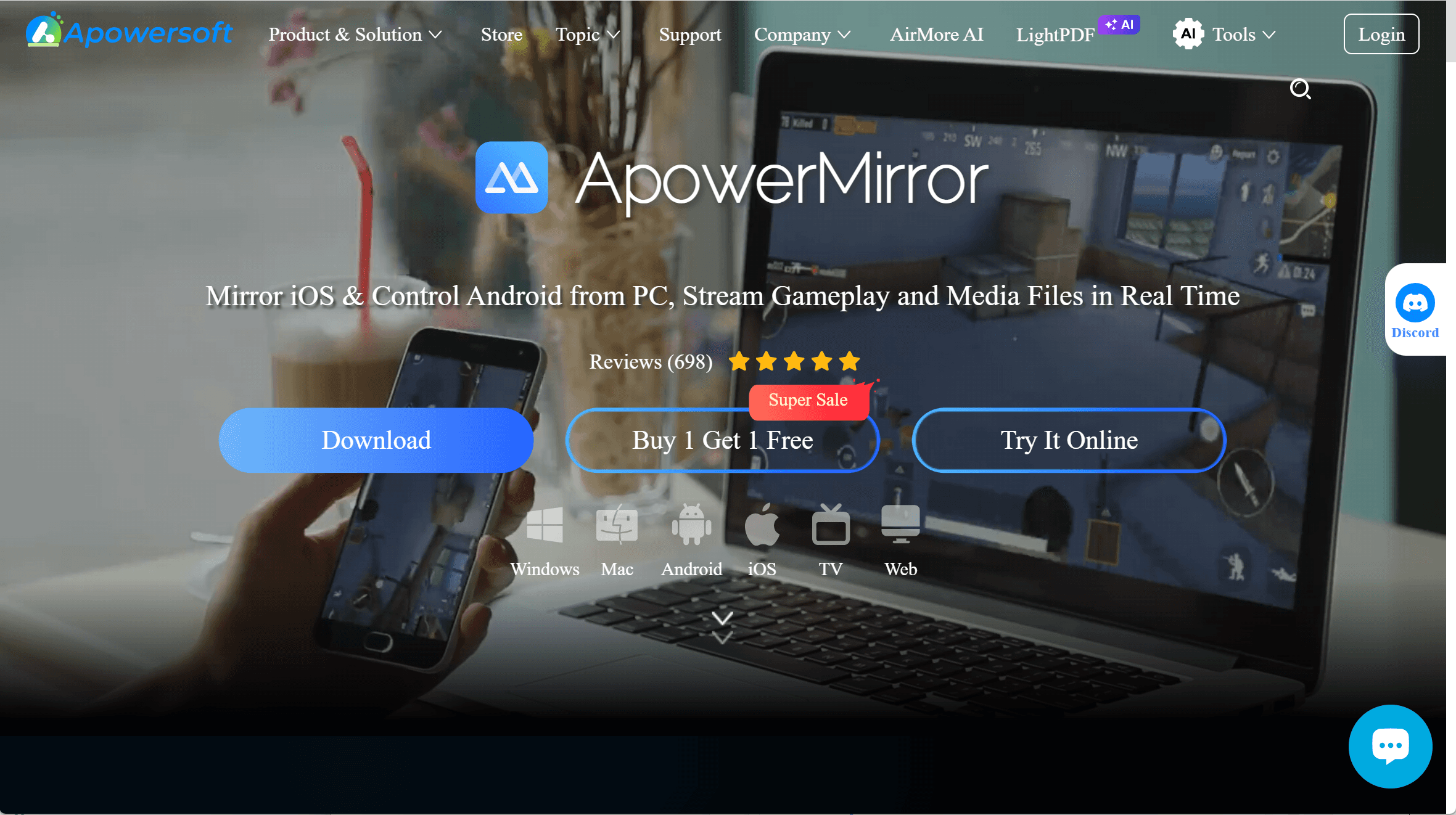
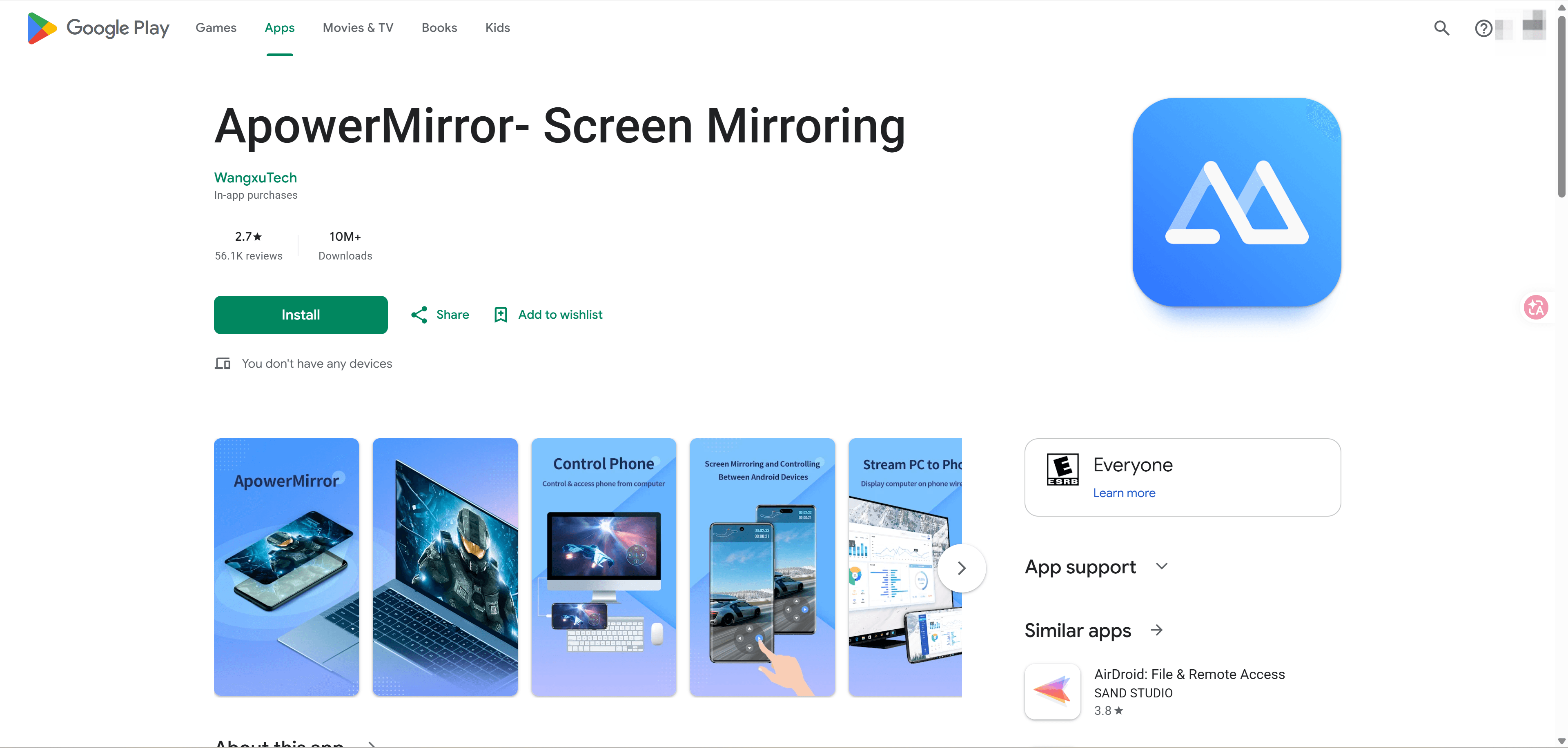
ApowerMirror is a cross-platform screen-mirroring application rather than a single-purpose phone receiver. It connects phones, computers, tablets, TVs, and selected browser workflows in both viewing directions. The desktop program also includes screenshot, recording, full-screen, annotation, rotation, and audio controls.
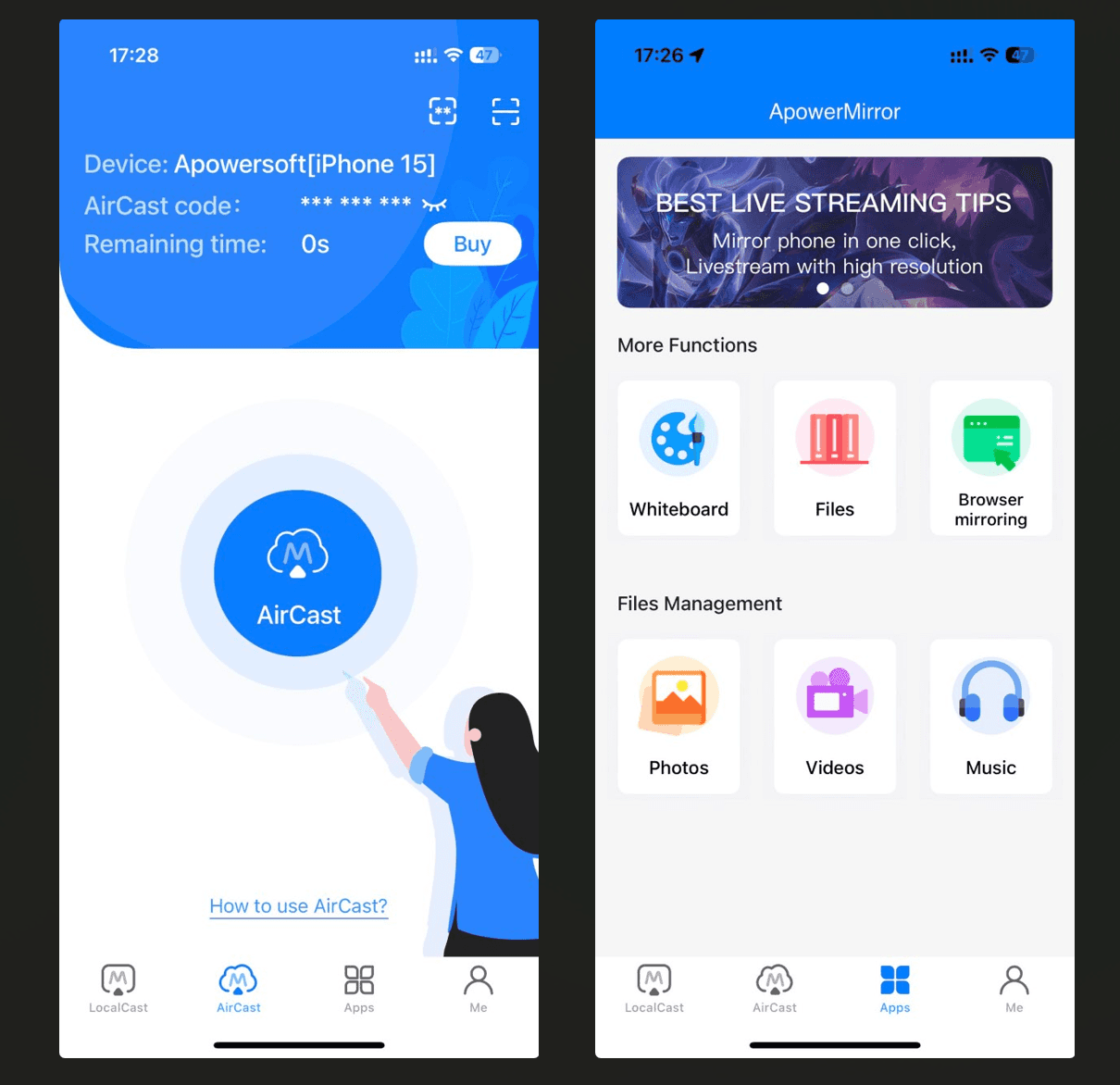
LocalCast covers same-network or USB sessions, while AirCast uses separate time-based credits for devices on different networks.
ApowerMirror is a cross-platform screen-mirroring application rather than a single-purpose phone receiver. It connects phones, computers, tablets, TVs, and selected browser workflows in both viewing directions. The desktop program also includes screenshot, recording, full-screen, annotation, rotation, and audio controls.
LocalCast covers same-network or USB sessions, while AirCast uses separate time-based credits for devices on different networks.
ApowerMirror is a cross-platform screen-mirroring application rather than a single-purpose phone receiver. It connects phones, computers, tablets, TVs, and selected browser workflows in both viewing directions. The desktop program also includes screenshot, recording, full-screen, annotation, rotation, and audio controls.
LocalCast covers same-network or USB sessions, while AirCast uses separate time-based credits for devices on different networks.
Hands-On iPhone-to-Windows Test
Hands-On iPhone-to-Windows Test
Hands-On iPhone-to-Windows Test
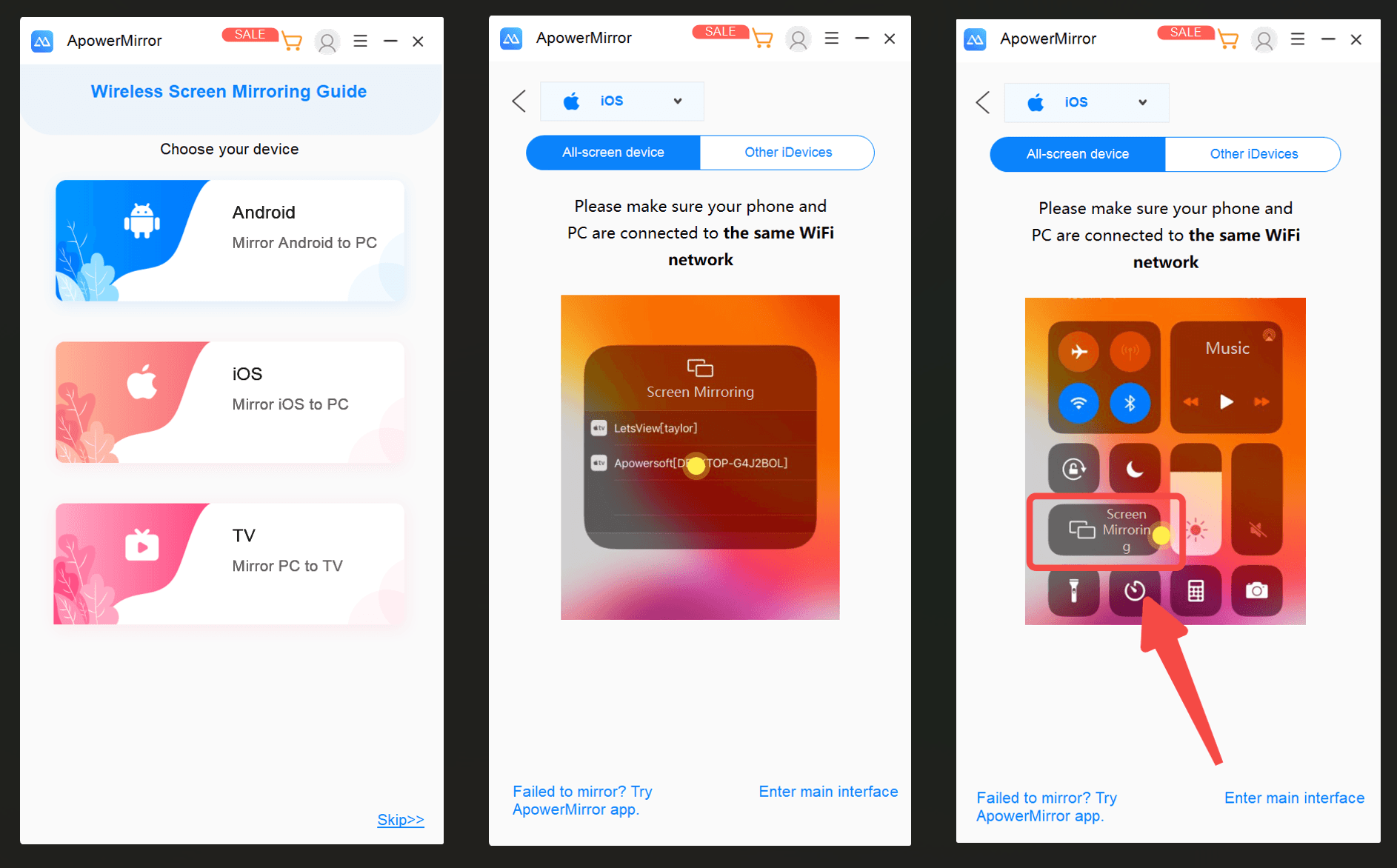
Our direct test used an iPhone 15 and Windows 11 on August 17, 2026. After installation, the desktop guide asked whether the source was Android, iOS, or a TV workflow. Selecting iOS opened a visual walkthrough for Apple’s Screen Mirroring control.
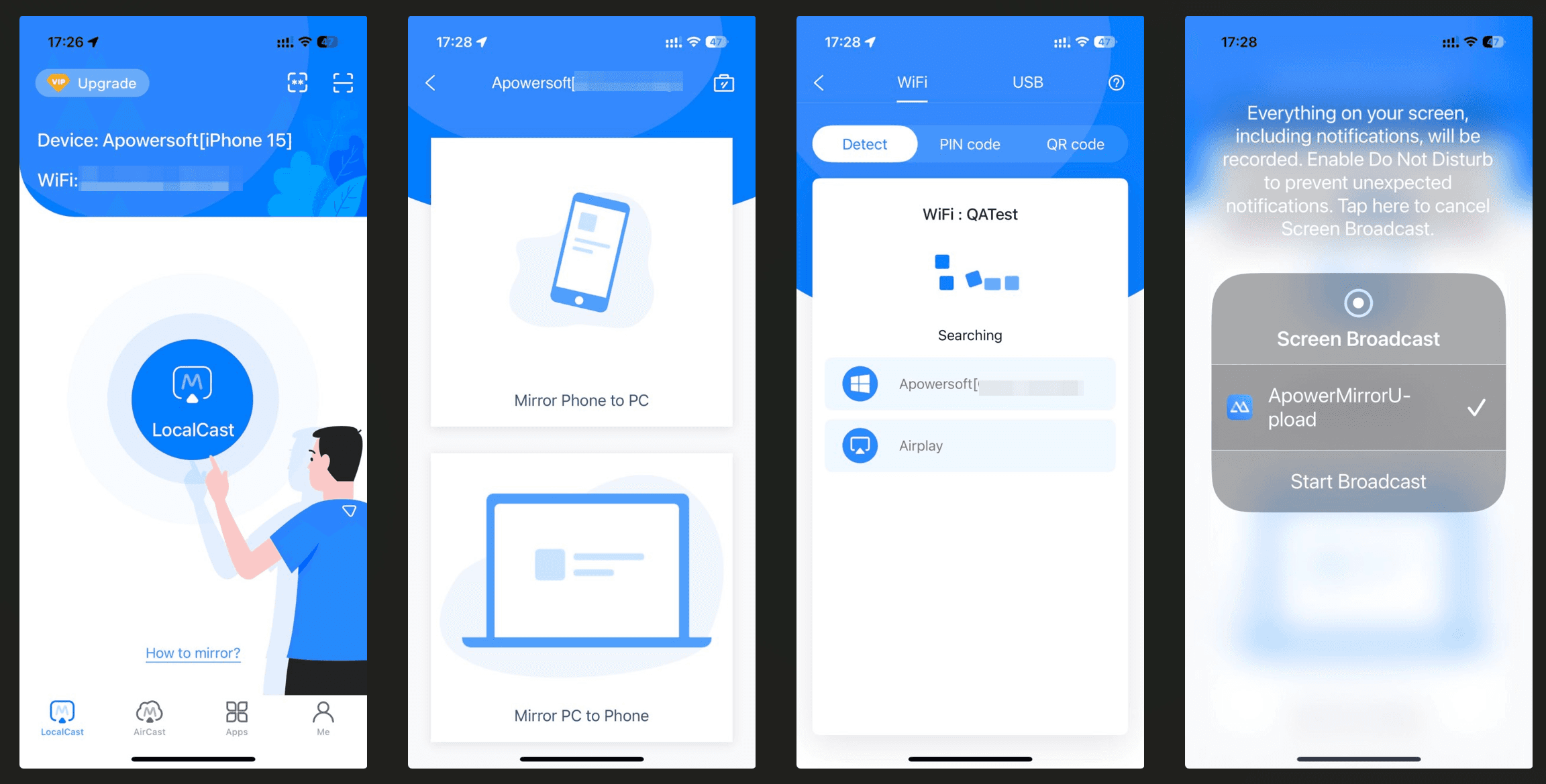
With the iPhone and Windows PC connected to the same Wi-Fi network, we opened LocalCast in the ApowerMirror iOS app and selected Mirror Phone to PC. After choosing the detected Windows computer, we started an iOS Screen Broadcast through ApowerMirrorUpload.
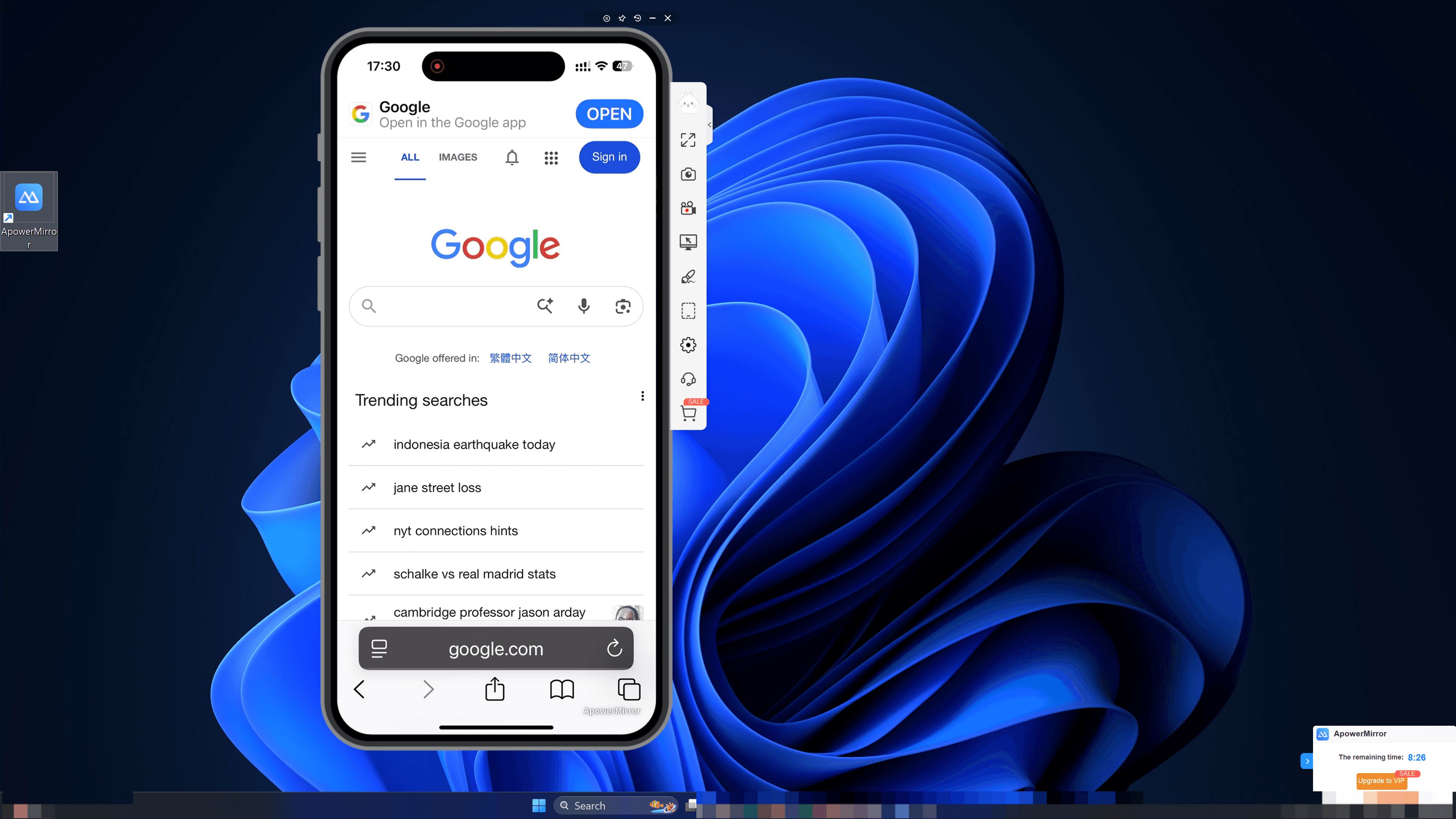
Once connected, the mirrored iPhone appeared in the desktop ApowerMirror window, where controls for full-screen viewing, screenshots, recording, display settings, and annotations were available.
Our direct test used an iPhone 15 and Windows 11 on August 17, 2026. After installation, the desktop guide asked whether the source was Android, iOS, or a TV workflow. Selecting iOS opened a visual walkthrough for Apple’s Screen Mirroring control.
With the iPhone and Windows PC connected to the same Wi-Fi network, we opened LocalCast in the ApowerMirror iOS app and selected Mirror Phone to PC. After choosing the detected Windows computer, we started an iOS Screen Broadcast through ApowerMirrorUpload.
Once connected, the mirrored iPhone appeared in the desktop ApowerMirror window, where controls for full-screen viewing, screenshots, recording, display settings, and annotations were available.
Our direct test used an iPhone 15 and Windows 11 on August 17, 2026. After installation, the desktop guide asked whether the source was Android, iOS, or a TV workflow. Selecting iOS opened a visual walkthrough for Apple’s Screen Mirroring control.
With the iPhone and Windows PC connected to the same Wi-Fi network, we opened LocalCast in the ApowerMirror iOS app and selected Mirror Phone to PC. After choosing the detected Windows computer, we started an iOS Screen Broadcast through ApowerMirrorUpload.
Once connected, the mirrored iPhone appeared in the desktop ApowerMirror window, where controls for full-screen viewing, screenshots, recording, display settings, and annotations were available.
How ApowerMirror Works Across Devices
How ApowerMirror Works Across Devices
How ApowerMirror Works Across Devices
Casting route | Typical method | Best use | Important note |
Phone → Windows/Mac | Wi-Fi, USB, code | Apps, demos, recording | iPhone-to-Windows tested |
Windows/Mac → Phone | LocalCast on same network | Remote viewing and PC access | Control varies by platform |
Phone → TV | TV app, AirPlay, or code | Media and presentations | TV compatibility matters |
Computer → TV | Same Wi-Fi and TV code | Slides, documents, video | Receiver app required |
Phone/Tablet → Phone/Tablet | LocalCast or AirCast | Second-screen viewing | Touch control is limited |
Windows → Windows | AirCast | Remote demonstrations | Time-based remote use |
Phone/PC → Browser | Web receiver and code | Temporary viewing | Browser support may vary |
iPhone or Android to Windows and Mac
The iPhone Wi-Fi workflow is covered in the hands-on test above. USB is also available when the phone trusts the computer; Windows may require a driver. The same product concept extends to Mac, which was not tested here.
Android can mirror to Windows or Mac over Wi-Fi, USB, or a LocalCast code. On Wi-Fi, select the computer in LocalCast and approve Start Now. USB requires debugging and computer permission, and the first wired session can activate mouse-and-keyboard control. Some phones need USB reactivation after a restart. Android can also provide game-key mapping, desktop message input, clipboard access, and notifications, subject to model and permission limits.
Phone to TV
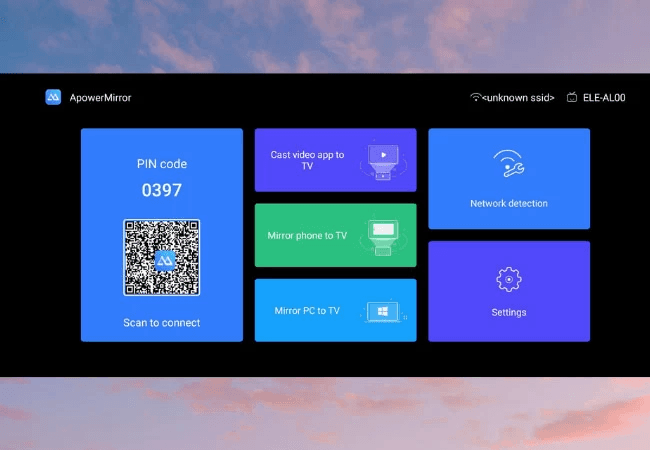
The TV app acts as a receiver and displays a PIN and QR code. A phone on the same network can scan or enter the code, then choose full-screen mirroring or in-app video casting. Some TV versions expose an AirPlay-style receiver for iPhone, while Android normally uses the mobile app. Check receiver availability and audio behavior on the exact TV.
Windows or Mac to TV
For computer-to-TV casting, place both devices on the same Wi-Fi network and enter the TV receiver's mirroring code in the desktop sender. The route suits slides, documents, video, and demonstrations, but resolution, sound, and responsiveness depend on the computer, network, and TV. It was not hands-on tested here.
Windows or Mac to Phone
To reverse the direction, find the computer in mobile LocalCast and choose Mirror PC to Phone. This places a Windows or Mac desktop on the phone for viewing or presentations. The interface also advertises phone-side PC control, but keyboard, mouse, and touch behavior varies by platform.
Phone or Tablet to Phone or Tablet
Mobile devices can connect through LocalCast on the same Wi-Fi network or AirCast across different networks, for example to display a phone on a tablet. Android can receive reverse control after the required accessibility and screenshot permissions are enabled. Other phone and tablet pairings may provide viewing without full touch control.
Windows to Windows and Remote AirCast
AirCast can send a Windows screen to another Windows device on a different network by using a code and time balance. This suits occasional remote support or demonstrations, although some local controls are reduced or unavailable and longer sessions consume more credits.
Phone or Computer to a Browser
The Try It Online route lets a sender connect to a browser receiver with a code when software cannot be installed on the viewing device. Treat it as a temporary display option rather than a promise of full control or identical quality in every browser. This route was not tested here.
Casting route | Typical method | Best use | Important note |
Phone → Windows/Mac | Wi-Fi, USB, code | Apps, demos, recording | iPhone-to-Windows tested |
Windows/Mac → Phone | LocalCast on same network | Remote viewing and PC access | Control varies by platform |
Phone → TV | TV app, AirPlay, or code | Media and presentations | TV compatibility matters |
Computer → TV | Same Wi-Fi and TV code | Slides, documents, video | Receiver app required |
Phone/Tablet → Phone/Tablet | LocalCast or AirCast | Second-screen viewing | Touch control is limited |
Windows → Windows | AirCast | Remote demonstrations | Time-based remote use |
Phone/PC → Browser | Web receiver and code | Temporary viewing | Browser support may vary |
iPhone or Android to Windows and Mac
The iPhone Wi-Fi workflow is covered in the hands-on test above. USB is also available when the phone trusts the computer; Windows may require a driver. The same product concept extends to Mac, which was not tested here.
Android can mirror to Windows or Mac over Wi-Fi, USB, or a LocalCast code. On Wi-Fi, select the computer in LocalCast and approve Start Now. USB requires debugging and computer permission, and the first wired session can activate mouse-and-keyboard control. Some phones need USB reactivation after a restart. Android can also provide game-key mapping, desktop message input, clipboard access, and notifications, subject to model and permission limits.
Phone to TV
The TV app acts as a receiver and displays a PIN and QR code. A phone on the same network can scan or enter the code, then choose full-screen mirroring or in-app video casting. Some TV versions expose an AirPlay-style receiver for iPhone, while Android normally uses the mobile app. Check receiver availability and audio behavior on the exact TV.
Windows or Mac to TV
For computer-to-TV casting, place both devices on the same Wi-Fi network and enter the TV receiver's mirroring code in the desktop sender. The route suits slides, documents, video, and demonstrations, but resolution, sound, and responsiveness depend on the computer, network, and TV. It was not hands-on tested here.
Windows or Mac to Phone
To reverse the direction, find the computer in mobile LocalCast and choose Mirror PC to Phone. This places a Windows or Mac desktop on the phone for viewing or presentations. The interface also advertises phone-side PC control, but keyboard, mouse, and touch behavior varies by platform.
Phone or Tablet to Phone or Tablet
Mobile devices can connect through LocalCast on the same Wi-Fi network or AirCast across different networks, for example to display a phone on a tablet. Android can receive reverse control after the required accessibility and screenshot permissions are enabled. Other phone and tablet pairings may provide viewing without full touch control.
Windows to Windows and Remote AirCast
AirCast can send a Windows screen to another Windows device on a different network by using a code and time balance. This suits occasional remote support or demonstrations, although some local controls are reduced or unavailable and longer sessions consume more credits.
Phone or Computer to a Browser
The Try It Online route lets a sender connect to a browser receiver with a code when software cannot be installed on the viewing device. Treat it as a temporary display option rather than a promise of full control or identical quality in every browser. This route was not tested here.
Casting route | Typical method | Best use | Important note |
Phone → Windows/Mac | Wi-Fi, USB, code | Apps, demos, recording | iPhone-to-Windows tested |
Windows/Mac → Phone | LocalCast on same network | Remote viewing and PC access | Control varies by platform |
Phone → TV | TV app, AirPlay, or code | Media and presentations | TV compatibility matters |
Computer → TV | Same Wi-Fi and TV code | Slides, documents, video | Receiver app required |
Phone/Tablet → Phone/Tablet | LocalCast or AirCast | Second-screen viewing | Touch control is limited |
Windows → Windows | AirCast | Remote demonstrations | Time-based remote use |
Phone/PC → Browser | Web receiver and code | Temporary viewing | Browser support may vary |
iPhone or Android to Windows and Mac
The iPhone Wi-Fi workflow is covered in the hands-on test above. USB is also available when the phone trusts the computer; Windows may require a driver. The same product concept extends to Mac, which was not tested here.
Android can mirror to Windows or Mac over Wi-Fi, USB, or a LocalCast code. On Wi-Fi, select the computer in LocalCast and approve Start Now. USB requires debugging and computer permission, and the first wired session can activate mouse-and-keyboard control. Some phones need USB reactivation after a restart. Android can also provide game-key mapping, desktop message input, clipboard access, and notifications, subject to model and permission limits.
Phone to TV
The TV app acts as a receiver and displays a PIN and QR code. A phone on the same network can scan or enter the code, then choose full-screen mirroring or in-app video casting. Some TV versions expose an AirPlay-style receiver for iPhone, while Android normally uses the mobile app. Check receiver availability and audio behavior on the exact TV.
Windows or Mac to TV
For computer-to-TV casting, place both devices on the same Wi-Fi network and enter the TV receiver's mirroring code in the desktop sender. The route suits slides, documents, video, and demonstrations, but resolution, sound, and responsiveness depend on the computer, network, and TV. It was not hands-on tested here.
Windows or Mac to Phone
To reverse the direction, find the computer in mobile LocalCast and choose Mirror PC to Phone. This places a Windows or Mac desktop on the phone for viewing or presentations. The interface also advertises phone-side PC control, but keyboard, mouse, and touch behavior varies by platform.
Phone or Tablet to Phone or Tablet
Mobile devices can connect through LocalCast on the same Wi-Fi network or AirCast across different networks, for example to display a phone on a tablet. Android can receive reverse control after the required accessibility and screenshot permissions are enabled. Other phone and tablet pairings may provide viewing without full touch control.
Windows to Windows and Remote AirCast
AirCast can send a Windows screen to another Windows device on a different network by using a code and time balance. This suits occasional remote support or demonstrations, although some local controls are reduced or unavailable and longer sessions consume more credits.
Phone or Computer to a Browser
The Try It Online route lets a sender connect to a browser receiver with a code when software cannot be installed on the viewing device. Treat it as a temporary display option rather than a promise of full control or identical quality in every browser. This route was not tested here.
Wi-Fi, USB, LocalCast, and AirCast
Wi-Fi, USB, LocalCast, and AirCast
Wi-Fi, USB, LocalCast, and AirCast
Use local Wi-Fi for convenience, USB when discovery is unreliable or a physical link is preferred, and AirCast for different networks. Wi-Fi quality affects motion and clarity; USB requires the correct permissions or drivers; AirCast consumes time-based credits. The table below summarizes the decision.
Mode | Network requirement | Strength | Main trade-off |
Local Wi-Fi | Same network | Convenient and cable-free | Depends on Wi-Fi quality |
USB | No shared Wi-Fi needed | More predictable local link | Cable, drivers, and permissions |
LocalCast premium | Same network or USB | Unlimited local sessions | Separate from remote credits |
AirCast | Different networks allowed | Remote and cross-location use | Time-based billing |
Use local Wi-Fi for convenience, USB when discovery is unreliable or a physical link is preferred, and AirCast for different networks. Wi-Fi quality affects motion and clarity; USB requires the correct permissions or drivers; AirCast consumes time-based credits. The table below summarizes the decision.
Mode | Network requirement | Strength | Main trade-off |
Local Wi-Fi | Same network | Convenient and cable-free | Depends on Wi-Fi quality |
USB | No shared Wi-Fi needed | More predictable local link | Cable, drivers, and permissions |
LocalCast premium | Same network or USB | Unlimited local sessions | Separate from remote credits |
AirCast | Different networks allowed | Remote and cross-location use | Time-based billing |
Use local Wi-Fi for convenience, USB when discovery is unreliable or a physical link is preferred, and AirCast for different networks. Wi-Fi quality affects motion and clarity; USB requires the correct permissions or drivers; AirCast consumes time-based credits. The table below summarizes the decision.
Mode | Network requirement | Strength | Main trade-off |
Local Wi-Fi | Same network | Convenient and cable-free | Depends on Wi-Fi quality |
USB | No shared Wi-Fi needed | More predictable local link | Cable, drivers, and permissions |
LocalCast premium | Same network or USB | Unlimited local sessions | Separate from remote credits |
AirCast | Different networks allowed | Remote and cross-location use | Time-based billing |
Image Quality and Controls
Image Quality and Controls
Image Quality and Controls
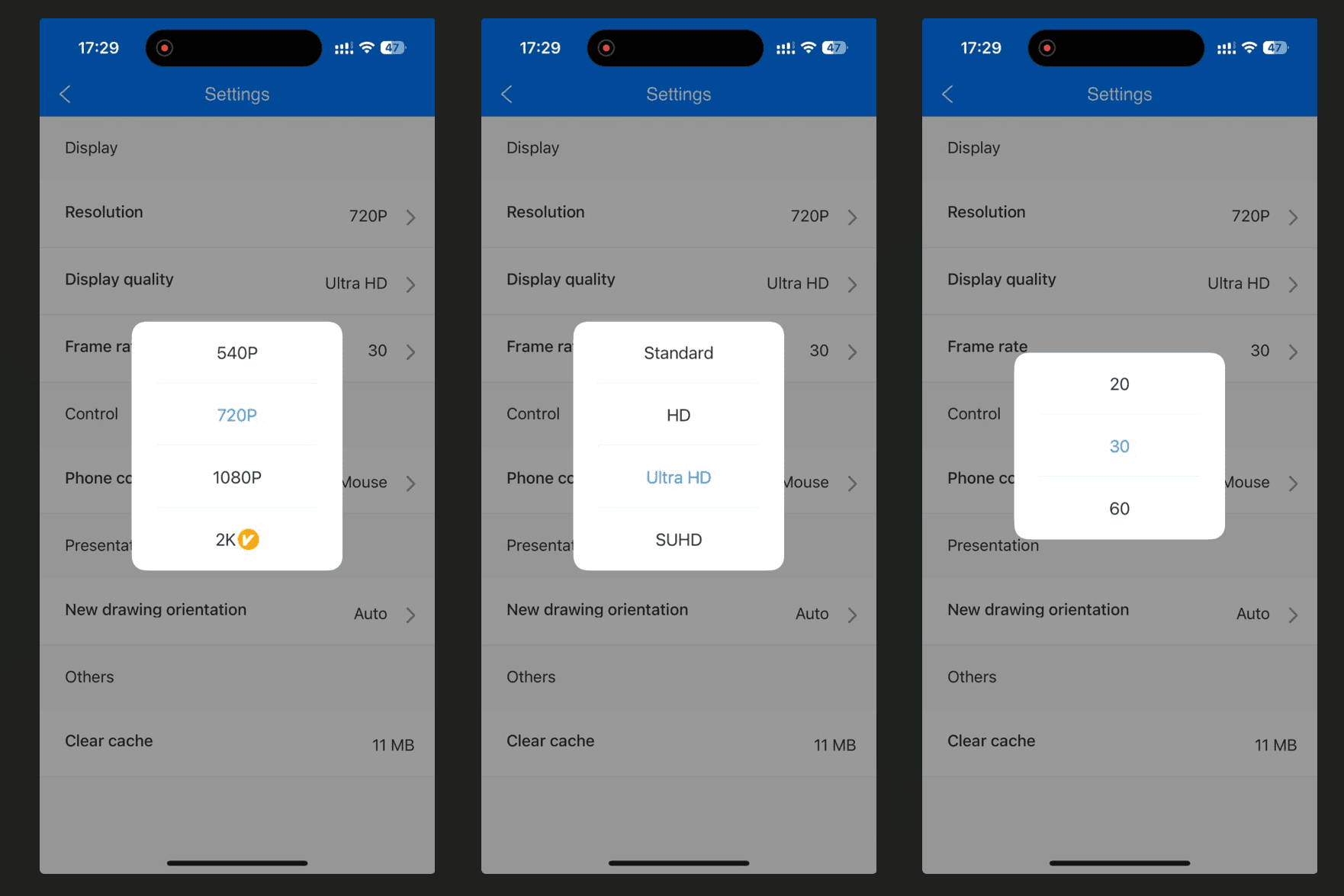
Settings include 540p, 720p, 1080p, and premium 2K resolution; 20, 30, and 60 fps; and Standard, HD, Ultra HD, and SUHD quality presets. These are available choices, not proof that every device and network can sustain the maximum without dropped frames or extra delay.
Connected-Session Controls
An active session offers audio control, camera casting, disconnection, screenshots, recording, full-screen viewing, rotation, and annotation. These tools suit classes, demonstrations, tutorials, and presentations. Longer recordings require attention to the membership limits.
Whiteboard Drawing and Presentation Tools
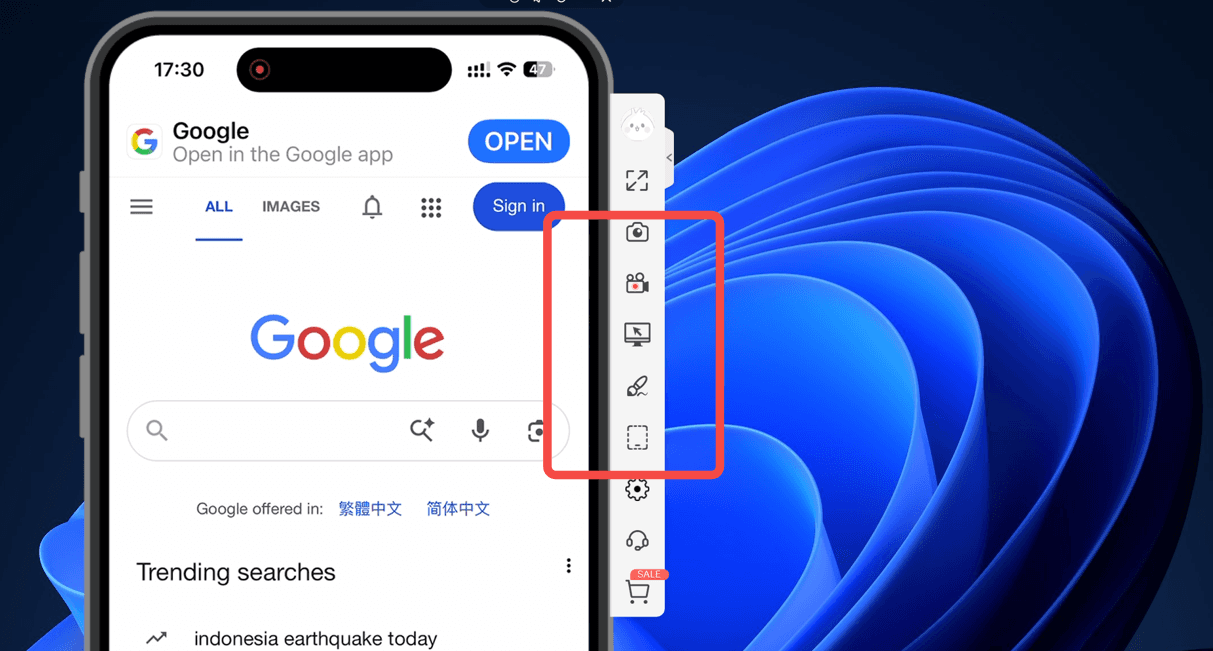
After a phone is mirrored to the computer, clicking Whiteboard on the desktop toolbar turns the cursor into a pen. You can draw, circle an interface element, or mark an area during a lesson or demonstration. The toolbar changes pen color, undoes the last mark, or clears all drawing. The marks sit over the mirrored view and do not alter the original phone content.
The desktop guide adds useful details: Ctrl+R starts recording, and Windows capture settings select format, quality, output folder, and audio input. Supported workflows can show up to four phones, and the mirrored view can be rotated or resized. We confirmed the relevant controls in the interface but did not benchmark four-device recording or every audio configuration.
Settings include 540p, 720p, 1080p, and premium 2K resolution; 20, 30, and 60 fps; and Standard, HD, Ultra HD, and SUHD quality presets. These are available choices, not proof that every device and network can sustain the maximum without dropped frames or extra delay.
Connected-Session Controls
An active session offers audio control, camera casting, disconnection, screenshots, recording, full-screen viewing, rotation, and annotation. These tools suit classes, demonstrations, tutorials, and presentations. Longer recordings require attention to the membership limits.
Whiteboard Drawing and Presentation Tools
After a phone is mirrored to the computer, clicking Whiteboard on the desktop toolbar turns the cursor into a pen. You can draw, circle an interface element, or mark an area during a lesson or demonstration. The toolbar changes pen color, undoes the last mark, or clears all drawing. The marks sit over the mirrored view and do not alter the original phone content.
The desktop guide adds useful details: Ctrl+R starts recording, and Windows capture settings select format, quality, output folder, and audio input. Supported workflows can show up to four phones, and the mirrored view can be rotated or resized. We confirmed the relevant controls in the interface but did not benchmark four-device recording or every audio configuration.
Settings include 540p, 720p, 1080p, and premium 2K resolution; 20, 30, and 60 fps; and Standard, HD, Ultra HD, and SUHD quality presets. These are available choices, not proof that every device and network can sustain the maximum without dropped frames or extra delay.
Connected-Session Controls
An active session offers audio control, camera casting, disconnection, screenshots, recording, full-screen viewing, rotation, and annotation. These tools suit classes, demonstrations, tutorials, and presentations. Longer recordings require attention to the membership limits.
Whiteboard Drawing and Presentation Tools
After a phone is mirrored to the computer, clicking Whiteboard on the desktop toolbar turns the cursor into a pen. You can draw, circle an interface element, or mark an area during a lesson or demonstration. The toolbar changes pen color, undoes the last mark, or clears all drawing. The marks sit over the mirrored view and do not alter the original phone content.
The desktop guide adds useful details: Ctrl+R starts recording, and Windows capture settings select format, quality, output folder, and audio input. Supported workflows can show up to four phones, and the mirrored view can be rotated or resized. We confirmed the relevant controls in the interface but did not benchmark four-device recording or every audio configuration.
Free vs LocalCast vs AirCast
Free vs LocalCast vs AirCast
Free vs LocalCast vs AirCast
The free tier is mainly for compatibility testing: mirroring lasts about 10 minutes per session, recording about 3 minutes, and the Windows comparison shows a watermark, one-device use, and a 720p limit. LocalCast premium removes the main local restrictions, supports up to four devices in supported workflows, and unlocks higher resolution. AirCast enables cross-network mirroring but remains time-based and offers fewer local control features.
Not sure whether the paid features justify the price? See our free vs. paid screen mirroring apps comparison.
Plan | Connection | Time model | Best for |
Free | Wi-Fi or USB | About 10 min per mirror session | Compatibility testing |
LocalCast | Same Wi-Fi or USB | Unlimited local mirroring | Regular home, class, or office use |
AirCast | Different networks | Credits billed by time | Remote or cross-location casting |
The free tier is mainly for compatibility testing: mirroring lasts about 10 minutes per session, recording about 3 minutes, and the Windows comparison shows a watermark, one-device use, and a 720p limit. LocalCast premium removes the main local restrictions, supports up to four devices in supported workflows, and unlocks higher resolution. AirCast enables cross-network mirroring but remains time-based and offers fewer local control features.
Not sure whether the paid features justify the price? See our free vs. paid screen mirroring apps comparison.
Plan | Connection | Time model | Best for |
Free | Wi-Fi or USB | About 10 min per mirror session | Compatibility testing |
LocalCast | Same Wi-Fi or USB | Unlimited local mirroring | Regular home, class, or office use |
AirCast | Different networks | Credits billed by time | Remote or cross-location casting |
The free tier is mainly for compatibility testing: mirroring lasts about 10 minutes per session, recording about 3 minutes, and the Windows comparison shows a watermark, one-device use, and a 720p limit. LocalCast premium removes the main local restrictions, supports up to four devices in supported workflows, and unlocks higher resolution. AirCast enables cross-network mirroring but remains time-based and offers fewer local control features.
Not sure whether the paid features justify the price? See our free vs. paid screen mirroring apps comparison.
Plan | Connection | Time model | Best for |
Free | Wi-Fi or USB | About 10 min per mirror session | Compatibility testing |
LocalCast | Same Wi-Fi or USB | Unlimited local mirroring | Regular home, class, or office use |
AirCast | Different networks | Credits billed by time | Remote or cross-location casting |
ApowerMirror Pricing
ApowerMirror Pricing
ApowerMirror Pricing
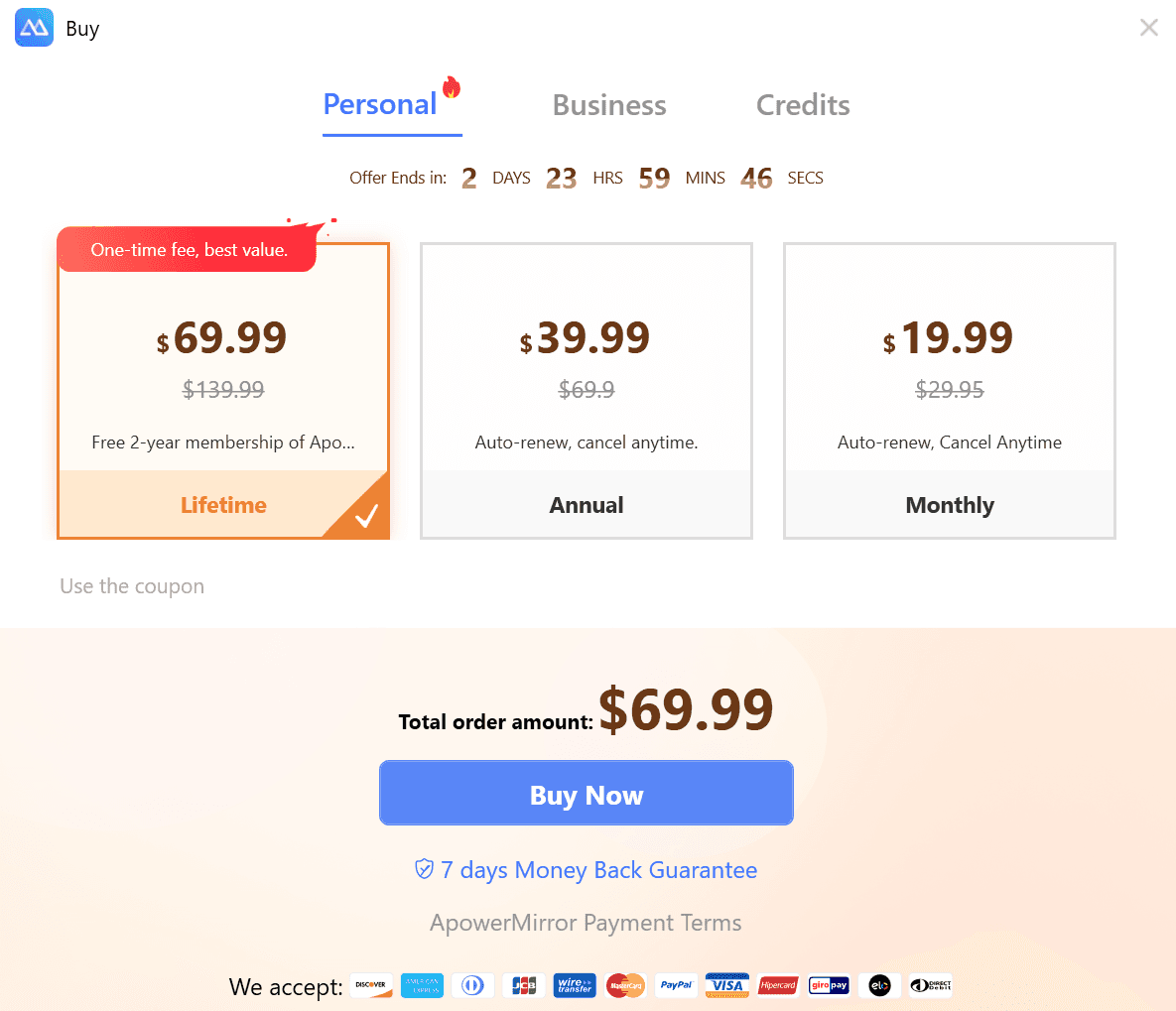
Prices vary by promotion, platform, region, and checkout channel. On August 17, 2026, Windows displayed $69.99 lifetime, $39.99 annual, and $19.99 monthly personal offers; business offers were $199.90 lifetime team, $159.90 for two years, and $79.95 annually.
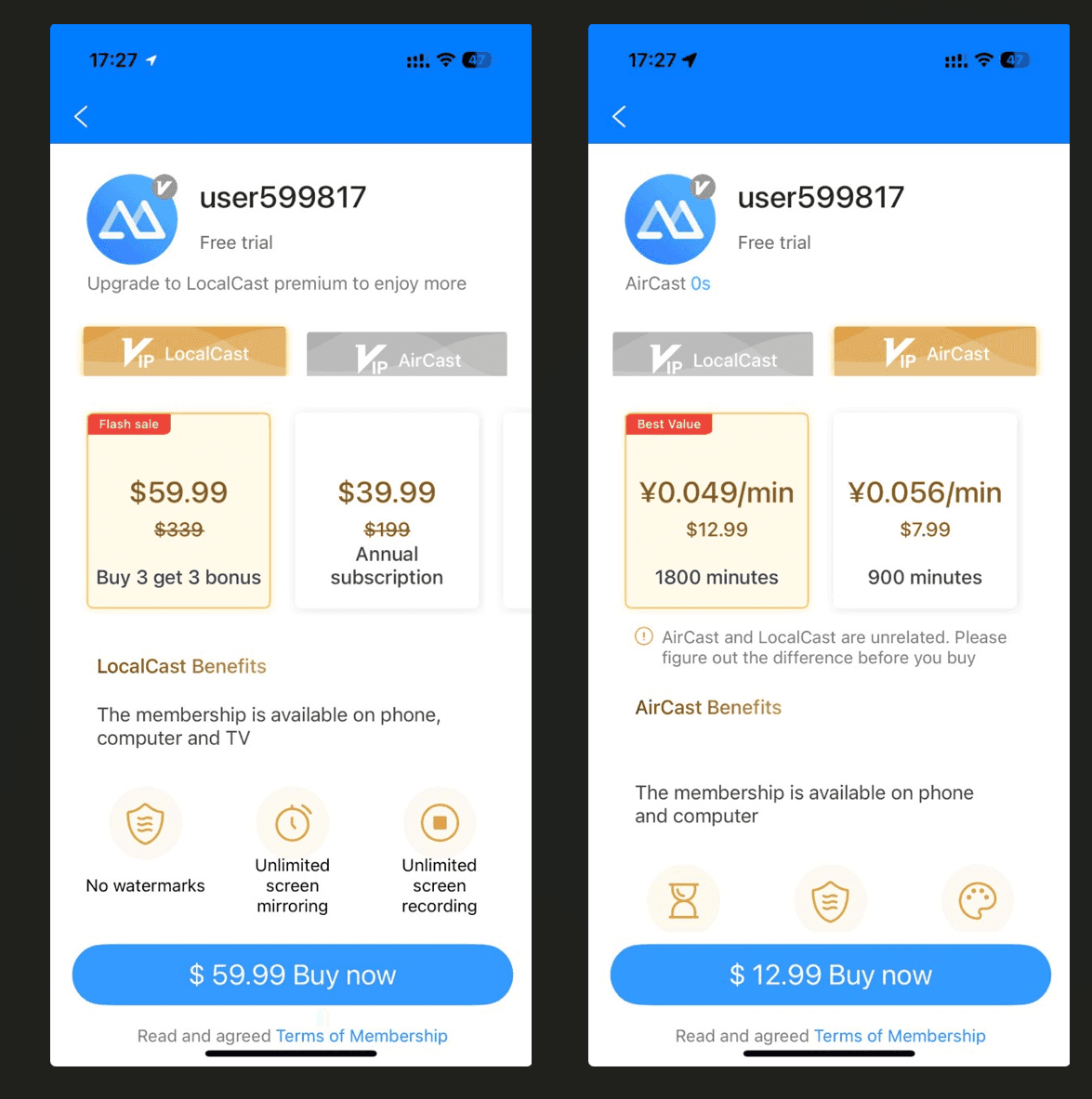
AirCast differed by platform: desktop displayed 900 credits for $12.99 and 1,800 for $20.99, while iOS showed 900 minutes for $7.99 and 1,800 for $12.99. These are dated observations, not permanent list prices.
Checkout observed | Displayed offer | What to remember |
Windows personal | $69.99 lifetime; $39.99 annual; $19.99 monthly | Promotional labels were visible |
Windows business | $199.90 lifetime team; $159.90/2 years; $79.95 annual | Business licensing differs |
Desktop AirCast | $12.99/900; $20.99/1,800 credits | Time-based remote use |
iOS AirCast | $7.99/900; $12.99/1,800 minutes | Platform promotion differed |
Before buying, check current pricing and plan benefits in the final checkout for your platform and region.
Prices vary by promotion, platform, region, and checkout channel. On August 17, 2026, Windows displayed $69.99 lifetime, $39.99 annual, and $19.99 monthly personal offers; business offers were $199.90 lifetime team, $159.90 for two years, and $79.95 annually.
AirCast differed by platform: desktop displayed 900 credits for $12.99 and 1,800 for $20.99, while iOS showed 900 minutes for $7.99 and 1,800 for $12.99. These are dated observations, not permanent list prices.
Checkout observed | Displayed offer | What to remember |
Windows personal | $69.99 lifetime; $39.99 annual; $19.99 monthly | Promotional labels were visible |
Windows business | $199.90 lifetime team; $159.90/2 years; $79.95 annual | Business licensing differs |
Desktop AirCast | $12.99/900; $20.99/1,800 credits | Time-based remote use |
iOS AirCast | $7.99/900; $12.99/1,800 minutes | Platform promotion differed |
Before buying, check current pricing and plan benefits in the final checkout for your platform and region.
Prices vary by promotion, platform, region, and checkout channel. On August 17, 2026, Windows displayed $69.99 lifetime, $39.99 annual, and $19.99 monthly personal offers; business offers were $199.90 lifetime team, $159.90 for two years, and $79.95 annually.
AirCast differed by platform: desktop displayed 900 credits for $12.99 and 1,800 for $20.99, while iOS showed 900 minutes for $7.99 and 1,800 for $12.99. These are dated observations, not permanent list prices.
Checkout observed | Displayed offer | What to remember |
Windows personal | $69.99 lifetime; $39.99 annual; $19.99 monthly | Promotional labels were visible |
Windows business | $199.90 lifetime team; $159.90/2 years; $79.95 annual | Business licensing differs |
Desktop AirCast | $12.99/900; $20.99/1,800 credits | Time-based remote use |
iOS AirCast | $7.99/900; $12.99/1,800 minutes | Platform promotion differed |
Before buying, check current pricing and plan benefits in the final checkout for your platform and region.
ApowerMirror Pros and Cons
ApowerMirror Pros and Cons
ApowerMirror Pros and Cons
Pros | Cons |
Guided setup with Wi-Fi, USB, PIN, QR, and AirPlay-style routes | Free mirroring and recording limits arrive quickly |
Broad Windows, Mac, iPhone, Android, tablet, TV, and browser coverage | LocalCast and AirCast use separate rules and pricing |
Successful iPhone 15-to-Windows 11 test | Promotional prices differ by platform and checkout |
Android adds keyboard, messaging, notification, and game-control tools | Android permissions and model restrictions add setup steps |
Recording, screenshots, annotation, audio, and camera tools | Higher resolutions and some controls require premium access |
Remote casting is available when devices are on different networks | Upgrade prompts are prominent throughout the interface |
Pros | Cons |
Guided setup with Wi-Fi, USB, PIN, QR, and AirPlay-style routes | Free mirroring and recording limits arrive quickly |
Broad Windows, Mac, iPhone, Android, tablet, TV, and browser coverage | LocalCast and AirCast use separate rules and pricing |
Successful iPhone 15-to-Windows 11 test | Promotional prices differ by platform and checkout |
Android adds keyboard, messaging, notification, and game-control tools | Android permissions and model restrictions add setup steps |
Recording, screenshots, annotation, audio, and camera tools | Higher resolutions and some controls require premium access |
Remote casting is available when devices are on different networks | Upgrade prompts are prominent throughout the interface |
Pros | Cons |
Guided setup with Wi-Fi, USB, PIN, QR, and AirPlay-style routes | Free mirroring and recording limits arrive quickly |
Broad Windows, Mac, iPhone, Android, tablet, TV, and browser coverage | LocalCast and AirCast use separate rules and pricing |
Successful iPhone 15-to-Windows 11 test | Promotional prices differ by platform and checkout |
Android adds keyboard, messaging, notification, and game-control tools | Android permissions and model restrictions add setup steps |
Recording, screenshots, annotation, audio, and camera tools | Higher resolutions and some controls require premium access |
Remote casting is available when devices are on different networks | Upgrade prompts are prominent throughout the interface |
Alternatives to ApowerMirror
Alternatives to ApowerMirror
Alternatives to ApowerMirror
1001 TVs is a direct alternative for moving screens among phones, tablets, computers, smart TVs, Apple TV, and browsers. It emphasizes same-network discovery, QR connections, phone-to-TV and computer-to-TV casting, browser viewing, file transfer, and receiver modes. It also supports options such as mirroring one application, extending a computer display, showing multiple phones on one computer, and sending one computer screen to multiple receivers.
Choose 1001 TVs for TV casting, local multi-device layouts, browser mirroring, and file sharing. ApowerMirror is the better fit for PC-side Whiteboard and recording, deeper Android control, or AirCast between different networks. Test the intended route on the exact receiver and compare current subscription terms before buying.
For a broader comparison, see our guide to the best screen mirroring apps.
1001 TVs is a direct alternative for moving screens among phones, tablets, computers, smart TVs, Apple TV, and browsers. It emphasizes same-network discovery, QR connections, phone-to-TV and computer-to-TV casting, browser viewing, file transfer, and receiver modes. It also supports options such as mirroring one application, extending a computer display, showing multiple phones on one computer, and sending one computer screen to multiple receivers.
Choose 1001 TVs for TV casting, local multi-device layouts, browser mirroring, and file sharing. ApowerMirror is the better fit for PC-side Whiteboard and recording, deeper Android control, or AirCast between different networks. Test the intended route on the exact receiver and compare current subscription terms before buying.
For a broader comparison, see our guide to the best screen mirroring apps.
1001 TVs is a direct alternative for moving screens among phones, tablets, computers, smart TVs, Apple TV, and browsers. It emphasizes same-network discovery, QR connections, phone-to-TV and computer-to-TV casting, browser viewing, file transfer, and receiver modes. It also supports options such as mirroring one application, extending a computer display, showing multiple phones on one computer, and sending one computer screen to multiple receivers.
Choose 1001 TVs for TV casting, local multi-device layouts, browser mirroring, and file sharing. ApowerMirror is the better fit for PC-side Whiteboard and recording, deeper Android control, or AirCast between different networks. Test the intended route on the exact receiver and compare current subscription terms before buying.
For a broader comparison, see our guide to the best screen mirroring apps.
Frequently Asked Questions
Frequently Asked Questions
Frequently Asked Questions
Is ApowerMirror free?
Yes, but it is mainly for testing. Free mirroring lasts about 10 minutes per session, recording about 3 minutes, and watermark, device, and resolution restrictions remain.
Can ApowerMirror mirror an iPhone to Windows?
Yes. Our iPhone 15 mirrored successfully to Windows 11 over the same Wi-Fi network by using Apple's Screen Mirroring control and the Windows receiver.
How do you mirror Android to a PC with ApowerMirror?
On Wi-Fi, select the computer in mobile LocalCast and approve Start Now. For USB, enable debugging, approve the computer, and accept the mirroring prompt; control permission may need USB reactivation after a restart.
Can ApowerMirror mirror a PC to a phone?
Yes. Find the computer in mobile LocalCast and choose Mirror PC to Phone. Viewing and control compatibility vary by phone, desktop system, and connection method.
Can ApowerMirror mirror a phone or PC to a TV?
Yes. The TV receiver supports phone mirroring, PC mirroring, and video casting through a PIN or QR connection. Confirm that the receiver app is available on the intended TV model.
What is the difference between LocalCast and AirCast?
LocalCast is for the same network or USB and can provide unlimited premium local sessions. AirCast connects different networks and uses separate time-based credits.
Does ApowerMirror work over USB?
Yes. Android normally requires USB debugging and permissions; iPhone must trust the computer and may need a Windows driver. USB is useful when wireless discovery is unreliable.
Is ApowerMirror worth paying for?
It can be worth paying for regular multi-device use, recording, or presentation tools. Occasional users should test the free tier and decide whether they need LocalCast or separately billed AirCast.
Is ApowerMirror free?
Yes, but it is mainly for testing. Free mirroring lasts about 10 minutes per session, recording about 3 minutes, and watermark, device, and resolution restrictions remain.
Can ApowerMirror mirror an iPhone to Windows?
Yes. Our iPhone 15 mirrored successfully to Windows 11 over the same Wi-Fi network by using Apple's Screen Mirroring control and the Windows receiver.
How do you mirror Android to a PC with ApowerMirror?
On Wi-Fi, select the computer in mobile LocalCast and approve Start Now. For USB, enable debugging, approve the computer, and accept the mirroring prompt; control permission may need USB reactivation after a restart.
Can ApowerMirror mirror a PC to a phone?
Yes. Find the computer in mobile LocalCast and choose Mirror PC to Phone. Viewing and control compatibility vary by phone, desktop system, and connection method.
Can ApowerMirror mirror a phone or PC to a TV?
Yes. The TV receiver supports phone mirroring, PC mirroring, and video casting through a PIN or QR connection. Confirm that the receiver app is available on the intended TV model.
What is the difference between LocalCast and AirCast?
LocalCast is for the same network or USB and can provide unlimited premium local sessions. AirCast connects different networks and uses separate time-based credits.
Does ApowerMirror work over USB?
Yes. Android normally requires USB debugging and permissions; iPhone must trust the computer and may need a Windows driver. USB is useful when wireless discovery is unreliable.
Is ApowerMirror worth paying for?
It can be worth paying for regular multi-device use, recording, or presentation tools. Occasional users should test the free tier and decide whether they need LocalCast or separately billed AirCast.
Is ApowerMirror free?
Yes, but it is mainly for testing. Free mirroring lasts about 10 minutes per session, recording about 3 minutes, and watermark, device, and resolution restrictions remain.
Can ApowerMirror mirror an iPhone to Windows?
Yes. Our iPhone 15 mirrored successfully to Windows 11 over the same Wi-Fi network by using Apple's Screen Mirroring control and the Windows receiver.
How do you mirror Android to a PC with ApowerMirror?
On Wi-Fi, select the computer in mobile LocalCast and approve Start Now. For USB, enable debugging, approve the computer, and accept the mirroring prompt; control permission may need USB reactivation after a restart.
Can ApowerMirror mirror a PC to a phone?
Yes. Find the computer in mobile LocalCast and choose Mirror PC to Phone. Viewing and control compatibility vary by phone, desktop system, and connection method.
Can ApowerMirror mirror a phone or PC to a TV?
Yes. The TV receiver supports phone mirroring, PC mirroring, and video casting through a PIN or QR connection. Confirm that the receiver app is available on the intended TV model.
What is the difference between LocalCast and AirCast?
LocalCast is for the same network or USB and can provide unlimited premium local sessions. AirCast connects different networks and uses separate time-based credits.
Does ApowerMirror work over USB?
Yes. Android normally requires USB debugging and permissions; iPhone must trust the computer and may need a Windows driver. USB is useful when wireless discovery is unreliable.
Is ApowerMirror worth paying for?
It can be worth paying for regular multi-device use, recording, or presentation tools. Occasional users should test the free tier and decide whether they need LocalCast or separately billed AirCast.
Table of content
Table of content


Still Need a Hand?
Still Need a Hand?
Still Need a Hand?
Explore more reviews, step-by-step guides, and troubleshooting tips—or contact us if you could not find the answer you needed.
Explore more reviews, step-by-step guides, and troubleshooting tips—or contact us if you could not find the answer you needed.
Explore more reviews, step-by-step guides, and troubleshooting tips—or contact us if you could not find the answer you needed.