
LetsView Review 2026: What’s Free, What’s Paid, and Is It Worth It?
LetsView Review 2026: What’s Free, What’s Paid, and Is It Worth It?
LetsView Review 2026: What’s Free, What’s Paid, and Is It Worth It?
Is LetsView really free? This 2026 review covers its free limits, paid plans, features, setup, performance, ratings, and whether it is worth using.
Is LetsView really free? This 2026 review covers its free limits, paid plans, features, setup, performance, ratings, and whether it is worth using.
Is LetsView really free? This 2026 review covers its free limits, paid plans, features, setup, performance, ratings, and whether it is worth using.
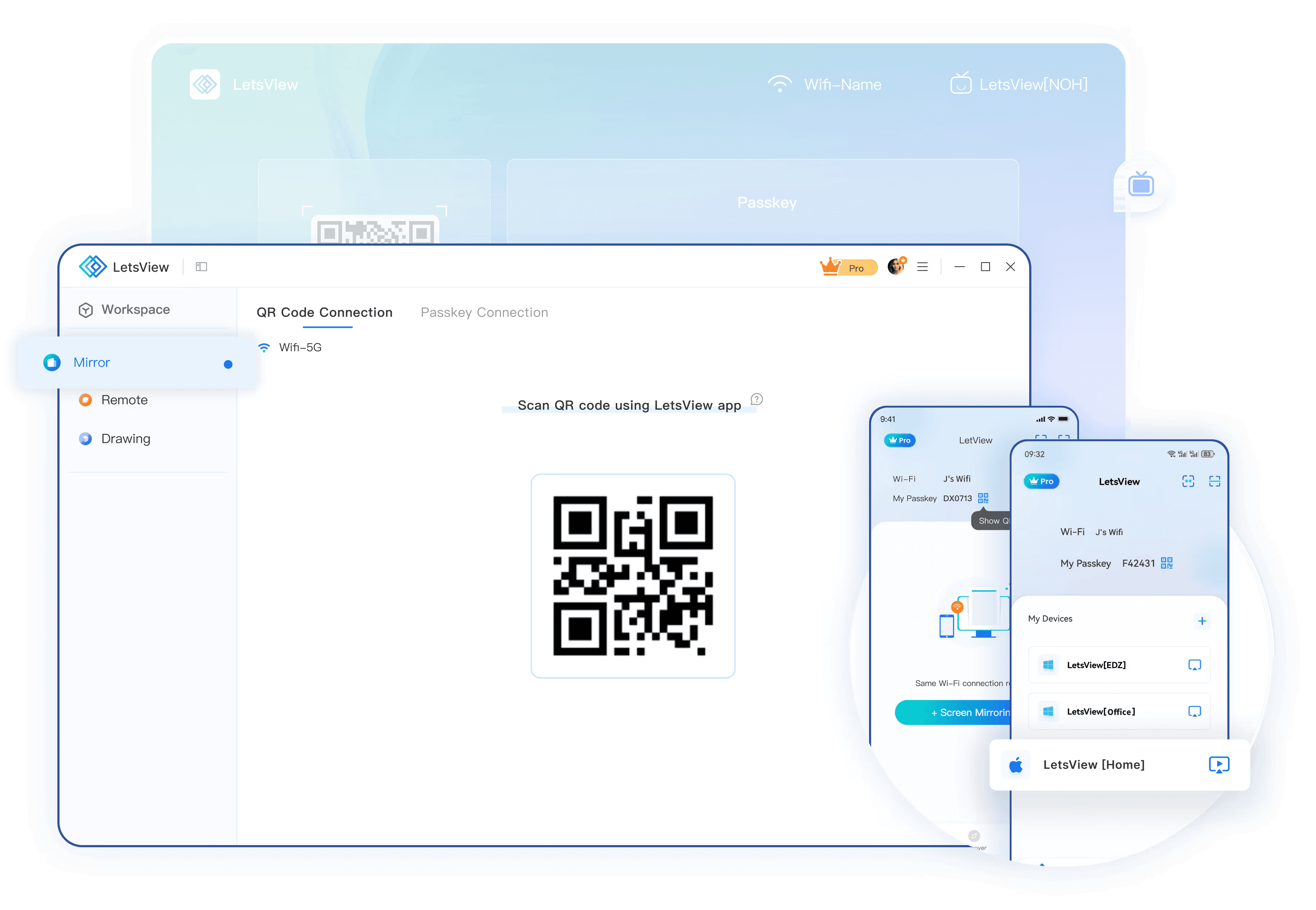
LetsView is a cross-platform screen mirroring app for Windows, macOS, Android, iPhone, iPad, and Android TV. It can mirror a phone to a computer or TV, cast a computer screen to another device, extend a desktop onto a phone or tablet, and connect devices over the internet through remote mirroring.
It is often described as a free screen mirroring app, but that is only partly accurate. LetsView uses a freemium model. Basic local mirroring is free and has no time limit, while higher resolution, 60 fps, device control, screen extension, multi-device connections, and watermark removal require a paid plan. Remote mirroring is charged separately, even for Pro members.
For this review, we checked LetsView’s official feature and pricing pages, current app-store listings, and independent review coverage. The main question is whether the free limits and uneven user ratings make it suitable for your setup.
To see how LetsView compares with the other leading options, visit our best screen mirroring apps roundup.
LetsView is a cross-platform screen mirroring app for Windows, macOS, Android, iPhone, iPad, and Android TV. It can mirror a phone to a computer or TV, cast a computer screen to another device, extend a desktop onto a phone or tablet, and connect devices over the internet through remote mirroring.
It is often described as a free screen mirroring app, but that is only partly accurate. LetsView uses a freemium model. Basic local mirroring is free and has no time limit, while higher resolution, 60 fps, device control, screen extension, multi-device connections, and watermark removal require a paid plan. Remote mirroring is charged separately, even for Pro members.
For this review, we checked LetsView’s official feature and pricing pages, current app-store listings, and independent review coverage. The main question is whether the free limits and uneven user ratings make it suitable for your setup.
To see how LetsView compares with the other leading options, visit our best screen mirroring apps roundup.
LetsView is a cross-platform screen mirroring app for Windows, macOS, Android, iPhone, iPad, and Android TV. It can mirror a phone to a computer or TV, cast a computer screen to another device, extend a desktop onto a phone or tablet, and connect devices over the internet through remote mirroring.
It is often described as a free screen mirroring app, but that is only partly accurate. LetsView uses a freemium model. Basic local mirroring is free and has no time limit, while higher resolution, 60 fps, device control, screen extension, multi-device connections, and watermark removal require a paid plan. Remote mirroring is charged separately, even for Pro members.
For this review, we checked LetsView’s official feature and pricing pages, current app-store listings, and independent review coverage. The main question is whether the free limits and uneven user ratings make it suitable for your setup.
To see how LetsView compares with the other leading options, visit our best screen mirroring apps roundup.
LetsView at a Glance
LetsView at a Glance
LetsView at a Glance
Category | What to know |
|---|---|
Best for | Casual mirroring, classes, presentations, demonstrations, and media sharing |
Platforms | Windows, macOS, Android, iOS/iPadOS, and Android TV |
Free plan | Unlimited local mirroring with SD quality, 30 fps, one connection, and a watermark |
Paid plans | FHD, 60 fps, higher bitrate, control tools, screen extension, five connections, and no watermark |
Connections | Device discovery, QR code, passkey, AirPlay, Miracast, and remote cast code |
Main drawbacks | Free-plan limits, inconsistent stability, separate remote charges, and low mobile-store ratings |
Official website |
The latest clearly verifiable mobile releases are Android version 1.5.27, released June 5, 2026, and iOS/iPadOS version 1.5.5, released January 24, 2024. LetsView provides current Windows and Mac installers, but it does not consistently display desktop build numbers publicly.
Category | What to know |
|---|---|
Best for | Casual mirroring, classes, presentations, demonstrations, and media sharing |
Platforms | Windows, macOS, Android, iOS/iPadOS, and Android TV |
Free plan | Unlimited local mirroring with SD quality, 30 fps, one connection, and a watermark |
Paid plans | FHD, 60 fps, higher bitrate, control tools, screen extension, five connections, and no watermark |
Connections | Device discovery, QR code, passkey, AirPlay, Miracast, and remote cast code |
Main drawbacks | Free-plan limits, inconsistent stability, separate remote charges, and low mobile-store ratings |
Official website |
The latest clearly verifiable mobile releases are Android version 1.5.27, released June 5, 2026, and iOS/iPadOS version 1.5.5, released January 24, 2024. LetsView provides current Windows and Mac installers, but it does not consistently display desktop build numbers publicly.
Category | What to know |
|---|---|
Best for | Casual mirroring, classes, presentations, demonstrations, and media sharing |
Platforms | Windows, macOS, Android, iOS/iPadOS, and Android TV |
Free plan | Unlimited local mirroring with SD quality, 30 fps, one connection, and a watermark |
Paid plans | FHD, 60 fps, higher bitrate, control tools, screen extension, five connections, and no watermark |
Connections | Device discovery, QR code, passkey, AirPlay, Miracast, and remote cast code |
Main drawbacks | Free-plan limits, inconsistent stability, separate remote charges, and low mobile-store ratings |
Official website |
The latest clearly verifiable mobile releases are Android version 1.5.27, released June 5, 2026, and iOS/iPadOS version 1.5.5, released January 24, 2024. LetsView provides current Windows and Mac installers, but it does not consistently display desktop build numbers publicly.
LetsView Core Features
LetsView Core Features
LetsView Core Features
Cross-Platform Screen Mirroring
LetsView supports common phone-to-computer, phone-to-TV, computer-to-TV, and computer-to-computer workflows. Devices on the same network can connect through automatic discovery, a QR code, or a passkey. iPhone and iPad users can also connect through AirPlay when the receiving device supports it.
Broad platform support is one of LetsView’s main advantages. The same service can cover an iPhone-to-Windows setup, an Android-to-Mac setup, or a phone-to-Android-TV connection.
Compatibility still depends on the sender, receiver, operating-system version, and TV platform. Support for TVs does not mean that a native LetsView app is available on every smart-TV operating system. Check that your intended receiving device is supported before purchasing a plan.
Screen Control and Extension
Paid plans support controlling a Windows PC from a phone and controlling an Android phone from Windows. Screen extension can also turn a phone or tablet into an additional display rather than simply duplicating the computer screen.
These tools can be helpful for presentations, demonstrations, and lightweight second-screen use. However, LetsView should not be treated as a replacement for a full remote-desktop platform designed for unattended access, IT support, or enterprise device management.
Presentation and Recording Tools
LetsView includes a whiteboard, on-screen annotations, screenshots, screen recording, document presentation, full-screen viewing, and an always-on-top display mode. These additions make it more useful for teaching and presenting than a basic operating-system casting feature.
Its TV tools can also display media and documents, including PowerPoint, PDF, Word, and Excel files sent from a connected device.
Local and Remote Mirroring
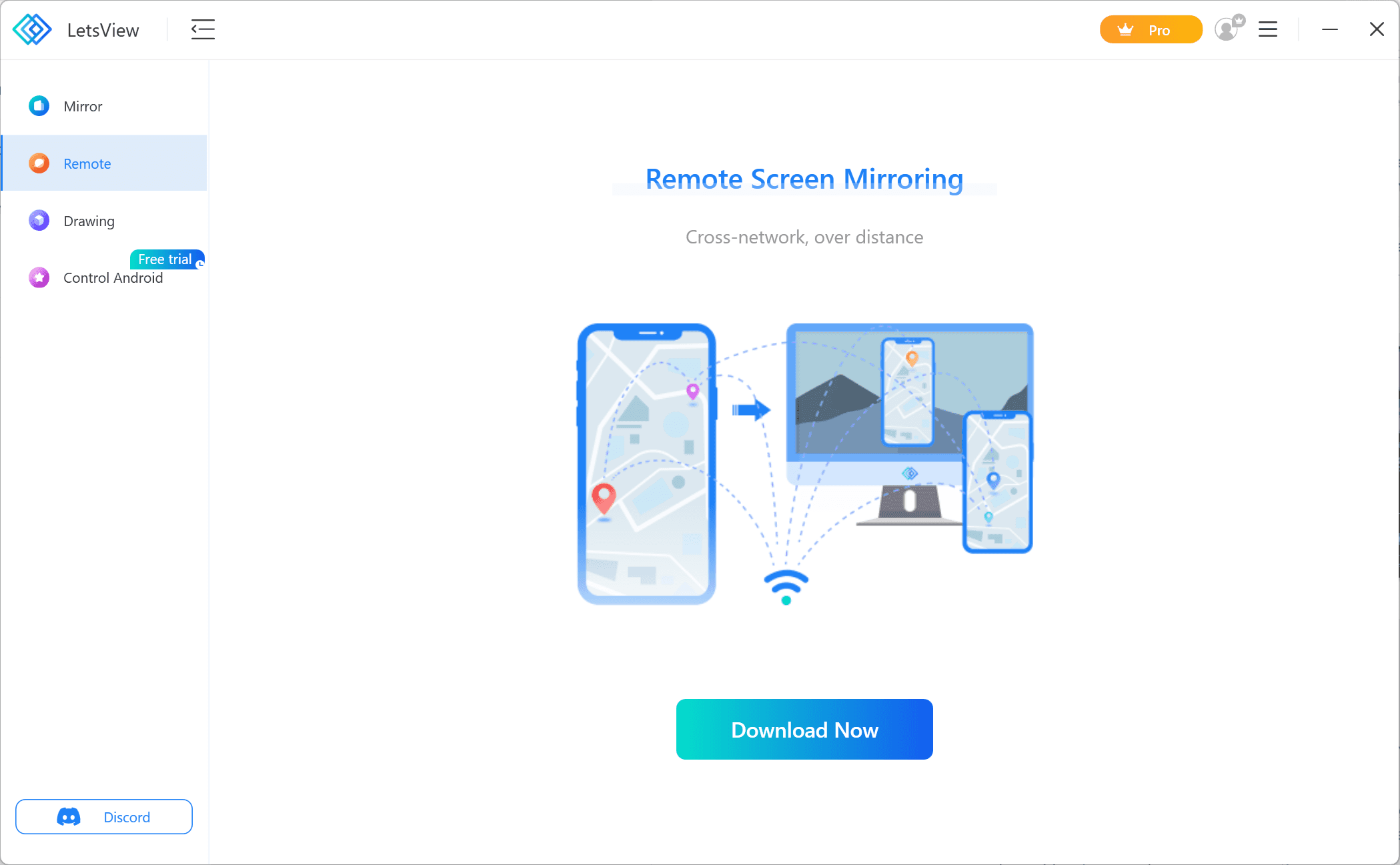
Local mirroring connects devices that are using the same Wi-Fi network. Remote mirroring connects devices across different networks by using a remote cast code and an internet connection.
Remote mirroring is not included as unlimited usage in a normal Pro subscription. LetsView uses a separate time-based charging system for remote sessions, so people who expect to connect remotely often should include these charges when comparing alternatives.
Cross-Platform Screen Mirroring
LetsView supports common phone-to-computer, phone-to-TV, computer-to-TV, and computer-to-computer workflows. Devices on the same network can connect through automatic discovery, a QR code, or a passkey. iPhone and iPad users can also connect through AirPlay when the receiving device supports it.
Broad platform support is one of LetsView’s main advantages. The same service can cover an iPhone-to-Windows setup, an Android-to-Mac setup, or a phone-to-Android-TV connection.
Compatibility still depends on the sender, receiver, operating-system version, and TV platform. Support for TVs does not mean that a native LetsView app is available on every smart-TV operating system. Check that your intended receiving device is supported before purchasing a plan.
Screen Control and Extension
Paid plans support controlling a Windows PC from a phone and controlling an Android phone from Windows. Screen extension can also turn a phone or tablet into an additional display rather than simply duplicating the computer screen.
These tools can be helpful for presentations, demonstrations, and lightweight second-screen use. However, LetsView should not be treated as a replacement for a full remote-desktop platform designed for unattended access, IT support, or enterprise device management.
Presentation and Recording Tools
LetsView includes a whiteboard, on-screen annotations, screenshots, screen recording, document presentation, full-screen viewing, and an always-on-top display mode. These additions make it more useful for teaching and presenting than a basic operating-system casting feature.
Its TV tools can also display media and documents, including PowerPoint, PDF, Word, and Excel files sent from a connected device.
Local and Remote Mirroring
Local mirroring connects devices that are using the same Wi-Fi network. Remote mirroring connects devices across different networks by using a remote cast code and an internet connection.
Remote mirroring is not included as unlimited usage in a normal Pro subscription. LetsView uses a separate time-based charging system for remote sessions, so people who expect to connect remotely often should include these charges when comparing alternatives.
Cross-Platform Screen Mirroring
LetsView supports common phone-to-computer, phone-to-TV, computer-to-TV, and computer-to-computer workflows. Devices on the same network can connect through automatic discovery, a QR code, or a passkey. iPhone and iPad users can also connect through AirPlay when the receiving device supports it.
Broad platform support is one of LetsView’s main advantages. The same service can cover an iPhone-to-Windows setup, an Android-to-Mac setup, or a phone-to-Android-TV connection.
Compatibility still depends on the sender, receiver, operating-system version, and TV platform. Support for TVs does not mean that a native LetsView app is available on every smart-TV operating system. Check that your intended receiving device is supported before purchasing a plan.
Screen Control and Extension
Paid plans support controlling a Windows PC from a phone and controlling an Android phone from Windows. Screen extension can also turn a phone or tablet into an additional display rather than simply duplicating the computer screen.
These tools can be helpful for presentations, demonstrations, and lightweight second-screen use. However, LetsView should not be treated as a replacement for a full remote-desktop platform designed for unattended access, IT support, or enterprise device management.
Presentation and Recording Tools
LetsView includes a whiteboard, on-screen annotations, screenshots, screen recording, document presentation, full-screen viewing, and an always-on-top display mode. These additions make it more useful for teaching and presenting than a basic operating-system casting feature.
Its TV tools can also display media and documents, including PowerPoint, PDF, Word, and Excel files sent from a connected device.
Local and Remote Mirroring
Local mirroring connects devices that are using the same Wi-Fi network. Remote mirroring connects devices across different networks by using a remote cast code and an internet connection.
Remote mirroring is not included as unlimited usage in a normal Pro subscription. LetsView uses a separate time-based charging system for remote sessions, so people who expect to connect remotely often should include these charges when comparing alternatives.
Performance: Testing and User Feedback
Performance: Testing and User Feedback
Performance: Testing and User Feedback
LetsView’s Basic plan is capped at SD quality, 30 fps, and a maximum advertised bitrate of 4 Mbps. Pro and Business increase the advertised limits to FHD, 60 fps, and 8 Mbps. These figures describe plan limits rather than guaranteed real-world performance.
What People Say
Positive reviewers commonly mention simple pairing, a clear picture, usable audio, and little noticeable delay on a stable Wi-Fi connection. Negative feedback mentions lag, slow-motion playback, freezing, random disconnections, crashes, device-discovery failures, and audio problems. This suggests that LetsView can work well on a favorable local network, but performance may be less predictable across different routers and device combinations.
In Our Testing
In our testing, LetsView was stable on a strong 5 GHz Wi-Fi connection. Device discovery was quick, image quality was clear, and everyday mirroring felt smooth.
A slight delay was noticeable during fast video and gaming, especially on weaker or busy networks. Lowering the resolution or using fluency-priority mode improved performance.
Overall, LetsView works well for presentations, browsing, and casual media, but it is less suitable for latency-sensitive use.
LetsView’s Basic plan is capped at SD quality, 30 fps, and a maximum advertised bitrate of 4 Mbps. Pro and Business increase the advertised limits to FHD, 60 fps, and 8 Mbps. These figures describe plan limits rather than guaranteed real-world performance.
What People Say
Positive reviewers commonly mention simple pairing, a clear picture, usable audio, and little noticeable delay on a stable Wi-Fi connection. Negative feedback mentions lag, slow-motion playback, freezing, random disconnections, crashes, device-discovery failures, and audio problems. This suggests that LetsView can work well on a favorable local network, but performance may be less predictable across different routers and device combinations.
In Our Testing
In our testing, LetsView was stable on a strong 5 GHz Wi-Fi connection. Device discovery was quick, image quality was clear, and everyday mirroring felt smooth.
A slight delay was noticeable during fast video and gaming, especially on weaker or busy networks. Lowering the resolution or using fluency-priority mode improved performance.
Overall, LetsView works well for presentations, browsing, and casual media, but it is less suitable for latency-sensitive use.
LetsView’s Basic plan is capped at SD quality, 30 fps, and a maximum advertised bitrate of 4 Mbps. Pro and Business increase the advertised limits to FHD, 60 fps, and 8 Mbps. These figures describe plan limits rather than guaranteed real-world performance.
What People Say
Positive reviewers commonly mention simple pairing, a clear picture, usable audio, and little noticeable delay on a stable Wi-Fi connection. Negative feedback mentions lag, slow-motion playback, freezing, random disconnections, crashes, device-discovery failures, and audio problems. This suggests that LetsView can work well on a favorable local network, but performance may be less predictable across different routers and device combinations.
In Our Testing
In our testing, LetsView was stable on a strong 5 GHz Wi-Fi connection. Device discovery was quick, image quality was clear, and everyday mirroring felt smooth.
A slight delay was noticeable during fast video and gaming, especially on weaker or busy networks. Lowering the resolution or using fluency-priority mode improved performance.
Overall, LetsView works well for presentations, browsing, and casual media, but it is less suitable for latency-sensitive use.
How to Use LetsView
How to Use LetsView
How to Use LetsView
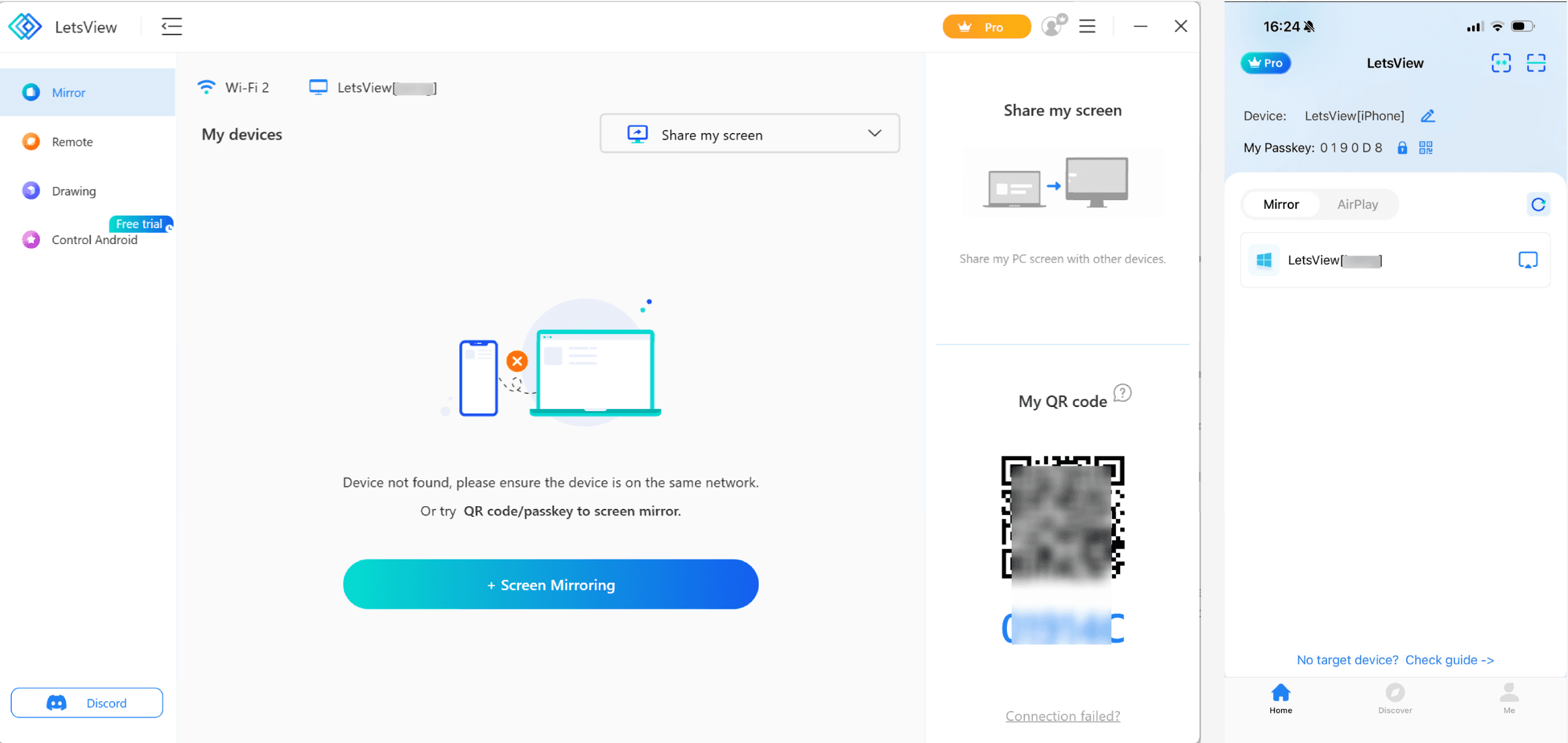
I’ll take mirroring iPhone to a Windows PC as an example.
Step 1: Install LetsView
Download the software from the official LetsView download page or the appropriate mobile app store. Install it on both the device sending the screen and the device receiving it.
Step 2: Connect the Devices
For local mirroring, connect both devices to the same Wi-Fi network. Open LetsView and select the receiving device from the list. You can also scan the receiver’s QR code or enter its passkey.
On an iPhone or iPad, open Control Center, tap Screen Mirroring, and select the available LetsView receiver through AirPlay.
For remote mirroring, enter the remote cast code shown on the receiving device. Remember that remote connections consume separately purchased remote minutes.
Step 3: Start Mirroring
Approve the screen-recording or casting permission on the sending device. The screen should then appear on the receiver. Depending on the platform and plan, the desktop toolbar may provide full-screen viewing, screenshots, recording, and annotation tools.
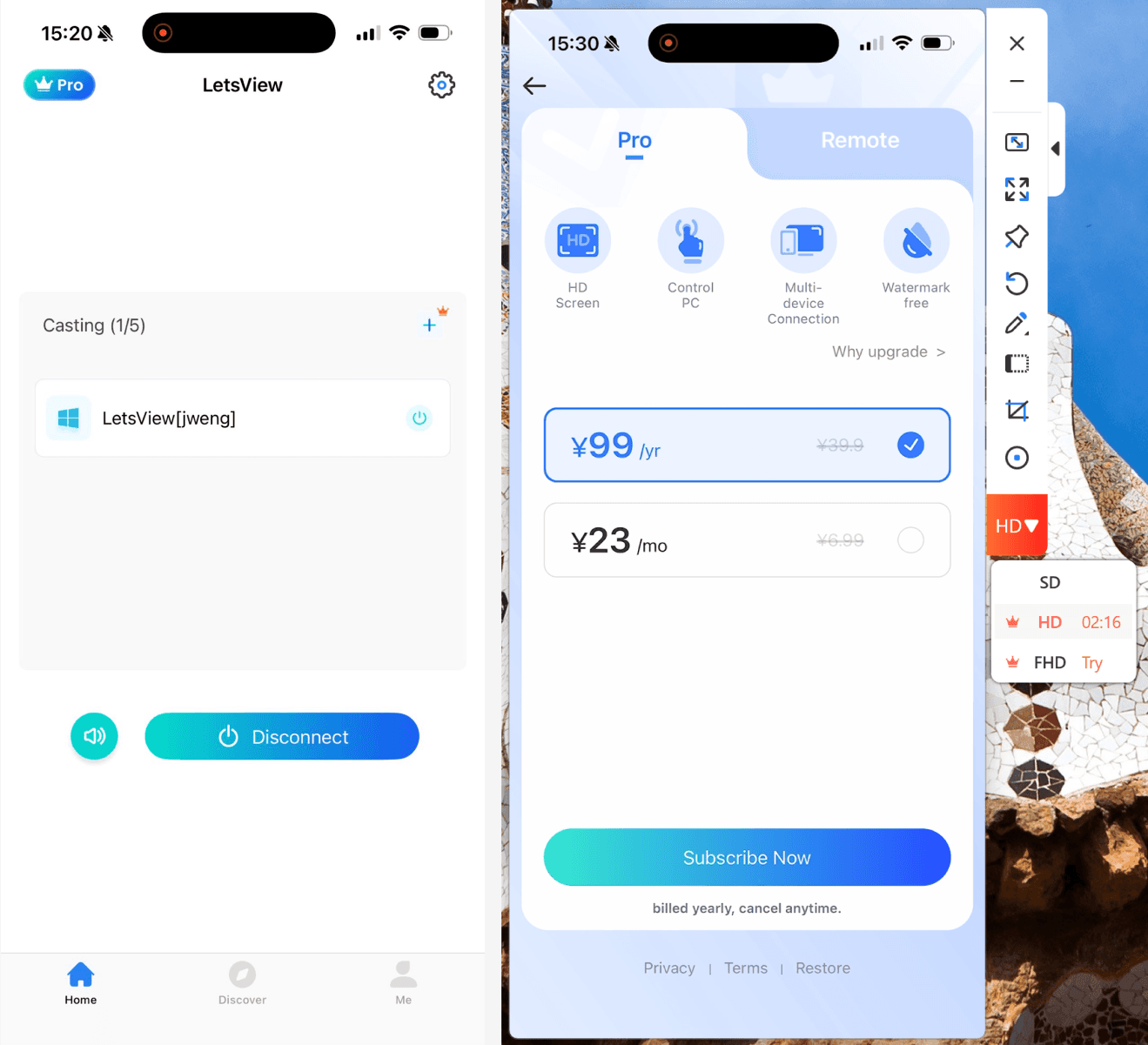
When the devices cannot find each other:
Confirm that both devices are connected to the same network.
Temporarily disable any active VPN.
Allow LetsView through the computer’s firewall.
Try QR-code or passkey pairing instead of automatic discovery.
Restart the app and reconnect both devices to Wi-Fi.
I’ll take mirroring iPhone to a Windows PC as an example.
Step 1: Install LetsView
Download the software from the official LetsView download page or the appropriate mobile app store. Install it on both the device sending the screen and the device receiving it.
Step 2: Connect the Devices
For local mirroring, connect both devices to the same Wi-Fi network. Open LetsView and select the receiving device from the list. You can also scan the receiver’s QR code or enter its passkey.
On an iPhone or iPad, open Control Center, tap Screen Mirroring, and select the available LetsView receiver through AirPlay.
For remote mirroring, enter the remote cast code shown on the receiving device. Remember that remote connections consume separately purchased remote minutes.
Step 3: Start Mirroring
Approve the screen-recording or casting permission on the sending device. The screen should then appear on the receiver. Depending on the platform and plan, the desktop toolbar may provide full-screen viewing, screenshots, recording, and annotation tools.
When the devices cannot find each other:
Confirm that both devices are connected to the same network.
Temporarily disable any active VPN.
Allow LetsView through the computer’s firewall.
Try QR-code or passkey pairing instead of automatic discovery.
Restart the app and reconnect both devices to Wi-Fi.
I’ll take mirroring iPhone to a Windows PC as an example.
Step 1: Install LetsView
Download the software from the official LetsView download page or the appropriate mobile app store. Install it on both the device sending the screen and the device receiving it.
Step 2: Connect the Devices
For local mirroring, connect both devices to the same Wi-Fi network. Open LetsView and select the receiving device from the list. You can also scan the receiver’s QR code or enter its passkey.
On an iPhone or iPad, open Control Center, tap Screen Mirroring, and select the available LetsView receiver through AirPlay.
For remote mirroring, enter the remote cast code shown on the receiving device. Remember that remote connections consume separately purchased remote minutes.
Step 3: Start Mirroring
Approve the screen-recording or casting permission on the sending device. The screen should then appear on the receiver. Depending on the platform and plan, the desktop toolbar may provide full-screen viewing, screenshots, recording, and annotation tools.
When the devices cannot find each other:
Confirm that both devices are connected to the same network.
Temporarily disable any active VPN.
Allow LetsView through the computer’s firewall.
Try QR-code or passkey pairing instead of automatic discovery.
Restart the app and reconnect both devices to Wi-Fi.
LetsView Pricing and Value
LetsView Pricing and Value
LetsView Pricing and Value
Plan | Price found in USD listings | What it includes |
Basic | Free | Unlimited local mirroring; SD, 30 fps, 4 Mbps, one connection, and a watermark |
Pro monthly | $7.99/month | FHD, 60 fps, 8 Mbps, five connections, control, extension, and no watermark |
Pro annual | $29.99/year | Same Pro features with annual billing |
Three-year Pro | $59.99 | Multi-year purchase shown in the App Store |
Lifetime Pro | $49.99 | One-time purchase shown in the U.S. App Store; availability may vary |
Business | About $39.99/year | Pro tools plus commercial use, team discounts, invoicing, and priority support |
Remote minutes | From $0.99 for 15 minutes | Purchased separately from the main subscription |
Prices may vary according to country, platform, tax, and temporary promotion. The official web checkout may not always match the prices shown through an app store, so check the final amount before paying.
Basic offers reasonable value for occasional local casting. Pro is more relevant when FHD, 60 fps, device control, or screen extension is essential. People who frequently mirror across different networks should compare the total cost of remote minutes rather than looking only at the subscription fee.
For a broader cost and feature comparison, see our free vs. paid screen mirroring apps guide.
Plan | Price found in USD listings | What it includes |
Basic | Free | Unlimited local mirroring; SD, 30 fps, 4 Mbps, one connection, and a watermark |
Pro monthly | $7.99/month | FHD, 60 fps, 8 Mbps, five connections, control, extension, and no watermark |
Pro annual | $29.99/year | Same Pro features with annual billing |
Three-year Pro | $59.99 | Multi-year purchase shown in the App Store |
Lifetime Pro | $49.99 | One-time purchase shown in the U.S. App Store; availability may vary |
Business | About $39.99/year | Pro tools plus commercial use, team discounts, invoicing, and priority support |
Remote minutes | From $0.99 for 15 minutes | Purchased separately from the main subscription |
Prices may vary according to country, platform, tax, and temporary promotion. The official web checkout may not always match the prices shown through an app store, so check the final amount before paying.
Basic offers reasonable value for occasional local casting. Pro is more relevant when FHD, 60 fps, device control, or screen extension is essential. People who frequently mirror across different networks should compare the total cost of remote minutes rather than looking only at the subscription fee.
For a broader cost and feature comparison, see our free vs. paid screen mirroring apps guide.
Plan | Price found in USD listings | What it includes |
Basic | Free | Unlimited local mirroring; SD, 30 fps, 4 Mbps, one connection, and a watermark |
Pro monthly | $7.99/month | FHD, 60 fps, 8 Mbps, five connections, control, extension, and no watermark |
Pro annual | $29.99/year | Same Pro features with annual billing |
Three-year Pro | $59.99 | Multi-year purchase shown in the App Store |
Lifetime Pro | $49.99 | One-time purchase shown in the U.S. App Store; availability may vary |
Business | About $39.99/year | Pro tools plus commercial use, team discounts, invoicing, and priority support |
Remote minutes | From $0.99 for 15 minutes | Purchased separately from the main subscription |
Prices may vary according to country, platform, tax, and temporary promotion. The official web checkout may not always match the prices shown through an app store, so check the final amount before paying.
Basic offers reasonable value for occasional local casting. Pro is more relevant when FHD, 60 fps, device control, or screen extension is essential. People who frequently mirror across different networks should compare the total cost of remote minutes rather than looking only at the subscription fee.
For a broader cost and feature comparison, see our free vs. paid screen mirroring apps guide.
LetsView Ratings
LetsView Ratings
LetsView Ratings
At the time of checking, the LetsView Android app had a rating of 3.4 out of 5 from approximately 7,180 reviews and more than five million downloads on Google Play.
The U.S. iPhone and iPad listing also showed 2.8 out of 5 from 396 ratings. The Mac listing showed 2.2 out of 5 from 12 ratings, while the Microsoft Store showed 3.6 out of 5 from 60 ratings.
At the time of checking, the LetsView Android app had a rating of 3.4 out of 5 from approximately 7,180 reviews and more than five million downloads on Google Play.
The U.S. iPhone and iPad listing also showed 2.8 out of 5 from 396 ratings. The Mac listing showed 2.2 out of 5 from 12 ratings, while the Microsoft Store showed 3.6 out of 5 from 60 ratings.
At the time of checking, the LetsView Android app had a rating of 3.4 out of 5 from approximately 7,180 reviews and more than five million downloads on Google Play.
The U.S. iPhone and iPad listing also showed 2.8 out of 5 from 396 ratings. The Mac listing showed 2.2 out of 5 from 12 ratings, while the Microsoft Store showed 3.6 out of 5 from 60 ratings.
Pros and Cons
Pros and Cons
Pros and Cons
Pros
Useful free local mirroring: The Basic plan does not impose a mirroring time limit.
Broad device support: LetsView covers the main desktop and mobile platforms, as well as Android TV.
Several pairing methods: Users can connect through discovery, QR codes, passkeys, AirPlay, or Miracast.
Practical presentation tools: Whiteboard, annotation, screenshots, recording, and document display are built in.
More capable paid plans: Pro adds FHD, 60 fps, device control, screen extension, and support for up to five connections.
Cons
It is not completely free: The Basic plan is limited to SD quality, 30 fps, one connection, and a watermark.
Remote mirroring costs extra: Pro membership does not include unlimited remote-session minutes.
Stability varies: User feedback repeatedly mentions lag, freezing, and disconnections.
Pros
Useful free local mirroring: The Basic plan does not impose a mirroring time limit.
Broad device support: LetsView covers the main desktop and mobile platforms, as well as Android TV.
Several pairing methods: Users can connect through discovery, QR codes, passkeys, AirPlay, or Miracast.
Practical presentation tools: Whiteboard, annotation, screenshots, recording, and document display are built in.
More capable paid plans: Pro adds FHD, 60 fps, device control, screen extension, and support for up to five connections.
Cons
It is not completely free: The Basic plan is limited to SD quality, 30 fps, one connection, and a watermark.
Remote mirroring costs extra: Pro membership does not include unlimited remote-session minutes.
Stability varies: User feedback repeatedly mentions lag, freezing, and disconnections.
Pros
Useful free local mirroring: The Basic plan does not impose a mirroring time limit.
Broad device support: LetsView covers the main desktop and mobile platforms, as well as Android TV.
Several pairing methods: Users can connect through discovery, QR codes, passkeys, AirPlay, or Miracast.
Practical presentation tools: Whiteboard, annotation, screenshots, recording, and document display are built in.
More capable paid plans: Pro adds FHD, 60 fps, device control, screen extension, and support for up to five connections.
Cons
It is not completely free: The Basic plan is limited to SD quality, 30 fps, one connection, and a watermark.
Remote mirroring costs extra: Pro membership does not include unlimited remote-session minutes.
Stability varies: User feedback repeatedly mentions lag, freezing, and disconnections.
Scorecard
Dimension | Score (out of 5) | Notes |
|---|---|---|
Feature completeness | 4.4 | Broad feature set with local mirroring, remote mirroring, recording, annotation, whiteboard, and screen extension |
Ease of use | 4.2 | QR code, passkey, and device discovery make setup simple for most users |
Performance | 3.6 | Good enough for daily mirroring and presentations, but lag can appear depending on network quality |
Value for money | 4.0 | Free version is useful, but key features like FHD, 60 fps, and control tools require a paid plan |
Stability | 3.4 | Works well in many local setups, but user feedback often mentions disconnections and inconsistent reliability |
Cross-platform support | 4.5 | Strong device coverage across Windows, Mac, Android, iPhone, iPad, and TV use cases |
Overall | 3.9 | A capable freemium mirroring tool with strong features, but its stability and performance are not equally strong on every setup |
LetsView is a capable freemium screen mirroring app, not a completely free product. Its Basic plan is genuinely useful for unlimited local mirroring, and the app offers more presentation tools and broader platform support than many built-in casting options.
LetsView is worth trying for casual home use, classroom demonstrations, presentations, and occasional phone-to-computer mirroring. Test the free version with your exact devices and Wi-Fi environment before purchasing.
For competitive gaming, professional livestreaming, frequent remote access, or workflows requiring consistently low latency, a wired connection or a more performance-focused alternative may be a better choice.
Scorecard
Dimension | Score (out of 5) | Notes |
|---|---|---|
Feature completeness | 4.4 | Broad feature set with local mirroring, remote mirroring, recording, annotation, whiteboard, and screen extension |
Ease of use | 4.2 | QR code, passkey, and device discovery make setup simple for most users |
Performance | 3.6 | Good enough for daily mirroring and presentations, but lag can appear depending on network quality |
Value for money | 4.0 | Free version is useful, but key features like FHD, 60 fps, and control tools require a paid plan |
Stability | 3.4 | Works well in many local setups, but user feedback often mentions disconnections and inconsistent reliability |
Cross-platform support | 4.5 | Strong device coverage across Windows, Mac, Android, iPhone, iPad, and TV use cases |
Overall | 3.9 | A capable freemium mirroring tool with strong features, but its stability and performance are not equally strong on every setup |
LetsView is a capable freemium screen mirroring app, not a completely free product. Its Basic plan is genuinely useful for unlimited local mirroring, and the app offers more presentation tools and broader platform support than many built-in casting options.
LetsView is worth trying for casual home use, classroom demonstrations, presentations, and occasional phone-to-computer mirroring. Test the free version with your exact devices and Wi-Fi environment before purchasing.
For competitive gaming, professional livestreaming, frequent remote access, or workflows requiring consistently low latency, a wired connection or a more performance-focused alternative may be a better choice.
Scorecard
Dimension | Score (out of 5) | Notes |
|---|---|---|
Feature completeness | 4.4 | Broad feature set with local mirroring, remote mirroring, recording, annotation, whiteboard, and screen extension |
Ease of use | 4.2 | QR code, passkey, and device discovery make setup simple for most users |
Performance | 3.6 | Good enough for daily mirroring and presentations, but lag can appear depending on network quality |
Value for money | 4.0 | Free version is useful, but key features like FHD, 60 fps, and control tools require a paid plan |
Stability | 3.4 | Works well in many local setups, but user feedback often mentions disconnections and inconsistent reliability |
Cross-platform support | 4.5 | Strong device coverage across Windows, Mac, Android, iPhone, iPad, and TV use cases |
Overall | 3.9 | A capable freemium mirroring tool with strong features, but its stability and performance are not equally strong on every setup |
LetsView is a capable freemium screen mirroring app, not a completely free product. Its Basic plan is genuinely useful for unlimited local mirroring, and the app offers more presentation tools and broader platform support than many built-in casting options.
LetsView is worth trying for casual home use, classroom demonstrations, presentations, and occasional phone-to-computer mirroring. Test the free version with your exact devices and Wi-Fi environment before purchasing.
For competitive gaming, professional livestreaming, frequent remote access, or workflows requiring consistently low latency, a wired connection or a more performance-focused alternative may be a better choice.
Table of content
Table of content


Still Need a Hand?
Still Need a Hand?
Still Need a Hand?
Explore more reviews, step-by-step guides, and troubleshooting tips—or contact us if you could not find the answer you needed.
Explore more reviews, step-by-step guides, and troubleshooting tips—or contact us if you could not find the answer you needed.
Explore more reviews, step-by-step guides, and troubleshooting tips—or contact us if you could not find the answer you needed.