
1001 TVs Review: The Complete Guide
1001 TVs Review: The Complete Guide
1001 TVs Review: The Complete Guide
Read our 1001 TVs review for features, screen mirroring performance, pricing, real user feedback, drawbacks, alternatives, and the final verdict.
Read our 1001 TVs review for features, screen mirroring performance, pricing, real user feedback, drawbacks, alternatives, and the final verdict.
Read our 1001 TVs review for features, screen mirroring performance, pricing, real user feedback, drawbacks, alternatives, and the final verdict.
I went into this 1001 TVs review with one practical question: can one app make screen mirroring less frustrating when your devices do not share an ecosystem? Mirroring an iPhone to an Apple TV is easy. Connecting an iPhone to Windows, Android to Mac, or a computer to a different-brand TV is where an app like this has to earn its place.
My answer is mostly yes. 1001 TVs combines screen mirroring with file transfer, browser reception, media streaming, TV Albums, TV Remote Control, portrait display, and multi-device mirroring. Its range impressed me more than any single feature, and the U.S. annual price of $19.99 feels reasonable for frequent use. Setup is generally straightforward once the sender and receiver are on the same Wi-Fi.
I would recommend it to mixed-device households, teachers, presenters, creators, and fitness users. I would not choose it for competitive gaming or full phone control: performance depends on the network, television support is uneven, and the receiver cannot fully control a mirrored phone.
Overall rating: 4.2⭐/ 5⭐
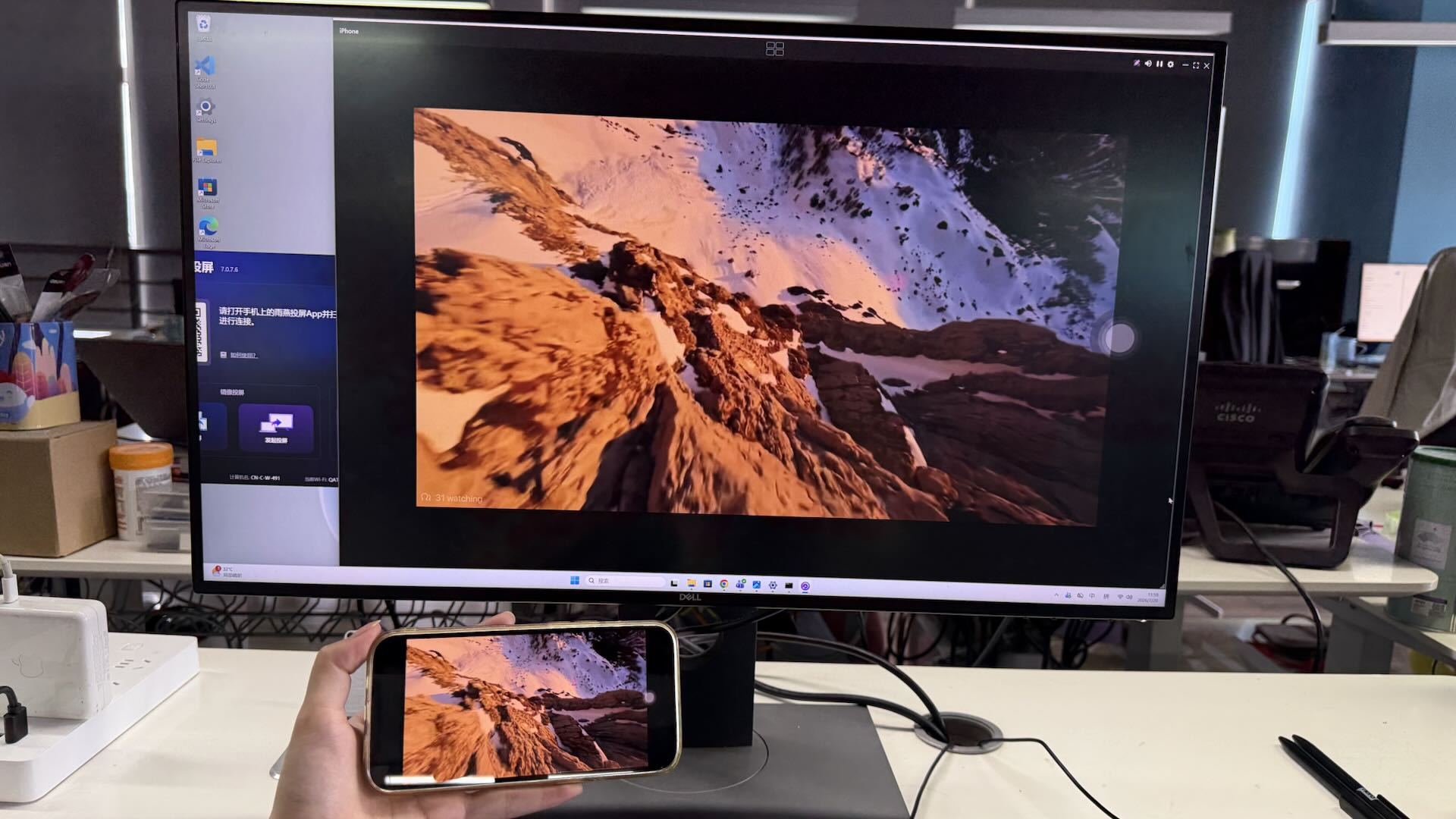
I went into this 1001 TVs review with one practical question: can one app make screen mirroring less frustrating when your devices do not share an ecosystem? Mirroring an iPhone to an Apple TV is easy. Connecting an iPhone to Windows, Android to Mac, or a computer to a different-brand TV is where an app like this has to earn its place.
My answer is mostly yes. 1001 TVs combines screen mirroring with file transfer, browser reception, media streaming, TV Albums, TV Remote Control, portrait display, and multi-device mirroring. Its range impressed me more than any single feature, and the U.S. annual price of $19.99 feels reasonable for frequent use. Setup is generally straightforward once the sender and receiver are on the same Wi-Fi.
I would recommend it to mixed-device households, teachers, presenters, creators, and fitness users. I would not choose it for competitive gaming or full phone control: performance depends on the network, television support is uneven, and the receiver cannot fully control a mirrored phone.
Overall rating: 4.2⭐/ 5⭐
I went into this 1001 TVs review with one practical question: can one app make screen mirroring less frustrating when your devices do not share an ecosystem? Mirroring an iPhone to an Apple TV is easy. Connecting an iPhone to Windows, Android to Mac, or a computer to a different-brand TV is where an app like this has to earn its place.
My answer is mostly yes. 1001 TVs combines screen mirroring with file transfer, browser reception, media streaming, TV Albums, TV Remote Control, portrait display, and multi-device mirroring. Its range impressed me more than any single feature, and the U.S. annual price of $19.99 feels reasonable for frequent use. Setup is generally straightforward once the sender and receiver are on the same Wi-Fi.
I would recommend it to mixed-device households, teachers, presenters, creators, and fitness users. I would not choose it for competitive gaming or full phone control: performance depends on the network, television support is uneven, and the receiver cannot fully control a mirrored phone.
Overall rating: 4.2⭐/ 5⭐
1001 TVs Review: The 30-Second Verdict
1001 TVs Review: The 30-Second Verdict
1001 TVs Review: The 30-Second Verdict
Category | Rating | What matters |
|---|---|---|
Feature range | 4.6/5 | Mirroring, file transfer, streaming, albums, browser reception, and multi-device tools |
Ease of use | 4.2/5 | Usually straightforward, although device discovery can require troubleshooting |
Image quality and latency | 3.9/5 | Flexible resolution and frame-rate settings, but results depend on Wi-Fi and hardware |
Platform coverage | 4.4/5 | Supports major mobile and desktop systems, Android TV, and Apple TV; not every TV OS is covered |
Value | 4.3/5 | Good U.S. value at $19.99 per year for frequent cross-platform users |
Overall | 4.2/5 | Recommended, with network and compatibility caveats |
Want to check it on your own devices? Download 1001 TVs from the official Download Center for iPhone, iPad, Android, Windows, Mac, Android TV, or Apple TV.
Category | Rating | What matters |
|---|---|---|
Feature range | 4.6/5 | Mirroring, file transfer, streaming, albums, browser reception, and multi-device tools |
Ease of use | 4.2/5 | Usually straightforward, although device discovery can require troubleshooting |
Image quality and latency | 3.9/5 | Flexible resolution and frame-rate settings, but results depend on Wi-Fi and hardware |
Platform coverage | 4.4/5 | Supports major mobile and desktop systems, Android TV, and Apple TV; not every TV OS is covered |
Value | 4.3/5 | Good U.S. value at $19.99 per year for frequent cross-platform users |
Overall | 4.2/5 | Recommended, with network and compatibility caveats |
Want to check it on your own devices? Download 1001 TVs from the official Download Center for iPhone, iPad, Android, Windows, Mac, Android TV, or Apple TV.
Category | Rating | What matters |
|---|---|---|
Feature range | 4.6/5 | Mirroring, file transfer, streaming, albums, browser reception, and multi-device tools |
Ease of use | 4.2/5 | Usually straightforward, although device discovery can require troubleshooting |
Image quality and latency | 3.9/5 | Flexible resolution and frame-rate settings, but results depend on Wi-Fi and hardware |
Platform coverage | 4.4/5 | Supports major mobile and desktop systems, Android TV, and Apple TV; not every TV OS is covered |
Value | 4.3/5 | Good U.S. value at $19.99 per year for frequent cross-platform users |
Overall | 4.2/5 | Recommended, with network and compatibility caveats |
Want to check it on your own devices? Download 1001 TVs from the official Download Center for iPhone, iPad, Android, Windows, Mac, Android TV, or Apple TV.
What Is 1001 TVs Screen Mirroring?
What Is 1001 TVs Screen Mirroring?
What Is 1001 TVs Screen Mirroring?
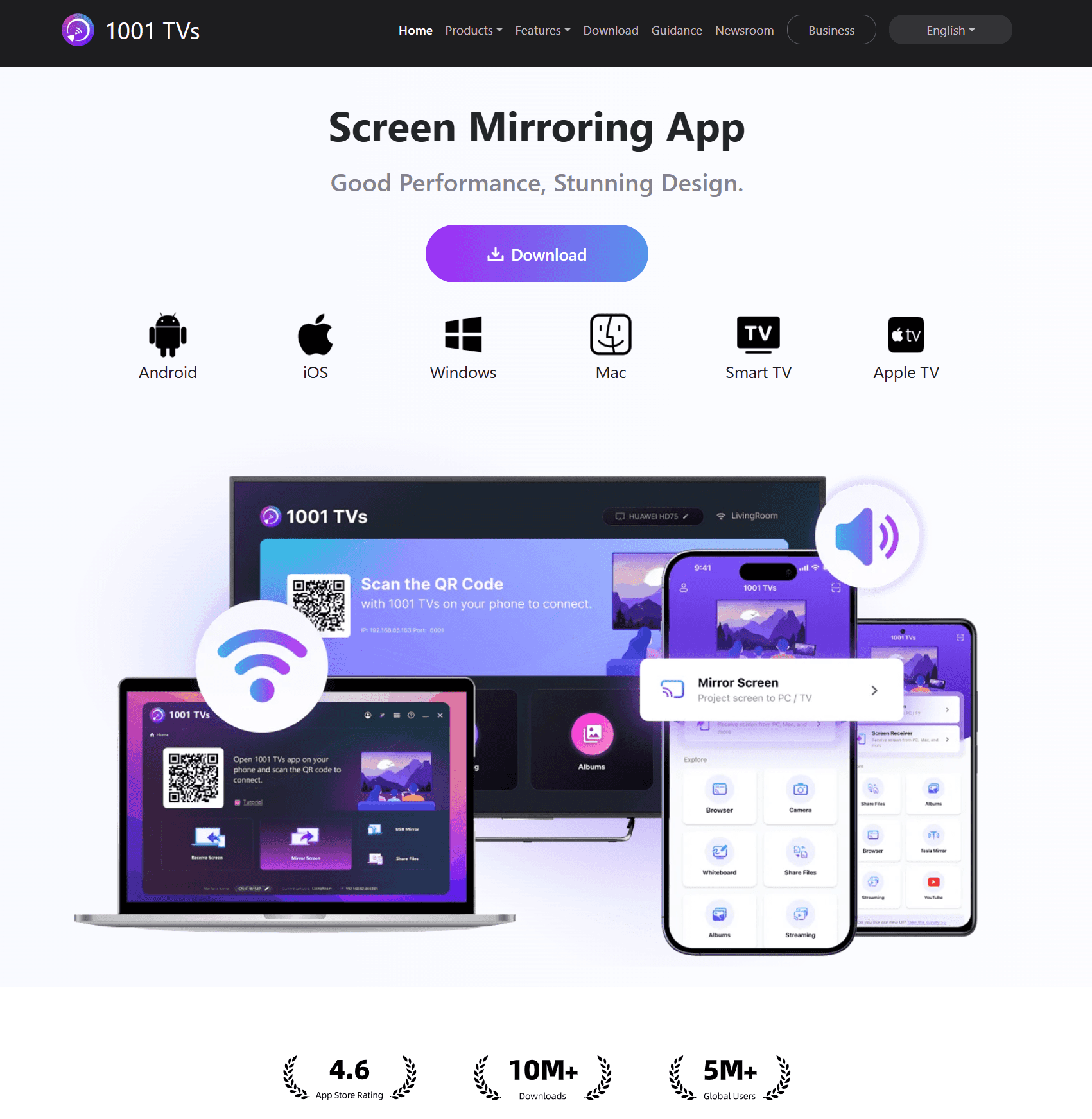
After mapping the supported routes, I see 1001 TVs as more than a basic “cast to TV” app. Nero AG has built it to turn supported phones, tablets, computers, TVs, and browsers into senders or receivers, with computer-to-TV, phone-to-computer, computer-to-phone, phone-to-phone, file-transfer, media, and multi-screen workflows.
The basic wireless setup I would expect a buyer to follow has three steps:
Install 1001 TVs on the sender and supported receiver, unless using browser reception.
Connect both devices to the same Wi-Fi network; 5GHz is recommended.
Select the receiver in the app or scan the displayed QR code.
After mapping the supported routes, I see 1001 TVs as more than a basic “cast to TV” app. Nero AG has built it to turn supported phones, tablets, computers, TVs, and browsers into senders or receivers, with computer-to-TV, phone-to-computer, computer-to-phone, phone-to-phone, file-transfer, media, and multi-screen workflows.
The basic wireless setup I would expect a buyer to follow has three steps:
Install 1001 TVs on the sender and supported receiver, unless using browser reception.
Connect both devices to the same Wi-Fi network; 5GHz is recommended.
Select the receiver in the app or scan the displayed QR code.
After mapping the supported routes, I see 1001 TVs as more than a basic “cast to TV” app. Nero AG has built it to turn supported phones, tablets, computers, TVs, and browsers into senders or receivers, with computer-to-TV, phone-to-computer, computer-to-phone, phone-to-phone, file-transfer, media, and multi-screen workflows.
The basic wireless setup I would expect a buyer to follow has three steps:
Install 1001 TVs on the sender and supported receiver, unless using browser reception.
Connect both devices to the same Wi-Fi network; 5GHz is recommended.
Select the receiver in the app or scan the displayed QR code.
What Platforms Does 1001 TVs Support?
What Platforms Does 1001 TVs Support?
What Platforms Does 1001 TVs Support?
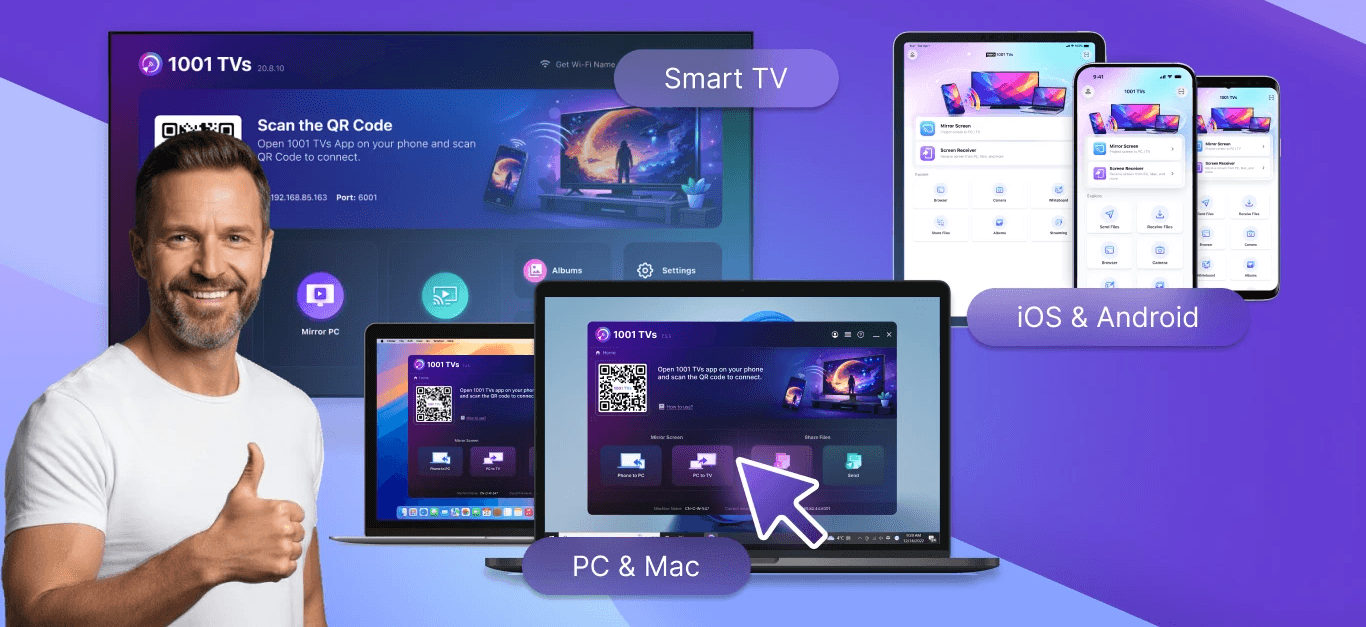
I confirmed apps for the six main platforms below. These are the minimum versions listed on the official 1001 TVs Download Center, checked July 16, 2026.
Platform | Minimum version | Typical role |
|---|---|---|
iOS 15.0+ | Send or receive a mirrored screen; transfer files; use iPhone-only tools | |
Android 6+ | Send or receive; transfer files; Android 15+ can share one app | |
Windows 8, 8.1, 10, or 11 | Send or receive; share a whole screen, extended display, or window | |
macOS 10.15+ | Send or receive; support selected extended-display workflows | |
tvOS 12.0+ | Receive mirroring, streaming, Albums, and files | |
Android TV 6.0+ | Receive mirroring and files; support TV-specific controls |
I would not interpret “cross-platform” as “every TV works.” The Download Center links to a Roku channel for streaming and an Amazon-distributed TV app, but every Roku, Fire TV, or proprietary smart-TV model does not receive the same feature set. I recommend verifying the exact receiver first.
Which devices can mirror to which receivers?
Sender | Supported receiver types | Important options |
|---|---|---|
Android phone or tablet | Android TV, Apple TV, Windows, Mac, Android/iOS mobile device, browser | Full screen; Android 15+ single-app sharing; vertical mode; file transfer |
iPhone or iPad | Android TV, Apple TV, Windows, Mac, Android/iOS mobile device, browser | Full screen; portrait mirroring to supported TVs; Camera Mirroring; Whiteboard |
Windows PC | Android TV, Apple TV, Windows, Mac, Android/iOS mobile device | Whole screen, extended screen, single window, multiple receivers |
Mac | Android TV, Apple TV, Windows, Mac, Android/iOS mobile device | Whole-screen mirroring, selected extended-display workflow, multiple receivers |
I built this table from the official 1001 TVs feature matrix. In practice, I would still check the receiver app, operating system, network permissions, and model-specific app-store availability.
I confirmed apps for the six main platforms below. These are the minimum versions listed on the official 1001 TVs Download Center, checked July 16, 2026.
Platform | Minimum version | Typical role |
|---|---|---|
iOS 15.0+ | Send or receive a mirrored screen; transfer files; use iPhone-only tools | |
Android 6+ | Send or receive; transfer files; Android 15+ can share one app | |
Windows 8, 8.1, 10, or 11 | Send or receive; share a whole screen, extended display, or window | |
macOS 10.15+ | Send or receive; support selected extended-display workflows | |
tvOS 12.0+ | Receive mirroring, streaming, Albums, and files | |
Android TV 6.0+ | Receive mirroring and files; support TV-specific controls |
I would not interpret “cross-platform” as “every TV works.” The Download Center links to a Roku channel for streaming and an Amazon-distributed TV app, but every Roku, Fire TV, or proprietary smart-TV model does not receive the same feature set. I recommend verifying the exact receiver first.
Which devices can mirror to which receivers?
Sender | Supported receiver types | Important options |
|---|---|---|
Android phone or tablet | Android TV, Apple TV, Windows, Mac, Android/iOS mobile device, browser | Full screen; Android 15+ single-app sharing; vertical mode; file transfer |
iPhone or iPad | Android TV, Apple TV, Windows, Mac, Android/iOS mobile device, browser | Full screen; portrait mirroring to supported TVs; Camera Mirroring; Whiteboard |
Windows PC | Android TV, Apple TV, Windows, Mac, Android/iOS mobile device | Whole screen, extended screen, single window, multiple receivers |
Mac | Android TV, Apple TV, Windows, Mac, Android/iOS mobile device | Whole-screen mirroring, selected extended-display workflow, multiple receivers |
I built this table from the official 1001 TVs feature matrix. In practice, I would still check the receiver app, operating system, network permissions, and model-specific app-store availability.
I confirmed apps for the six main platforms below. These are the minimum versions listed on the official 1001 TVs Download Center, checked July 16, 2026.
Platform | Minimum version | Typical role |
|---|---|---|
iOS 15.0+ | Send or receive a mirrored screen; transfer files; use iPhone-only tools | |
Android 6+ | Send or receive; transfer files; Android 15+ can share one app | |
Windows 8, 8.1, 10, or 11 | Send or receive; share a whole screen, extended display, or window | |
macOS 10.15+ | Send or receive; support selected extended-display workflows | |
tvOS 12.0+ | Receive mirroring, streaming, Albums, and files | |
Android TV 6.0+ | Receive mirroring and files; support TV-specific controls |
I would not interpret “cross-platform” as “every TV works.” The Download Center links to a Roku channel for streaming and an Amazon-distributed TV app, but every Roku, Fire TV, or proprietary smart-TV model does not receive the same feature set. I recommend verifying the exact receiver first.
Which devices can mirror to which receivers?
Sender | Supported receiver types | Important options |
|---|---|---|
Android phone or tablet | Android TV, Apple TV, Windows, Mac, Android/iOS mobile device, browser | Full screen; Android 15+ single-app sharing; vertical mode; file transfer |
iPhone or iPad | Android TV, Apple TV, Windows, Mac, Android/iOS mobile device, browser | Full screen; portrait mirroring to supported TVs; Camera Mirroring; Whiteboard |
Windows PC | Android TV, Apple TV, Windows, Mac, Android/iOS mobile device | Whole screen, extended screen, single window, multiple receivers |
Mac | Android TV, Apple TV, Windows, Mac, Android/iOS mobile device | Whole-screen mirroring, selected extended-display workflow, multiple receivers |
I built this table from the official 1001 TVs feature matrix. In practice, I would still check the receiver app, operating system, network permissions, and model-specific app-store availability.
What Are the Main 1001 TVs Features?
What Are the Main 1001 TVs Features?
What Are the Main 1001 TVs Features?
These are the eight capabilities that mattered most in my review. The catch is that not every capability exists on every platform.
Feature | What it does | Availability or limitation |
|---|---|---|
Screen mirroring | Displays a sender’s screen on a TV, computer, phone, tablet, or supported browser | Core platforms; sender/receiver route must be supported |
Window and extended-screen sharing | Shares one Windows window, a full desktop, or an extended display | Strongest on Windows; selected Mac extended-display support |
Browser mirroring | Opens the mirrored screen in a browser without installing a receiver app | Available from iOS, not Android. Phone-to-browser workflows; audio support varies by mode |
File transfer | Moves photos, videos, music, and documents between phones, computers, and supported TVs | Direction and file management differ by receiver |
Streaming and TV Albums | Plays web media or stores photos, videos, and music on a TV | Android TV and Apple TV workflows |
Multiple devices to one PC/Mac | Displays several phones, tablets, PCs, or Macs on one desktop simultaneously | Windows or Mac acts as the central receiver |
One PC/Mac to multiple receivers | Sends one computer screen to several TVs, phones, tablets, PCs, or Macs simultaneously | Windows or Mac acts as the sender |
Display controls | Changes quality, frame rate, orientation, black bars, pause/resume, and fit mode | Options vary by sender and TV receiver |
TV Remote Control | Turns a phone into a Wi-Fi remote with power, volume, Home, Back, directional-pad, and OK controls | Android or iPhone sender controlling Android TV |
Portrait Screen Mirroring | Optimizes vertical phone content and portrait media for a vertically mounted TV | Listed for supported Android TV and Apple TV workflows; Android TV offers detailed rotation and scaling controls |
Camera Mirroring and Whiteboard | Uses the iPhone camera as a live visual source and adds a presentation canvas | iPhone and iPad only |
Single-app sharing | Shares one Android app without exposing the rest of the screen | Android 15+ only |
Image flip | Reverses the displayed image on the TV receiver | Android TV only |
1. Cross-platform screen, app, window, and extended-display mirroring
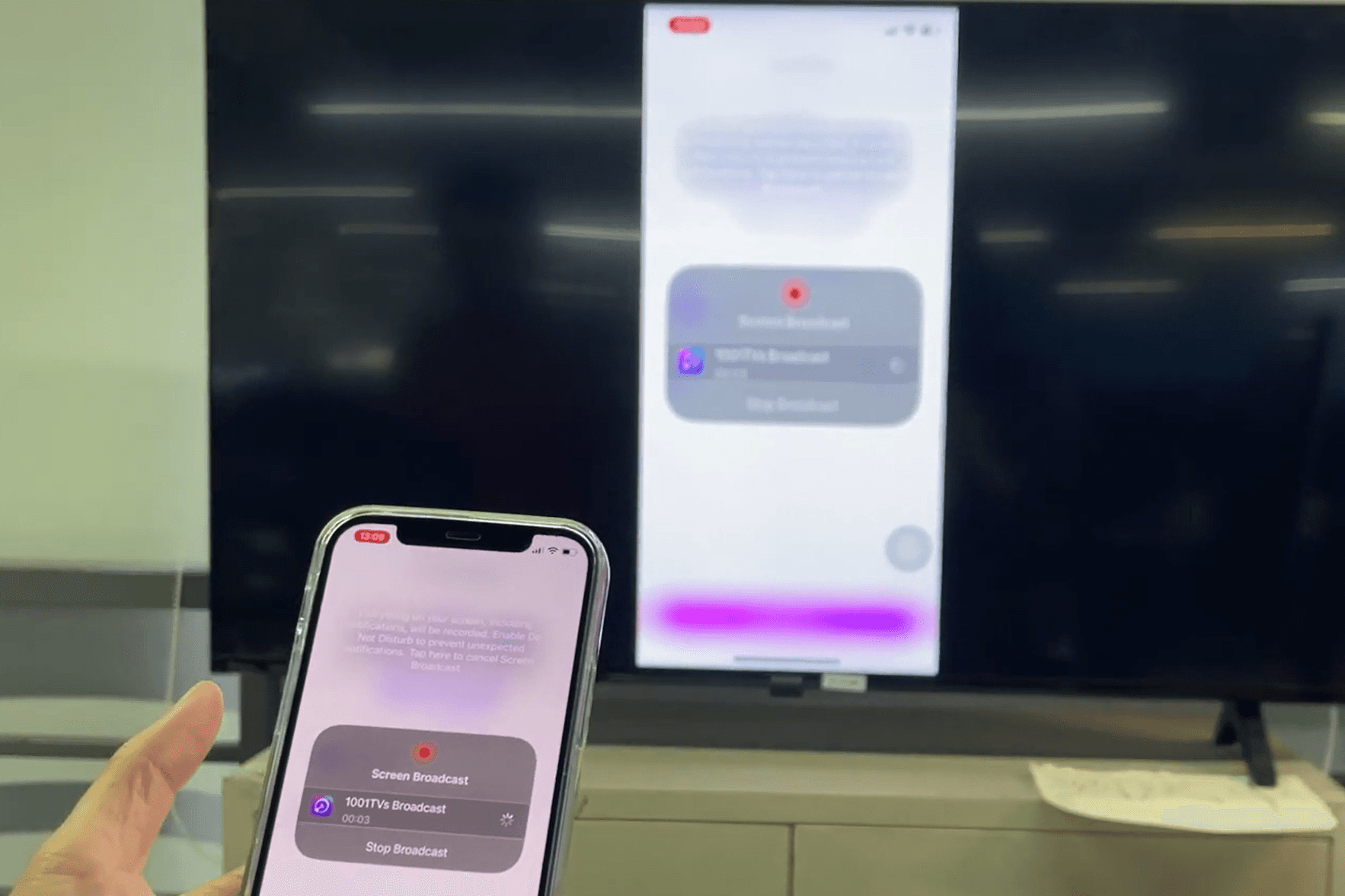
This is the feature set I found most compelling. The basic mode mirrors an entire screen; Android 15+ can share one app; and Windows can share a full desktop, extended screen, or single window.
How I set it up:
I install and open 1001 TVs on the sending device and the receiver, then connect both to the same Wi-Fi network.
On the sender, I open Screen Mirroring and either select the detected receiver or scan the QR code shown on the receiving screen.
I approve the request on the receiver and start the system broadcast if my phone asks for confirmation. When sending from Windows, I first choose Duplicate, Extend, or Select Window, then select the receiver and click Allow on that device.
That final Windows choice is useful: Duplicate is best for a straightforward presentation, Extend creates extra workspace, and Select Window keeps the rest of my desktop private. The official screen mirroring overview covers the supported device routes.
2. Browser mirroring
Browser Mirroring is available in the iOS version of 1001 TVs, but not in the Android version. I like it for temporary or installation-restricted receivers because the receiving computer or tablet only needs a compatible browser. I would still test audio before a meeting because support can vary by iOS mirroring mode.
How I set it up:
I connect the phone and browser device to the same Wi-Fi, then open Chrome or Edge on the receiver; the official browser page says Safari is not supported.
In the mobile app, I open Browser Mirroring. I enter the displayed URL in the receiving browser, or use the QR-code flow when that option appears.
I tap Start Mirror on the phone. For iPhone Pro Mode, I scan the QR code displayed in the browser to begin the session.
This route is convenient because the receiver does not need the 1001 TVs app, but I would test audio before a meeting. See the official Browser Mirroring page.
3. Wireless file transfer
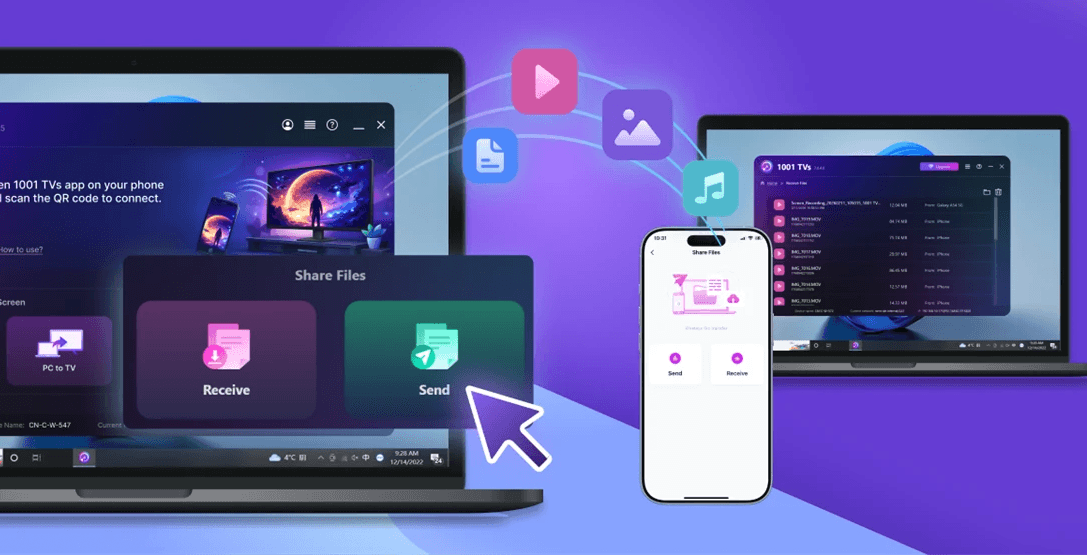
File transfer is one of the extras I would actually use. It moves photos, videos, music, and documents between supported phones, PCs, Macs, and selected TVs. I find it most valuable between iOS and Windows or Android and macOS, where native tools are less convenient. An App Store reviewer praised this same combination.
How I set it up:
I install and open 1001 TVs on both devices, then connect them to the same Wi-Fi network.
On a phone, I tap Send Files and select the receiving device to pair. On a PC or Mac, I use File Transfer > Send instead.
Once the devices are paired, I select the files I want to transfer and send them to the connected device.
On a TV, received files appear under Files, while photos and videos can also appear in Album. On Android, files are saved under Files > Download > 1001 TVs; on iPhone, they appear under Files > 1001 TVs.
The official Android file-transfer guide documents the same pairing and receive locations.
4. Streaming and TV Albums
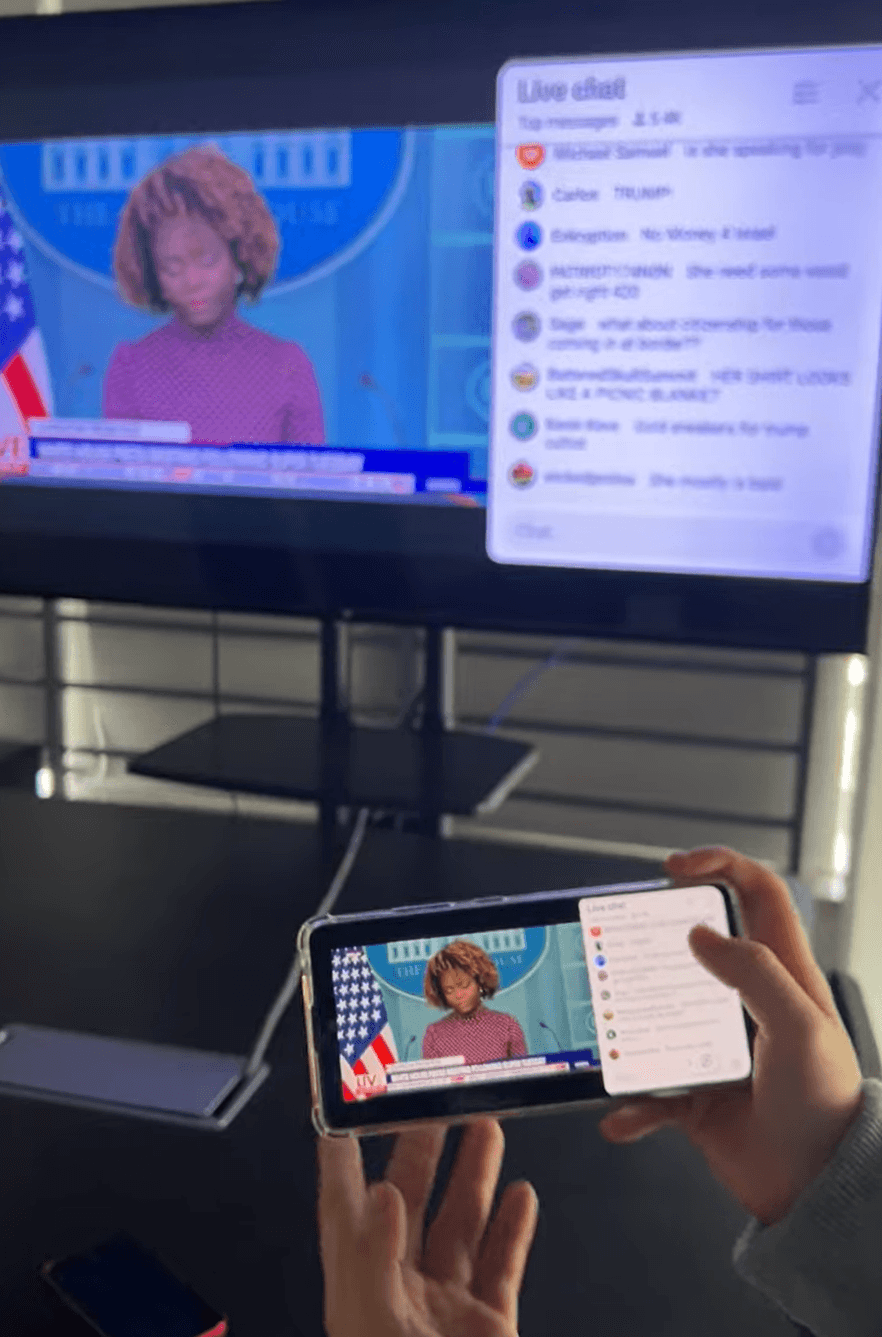
For straightforward media, I would choose Streaming or Albums instead of leaving a phone mirrored. Streaming sends supported web video, music, and images to the TV; Albums stores media for later playback. I see clear uses for exercise videos, family slideshows, and event loops.
How I set them up:
Streaming: I connect the phone and TV to the same Wi-Fi, tap Streaming in the phone app, select the detected TV, and choose the photo, video, or music file I want to play.
TV Albums: I tap Albums on the phone, find the paired TV, choose Upload, and select photos or videos. On the TV, I open Albums → My Album to browse them or start a slideshow.
I use Streaming when I want to play something once and Albums when the TV should keep a reusable media collection. The official guide documents both workflows.
5. Image-quality and display controls
I appreciate that 1001 TVs exposes real quality controls instead of a single automatic mode. The official guide lists defaults of 1,920 × 1,080 and 24 fps, with options up to 3,840 pixels and 60 fps. I would lower them for reliability or raise them for detail and motion on stronger Wi-Fi.
How I adjust it:
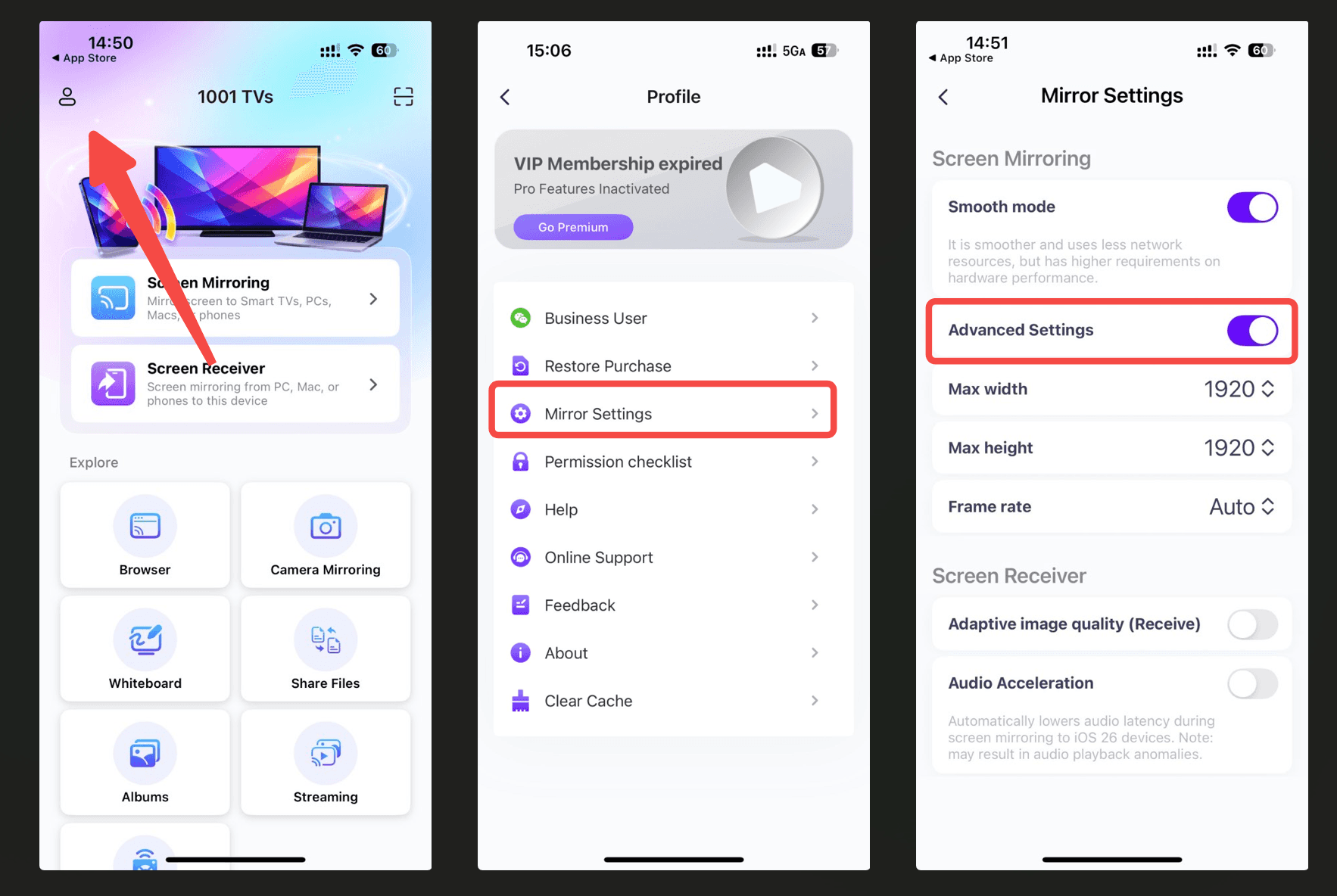
In the sender app, I tap the profile icon, open Mine → Mirror Settings, and enable Advanced Settings.
I adjust Maximum Width, Maximum Height, and Frame Rate rather than changing everything at once.
If the stream stutters, I lower the frame rate or resolution first. On the Windows sender, I can also leave Adaptive Image Quality enabled so the app reduces quality when the network slows, or enable High-Performance Mode when the network and hardware can sustain 60 FPS.
6. TV Remote Control
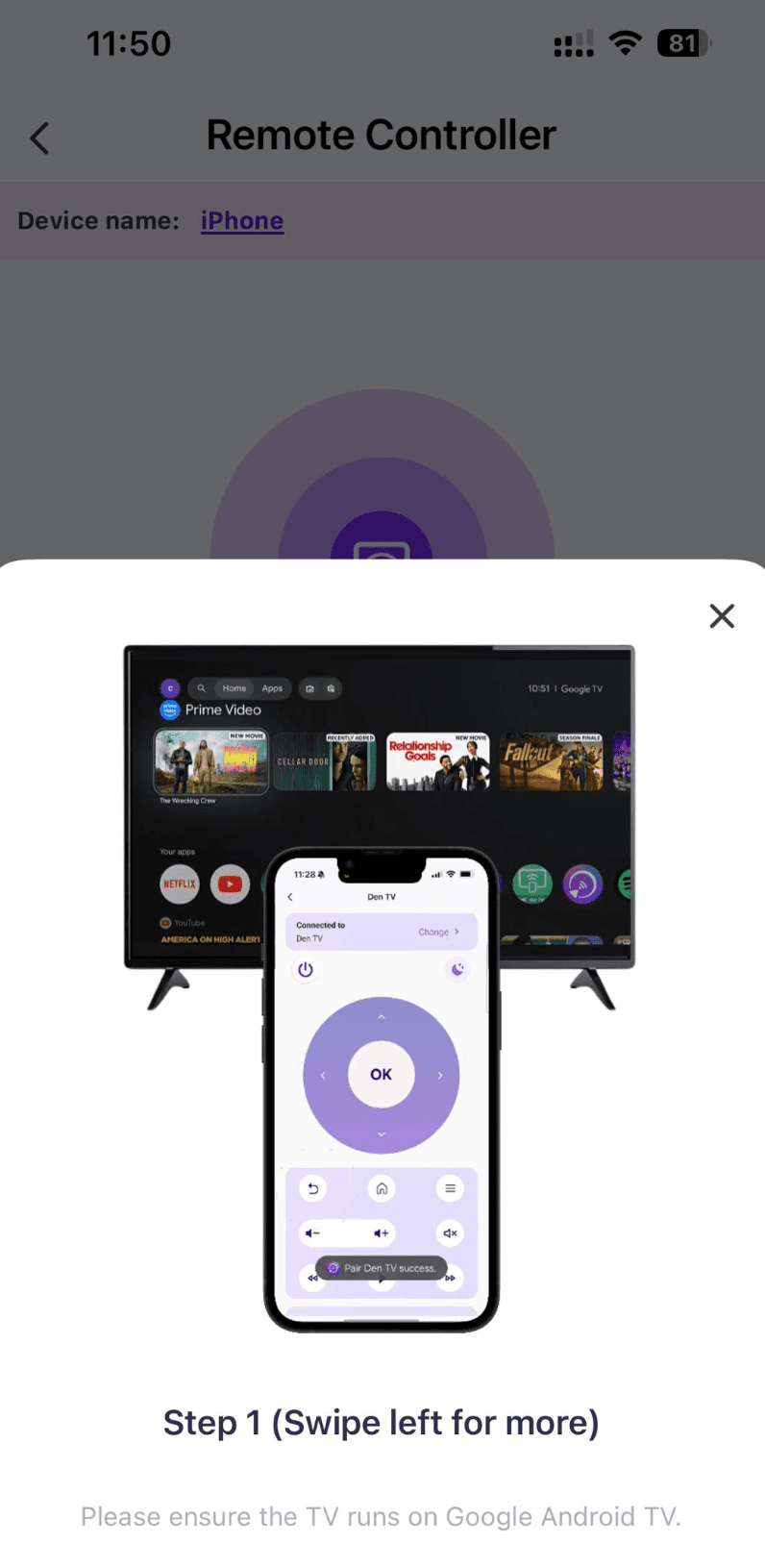
I see TV Remote Control as a full feature, not a minor extra. The phone becomes a practical replacement when the physical remote is missing or out of battery.
How I set it up:
I connect the phone and Android TV to the same Wi-Fi and open 1001 TVs on both.
On the phone, I tap Remote Control and select the detected television.
I enter the pairing code shown on the TV. The virtual remote then opens on the phone.
The documented controls include Power, Volume Up/Down, Home, Back, a directional pad, and OK. That covers the buttons I use most often, and the phone interface is especially convenient when the original remote is missing or out of battery. The feature is available from both Android phones and iPhones for Android TV, according to the official Android TV Remote Control guide.
This feature controls the television itself. It does not provide reverse control of a phone whose screen is being mirrored, which is an important distinction for buyers expecting desktop-style phone control.
7. Portrait Screen Mirroring
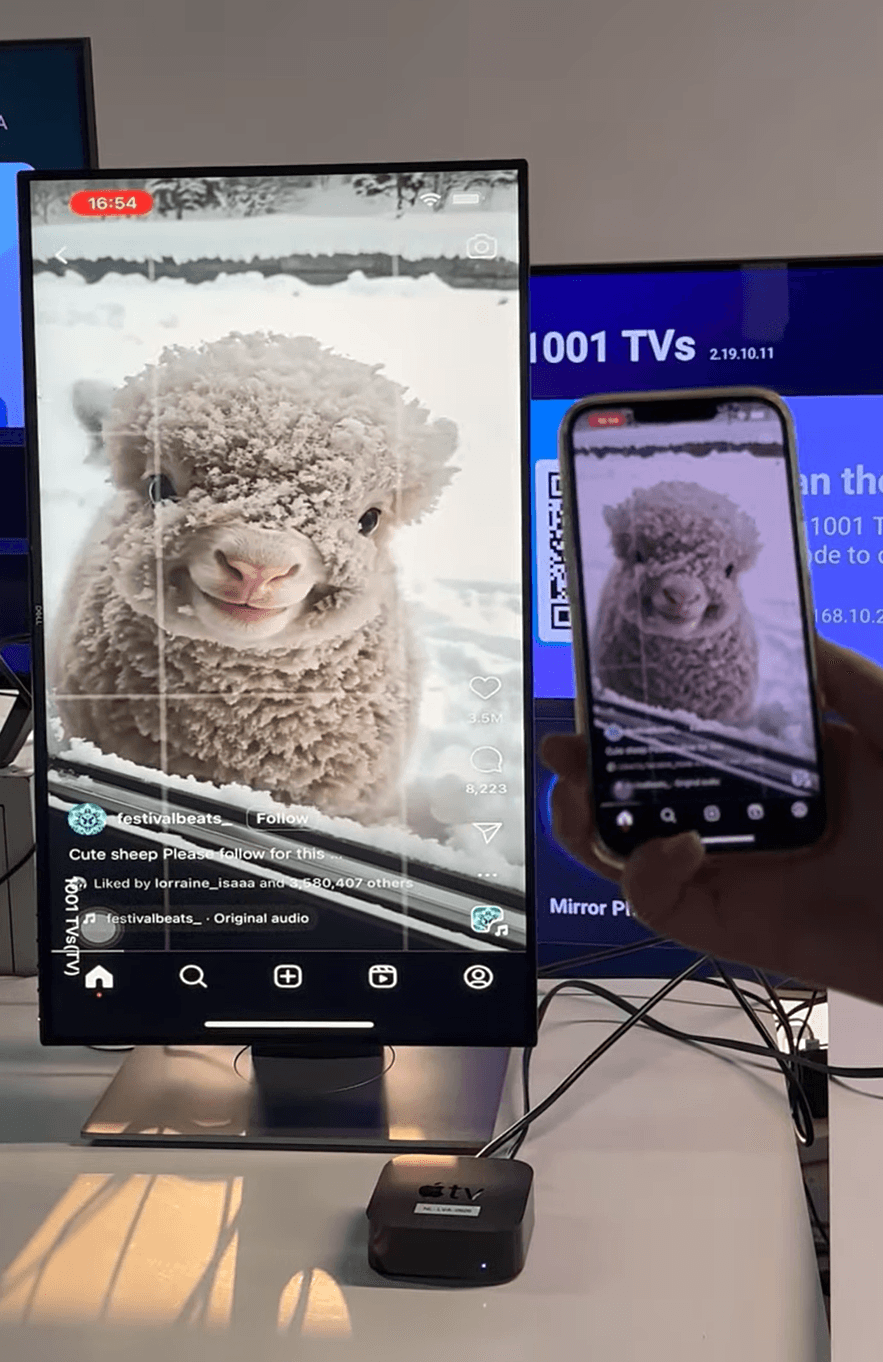
Portrait Screen Mirroring deserves its own section because it solves a different problem from ordinary landscape casting. I find it most useful for TikTok and YouTube Shorts, vertical photos and videos, digital signage, menus, sheet music, classroom materials, and full-height presentation content.
The official feature matrix lists vertical mirroring for supported Android TV and Apple TV routes. On Android TV, I can open the 1001 TVs settings, adjust the screen angle for a vertically mounted television, and restart the app to apply the orientation. The feature works with screen mirroring, while portrait playback is also available for supported Albums and media workflows. See the official Vertical Screen Mode guide.
How I set it up on Android TV:
I open 1001 TVs on the TV, go to Settings → Adjust Angle or Rotate Screen, and choose the vertical orientation. I then restart the TV app so the change takes effect.
On the phone, I start a normal screen-mirroring connection by selecting the TV or scanning its QR code.
If the picture has side bars, I open Portrait Display Mode on the TV and choose Keep Aspect Ratio, Keep Aspect Ratio and Fill Screen, or Scale to Fill the Screen. I can also use the TV remote’s Up and Down buttons to change the displayed size in supported modes.
I also like the display controls designed for portrait screens. Keep Aspect Ratio preserves the original proportions, Keep Aspect Ratio and Fill Screen fills more of the display without distortion, and Scale to Fill the Screen removes side bars by expanding the image. The last option can crop or stretch content, so I would use it for signage and ambience screens rather than material where exact proportions matter.
8. Mirror Multiple Devices to One PC or Mac / One PC or Mac to multiple receivers
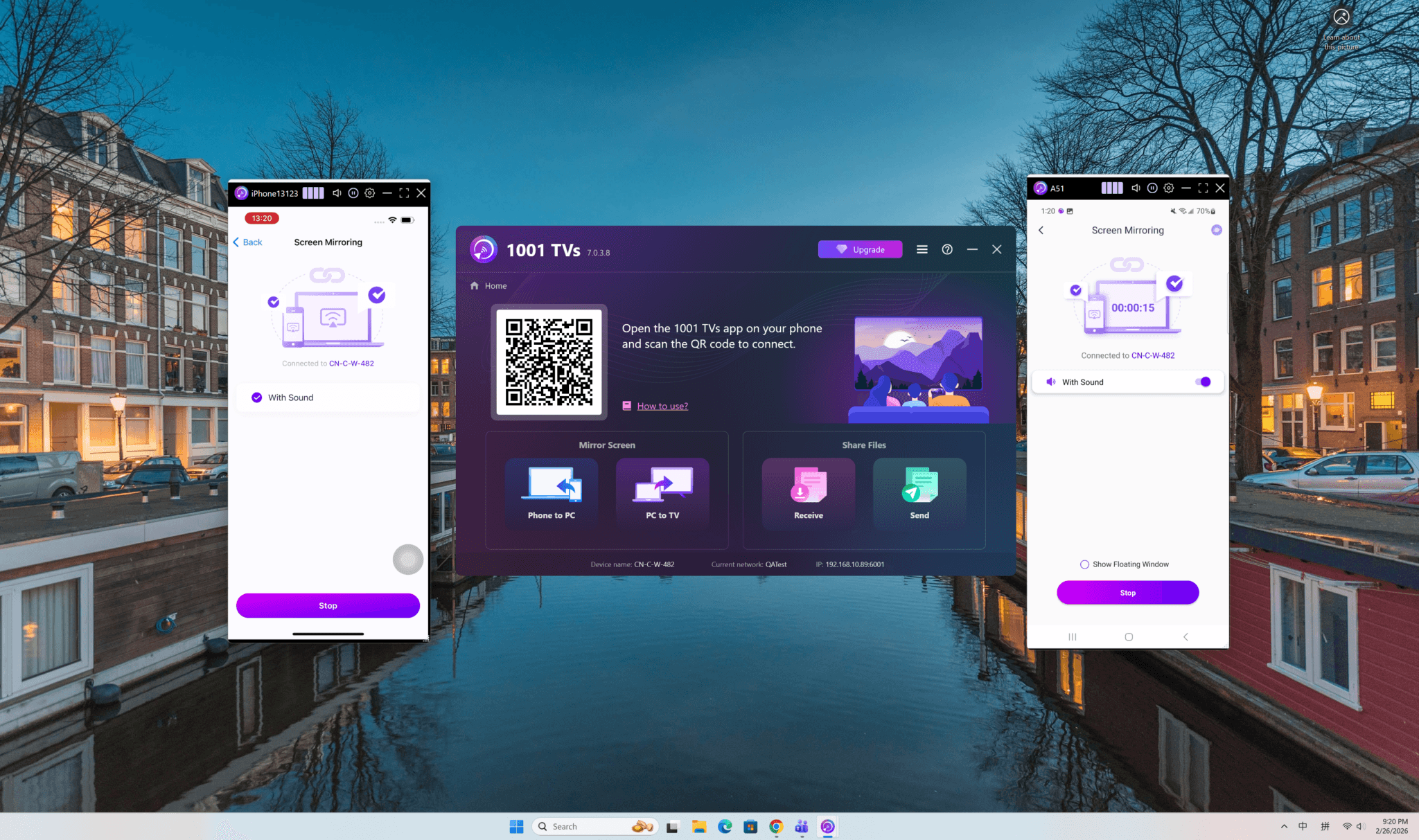
This is one of the strongest collaboration features I found in 1001 TVs. Instead of connecting and disconnecting devices one at a time, I can mirror multiple phones, tablets, PCs, or Macs to one Windows PC or Mac simultaneously. Each incoming screen appears in its own desktop window, making it much easier to compare or monitor several devices in one place. See the official How to Mirror Multiple Phones to the Same Computer guide.
I see practical value for app testing, classroom demonstrations, team presentations, live-commerce monitoring, and comparing the same content across different phones. The desktop feature matrix also lists automatic window arrangement, which helps keep several incoming screens readable instead of stacking them manually.
1001 TVs supports the reverse workflow too: one PC or Mac can mirror to multiple TVs, phones, tablets, PCs, or Macs simultaneously. I would use the many-to-one mode for monitoring and comparison, and the one-to-many mode when the same presentation needs to reach several displays. Running several live streams naturally places more demand on the local network and receiving computer, so I would use 5GHz Wi-Fi and avoid unnecessary high-resolution streams.
How I set it up:
For several devices on one computer, I open 1001 TVs on the PC or Mac and leave its receiving screen available.
On the first phone, tablet, PC, or Mac, I select that computer from the nearby-device list or scan its QR code and start mirroring.
I repeat the same connection from each additional sender. On the desktop, I use the automatic arrangement option to keep the incoming windows organized.
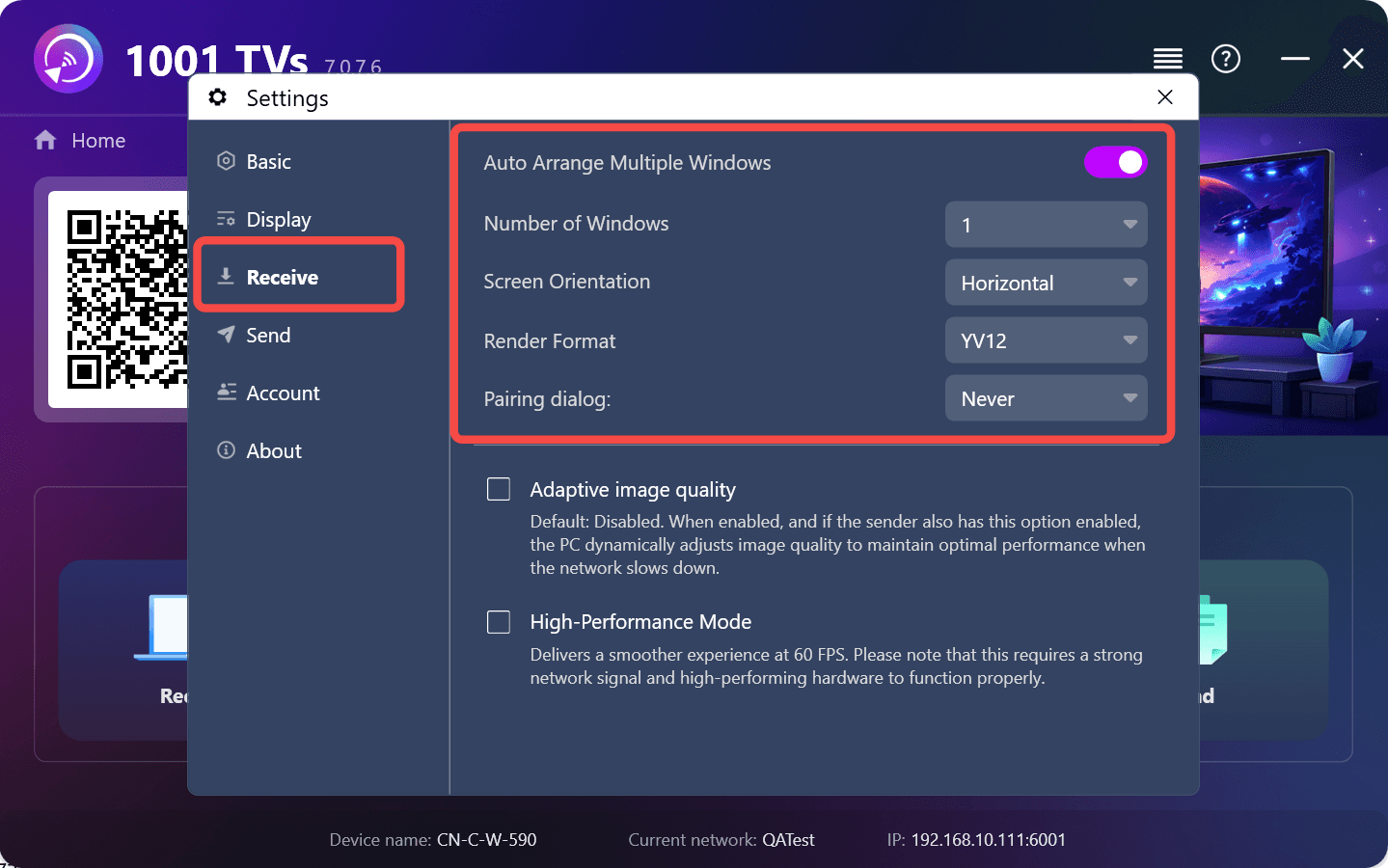
The Windows receiver can automatically arrange incoming screens and lets me set the number of windows and their orientation.
For the reverse one-to-many workflow on Windows, I connect the first receiver, click Add in the mirroring interface, and select each additional receiver. The official guidance notes that adding multiple receivers requires a paid plan.
9. Platform-specific tools, clearly mapped
These tools are useful, but they are not available on every device. I would treat them as route-specific bonuses rather than universal 1001 TVs features:
iPhone and iPad: Camera Mirroring and Whiteboard.
Android 15+: single-app sharing, which keeps the rest of the phone screen private.
Android TV: image flip on the receiver.
These remain useful additions, but unlike TV Remote Control and Portrait Screen Mirroring, each one applies to a narrower device or operating-system route.
These are the eight capabilities that mattered most in my review. The catch is that not every capability exists on every platform.
Feature | What it does | Availability or limitation |
|---|---|---|
Screen mirroring | Displays a sender’s screen on a TV, computer, phone, tablet, or supported browser | Core platforms; sender/receiver route must be supported |
Window and extended-screen sharing | Shares one Windows window, a full desktop, or an extended display | Strongest on Windows; selected Mac extended-display support |
Browser mirroring | Opens the mirrored screen in a browser without installing a receiver app | Available from iOS, not Android. Phone-to-browser workflows; audio support varies by mode |
File transfer | Moves photos, videos, music, and documents between phones, computers, and supported TVs | Direction and file management differ by receiver |
Streaming and TV Albums | Plays web media or stores photos, videos, and music on a TV | Android TV and Apple TV workflows |
Multiple devices to one PC/Mac | Displays several phones, tablets, PCs, or Macs on one desktop simultaneously | Windows or Mac acts as the central receiver |
One PC/Mac to multiple receivers | Sends one computer screen to several TVs, phones, tablets, PCs, or Macs simultaneously | Windows or Mac acts as the sender |
Display controls | Changes quality, frame rate, orientation, black bars, pause/resume, and fit mode | Options vary by sender and TV receiver |
TV Remote Control | Turns a phone into a Wi-Fi remote with power, volume, Home, Back, directional-pad, and OK controls | Android or iPhone sender controlling Android TV |
Portrait Screen Mirroring | Optimizes vertical phone content and portrait media for a vertically mounted TV | Listed for supported Android TV and Apple TV workflows; Android TV offers detailed rotation and scaling controls |
Camera Mirroring and Whiteboard | Uses the iPhone camera as a live visual source and adds a presentation canvas | iPhone and iPad only |
Single-app sharing | Shares one Android app without exposing the rest of the screen | Android 15+ only |
Image flip | Reverses the displayed image on the TV receiver | Android TV only |
1. Cross-platform screen, app, window, and extended-display mirroring
This is the feature set I found most compelling. The basic mode mirrors an entire screen; Android 15+ can share one app; and Windows can share a full desktop, extended screen, or single window.
How I set it up:
I install and open 1001 TVs on the sending device and the receiver, then connect both to the same Wi-Fi network.
On the sender, I open Screen Mirroring and either select the detected receiver or scan the QR code shown on the receiving screen.
I approve the request on the receiver and start the system broadcast if my phone asks for confirmation. When sending from Windows, I first choose Duplicate, Extend, or Select Window, then select the receiver and click Allow on that device.
That final Windows choice is useful: Duplicate is best for a straightforward presentation, Extend creates extra workspace, and Select Window keeps the rest of my desktop private. The official screen mirroring overview covers the supported device routes.
2. Browser mirroring
Browser Mirroring is available in the iOS version of 1001 TVs, but not in the Android version. I like it for temporary or installation-restricted receivers because the receiving computer or tablet only needs a compatible browser. I would still test audio before a meeting because support can vary by iOS mirroring mode.
How I set it up:
I connect the phone and browser device to the same Wi-Fi, then open Chrome or Edge on the receiver; the official browser page says Safari is not supported.
In the mobile app, I open Browser Mirroring. I enter the displayed URL in the receiving browser, or use the QR-code flow when that option appears.
I tap Start Mirror on the phone. For iPhone Pro Mode, I scan the QR code displayed in the browser to begin the session.
This route is convenient because the receiver does not need the 1001 TVs app, but I would test audio before a meeting. See the official Browser Mirroring page.
3. Wireless file transfer
File transfer is one of the extras I would actually use. It moves photos, videos, music, and documents between supported phones, PCs, Macs, and selected TVs. I find it most valuable between iOS and Windows or Android and macOS, where native tools are less convenient. An App Store reviewer praised this same combination.
How I set it up:
I install and open 1001 TVs on both devices, then connect them to the same Wi-Fi network.
On a phone, I tap Send Files and select the receiving device to pair. On a PC or Mac, I use File Transfer > Send instead.
Once the devices are paired, I select the files I want to transfer and send them to the connected device.
On a TV, received files appear under Files, while photos and videos can also appear in Album. On Android, files are saved under Files > Download > 1001 TVs; on iPhone, they appear under Files > 1001 TVs.
The official Android file-transfer guide documents the same pairing and receive locations.
4. Streaming and TV Albums
For straightforward media, I would choose Streaming or Albums instead of leaving a phone mirrored. Streaming sends supported web video, music, and images to the TV; Albums stores media for later playback. I see clear uses for exercise videos, family slideshows, and event loops.
How I set them up:
Streaming: I connect the phone and TV to the same Wi-Fi, tap Streaming in the phone app, select the detected TV, and choose the photo, video, or music file I want to play.
TV Albums: I tap Albums on the phone, find the paired TV, choose Upload, and select photos or videos. On the TV, I open Albums → My Album to browse them or start a slideshow.
I use Streaming when I want to play something once and Albums when the TV should keep a reusable media collection. The official guide documents both workflows.
5. Image-quality and display controls
I appreciate that 1001 TVs exposes real quality controls instead of a single automatic mode. The official guide lists defaults of 1,920 × 1,080 and 24 fps, with options up to 3,840 pixels and 60 fps. I would lower them for reliability or raise them for detail and motion on stronger Wi-Fi.
How I adjust it:
In the sender app, I tap the profile icon, open Mine → Mirror Settings, and enable Advanced Settings.
I adjust Maximum Width, Maximum Height, and Frame Rate rather than changing everything at once.
If the stream stutters, I lower the frame rate or resolution first. On the Windows sender, I can also leave Adaptive Image Quality enabled so the app reduces quality when the network slows, or enable High-Performance Mode when the network and hardware can sustain 60 FPS.
6. TV Remote Control
I see TV Remote Control as a full feature, not a minor extra. The phone becomes a practical replacement when the physical remote is missing or out of battery.
How I set it up:
I connect the phone and Android TV to the same Wi-Fi and open 1001 TVs on both.
On the phone, I tap Remote Control and select the detected television.
I enter the pairing code shown on the TV. The virtual remote then opens on the phone.
The documented controls include Power, Volume Up/Down, Home, Back, a directional pad, and OK. That covers the buttons I use most often, and the phone interface is especially convenient when the original remote is missing or out of battery. The feature is available from both Android phones and iPhones for Android TV, according to the official Android TV Remote Control guide.
This feature controls the television itself. It does not provide reverse control of a phone whose screen is being mirrored, which is an important distinction for buyers expecting desktop-style phone control.
7. Portrait Screen Mirroring
Portrait Screen Mirroring deserves its own section because it solves a different problem from ordinary landscape casting. I find it most useful for TikTok and YouTube Shorts, vertical photos and videos, digital signage, menus, sheet music, classroom materials, and full-height presentation content.
The official feature matrix lists vertical mirroring for supported Android TV and Apple TV routes. On Android TV, I can open the 1001 TVs settings, adjust the screen angle for a vertically mounted television, and restart the app to apply the orientation. The feature works with screen mirroring, while portrait playback is also available for supported Albums and media workflows. See the official Vertical Screen Mode guide.
How I set it up on Android TV:
I open 1001 TVs on the TV, go to Settings → Adjust Angle or Rotate Screen, and choose the vertical orientation. I then restart the TV app so the change takes effect.
On the phone, I start a normal screen-mirroring connection by selecting the TV or scanning its QR code.
If the picture has side bars, I open Portrait Display Mode on the TV and choose Keep Aspect Ratio, Keep Aspect Ratio and Fill Screen, or Scale to Fill the Screen. I can also use the TV remote’s Up and Down buttons to change the displayed size in supported modes.
I also like the display controls designed for portrait screens. Keep Aspect Ratio preserves the original proportions, Keep Aspect Ratio and Fill Screen fills more of the display without distortion, and Scale to Fill the Screen removes side bars by expanding the image. The last option can crop or stretch content, so I would use it for signage and ambience screens rather than material where exact proportions matter.
8. Mirror Multiple Devices to One PC or Mac / One PC or Mac to multiple receivers
This is one of the strongest collaboration features I found in 1001 TVs. Instead of connecting and disconnecting devices one at a time, I can mirror multiple phones, tablets, PCs, or Macs to one Windows PC or Mac simultaneously. Each incoming screen appears in its own desktop window, making it much easier to compare or monitor several devices in one place. See the official How to Mirror Multiple Phones to the Same Computer guide.
I see practical value for app testing, classroom demonstrations, team presentations, live-commerce monitoring, and comparing the same content across different phones. The desktop feature matrix also lists automatic window arrangement, which helps keep several incoming screens readable instead of stacking them manually.
1001 TVs supports the reverse workflow too: one PC or Mac can mirror to multiple TVs, phones, tablets, PCs, or Macs simultaneously. I would use the many-to-one mode for monitoring and comparison, and the one-to-many mode when the same presentation needs to reach several displays. Running several live streams naturally places more demand on the local network and receiving computer, so I would use 5GHz Wi-Fi and avoid unnecessary high-resolution streams.
How I set it up:
For several devices on one computer, I open 1001 TVs on the PC or Mac and leave its receiving screen available.
On the first phone, tablet, PC, or Mac, I select that computer from the nearby-device list or scan its QR code and start mirroring.
I repeat the same connection from each additional sender. On the desktop, I use the automatic arrangement option to keep the incoming windows organized.
The Windows receiver can automatically arrange incoming screens and lets me set the number of windows and their orientation.
For the reverse one-to-many workflow on Windows, I connect the first receiver, click Add in the mirroring interface, and select each additional receiver. The official guidance notes that adding multiple receivers requires a paid plan.
9. Platform-specific tools, clearly mapped
These tools are useful, but they are not available on every device. I would treat them as route-specific bonuses rather than universal 1001 TVs features:
iPhone and iPad: Camera Mirroring and Whiteboard.
Android 15+: single-app sharing, which keeps the rest of the phone screen private.
Android TV: image flip on the receiver.
These remain useful additions, but unlike TV Remote Control and Portrait Screen Mirroring, each one applies to a narrower device or operating-system route.
These are the eight capabilities that mattered most in my review. The catch is that not every capability exists on every platform.
Feature | What it does | Availability or limitation |
|---|---|---|
Screen mirroring | Displays a sender’s screen on a TV, computer, phone, tablet, or supported browser | Core platforms; sender/receiver route must be supported |
Window and extended-screen sharing | Shares one Windows window, a full desktop, or an extended display | Strongest on Windows; selected Mac extended-display support |
Browser mirroring | Opens the mirrored screen in a browser without installing a receiver app | Available from iOS, not Android. Phone-to-browser workflows; audio support varies by mode |
File transfer | Moves photos, videos, music, and documents between phones, computers, and supported TVs | Direction and file management differ by receiver |
Streaming and TV Albums | Plays web media or stores photos, videos, and music on a TV | Android TV and Apple TV workflows |
Multiple devices to one PC/Mac | Displays several phones, tablets, PCs, or Macs on one desktop simultaneously | Windows or Mac acts as the central receiver |
One PC/Mac to multiple receivers | Sends one computer screen to several TVs, phones, tablets, PCs, or Macs simultaneously | Windows or Mac acts as the sender |
Display controls | Changes quality, frame rate, orientation, black bars, pause/resume, and fit mode | Options vary by sender and TV receiver |
TV Remote Control | Turns a phone into a Wi-Fi remote with power, volume, Home, Back, directional-pad, and OK controls | Android or iPhone sender controlling Android TV |
Portrait Screen Mirroring | Optimizes vertical phone content and portrait media for a vertically mounted TV | Listed for supported Android TV and Apple TV workflows; Android TV offers detailed rotation and scaling controls |
Camera Mirroring and Whiteboard | Uses the iPhone camera as a live visual source and adds a presentation canvas | iPhone and iPad only |
Single-app sharing | Shares one Android app without exposing the rest of the screen | Android 15+ only |
Image flip | Reverses the displayed image on the TV receiver | Android TV only |
1. Cross-platform screen, app, window, and extended-display mirroring
This is the feature set I found most compelling. The basic mode mirrors an entire screen; Android 15+ can share one app; and Windows can share a full desktop, extended screen, or single window.
How I set it up:
I install and open 1001 TVs on the sending device and the receiver, then connect both to the same Wi-Fi network.
On the sender, I open Screen Mirroring and either select the detected receiver or scan the QR code shown on the receiving screen.
I approve the request on the receiver and start the system broadcast if my phone asks for confirmation. When sending from Windows, I first choose Duplicate, Extend, or Select Window, then select the receiver and click Allow on that device.
That final Windows choice is useful: Duplicate is best for a straightforward presentation, Extend creates extra workspace, and Select Window keeps the rest of my desktop private. The official screen mirroring overview covers the supported device routes.
2. Browser mirroring
Browser Mirroring is available in the iOS version of 1001 TVs, but not in the Android version. I like it for temporary or installation-restricted receivers because the receiving computer or tablet only needs a compatible browser. I would still test audio before a meeting because support can vary by iOS mirroring mode.
How I set it up:
I connect the phone and browser device to the same Wi-Fi, then open Chrome or Edge on the receiver; the official browser page says Safari is not supported.
In the mobile app, I open Browser Mirroring. I enter the displayed URL in the receiving browser, or use the QR-code flow when that option appears.
I tap Start Mirror on the phone. For iPhone Pro Mode, I scan the QR code displayed in the browser to begin the session.
This route is convenient because the receiver does not need the 1001 TVs app, but I would test audio before a meeting. See the official Browser Mirroring page.
3. Wireless file transfer
File transfer is one of the extras I would actually use. It moves photos, videos, music, and documents between supported phones, PCs, Macs, and selected TVs. I find it most valuable between iOS and Windows or Android and macOS, where native tools are less convenient. An App Store reviewer praised this same combination.
How I set it up:
I install and open 1001 TVs on both devices, then connect them to the same Wi-Fi network.
On a phone, I tap Send Files and select the receiving device to pair. On a PC or Mac, I use File Transfer > Send instead.
Once the devices are paired, I select the files I want to transfer and send them to the connected device.
On a TV, received files appear under Files, while photos and videos can also appear in Album. On Android, files are saved under Files > Download > 1001 TVs; on iPhone, they appear under Files > 1001 TVs.
The official Android file-transfer guide documents the same pairing and receive locations.
4. Streaming and TV Albums
For straightforward media, I would choose Streaming or Albums instead of leaving a phone mirrored. Streaming sends supported web video, music, and images to the TV; Albums stores media for later playback. I see clear uses for exercise videos, family slideshows, and event loops.
How I set them up:
Streaming: I connect the phone and TV to the same Wi-Fi, tap Streaming in the phone app, select the detected TV, and choose the photo, video, or music file I want to play.
TV Albums: I tap Albums on the phone, find the paired TV, choose Upload, and select photos or videos. On the TV, I open Albums → My Album to browse them or start a slideshow.
I use Streaming when I want to play something once and Albums when the TV should keep a reusable media collection. The official guide documents both workflows.
5. Image-quality and display controls
I appreciate that 1001 TVs exposes real quality controls instead of a single automatic mode. The official guide lists defaults of 1,920 × 1,080 and 24 fps, with options up to 3,840 pixels and 60 fps. I would lower them for reliability or raise them for detail and motion on stronger Wi-Fi.
How I adjust it:
In the sender app, I tap the profile icon, open Mine → Mirror Settings, and enable Advanced Settings.
I adjust Maximum Width, Maximum Height, and Frame Rate rather than changing everything at once.
If the stream stutters, I lower the frame rate or resolution first. On the Windows sender, I can also leave Adaptive Image Quality enabled so the app reduces quality when the network slows, or enable High-Performance Mode when the network and hardware can sustain 60 FPS.
6. TV Remote Control
I see TV Remote Control as a full feature, not a minor extra. The phone becomes a practical replacement when the physical remote is missing or out of battery.
How I set it up:
I connect the phone and Android TV to the same Wi-Fi and open 1001 TVs on both.
On the phone, I tap Remote Control and select the detected television.
I enter the pairing code shown on the TV. The virtual remote then opens on the phone.
The documented controls include Power, Volume Up/Down, Home, Back, a directional pad, and OK. That covers the buttons I use most often, and the phone interface is especially convenient when the original remote is missing or out of battery. The feature is available from both Android phones and iPhones for Android TV, according to the official Android TV Remote Control guide.
This feature controls the television itself. It does not provide reverse control of a phone whose screen is being mirrored, which is an important distinction for buyers expecting desktop-style phone control.
7. Portrait Screen Mirroring
Portrait Screen Mirroring deserves its own section because it solves a different problem from ordinary landscape casting. I find it most useful for TikTok and YouTube Shorts, vertical photos and videos, digital signage, menus, sheet music, classroom materials, and full-height presentation content.
The official feature matrix lists vertical mirroring for supported Android TV and Apple TV routes. On Android TV, I can open the 1001 TVs settings, adjust the screen angle for a vertically mounted television, and restart the app to apply the orientation. The feature works with screen mirroring, while portrait playback is also available for supported Albums and media workflows. See the official Vertical Screen Mode guide.
How I set it up on Android TV:
I open 1001 TVs on the TV, go to Settings → Adjust Angle or Rotate Screen, and choose the vertical orientation. I then restart the TV app so the change takes effect.
On the phone, I start a normal screen-mirroring connection by selecting the TV or scanning its QR code.
If the picture has side bars, I open Portrait Display Mode on the TV and choose Keep Aspect Ratio, Keep Aspect Ratio and Fill Screen, or Scale to Fill the Screen. I can also use the TV remote’s Up and Down buttons to change the displayed size in supported modes.
I also like the display controls designed for portrait screens. Keep Aspect Ratio preserves the original proportions, Keep Aspect Ratio and Fill Screen fills more of the display without distortion, and Scale to Fill the Screen removes side bars by expanding the image. The last option can crop or stretch content, so I would use it for signage and ambience screens rather than material where exact proportions matter.
8. Mirror Multiple Devices to One PC or Mac / One PC or Mac to multiple receivers
This is one of the strongest collaboration features I found in 1001 TVs. Instead of connecting and disconnecting devices one at a time, I can mirror multiple phones, tablets, PCs, or Macs to one Windows PC or Mac simultaneously. Each incoming screen appears in its own desktop window, making it much easier to compare or monitor several devices in one place. See the official How to Mirror Multiple Phones to the Same Computer guide.
I see practical value for app testing, classroom demonstrations, team presentations, live-commerce monitoring, and comparing the same content across different phones. The desktop feature matrix also lists automatic window arrangement, which helps keep several incoming screens readable instead of stacking them manually.
1001 TVs supports the reverse workflow too: one PC or Mac can mirror to multiple TVs, phones, tablets, PCs, or Macs simultaneously. I would use the many-to-one mode for monitoring and comparison, and the one-to-many mode when the same presentation needs to reach several displays. Running several live streams naturally places more demand on the local network and receiving computer, so I would use 5GHz Wi-Fi and avoid unnecessary high-resolution streams.
How I set it up:
For several devices on one computer, I open 1001 TVs on the PC or Mac and leave its receiving screen available.
On the first phone, tablet, PC, or Mac, I select that computer from the nearby-device list or scan its QR code and start mirroring.
I repeat the same connection from each additional sender. On the desktop, I use the automatic arrangement option to keep the incoming windows organized.
The Windows receiver can automatically arrange incoming screens and lets me set the number of windows and their orientation.
For the reverse one-to-many workflow on Windows, I connect the first receiver, click Add in the mirroring interface, and select each additional receiver. The official guidance notes that adding multiple receivers requires a paid plan.
9. Platform-specific tools, clearly mapped
These tools are useful, but they are not available on every device. I would treat them as route-specific bonuses rather than universal 1001 TVs features:
iPhone and iPad: Camera Mirroring and Whiteboard.
Android 15+: single-app sharing, which keeps the rest of the phone screen private.
Android TV: image flip on the receiver.
These remain useful additions, but unlike TV Remote Control and Portrait Screen Mirroring, each one applies to a narrower device or operating-system route.
My 1001 TVs Performance Assessment
My 1001 TVs Performance Assessment
My 1001 TVs Performance Assessment
For this performance assessment, I focused on the numbers that matter in everyday use: connection time, latency, frame rate, image quality, network adaptation, and recovery after a disconnect.
Test point | Result or setting | My assessment |
|---|---|---|
Continuous connection | My test ran for 7 consecutive days without disconnecting | Encouraging for presentations, workouts, and long display sessions |
Observed latency | 130 ms during that extended run | Acceptable for video and slides; clearly noticeable in reaction-based games |
Maximum frame rate | Up to 60 FPS in High-Performance Mode | Requires a strong network, capable hardware, and a receiver decoder that can keep up |
Default mirroring size | 1,920 × 1,920; Original Quality can also be selected | The selected setting is not a promise of identical received resolution on every device |
Network adaptation | Adaptive Image Quality is enabled by default | Prioritizes continuity by lowering image quality when the network slows |
Automatic recovery | Optional reconnection attempt after 60 seconds | Windows sender only; useful for unattended sessions and disabled by default |
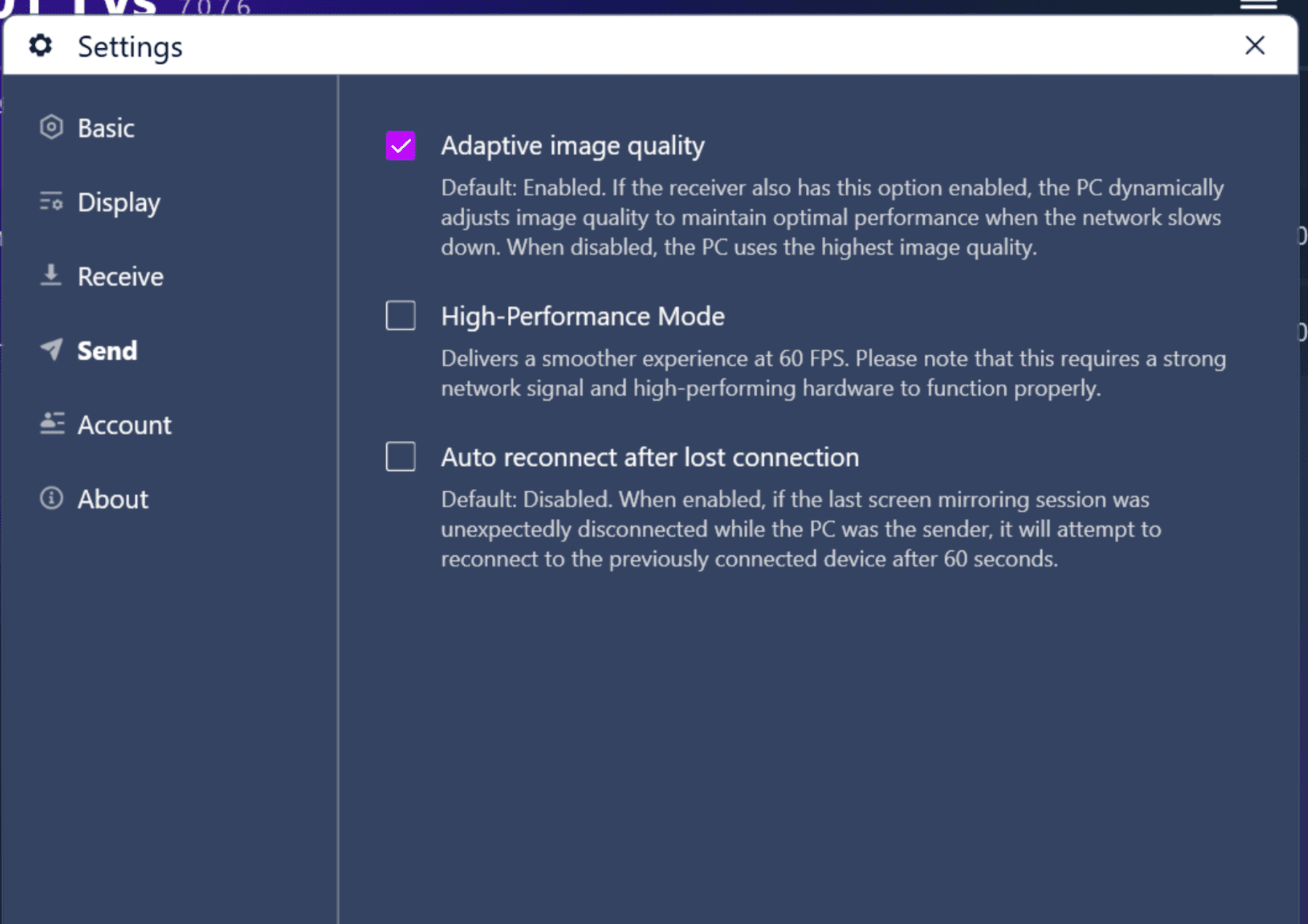
Windows sender settings used in my review. Adaptive Image Quality is enabled by default; High-Performance Mode targets 60 FPS; Auto Reconnect, when enabled, retries the previously connected device after 60 seconds.
Latency: around 130 ms in the extended run
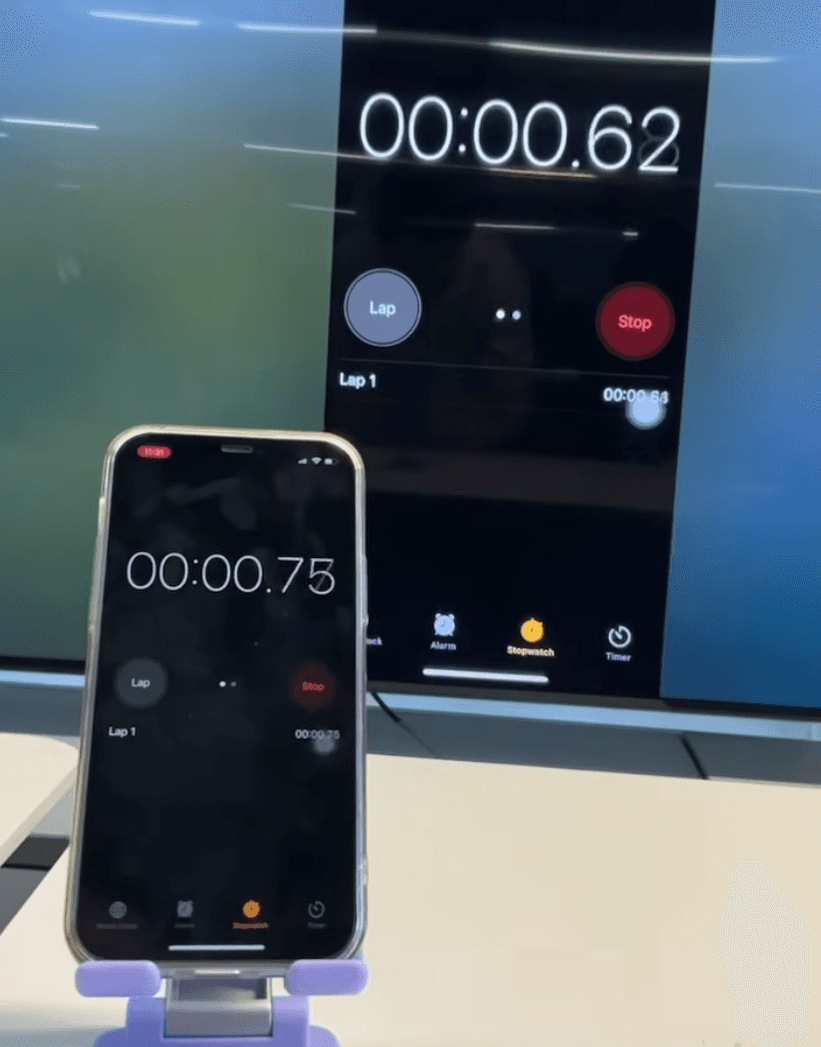
In my endurance test, 1001 TVs stayed connected for seven days and recorded latency of roughly 130 ms. I consider that a more useful expectation-setting figure than a best-case claim. The official 1001 TVs low-latency guide publishes a 50–150 ms range under optimized conditions, which is consistent with my result while still showing how network and hardware affect performance.
At around 130 ms, I was comfortable recommending the app for presentations, fitness videos, demonstrations, and general media browsing. I would not choose it for competitive shooters, rhythm games, or fighting games. For those uses, wired HDMI remains the safer option.
Image quality and frame rate: the decoder and network matter
In my test setup, the default mirroring size was 1,920 × 1,920, with an option to select Original Quality. High-Performance Mode can target 60 FPS, but actual smoothness depends on the sender hardware, network strength, and the receiver's decoder. A selected resolution or frame rate therefore tells me what the app is trying to send—not necessarily what every receiver will reproduce consistently.
I like that Adaptive Image Quality is enabled by default. When both ends support the option, the Windows sender can lower quality as the network slows instead of holding the highest image setting until the connection stutters. For the sharpest picture, I would disable adaptation only after confirming that the Wi-Fi and receiver remain stable.
Stability: seven days without a disconnect
My test stayed connected for seven uninterrupted days. That result gives me confidence that 1001 TVs can handle long presentations, workout sessions, media displays, and other extended use when the local network is stable. Results can still vary with the device combination, receiver decoder, and Wi-Fi conditions.
The Windows sender also includes Auto Reconnect. If a PC-sender session drops unexpectedly, enabling the option makes the app try the previously connected device after 60 seconds. That is useful for signage and unattended displays, but it does not remove the need for a stable local network.
For this performance assessment, I focused on the numbers that matter in everyday use: connection time, latency, frame rate, image quality, network adaptation, and recovery after a disconnect.
Test point | Result or setting | My assessment |
|---|---|---|
Continuous connection | My test ran for 7 consecutive days without disconnecting | Encouraging for presentations, workouts, and long display sessions |
Observed latency | 130 ms during that extended run | Acceptable for video and slides; clearly noticeable in reaction-based games |
Maximum frame rate | Up to 60 FPS in High-Performance Mode | Requires a strong network, capable hardware, and a receiver decoder that can keep up |
Default mirroring size | 1,920 × 1,920; Original Quality can also be selected | The selected setting is not a promise of identical received resolution on every device |
Network adaptation | Adaptive Image Quality is enabled by default | Prioritizes continuity by lowering image quality when the network slows |
Automatic recovery | Optional reconnection attempt after 60 seconds | Windows sender only; useful for unattended sessions and disabled by default |
Windows sender settings used in my review. Adaptive Image Quality is enabled by default; High-Performance Mode targets 60 FPS; Auto Reconnect, when enabled, retries the previously connected device after 60 seconds.
Latency: around 130 ms in the extended run
In my endurance test, 1001 TVs stayed connected for seven days and recorded latency of roughly 130 ms. I consider that a more useful expectation-setting figure than a best-case claim. The official 1001 TVs low-latency guide publishes a 50–150 ms range under optimized conditions, which is consistent with my result while still showing how network and hardware affect performance.
At around 130 ms, I was comfortable recommending the app for presentations, fitness videos, demonstrations, and general media browsing. I would not choose it for competitive shooters, rhythm games, or fighting games. For those uses, wired HDMI remains the safer option.
Image quality and frame rate: the decoder and network matter
In my test setup, the default mirroring size was 1,920 × 1,920, with an option to select Original Quality. High-Performance Mode can target 60 FPS, but actual smoothness depends on the sender hardware, network strength, and the receiver's decoder. A selected resolution or frame rate therefore tells me what the app is trying to send—not necessarily what every receiver will reproduce consistently.
I like that Adaptive Image Quality is enabled by default. When both ends support the option, the Windows sender can lower quality as the network slows instead of holding the highest image setting until the connection stutters. For the sharpest picture, I would disable adaptation only after confirming that the Wi-Fi and receiver remain stable.
Stability: seven days without a disconnect
My test stayed connected for seven uninterrupted days. That result gives me confidence that 1001 TVs can handle long presentations, workout sessions, media displays, and other extended use when the local network is stable. Results can still vary with the device combination, receiver decoder, and Wi-Fi conditions.
The Windows sender also includes Auto Reconnect. If a PC-sender session drops unexpectedly, enabling the option makes the app try the previously connected device after 60 seconds. That is useful for signage and unattended displays, but it does not remove the need for a stable local network.
For this performance assessment, I focused on the numbers that matter in everyday use: connection time, latency, frame rate, image quality, network adaptation, and recovery after a disconnect.
Test point | Result or setting | My assessment |
|---|---|---|
Continuous connection | My test ran for 7 consecutive days without disconnecting | Encouraging for presentations, workouts, and long display sessions |
Observed latency | 130 ms during that extended run | Acceptable for video and slides; clearly noticeable in reaction-based games |
Maximum frame rate | Up to 60 FPS in High-Performance Mode | Requires a strong network, capable hardware, and a receiver decoder that can keep up |
Default mirroring size | 1,920 × 1,920; Original Quality can also be selected | The selected setting is not a promise of identical received resolution on every device |
Network adaptation | Adaptive Image Quality is enabled by default | Prioritizes continuity by lowering image quality when the network slows |
Automatic recovery | Optional reconnection attempt after 60 seconds | Windows sender only; useful for unattended sessions and disabled by default |
Windows sender settings used in my review. Adaptive Image Quality is enabled by default; High-Performance Mode targets 60 FPS; Auto Reconnect, when enabled, retries the previously connected device after 60 seconds.
Latency: around 130 ms in the extended run
In my endurance test, 1001 TVs stayed connected for seven days and recorded latency of roughly 130 ms. I consider that a more useful expectation-setting figure than a best-case claim. The official 1001 TVs low-latency guide publishes a 50–150 ms range under optimized conditions, which is consistent with my result while still showing how network and hardware affect performance.
At around 130 ms, I was comfortable recommending the app for presentations, fitness videos, demonstrations, and general media browsing. I would not choose it for competitive shooters, rhythm games, or fighting games. For those uses, wired HDMI remains the safer option.
Image quality and frame rate: the decoder and network matter
In my test setup, the default mirroring size was 1,920 × 1,920, with an option to select Original Quality. High-Performance Mode can target 60 FPS, but actual smoothness depends on the sender hardware, network strength, and the receiver's decoder. A selected resolution or frame rate therefore tells me what the app is trying to send—not necessarily what every receiver will reproduce consistently.
I like that Adaptive Image Quality is enabled by default. When both ends support the option, the Windows sender can lower quality as the network slows instead of holding the highest image setting until the connection stutters. For the sharpest picture, I would disable adaptation only after confirming that the Wi-Fi and receiver remain stable.
Stability: seven days without a disconnect
My test stayed connected for seven uninterrupted days. That result gives me confidence that 1001 TVs can handle long presentations, workout sessions, media displays, and other extended use when the local network is stable. Results can still vary with the device combination, receiver decoder, and Wi-Fi conditions.
The Windows sender also includes Auto Reconnect. If a PC-sender session drops unexpectedly, enabling the option makes the app try the previously connected device after 60 seconds. That is useful for signage and unattended displays, but it does not remove the need for a stable local network.
What Other Users Say—and How It Affected My Score
What Other Users Say—and How It Affected My Score
What Other Users Say—and How It Affected My Score
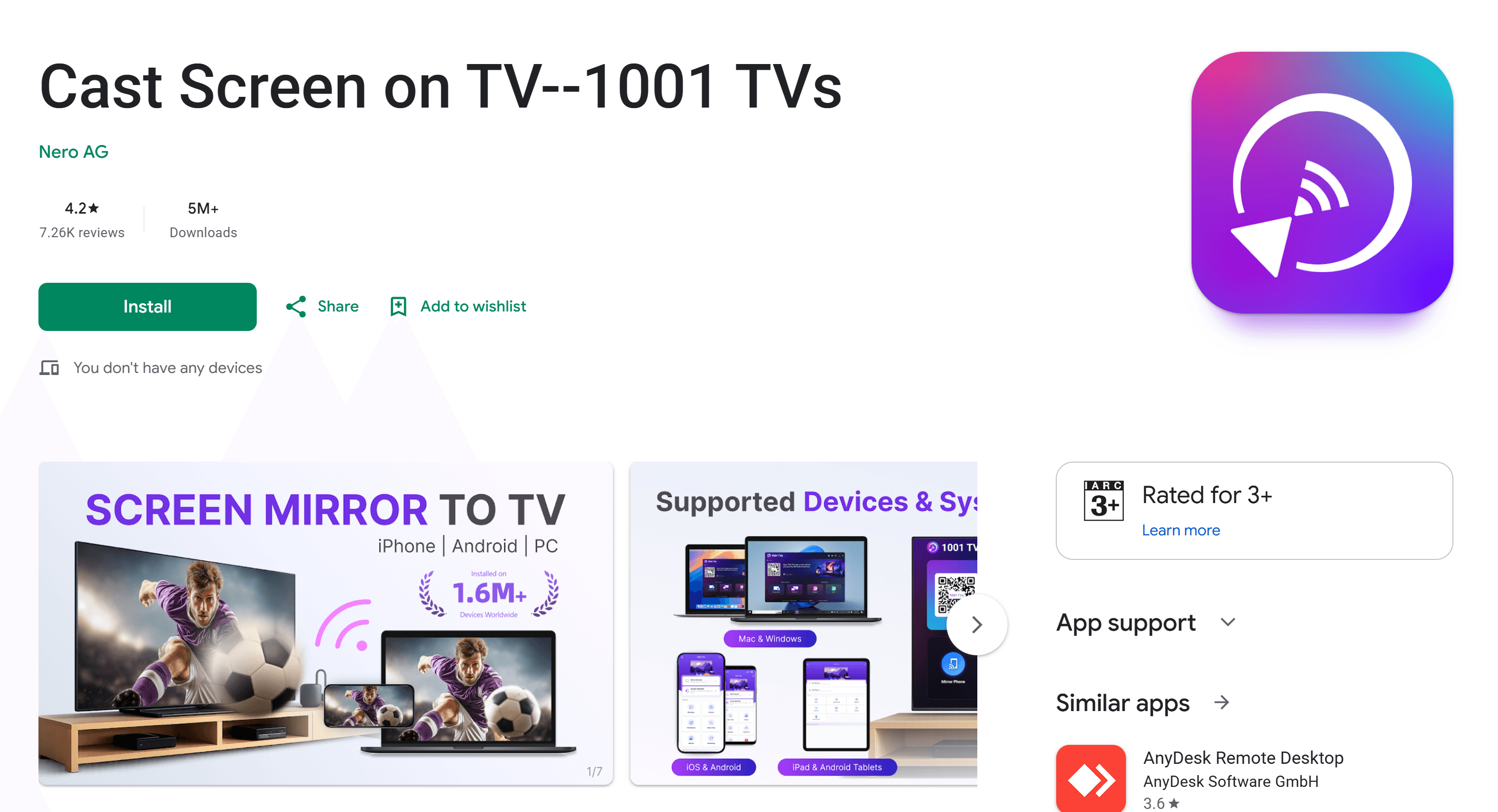
I compared my assessment with public user feedback. In July 2026, the U.S. iPhone listing showed 4.4/5 from 866 ratings, Mac showed 4.7/5 from 119, the Android sender app showed about 3.4/5 from 17,000 reviews, and the Android TV receiver showed about 3.8/5 from 6,900 reviews. That spread tells me the experience is platform-dependent.
Source | Specific positive feedback | What it supports |
|---|---|---|
Users reported stable daily short-video use, clear instructions, file transfer, and successful use across Mac mini, iPhone, iPad, and Toshiba TV | Cross-platform reach and utility beyond mirroring | |
One reviewer used it at least five times weekly for workout videos, considered the annual price worthwhile, and reported few problems | Frequent home and fitness use | |
A long-term user described it as stable and easy to connect | Anecdotal support for connection ease |
I treat these as individual experiences, not controlled tests. Reddit does not verify purchases, and the Android sender app’s lower score reinforces my concerns about discovery, lag, subscription expectations, and compatibility.
I compared my assessment with public user feedback. In July 2026, the U.S. iPhone listing showed 4.4/5 from 866 ratings, Mac showed 4.7/5 from 119, the Android sender app showed about 3.4/5 from 17,000 reviews, and the Android TV receiver showed about 3.8/5 from 6,900 reviews. That spread tells me the experience is platform-dependent.
Source | Specific positive feedback | What it supports |
|---|---|---|
Users reported stable daily short-video use, clear instructions, file transfer, and successful use across Mac mini, iPhone, iPad, and Toshiba TV | Cross-platform reach and utility beyond mirroring | |
One reviewer used it at least five times weekly for workout videos, considered the annual price worthwhile, and reported few problems | Frequent home and fitness use | |
A long-term user described it as stable and easy to connect | Anecdotal support for connection ease |
I treat these as individual experiences, not controlled tests. Reddit does not verify purchases, and the Android sender app’s lower score reinforces my concerns about discovery, lag, subscription expectations, and compatibility.
I compared my assessment with public user feedback. In July 2026, the U.S. iPhone listing showed 4.4/5 from 866 ratings, Mac showed 4.7/5 from 119, the Android sender app showed about 3.4/5 from 17,000 reviews, and the Android TV receiver showed about 3.8/5 from 6,900 reviews. That spread tells me the experience is platform-dependent.
Source | Specific positive feedback | What it supports |
|---|---|---|
Users reported stable daily short-video use, clear instructions, file transfer, and successful use across Mac mini, iPhone, iPad, and Toshiba TV | Cross-platform reach and utility beyond mirroring | |
One reviewer used it at least five times weekly for workout videos, considered the annual price worthwhile, and reported few problems | Frequent home and fitness use | |
A long-term user described it as stable and easy to connect | Anecdotal support for connection ease |
I treat these as individual experiences, not controlled tests. Reddit does not verify purchases, and the Android sender app’s lower score reinforces my concerns about discovery, lag, subscription expectations, and compatibility.
The 1001 TVs Pros and Cons I Found
The 1001 TVs Pros and Cons I Found
The 1001 TVs Pros and Cons I Found
What I liked
Broad sender-and-receiver coverage across iOS, Android, Windows, macOS, Android TV, Apple TV, and browsers.
File transfer, streaming, TV Albums, browser reception, and TV controls in the same app.
Flexible quality, orientation, window-sharing, extended-display, and multi-device options.
Positive reports for fitness, mixed-device homes, short-video work, and file transfer.
About $1.67 per month at the U.S. annual price of $19.99.
What I did not like
Network-dependent performance. My extended run reported roughly 130 ms latency, within the vendor’s published 50–150 ms range. Hardware, decoder capability, and Wi-Fi can materially change the result.
Uneven TV compatibility. A moderator said Vizio was unsupported at the time; a Firestick user reported failed discovery and insufficient instructions. Check current support before subscribing. See the Vizio and Firestick threads.
No full phone counter-control. A moderator said the receiver could not control the mirrored phone, and the current feature matrix does not list that capability. See the counter-control discussion.
What I liked
Broad sender-and-receiver coverage across iOS, Android, Windows, macOS, Android TV, Apple TV, and browsers.
File transfer, streaming, TV Albums, browser reception, and TV controls in the same app.
Flexible quality, orientation, window-sharing, extended-display, and multi-device options.
Positive reports for fitness, mixed-device homes, short-video work, and file transfer.
About $1.67 per month at the U.S. annual price of $19.99.
What I did not like
Network-dependent performance. My extended run reported roughly 130 ms latency, within the vendor’s published 50–150 ms range. Hardware, decoder capability, and Wi-Fi can materially change the result.
Uneven TV compatibility. A moderator said Vizio was unsupported at the time; a Firestick user reported failed discovery and insufficient instructions. Check current support before subscribing. See the Vizio and Firestick threads.
No full phone counter-control. A moderator said the receiver could not control the mirrored phone, and the current feature matrix does not list that capability. See the counter-control discussion.
What I liked
Broad sender-and-receiver coverage across iOS, Android, Windows, macOS, Android TV, Apple TV, and browsers.
File transfer, streaming, TV Albums, browser reception, and TV controls in the same app.
Flexible quality, orientation, window-sharing, extended-display, and multi-device options.
Positive reports for fitness, mixed-device homes, short-video work, and file transfer.
About $1.67 per month at the U.S. annual price of $19.99.
What I did not like
Network-dependent performance. My extended run reported roughly 130 ms latency, within the vendor’s published 50–150 ms range. Hardware, decoder capability, and Wi-Fi can materially change the result.
Uneven TV compatibility. A moderator said Vizio was unsupported at the time; a Firestick user reported failed discovery and insufficient instructions. Check current support before subscribing. See the Vizio and Firestick threads.
No full phone counter-control. A moderator said the receiver could not control the mirrored phone, and the current feature matrix does not list that capability. See the counter-control discussion.
Who I Recommend 1001 TVs For
Who I Recommend 1001 TVs For
Who I Recommend 1001 TVs For
I recommend 1001 TVs for mixed-device homes, classrooms, presentations, demonstrations, QA setups, fitness, vertical video, photos, and family media. Window sharing, browser reception, multi-phone viewing, Whiteboard, Streaming, and Albums give those buyers more value than a basic casting app.
I would skip it for competitive gaming or complete reverse phone control. Frame-sensitive players should use wired video, while anyone who needs to operate a mobile device from a computer should consider a remote-control-focused alternative. Compare 1001 TVs with AirDroid Cast, ApowerMirror, LetsView, and Google Home in our guide to the best screen mirroring apps.
Ready to try it? Download 1001 TVs and test screen mirroring on the devices you actually plan to use.
I recommend 1001 TVs for mixed-device homes, classrooms, presentations, demonstrations, QA setups, fitness, vertical video, photos, and family media. Window sharing, browser reception, multi-phone viewing, Whiteboard, Streaming, and Albums give those buyers more value than a basic casting app.
I would skip it for competitive gaming or complete reverse phone control. Frame-sensitive players should use wired video, while anyone who needs to operate a mobile device from a computer should consider a remote-control-focused alternative. Compare 1001 TVs with AirDroid Cast, ApowerMirror, LetsView, and Google Home in our guide to the best screen mirroring apps.
Ready to try it? Download 1001 TVs and test screen mirroring on the devices you actually plan to use.
I recommend 1001 TVs for mixed-device homes, classrooms, presentations, demonstrations, QA setups, fitness, vertical video, photos, and family media. Window sharing, browser reception, multi-phone viewing, Whiteboard, Streaming, and Albums give those buyers more value than a basic casting app.
I would skip it for competitive gaming or complete reverse phone control. Frame-sensitive players should use wired video, while anyone who needs to operate a mobile device from a computer should consider a remote-control-focused alternative. Compare 1001 TVs with AirDroid Cast, ApowerMirror, LetsView, and Google Home in our guide to the best screen mirroring apps.
Ready to try it? Download 1001 TVs and test screen mirroring on the devices you actually plan to use.
Frequently Asked Questions
Frequently Asked Questions
Frequently Asked Questions
Is 1001 TVs free?
In my review, 1001 TVs offers a time-limited free trial covering premium features such as screen mirroring, file transfer, and Album. Continued premium use requires a subscription. I would use the trial to verify discovery, sound, quality, and TV compatibility before paying.
How much does 1001 TVs cost?
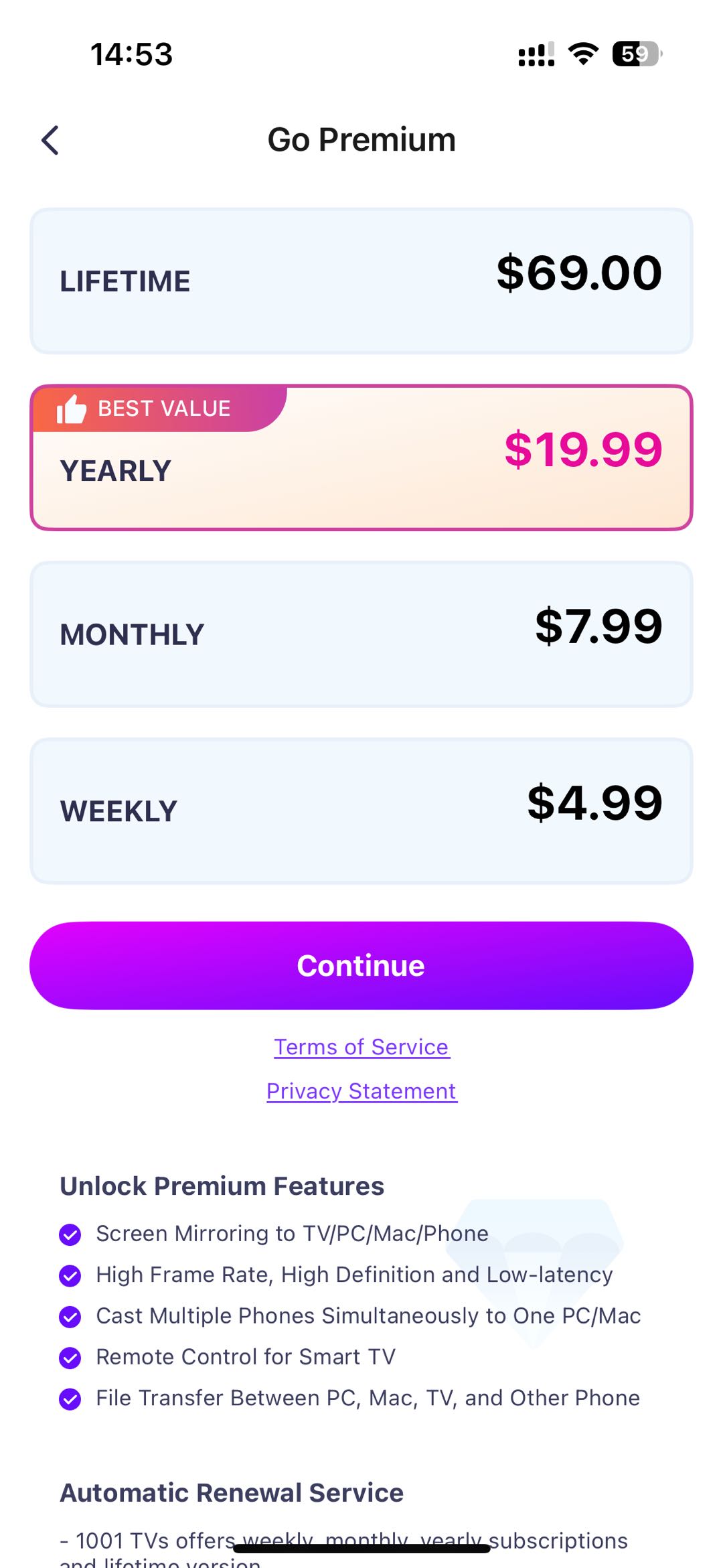
In the United States, the annual plan I reviewed costs $19.99, or about $1.67 per month. This is a U.S. price, not a worldwide guarantee. I recommend confirming the current amount, taxes, and renewal terms shown in the relevant app store before subscribing.
Does 1001 TVs require the same Wi-Fi network?
I would plan to keep the sender and receiver on the same local network for most 1001 TVs wireless workflows. The official guidance recommends 5GHz Wi-Fi for lower latency and better stability. If discovery fails, I would check the Wi-Fi band and router isolation first.
Is 1001 TVs good for gaming?
I would use 1001 TVs for casual and mid-paced games, not competition. Its official estimate is 50–150 ms under optimized conditions, too slow for some shooters, rhythm games, and fighting games. My setup choice would be 5GHz Wi-Fi and TV Game Mode, or wired HDMI for minimum latency.
Can 1001 TVs control my phone from a PC?
I see 1001 TVs primarily as a mirroring and display tool. It can control selected television functions but does not provide complete counter-control of a mirrored Android phone or iPhone from the receiver. I would choose AirDroid Cast instead when reverse control is essential.
Does 1001 TVs work with every smart TV?
No. I would not assume every smart TV works because Android TV, Apple TV, Roku streaming, Amazon-distributed apps, and proprietary TV systems do not offer identical capabilities. Before buying for one television, I would confirm its app availability and the exact receiving workflow.
Is 1001 TVs free?
In my review, 1001 TVs offers a time-limited free trial covering premium features such as screen mirroring, file transfer, and Album. Continued premium use requires a subscription. I would use the trial to verify discovery, sound, quality, and TV compatibility before paying.
How much does 1001 TVs cost?
In the United States, the annual plan I reviewed costs $19.99, or about $1.67 per month. This is a U.S. price, not a worldwide guarantee. I recommend confirming the current amount, taxes, and renewal terms shown in the relevant app store before subscribing.
Does 1001 TVs require the same Wi-Fi network?
I would plan to keep the sender and receiver on the same local network for most 1001 TVs wireless workflows. The official guidance recommends 5GHz Wi-Fi for lower latency and better stability. If discovery fails, I would check the Wi-Fi band and router isolation first.
Is 1001 TVs good for gaming?
I would use 1001 TVs for casual and mid-paced games, not competition. Its official estimate is 50–150 ms under optimized conditions, too slow for some shooters, rhythm games, and fighting games. My setup choice would be 5GHz Wi-Fi and TV Game Mode, or wired HDMI for minimum latency.
Can 1001 TVs control my phone from a PC?
I see 1001 TVs primarily as a mirroring and display tool. It can control selected television functions but does not provide complete counter-control of a mirrored Android phone or iPhone from the receiver. I would choose AirDroid Cast instead when reverse control is essential.
Does 1001 TVs work with every smart TV?
No. I would not assume every smart TV works because Android TV, Apple TV, Roku streaming, Amazon-distributed apps, and proprietary TV systems do not offer identical capabilities. Before buying for one television, I would confirm its app availability and the exact receiving workflow.
Is 1001 TVs free?
In my review, 1001 TVs offers a time-limited free trial covering premium features such as screen mirroring, file transfer, and Album. Continued premium use requires a subscription. I would use the trial to verify discovery, sound, quality, and TV compatibility before paying.
How much does 1001 TVs cost?
In the United States, the annual plan I reviewed costs $19.99, or about $1.67 per month. This is a U.S. price, not a worldwide guarantee. I recommend confirming the current amount, taxes, and renewal terms shown in the relevant app store before subscribing.
Does 1001 TVs require the same Wi-Fi network?
I would plan to keep the sender and receiver on the same local network for most 1001 TVs wireless workflows. The official guidance recommends 5GHz Wi-Fi for lower latency and better stability. If discovery fails, I would check the Wi-Fi band and router isolation first.
Is 1001 TVs good for gaming?
I would use 1001 TVs for casual and mid-paced games, not competition. Its official estimate is 50–150 ms under optimized conditions, too slow for some shooters, rhythm games, and fighting games. My setup choice would be 5GHz Wi-Fi and TV Game Mode, or wired HDMI for minimum latency.
Can 1001 TVs control my phone from a PC?
I see 1001 TVs primarily as a mirroring and display tool. It can control selected television functions but does not provide complete counter-control of a mirrored Android phone or iPhone from the receiver. I would choose AirDroid Cast instead when reverse control is essential.
Does 1001 TVs work with every smart TV?
No. I would not assume every smart TV works because Android TV, Apple TV, Roku streaming, Amazon-distributed apps, and proprietary TV systems do not offer identical capabilities. Before buying for one television, I would confirm its app availability and the exact receiving workflow.
Table of content
Table of content


Still Need a Hand?
Still Need a Hand?
Still Need a Hand?
Explore more reviews, step-by-step guides, and troubleshooting tips—or contact us if you could not find the answer you needed.
Explore more reviews, step-by-step guides, and troubleshooting tips—or contact us if you could not find the answer you needed.
Explore more reviews, step-by-step guides, and troubleshooting tips—or contact us if you could not find the answer you needed.