
Screen Mirroring Not Working? A Device-by-Device Fix Guide (2026)
Screen Mirroring Not Working? A Device-by-Device Fix Guide (2026)
Screen Mirroring Not Working? A Device-by-Device Fix Guide (2026)
Screen mirroring not working? Device-by-device fixes for AirPlay, Chromecast, Miracast & Samsung Smart View — from quick checks to cross-platform solutions.
Screen mirroring not working? Device-by-device fixes for AirPlay, Chromecast, Miracast & Samsung Smart View — from quick checks to cross-platform solutions.
Screen mirroring not working? Device-by-device fixes for AirPlay, Chromecast, Miracast & Samsung Smart View — from quick checks to cross-platform solutions.
Screen mirroring stops working for three reasons: a network problem, a device compatibility issue, or a software glitch. Most of the time, you can fix it yourself — no technical background needed.
This guide diagnoses problems by device combination. Prefer to identify your problem by symptom first — can’t connect, keeps dropping, lag, no sound, black screen? Our problem-by-problem troubleshooting guide takes that approach.
If you’re brand new to screen mirroring and aren’t sure which method you’re using, we recommend reading our complete beginner’s guide to screen mirroring first — it covers the basics. For everyone else: start with the 5 Pre-Flight Checks below — they eliminate the most common causes before you dive into device-specific troubleshooting. If your issue still isn’t resolved after those, jump to the section that matches your setup:
iPhone, iPad, or Mac → TV? Jump to AirPlay Screen Mirroring Not Working
Android or Chrome → TV? Jump to Chromecast / Google Cast Not Working
Windows PC → TV? Jump to Miracast / Windows Wireless Display Not Working
Samsung phone → Samsung TV? Jump to Samsung Smart View Not Working
Using a third-party app? Jump to Third-Party Screen Mirroring Apps Not Working
Different brand devices (iPhone → Android TV, etc.)? Jump to Cross-Platform / Mixed Ecosystem Issues
Screen mirroring stops working for three reasons: a network problem, a device compatibility issue, or a software glitch. Most of the time, you can fix it yourself — no technical background needed.
This guide diagnoses problems by device combination. Prefer to identify your problem by symptom first — can’t connect, keeps dropping, lag, no sound, black screen? Our problem-by-problem troubleshooting guide takes that approach.
If you’re brand new to screen mirroring and aren’t sure which method you’re using, we recommend reading our complete beginner’s guide to screen mirroring first — it covers the basics. For everyone else: start with the 5 Pre-Flight Checks below — they eliminate the most common causes before you dive into device-specific troubleshooting. If your issue still isn’t resolved after those, jump to the section that matches your setup:
iPhone, iPad, or Mac → TV? Jump to AirPlay Screen Mirroring Not Working
Android or Chrome → TV? Jump to Chromecast / Google Cast Not Working
Windows PC → TV? Jump to Miracast / Windows Wireless Display Not Working
Samsung phone → Samsung TV? Jump to Samsung Smart View Not Working
Using a third-party app? Jump to Third-Party Screen Mirroring Apps Not Working
Different brand devices (iPhone → Android TV, etc.)? Jump to Cross-Platform / Mixed Ecosystem Issues
Screen mirroring stops working for three reasons: a network problem, a device compatibility issue, or a software glitch. Most of the time, you can fix it yourself — no technical background needed.
This guide diagnoses problems by device combination. Prefer to identify your problem by symptom first — can’t connect, keeps dropping, lag, no sound, black screen? Our problem-by-problem troubleshooting guide takes that approach.
If you’re brand new to screen mirroring and aren’t sure which method you’re using, we recommend reading our complete beginner’s guide to screen mirroring first — it covers the basics. For everyone else: start with the 5 Pre-Flight Checks below — they eliminate the most common causes before you dive into device-specific troubleshooting. If your issue still isn’t resolved after those, jump to the section that matches your setup:
iPhone, iPad, or Mac → TV? Jump to AirPlay Screen Mirroring Not Working
Android or Chrome → TV? Jump to Chromecast / Google Cast Not Working
Windows PC → TV? Jump to Miracast / Windows Wireless Display Not Working
Samsung phone → Samsung TV? Jump to Samsung Smart View Not Working
Using a third-party app? Jump to Third-Party Screen Mirroring Apps Not Working
Different brand devices (iPhone → Android TV, etc.)? Jump to Cross-Platform / Mixed Ecosystem Issues
Before You Start — 5 Pre Checks
Before You Start — 5 Pre Checks
Before You Start — 5 Pre Checks
These five checks address the most common causes of screen mirroring failure, no matter which method you're using. Do them first — they're the fastest path to a fix.
Are both devices on the same Wi-Fi network — and the same band?
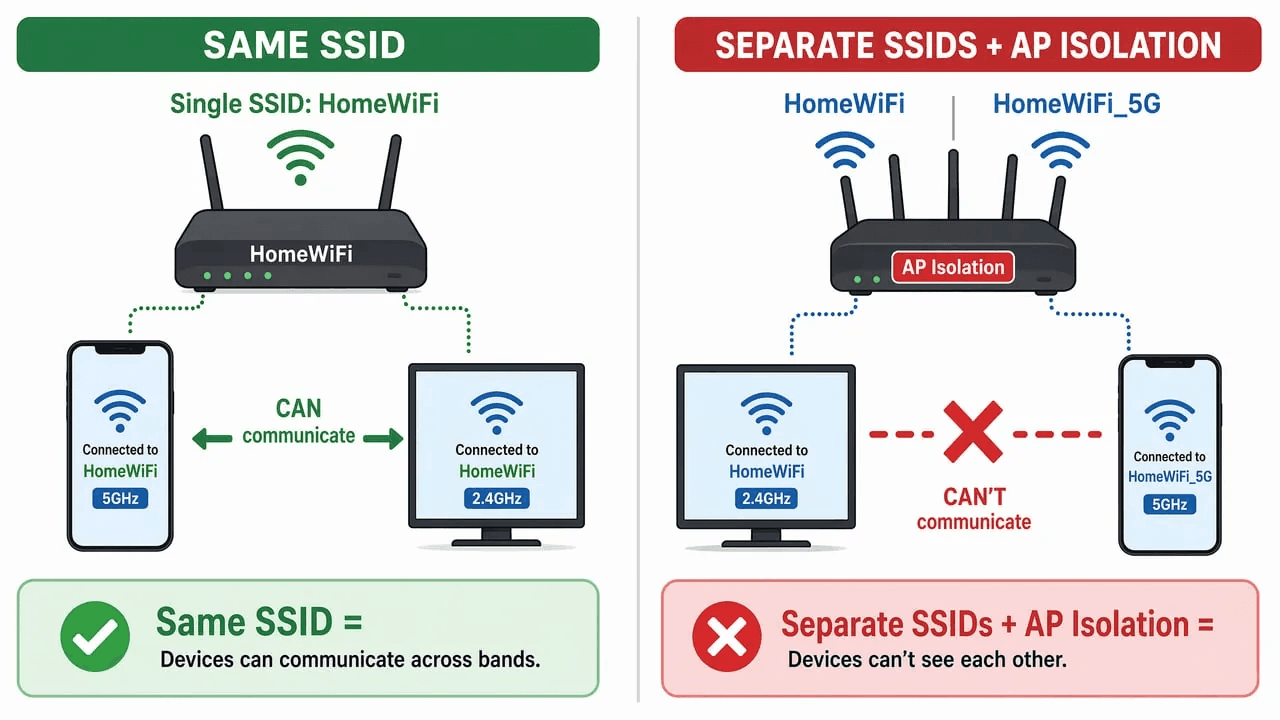
Your phone and TV need to be on the exact same Wi-Fi network. But here's a catch that trips up many users: if your router broadcasts separate network names for the 2.4GHz and 5GHz bands (like "HomeWiFi" and "HomeWiFi-5G"), and you connect your phone to one and your TV to the other, they may not see each other. This happens most often on routers with AP/client isolation enabled, or when each band is assigned to a different subnet. On most modern routers with a single SSID, devices on different bands can still communicate — but switching both devices to the same band is a quick way to rule out band-related issues entirely.
Restart both devices
Restarting clears temporary cache files and resets network configurations. It's the single most effective troubleshooting step — it resolves a surprising number of mirroring failures, often right away. Restart your phone or computer, restart your TV (unplug it for 30 seconds, not just turn it off with the remote), and try again.
Is everything updated?
Outdated operating systems often lack the latest mirroring protocol support or carry known bugs. Check for updates on your sending device (iOS, Android, Windows, macOS) and your TV's firmware. For smart TVs, the firmware update is usually under Settings → Support → Software Update.
Is screen mirroring actually enabled on your TV?
Most smart TVs have screen mirroring turned on by default, but not all. Samsung users: go to Settings → General → External Device Manager → Device Connect Manager (on some models the path is Settings → Connection → External Device Manager → Device Connect Manager) and make sure it's active. LG users: look for Screen Share in the input menu. Sony and TCL with Google TV: Chromecast is built in, but check that the TV isn't in "Basic TV" or "Store Mode" which can disable it. One more basic check: make sure your TV is on the Smart TV home screen, not sitting on an HDMI input. If the TV is set to HDMI 1 waiting for a cable signal, you won't see the mirroring connection even when everything else is correct.
Turn off VPN, battery saver, and Bluetooth — temporarily
VPNs reroute your device's network traffic, which breaks the local discovery protocols screen mirroring depends on. Battery saver modes (Low Power Mode on iPhone, Battery Saver on Android) can shut down background network services the mirroring handshake needs. Bluetooth operates on the 2.4GHz band and can interfere with Wi-Fi-based mirroring. Also worth checking: some routers have built-in firewalls or parental controls that block the ports AirPlay, Chromecast, and Miracast use for device discovery. If your router has these features enabled, try temporarily disabling them. Turn all of these off, try mirroring again, then turn them back on afterward.
Quick diagnostic tip: If you've gone through these five checks and still can't connect, grab a second phone or laptop and try mirroring from that device instead. If the second device works, the problem is isolated to your original sending device (app settings, OS bug, or permissions). If both devices fail, the problem is on the TV or router side. This simple test cuts your troubleshooting time in half by telling you which device to focus on.
These five checks address the most common causes of screen mirroring failure, no matter which method you're using. Do them first — they're the fastest path to a fix.
Are both devices on the same Wi-Fi network — and the same band?
Your phone and TV need to be on the exact same Wi-Fi network. But here's a catch that trips up many users: if your router broadcasts separate network names for the 2.4GHz and 5GHz bands (like "HomeWiFi" and "HomeWiFi-5G"), and you connect your phone to one and your TV to the other, they may not see each other. This happens most often on routers with AP/client isolation enabled, or when each band is assigned to a different subnet. On most modern routers with a single SSID, devices on different bands can still communicate — but switching both devices to the same band is a quick way to rule out band-related issues entirely.
Restart both devices
Restarting clears temporary cache files and resets network configurations. It's the single most effective troubleshooting step — it resolves a surprising number of mirroring failures, often right away. Restart your phone or computer, restart your TV (unplug it for 30 seconds, not just turn it off with the remote), and try again.
Is everything updated?
Outdated operating systems often lack the latest mirroring protocol support or carry known bugs. Check for updates on your sending device (iOS, Android, Windows, macOS) and your TV's firmware. For smart TVs, the firmware update is usually under Settings → Support → Software Update.
Is screen mirroring actually enabled on your TV?
Most smart TVs have screen mirroring turned on by default, but not all. Samsung users: go to Settings → General → External Device Manager → Device Connect Manager (on some models the path is Settings → Connection → External Device Manager → Device Connect Manager) and make sure it's active. LG users: look for Screen Share in the input menu. Sony and TCL with Google TV: Chromecast is built in, but check that the TV isn't in "Basic TV" or "Store Mode" which can disable it. One more basic check: make sure your TV is on the Smart TV home screen, not sitting on an HDMI input. If the TV is set to HDMI 1 waiting for a cable signal, you won't see the mirroring connection even when everything else is correct.
Turn off VPN, battery saver, and Bluetooth — temporarily
VPNs reroute your device's network traffic, which breaks the local discovery protocols screen mirroring depends on. Battery saver modes (Low Power Mode on iPhone, Battery Saver on Android) can shut down background network services the mirroring handshake needs. Bluetooth operates on the 2.4GHz band and can interfere with Wi-Fi-based mirroring. Also worth checking: some routers have built-in firewalls or parental controls that block the ports AirPlay, Chromecast, and Miracast use for device discovery. If your router has these features enabled, try temporarily disabling them. Turn all of these off, try mirroring again, then turn them back on afterward.
Quick diagnostic tip: If you've gone through these five checks and still can't connect, grab a second phone or laptop and try mirroring from that device instead. If the second device works, the problem is isolated to your original sending device (app settings, OS bug, or permissions). If both devices fail, the problem is on the TV or router side. This simple test cuts your troubleshooting time in half by telling you which device to focus on.
These five checks address the most common causes of screen mirroring failure, no matter which method you're using. Do them first — they're the fastest path to a fix.
Are both devices on the same Wi-Fi network — and the same band?
Your phone and TV need to be on the exact same Wi-Fi network. But here's a catch that trips up many users: if your router broadcasts separate network names for the 2.4GHz and 5GHz bands (like "HomeWiFi" and "HomeWiFi-5G"), and you connect your phone to one and your TV to the other, they may not see each other. This happens most often on routers with AP/client isolation enabled, or when each band is assigned to a different subnet. On most modern routers with a single SSID, devices on different bands can still communicate — but switching both devices to the same band is a quick way to rule out band-related issues entirely.
Restart both devices
Restarting clears temporary cache files and resets network configurations. It's the single most effective troubleshooting step — it resolves a surprising number of mirroring failures, often right away. Restart your phone or computer, restart your TV (unplug it for 30 seconds, not just turn it off with the remote), and try again.
Is everything updated?
Outdated operating systems often lack the latest mirroring protocol support or carry known bugs. Check for updates on your sending device (iOS, Android, Windows, macOS) and your TV's firmware. For smart TVs, the firmware update is usually under Settings → Support → Software Update.
Is screen mirroring actually enabled on your TV?
Most smart TVs have screen mirroring turned on by default, but not all. Samsung users: go to Settings → General → External Device Manager → Device Connect Manager (on some models the path is Settings → Connection → External Device Manager → Device Connect Manager) and make sure it's active. LG users: look for Screen Share in the input menu. Sony and TCL with Google TV: Chromecast is built in, but check that the TV isn't in "Basic TV" or "Store Mode" which can disable it. One more basic check: make sure your TV is on the Smart TV home screen, not sitting on an HDMI input. If the TV is set to HDMI 1 waiting for a cable signal, you won't see the mirroring connection even when everything else is correct.
Turn off VPN, battery saver, and Bluetooth — temporarily
VPNs reroute your device's network traffic, which breaks the local discovery protocols screen mirroring depends on. Battery saver modes (Low Power Mode on iPhone, Battery Saver on Android) can shut down background network services the mirroring handshake needs. Bluetooth operates on the 2.4GHz band and can interfere with Wi-Fi-based mirroring. Also worth checking: some routers have built-in firewalls or parental controls that block the ports AirPlay, Chromecast, and Miracast use for device discovery. If your router has these features enabled, try temporarily disabling them. Turn all of these off, try mirroring again, then turn them back on afterward.
Quick diagnostic tip: If you've gone through these five checks and still can't connect, grab a second phone or laptop and try mirroring from that device instead. If the second device works, the problem is isolated to your original sending device (app settings, OS bug, or permissions). If both devices fail, the problem is on the TV or router side. This simple test cuts your troubleshooting time in half by telling you which device to focus on.
AirPlay Screen Mirroring Not Working
AirPlay Screen Mirroring Not Working
AirPlay Screen Mirroring Not Working
For iPhone, iPad, and Mac users mirroring to an Apple TV, AirPlay-compatible smart TV, or Roku.
Can't find your TV in the AirPlay list?
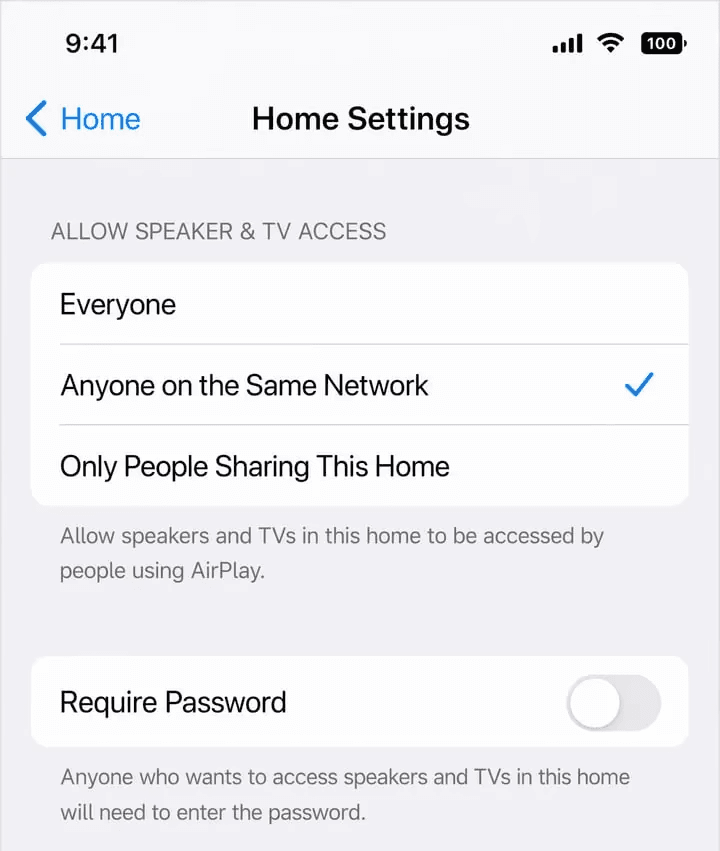
When your iPhone or Mac can't discover the TV in the Screen Mirroring menu — and you've already confirmed the pre-flight checks above — the AirPlay-specific culprits are the TV's AirPlay setting being disabled, or Home app access restrictions. Verify AirPlay is turned on in your TV's settings menu. Then check the Home app on your iPhone: if AirPlay access is restricted to "Anyone on the Same Network" or "Only People Sharing This Home," devices outside that scope won't appear.
Connected but black screen?
A black screen after a successful AirPlay connection usually points to HDCP copyright protection. Streaming apps like Netflix and Disney+ can block video output while audio passes through. Resolution mismatches between your device and TV can also cause this. Try mirroring your home screen first: if that displays normally, the problem is content-specific DRM. If even the home screen shows black, lower your output resolution and check your Mac's display settings to ensure you're mirroring rather than extending the desktop.
AirPlay keeps disconnecting?
Frequent dropouts are usually a Wi-Fi issue, but if you've confirmed your network is solid, the next culprit is iOS Wi-Fi Assist — it automatically switches your phone to cellular when Wi-Fi weakens, instantly breaking the mirroring session. Disable Wi-Fi Assist (Settings → Cellular → Wi-Fi Assist → Off). If your router supports QoS (Quality of Service), prioritizing your mirroring devices' traffic can also help stabilize the connection.
Lag, delay, or stuttering?
AirPlay lag typically comes from insufficient network bandwidth. Background apps on your iPhone downloading updates or streaming content will eat into available bandwidth. Close any bandwidth-heavy apps, and if your router supports QoS (Quality of Service), prioritize your mirroring devices' traffic. For Mac users, closing resource-heavy applications can free up system resources that affect encoding performance.
Screen Mirroring option greyed out or missing?
If the Screen Mirroring button in Control Center is greyed out or missing entirely, your iPhone is probably not connected to Wi-Fi (cellular data alone won't work), or Screen Time restrictions are blocking AirPlay. Go to Settings → Screen Time → Content & Privacy Restrictions → Allowed Apps, and make sure AirPlay is enabled. For enterprise-managed devices, MDM profiles may also disable AirPlay. Contact your IT administrator.
Audio playing but no video?
This happens when your device is in AirPlay audio-only mode rather than full screen mirroring. It's a common confusion when selecting the TV from a music app. It can also happen when HDCP blocks video specifically while leaving the audio channel open. Confirm you're selecting "Screen Mirroring" from Control Center, not AirPlay audio from within an app, and test with non-protected content first.
For iPhone, iPad, and Mac users mirroring to an Apple TV, AirPlay-compatible smart TV, or Roku.
Can't find your TV in the AirPlay list?
When your iPhone or Mac can't discover the TV in the Screen Mirroring menu — and you've already confirmed the pre-flight checks above — the AirPlay-specific culprits are the TV's AirPlay setting being disabled, or Home app access restrictions. Verify AirPlay is turned on in your TV's settings menu. Then check the Home app on your iPhone: if AirPlay access is restricted to "Anyone on the Same Network" or "Only People Sharing This Home," devices outside that scope won't appear.
Connected but black screen?
A black screen after a successful AirPlay connection usually points to HDCP copyright protection. Streaming apps like Netflix and Disney+ can block video output while audio passes through. Resolution mismatches between your device and TV can also cause this. Try mirroring your home screen first: if that displays normally, the problem is content-specific DRM. If even the home screen shows black, lower your output resolution and check your Mac's display settings to ensure you're mirroring rather than extending the desktop.
AirPlay keeps disconnecting?
Frequent dropouts are usually a Wi-Fi issue, but if you've confirmed your network is solid, the next culprit is iOS Wi-Fi Assist — it automatically switches your phone to cellular when Wi-Fi weakens, instantly breaking the mirroring session. Disable Wi-Fi Assist (Settings → Cellular → Wi-Fi Assist → Off). If your router supports QoS (Quality of Service), prioritizing your mirroring devices' traffic can also help stabilize the connection.
Lag, delay, or stuttering?
AirPlay lag typically comes from insufficient network bandwidth. Background apps on your iPhone downloading updates or streaming content will eat into available bandwidth. Close any bandwidth-heavy apps, and if your router supports QoS (Quality of Service), prioritize your mirroring devices' traffic. For Mac users, closing resource-heavy applications can free up system resources that affect encoding performance.
Screen Mirroring option greyed out or missing?
If the Screen Mirroring button in Control Center is greyed out or missing entirely, your iPhone is probably not connected to Wi-Fi (cellular data alone won't work), or Screen Time restrictions are blocking AirPlay. Go to Settings → Screen Time → Content & Privacy Restrictions → Allowed Apps, and make sure AirPlay is enabled. For enterprise-managed devices, MDM profiles may also disable AirPlay. Contact your IT administrator.
Audio playing but no video?
This happens when your device is in AirPlay audio-only mode rather than full screen mirroring. It's a common confusion when selecting the TV from a music app. It can also happen when HDCP blocks video specifically while leaving the audio channel open. Confirm you're selecting "Screen Mirroring" from Control Center, not AirPlay audio from within an app, and test with non-protected content first.
For iPhone, iPad, and Mac users mirroring to an Apple TV, AirPlay-compatible smart TV, or Roku.
Can't find your TV in the AirPlay list?
When your iPhone or Mac can't discover the TV in the Screen Mirroring menu — and you've already confirmed the pre-flight checks above — the AirPlay-specific culprits are the TV's AirPlay setting being disabled, or Home app access restrictions. Verify AirPlay is turned on in your TV's settings menu. Then check the Home app on your iPhone: if AirPlay access is restricted to "Anyone on the Same Network" or "Only People Sharing This Home," devices outside that scope won't appear.
Connected but black screen?
A black screen after a successful AirPlay connection usually points to HDCP copyright protection. Streaming apps like Netflix and Disney+ can block video output while audio passes through. Resolution mismatches between your device and TV can also cause this. Try mirroring your home screen first: if that displays normally, the problem is content-specific DRM. If even the home screen shows black, lower your output resolution and check your Mac's display settings to ensure you're mirroring rather than extending the desktop.
AirPlay keeps disconnecting?
Frequent dropouts are usually a Wi-Fi issue, but if you've confirmed your network is solid, the next culprit is iOS Wi-Fi Assist — it automatically switches your phone to cellular when Wi-Fi weakens, instantly breaking the mirroring session. Disable Wi-Fi Assist (Settings → Cellular → Wi-Fi Assist → Off). If your router supports QoS (Quality of Service), prioritizing your mirroring devices' traffic can also help stabilize the connection.
Lag, delay, or stuttering?
AirPlay lag typically comes from insufficient network bandwidth. Background apps on your iPhone downloading updates or streaming content will eat into available bandwidth. Close any bandwidth-heavy apps, and if your router supports QoS (Quality of Service), prioritize your mirroring devices' traffic. For Mac users, closing resource-heavy applications can free up system resources that affect encoding performance.
Screen Mirroring option greyed out or missing?
If the Screen Mirroring button in Control Center is greyed out or missing entirely, your iPhone is probably not connected to Wi-Fi (cellular data alone won't work), or Screen Time restrictions are blocking AirPlay. Go to Settings → Screen Time → Content & Privacy Restrictions → Allowed Apps, and make sure AirPlay is enabled. For enterprise-managed devices, MDM profiles may also disable AirPlay. Contact your IT administrator.
Audio playing but no video?
This happens when your device is in AirPlay audio-only mode rather than full screen mirroring. It's a common confusion when selecting the TV from a music app. It can also happen when HDCP blocks video specifically while leaving the audio channel open. Confirm you're selecting "Screen Mirroring" from Control Center, not AirPlay audio from within an app, and test with non-protected content first.
Chromecast / Google Cast Not Working
Chromecast / Google Cast Not Working
Chromecast / Google Cast Not Working
For Android phones and Chrome browser users casting to a Chromecast, Google TV Streamer, or any TV with Chromecast built-in.
Can't find your Chromecast device?
When your Android phone doesn't see the Chromecast in the Cast list and you've passed the pre-flight checks, the usual suspects are AP isolation on your router (which blocks device-to-device communication), or outdated Google Play Services. Log into your router settings and disable AP/Client Isolation, then update Google Play Services (Settings → Apps → Google Play Services → App details → Update) and clear its cache. Also open the Google Home app to verify the Chromecast is online and not in Guest Mode.
Mirroring shows a black screen?
A black screen during Chromecast mirroring often comes from confusing app-level Cast (which only sends a specific video) with system-level screen mirroring (which shows your entire screen). Make sure you're using the Cast or Screen Cast tile in Quick Settings, not the Cast button inside YouTube or Netflix. If system mirroring still shows black, restart the Chromecast and check for firmware updates in the Google Home app.
Cast keeps disconnecting?
Frequent disconnects are typically caused by your phone's auto-network-switch feature, or Chromecast overheating. Overheating is common with older Chromecast models plugged directly into TV HDMI ports, where heat builds up with no ventilation. Turn off Wi-Fi auto-switch on your phone, and if using an older Chromecast, try the HDMI extender cable that came in the box to improve airflow.
Cast option missing on Android?
If the Cast tile disappeared from Quick Settings, Google Play Services may need an update or its cache cleared. Swipe down to expand the full Quick Settings panel. Manufacturers sometimes hide the Cast tile on the second page. Also check Digital Wellbeing or Focus Mode, which can suppress Cast. If it's still missing, go to Settings → Connected Devices → Connection Preferences → Cast, and toggle it on.
You meant to mirror, but you're casting instead?
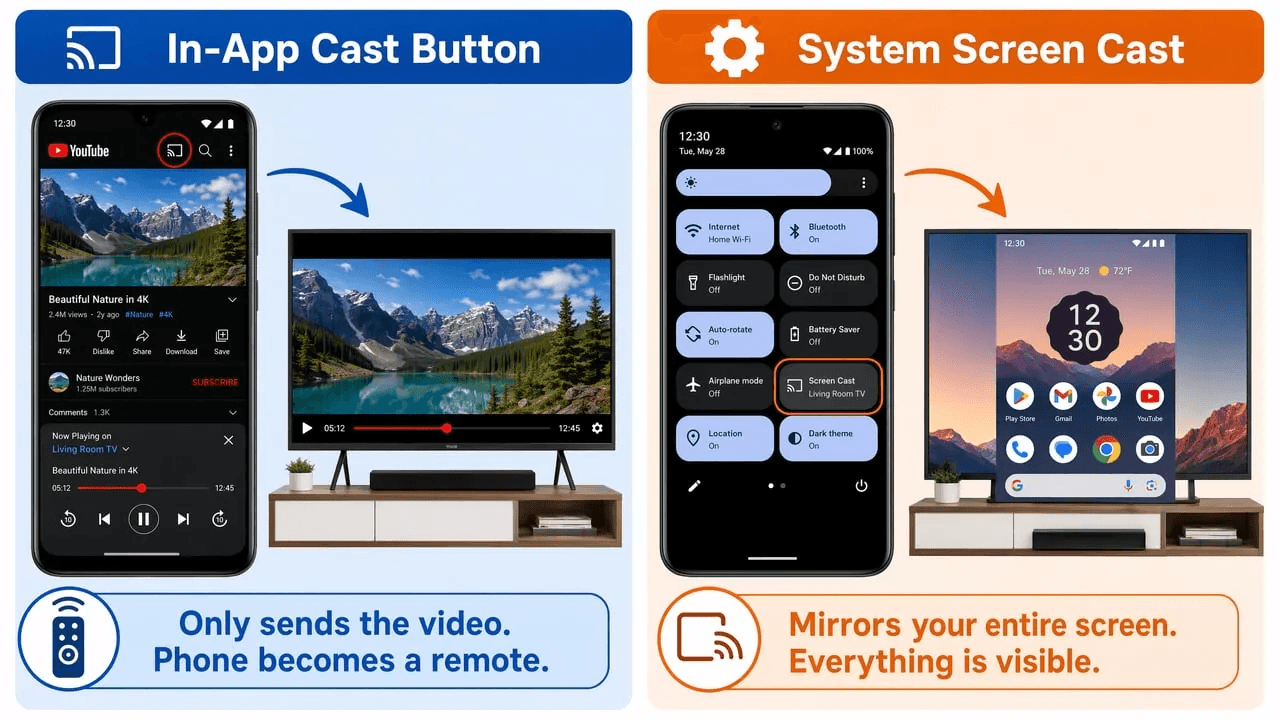
This is the single most common Chromecast misunderstanding. Tapping the Cast button inside YouTube or Netflix sends only that video to the TV. Your phone becomes a remote, and the rest of your screen stays private. System-level Screen Cast from Quick Settings mirrors your entire display, notifications and all. If you want your whole phone screen on the TV, always use the Quick Settings tile, never an in-app Cast button.
It worked before but suddenly stopped?
When Chromecast mirroring suddenly breaks after working fine, the culprit is usually a recent update. Google Play Services auto-updating, router firmware upgrading overnight, or a Chromecast firmware update. Check your phone's recently updated apps list, restart the router, and as a last resort factory-reset the Chromecast through the Google Home app (Device Settings → More → Factory Reset).
For Android phones and Chrome browser users casting to a Chromecast, Google TV Streamer, or any TV with Chromecast built-in.
Can't find your Chromecast device?
When your Android phone doesn't see the Chromecast in the Cast list and you've passed the pre-flight checks, the usual suspects are AP isolation on your router (which blocks device-to-device communication), or outdated Google Play Services. Log into your router settings and disable AP/Client Isolation, then update Google Play Services (Settings → Apps → Google Play Services → App details → Update) and clear its cache. Also open the Google Home app to verify the Chromecast is online and not in Guest Mode.
Mirroring shows a black screen?
A black screen during Chromecast mirroring often comes from confusing app-level Cast (which only sends a specific video) with system-level screen mirroring (which shows your entire screen). Make sure you're using the Cast or Screen Cast tile in Quick Settings, not the Cast button inside YouTube or Netflix. If system mirroring still shows black, restart the Chromecast and check for firmware updates in the Google Home app.
Cast keeps disconnecting?
Frequent disconnects are typically caused by your phone's auto-network-switch feature, or Chromecast overheating. Overheating is common with older Chromecast models plugged directly into TV HDMI ports, where heat builds up with no ventilation. Turn off Wi-Fi auto-switch on your phone, and if using an older Chromecast, try the HDMI extender cable that came in the box to improve airflow.
Cast option missing on Android?
If the Cast tile disappeared from Quick Settings, Google Play Services may need an update or its cache cleared. Swipe down to expand the full Quick Settings panel. Manufacturers sometimes hide the Cast tile on the second page. Also check Digital Wellbeing or Focus Mode, which can suppress Cast. If it's still missing, go to Settings → Connected Devices → Connection Preferences → Cast, and toggle it on.
You meant to mirror, but you're casting instead?
This is the single most common Chromecast misunderstanding. Tapping the Cast button inside YouTube or Netflix sends only that video to the TV. Your phone becomes a remote, and the rest of your screen stays private. System-level Screen Cast from Quick Settings mirrors your entire display, notifications and all. If you want your whole phone screen on the TV, always use the Quick Settings tile, never an in-app Cast button.
It worked before but suddenly stopped?
When Chromecast mirroring suddenly breaks after working fine, the culprit is usually a recent update. Google Play Services auto-updating, router firmware upgrading overnight, or a Chromecast firmware update. Check your phone's recently updated apps list, restart the router, and as a last resort factory-reset the Chromecast through the Google Home app (Device Settings → More → Factory Reset).
For Android phones and Chrome browser users casting to a Chromecast, Google TV Streamer, or any TV with Chromecast built-in.
Can't find your Chromecast device?
When your Android phone doesn't see the Chromecast in the Cast list and you've passed the pre-flight checks, the usual suspects are AP isolation on your router (which blocks device-to-device communication), or outdated Google Play Services. Log into your router settings and disable AP/Client Isolation, then update Google Play Services (Settings → Apps → Google Play Services → App details → Update) and clear its cache. Also open the Google Home app to verify the Chromecast is online and not in Guest Mode.
Mirroring shows a black screen?
A black screen during Chromecast mirroring often comes from confusing app-level Cast (which only sends a specific video) with system-level screen mirroring (which shows your entire screen). Make sure you're using the Cast or Screen Cast tile in Quick Settings, not the Cast button inside YouTube or Netflix. If system mirroring still shows black, restart the Chromecast and check for firmware updates in the Google Home app.
Cast keeps disconnecting?
Frequent disconnects are typically caused by your phone's auto-network-switch feature, or Chromecast overheating. Overheating is common with older Chromecast models plugged directly into TV HDMI ports, where heat builds up with no ventilation. Turn off Wi-Fi auto-switch on your phone, and if using an older Chromecast, try the HDMI extender cable that came in the box to improve airflow.
Cast option missing on Android?
If the Cast tile disappeared from Quick Settings, Google Play Services may need an update or its cache cleared. Swipe down to expand the full Quick Settings panel. Manufacturers sometimes hide the Cast tile on the second page. Also check Digital Wellbeing or Focus Mode, which can suppress Cast. If it's still missing, go to Settings → Connected Devices → Connection Preferences → Cast, and toggle it on.
You meant to mirror, but you're casting instead?
This is the single most common Chromecast misunderstanding. Tapping the Cast button inside YouTube or Netflix sends only that video to the TV. Your phone becomes a remote, and the rest of your screen stays private. System-level Screen Cast from Quick Settings mirrors your entire display, notifications and all. If you want your whole phone screen on the TV, always use the Quick Settings tile, never an in-app Cast button.
It worked before but suddenly stopped?
When Chromecast mirroring suddenly breaks after working fine, the culprit is usually a recent update. Google Play Services auto-updating, router firmware upgrading overnight, or a Chromecast firmware update. Check your phone's recently updated apps list, restart the router, and as a last resort factory-reset the Chromecast through the Google Home app (Device Settings → More → Factory Reset).
Miracast / Windows Wireless Display Not Working
Miracast / Windows Wireless Display Not Working
Miracast / Windows Wireless Display Not Working
For Windows 10 and 11 users connecting to a Miracast-compatible TV or wireless display adapter.
Windows can't find your TV?
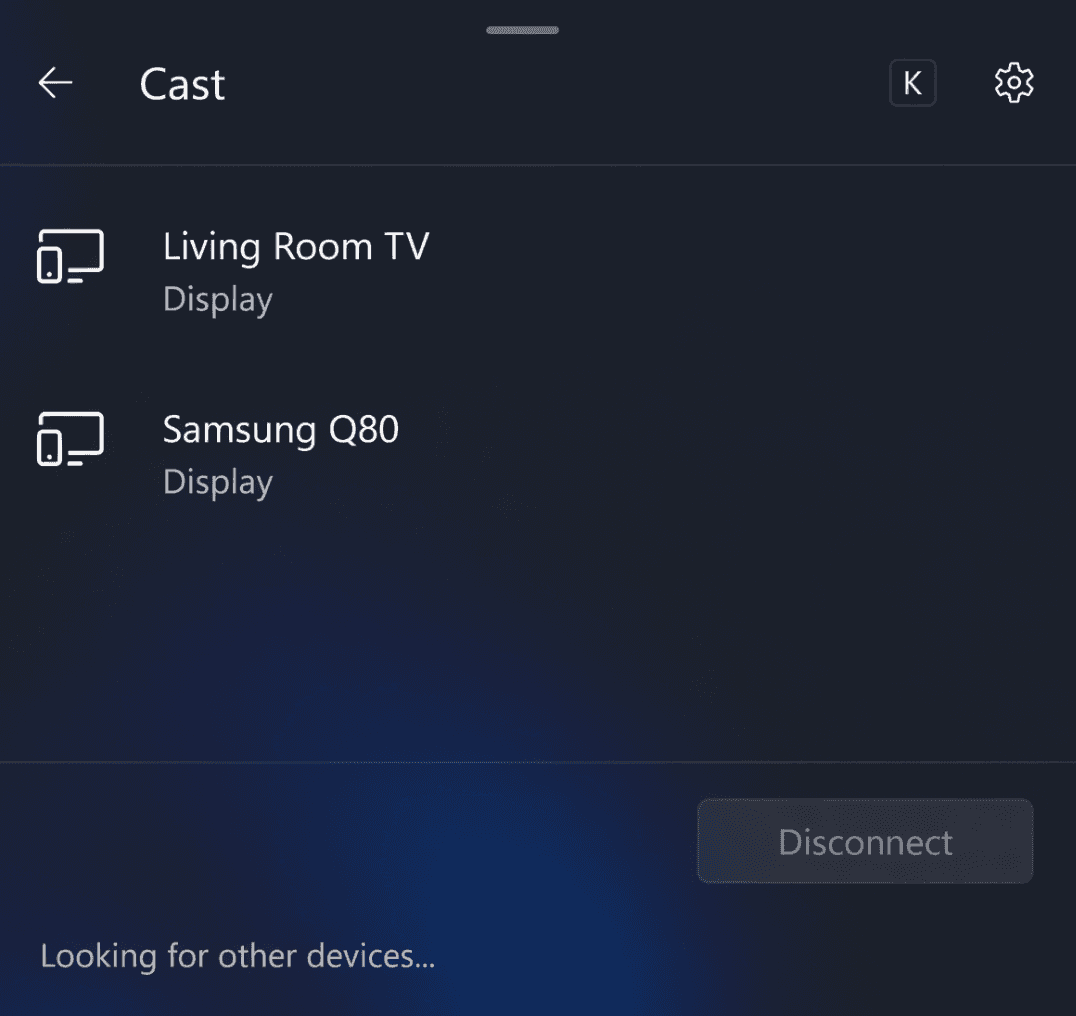
Press Win+K to open the Cast panel and nothing appears — and the pre-flight checks are all clear? Miracast-specific causes include: the TV isn't actively in Miracast or Screen Mirroring mode (this is different from just being on — the TV needs to be actively "listening" for connections), or Windows Firewall is blocking Wireless Display. Make sure the TV is in the correct mode, then go to Settings → Update & Security → Windows Security → Firewall → Allow an app through firewall → find "Wireless Display" and make sure both Private and Public are checked. Also check your router for AP isolation, which can block Miracast discovery.
Connected but black screen?
This usually means a resolution or refresh rate mismatch between Windows and your TV. Lower your output to 1080p in Settings → System → Display → Advanced Display, and choose 1920×1080. Also update your graphics driver. For laptops with Intel wireless cards, check for the latest Intel Wi-Fi driver. The wireless display feature runs through the same chipset, and driver bugs are surprisingly common.
Wireless display keeps disconnecting?
Windows power management is often the hidden cause. It can turn off the wireless adapter mid-session to save battery. Open Device Manager → Network Adapters → right-click your Wi-Fi adapter → Properties → Power Management → uncheck "Allow the computer to turn off this device to save power."
"Your PC doesn't support Miracast"?
First check if the Wireless Display optional feature is even installed: Settings → Apps → Optional Features → Add a feature → search "Wireless Display" → Install. Run dxdiag (Windows key + R, type dxdiag), click "Save All Information," and search the file for "Miracast." If it says "Not Available" even after installing the optional feature, your laptop's Wi-Fi hardware simply doesn't support it. In that case, use a third-party mirroring app or an HDMI cable instead.
Windows update broke screen mirroring?
Windows updates occasionally replace wireless drivers or reset firewall rules, breaking mirroring that worked fine the day before. Go to Device Manager → Network Adapters → your Wi-Fi adapter → Driver → Roll Back Driver. Also check Windows Update history to identify which update caused the problem, and temporarily pause updates to prevent reinstallation until a fix is confirmed.
For Windows 10 and 11 users connecting to a Miracast-compatible TV or wireless display adapter.
Windows can't find your TV?
Press Win+K to open the Cast panel and nothing appears — and the pre-flight checks are all clear? Miracast-specific causes include: the TV isn't actively in Miracast or Screen Mirroring mode (this is different from just being on — the TV needs to be actively "listening" for connections), or Windows Firewall is blocking Wireless Display. Make sure the TV is in the correct mode, then go to Settings → Update & Security → Windows Security → Firewall → Allow an app through firewall → find "Wireless Display" and make sure both Private and Public are checked. Also check your router for AP isolation, which can block Miracast discovery.
Connected but black screen?
This usually means a resolution or refresh rate mismatch between Windows and your TV. Lower your output to 1080p in Settings → System → Display → Advanced Display, and choose 1920×1080. Also update your graphics driver. For laptops with Intel wireless cards, check for the latest Intel Wi-Fi driver. The wireless display feature runs through the same chipset, and driver bugs are surprisingly common.
Wireless display keeps disconnecting?
Windows power management is often the hidden cause. It can turn off the wireless adapter mid-session to save battery. Open Device Manager → Network Adapters → right-click your Wi-Fi adapter → Properties → Power Management → uncheck "Allow the computer to turn off this device to save power."
"Your PC doesn't support Miracast"?
First check if the Wireless Display optional feature is even installed: Settings → Apps → Optional Features → Add a feature → search "Wireless Display" → Install. Run dxdiag (Windows key + R, type dxdiag), click "Save All Information," and search the file for "Miracast." If it says "Not Available" even after installing the optional feature, your laptop's Wi-Fi hardware simply doesn't support it. In that case, use a third-party mirroring app or an HDMI cable instead.
Windows update broke screen mirroring?
Windows updates occasionally replace wireless drivers or reset firewall rules, breaking mirroring that worked fine the day before. Go to Device Manager → Network Adapters → your Wi-Fi adapter → Driver → Roll Back Driver. Also check Windows Update history to identify which update caused the problem, and temporarily pause updates to prevent reinstallation until a fix is confirmed.
For Windows 10 and 11 users connecting to a Miracast-compatible TV or wireless display adapter.
Windows can't find your TV?
Press Win+K to open the Cast panel and nothing appears — and the pre-flight checks are all clear? Miracast-specific causes include: the TV isn't actively in Miracast or Screen Mirroring mode (this is different from just being on — the TV needs to be actively "listening" for connections), or Windows Firewall is blocking Wireless Display. Make sure the TV is in the correct mode, then go to Settings → Update & Security → Windows Security → Firewall → Allow an app through firewall → find "Wireless Display" and make sure both Private and Public are checked. Also check your router for AP isolation, which can block Miracast discovery.
Connected but black screen?
This usually means a resolution or refresh rate mismatch between Windows and your TV. Lower your output to 1080p in Settings → System → Display → Advanced Display, and choose 1920×1080. Also update your graphics driver. For laptops with Intel wireless cards, check for the latest Intel Wi-Fi driver. The wireless display feature runs through the same chipset, and driver bugs are surprisingly common.
Wireless display keeps disconnecting?
Windows power management is often the hidden cause. It can turn off the wireless adapter mid-session to save battery. Open Device Manager → Network Adapters → right-click your Wi-Fi adapter → Properties → Power Management → uncheck "Allow the computer to turn off this device to save power."
"Your PC doesn't support Miracast"?
First check if the Wireless Display optional feature is even installed: Settings → Apps → Optional Features → Add a feature → search "Wireless Display" → Install. Run dxdiag (Windows key + R, type dxdiag), click "Save All Information," and search the file for "Miracast." If it says "Not Available" even after installing the optional feature, your laptop's Wi-Fi hardware simply doesn't support it. In that case, use a third-party mirroring app or an HDMI cable instead.
Windows update broke screen mirroring?
Windows updates occasionally replace wireless drivers or reset firewall rules, breaking mirroring that worked fine the day before. Go to Device Manager → Network Adapters → your Wi-Fi adapter → Driver → Roll Back Driver. Also check Windows Update history to identify which update caused the problem, and temporarily pause updates to prevent reinstallation until a fix is confirmed.
Samsung Smart View Not Working
Samsung Smart View Not Working
Samsung Smart View Not Working
For Samsung phone and tablet users mirroring to a Samsung TV via Smart View.
Smart View can't find your Samsung TV?
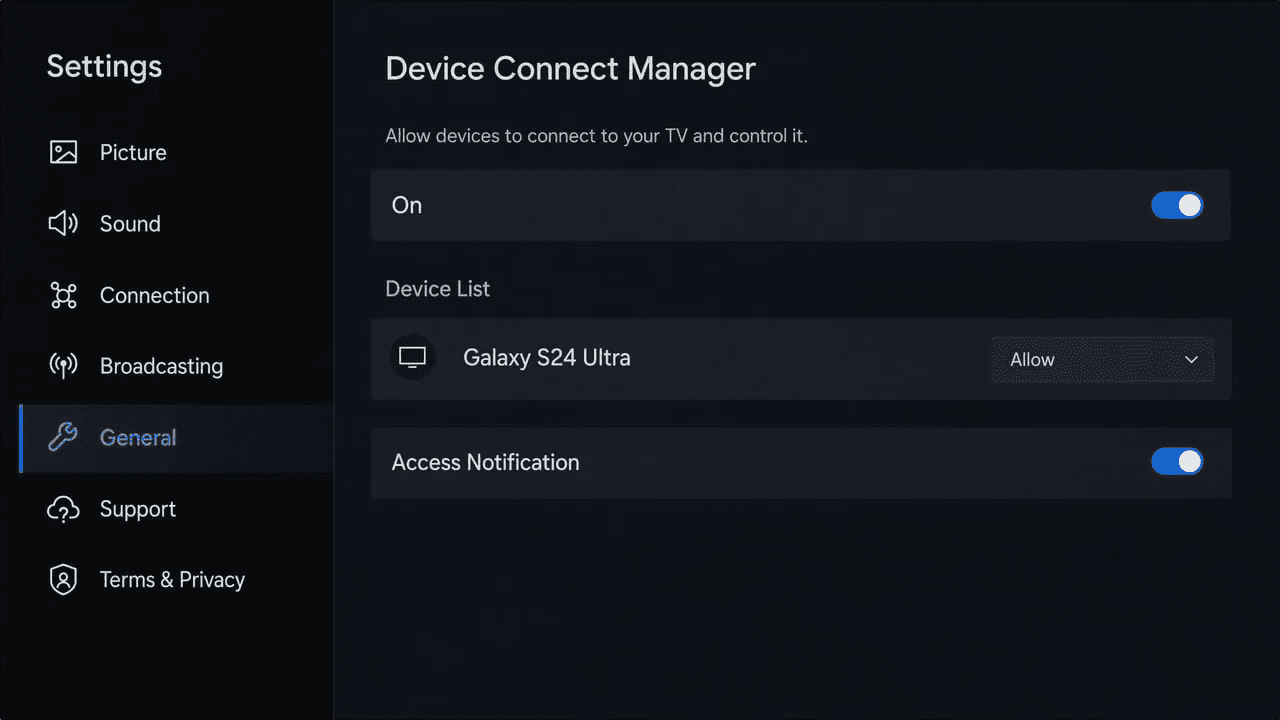
With the pre-flight checks confirmed, here are the Samsung-specific steps. First, check that Device Connect Manager is active and your phone is on the allowed list: go to TV Settings → General → External Device Manager → Device Connect Manager → Device List, find your phone, and set it to Allow. If the TV still isn't discoverable, try using the SmartThings app as a fallback — it handles discovery and connection independently of Smart View and often works when Smart View doesn't. Another option is to use Wi-Fi Direct (Settings → General → Network → Wi-Fi Direct on the TV), which creates a peer-to-peer connection that bypasses the router entirely.
Connects with audio only, no video?
Check that you haven't accidentally selected Audio Only mode in Smart View's connection options. DRM-protected content can also cause video-only blackouts. If it happens with all content (your home screen, photos, everything), clear the Smart View app cache on your phone (Settings → Apps → Smart View → Storage → Clear Cache) and restart both devices.
It worked before but suddenly stopped?
Samsung TV firmware auto-updates can silently reset mirroring settings. Re-enable Device Connect Manager on the TV. It sometimes gets turned off after updates without any notification. On your phone, go to Settings → Apps → Smart View → Storage → Clear Data (not just cache). If the problem started after a One UI update on your phone, check Samsung's community forums for known issues with that specific version.
For Samsung phone and tablet users mirroring to a Samsung TV via Smart View.
Smart View can't find your Samsung TV?
With the pre-flight checks confirmed, here are the Samsung-specific steps. First, check that Device Connect Manager is active and your phone is on the allowed list: go to TV Settings → General → External Device Manager → Device Connect Manager → Device List, find your phone, and set it to Allow. If the TV still isn't discoverable, try using the SmartThings app as a fallback — it handles discovery and connection independently of Smart View and often works when Smart View doesn't. Another option is to use Wi-Fi Direct (Settings → General → Network → Wi-Fi Direct on the TV), which creates a peer-to-peer connection that bypasses the router entirely.
Connects with audio only, no video?
Check that you haven't accidentally selected Audio Only mode in Smart View's connection options. DRM-protected content can also cause video-only blackouts. If it happens with all content (your home screen, photos, everything), clear the Smart View app cache on your phone (Settings → Apps → Smart View → Storage → Clear Cache) and restart both devices.
It worked before but suddenly stopped?
Samsung TV firmware auto-updates can silently reset mirroring settings. Re-enable Device Connect Manager on the TV. It sometimes gets turned off after updates without any notification. On your phone, go to Settings → Apps → Smart View → Storage → Clear Data (not just cache). If the problem started after a One UI update on your phone, check Samsung's community forums for known issues with that specific version.
For Samsung phone and tablet users mirroring to a Samsung TV via Smart View.
Smart View can't find your Samsung TV?
With the pre-flight checks confirmed, here are the Samsung-specific steps. First, check that Device Connect Manager is active and your phone is on the allowed list: go to TV Settings → General → External Device Manager → Device Connect Manager → Device List, find your phone, and set it to Allow. If the TV still isn't discoverable, try using the SmartThings app as a fallback — it handles discovery and connection independently of Smart View and often works when Smart View doesn't. Another option is to use Wi-Fi Direct (Settings → General → Network → Wi-Fi Direct on the TV), which creates a peer-to-peer connection that bypasses the router entirely.
Connects with audio only, no video?
Check that you haven't accidentally selected Audio Only mode in Smart View's connection options. DRM-protected content can also cause video-only blackouts. If it happens with all content (your home screen, photos, everything), clear the Smart View app cache on your phone (Settings → Apps → Smart View → Storage → Clear Cache) and restart both devices.
It worked before but suddenly stopped?
Samsung TV firmware auto-updates can silently reset mirroring settings. Re-enable Device Connect Manager on the TV. It sometimes gets turned off after updates without any notification. On your phone, go to Settings → Apps → Smart View → Storage → Clear Data (not just cache). If the problem started after a One UI update on your phone, check Samsung's community forums for known issues with that specific version.
Third-Party Screen Mirroring Apps Not Working
Third-Party Screen Mirroring Apps Not Working
Third-Party Screen Mirroring Apps Not Working
App can't detect the receiver device?
Unlike built-in mirroring, third-party apps need the receiver app installed and actively running on the TV or target device — just having the TV on isn't enough. Open the receiver app and make sure it's in "waiting for connection" mode. On iOS, check that the app has Local Network permission enabled: Settings → Privacy → Local Network → toggle on for your mirroring app. On Windows, allow the app through the firewall when prompted.
App mirroring is laggy or shows a black screen?
Third-party apps often default to high-quality settings that your network can't sustain. Lower the resolution or bitrate in the app's settings. Dropping from 1080p to 720p often eliminates lag entirely. Some apps offer a USB wired mode, which provides near-zero latency and is the best option for gaming or presentations. Close background apps on both devices. If you're on a free tier, many apps cap resolution and frame rate until you upgrade.
Remote mirroring over the internet isn't working?
Remote mirroring across different Wi-Fi networks needs specific app support. Not all apps offer it, and those that do may gate it behind a paid plan. AirDroid Cast includes remote mirroring in its Basic plan; ApowerMirror charges for AirCast separately. If remote mirroring connects but fails, the issue is usually a firewall or NAT blocking the P2P connection. Try switching to relay server mode if the app offers it. Both networks need reasonably stable internet for remote mirroring to work at all.
App crashes or freezes during mirroring?
Crashes are almost always about memory. Screen mirroring is resource-intensive. Close all other apps on both devices, update to the latest app version, and if the problem persists, try a different app. Some apps are simply more stable on certain hardware combinations than others.
App can't detect the receiver device?
Unlike built-in mirroring, third-party apps need the receiver app installed and actively running on the TV or target device — just having the TV on isn't enough. Open the receiver app and make sure it's in "waiting for connection" mode. On iOS, check that the app has Local Network permission enabled: Settings → Privacy → Local Network → toggle on for your mirroring app. On Windows, allow the app through the firewall when prompted.
App mirroring is laggy or shows a black screen?
Third-party apps often default to high-quality settings that your network can't sustain. Lower the resolution or bitrate in the app's settings. Dropping from 1080p to 720p often eliminates lag entirely. Some apps offer a USB wired mode, which provides near-zero latency and is the best option for gaming or presentations. Close background apps on both devices. If you're on a free tier, many apps cap resolution and frame rate until you upgrade.
Remote mirroring over the internet isn't working?
Remote mirroring across different Wi-Fi networks needs specific app support. Not all apps offer it, and those that do may gate it behind a paid plan. AirDroid Cast includes remote mirroring in its Basic plan; ApowerMirror charges for AirCast separately. If remote mirroring connects but fails, the issue is usually a firewall or NAT blocking the P2P connection. Try switching to relay server mode if the app offers it. Both networks need reasonably stable internet for remote mirroring to work at all.
App crashes or freezes during mirroring?
Crashes are almost always about memory. Screen mirroring is resource-intensive. Close all other apps on both devices, update to the latest app version, and if the problem persists, try a different app. Some apps are simply more stable on certain hardware combinations than others.
App can't detect the receiver device?
Unlike built-in mirroring, third-party apps need the receiver app installed and actively running on the TV or target device — just having the TV on isn't enough. Open the receiver app and make sure it's in "waiting for connection" mode. On iOS, check that the app has Local Network permission enabled: Settings → Privacy → Local Network → toggle on for your mirroring app. On Windows, allow the app through the firewall when prompted.
App mirroring is laggy or shows a black screen?
Third-party apps often default to high-quality settings that your network can't sustain. Lower the resolution or bitrate in the app's settings. Dropping from 1080p to 720p often eliminates lag entirely. Some apps offer a USB wired mode, which provides near-zero latency and is the best option for gaming or presentations. Close background apps on both devices. If you're on a free tier, many apps cap resolution and frame rate until you upgrade.
Remote mirroring over the internet isn't working?
Remote mirroring across different Wi-Fi networks needs specific app support. Not all apps offer it, and those that do may gate it behind a paid plan. AirDroid Cast includes remote mirroring in its Basic plan; ApowerMirror charges for AirCast separately. If remote mirroring connects but fails, the issue is usually a firewall or NAT blocking the P2P connection. Try switching to relay server mode if the app offers it. Both networks need reasonably stable internet for remote mirroring to work at all.
App crashes or freezes during mirroring?
Crashes are almost always about memory. Screen mirroring is resource-intensive. Close all other apps on both devices, update to the latest app version, and if the problem persists, try a different app. Some apps are simply more stable on certain hardware combinations than others.
Cross-Platform / Mixed Ecosystem Issues
Cross-Platform / Mixed Ecosystem Issues
Cross-Platform / Mixed Ecosystem Issues
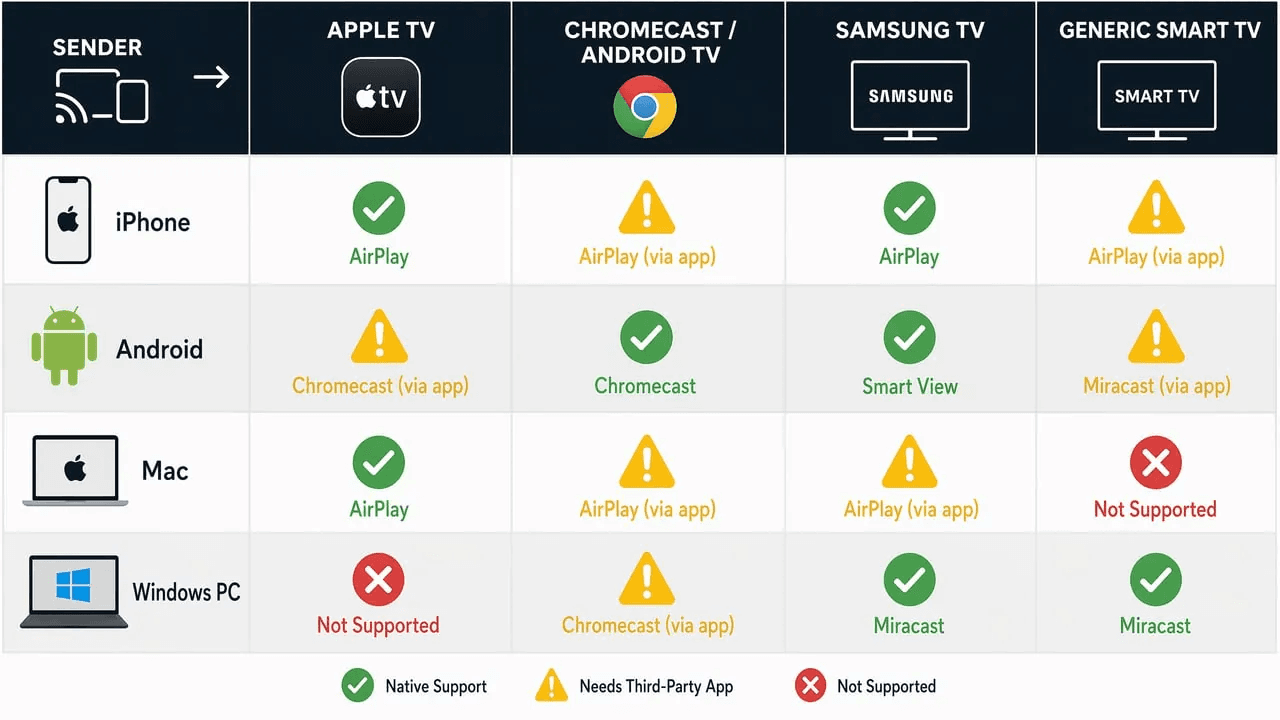
These are the situations where your devices speak different mirroring languages, and why nothing works.
iPhone to Android TV or Chromecast?
This is the most-encountered cross-platform dead end. iPhone uses AirPlay, but Android TV and Chromecast don’t natively support AirPlay. Some newer Android TV models (certain Sony Bravia and TCL sets) include AirPlay 2. Check your TV’s settings under “Apple AirPlay and HomeKit.” For everything else, you have three options: install a third-party receiver app on the TV (AirDroid Cast and 1001TVs both offer TV receiver apps), use a streaming device that supports AirPlay (Apple TV, Roku, or recent Fire TV Sticks), or connect via a Lightning to HDMI adapter for a wired fallback.
Android to Apple TV or AirPlay TV?
Android devices use Chromecast or Miracast, neither of which an Apple TV understands. Install a third-party mirroring app that supports Android-to-AirPlay routing on both devices, or add a Chromecast with Google TV to an open HDMI port on your TV. The Google TV Streamer and Chromecast dongles are the simplest hardware solution for getting Android mirroring onto an Apple-TV-only setup.
Mac to a non-AirPlay TV?
If your Mac doesn’t see the TV in Screen Mirroring, the TV likely doesn’t support AirPlay 2. Install a third-party mirroring app, or use an HDMI cable. Macs with USB-C ports need a USB-C to HDMI adapter ($15 to $30), while older Macs with HDMI ports can connect directly.
VPN, firewall, or work network blocking mirroring?
Office, school, and hotel Wi-Fi networks almost always enable AP/Client Isolation. It’s a security feature that prevents devices on the same network from talking to each other directly. This breaks every screen mirroring method: AirPlay, Chromecast, Miracast, and third-party apps all rely on device-to-device communication. Turn off your VPN first, as it adds another layer of network routing that interferes with discovery. If mirroring still fails, use your phone’s hotspot to create a private Wi-Fi network that both devices connect to. For Miracast, Wi-Fi Direct mode bypasses the router entirely and works even without internet access.
When to Switch to a Different Approach
Sometimes the problem isn’t a bug. It’s that the method you’re using is the wrong tool for your device combination. Here’s when to stop troubleshooting and change direction:
You’re using | If this keeps failing | Switch to | Why |
AirPlay (iPhone → non-AirPlay TV) | Can’t discover the TV after multiple attempts | Third-party app | AirPlay and non-Apple TVs have a protocol-level compatibility gap that software tweaks can’t bridge |
Chromecast (Android → older TV) | Unstable connection, frequent drops | HDMI cable or app USB mode | Older Chromecast hardware is underpowered for sustained mirroring |
Miracast (Windows → TV) | Driver or compatibility problems keep coming back | Third-party app | Miracast performance varies wildly across hardware combinations; an app often works where Miracast doesn’t |
Any wireless method | Latency stays above 500ms | HDMI cable | All wireless mirroring introduces some delay; a cable is the only way to get zero |
If you’re ready to try a different approach, our best screen mirroring apps of 2026 comparison covers the top five options with real-world performance data, pricing, and which app works best for each device combination.
These are the situations where your devices speak different mirroring languages, and why nothing works.
iPhone to Android TV or Chromecast?
This is the most-encountered cross-platform dead end. iPhone uses AirPlay, but Android TV and Chromecast don’t natively support AirPlay. Some newer Android TV models (certain Sony Bravia and TCL sets) include AirPlay 2. Check your TV’s settings under “Apple AirPlay and HomeKit.” For everything else, you have three options: install a third-party receiver app on the TV (AirDroid Cast and 1001TVs both offer TV receiver apps), use a streaming device that supports AirPlay (Apple TV, Roku, or recent Fire TV Sticks), or connect via a Lightning to HDMI adapter for a wired fallback.
Android to Apple TV or AirPlay TV?
Android devices use Chromecast or Miracast, neither of which an Apple TV understands. Install a third-party mirroring app that supports Android-to-AirPlay routing on both devices, or add a Chromecast with Google TV to an open HDMI port on your TV. The Google TV Streamer and Chromecast dongles are the simplest hardware solution for getting Android mirroring onto an Apple-TV-only setup.
Mac to a non-AirPlay TV?
If your Mac doesn’t see the TV in Screen Mirroring, the TV likely doesn’t support AirPlay 2. Install a third-party mirroring app, or use an HDMI cable. Macs with USB-C ports need a USB-C to HDMI adapter ($15 to $30), while older Macs with HDMI ports can connect directly.
VPN, firewall, or work network blocking mirroring?
Office, school, and hotel Wi-Fi networks almost always enable AP/Client Isolation. It’s a security feature that prevents devices on the same network from talking to each other directly. This breaks every screen mirroring method: AirPlay, Chromecast, Miracast, and third-party apps all rely on device-to-device communication. Turn off your VPN first, as it adds another layer of network routing that interferes with discovery. If mirroring still fails, use your phone’s hotspot to create a private Wi-Fi network that both devices connect to. For Miracast, Wi-Fi Direct mode bypasses the router entirely and works even without internet access.
When to Switch to a Different Approach
Sometimes the problem isn’t a bug. It’s that the method you’re using is the wrong tool for your device combination. Here’s when to stop troubleshooting and change direction:
You’re using | If this keeps failing | Switch to | Why |
AirPlay (iPhone → non-AirPlay TV) | Can’t discover the TV after multiple attempts | Third-party app | AirPlay and non-Apple TVs have a protocol-level compatibility gap that software tweaks can’t bridge |
Chromecast (Android → older TV) | Unstable connection, frequent drops | HDMI cable or app USB mode | Older Chromecast hardware is underpowered for sustained mirroring |
Miracast (Windows → TV) | Driver or compatibility problems keep coming back | Third-party app | Miracast performance varies wildly across hardware combinations; an app often works where Miracast doesn’t |
Any wireless method | Latency stays above 500ms | HDMI cable | All wireless mirroring introduces some delay; a cable is the only way to get zero |
If you’re ready to try a different approach, our best screen mirroring apps of 2026 comparison covers the top five options with real-world performance data, pricing, and which app works best for each device combination.
These are the situations where your devices speak different mirroring languages, and why nothing works.
iPhone to Android TV or Chromecast?
This is the most-encountered cross-platform dead end. iPhone uses AirPlay, but Android TV and Chromecast don’t natively support AirPlay. Some newer Android TV models (certain Sony Bravia and TCL sets) include AirPlay 2. Check your TV’s settings under “Apple AirPlay and HomeKit.” For everything else, you have three options: install a third-party receiver app on the TV (AirDroid Cast and 1001TVs both offer TV receiver apps), use a streaming device that supports AirPlay (Apple TV, Roku, or recent Fire TV Sticks), or connect via a Lightning to HDMI adapter for a wired fallback.
Android to Apple TV or AirPlay TV?
Android devices use Chromecast or Miracast, neither of which an Apple TV understands. Install a third-party mirroring app that supports Android-to-AirPlay routing on both devices, or add a Chromecast with Google TV to an open HDMI port on your TV. The Google TV Streamer and Chromecast dongles are the simplest hardware solution for getting Android mirroring onto an Apple-TV-only setup.
Mac to a non-AirPlay TV?
If your Mac doesn’t see the TV in Screen Mirroring, the TV likely doesn’t support AirPlay 2. Install a third-party mirroring app, or use an HDMI cable. Macs with USB-C ports need a USB-C to HDMI adapter ($15 to $30), while older Macs with HDMI ports can connect directly.
VPN, firewall, or work network blocking mirroring?
Office, school, and hotel Wi-Fi networks almost always enable AP/Client Isolation. It’s a security feature that prevents devices on the same network from talking to each other directly. This breaks every screen mirroring method: AirPlay, Chromecast, Miracast, and third-party apps all rely on device-to-device communication. Turn off your VPN first, as it adds another layer of network routing that interferes with discovery. If mirroring still fails, use your phone’s hotspot to create a private Wi-Fi network that both devices connect to. For Miracast, Wi-Fi Direct mode bypasses the router entirely and works even without internet access.
When to Switch to a Different Approach
Sometimes the problem isn’t a bug. It’s that the method you’re using is the wrong tool for your device combination. Here’s when to stop troubleshooting and change direction:
You’re using | If this keeps failing | Switch to | Why |
AirPlay (iPhone → non-AirPlay TV) | Can’t discover the TV after multiple attempts | Third-party app | AirPlay and non-Apple TVs have a protocol-level compatibility gap that software tweaks can’t bridge |
Chromecast (Android → older TV) | Unstable connection, frequent drops | HDMI cable or app USB mode | Older Chromecast hardware is underpowered for sustained mirroring |
Miracast (Windows → TV) | Driver or compatibility problems keep coming back | Third-party app | Miracast performance varies wildly across hardware combinations; an app often works where Miracast doesn’t |
Any wireless method | Latency stays above 500ms | HDMI cable | All wireless mirroring introduces some delay; a cable is the only way to get zero |
If you’re ready to try a different approach, our best screen mirroring apps of 2026 comparison covers the top five options with real-world performance data, pricing, and which app works best for each device combination.
Frequently Asked Questions
Frequently Asked Questions
Frequently Asked Questions
Why did screen mirroring stop working after a software update?
This happens more often than it should. A phone OS update or TV firmware upgrade can reset mirroring permissions, replace wireless drivers, or drop support for older protocols. Samsung TVs are known to silently disable Device Connect Manager after firmware updates. Windows updates occasionally overwrite Wi-Fi drivers with generic versions that break Miracast. Chromecast firmware updates can introduce compatibility issues with older Android versions.
The fix pattern is the same across all platforms: re-enable the mirroring setting on your TV, check that the Wireless Display or Cast feature is still listed in your phone's settings, and if the update changed your Wi-Fi driver, roll it back in Device Manager (Windows) or wait for the next patch.
How do I check if my TV supports screen mirroring?
The quickest way: look at your TV's input or source menu. If you see options labeled Screen Mirroring, Screen Share, Miracast, AirPlay, or Cast, your TV supports at least one protocol. If you do not see any of these, go into Settings and search for "mirroring," "AirPlay," "screen share," or "device connection."
Still nothing? Check your TV's model number online. Most smart TVs made after 2018 support at least one mirroring standard. If yours does not, a $30 Fire TV Stick or Chromecast plugged into any HDMI port adds mirroring support instantly.
Can I screen mirror while using Bluetooth headphones?
It depends. Bluetooth and 2.4GHz Wi-Fi share the same radio spectrum. If you are mirroring over 2.4GHz Wi-Fi while also using Bluetooth headphones, you may get audio stuttering, video lag, or sudden disconnections. The two signals interfere with each other. If you switch your mirroring devices to 5GHz Wi-Fi, the interference goes away because Bluetooth stays on the 2.4GHz band while mirroring traffic moves to 5GHz.
USB wired mirroring avoids the problem entirely. If your router only supports 2.4GHz, try mirroring without Bluetooth first to confirm the headphones are the cause, then decide which matters more: wireless audio or a stable mirroring connection.
Why is my screen mirroring blurry or low quality?
This is usually caused by the mirroring app or connection automatically dropping resolution to maintain a stable link. On a weak or congested network, apps scale down to 720p or lower. Free tiers of third-party apps often cap resolution.
To fix it: switch both devices to 5GHz Wi-Fi, close bandwidth-heavy apps, lower the distance between your phone and router, or use an HDMI cable for lossless quality. Check the app's quality settings. Some default to low resolution to save bandwidth.
Can I use my phone for other things while screen mirroring?
No. When you mirror your screen, everything you do on your phone appears on the TV. Notifications, app switches, typing, incoming calls. It is all visible.
If you want to keep your phone private while media plays, use Cast instead. Casting sends just the video to the TV, and your phone becomes a remote control. You can lock your screen, reply to messages, or open other apps without interrupting what is on the TV.
How far can my phone be from the TV for screen mirroring?
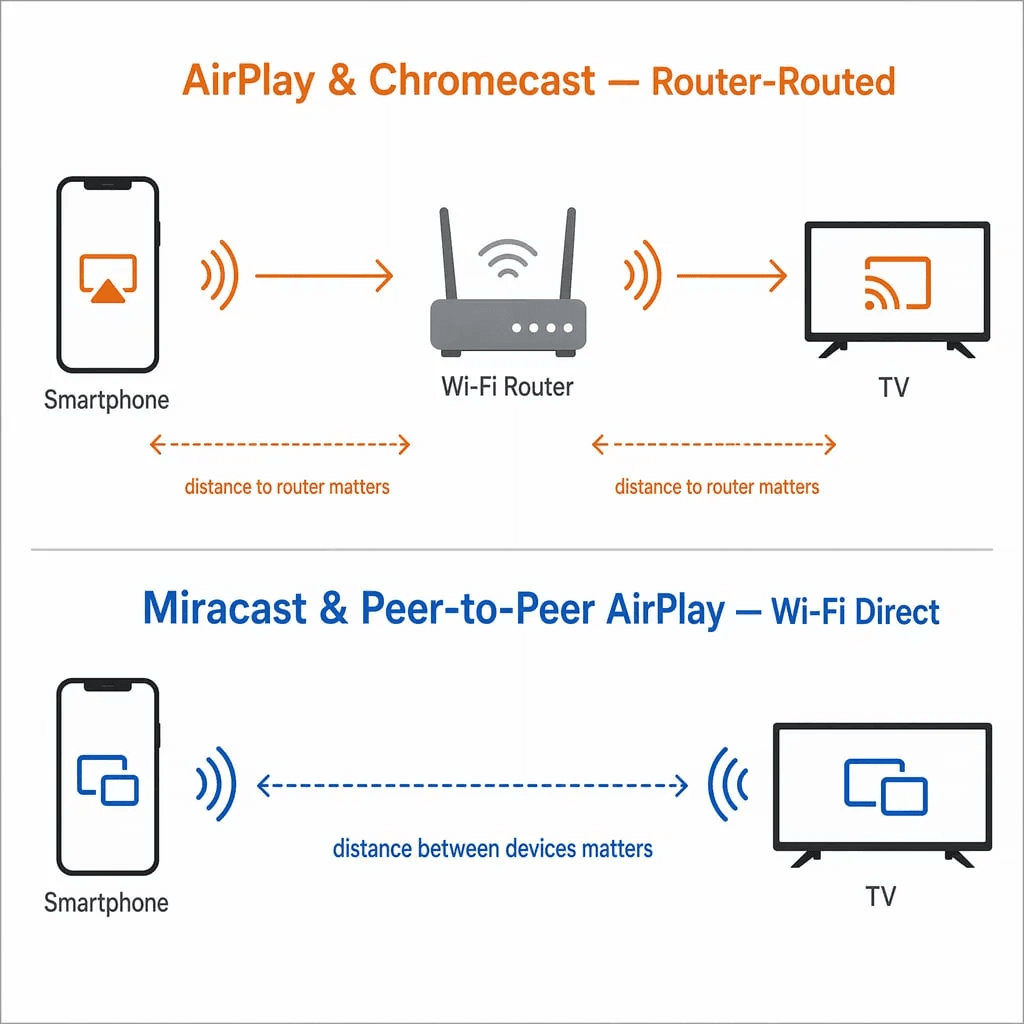
On a typical home Wi-Fi network, screen mirroring works reliably within 30 feet (about 9 meters) of your router. The key factor depends on which protocol you're using.
For AirPlay (traditional mode) and Chromecast screen mirroring, your phone sends data to the router, and the router forwards it to the TV — so your distance to the router matters most. For Miracast and peer-to-peer AirPlay, the connection is device-to-device via Wi-Fi Direct, so your distance to the TV is what counts.
If the router is between both devices, range improves for router-routed protocols. If there are thick walls, metal surfaces, or other electronics between your phone and the router (or TV, for direct connections), expect the usable range to drop. On 5GHz Wi-Fi, signal degrades faster through walls than 2.4GHz, so 2.4GHz actually gives you better range, at the cost of more lag.
Can I screen mirror my phone to a projector?
Yes, if the projector supports a mirroring protocol.
Most modern projectors (especially portable and business models) have built-in Miracast or AirPlay support. If your projector does not support wireless mirroring, you can plug a streaming stick like Chromecast, Fire TV Stick, or Roku into the HDMI port.
Another option is connecting your phone directly with a USB-C to HDMI adapter (Android) or Lightning to HDMI adapter (iPhone). Wired is often the better choice for projectors because it removes the latency that wireless mirroring adds.
Does screen mirroring work without an internet connection?
Yes, for most methods. AirPlay, Chromecast, and Miracast can all function on a local network without internet access, as long as both devices are connected to the same router. Miracast goes a step further with Wi-Fi Direct, which creates a peer-to-peer connection between your phone and TV with no router needed at all. Some third-party apps also support Wi-Fi Direct or USB cable connections. The one scenario where internet is required: remote mirroring across different networks, which needs a stable internet connection on both ends.
Why did screen mirroring stop working after a software update?
This happens more often than it should. A phone OS update or TV firmware upgrade can reset mirroring permissions, replace wireless drivers, or drop support for older protocols. Samsung TVs are known to silently disable Device Connect Manager after firmware updates. Windows updates occasionally overwrite Wi-Fi drivers with generic versions that break Miracast. Chromecast firmware updates can introduce compatibility issues with older Android versions.
The fix pattern is the same across all platforms: re-enable the mirroring setting on your TV, check that the Wireless Display or Cast feature is still listed in your phone's settings, and if the update changed your Wi-Fi driver, roll it back in Device Manager (Windows) or wait for the next patch.
How do I check if my TV supports screen mirroring?
The quickest way: look at your TV's input or source menu. If you see options labeled Screen Mirroring, Screen Share, Miracast, AirPlay, or Cast, your TV supports at least one protocol. If you do not see any of these, go into Settings and search for "mirroring," "AirPlay," "screen share," or "device connection."
Still nothing? Check your TV's model number online. Most smart TVs made after 2018 support at least one mirroring standard. If yours does not, a $30 Fire TV Stick or Chromecast plugged into any HDMI port adds mirroring support instantly.
Can I screen mirror while using Bluetooth headphones?
It depends. Bluetooth and 2.4GHz Wi-Fi share the same radio spectrum. If you are mirroring over 2.4GHz Wi-Fi while also using Bluetooth headphones, you may get audio stuttering, video lag, or sudden disconnections. The two signals interfere with each other. If you switch your mirroring devices to 5GHz Wi-Fi, the interference goes away because Bluetooth stays on the 2.4GHz band while mirroring traffic moves to 5GHz.
USB wired mirroring avoids the problem entirely. If your router only supports 2.4GHz, try mirroring without Bluetooth first to confirm the headphones are the cause, then decide which matters more: wireless audio or a stable mirroring connection.
Why is my screen mirroring blurry or low quality?
This is usually caused by the mirroring app or connection automatically dropping resolution to maintain a stable link. On a weak or congested network, apps scale down to 720p or lower. Free tiers of third-party apps often cap resolution.
To fix it: switch both devices to 5GHz Wi-Fi, close bandwidth-heavy apps, lower the distance between your phone and router, or use an HDMI cable for lossless quality. Check the app's quality settings. Some default to low resolution to save bandwidth.
Can I use my phone for other things while screen mirroring?
No. When you mirror your screen, everything you do on your phone appears on the TV. Notifications, app switches, typing, incoming calls. It is all visible.
If you want to keep your phone private while media plays, use Cast instead. Casting sends just the video to the TV, and your phone becomes a remote control. You can lock your screen, reply to messages, or open other apps without interrupting what is on the TV.
How far can my phone be from the TV for screen mirroring?
On a typical home Wi-Fi network, screen mirroring works reliably within 30 feet (about 9 meters) of your router. The key factor depends on which protocol you're using.
For AirPlay (traditional mode) and Chromecast screen mirroring, your phone sends data to the router, and the router forwards it to the TV — so your distance to the router matters most. For Miracast and peer-to-peer AirPlay, the connection is device-to-device via Wi-Fi Direct, so your distance to the TV is what counts.
If the router is between both devices, range improves for router-routed protocols. If there are thick walls, metal surfaces, or other electronics between your phone and the router (or TV, for direct connections), expect the usable range to drop. On 5GHz Wi-Fi, signal degrades faster through walls than 2.4GHz, so 2.4GHz actually gives you better range, at the cost of more lag.
Can I screen mirror my phone to a projector?
Yes, if the projector supports a mirroring protocol.
Most modern projectors (especially portable and business models) have built-in Miracast or AirPlay support. If your projector does not support wireless mirroring, you can plug a streaming stick like Chromecast, Fire TV Stick, or Roku into the HDMI port.
Another option is connecting your phone directly with a USB-C to HDMI adapter (Android) or Lightning to HDMI adapter (iPhone). Wired is often the better choice for projectors because it removes the latency that wireless mirroring adds.
Does screen mirroring work without an internet connection?
Yes, for most methods. AirPlay, Chromecast, and Miracast can all function on a local network without internet access, as long as both devices are connected to the same router. Miracast goes a step further with Wi-Fi Direct, which creates a peer-to-peer connection between your phone and TV with no router needed at all. Some third-party apps also support Wi-Fi Direct or USB cable connections. The one scenario where internet is required: remote mirroring across different networks, which needs a stable internet connection on both ends.
Why did screen mirroring stop working after a software update?
This happens more often than it should. A phone OS update or TV firmware upgrade can reset mirroring permissions, replace wireless drivers, or drop support for older protocols. Samsung TVs are known to silently disable Device Connect Manager after firmware updates. Windows updates occasionally overwrite Wi-Fi drivers with generic versions that break Miracast. Chromecast firmware updates can introduce compatibility issues with older Android versions.
The fix pattern is the same across all platforms: re-enable the mirroring setting on your TV, check that the Wireless Display or Cast feature is still listed in your phone's settings, and if the update changed your Wi-Fi driver, roll it back in Device Manager (Windows) or wait for the next patch.
How do I check if my TV supports screen mirroring?
The quickest way: look at your TV's input or source menu. If you see options labeled Screen Mirroring, Screen Share, Miracast, AirPlay, or Cast, your TV supports at least one protocol. If you do not see any of these, go into Settings and search for "mirroring," "AirPlay," "screen share," or "device connection."
Still nothing? Check your TV's model number online. Most smart TVs made after 2018 support at least one mirroring standard. If yours does not, a $30 Fire TV Stick or Chromecast plugged into any HDMI port adds mirroring support instantly.
Can I screen mirror while using Bluetooth headphones?
It depends. Bluetooth and 2.4GHz Wi-Fi share the same radio spectrum. If you are mirroring over 2.4GHz Wi-Fi while also using Bluetooth headphones, you may get audio stuttering, video lag, or sudden disconnections. The two signals interfere with each other. If you switch your mirroring devices to 5GHz Wi-Fi, the interference goes away because Bluetooth stays on the 2.4GHz band while mirroring traffic moves to 5GHz.
USB wired mirroring avoids the problem entirely. If your router only supports 2.4GHz, try mirroring without Bluetooth first to confirm the headphones are the cause, then decide which matters more: wireless audio or a stable mirroring connection.
Why is my screen mirroring blurry or low quality?
This is usually caused by the mirroring app or connection automatically dropping resolution to maintain a stable link. On a weak or congested network, apps scale down to 720p or lower. Free tiers of third-party apps often cap resolution.
To fix it: switch both devices to 5GHz Wi-Fi, close bandwidth-heavy apps, lower the distance between your phone and router, or use an HDMI cable for lossless quality. Check the app's quality settings. Some default to low resolution to save bandwidth.
Can I use my phone for other things while screen mirroring?
No. When you mirror your screen, everything you do on your phone appears on the TV. Notifications, app switches, typing, incoming calls. It is all visible.
If you want to keep your phone private while media plays, use Cast instead. Casting sends just the video to the TV, and your phone becomes a remote control. You can lock your screen, reply to messages, or open other apps without interrupting what is on the TV.
How far can my phone be from the TV for screen mirroring?
On a typical home Wi-Fi network, screen mirroring works reliably within 30 feet (about 9 meters) of your router. The key factor depends on which protocol you're using.
For AirPlay (traditional mode) and Chromecast screen mirroring, your phone sends data to the router, and the router forwards it to the TV — so your distance to the router matters most. For Miracast and peer-to-peer AirPlay, the connection is device-to-device via Wi-Fi Direct, so your distance to the TV is what counts.
If the router is between both devices, range improves for router-routed protocols. If there are thick walls, metal surfaces, or other electronics between your phone and the router (or TV, for direct connections), expect the usable range to drop. On 5GHz Wi-Fi, signal degrades faster through walls than 2.4GHz, so 2.4GHz actually gives you better range, at the cost of more lag.
Can I screen mirror my phone to a projector?
Yes, if the projector supports a mirroring protocol.
Most modern projectors (especially portable and business models) have built-in Miracast or AirPlay support. If your projector does not support wireless mirroring, you can plug a streaming stick like Chromecast, Fire TV Stick, or Roku into the HDMI port.
Another option is connecting your phone directly with a USB-C to HDMI adapter (Android) or Lightning to HDMI adapter (iPhone). Wired is often the better choice for projectors because it removes the latency that wireless mirroring adds.
Does screen mirroring work without an internet connection?
Yes, for most methods. AirPlay, Chromecast, and Miracast can all function on a local network without internet access, as long as both devices are connected to the same router. Miracast goes a step further with Wi-Fi Direct, which creates a peer-to-peer connection between your phone and TV with no router needed at all. Some third-party apps also support Wi-Fi Direct or USB cable connections. The one scenario where internet is required: remote mirroring across different networks, which needs a stable internet connection on both ends.
Table of content
Table of content


Still Need a Hand?
Still Need a Hand?
Still Need a Hand?
Explore more reviews, step-by-step guides, and troubleshooting tips—or contact us if you could not find the answer you needed.
Explore more reviews, step-by-step guides, and troubleshooting tips—or contact us if you could not find the answer you needed.
Explore more reviews, step-by-step guides, and troubleshooting tips—or contact us if you could not find the answer you needed.