
How to Screen Mirror: The Complete Beginner's Guide (2026)
Learn how to screen mirror iPhone, Android, Windows, or Mac to any TV wirelessly. Covers AirPlay, Chromecast, Miracast, third-party apps, and HDMI — step by step.
Screen mirroring puts whatever is on your phone, tablet, or computer onto your TV. Wirelessly, in real time. Apps, photos, presentations, games, everything.
If you have never done it before, the number of options can feel overwhelming. AirPlay, Chromecast, Miracast, third-party apps, HDMI cables. Which one do you actually need?
Here is how to do it, no matter what phone, laptop, or TV you own.
Already got mirroring set up but it’s not working? Skip ahead to our device-by-device troubleshooting guide or our problem-by-problem troubleshooting guide.
What Is Screen Mirroring?
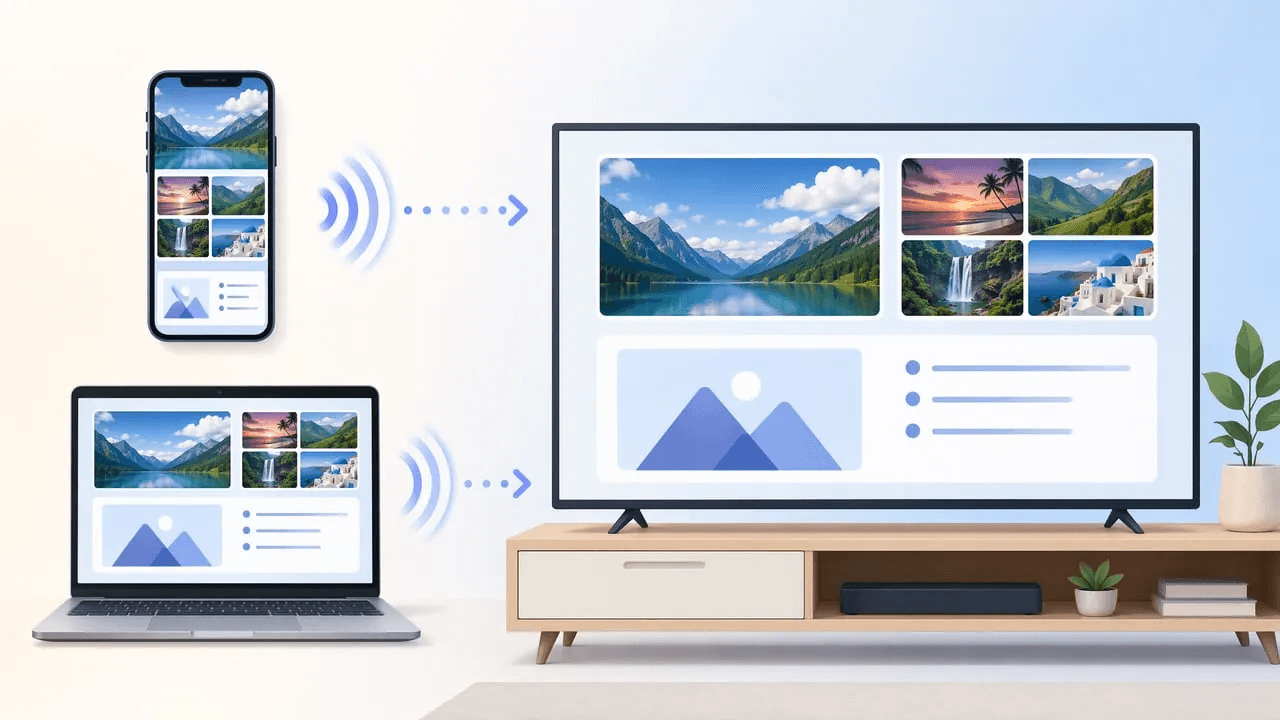
Screen mirroring is a technology that wirelessly displays everything on your phone, tablet, or computer screen onto a larger display like a TV or projector in real time. Whatever you see on your device. Apps, photos, videos, presentations, notifications. It all appears on the big screen at the same time. Think of it as a wireless HDMI cable for your devices.
It works in any direction: phone to TV, laptop to projector, tablet to monitor. The only requirement is that both devices can talk to each other, usually over the same WiFi network. Once connected, you interact with your device as normal, and everything you do shows up on the larger screen.
People use it to share vacation photos with the whole family, give presentations without fumbling with cables, play mobile games on a big screen, or show someone exactly what is on their phone when troubleshooting. If you have ever wanted to show what is on your small screen to a room full of people, screen mirroring is how you do it.
Screen Mirroring vs. Casting: What's the Difference?
These two terms get mixed up all the time. They sound like the same thing. They are not.
Screen mirroring copies your entire screen. Everything on your phone or laptop. The home screen, the notifications, the app you have open. It appears on the TV exactly as you see it, and you control it from your device. Like holding up a mirror to your screen.
Casting sends only the content you are watching. When you tap the Cast button in YouTube or Netflix, your phone tells the TV "go fetch this video and play it." The video streams directly to the TV. Your phone becomes a remote control. You can lock your phone, switch apps, even turn it off. The video keeps playing.
Screen Mirroring | Casting | |
What you see | Your entire screen, including notifications and the home screen | Only the media you chose to play |
How you control it | From your device. Everything you tap shows on TV | Your phone is a remote; the TV plays independently |
Can you use your phone for other things? | No. Whatever you do on your phone appears on the TV | Yes. Switch apps, lock the screen, the video keeps going |
How responsive is it? | Slight delay possible, especially on crowded WiFi | Near instant. The TV streams directly from the internet |
Best for | Presentations, photo slideshows, app demos, browsing together, gaming | Watching Netflix, YouTube, Spotify, or any streaming app |
The easy rule: if you want to show someone exactly what you are doing on your device, mirror. If you just want to watch a video on the big screen, cast.
The rest of this guide covers mirroring. How to get your entire screen onto a TV, no matter what combination of devices you are working with.
What You Need Before You Start
Before diving into the methods, check you have the basics covered. Most mirroring problems happen because one of these three things is missing.
A compatible TV or display
Virtually every smart TV made after 2018 supports some form of screen mirroring.
Your TV brand / type | Supported mirroring technology |
Samsung Smart TV (2018+) | AirPlay 2, Smart View (Miracast) |
LG Smart TV (2018+) | AirPlay 2, Miracast (Screen Share) |
Sony Bravia (2018+) | Chromecast built-in, AirPlay 2 (2019+) |
TCL / Hisense / Philips (Google TV) | Chromecast built-in |
Roku TV / Roku device | AirPlay 2 (most models), Miracast |
Amazon Fire TV / Fire Stick | Miracast (via mirroring setting) |
Apple TV | AirPlay |
Chromecast / Google TV Streamer | Chromecast built-in |
Any TV with HDMI + a streaming stick | Depends on the stick. See above |
If your TV is not in that table, or it is an older non-smart TV, do not worry. You can add mirroring to almost any TV with a budget streaming device. A Google TV Streamer costs around $100. A Fire TV Stick costs around $30 to $50. Plug it into an HDMI port and your TV gains mirroring support instantly. One small purchase turns a "dumb" TV into a modern smart display.
Not sure which route fits your exact device pair? Use this screen mirroring compatibility checker to identify the most likely method to try first. Use the result as a starting point, then confirm any model-specific requirements before connecting.
A stable WiFi connection
For most wireless mirroring methods, both devices need to be on the same WiFi network. That is how your phone and TV find each other. A 5GHz WiFi connection works noticeably better than 2.4GHz. Less interference, lower latency, smoother video. If your router offers both bands, connect both devices to 5GHz.
No home WiFi or internet connection? Some methods can still work. See our guide to screen mirroring without WiFi for Miracast, peer-to-peer AirPlay, mobile hotspot, and wired options.
Updated software
Both your sending device and your TV should have the latest software updates installed. OS updates often include mirroring bug fixes. For iPhone and iPad, you need iOS 12 or later for AirPlay. For Android, version 5.0 or later covers most built-in options. Macs need macOS Mojave (10.14.5) or later for AirPlay 2 to smart TVs. Windows 10 and 11 include Miracast support out of the box.
How to Screen Mirror: 3 Ways to Get Started
There are exactly three ways to get your screen onto a TV. Pick the one that fits.
Method 1: Built-in screen mirroring
Every modern device comes with screen mirroring built in. You do not need to download or pay for anything. The catch: each platform uses a different technology, and your TV needs to support it.
iPhone or iPad to TV (AirPlay)
AirPlay is Apple’s screen mirroring technology, built into every iPhone and iPad. Your TV needs to support AirPlay 2. Most Samsung, LG, Sony, and Roku TVs made after 2018 do. You can also use any Apple TV box.
Make sure your iPhone and TV are on the same WiFi.
Swipe down from the top right corner of your iPhone to open Control Center.
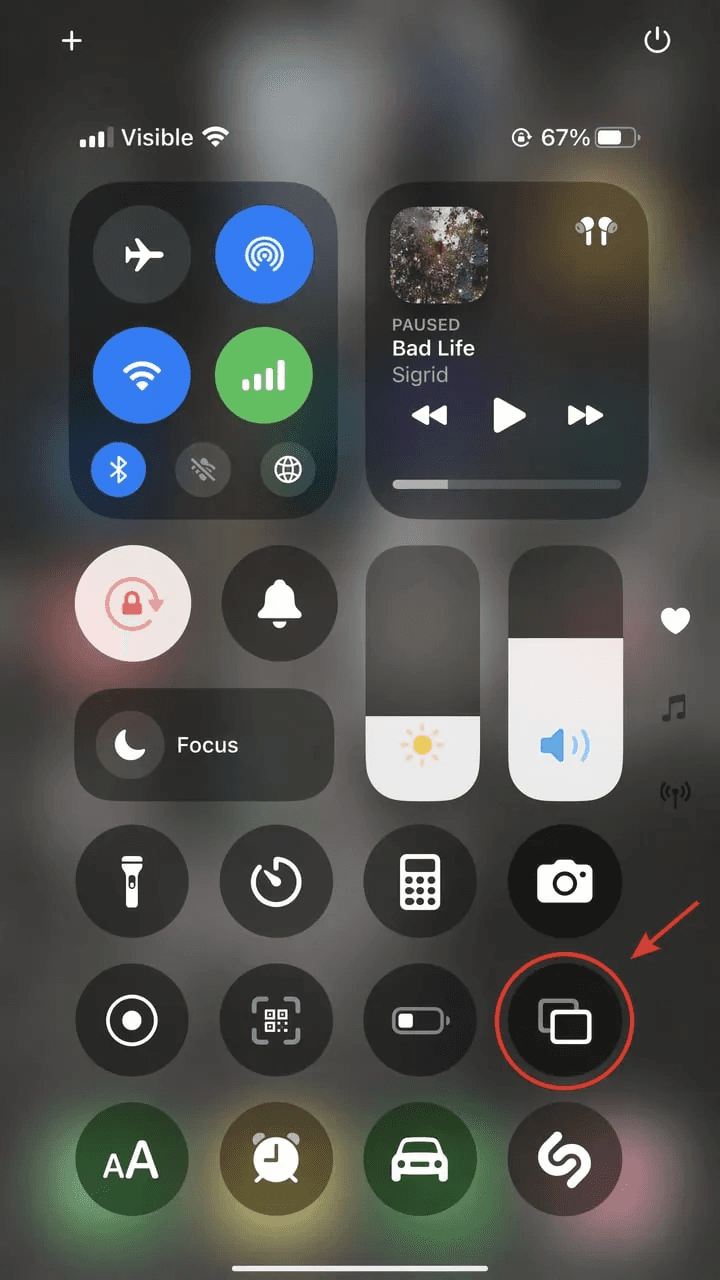
Tap the Screen Mirroring icon. It looks like two overlapping rectangles.
Select your TV or Apple TV from the list.
If a code appears on your TV, enter it on your iPhone.
Your iPhone screen appears on the TV. To stop, open Control Center, tap Screen Mirroring, then tap Stop Mirroring.
AirPlay requires an Apple TV or a TV that explicitly supports AirPlay 2. If you have an Android TV or an older smart TV without AirPlay, your iPhone may not find it as an option. In that case, follow our step-by-step guide to screen mirroring an iPhone to an Android TV, or continue to Method 2 below.
Android phone or tablet to TV (Chromecast / Smart View)
Android devices use two built-in technologies. Chromecast works with any TV that has Google Cast built in. That includes Sony, TCL, Hisense, and any TV with a Chromecast dongle. Smart View is Samsung’s version, found on Samsung phones and tablets. It connects directly to Samsung TVs.
Make sure both devices are on the same WiFi.
Swipe down from the top of the screen to open Quick Settings.
Look for a tile labeled Screen Cast, Cast, Smart View, or Wireless Display. The name varies by brand. The icon usually looks like a rectangle with WiFi waves in the corner.
Tap it, then select your TV from the list.
Confirm on your TV if prompted.
For Samsung phones: swipe down and look for Smart View. Tap it, then select your Samsung TV. Samsung phones also work with Chromecast TVs through the regular Cast option.
Android manufacturers customize their settings menus. On a Google Pixel, you will see “Cast.” On Samsung, it is “Smart View.” On OnePlus and Xiaomi, you might see “Wireless Display” or “Screen Cast.” If you cannot find the option, expand the full Quick Settings panel or type “screen mirroring” or “cast” into the Settings search bar.
Windows laptop or PC to TV (Miracast)
Windows 10 and 11 include Miracast, a wireless display standard that works with most smart TVs made after 2018. No software install needed. On your TV, the feature might be called “Screen Mirroring,” “Screen Share,” “Miracast,” or “Wireless Display.” Check your TV’s input or source menu.
Make sure your Windows laptop and TV are on the same WiFi.
On your TV, open the screen mirroring or screen share input. This puts the TV in listening mode.
Press Windows key + K on your keyboard. The Cast panel opens on the right side of your screen.
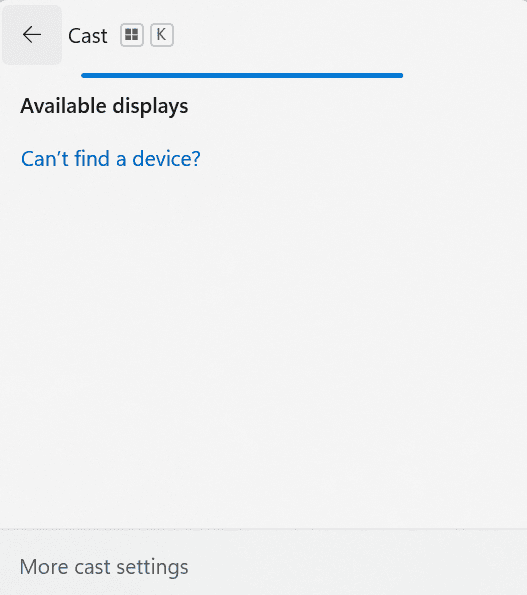
Wait a moment for your TV to appear, then click its name.
To adjust how it looks, click the settings gear in the Cast panel. You can duplicate, extend, or use the TV as your only display.
Some older laptops and budget models do not include Miracast hardware. To check, press Windows key + R, type dxdiag, click “Save All Information,” and search the file for “Miracast.” If it says “Not Available,” your laptop does not support it. Use Method 2 or Method 3 instead.
For a complete laptop-to-TV walkthrough covering Windows, Mac, and Google Cast options, see our guide on how to cast a laptop to a TV wirelessly.
Mac or MacBook to TV (AirPlay)
Macs have AirPlay built in. It works wirelessly with any Apple TV, any AirPlay 2 compatible smart TV, and Roku devices.
Make sure your Mac and TV are on the same WiFi.
Click the Control Center icon in the top right corner of the menu bar. It looks like two toggle switches.
Click Screen Mirroring.
Select your TV or Apple TV from the list.
If a passcode appears on your TV, enter it on your Mac.
Your Mac screen appears on the TV. The menu bar gives you options to use the TV as a separate extended display or mirror your built-in display exactly.
Macs from 2018 and later fully support AirPlay to smart TVs. Older Macs can still AirPlay to an Apple TV box but may not support direct AirPlay to TV connections. If your Mac is pre-2018 and you do not have an Apple TV, connect via HDMI cable (Method 3) or use a third party app (Method 2).
Not sure how these protocols differ? See our technical comparison of Miracast, AirPlay, and Google Cast, including compatibility, network requirements, latency, and media handling.
Method 2: Third-party apps
Sometimes the built-in options do not work. Here is when a third party app saves the day:
Your iPhone needs to mirror to an Android TV or Chromecast. AirPlay and Chromecast do not talk to each other natively. A third party app bridges the gap.
You need to mirror across different WiFi networks. Built-in options require both devices on the same network. Apps can mirror remotely over the internet.
You want extra features. Recording your screen, annotating on top of mirrored content, casting multiple devices at once. Built in options do not cover these.
The good news: once you have used one mirroring app, you have essentially used them all. The process is the same whether you are on iPhone or Android, Windows or Mac.
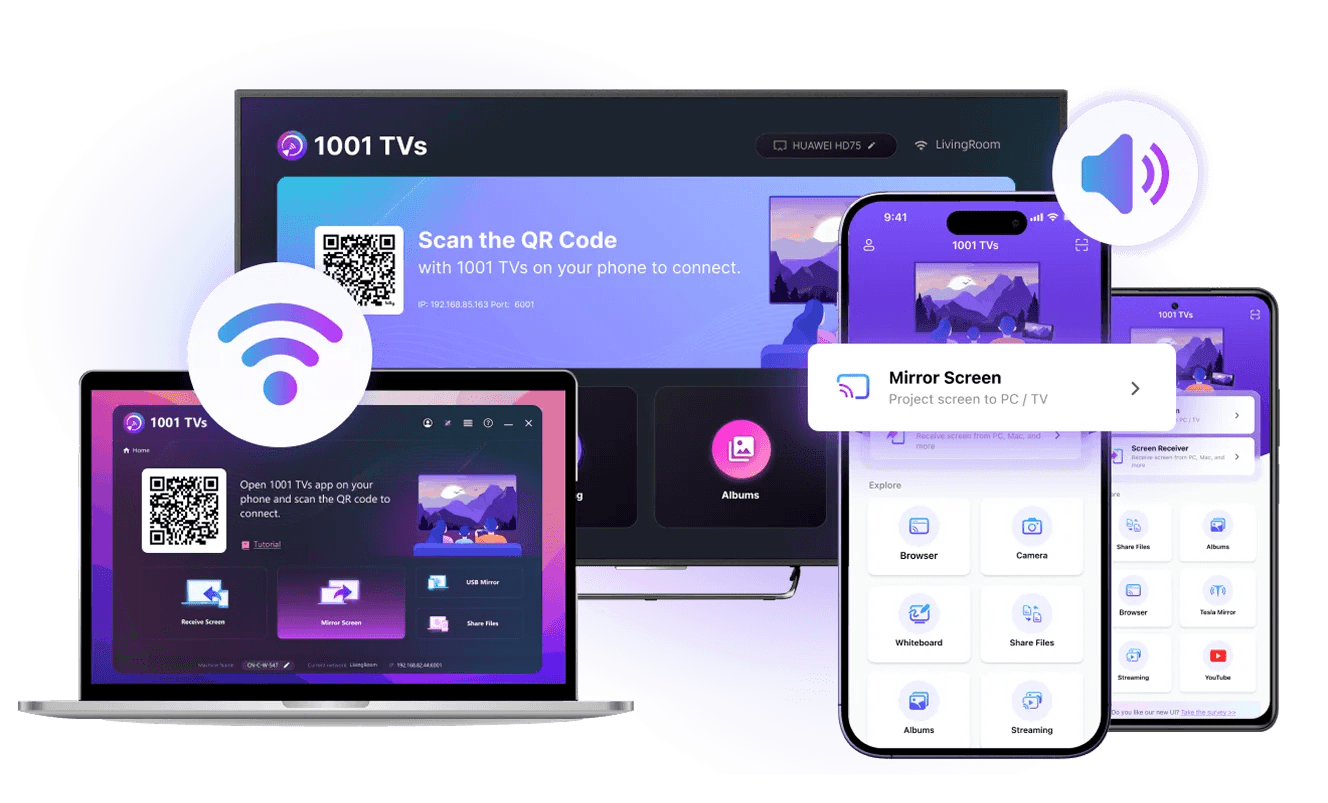
How they work, in three steps:
Download the app on both your sending device (phone or computer) and receiving device (TV or computer). Most apps are on the App Store, Google Play, and the developer’s website.
Connect the two devices. The app discovers other devices on the same WiFi automatically. You select the receiver from a list, scan a QR code, or type in a short PIN.
Start mirroring. Tap the mirror or cast button. Your screen appears on the TV.
That is it. The button names and interface colors differ between apps, but the flow is always the same: install, connect, mirror.
App | Best For | Price | Why pick it |
Overall + remote | Free / $2.49/mo | Local, remote, and USB mirroring in one app. Browser-based receiver means nobody else needs to install anything | |
Power users | Free trial → $19.95/mo | Mirrors up to 4 devices at once, plus screen recording, annotation, and direct OBS streaming | |
Stability + privacy | Time-limited trial → $19.99/yr | Screen data stays local, no account needed. Lowest annual price among paid options | |
Best free | Free / $5.99/mo | Genuinely unlimited free mirroring. Over 10 million downloads. Upgrade only if you need FHD or 60fps |
All four work across iPhone, Android, Windows, and Mac. For pricing and a full side-by-side comparison, see our best screen mirroring apps roundup.
Method 3: HDMI cable
If you want guaranteed zero latency with no setup and no WiFi dependency, go wired. An HDMI cable is the most reliable method there is. It has worked the same way for two decades, and it will work the same way tomorrow.
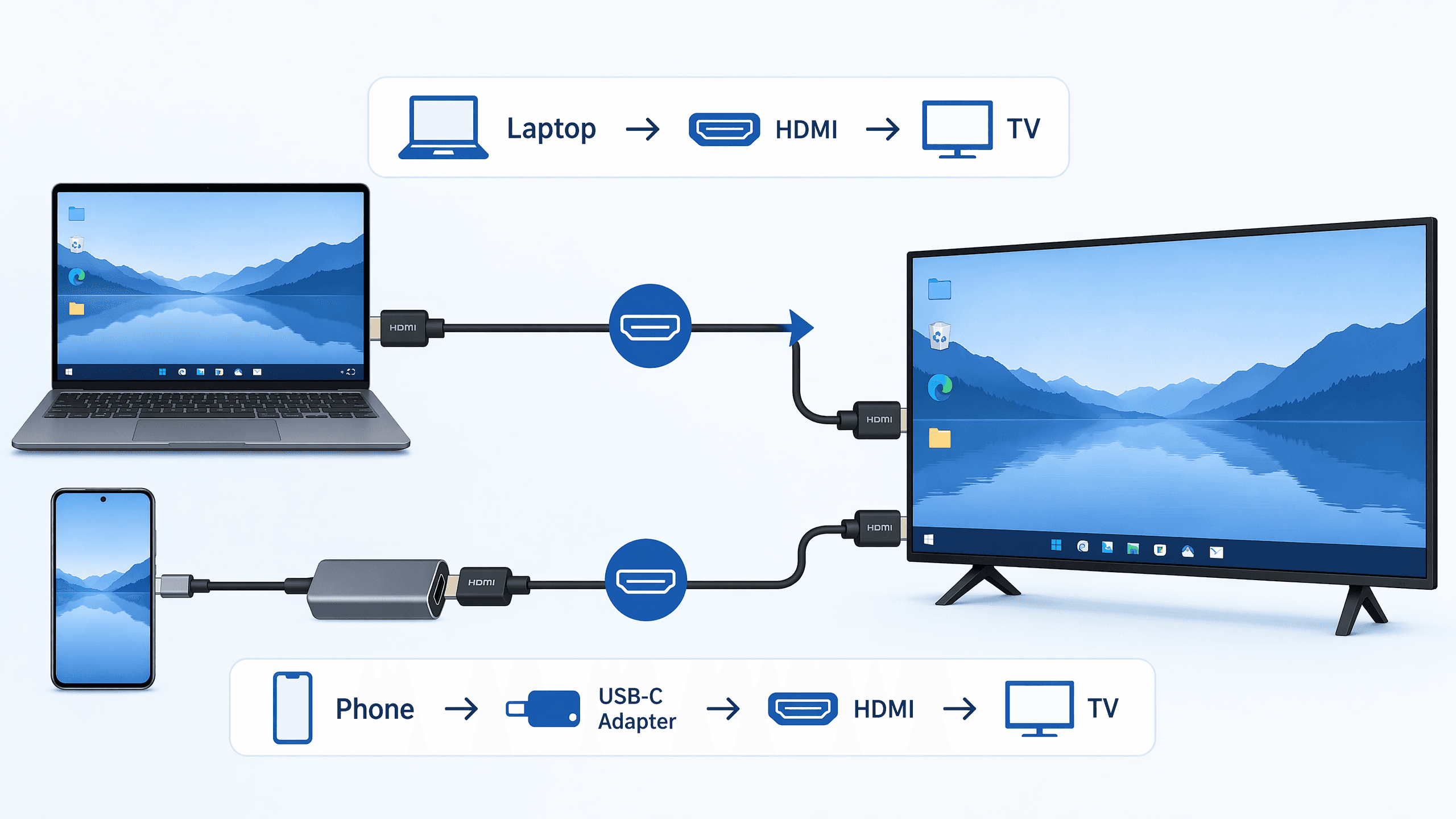
For laptops (Windows and Mac):
Plug one end of an HDMI cable into your laptop and the other into your TV. Switch the TV to the matching HDMI input. Done. Your laptop screen appears.
If your laptop only has USB-C ports (common on MacBooks and many Windows ultrabooks), you need a USB-C to HDMI adapter or a USB-C hub with HDMI. These cost $15 to $30 and are useful for projectors, external monitors, and hotel TVs anyway.
For phones:
Phones do not have full size HDMI ports, but they can output video through the charging port with the right adapter. Android phones with USB-C typically support direct USB-C to HDMI output. Most iPhones need Apple’s Lightning to Digital AV Adapter ($49).
When a cable beats wireless:
Gaming. Even the best wireless apps introduce latency. For mobile gaming on a big screen, HDMI delivers near instant response.
Video editing or design work. When color accuracy and frame precision matter, a cable means nothing gets compressed or delayed.
Important presentations. A cable never stutters, never drops, never asks you to enter a PIN in front of an audience. If the stakes are high, go wired.
Hotel rooms and guest networks. Hotel WiFi often blocks device to device communication. An HDMI cable skips the problem entirely.
Which method should you pick? A quick comparison
Method 1: Built-in | Method 2: Third-party app | Method 3: HDMI cable | |
Cost | Free, already on your device | Varies by app — free, trial, or subscription | Cable or adapter: $15–$49 |
Setup | Under 30 seconds. No installs | Install app on both devices, then connect | Plug in one cable. Done |
Works across different brands? | No. iPhone needs AirPlay TV. Android needs Chromecast TV. Windows needs Miracast TV | Yes. One app bridges iPhone to Chromecast, Android to Roku, anything to anything | Yes. HDMI works with every TV made in the last 20 years |
Video quality | Up to 1080p on 5GHz WiFi. Drops on weak signal | Up to 1080p. Free tiers often cap at 720p | Lossless. No compression, no drops, no WiFi needed |
Latency | Low on 5GHz. Noticeable on 2.4GHz or crowded WiFi | Low to moderate, depends on the app | Zero. Every frame arrives the instant it is sent |
WiFi required? | Yes. Both devices on the same network | Yes for local. Some apps support remote mirroring over internet | No. Works anywhere, even without internet |
Best for | Quick, everyday mirroring. Sharing photos, giving a casual presentation | Cross-brand setups. Remote mirroring. Extra features like recording or annotating | Gaming, video editing, important presentations, hotel rooms |
The simple decision flow: if your devices already speak the same language (iPhone + Apple TV, Android + Chromecast TV, Windows + Miracast TV), use Method 1. If they do not, or you need remote mirroring, use Method 2. If you want absolute zero lag and no WiFi dependency, use Method 3.
If you’re already seeing lag on your current setup, our guide to fixing screen mirroring lag walks through 10 specific fixes with real latency measurements.
Common Screen Mirroring Questions
Is screen mirroring safe and private?
It depends on the app and the network. When you mirror over your home WiFi, the data stays on your local network. Nobody outside your home can see it. With a third party app, what happens to your screen data varies. Some apps, like 1001TVs, keep everything local and require no account. Others route data through cloud servers. For sensitive content like financial info, private messages, or work documents, stick with built-in methods on a trusted home network, or use an app that explicitly says screen data stays local.
Does screen mirroring drain my battery faster?
Yes. Mirroring keeps the screen on continuously while encoding and transmitting video over WiFi, so it uses noticeably more battery than normal phone use. On an iPhone or Android, expect roughly 15 to 25% battery drain per hour of mirroring. If you plan to mirror for a while, plug your phone into a charger first. USB wired mirroring is a bit gentler on battery since it charges the phone while mirroring.
Does screen mirroring lower video quality?
It can, depending on your connection. Over a strong 5GHz WiFi network, most mirroring apps deliver 1080p at 30 to 60fps, which looks nearly identical to the original. On 2.4GHz or a congested network, the app may automatically drop resolution to keep the connection stable. Free apps often cap at 720p or SD. If video quality matters, use a 5GHz connection, pick an app that supports 1080p or higher, or go wired with an HDMI cable for lossless quality.
Can I screen mirror to multiple TVs at once?
Yes, but not with built-in tools. AirPlay, Chromecast, and Miracast only support one receiver at a time. Some third party apps handle this. ApowerMirror can mirror to up to 4 devices from one computer, and you can mirror one PC to multiple receivers with 1001TVs. AirDroid Cast supports up to 5 devices casting to one screen at once, though the reverse (one sender to multiple TVs) is more limited.
Why does my screen mirroring keep disconnecting?
Intermittent disconnections usually point to WiFi interference, not the mirroring app itself. Other devices on your network (streaming, gaming, large downloads) can crowd the connection. Microwaves, Bluetooth devices, and thick walls between the router and your devices also cause dropouts. Try switching to 5GHz WiFi, moving closer to the router, or using an app with WiFi Direct mode. If disconnections keep happening, switch to a USB or HDMI wired connection. It will not drop.
How do I stop someone else from mirroring to my TV?
Most smart TVs show an on-screen prompt or require a PIN before allowing a new mirroring connection. If someone connects without your permission, open your TV's settings and look for "Screen Mirroring," "AirPlay," or "Device Connection" options. You can usually turn mirroring off entirely, set it to "ask before connecting," or require a PIN code. On Apple TV, go to Settings > AirPlay and HomeKit to adjust who can connect. Roku devices have similar controls under Settings > Apple AirPlay and HomeKit.
Can I screen mirror from my phone to my laptop?
Yes, and it works in both directions. Most third party mirroring apps (AirDroid Cast, ApowerMirror, LetsView) support phone-to-PC mirroring. Install the app on both your phone and laptop, connect them on the same WiFi, and your phone screen appears on the laptop display. Some apps even let you control the phone from the laptop with a keyboard and mouse. This is useful for app demos, recording phone screen content, or just getting a bigger view of what is on your phone without needing a TV.
Conclusion
Screen mirroring is no longer a niche trick. Every phone and TV does it. The only hard part is knowing which button to press — and now you do.
The landscape keeps shifting: casting and mirroring are blending into one, and remote mirroring is turning screen sharing into a collaboration tool. But the fundamentals stay the same. Pick one method that fits your setup, use it once, and it becomes second nature. The first try takes a few minutes. After that, ten seconds.
Table of content


Still Need a Hand?
Explore more reviews, step-by-step guides, and troubleshooting tips—or contact us if you could not find the answer you needed.