
Can You Screen Mirror Without WiFi? The Complete Guide
Can you screen mirror without WiFi? Compare Miracast, AirPlay, HDMI, hotspots, and 1001 TVs, with setup steps and official download links.
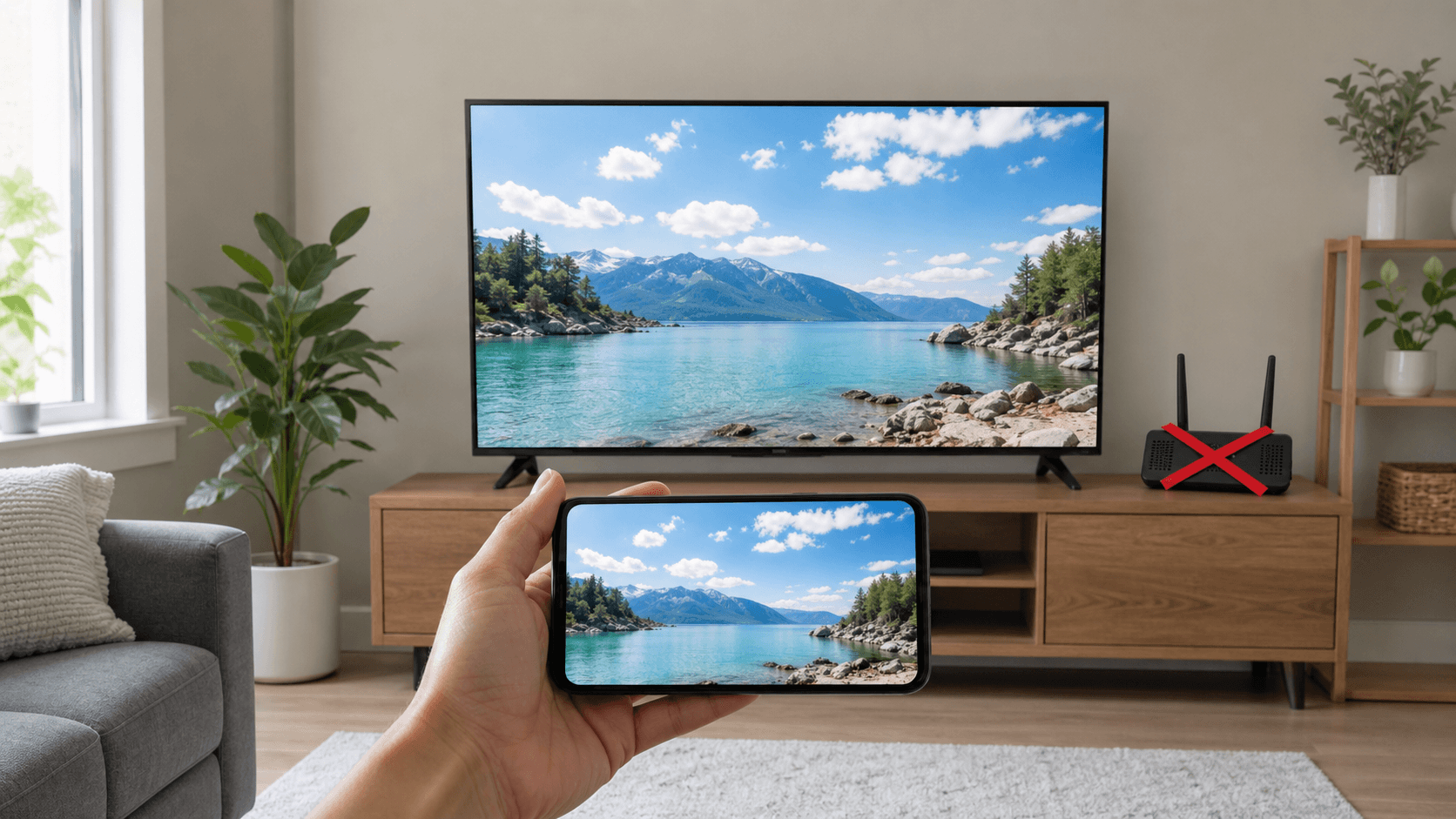
Yes, you can screen mirror without internet access—and sometimes without a Wi-Fi router. You can use Miracast or Wi-Fi Direct, peer-to-peer AirPlay, a mobile hotspot, or a wired HDMI connection. However, most wireless methods still use the device’s Wi-Fi radio. If Wi-Fi is switched off completely, a cable is usually the most reliable option.
That distinction matters because “without WiFi” can mean three different things:
Your situation | Can you screen mirror? | Best option |
|---|---|---|
You have Wi-Fi but no internet | Yes | Existing local network, Miracast, or AirPlay |
You have no router or home Wi-Fi network | Yes | Miracast, peer-to-peer AirPlay, or a hotspot |
Wi-Fi is switched off or unavailable | Yes, with a cable | HDMI or a supported USB connection |
Do You Need WiFi to Screen Mirror?
You do not always need a home Wi-Fi network or an internet connection to screen mirror. Miracast can create a direct Wi-Fi connection between compatible devices, peer-to-peer AirPlay can create a temporary network, and HDMI can carry video without any wireless connection. Device compatibility determines which option will work.
If you're not sure how Miracast, AirPlay, and Google Cast differ at the network level, see our Miracast vs AirPlay vs Chromecast comparison.
Internet, local Wi-Fi, and mirroring are separate layers. A router can keep your phone and TV connected locally even when internet service is down. Wi-Fi Direct removes the router by linking two devices directly, while a wired connection removes Wi-Fi entirely. In every case, online content still needs internet access to load.
If you have a normal WiFi network and just want the standard setup for iPhone, Android, Windows, or Mac, start with our complete beginner's guide to screen mirroring.
Method 1: Use Miracast or Wi-Fi Direct
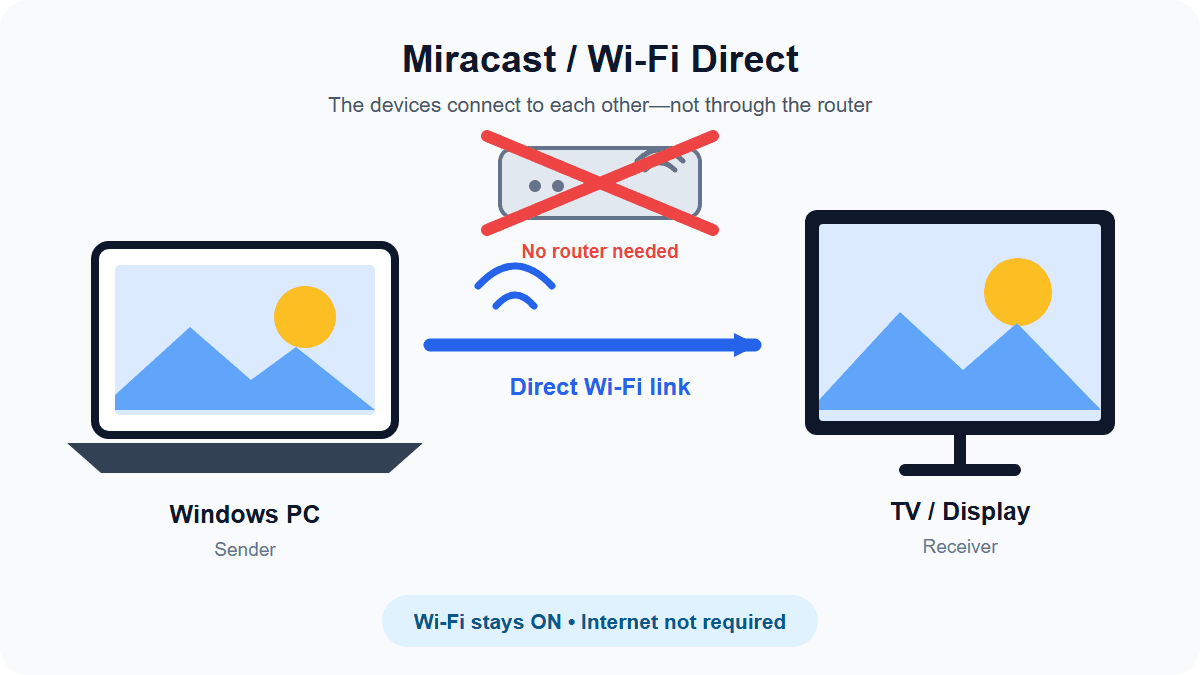
Best for: Compatible Windows PCs, Android devices, smart TVs, projectors, and wireless display adapters.
Miracast is one of the simplest ways to screen mirror without a home router. It normally creates a peer-to-peer connection using Wi-Fi Direct, so the sender and receiver can communicate locally. You do not need an active internet subscription, but Wi-Fi must remain enabled on both devices.
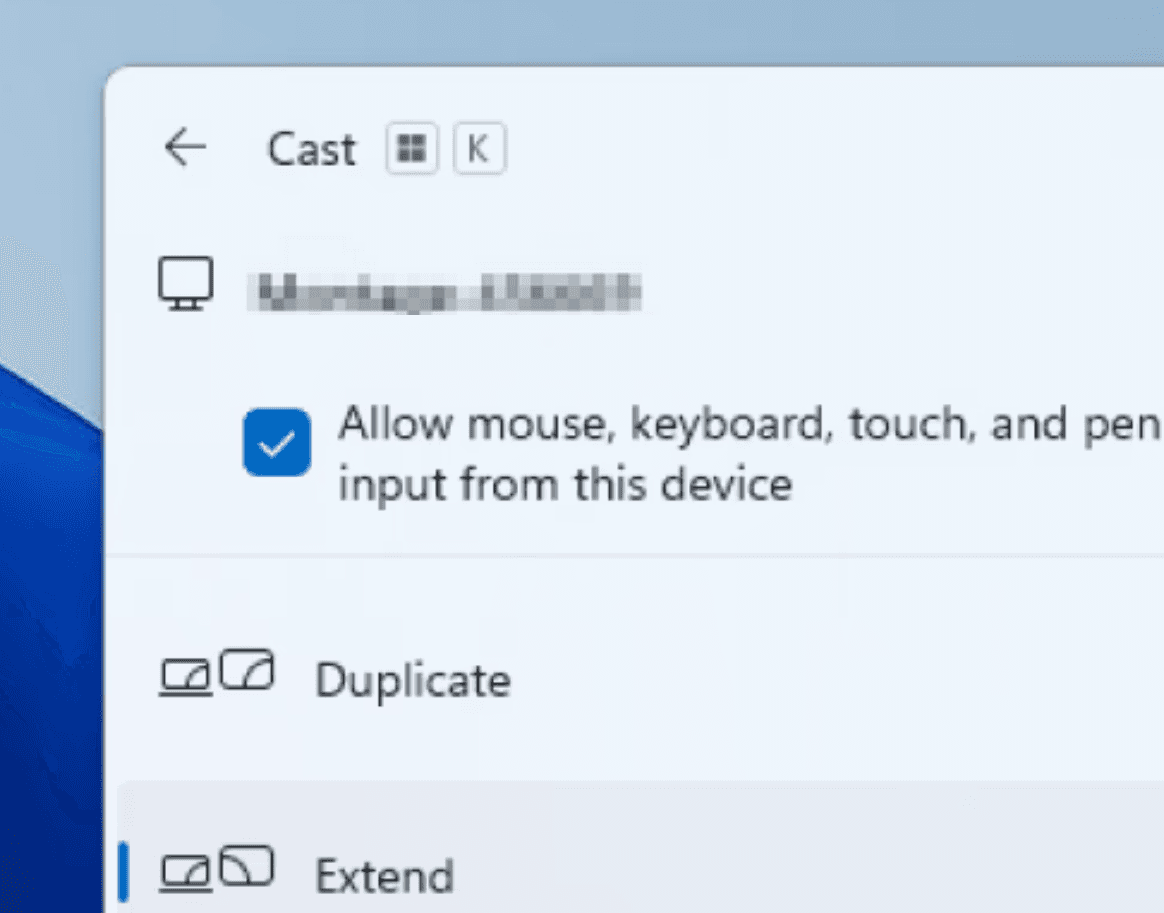
How to mirror a Windows PC with Miracast
Turn on Screen Mirroring, Miracast, or Wireless Display mode on the TV, projector, or adapter.
Keep Wi-Fi enabled on the Windows PC, even if it is not connected to the internet.
Press Windows key + K.
Select the receiving display.
Approve the connection if a prompt appears on the TV or projector.
These steps follow Microsoft’s current wireless display instructions for Windows. Microsoft also recommends confirming that both the sending device and receiving display support Miracast.
How to mirror an Android phone with Miracast
The exact menu name varies by manufacturer. Look in Quick Settings or Settings > Connected devices for Smart View, Screen Share, Wireless Display, Cast, or Screen Mirroring. Enable the corresponding receiver mode on the TV, then select it on the phone.
Compatibility warning: Not every Android phone supports Miracast. Google Pixel devices, for example, use Google Cast in their official screen projection workflow. Likewise, a “smart TV” is not automatically a Miracast receiver. Check the manuals or specifications for both devices before relying on this method.
Method 2: Use Peer-to-Peer AirPlay
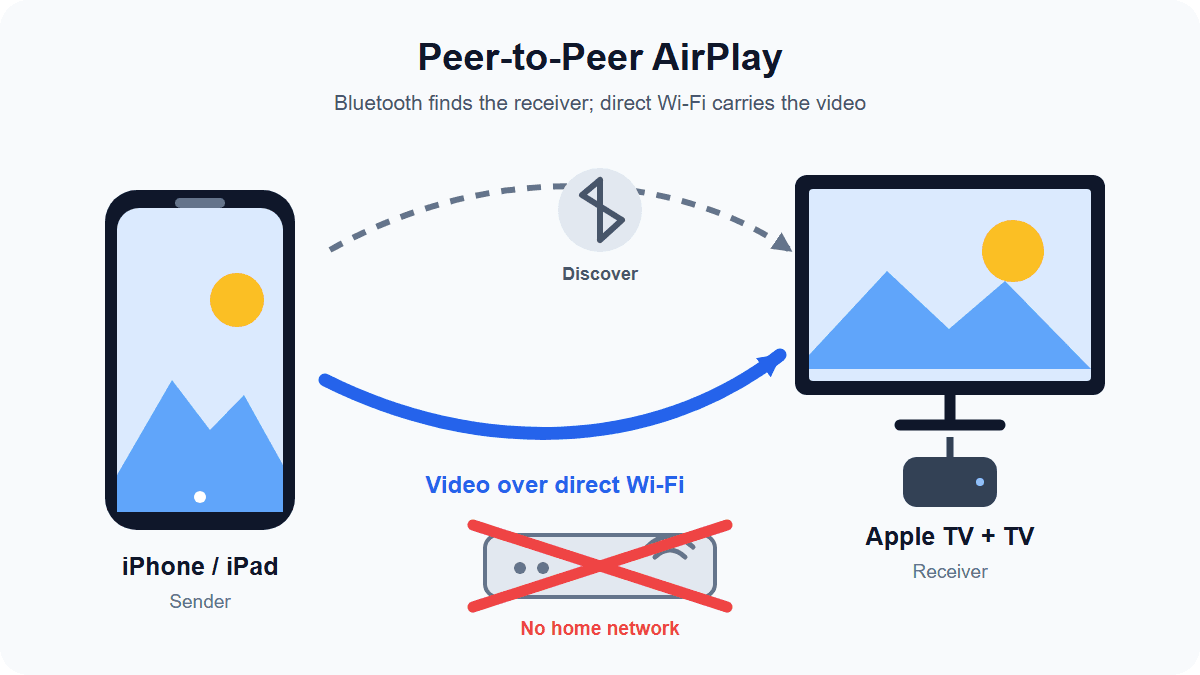
Best for: A compatible iPhone, iPad, or Mac paired with Apple TV.
An iPhone can screen mirror without joining a home Wi-Fi network when the Apple devices support peer-to-peer AirPlay. Bluetooth Low Energy helps the devices discover each other, after which they create a temporary peer-to-peer Wi-Fi network for the AirPlay session.
Apple says compatible devices do not have to be on the same network—or on an infrastructure network at all—for this mode. Its AirPlay deployment guide lists Apple TV HD with tvOS 9 or later and Apple TV 4K with tvOS 11 or later as supported receivers. Use an up-to-date operating system and keep Bluetooth and Wi-Fi enabled.
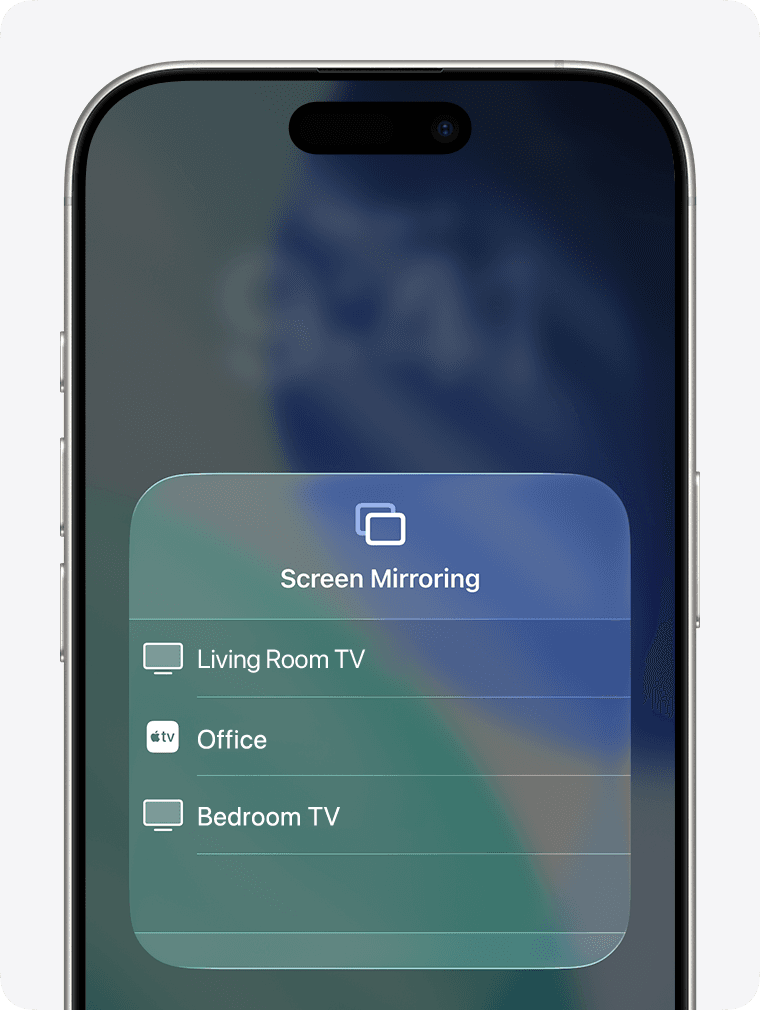
How to mirror an iPhone without a home Wi-Fi network
Turn on the Apple TV and keep it near the iPhone.
Enable Bluetooth and Wi-Fi on both devices.
Open Control Center and tap Screen Mirroring.
Select the Apple TV and enter the on-screen code if requested.
Peer-to-peer AirPlay is not Bluetooth-only mirroring. Bluetooth assists discovery, but the video travels over the temporary Wi-Fi connection. Online content also still needs internet access even when the AirPlay link itself is local.
Method 3: Connect With HDMI or USB
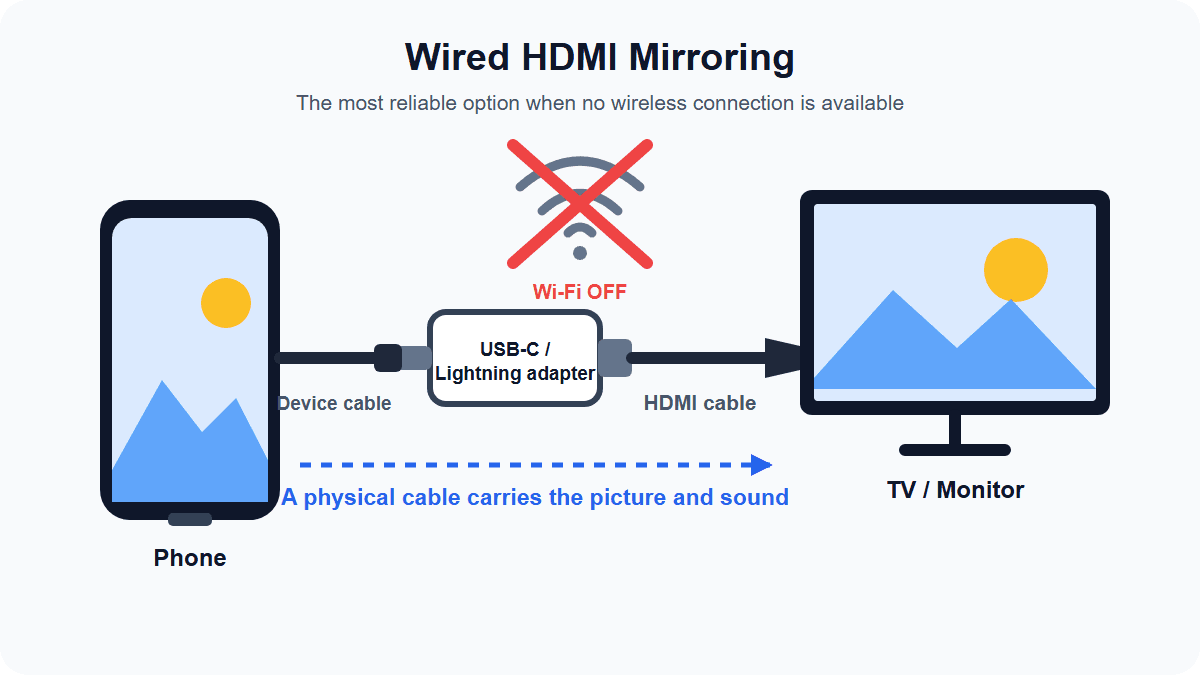
Best for: Travel, presentations, gaming, restricted networks, and situations where no wireless connection is available.
A wired connection is the most dependable way to screen mirror without WiFi. It needs no router, hotspot, or Wi-Fi radio, and it usually offers the lowest latency and most stable image. Unlike “zero latency,” however, “lowest latency” is the accurate description because adapters and displays can still add processing delay.
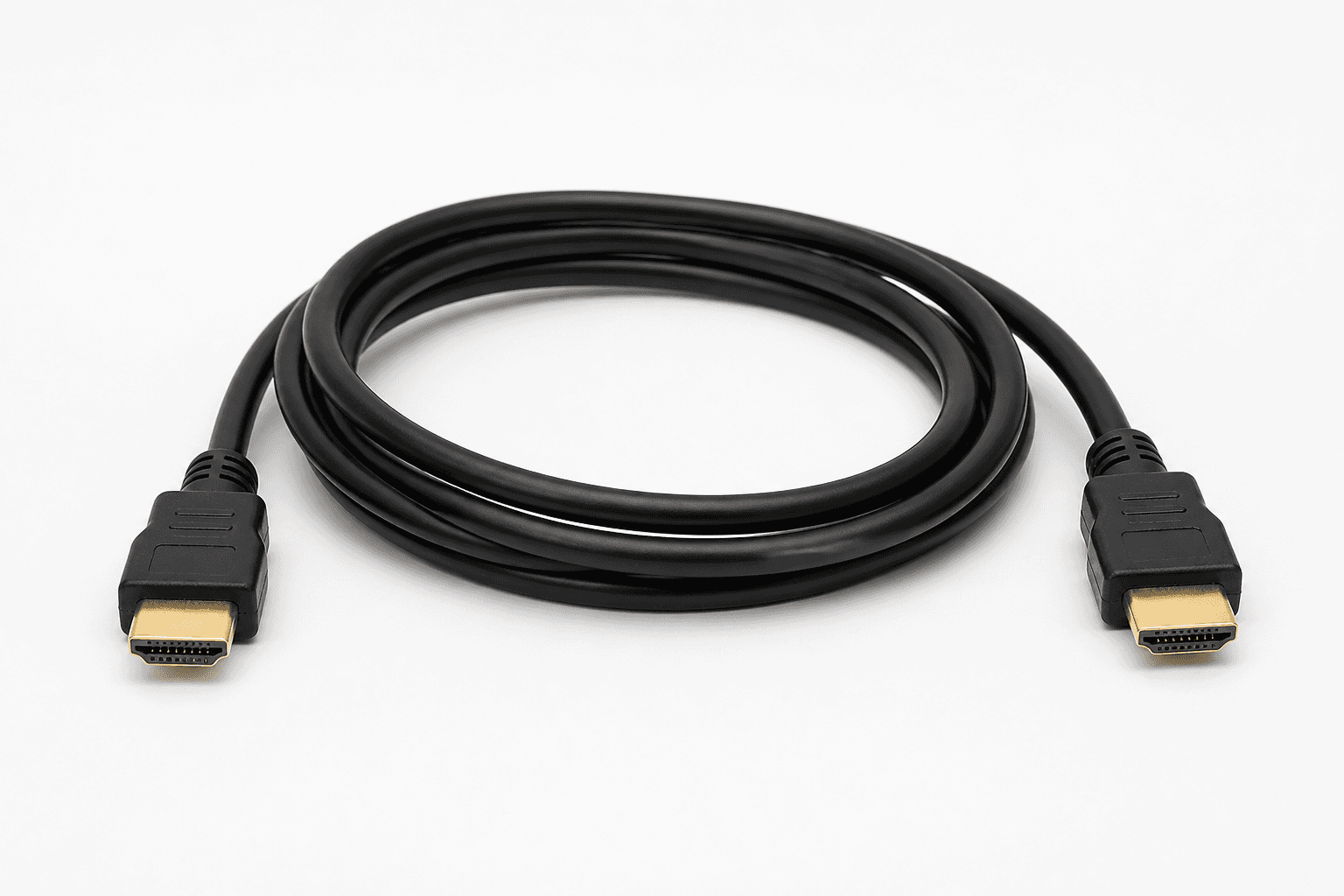
How to connect an iPhone to a TV with HDMI
Connect a compatible USB-C or Lightning video adapter to the iPhone.
Connect the adapter to the TV with an HDMI cable.
Select the correct HDMI input and unlock the iPhone.
Apple provides the same basic process in its wired display guide for iPhone. On supported USB-C iPhones, an HDMI 2.0 adapter or cable can output up to 4K at 60 Hz, although the final resolution depends on the phone, adapter, cable, content, and display.
How to connect an Android phone to a TV with HDMI
Confirm that the phone supports video output over USB-C.
Connect a compatible USB-C-to-HDMI adapter or cable to the TV.
Select the matching HDMI input and follow any prompt on the phone.
Do not assume every USB-C Android phone can output video. USB-C describes the connector, not the supported video features. Check the phone manufacturer’s specifications for DisplayPort Alt Mode, desktop mode, or external-display support.
Practical tip: Some streaming apps use digital rights management that can restrict or blank mirrored video. If your home screen appears but a streaming app stays black, see our screen mirroring black screen guide.
Method 4: Create a Mobile Hotspot
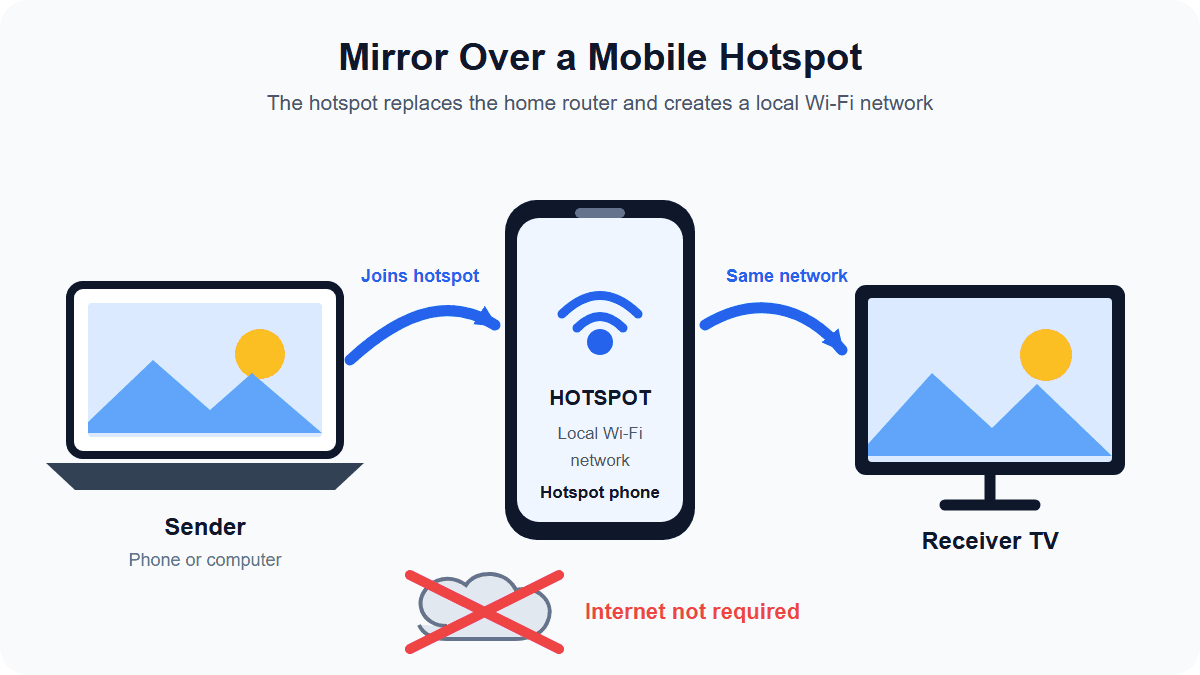
Best for: Hotels, classrooms, cars, temporary workspaces, or any location where you cannot use the normal router.
A hotspot does not remove Wi-Fi; it replaces the missing router with a new local network. This lets compatible phones, computers, TVs, and mirroring apps communicate even when the hotspot has no internet connection.
Android documents a local-only hotspot specifically for nearby devices to communicate without internet access. For the most compatible setup, create a hotspot on a spare phone or travel router, connect both the sender and receiver, then open their local mirroring feature.
The sending phone can sometimes host the network itself: enable its hotspot, connect the receiver, and start a compatible mirroring app. Support varies by phone, receiver, and protocol. For example, 1001 TVs publishes a phone-hotspot workflow for an Android car display, but that setup is not universal.
A private hotspot can also help when hotel or public Wi-Fi prevents devices from seeing each other. Google warns that AP or client isolation can stop streaming devices from communicating on guest networks in its Chromecast Wi-Fi troubleshooting guide.
Can Third-Party Apps Screen Mirror Without Internet?
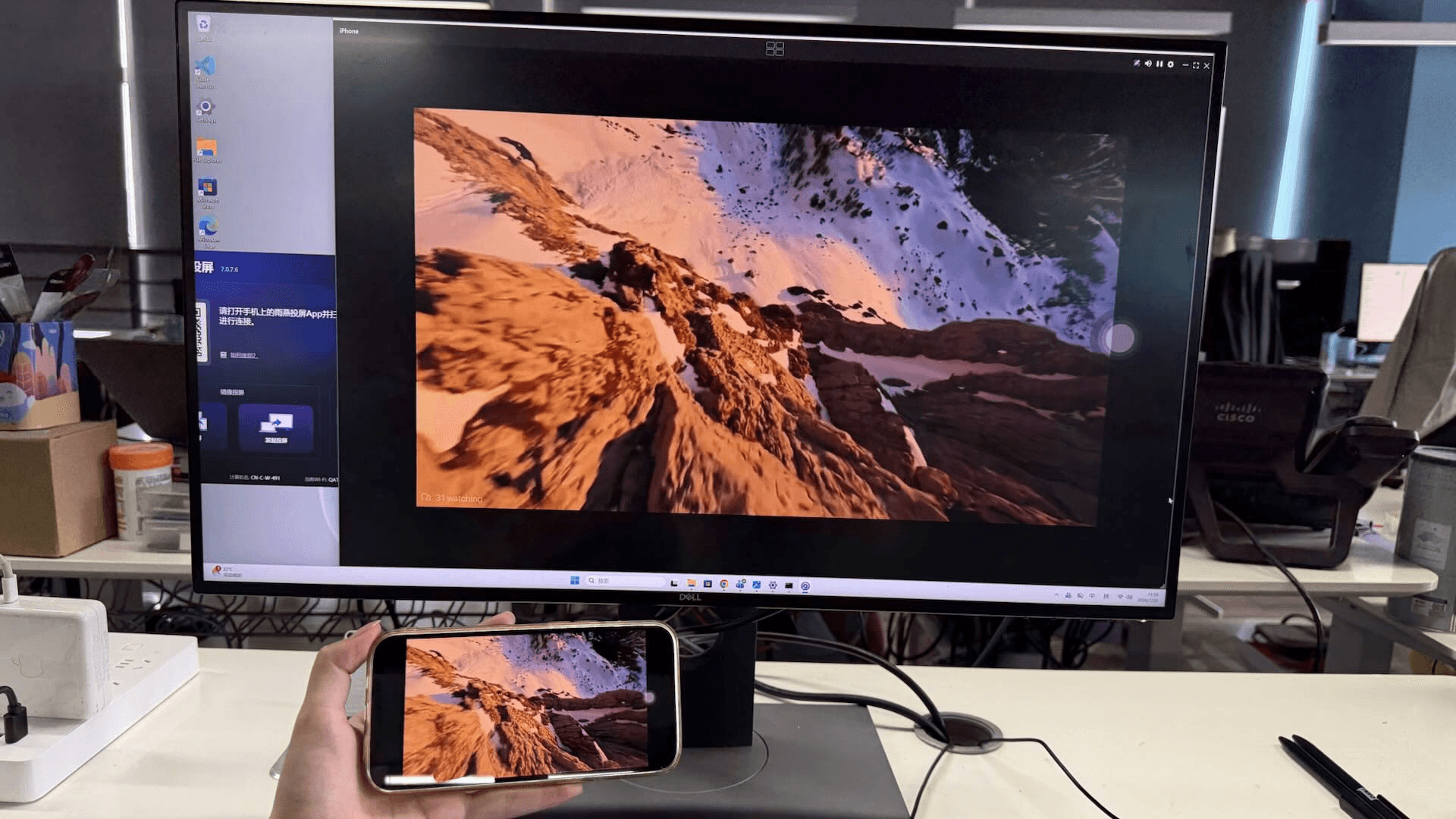
Yes. Third-party apps can mirror over a local network or compatible hotspot without using the internet to transport the screen. They are especially useful when your phone, computer, and TV do not share the same built-in mirroring standard.
One cross-platform option is 1001 TVs, which supports screen mirroring between iOS, Android, Windows, macOS, Apple TV, and Android TV devices. Its usual local workflow keeps both devices on the same Wi-Fi network, while selected hotspot configurations can replace the router when you are traveling. You can choose the appropriate version from the official 1001 TVs Download Center.
Other tools have different requirements. For example, AirDroid Cast documents local wireless, remote wireless, and USB workflows; its official guide requires the same Wi-Fi network for local wireless use. “Offline,” “local network,” and “Wi-Fi Direct” are not interchangeable—a local app can work without internet while still requiring both devices to join one router or hotspot.
Which No-WiFi Screen Mirroring Method Is Best?
Method | Home router required? | Internet required? | Wi-Fi radio required? | Relative latency | Main limitation |
|---|---|---|---|---|---|
HDMI or wired adapter | No | No | No | Lowest | Phone must support video output |
Miracast / Wi-Fi Direct | No | No | Yes | Low to medium | Both devices must support Miracast |
Peer-to-peer AirPlay | No | No for local content | Yes; Bluetooth assists | Low to medium | Requires compatible Apple hardware |
Mobile hotspot + local app | No | Not necessarily | Yes | Network-dependent | Compatibility varies by app and device |
Cross-platform app, such as 1001 TVs | No, if a hotspot replaces it | No for local mirroring | Yes | Network-dependent | Install a compatible app on both endpoints |
Other same-LAN mirroring app | Usually yes, unless a hotspot replaces it | Not necessarily | Yes | Network-dependent | Both devices must share a local network |
USB mirroring app | No | No for transport | No | Low | May require software or a paid plan |
Choose based on the actual constraint:
No internet, but your router works: Keep both devices on the local network and use their normal mirroring feature.
No router: Use Miracast, peer-to-peer AirPlay, or a hotspot.
No usable Wi-Fi at all: Use HDMI or another supported wired connection.
Need the most stable connection: Choose HDMI.
Need a wireless Windows/Android option: Try Miracast after checking compatibility.
Need a wireless Apple option: Use peer-to-peer AirPlay with compatible Apple TV hardware.
Why Screen Mirroring May Not Work Without WiFi
If your devices cannot find each other, work through this checklist:
Confirm the protocol. A Google Cast sender cannot automatically connect to a Miracast-only receiver, and vice versa.
Turn on Wi-Fi and Bluetooth. Router-free wireless mirroring may still need one or both radios.
Check device support. Look for Miracast, AirPlay, Google Cast, Screen Mirroring, or wired video output in the official specifications.
Move the devices closer. Walls, cabinets, and interference can weaken a direct wireless connection.
Disable VPNs temporarily. A VPN or security app may prevent local-device discovery.
Avoid isolated guest networks. Hotel and public Wi-Fi often blocks device-to-device traffic.
Restart both endpoints. Reboot the phone or computer, then power-cycle the TV or adapter.
Test local content first. A downloaded photo or video separates a connection problem from an internet or streaming-service problem.
Check the cable chain. With HDMI, verify the adapter, cable, input selection, and phone’s video-output support.
If the receiver still does not appear, use our device-by-device screen mirroring troubleshooting guide for AirPlay, Google Cast, Miracast, and third-party app fixes.
Frequently Asked Questions
Can you screen mirror without WiFi?
Yes. You can screen mirror without a home Wi-Fi network by using Miracast or Wi-Fi Direct, peer-to-peer AirPlay, a mobile hotspot, or HDMI. Most wireless methods still require the Wi-Fi radio to be enabled. If Wi-Fi is completely unavailable, use a compatible wired adapter or cable.
Can you screen mirror without internet?
Yes. Mirroring local photos, downloaded videos, presentations, and your device interface does not inherently require internet access. Miracast, peer-to-peer AirPlay, local Wi-Fi, and HDMI can operate locally. However, online videos, websites, cloud games, and video calls still need internet data to load their content.
Does screen mirroring use mobile data?
Local screen mirroring does not automatically use mobile data. A direct or local connection can carry the mirrored screen without internet traffic. But if you play a video from an online service or open a website while mirroring, the phone still uses Wi-Fi internet or cellular data to retrieve that content.
Can you screen mirror using only Bluetooth?
Not for conventional full-screen video mirroring. Bluetooth can help devices discover, pair, or control each other, but it normally does not carry the full video stream. Peer-to-peer AirPlay is a useful example: Bluetooth assists discovery, while a temporary Wi-Fi connection transports the mirrored screen.
Does Miracast work when Wi-Fi is turned off?
Usually no. Miracast does not need your home router or an internet connection, but it normally relies on Wi-Fi Direct. That means the Wi-Fi hardware must be enabled. If you cannot use Wi-Fi at all, connect the devices with HDMI or another wired video method supported by your phone or computer.
Can Chromecast screen mirror without WiFi?
Chromecast and Google Cast generally require the sender and receiver to communicate on the same Wi-Fi network. A compatible hotspot may replace the home router, but this is still a Wi-Fi network. Google’s former Chromecast Guest Mode is no longer supported.
Will screen mirroring work if the internet goes down?
It can. If the phone and receiver remain connected locally, Miracast, peer-to-peer AirPlay, HDMI, or a same-network mirroring app may continue working. Local files should still display, but online content will stop or buffer because the app—not the mirroring link—needs an internet connection.
Table of content


Still Need a Hand?
Explore more reviews, step-by-step guides, and troubleshooting tips—or contact us if you could not find the answer you needed.