
Screen Mirroring Black Screen Fix: Why It Happens & How to Solve
Screen Mirroring Black Screen Fix: Why It Happens & How to Solve
Screen Mirroring Black Screen Fix: Why It Happens & How to Solve
Screen mirroring connected but showing a black screen? Diagnose app restrictions, display settings, drivers, permissions, and HDMI issues with 8 fixes.
Screen mirroring connected but showing a black screen? Diagnose app restrictions, display settings, drivers, permissions, and HDMI issues with 8 fixes.
Screen mirroring connected but showing a black screen? Diagnose app restrictions, display settings, drivers, permissions, and HDMI issues with 8 fixes.
A black screen does not always mean screen mirroring has failed. Your devices may already be connected. The video is simply getting blocked somewhere along the way.
Protected content is one possible cause. Display settings, old drivers, missing permissions, and HDMI problems can create the same symptom.
The fastest way to narrow it down is to mirror your home screen. If that appears but one streaming app stays black, the app or its playback rules may be responsible. When everything is black, look at the display connection instead.
A black screen does not always mean screen mirroring has failed. Your devices may already be connected. The video is simply getting blocked somewhere along the way.
Protected content is one possible cause. Display settings, old drivers, missing permissions, and HDMI problems can create the same symptom.
The fastest way to narrow it down is to mirror your home screen. If that appears but one streaming app stays black, the app or its playback rules may be responsible. When everything is black, look at the display connection instead.
A black screen does not always mean screen mirroring has failed. Your devices may already be connected. The video is simply getting blocked somewhere along the way.
Protected content is one possible cause. Display settings, old drivers, missing permissions, and HDMI problems can create the same symptom.
The fastest way to narrow it down is to mirror your home screen. If that appears but one streaming app stays black, the app or its playback rules may be responsible. When everything is black, look at the display connection instead.
The 30-second test: Mirror your home screen
The 30-second test: Mirror your home screen
The 30-second test: Mirror your home screen
Close the video app and return to your phone, tablet, or computer desktop.
Start screen mirroring again. Leave the home screen visible while you check the TV or receiving display.
This test separates an app problem from a wider connection issue.
What you see | Likely cause | What to do next |
Home screen works, but one video app is black | App restriction or protected content | Use a playback method supported by the app |
Home screen is also black | Display setting, driver, permission, or connection issue | Work through the fixes below |
Audio plays without video | App restriction, cable problem, or unsupported video path | Test another app and connection |
TV shows "No Signal" | Wrong input, power issue, or HDMI problem | Check the display chain |
Black screen starts after connection | Display mode, resolution, or graphics driver | Check the sender's display settings |
If the home screen appears, the basic mirroring connection works. There is no reason to reset the router yet.
Try a photo or local video next. Pick a file stored on the device. If that also displays normally, the issue is probably limited to a particular app.
Black screens are only one type of mirroring failure.
If the session starts but keeps dropping, see our screen mirroring keeps disconnecting guide.
If the picture appears but lags or stutters, try our screen mirroring lag fixes.
For other symptoms, use our problem-by-problem screen mirroring troubleshooting guide.
Close the video app and return to your phone, tablet, or computer desktop.
Start screen mirroring again. Leave the home screen visible while you check the TV or receiving display.
This test separates an app problem from a wider connection issue.
What you see | Likely cause | What to do next |
Home screen works, but one video app is black | App restriction or protected content | Use a playback method supported by the app |
Home screen is also black | Display setting, driver, permission, or connection issue | Work through the fixes below |
Audio plays without video | App restriction, cable problem, or unsupported video path | Test another app and connection |
TV shows "No Signal" | Wrong input, power issue, or HDMI problem | Check the display chain |
Black screen starts after connection | Display mode, resolution, or graphics driver | Check the sender's display settings |
If the home screen appears, the basic mirroring connection works. There is no reason to reset the router yet.
Try a photo or local video next. Pick a file stored on the device. If that also displays normally, the issue is probably limited to a particular app.
Black screens are only one type of mirroring failure.
If the session starts but keeps dropping, see our screen mirroring keeps disconnecting guide.
If the picture appears but lags or stutters, try our screen mirroring lag fixes.
For other symptoms, use our problem-by-problem screen mirroring troubleshooting guide.
Close the video app and return to your phone, tablet, or computer desktop.
Start screen mirroring again. Leave the home screen visible while you check the TV or receiving display.
This test separates an app problem from a wider connection issue.
What you see | Likely cause | What to do next |
Home screen works, but one video app is black | App restriction or protected content | Use a playback method supported by the app |
Home screen is also black | Display setting, driver, permission, or connection issue | Work through the fixes below |
Audio plays without video | App restriction, cable problem, or unsupported video path | Test another app and connection |
TV shows "No Signal" | Wrong input, power issue, or HDMI problem | Check the display chain |
Black screen starts after connection | Display mode, resolution, or graphics driver | Check the sender's display settings |
If the home screen appears, the basic mirroring connection works. There is no reason to reset the router yet.
Try a photo or local video next. Pick a file stored on the device. If that also displays normally, the issue is probably limited to a particular app.
Black screens are only one type of mirroring failure.
If the session starts but keeps dropping, see our screen mirroring keeps disconnecting guide.
If the picture appears but lags or stutters, try our screen mirroring lag fixes.
For other symptoms, use our problem-by-problem screen mirroring troubleshooting guide.
Why screen mirroring shows a black screen
Why screen mirroring shows a black screen
Why screen mirroring shows a black screen
Several failures can leave you looking at the same empty display. What still works usually provides the best clue.
Cause | Typical clue | Can it be fixed? |
App restriction or content protection | Menus work, but one streaming service is black | Use a supported playback method |
Unsupported video format | The picture disappears at a certain resolution or in HDR | Often |
Old graphics or Wi-Fi driver | Common with Windows wireless displays | Often |
Missing app permission | One third-party mirroring app cannot capture the screen | Often |
HDMI or HDCP connection issue | The TV reports no signal or an HDCP error | Often |
Wrong display mode | The device connects, but the expected desktop is missing | Often |
App, firmware, or operating system problem | The issue starts after an update | Sometimes |
DRM and HDCP are related, though they do different jobs.
DRM controls how protected media can be played or copied. HDCP protects digital content as it moves through a compatible display connection.
A Netflix black screen is not proof of an HDCP failure. Netflix says the problem may come from the device, cable, unsupported mirroring feature, or TV connection. Its black screen with sound guide covers those cases separately.
AirPlay, Miracast, and Google Cast do not send video in the same way. Their device support also differs. Our Miracast, AirPlay, and Chromecast comparison explains which technology fits each type of sender and receiver.
Several failures can leave you looking at the same empty display. What still works usually provides the best clue.
Cause | Typical clue | Can it be fixed? |
App restriction or content protection | Menus work, but one streaming service is black | Use a supported playback method |
Unsupported video format | The picture disappears at a certain resolution or in HDR | Often |
Old graphics or Wi-Fi driver | Common with Windows wireless displays | Often |
Missing app permission | One third-party mirroring app cannot capture the screen | Often |
HDMI or HDCP connection issue | The TV reports no signal or an HDCP error | Often |
Wrong display mode | The device connects, but the expected desktop is missing | Often |
App, firmware, or operating system problem | The issue starts after an update | Sometimes |
DRM and HDCP are related, though they do different jobs.
DRM controls how protected media can be played or copied. HDCP protects digital content as it moves through a compatible display connection.
A Netflix black screen is not proof of an HDCP failure. Netflix says the problem may come from the device, cable, unsupported mirroring feature, or TV connection. Its black screen with sound guide covers those cases separately.
AirPlay, Miracast, and Google Cast do not send video in the same way. Their device support also differs. Our Miracast, AirPlay, and Chromecast comparison explains which technology fits each type of sender and receiver.
Several failures can leave you looking at the same empty display. What still works usually provides the best clue.
Cause | Typical clue | Can it be fixed? |
App restriction or content protection | Menus work, but one streaming service is black | Use a supported playback method |
Unsupported video format | The picture disappears at a certain resolution or in HDR | Often |
Old graphics or Wi-Fi driver | Common with Windows wireless displays | Often |
Missing app permission | One third-party mirroring app cannot capture the screen | Often |
HDMI or HDCP connection issue | The TV reports no signal or an HDCP error | Often |
Wrong display mode | The device connects, but the expected desktop is missing | Often |
App, firmware, or operating system problem | The issue starts after an update | Sometimes |
DRM and HDCP are related, though they do different jobs.
DRM controls how protected media can be played or copied. HDCP protects digital content as it moves through a compatible display connection.
A Netflix black screen is not proof of an HDCP failure. Netflix says the problem may come from the device, cable, unsupported mirroring feature, or TV connection. Its black screen with sound guide covers those cases separately.
AirPlay, Miracast, and Google Cast do not send video in the same way. Their device support also differs. Our Miracast, AirPlay, and Chromecast comparison explains which technology fits each type of sender and receiver.
How to fix a black screen during screen mirroring
How to fix a black screen during screen mirroring
How to fix a black screen during screen mirroring
The fixes below cover full-screen mirroring through AirPlay, Miracast, Android screen casting, and third-party mirroring apps. HDMI steps apply only when a streaming device or wireless receiver connects to the TV through HDMI. In-app casting is discussed as an alternative to mirroring, not as the same technology.
Work through the fixes in order. Stop once your test points to a clear cause.
Fix 1: Check whether the app supports mirroring
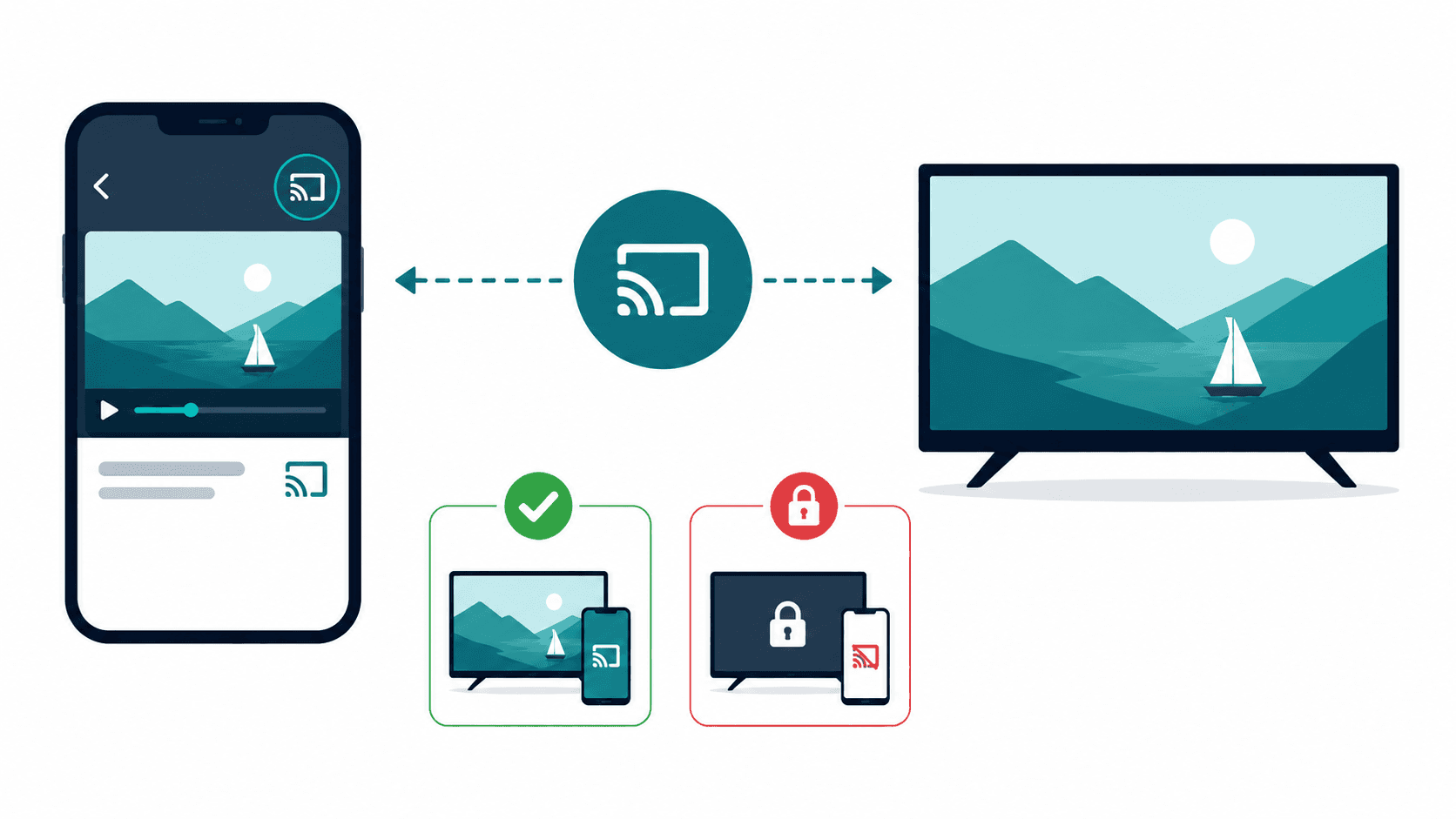
Some streaming services restrict certain mirroring methods. Support can vary by app, device, subscription, and connection type.
Netflix is a useful example. The service states that AirPlay and Screen Mirroring are no longer supported for playback from an iPhone, iPad, or Mac. Some Android mirroring features may also be unsupported.
That means switching to AirPlay will not fix Netflix on an iPhone. Open Netflix directly on the TV or connected streaming player instead.
Netflix still supports mobile casting to a limited set of compatible devices. Its current list includes third-generation or older Chromecast models without a remote, Google Nest Hub displays, and selected cast-enabled TVs. Your plan may affect availability.
Other services have their own rules. Check the app's help page before changing TV or router settings.
A Cast or AirPlay button is useful only when the service supports it. If the home screen and local photos work, stop treating the problem as a failed connection.
Avoid software that claims to bypass DRM. Use the service's TV app, an approved casting option, or a compatible wired connection.
Netflix lists its current options in its mobile casting and mirroring guide.
Fix 2: Restart the full display chain
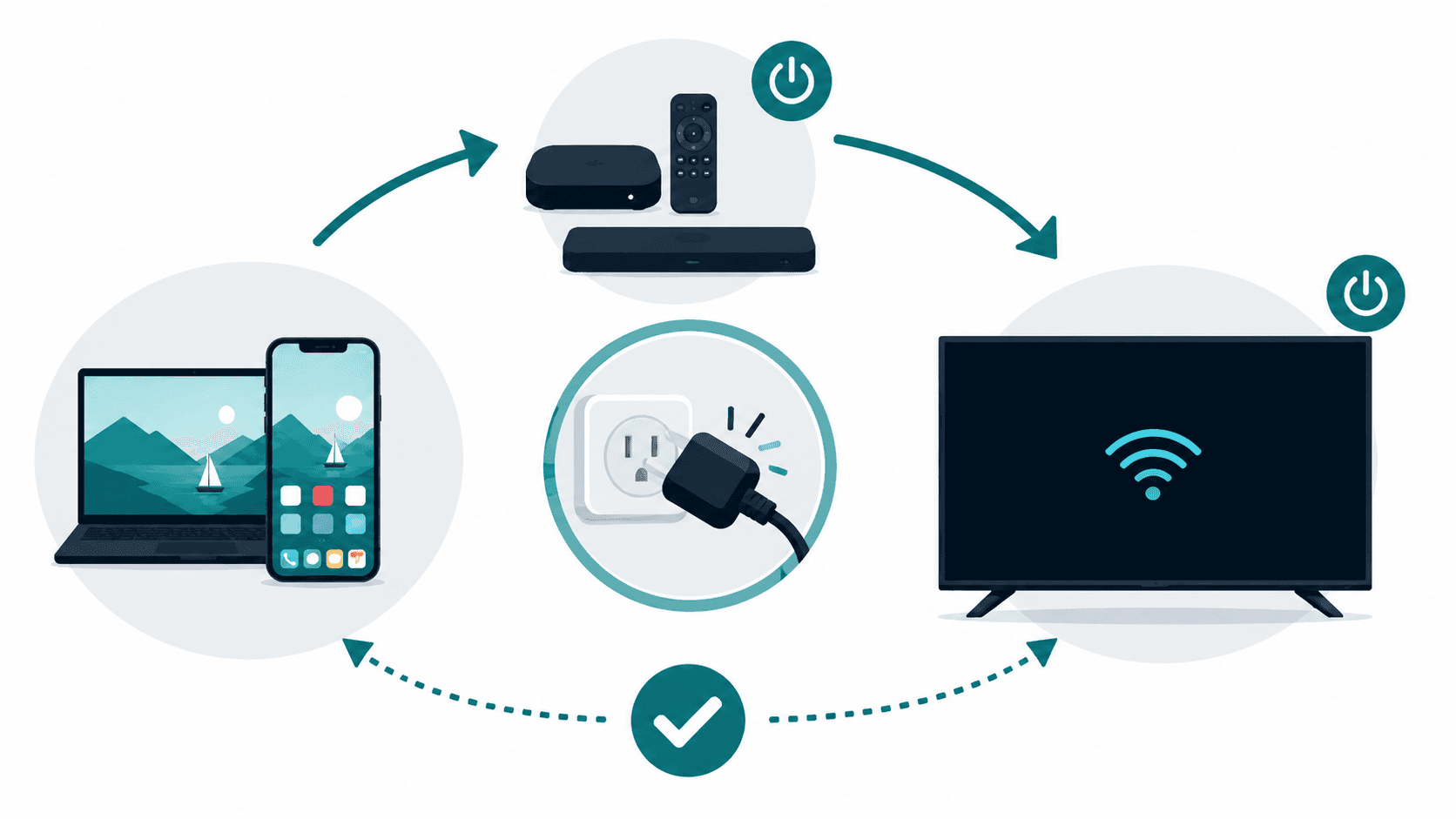
A restart can clear a temporary connection or HDMI error. It works best when the relevant devices lose power.
End the mirroring session. Turn off the sender and the TV.
Shut down any streaming player, adapter, soundbar, or AV receiver in the setup. Disconnect the power instead of leaving the equipment in standby.
Google recommends unplugging a Chromecast or Google TV Streamer's power cable for one minute. Removing only the HDMI connector is not enough.
Reconnect the TV and receiving equipment first. Start the phone or computer last, then try again.
Google suggests a longer TV power cycle only if those steps fail. Its current instructions say to remove the other HDMI devices and unplug the TV for 30 minutes.
The full sequence appears in Google's black screen troubleshooting guide.
Fix 3: Check the resolution, refresh rate, and display mode
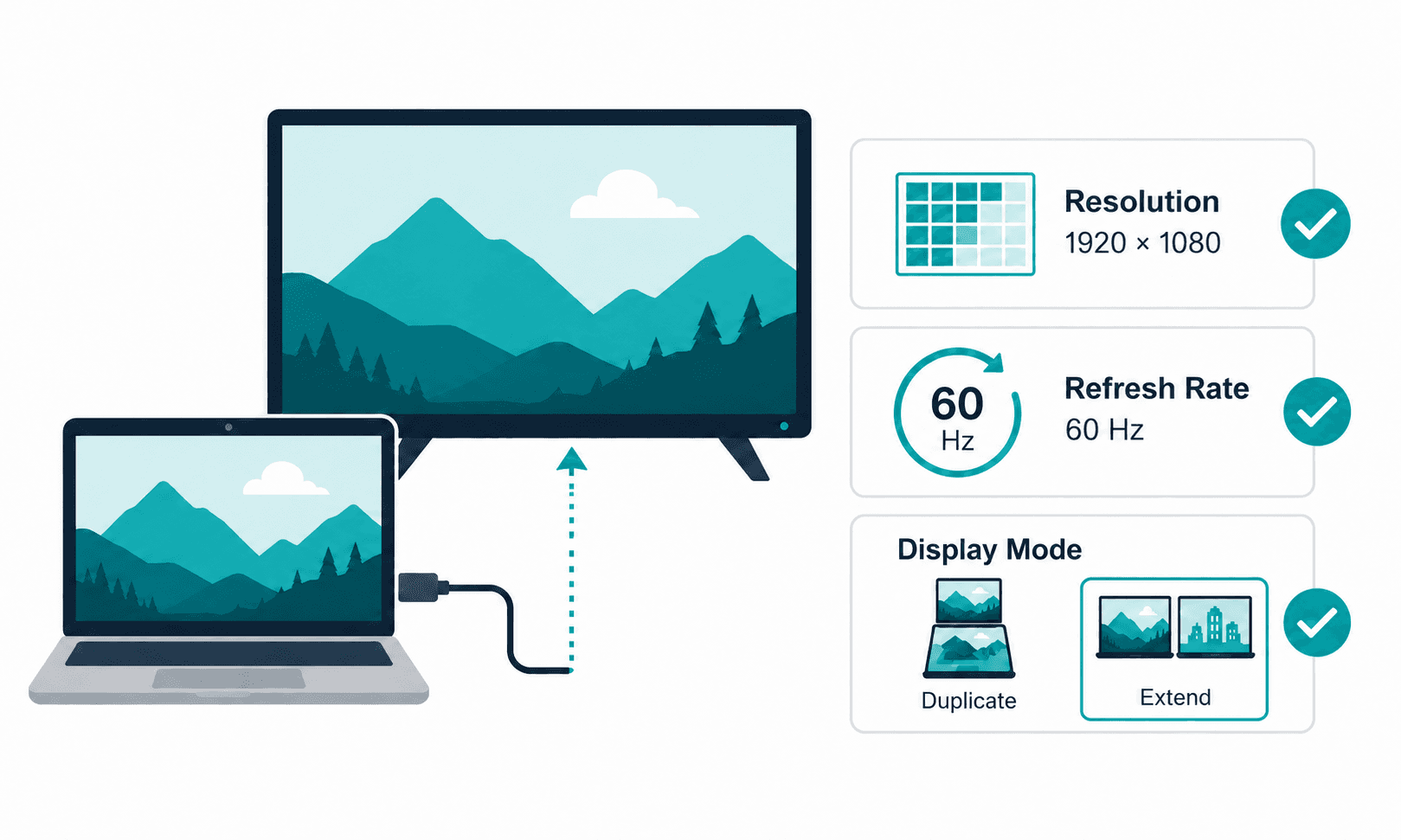
A receiver may fail to display a format it does not support. High resolution, HDR, and an incompatible refresh rate can all affect the picture.
On Windows 11, open Settings and go to System, then Display. Try 1920 by 1080 at 60 Hz.
Press Windows + P to control what appears on each display. Choose Duplicate if you want the same desktop on both screens.
Extend creates a separate desktop. It may look empty until you move a window onto it. That can seem like a black screen even though the connection is working.
Use Windows + K to connect or reconnect a Miracast display. Microsoft lists this as the current shortcut for wireless projection in Windows 11.
On a Mac, open System Settings and select Displays. Check whether the TV is mirroring the Mac or extending its desktop. Try a lower resolution if the receiver cannot handle the current format.
Some Android phones and mirroring apps include quality controls. Lower the output if that setting is available. Android menus vary, so there is no single path that works on every phone.
The iPhone and iPad do not have a general AirPlay resolution setting. Restarting and updating both devices is a better first move.
Fix 4: Update Windows drivers and receiver firmware
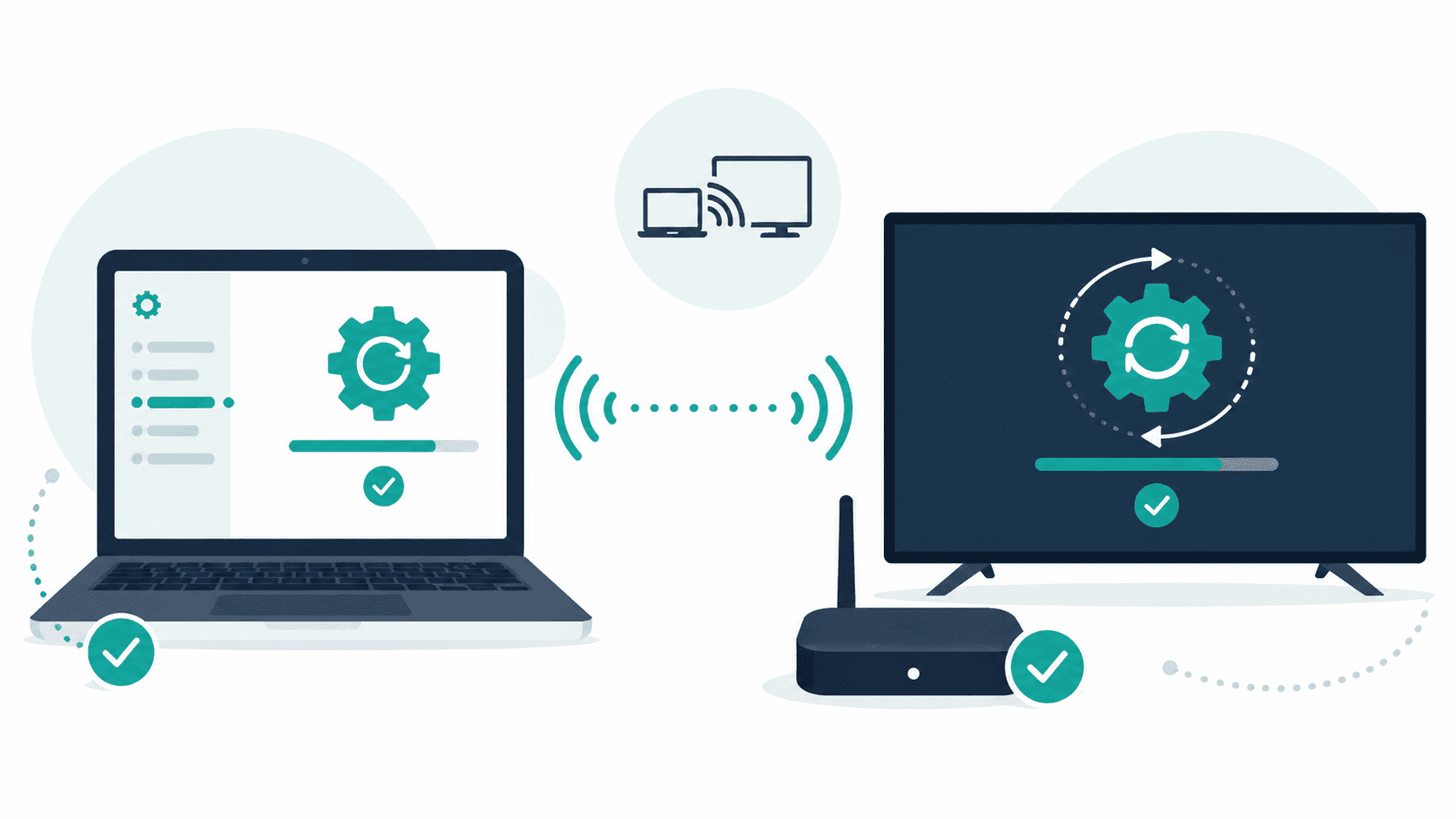
Miracast depends on both the graphics system and wireless hardware. One outdated driver can interrupt the video after the connection begins.
Install pending Windows 11 updates. Then check the computer manufacturer's website for current graphics and Wi-Fi drivers.
The receiver matters too. Update the wireless display, adapter, dock, or TV firmware when an update is available.
Microsoft recommends current drivers and receiver firmware when a wireless display will not connect properly. It also suggests removing the display and pairing it again.
To do that, open Settings and select Bluetooth and devices. Find the wireless display or dock, remove it, then reconnect with Windows + K.
You can also check whether the computer supports Miracast. Press Windows + K. Windows should show a message if the PC needs a cable for an external display.
Microsoft documents these steps in its screen mirroring and projection guide.
Windows 10 reached the end of free support on October 14, 2025. It may still connect to a wireless display, but current Microsoft guidance now favors Windows 11.
Fix 5: Check permissions for third-party apps
A third-party mirroring app may need permission to find a receiver or capture your screen.
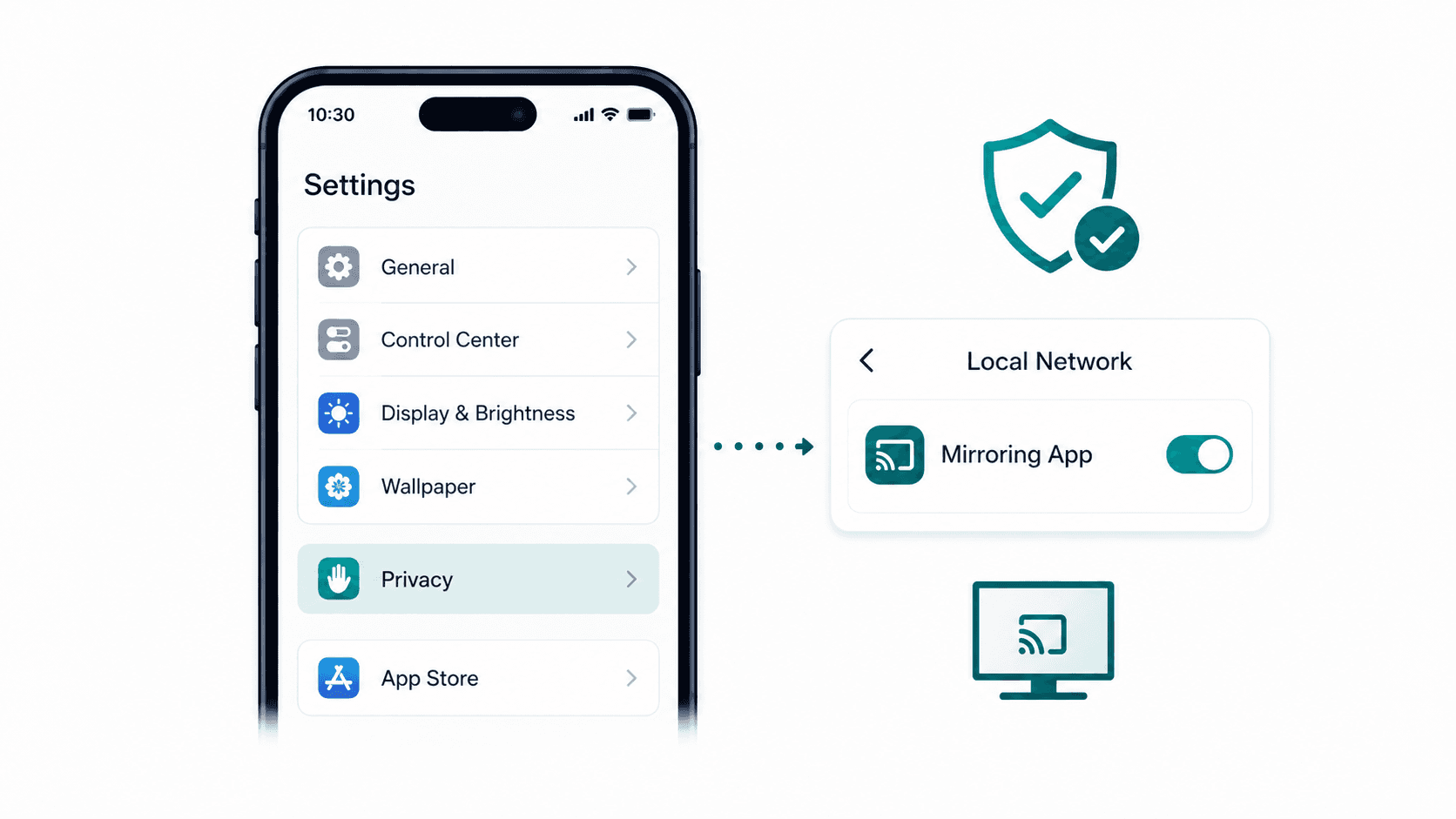
On an iPhone or iPad, open Settings and go to Privacy and Security. Select Local Network, then check whether the app has access.
This permission applies to apps that search for nearby network devices. Apple notes that system services such as AirPlay may still use the local network even when a particular app lacks permission.
Local Network access is most relevant when one app cannot find or reach the receiver. It is not a general fix for every AirPlay black screen.
Apple explains the difference in its Local Network privacy guide.
Mac users can open System Settings and select Privacy and Security. Check Screen and System Audio Recording if the app needs to capture the desktop.
Quit and reopen the app after changing a permission. Some software will not notice the new setting until it restarts.
Android displays a system prompt when an app requests screen capture. End the mirroring session and start again if you dismissed it.
Extra Android permissions depend on the phone and the app. Follow the developer's instructions rather than changing unrelated privacy settings.
Fix 6: Check the HDMI and HDCP connection
This fix applies when a streaming player, video adapter, or receiver connects through HDMI.
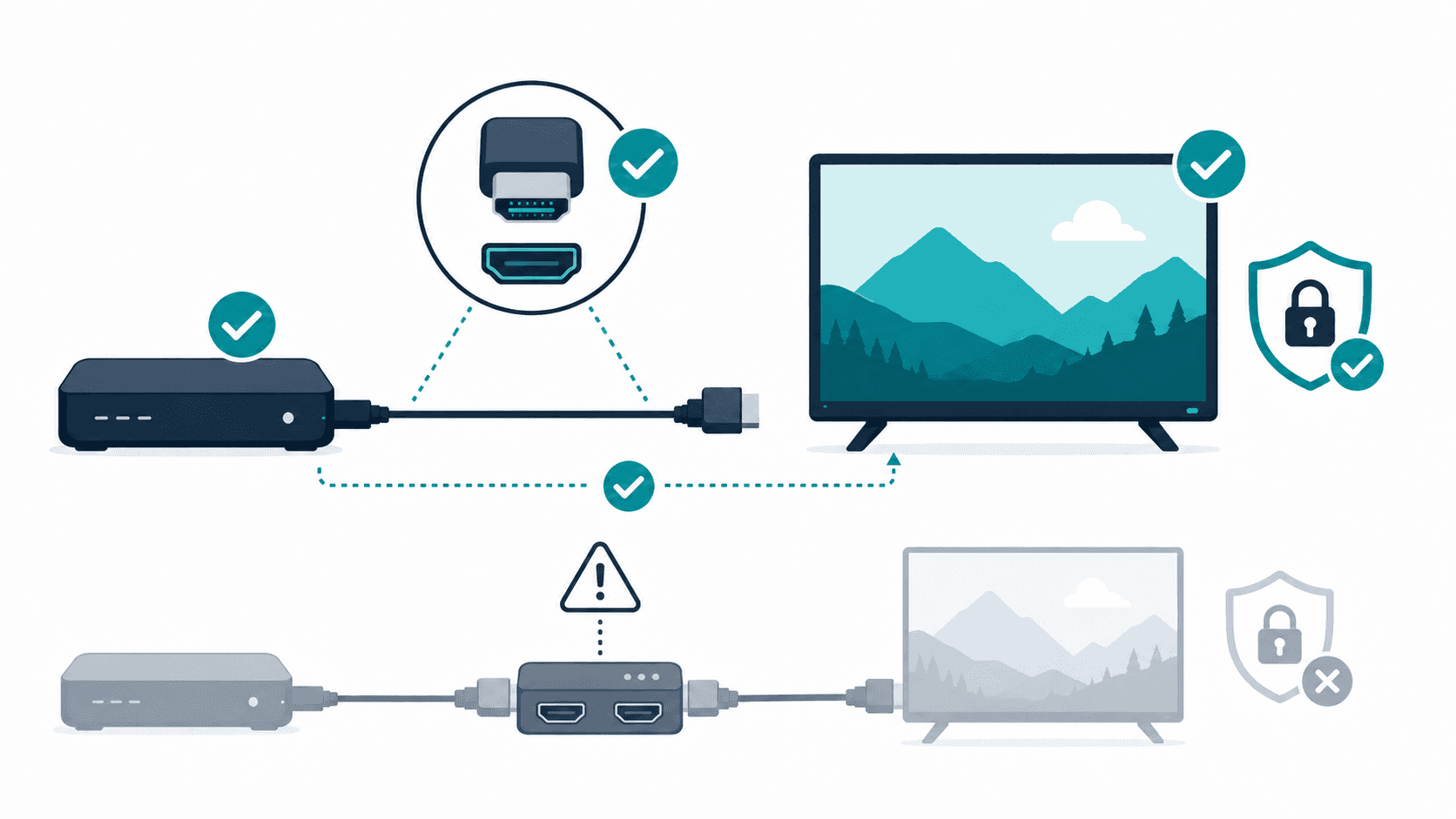
Confirm that the TV is using the right input. Push each connector in firmly, then try another HDMI port.
Use a different cable if one is available. A cable or adapter may work at one resolution but fail with a more demanding format.
Remove any soundbar, HDMI switch, capture card, or AV receiver from the test setup. Connect the player directly to the television.
Google recommends a direct connection when a Chromecast or Google TV Streamer reports an HDCP error. Its guidance also calls for current firmware on the player and TV.
Google streaming devices require HDCP 1.3 or later. According to Google's device requirements, 4K content requires HDCP 2.2.
Every relevant part of the HDMI path must support the required format. A cable by itself cannot fix an incompatible adapter or display.
Netflix gives similar advice for an iPhone or iPad connected through USB-C. The cable or adapter must support video playback. HDCP 2.2 may also be required for protected content.
Fix 7: Make sure you selected the right output
Sometimes the connection works, but the device sends the wrong screen.
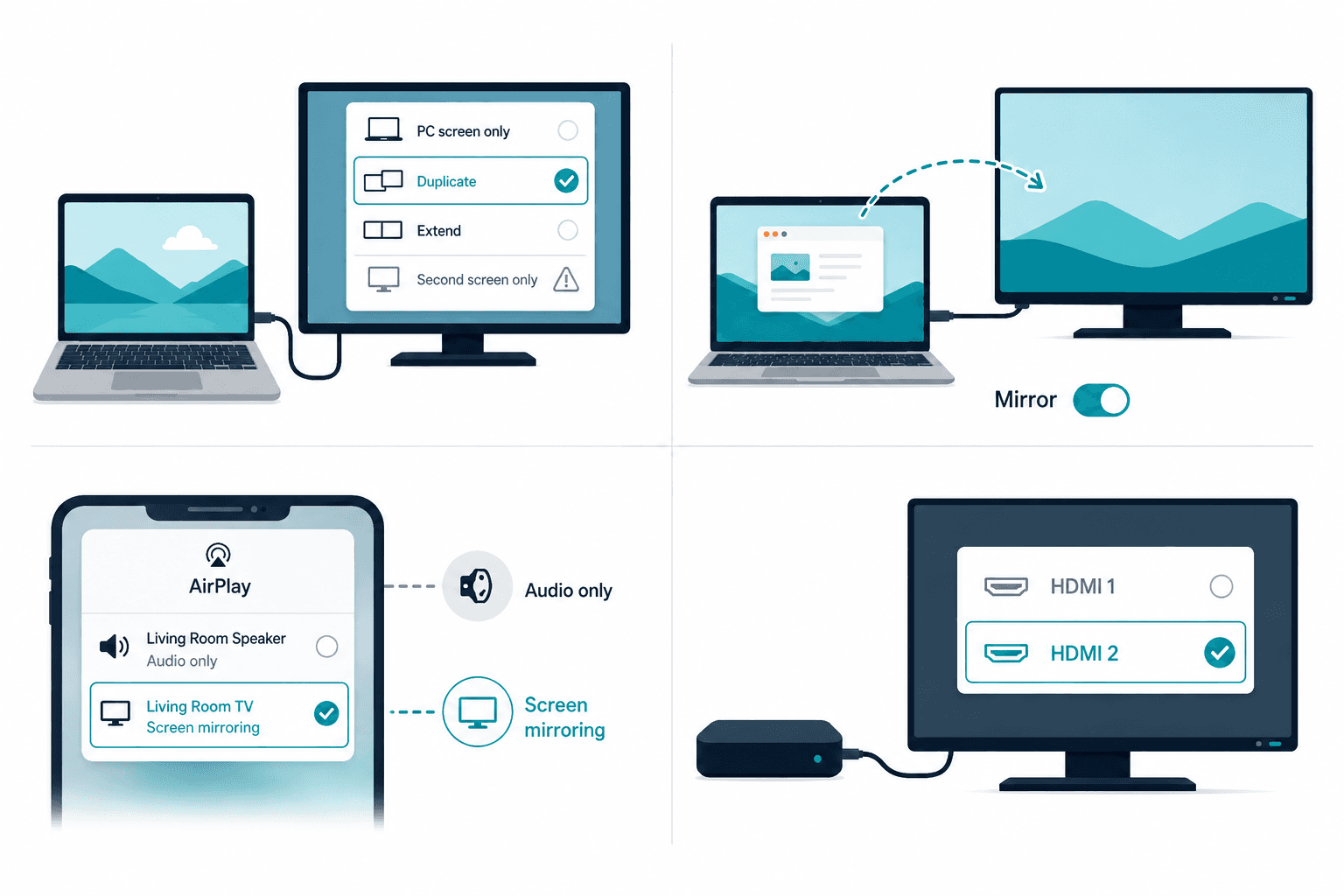
On Windows, press Windows + P and choose Duplicate. Avoid Second screen only until you know the external display is working.
A Mac can show an empty extended desktop instead of the main screen. Move a window onto the TV or switch the display to mirroring.
On an iPhone or iPad, choosing an AirPlay speaker controls the audio destination. It does not necessarily mirror the whole screen.
Check the TV input as well. A receiver connected to HDMI 2 will not appear while the television remains on HDMI 1.
Use a bright photo for testing. It is easier to identify than a dark desktop or an empty app window.
Fix 8: Change one part of the setup
Random restarts become frustrating very quickly. A controlled test is faster.
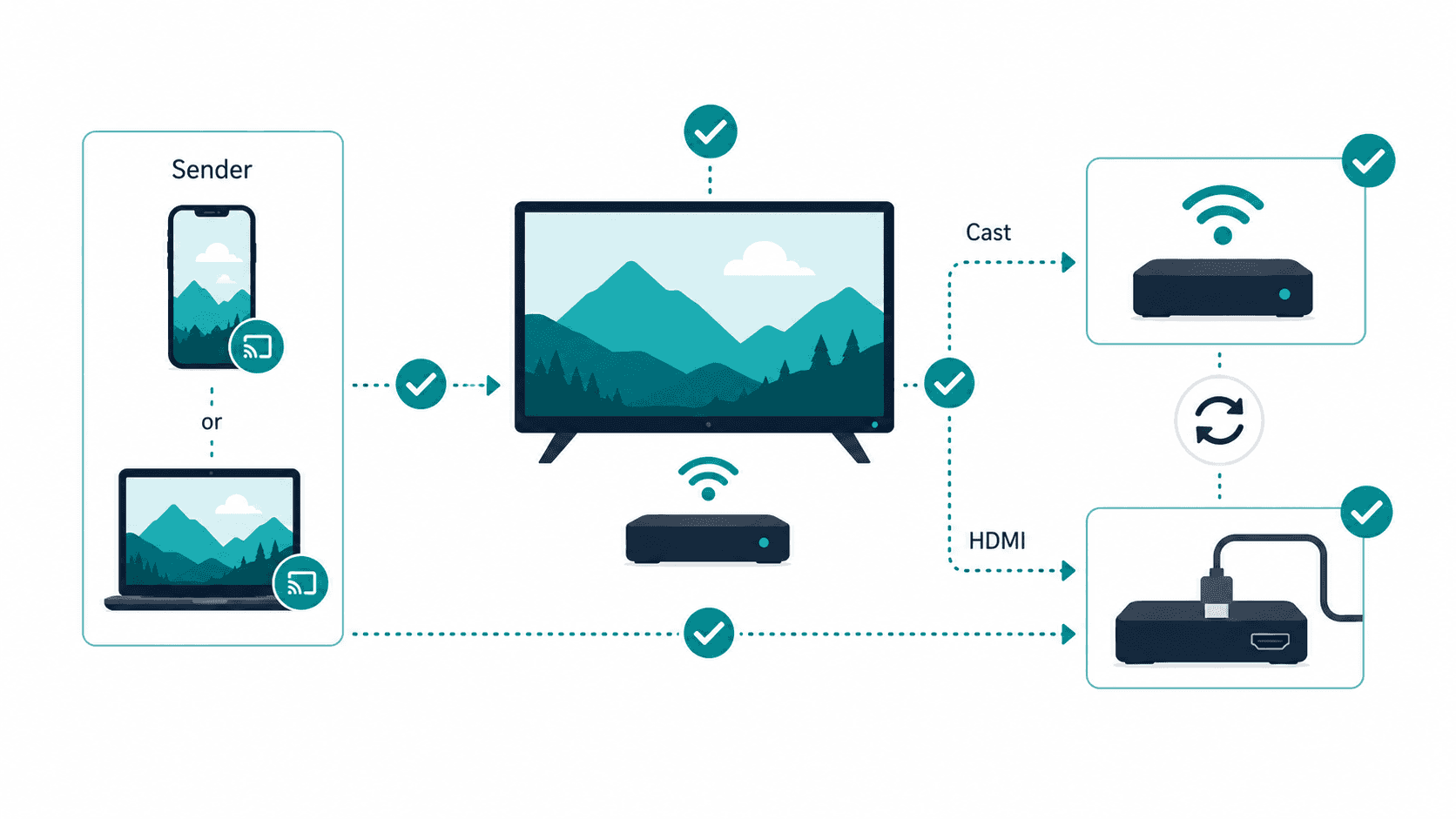
Try a second phone or computer with the same TV. After that, connect the original sender to a different receiver.
Compare full-screen mirroring with a casting option supported by the app. A compatible HDMI connection gives you another useful comparison.
Test result | Likely problem area |
A second phone works with the TV | Original phone, app, or its settings |
No sender works with the TV | TV, receiver, or network |
Supported in-app casting works | Full-screen mirroring method |
Wired video works, but wireless does not | Wireless protocol, network, or receiver software |
Only one app stays black | App support, protected content, or an app-specific problem |
Another HDMI port works | Original port, cable, or HDMI path |
A successful HDMI test does not prove that every TV component is faultless. It does confirm that the panel can show video through that input and format.
This method is more useful than an early factory reset. It also preserves your Wi-Fi details, picture settings, and app logins.
The fixes below cover full-screen mirroring through AirPlay, Miracast, Android screen casting, and third-party mirroring apps. HDMI steps apply only when a streaming device or wireless receiver connects to the TV through HDMI. In-app casting is discussed as an alternative to mirroring, not as the same technology.
Work through the fixes in order. Stop once your test points to a clear cause.
Fix 1: Check whether the app supports mirroring
Some streaming services restrict certain mirroring methods. Support can vary by app, device, subscription, and connection type.
Netflix is a useful example. The service states that AirPlay and Screen Mirroring are no longer supported for playback from an iPhone, iPad, or Mac. Some Android mirroring features may also be unsupported.
That means switching to AirPlay will not fix Netflix on an iPhone. Open Netflix directly on the TV or connected streaming player instead.
Netflix still supports mobile casting to a limited set of compatible devices. Its current list includes third-generation or older Chromecast models without a remote, Google Nest Hub displays, and selected cast-enabled TVs. Your plan may affect availability.
Other services have their own rules. Check the app's help page before changing TV or router settings.
A Cast or AirPlay button is useful only when the service supports it. If the home screen and local photos work, stop treating the problem as a failed connection.
Avoid software that claims to bypass DRM. Use the service's TV app, an approved casting option, or a compatible wired connection.
Netflix lists its current options in its mobile casting and mirroring guide.
Fix 2: Restart the full display chain
A restart can clear a temporary connection or HDMI error. It works best when the relevant devices lose power.
End the mirroring session. Turn off the sender and the TV.
Shut down any streaming player, adapter, soundbar, or AV receiver in the setup. Disconnect the power instead of leaving the equipment in standby.
Google recommends unplugging a Chromecast or Google TV Streamer's power cable for one minute. Removing only the HDMI connector is not enough.
Reconnect the TV and receiving equipment first. Start the phone or computer last, then try again.
Google suggests a longer TV power cycle only if those steps fail. Its current instructions say to remove the other HDMI devices and unplug the TV for 30 minutes.
The full sequence appears in Google's black screen troubleshooting guide.
Fix 3: Check the resolution, refresh rate, and display mode
A receiver may fail to display a format it does not support. High resolution, HDR, and an incompatible refresh rate can all affect the picture.
On Windows 11, open Settings and go to System, then Display. Try 1920 by 1080 at 60 Hz.
Press Windows + P to control what appears on each display. Choose Duplicate if you want the same desktop on both screens.
Extend creates a separate desktop. It may look empty until you move a window onto it. That can seem like a black screen even though the connection is working.
Use Windows + K to connect or reconnect a Miracast display. Microsoft lists this as the current shortcut for wireless projection in Windows 11.
On a Mac, open System Settings and select Displays. Check whether the TV is mirroring the Mac or extending its desktop. Try a lower resolution if the receiver cannot handle the current format.
Some Android phones and mirroring apps include quality controls. Lower the output if that setting is available. Android menus vary, so there is no single path that works on every phone.
The iPhone and iPad do not have a general AirPlay resolution setting. Restarting and updating both devices is a better first move.
Fix 4: Update Windows drivers and receiver firmware
Miracast depends on both the graphics system and wireless hardware. One outdated driver can interrupt the video after the connection begins.
Install pending Windows 11 updates. Then check the computer manufacturer's website for current graphics and Wi-Fi drivers.
The receiver matters too. Update the wireless display, adapter, dock, or TV firmware when an update is available.
Microsoft recommends current drivers and receiver firmware when a wireless display will not connect properly. It also suggests removing the display and pairing it again.
To do that, open Settings and select Bluetooth and devices. Find the wireless display or dock, remove it, then reconnect with Windows + K.
You can also check whether the computer supports Miracast. Press Windows + K. Windows should show a message if the PC needs a cable for an external display.
Microsoft documents these steps in its screen mirroring and projection guide.
Windows 10 reached the end of free support on October 14, 2025. It may still connect to a wireless display, but current Microsoft guidance now favors Windows 11.
Fix 5: Check permissions for third-party apps
A third-party mirroring app may need permission to find a receiver or capture your screen.
On an iPhone or iPad, open Settings and go to Privacy and Security. Select Local Network, then check whether the app has access.
This permission applies to apps that search for nearby network devices. Apple notes that system services such as AirPlay may still use the local network even when a particular app lacks permission.
Local Network access is most relevant when one app cannot find or reach the receiver. It is not a general fix for every AirPlay black screen.
Apple explains the difference in its Local Network privacy guide.
Mac users can open System Settings and select Privacy and Security. Check Screen and System Audio Recording if the app needs to capture the desktop.
Quit and reopen the app after changing a permission. Some software will not notice the new setting until it restarts.
Android displays a system prompt when an app requests screen capture. End the mirroring session and start again if you dismissed it.
Extra Android permissions depend on the phone and the app. Follow the developer's instructions rather than changing unrelated privacy settings.
Fix 6: Check the HDMI and HDCP connection
This fix applies when a streaming player, video adapter, or receiver connects through HDMI.
Confirm that the TV is using the right input. Push each connector in firmly, then try another HDMI port.
Use a different cable if one is available. A cable or adapter may work at one resolution but fail with a more demanding format.
Remove any soundbar, HDMI switch, capture card, or AV receiver from the test setup. Connect the player directly to the television.
Google recommends a direct connection when a Chromecast or Google TV Streamer reports an HDCP error. Its guidance also calls for current firmware on the player and TV.
Google streaming devices require HDCP 1.3 or later. According to Google's device requirements, 4K content requires HDCP 2.2.
Every relevant part of the HDMI path must support the required format. A cable by itself cannot fix an incompatible adapter or display.
Netflix gives similar advice for an iPhone or iPad connected through USB-C. The cable or adapter must support video playback. HDCP 2.2 may also be required for protected content.
Fix 7: Make sure you selected the right output
Sometimes the connection works, but the device sends the wrong screen.
On Windows, press Windows + P and choose Duplicate. Avoid Second screen only until you know the external display is working.
A Mac can show an empty extended desktop instead of the main screen. Move a window onto the TV or switch the display to mirroring.
On an iPhone or iPad, choosing an AirPlay speaker controls the audio destination. It does not necessarily mirror the whole screen.
Check the TV input as well. A receiver connected to HDMI 2 will not appear while the television remains on HDMI 1.
Use a bright photo for testing. It is easier to identify than a dark desktop or an empty app window.
Fix 8: Change one part of the setup
Random restarts become frustrating very quickly. A controlled test is faster.
Try a second phone or computer with the same TV. After that, connect the original sender to a different receiver.
Compare full-screen mirroring with a casting option supported by the app. A compatible HDMI connection gives you another useful comparison.
Test result | Likely problem area |
A second phone works with the TV | Original phone, app, or its settings |
No sender works with the TV | TV, receiver, or network |
Supported in-app casting works | Full-screen mirroring method |
Wired video works, but wireless does not | Wireless protocol, network, or receiver software |
Only one app stays black | App support, protected content, or an app-specific problem |
Another HDMI port works | Original port, cable, or HDMI path |
A successful HDMI test does not prove that every TV component is faultless. It does confirm that the panel can show video through that input and format.
This method is more useful than an early factory reset. It also preserves your Wi-Fi details, picture settings, and app logins.
The fixes below cover full-screen mirroring through AirPlay, Miracast, Android screen casting, and third-party mirroring apps. HDMI steps apply only when a streaming device or wireless receiver connects to the TV through HDMI. In-app casting is discussed as an alternative to mirroring, not as the same technology.
Work through the fixes in order. Stop once your test points to a clear cause.
Fix 1: Check whether the app supports mirroring
Some streaming services restrict certain mirroring methods. Support can vary by app, device, subscription, and connection type.
Netflix is a useful example. The service states that AirPlay and Screen Mirroring are no longer supported for playback from an iPhone, iPad, or Mac. Some Android mirroring features may also be unsupported.
That means switching to AirPlay will not fix Netflix on an iPhone. Open Netflix directly on the TV or connected streaming player instead.
Netflix still supports mobile casting to a limited set of compatible devices. Its current list includes third-generation or older Chromecast models without a remote, Google Nest Hub displays, and selected cast-enabled TVs. Your plan may affect availability.
Other services have their own rules. Check the app's help page before changing TV or router settings.
A Cast or AirPlay button is useful only when the service supports it. If the home screen and local photos work, stop treating the problem as a failed connection.
Avoid software that claims to bypass DRM. Use the service's TV app, an approved casting option, or a compatible wired connection.
Netflix lists its current options in its mobile casting and mirroring guide.
Fix 2: Restart the full display chain
A restart can clear a temporary connection or HDMI error. It works best when the relevant devices lose power.
End the mirroring session. Turn off the sender and the TV.
Shut down any streaming player, adapter, soundbar, or AV receiver in the setup. Disconnect the power instead of leaving the equipment in standby.
Google recommends unplugging a Chromecast or Google TV Streamer's power cable for one minute. Removing only the HDMI connector is not enough.
Reconnect the TV and receiving equipment first. Start the phone or computer last, then try again.
Google suggests a longer TV power cycle only if those steps fail. Its current instructions say to remove the other HDMI devices and unplug the TV for 30 minutes.
The full sequence appears in Google's black screen troubleshooting guide.
Fix 3: Check the resolution, refresh rate, and display mode
A receiver may fail to display a format it does not support. High resolution, HDR, and an incompatible refresh rate can all affect the picture.
On Windows 11, open Settings and go to System, then Display. Try 1920 by 1080 at 60 Hz.
Press Windows + P to control what appears on each display. Choose Duplicate if you want the same desktop on both screens.
Extend creates a separate desktop. It may look empty until you move a window onto it. That can seem like a black screen even though the connection is working.
Use Windows + K to connect or reconnect a Miracast display. Microsoft lists this as the current shortcut for wireless projection in Windows 11.
On a Mac, open System Settings and select Displays. Check whether the TV is mirroring the Mac or extending its desktop. Try a lower resolution if the receiver cannot handle the current format.
Some Android phones and mirroring apps include quality controls. Lower the output if that setting is available. Android menus vary, so there is no single path that works on every phone.
The iPhone and iPad do not have a general AirPlay resolution setting. Restarting and updating both devices is a better first move.
Fix 4: Update Windows drivers and receiver firmware
Miracast depends on both the graphics system and wireless hardware. One outdated driver can interrupt the video after the connection begins.
Install pending Windows 11 updates. Then check the computer manufacturer's website for current graphics and Wi-Fi drivers.
The receiver matters too. Update the wireless display, adapter, dock, or TV firmware when an update is available.
Microsoft recommends current drivers and receiver firmware when a wireless display will not connect properly. It also suggests removing the display and pairing it again.
To do that, open Settings and select Bluetooth and devices. Find the wireless display or dock, remove it, then reconnect with Windows + K.
You can also check whether the computer supports Miracast. Press Windows + K. Windows should show a message if the PC needs a cable for an external display.
Microsoft documents these steps in its screen mirroring and projection guide.
Windows 10 reached the end of free support on October 14, 2025. It may still connect to a wireless display, but current Microsoft guidance now favors Windows 11.
Fix 5: Check permissions for third-party apps
A third-party mirroring app may need permission to find a receiver or capture your screen.
On an iPhone or iPad, open Settings and go to Privacy and Security. Select Local Network, then check whether the app has access.
This permission applies to apps that search for nearby network devices. Apple notes that system services such as AirPlay may still use the local network even when a particular app lacks permission.
Local Network access is most relevant when one app cannot find or reach the receiver. It is not a general fix for every AirPlay black screen.
Apple explains the difference in its Local Network privacy guide.
Mac users can open System Settings and select Privacy and Security. Check Screen and System Audio Recording if the app needs to capture the desktop.
Quit and reopen the app after changing a permission. Some software will not notice the new setting until it restarts.
Android displays a system prompt when an app requests screen capture. End the mirroring session and start again if you dismissed it.
Extra Android permissions depend on the phone and the app. Follow the developer's instructions rather than changing unrelated privacy settings.
Fix 6: Check the HDMI and HDCP connection
This fix applies when a streaming player, video adapter, or receiver connects through HDMI.
Confirm that the TV is using the right input. Push each connector in firmly, then try another HDMI port.
Use a different cable if one is available. A cable or adapter may work at one resolution but fail with a more demanding format.
Remove any soundbar, HDMI switch, capture card, or AV receiver from the test setup. Connect the player directly to the television.
Google recommends a direct connection when a Chromecast or Google TV Streamer reports an HDCP error. Its guidance also calls for current firmware on the player and TV.
Google streaming devices require HDCP 1.3 or later. According to Google's device requirements, 4K content requires HDCP 2.2.
Every relevant part of the HDMI path must support the required format. A cable by itself cannot fix an incompatible adapter or display.
Netflix gives similar advice for an iPhone or iPad connected through USB-C. The cable or adapter must support video playback. HDCP 2.2 may also be required for protected content.
Fix 7: Make sure you selected the right output
Sometimes the connection works, but the device sends the wrong screen.
On Windows, press Windows + P and choose Duplicate. Avoid Second screen only until you know the external display is working.
A Mac can show an empty extended desktop instead of the main screen. Move a window onto the TV or switch the display to mirroring.
On an iPhone or iPad, choosing an AirPlay speaker controls the audio destination. It does not necessarily mirror the whole screen.
Check the TV input as well. A receiver connected to HDMI 2 will not appear while the television remains on HDMI 1.
Use a bright photo for testing. It is easier to identify than a dark desktop or an empty app window.
Fix 8: Change one part of the setup
Random restarts become frustrating very quickly. A controlled test is faster.
Try a second phone or computer with the same TV. After that, connect the original sender to a different receiver.
Compare full-screen mirroring with a casting option supported by the app. A compatible HDMI connection gives you another useful comparison.
Test result | Likely problem area |
A second phone works with the TV | Original phone, app, or its settings |
No sender works with the TV | TV, receiver, or network |
Supported in-app casting works | Full-screen mirroring method |
Wired video works, but wireless does not | Wireless protocol, network, or receiver software |
Only one app stays black | App support, protected content, or an app-specific problem |
Another HDMI port works | Original port, cable, or HDMI path |
A successful HDMI test does not prove that every TV component is faultless. It does confirm that the panel can show video through that input and format.
This method is more useful than an early factory reset. It also preserves your Wi-Fi details, picture settings, and app logins.
Black screen fixes by platform
Black screen fixes by platform
Black screen fixes by platform
The first test is the same on every platform. The later steps depend on how the devices connect.
AirPlay black screen
Keep the Apple device and receiver turned on and near each other. Update both devices, then connect them to the same Wi-Fi network.
Restart the sender and receiver. Check whether Home settings restrict AirPlay access.
Mirror the home screen before opening a video app. If one service alone stays black, confirm that it supports AirPlay.
Netflix does not support AirPlay or Screen Mirroring from an iPhone, iPad, or Mac. Use its TV app or another connection listed by Netflix.
Apple's AirPlay troubleshooting guide covers network, software, restart, and access checks.
Miracast black screen on Windows
Press Windows + K to connect to the display. Use Windows + P to switch the display mode to Duplicate.
Install Windows updates and current graphics and Wi-Fi drivers. The receiver or adapter may need a firmware update too.
Remove the display from Windows and pair it again. If Windows says the PC does not support Miracast, use a cable or a compatible receiver.
Chromecast or Google TV black screen
Check the power supply and TV input. Unplug the streaming device's power cable for one minute.
Try another HDMI port. Update the affected app, streaming device, and television.
Connect the Google device directly to the TV if a soundbar, HDMI switch, or receiver sits between them. Make sure the display and HDMI path support the required HDCP version.
The first test is the same on every platform. The later steps depend on how the devices connect.
AirPlay black screen
Keep the Apple device and receiver turned on and near each other. Update both devices, then connect them to the same Wi-Fi network.
Restart the sender and receiver. Check whether Home settings restrict AirPlay access.
Mirror the home screen before opening a video app. If one service alone stays black, confirm that it supports AirPlay.
Netflix does not support AirPlay or Screen Mirroring from an iPhone, iPad, or Mac. Use its TV app or another connection listed by Netflix.
Apple's AirPlay troubleshooting guide covers network, software, restart, and access checks.
Miracast black screen on Windows
Press Windows + K to connect to the display. Use Windows + P to switch the display mode to Duplicate.
Install Windows updates and current graphics and Wi-Fi drivers. The receiver or adapter may need a firmware update too.
Remove the display from Windows and pair it again. If Windows says the PC does not support Miracast, use a cable or a compatible receiver.
Chromecast or Google TV black screen
Check the power supply and TV input. Unplug the streaming device's power cable for one minute.
Try another HDMI port. Update the affected app, streaming device, and television.
Connect the Google device directly to the TV if a soundbar, HDMI switch, or receiver sits between them. Make sure the display and HDMI path support the required HDCP version.
The first test is the same on every platform. The later steps depend on how the devices connect.
AirPlay black screen
Keep the Apple device and receiver turned on and near each other. Update both devices, then connect them to the same Wi-Fi network.
Restart the sender and receiver. Check whether Home settings restrict AirPlay access.
Mirror the home screen before opening a video app. If one service alone stays black, confirm that it supports AirPlay.
Netflix does not support AirPlay or Screen Mirroring from an iPhone, iPad, or Mac. Use its TV app or another connection listed by Netflix.
Apple's AirPlay troubleshooting guide covers network, software, restart, and access checks.
Miracast black screen on Windows
Press Windows + K to connect to the display. Use Windows + P to switch the display mode to Duplicate.
Install Windows updates and current graphics and Wi-Fi drivers. The receiver or adapter may need a firmware update too.
Remove the display from Windows and pair it again. If Windows says the PC does not support Miracast, use a cable or a compatible receiver.
Chromecast or Google TV black screen
Check the power supply and TV input. Unplug the streaming device's power cable for one minute.
Try another HDMI port. Update the affected app, streaming device, and television.
Connect the Google device directly to the TV if a soundbar, HDMI switch, or receiver sits between them. Make sure the display and HDMI path support the required HDCP version.
When to stop troubleshooting and switch methods
When to stop troubleshooting and switch methods
When to stop troubleshooting and switch methods
Some black screens come from an unsupported playback method. No amount of restarting will change the service's rules.
When one streaming app stays black, read its current playback instructions. Use the service's TV app if it does not support full-screen mirroring.
A wired connection makes sense for presentations and local media. It removes Wi-Fi discovery and wireless protocol problems from the setup.
Older Windows hardware may not support Miracast. A cable or compatible receiver is usually a cleaner answer than repeated driver changes.
Hotels, offices, and schools may block devices from finding each other. An approved presentation system or wired connection is safer when you cannot manage the network.
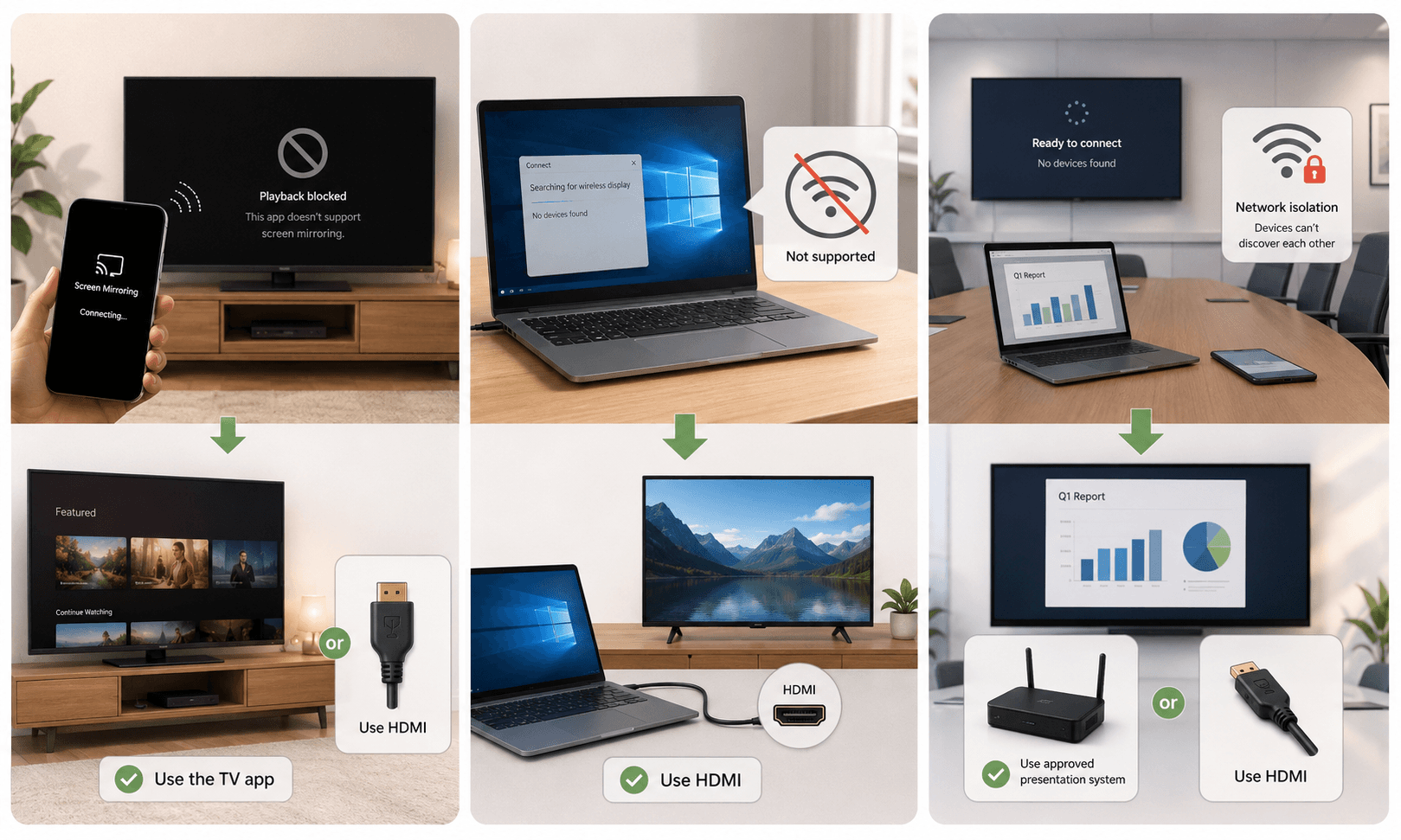
A third-party app can help when the sender and receiver use different protocols. It will not make protected content ignore the streaming service's rules. If protocol compatibility is the issue, compare the tested options in our guide to the best screen mirroring apps of 2026.
Some black screens come from an unsupported playback method. No amount of restarting will change the service's rules.
When one streaming app stays black, read its current playback instructions. Use the service's TV app if it does not support full-screen mirroring.
A wired connection makes sense for presentations and local media. It removes Wi-Fi discovery and wireless protocol problems from the setup.
Older Windows hardware may not support Miracast. A cable or compatible receiver is usually a cleaner answer than repeated driver changes.
Hotels, offices, and schools may block devices from finding each other. An approved presentation system or wired connection is safer when you cannot manage the network.
A third-party app can help when the sender and receiver use different protocols. It will not make protected content ignore the streaming service's rules. If protocol compatibility is the issue, compare the tested options in our guide to the best screen mirroring apps of 2026.
Some black screens come from an unsupported playback method. No amount of restarting will change the service's rules.
When one streaming app stays black, read its current playback instructions. Use the service's TV app if it does not support full-screen mirroring.
A wired connection makes sense for presentations and local media. It removes Wi-Fi discovery and wireless protocol problems from the setup.
Older Windows hardware may not support Miracast. A cable or compatible receiver is usually a cleaner answer than repeated driver changes.
Hotels, offices, and schools may block devices from finding each other. An approved presentation system or wired connection is safer when you cannot manage the network.
A third-party app can help when the sender and receiver use different protocols. It will not make protected content ignore the streaming service's rules. If protocol compatibility is the issue, compare the tested options in our guide to the best screen mirroring apps of 2026.
Frequently asked questions
Frequently asked questions
Frequently asked questions
Why is my screen mirroring black but I can still hear audio?
The app may not support your mirroring method. A cable, HDMI port, video driver, or device problem can cause the same symptom. Mirror the home screen and test a local file before blaming content protection.
Can I bypass a black screen caused by DRM?
Do not try to bypass DRM. Use a playback option supported by the streaming service. That may be its TV app, an approved casting device, or a compatible wired connection.
Why is AirPlay connected but showing no picture?
The app may not support AirPlay. Your devices may also need an update or restart. Test the home screen, check the Wi-Fi network, and make sure AirPlay access is not restricted.
Can resolution cause a black screen?
Yes. The receiver may not support the selected resolution, refresh rate, HDR mode, or cable format. Try 1920 by 1080 at 60 Hz when your device provides those controls.
Why does Miracast connect and then go black?
An incompatible graphics or Wi-Fi driver may interrupt the video. The wrong Windows display mode can look similar. Update the drivers, reconnect with Windows + K, and select Duplicate with Windows + P.
Should I factory reset my TV?
Use a factory reset only after testing other devices, HDMI ports, and connection methods. A reset removes network details, app logins, and picture settings. Google also presents it as a last resort in its Chromecast guidance.
Why is my screen mirroring black but I can still hear audio?
The app may not support your mirroring method. A cable, HDMI port, video driver, or device problem can cause the same symptom. Mirror the home screen and test a local file before blaming content protection.
Can I bypass a black screen caused by DRM?
Do not try to bypass DRM. Use a playback option supported by the streaming service. That may be its TV app, an approved casting device, or a compatible wired connection.
Why is AirPlay connected but showing no picture?
The app may not support AirPlay. Your devices may also need an update or restart. Test the home screen, check the Wi-Fi network, and make sure AirPlay access is not restricted.
Can resolution cause a black screen?
Yes. The receiver may not support the selected resolution, refresh rate, HDR mode, or cable format. Try 1920 by 1080 at 60 Hz when your device provides those controls.
Why does Miracast connect and then go black?
An incompatible graphics or Wi-Fi driver may interrupt the video. The wrong Windows display mode can look similar. Update the drivers, reconnect with Windows + K, and select Duplicate with Windows + P.
Should I factory reset my TV?
Use a factory reset only after testing other devices, HDMI ports, and connection methods. A reset removes network details, app logins, and picture settings. Google also presents it as a last resort in its Chromecast guidance.
Why is my screen mirroring black but I can still hear audio?
The app may not support your mirroring method. A cable, HDMI port, video driver, or device problem can cause the same symptom. Mirror the home screen and test a local file before blaming content protection.
Can I bypass a black screen caused by DRM?
Do not try to bypass DRM. Use a playback option supported by the streaming service. That may be its TV app, an approved casting device, or a compatible wired connection.
Why is AirPlay connected but showing no picture?
The app may not support AirPlay. Your devices may also need an update or restart. Test the home screen, check the Wi-Fi network, and make sure AirPlay access is not restricted.
Can resolution cause a black screen?
Yes. The receiver may not support the selected resolution, refresh rate, HDR mode, or cable format. Try 1920 by 1080 at 60 Hz when your device provides those controls.
Why does Miracast connect and then go black?
An incompatible graphics or Wi-Fi driver may interrupt the video. The wrong Windows display mode can look similar. Update the drivers, reconnect with Windows + K, and select Duplicate with Windows + P.
Should I factory reset my TV?
Use a factory reset only after testing other devices, HDMI ports, and connection methods. A reset removes network details, app logins, and picture settings. Google also presents it as a last resort in its Chromecast guidance.
The fastest route back to a picture
The fastest route back to a picture
The fastest route back to a picture
Mirror the home screen before changing anything else. That one test shows whether the problem affects a single app or the entire display connection.
If only one service stays black, check its current playback rules. Do not assume it supports every Cast or AirPlay method.
When the whole screen remains black, check the display mode, drivers, permissions, power, and HDMI path. Change one part at a time. You will find the failed link faster, without resetting devices that were working all along.
Mirror the home screen before changing anything else. That one test shows whether the problem affects a single app or the entire display connection.
If only one service stays black, check its current playback rules. Do not assume it supports every Cast or AirPlay method.
When the whole screen remains black, check the display mode, drivers, permissions, power, and HDMI path. Change one part at a time. You will find the failed link faster, without resetting devices that were working all along.
Mirror the home screen before changing anything else. That one test shows whether the problem affects a single app or the entire display connection.
If only one service stays black, check its current playback rules. Do not assume it supports every Cast or AirPlay method.
When the whole screen remains black, check the display mode, drivers, permissions, power, and HDMI path. Change one part at a time. You will find the failed link faster, without resetting devices that were working all along.
Table of content
Table of content


Still Need a Hand?
Still Need a Hand?
Still Need a Hand?
Explore more reviews, step-by-step guides, and troubleshooting tips—or contact us if you could not find the answer you needed.
Explore more reviews, step-by-step guides, and troubleshooting tips—or contact us if you could not find the answer you needed.
Explore more reviews, step-by-step guides, and troubleshooting tips—or contact us if you could not find the answer you needed.