
Screen Mirroring Keeps Disconnecting? 7 Reliable Fixes
Screen Mirroring Keeps Disconnecting? 7 Reliable Fixes
Screen Mirroring Keeps Disconnecting? 7 Reliable Fixes
Screen mirroring keeps disconnecting? Fix unstable AirPlay, Google Cast, and Miracast connections with practical network and device troubleshooting.
Screen mirroring keeps disconnecting? Fix unstable AirPlay, Google Cast, and Miracast connections with practical network and device troubleshooting.
Screen mirroring keeps disconnecting? Fix unstable AirPlay, Google Cast, and Miracast connections with practical network and device troubleshooting.
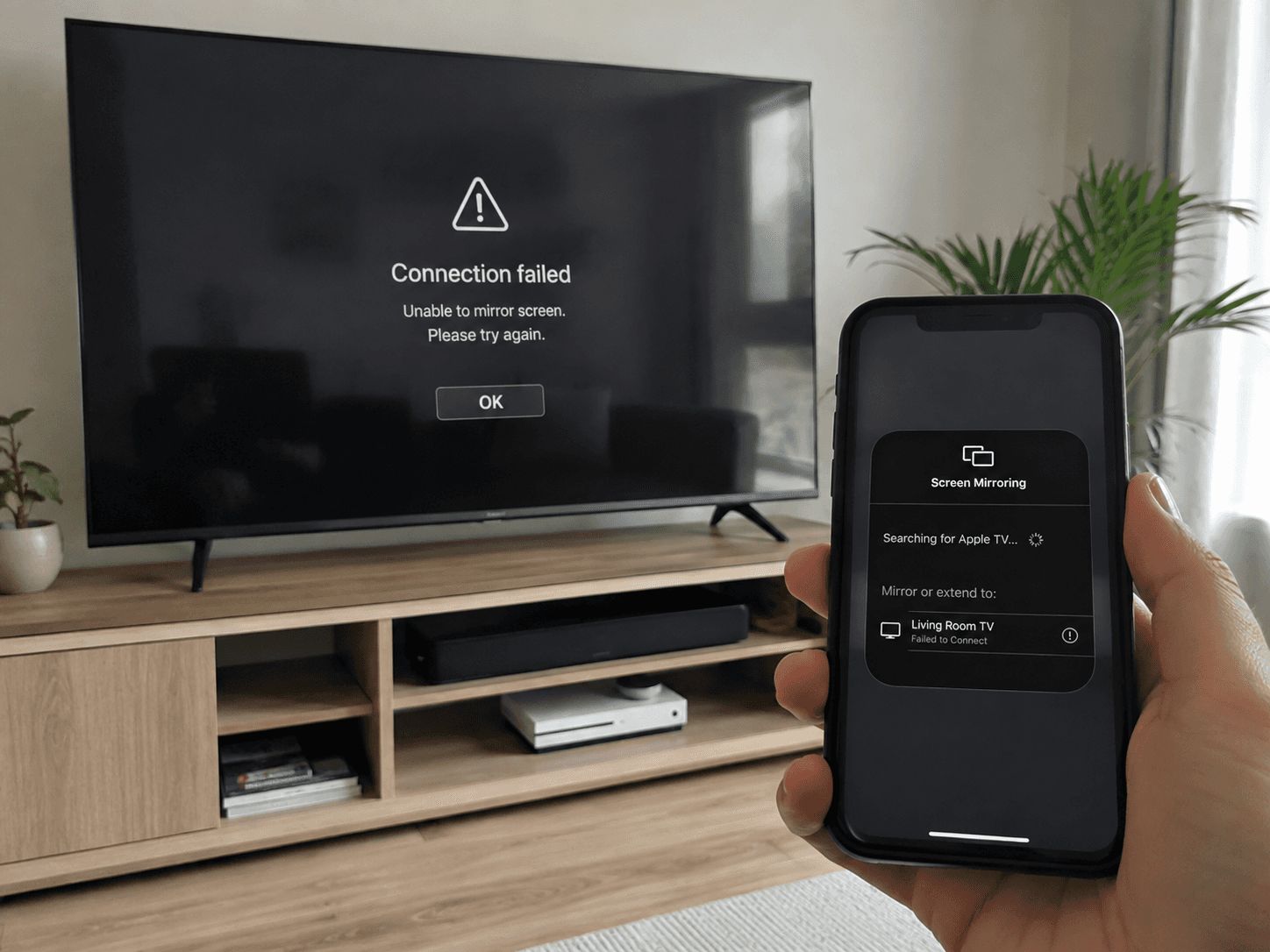
When screen mirroring keeps disconnecting, the cause is usually weak Wi-Fi, blocked device discovery, outdated software, or a problem with the sending device or receiver. Start by restarting both devices and the router, checking the network connection, and testing closer to the router.
When screen mirroring keeps disconnecting, the cause is usually weak Wi-Fi, blocked device discovery, outdated software, or a problem with the sending device or receiver. Start by restarting both devices and the router, checking the network connection, and testing closer to the router.
When screen mirroring keeps disconnecting, the cause is usually weak Wi-Fi, blocked device discovery, outdated software, or a problem with the sending device or receiver. Start by restarting both devices and the router, checking the network connection, and testing closer to the router.
Quick checks
Quick checks
Quick checks
Try these steps first:
Restart the phone, tablet, or computer.
Restart the TV, streaming device, or wireless display adapter.
Restart the router or mesh system.
Move the sending device and receiver closer to the router.
Install available system, app, TV, receiver, and driver updates.
If the connection stays active but the picture lags or stutters, see our screen mirroring lag fixes. If the session connects but the display stays black, see our screen mirroring black screen guide.
For connection failures, missing audio, and other symptoms, use our problem-by-problem screen mirroring troubleshooting guide.
Try these steps first:
Restart the phone, tablet, or computer.
Restart the TV, streaming device, or wireless display adapter.
Restart the router or mesh system.
Move the sending device and receiver closer to the router.
Install available system, app, TV, receiver, and driver updates.
If the connection stays active but the picture lags or stutters, see our screen mirroring lag fixes. If the session connects but the display stays black, see our screen mirroring black screen guide.
For connection failures, missing audio, and other symptoms, use our problem-by-problem screen mirroring troubleshooting guide.
Try these steps first:
Restart the phone, tablet, or computer.
Restart the TV, streaming device, or wireless display adapter.
Restart the router or mesh system.
Move the sending device and receiver closer to the router.
Install available system, app, TV, receiver, and driver updates.
If the connection stays active but the picture lags or stutters, see our screen mirroring lag fixes. If the session connects but the display stays black, see our screen mirroring black screen guide.
For connection failures, missing audio, and other symptoms, use our problem-by-problem screen mirroring troubleshooting guide.
1. Identify the connection method
1. Identify the connection method
1. Identify the connection method
“Screen mirroring” may refer to:
AirPlay for iPhone, iPad, and Mac.
Google Cast for Cast-enabled apps, Chrome, and Android screen casting.
Miracast for compatible Windows PCs, Android devices, TVs, and wireless display adapters.
A manufacturer feature such as Samsung Smart View.
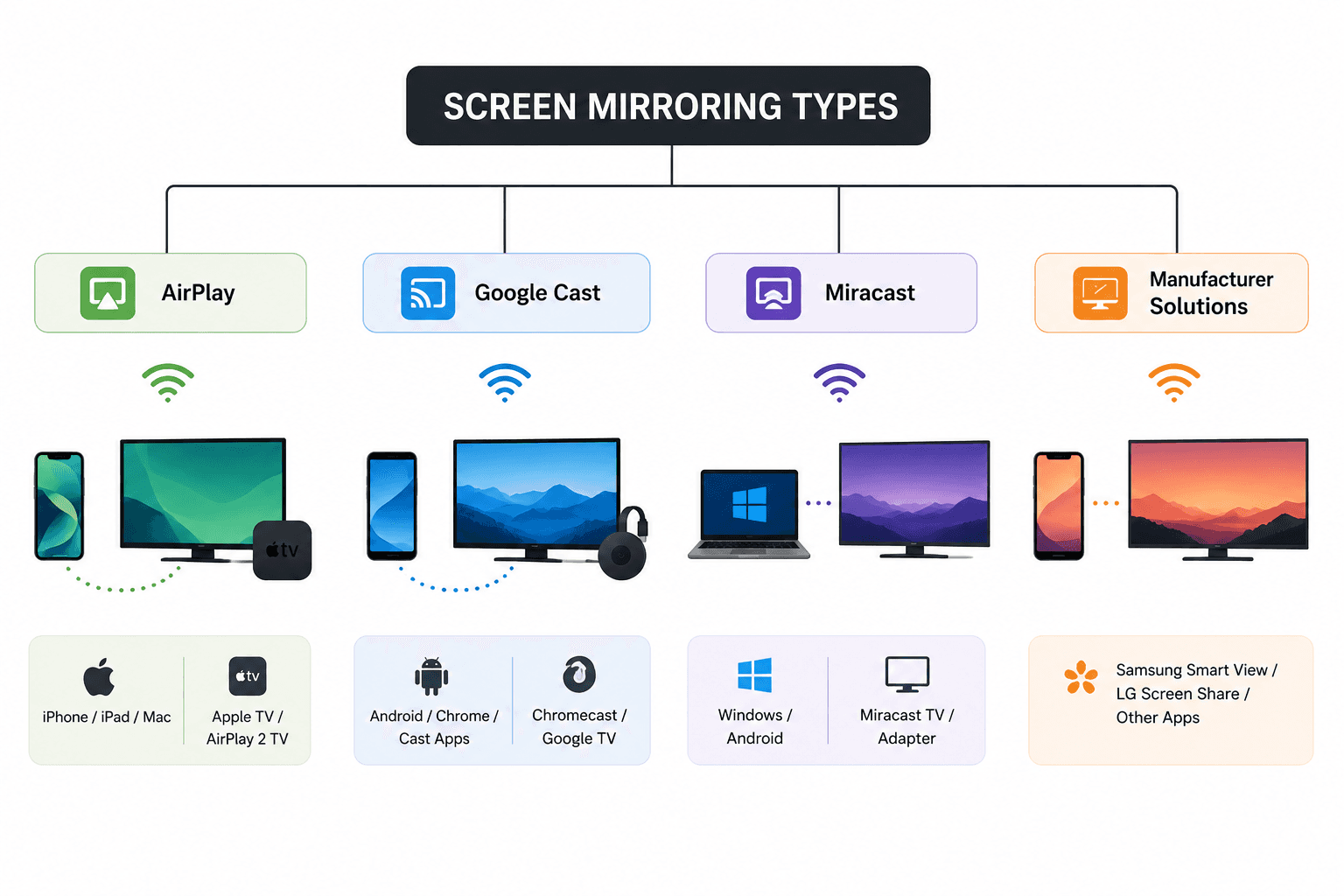
AirPlay and Google Cast both rely on a local network connection, meaning the sending device and receiver must be able to communicate within the same home or office network. In most cases, this also means they should be connected to the same Wi‑Fi network.
Note: “same Wi‑Fi name” alone is not always sufficient—guest networks, mesh extenders with separate subnets, or router isolation settings can still prevent devices from discovering each other.
Miracast works differently. It uses a direct peer-to-peer wireless connection (Wi‑Fi Direct) between devices, so it does not require both devices to be on the same router network. On Windows, Microsoft recommends ensuring Wi‑Fi is enabled, confirming Miracast compatibility, and initiating the connection through the Windows key + K panel.
To clarify the differences, here is a simplified comparison:
Method | Connection type | Same Wi‑Fi required | Internet required | Typical devices / examples |
AirPlay | Local network streaming | Yes | No (for mirroring) | Apple TV, iPhone, iPad, Mac |
Google Cast | Local network streaming | Yes | No (for discovery) | Chromecast, Google TV |
Miracast | Direct wireless (Wi‑Fi Direct) | No | No | Windows PCs, some Android TVs |
DLNA (media sharing) | Local network media streaming | Yes | No | VLC, Plex, BubbleUPnP |
Third-party mirroring apps | Varies (cloud or local relay) | Usually | Sometimes | AirScreen, ApowerMirror |
Miracast, AirPlay, and Google Cast use different discovery and transport paths. See our full technical comparison to understand which parts of the connection depend on the router and which may use a direct wireless link.
In practice, successful screen mirroring depends less on the Wi‑Fi label itself and more on network visibility and permissions. Devices must be on a compatible connection path that allows discovery—without guest network isolation, firewall blocking, or subnet separation preventing communication.
“Screen mirroring” may refer to:
AirPlay for iPhone, iPad, and Mac.
Google Cast for Cast-enabled apps, Chrome, and Android screen casting.
Miracast for compatible Windows PCs, Android devices, TVs, and wireless display adapters.
A manufacturer feature such as Samsung Smart View.
AirPlay and Google Cast both rely on a local network connection, meaning the sending device and receiver must be able to communicate within the same home or office network. In most cases, this also means they should be connected to the same Wi‑Fi network.
Note: “same Wi‑Fi name” alone is not always sufficient—guest networks, mesh extenders with separate subnets, or router isolation settings can still prevent devices from discovering each other.
Miracast works differently. It uses a direct peer-to-peer wireless connection (Wi‑Fi Direct) between devices, so it does not require both devices to be on the same router network. On Windows, Microsoft recommends ensuring Wi‑Fi is enabled, confirming Miracast compatibility, and initiating the connection through the Windows key + K panel.
To clarify the differences, here is a simplified comparison:
Method | Connection type | Same Wi‑Fi required | Internet required | Typical devices / examples |
AirPlay | Local network streaming | Yes | No (for mirroring) | Apple TV, iPhone, iPad, Mac |
Google Cast | Local network streaming | Yes | No (for discovery) | Chromecast, Google TV |
Miracast | Direct wireless (Wi‑Fi Direct) | No | No | Windows PCs, some Android TVs |
DLNA (media sharing) | Local network media streaming | Yes | No | VLC, Plex, BubbleUPnP |
Third-party mirroring apps | Varies (cloud or local relay) | Usually | Sometimes | AirScreen, ApowerMirror |
Miracast, AirPlay, and Google Cast use different discovery and transport paths. See our full technical comparison to understand which parts of the connection depend on the router and which may use a direct wireless link.
In practice, successful screen mirroring depends less on the Wi‑Fi label itself and more on network visibility and permissions. Devices must be on a compatible connection path that allows discovery—without guest network isolation, firewall blocking, or subnet separation preventing communication.
“Screen mirroring” may refer to:
AirPlay for iPhone, iPad, and Mac.
Google Cast for Cast-enabled apps, Chrome, and Android screen casting.
Miracast for compatible Windows PCs, Android devices, TVs, and wireless display adapters.
A manufacturer feature such as Samsung Smart View.
AirPlay and Google Cast both rely on a local network connection, meaning the sending device and receiver must be able to communicate within the same home or office network. In most cases, this also means they should be connected to the same Wi‑Fi network.
Note: “same Wi‑Fi name” alone is not always sufficient—guest networks, mesh extenders with separate subnets, or router isolation settings can still prevent devices from discovering each other.
Miracast works differently. It uses a direct peer-to-peer wireless connection (Wi‑Fi Direct) between devices, so it does not require both devices to be on the same router network. On Windows, Microsoft recommends ensuring Wi‑Fi is enabled, confirming Miracast compatibility, and initiating the connection through the Windows key + K panel.
To clarify the differences, here is a simplified comparison:
Method | Connection type | Same Wi‑Fi required | Internet required | Typical devices / examples |
AirPlay | Local network streaming | Yes | No (for mirroring) | Apple TV, iPhone, iPad, Mac |
Google Cast | Local network streaming | Yes | No (for discovery) | Chromecast, Google TV |
Miracast | Direct wireless (Wi‑Fi Direct) | No | No | Windows PCs, some Android TVs |
DLNA (media sharing) | Local network media streaming | Yes | No | VLC, Plex, BubbleUPnP |
Third-party mirroring apps | Varies (cloud or local relay) | Usually | Sometimes | AirScreen, ApowerMirror |
Miracast, AirPlay, and Google Cast use different discovery and transport paths. See our full technical comparison to understand which parts of the connection depend on the router and which may use a direct wireless link.
In practice, successful screen mirroring depends less on the Wi‑Fi label itself and more on network visibility and permissions. Devices must be on a compatible connection path that allows discovery—without guest network isolation, firewall blocking, or subnet separation preventing communication.
2. Restart the complete connection path
2. Restart the complete connection path
2. Restart the complete connection path
Restarting only the phone or computer may not clear a problem involving the receiver or router.
Restart the devices in this order:
Phone, tablet, or computer.
TV, streaming receiver, or wireless display adapter.
Router or mesh system.
For a streaming dongle, disconnect its power cable rather than removing only the HDMI connection. Removing the HDMI plug may not fully restart the device.
After restarting the router, wait until the internet and Wi-Fi indicators return to normal. Then reconnect the TV or receiver before starting a new mirroring session.
A restart can clear temporary discovery errors, failed pairing states, router connection problems, and software processes that have stopped responding.
Restarting only the phone or computer may not clear a problem involving the receiver or router.
Restart the devices in this order:
Phone, tablet, or computer.
TV, streaming receiver, or wireless display adapter.
Router or mesh system.
For a streaming dongle, disconnect its power cable rather than removing only the HDMI connection. Removing the HDMI plug may not fully restart the device.
After restarting the router, wait until the internet and Wi-Fi indicators return to normal. Then reconnect the TV or receiver before starting a new mirroring session.
A restart can clear temporary discovery errors, failed pairing states, router connection problems, and software processes that have stopped responding.
Restarting only the phone or computer may not clear a problem involving the receiver or router.
Restart the devices in this order:
Phone, tablet, or computer.
TV, streaming receiver, or wireless display adapter.
Router or mesh system.
For a streaming dongle, disconnect its power cable rather than removing only the HDMI connection. Removing the HDMI plug may not fully restart the device.
After restarting the router, wait until the internet and Wi-Fi indicators return to normal. Then reconnect the TV or receiver before starting a new mirroring session.
A restart can clear temporary discovery errors, failed pairing states, router connection problems, and software processes that have stopped responding.
3. Verify the network and device discovery
3. Verify the network and device discovery
3. Verify the network and device discovery
For AirPlay and Google Cast, check the Wi-Fi network name on both devices. A phone may be connected to the main network while the TV is using:
A guest network.
A different router.
A Wi-Fi extender with a separate network.
A network managed by another mesh system.
Two networks can have similar names while still preventing connected devices from communicating.
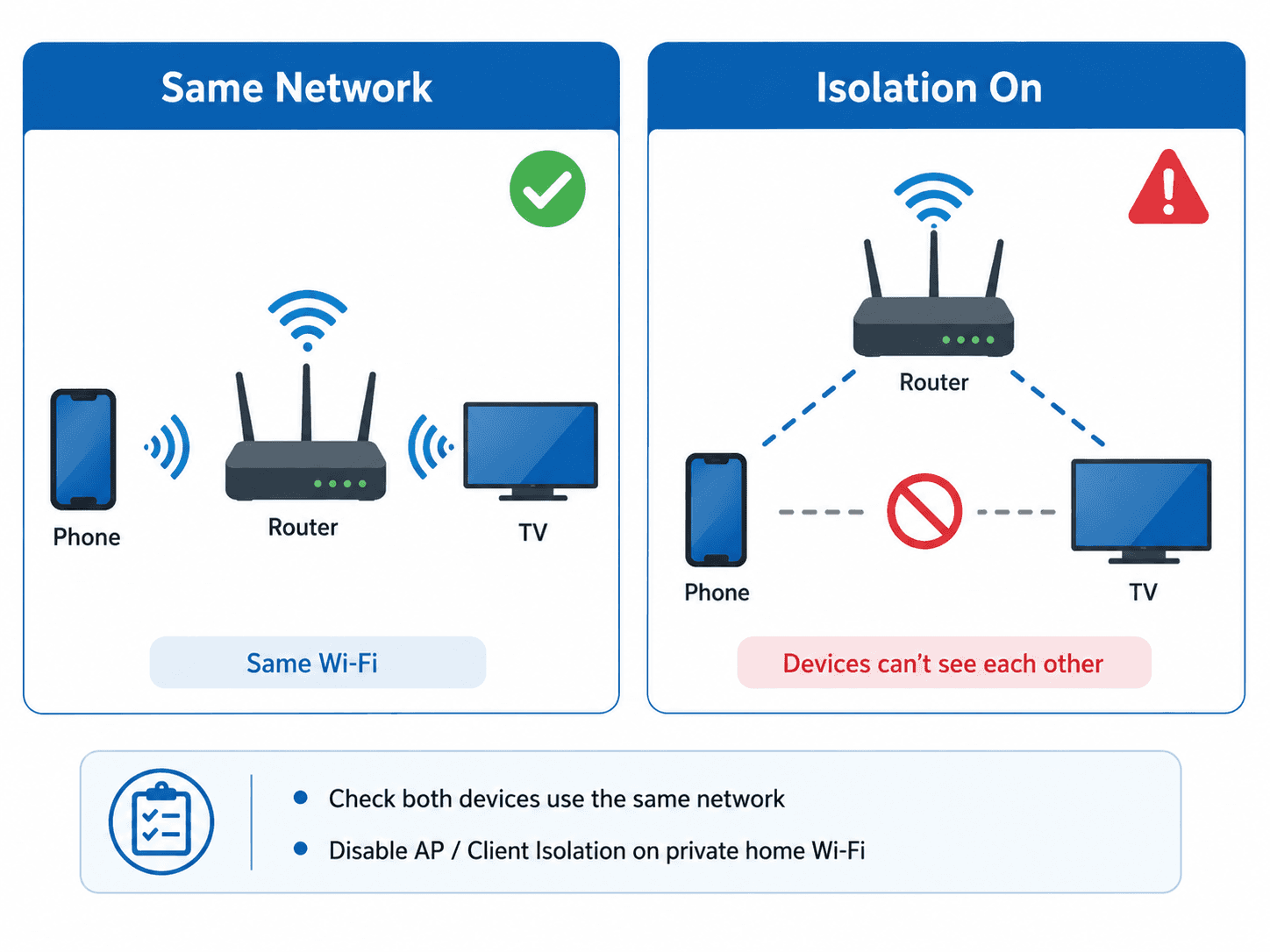
Check client isolation
Some routers block communication between connected devices. This setting may be called:
AP isolation.
Client isolation.
Wireless isolation.
Guest isolation.
Isolation is useful on public or guest networks, but it can stop a phone or computer from discovering a TV or Cast receiver.
Disable isolation only on a private network you control. For an office, school, hotel, dormitory, or shared network, contact the network administrator instead.
Avoid captive-portal networks
Public networks often require users to sign in through a browser. These are known as captive-portal networks.
Chromecast and similar receivers may not work correctly on these networks because the receiver cannot complete the browser-based login or communicate directly with other devices.
Use the venue’s official casting system, a permitted wired connection, or another approved connection method. Do not attempt to bypass network security restrictions.
For AirPlay and Google Cast, check the Wi-Fi network name on both devices. A phone may be connected to the main network while the TV is using:
A guest network.
A different router.
A Wi-Fi extender with a separate network.
A network managed by another mesh system.
Two networks can have similar names while still preventing connected devices from communicating.
Check client isolation
Some routers block communication between connected devices. This setting may be called:
AP isolation.
Client isolation.
Wireless isolation.
Guest isolation.
Isolation is useful on public or guest networks, but it can stop a phone or computer from discovering a TV or Cast receiver.
Disable isolation only on a private network you control. For an office, school, hotel, dormitory, or shared network, contact the network administrator instead.
Avoid captive-portal networks
Public networks often require users to sign in through a browser. These are known as captive-portal networks.
Chromecast and similar receivers may not work correctly on these networks because the receiver cannot complete the browser-based login or communicate directly with other devices.
Use the venue’s official casting system, a permitted wired connection, or another approved connection method. Do not attempt to bypass network security restrictions.
For AirPlay and Google Cast, check the Wi-Fi network name on both devices. A phone may be connected to the main network while the TV is using:
A guest network.
A different router.
A Wi-Fi extender with a separate network.
A network managed by another mesh system.
Two networks can have similar names while still preventing connected devices from communicating.
Check client isolation
Some routers block communication between connected devices. This setting may be called:
AP isolation.
Client isolation.
Wireless isolation.
Guest isolation.
Isolation is useful on public or guest networks, but it can stop a phone or computer from discovering a TV or Cast receiver.
Disable isolation only on a private network you control. For an office, school, hotel, dormitory, or shared network, contact the network administrator instead.
Avoid captive-portal networks
Public networks often require users to sign in through a browser. These are known as captive-portal networks.
Chromecast and similar receivers may not work correctly on these networks because the receiver cannot complete the browser-based login or communicate directly with other devices.
Use the venue’s official casting system, a permitted wired connection, or another approved connection method. Do not attempt to bypass network security restrictions.
4. Improve signal strength and choose the right Wi-Fi band
4. Improve signal strength and choose the right Wi-Fi band
4. Improve signal strength and choose the right Wi-Fi band
A connection that works near the router but disconnects across the room usually points to weak coverage or interference.
Move the phone, computer, or receiver closer to the router for a test. Keep streaming devices away from:
Metal cabinets.
Thick walls.
Crowded cables.
Large electronic devices.
The enclosed space behind a television.
If a streaming dongle is hidden behind the TV, an HDMI extension cable may help move it into a more open position.
Test 5 GHz and 2.4 GHz
Use 5 GHz when the receiver is close to the router and has a strong signal. It usually offers higher capacity and less congestion.
Use 2.4 GHz when the signal must travel farther or pass through more walls.
A weak 5 GHz connection can be less stable than a strong 2.4 GHz connection. Test both bands from the TV’s actual location.
For Android screen casting to a Google streaming device, connecting both devices to the same Wi-Fi band can also help during troubleshooting. This is a Google Cast troubleshooting step rather than a requirement for every mirroring technology.
If moving closer to the router fixes the problem, consider repositioning the router, adjusting a mesh node, adding an access point, or using Ethernet.
A connection that works near the router but disconnects across the room usually points to weak coverage or interference.
Move the phone, computer, or receiver closer to the router for a test. Keep streaming devices away from:
Metal cabinets.
Thick walls.
Crowded cables.
Large electronic devices.
The enclosed space behind a television.
If a streaming dongle is hidden behind the TV, an HDMI extension cable may help move it into a more open position.
Test 5 GHz and 2.4 GHz
Use 5 GHz when the receiver is close to the router and has a strong signal. It usually offers higher capacity and less congestion.
Use 2.4 GHz when the signal must travel farther or pass through more walls.
A weak 5 GHz connection can be less stable than a strong 2.4 GHz connection. Test both bands from the TV’s actual location.
For Android screen casting to a Google streaming device, connecting both devices to the same Wi-Fi band can also help during troubleshooting. This is a Google Cast troubleshooting step rather than a requirement for every mirroring technology.
If moving closer to the router fixes the problem, consider repositioning the router, adjusting a mesh node, adding an access point, or using Ethernet.
A connection that works near the router but disconnects across the room usually points to weak coverage or interference.
Move the phone, computer, or receiver closer to the router for a test. Keep streaming devices away from:
Metal cabinets.
Thick walls.
Crowded cables.
Large electronic devices.
The enclosed space behind a television.
If a streaming dongle is hidden behind the TV, an HDMI extension cable may help move it into a more open position.
Test 5 GHz and 2.4 GHz
Use 5 GHz when the receiver is close to the router and has a strong signal. It usually offers higher capacity and less congestion.
Use 2.4 GHz when the signal must travel farther or pass through more walls.
A weak 5 GHz connection can be less stable than a strong 2.4 GHz connection. Test both bands from the TV’s actual location.
For Android screen casting to a Google streaming device, connecting both devices to the same Wi-Fi band can also help during troubleshooting. This is a Google Cast troubleshooting step rather than a requirement for every mirroring technology.
If moving closer to the router fixes the problem, consider repositioning the router, adjusting a mesh node, adding an access point, or using Ethernet.
5. Reduce congestion and wireless interference
5. Reduce congestion and wireless interference
5. Reduce congestion and wireless interference
Screen mirroring requires a steady local connection. It can become unstable when the network is handling too much activity.
Temporarily pause:
Large downloads.
Cloud backups.
Multiple high-resolution video streams.
Game downloads and updates.
Large file transfers between local devices.
If mirroring becomes stable after pausing these activities, network congestion is likely contributing to the disconnections.
Wireless interference can also affect stability, particularly on the 2.4 GHz band. Nearby Bluetooth devices, cordless phones, microwaves, and overlapping Wi-Fi networks may compete for the same wireless spectrum.
Keep the router’s channel setting on automatic unless you have identified a specific congestion problem. Changing channels randomly may reduce performance instead of improving it.
Screen mirroring requires a steady local connection. It can become unstable when the network is handling too much activity.
Temporarily pause:
Large downloads.
Cloud backups.
Multiple high-resolution video streams.
Game downloads and updates.
Large file transfers between local devices.
If mirroring becomes stable after pausing these activities, network congestion is likely contributing to the disconnections.
Wireless interference can also affect stability, particularly on the 2.4 GHz band. Nearby Bluetooth devices, cordless phones, microwaves, and overlapping Wi-Fi networks may compete for the same wireless spectrum.
Keep the router’s channel setting on automatic unless you have identified a specific congestion problem. Changing channels randomly may reduce performance instead of improving it.
Screen mirroring requires a steady local connection. It can become unstable when the network is handling too much activity.
Temporarily pause:
Large downloads.
Cloud backups.
Multiple high-resolution video streams.
Game downloads and updates.
Large file transfers between local devices.
If mirroring becomes stable after pausing these activities, network congestion is likely contributing to the disconnections.
Wireless interference can also affect stability, particularly on the 2.4 GHz band. Nearby Bluetooth devices, cordless phones, microwaves, and overlapping Wi-Fi networks may compete for the same wireless spectrum.
Keep the router’s channel setting on automatic unless you have identified a specific congestion problem. Changing channels randomly may reduce performance instead of improving it.
6. Check permissions, VPNs, and security tools
6. Check permissions, VPNs, and security tools
6. Check permissions, VPNs, and security tools
A device may be connected to the correct network but still be unable to discover the receiver because local-network access is blocked.
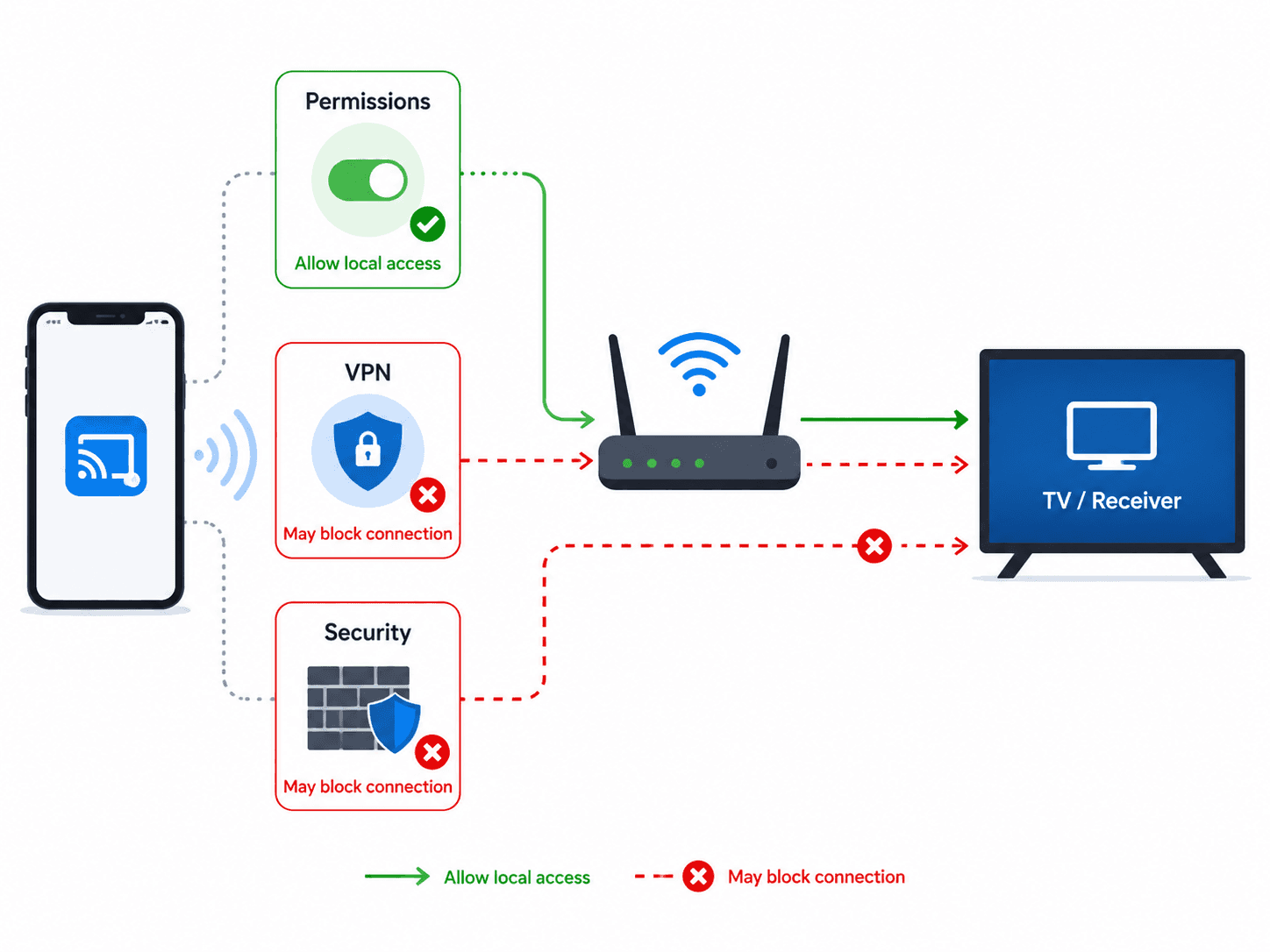
On an iPhone or iPad, open:
Settings > Privacy & Security > Local Network
Enable access for the application you are using to cast.
Also check whether the application requires screen-recording, nearby-device, Bluetooth, or network permissions. The required permissions depend on the operating system and mirroring method.
VPNs, firewalls, network filters, antivirus tools, and managed security profiles may also block local communication.
Temporarily disable one suspected tool at a time and test the connection. Restore the protection immediately after testing.
When a security tool is responsible, configure an exception for trusted local-network communication rather than leaving the security feature disabled.
A device may be connected to the correct network but still be unable to discover the receiver because local-network access is blocked.
On an iPhone or iPad, open:
Settings > Privacy & Security > Local Network
Enable access for the application you are using to cast.
Also check whether the application requires screen-recording, nearby-device, Bluetooth, or network permissions. The required permissions depend on the operating system and mirroring method.
VPNs, firewalls, network filters, antivirus tools, and managed security profiles may also block local communication.
Temporarily disable one suspected tool at a time and test the connection. Restore the protection immediately after testing.
When a security tool is responsible, configure an exception for trusted local-network communication rather than leaving the security feature disabled.
A device may be connected to the correct network but still be unable to discover the receiver because local-network access is blocked.
On an iPhone or iPad, open:
Settings > Privacy & Security > Local Network
Enable access for the application you are using to cast.
Also check whether the application requires screen-recording, nearby-device, Bluetooth, or network permissions. The required permissions depend on the operating system and mirroring method.
VPNs, firewalls, network filters, antivirus tools, and managed security profiles may also block local communication.
Temporarily disable one suspected tool at a time and test the connection. Restore the protection immediately after testing.
When a security tool is responsible, configure an exception for trusted local-network communication rather than leaving the security feature disabled.
7. Update, remove, and reconnect the receiver
7. Update, remove, and reconnect the receiver
7. Update, remove, and reconnect the receiver
Install available updates for:
The phone, tablet, or computer.
The smart TV or streaming receiver.
The mirroring or casting application.
The router or mesh system.
Windows Wi-Fi and graphics drivers.
The wireless display adapter firmware.
Older software can cause compatibility, discovery, authentication, and connection-stability problems.
After updating, restart the devices and try again.
If the receiver still disconnects, remove the saved connection and pair it again. On Windows 11:
Open Settings.
Select Bluetooth & devices > Devices.
Remove the wireless display.
Press Windows key + K.
Select the receiver again.
For AirPlay or Google Cast, restart the receiver and repeat the standard connection process.
Use a factory reset only after the other steps have failed. A factory reset removes saved networks, accounts, and device settings.
Install available updates for:
The phone, tablet, or computer.
The smart TV or streaming receiver.
The mirroring or casting application.
The router or mesh system.
Windows Wi-Fi and graphics drivers.
The wireless display adapter firmware.
Older software can cause compatibility, discovery, authentication, and connection-stability problems.
After updating, restart the devices and try again.
If the receiver still disconnects, remove the saved connection and pair it again. On Windows 11:
Open Settings.
Select Bluetooth & devices > Devices.
Remove the wireless display.
Press Windows key + K.
Select the receiver again.
For AirPlay or Google Cast, restart the receiver and repeat the standard connection process.
Use a factory reset only after the other steps have failed. A factory reset removes saved networks, accounts, and device settings.
Install available updates for:
The phone, tablet, or computer.
The smart TV or streaming receiver.
The mirroring or casting application.
The router or mesh system.
Windows Wi-Fi and graphics drivers.
The wireless display adapter firmware.
Older software can cause compatibility, discovery, authentication, and connection-stability problems.
After updating, restart the devices and try again.
If the receiver still disconnects, remove the saved connection and pair it again. On Windows 11:
Open Settings.
Select Bluetooth & devices > Devices.
Remove the wireless display.
Press Windows key + K.
Select the receiver again.
For AirPlay or Google Cast, restart the receiver and repeat the standard connection process.
Use a factory reset only after the other steps have failed. A factory reset removes saved networks, accounts, and device settings.
Final checklist
Final checklist
Final checklist
Before resetting or replacing hardware, confirm that you have:
Restarted the sender, receiver, and router.
Identified the mirroring technology.
Checked the correct network.
Ruled out guest networks and client isolation.
Tested closer to the router.
Tried both Wi-Fi bands.
Paused heavy network activity.
Checked permissions, VPNs, and security tools.
Updated the software, firmware, and drivers.
Removed and reconnected the receiver.
Tested Ethernet where supported.
Change one setting at a time. This makes it easier to identify the actual cause instead of temporarily hiding it.
Before resetting or replacing hardware, confirm that you have:
Restarted the sender, receiver, and router.
Identified the mirroring technology.
Checked the correct network.
Ruled out guest networks and client isolation.
Tested closer to the router.
Tried both Wi-Fi bands.
Paused heavy network activity.
Checked permissions, VPNs, and security tools.
Updated the software, firmware, and drivers.
Removed and reconnected the receiver.
Tested Ethernet where supported.
Change one setting at a time. This makes it easier to identify the actual cause instead of temporarily hiding it.
Before resetting or replacing hardware, confirm that you have:
Restarted the sender, receiver, and router.
Identified the mirroring technology.
Checked the correct network.
Ruled out guest networks and client isolation.
Tested closer to the router.
Tried both Wi-Fi bands.
Paused heavy network activity.
Checked permissions, VPNs, and security tools.
Updated the software, firmware, and drivers.
Removed and reconnected the receiver.
Tested Ethernet where supported.
Change one setting at a time. This makes it easier to identify the actual cause instead of temporarily hiding it.
Table of content
Table of content


Still Need a Hand?
Still Need a Hand?
Still Need a Hand?
Explore more reviews, step-by-step guides, and troubleshooting tips—or contact us if you could not find the answer you needed.
Explore more reviews, step-by-step guides, and troubleshooting tips—or contact us if you could not find the answer you needed.
Explore more reviews, step-by-step guides, and troubleshooting tips—or contact us if you could not find the answer you needed.