
Miracast vs AirPlay vs Chromecast: Complete technical comparison
Miracast vs AirPlay vs Chromecast: Complete technical comparison
Miracast vs AirPlay vs Chromecast: Complete technical comparison
Compare Miracast, AirPlay, and Chromecast by compatibility, network, latency, quality, and use case to choose the right screen-sharing technology.
Compare Miracast, AirPlay, and Chromecast by compatibility, network, latency, quality, and use case to choose the right screen-sharing technology.
Compare Miracast, AirPlay, and Chromecast by compatibility, network, latency, quality, and use case to choose the right screen-sharing technology.
Miracast, AirPlay, and Chromecast can all put content on a larger screen. Their underlying methods are quite different.
Miracast is primarily a wireless display standard. AirPlay supports media streaming and screen mirroring across Apple devices. Google Cast often lets the receiver play media while the phone or computer controls the session.
Chromecast also needs a naming update. Google ended production of Chromecast hardware in 2024 and replaced it with the Google TV Streamer. Existing Chromecast devices remain in use, while Google Cast continues as a platform for apps, TVs, and streaming hardware. Google's Chromecast announcement confirms this transition.
Choosing between these technologies depends on five factors: the sender, receiver, network, content, and sharing mode.
Miracast, AirPlay, and Chromecast can all put content on a larger screen. Their underlying methods are quite different.
Miracast is primarily a wireless display standard. AirPlay supports media streaming and screen mirroring across Apple devices. Google Cast often lets the receiver play media while the phone or computer controls the session.
Chromecast also needs a naming update. Google ended production of Chromecast hardware in 2024 and replaced it with the Google TV Streamer. Existing Chromecast devices remain in use, while Google Cast continues as a platform for apps, TVs, and streaming hardware. Google's Chromecast announcement confirms this transition.
Choosing between these technologies depends on five factors: the sender, receiver, network, content, and sharing mode.
Miracast, AirPlay, and Chromecast can all put content on a larger screen. Their underlying methods are quite different.
Miracast is primarily a wireless display standard. AirPlay supports media streaming and screen mirroring across Apple devices. Google Cast often lets the receiver play media while the phone or computer controls the session.
Chromecast also needs a naming update. Google ended production of Chromecast hardware in 2024 and replaced it with the Google TV Streamer. Existing Chromecast devices remain in use, while Google Cast continues as a platform for apps, TVs, and streaming hardware. Google's Chromecast announcement confirms this transition.
Choosing between these technologies depends on five factors: the sender, receiver, network, content, and sharing mode.
Miracast vs AirPlay vs Chromecast at a glance
Miracast vs AirPlay vs Chromecast at a glance
Miracast vs AirPlay vs Chromecast at a glance
Miracast is a natural fit for compatible Windows computers that need to share a desktop. AirPlay is usually the simplest option for an iPhone, iPad, or Mac. Google Cast works well when a supported media app can hand playback to the receiver.
No option provides universal native compatibility.
Feature | Miracast | AirPlay | Google Cast |
Main purpose | Wireless display and screen mirroring | Media streaming and screen mirroring | App casting, browser casting, and screen sharing |
Technology owner | Wi-Fi Alliance standard | Apple | |
Common senders | Windows PCs and selected Android devices | iPhone, iPad, and Mac | Android, Chrome, and supported iOS apps |
Common receivers | Compatible TVs, adapters, displays, and Windows PCs | Apple TV, Mac, and compatible smart TVs | Google TV Streamer, Chromecast, and Cast-enabled TVs |
Typical media path | Screen encoded by the sender | Depends on the AirPlay mode | Receiver commonly loads media during app casting |
Local network required | Not always | Usually, with peer-to-peer exceptions | Usually |
Best fit | Desktop projection | Apple devices | Supported streaming apps |
Main limitation | Limited Apple support | Apple-centered sending experience | Screen sharing varies by platform |
A protocol name does not define the entire experience. Two receivers may support different resolutions, codecs, or content protection levels.
Miracast is a natural fit for compatible Windows computers that need to share a desktop. AirPlay is usually the simplest option for an iPhone, iPad, or Mac. Google Cast works well when a supported media app can hand playback to the receiver.
No option provides universal native compatibility.
Feature | Miracast | AirPlay | Google Cast |
Main purpose | Wireless display and screen mirroring | Media streaming and screen mirroring | App casting, browser casting, and screen sharing |
Technology owner | Wi-Fi Alliance standard | Apple | |
Common senders | Windows PCs and selected Android devices | iPhone, iPad, and Mac | Android, Chrome, and supported iOS apps |
Common receivers | Compatible TVs, adapters, displays, and Windows PCs | Apple TV, Mac, and compatible smart TVs | Google TV Streamer, Chromecast, and Cast-enabled TVs |
Typical media path | Screen encoded by the sender | Depends on the AirPlay mode | Receiver commonly loads media during app casting |
Local network required | Not always | Usually, with peer-to-peer exceptions | Usually |
Best fit | Desktop projection | Apple devices | Supported streaming apps |
Main limitation | Limited Apple support | Apple-centered sending experience | Screen sharing varies by platform |
A protocol name does not define the entire experience. Two receivers may support different resolutions, codecs, or content protection levels.
Miracast is a natural fit for compatible Windows computers that need to share a desktop. AirPlay is usually the simplest option for an iPhone, iPad, or Mac. Google Cast works well when a supported media app can hand playback to the receiver.
No option provides universal native compatibility.
Feature | Miracast | AirPlay | Google Cast |
Main purpose | Wireless display and screen mirroring | Media streaming and screen mirroring | App casting, browser casting, and screen sharing |
Technology owner | Wi-Fi Alliance standard | Apple | |
Common senders | Windows PCs and selected Android devices | iPhone, iPad, and Mac | Android, Chrome, and supported iOS apps |
Common receivers | Compatible TVs, adapters, displays, and Windows PCs | Apple TV, Mac, and compatible smart TVs | Google TV Streamer, Chromecast, and Cast-enabled TVs |
Typical media path | Screen encoded by the sender | Depends on the AirPlay mode | Receiver commonly loads media during app casting |
Local network required | Not always | Usually, with peer-to-peer exceptions | Usually |
Best fit | Desktop projection | Apple devices | Supported streaming apps |
Main limitation | Limited Apple support | Apple-centered sending experience | Screen sharing varies by platform |
A protocol name does not define the entire experience. Two receivers may support different resolutions, codecs, or content protection levels.
How the three technologies work
How the three technologies work
How the three technologies work
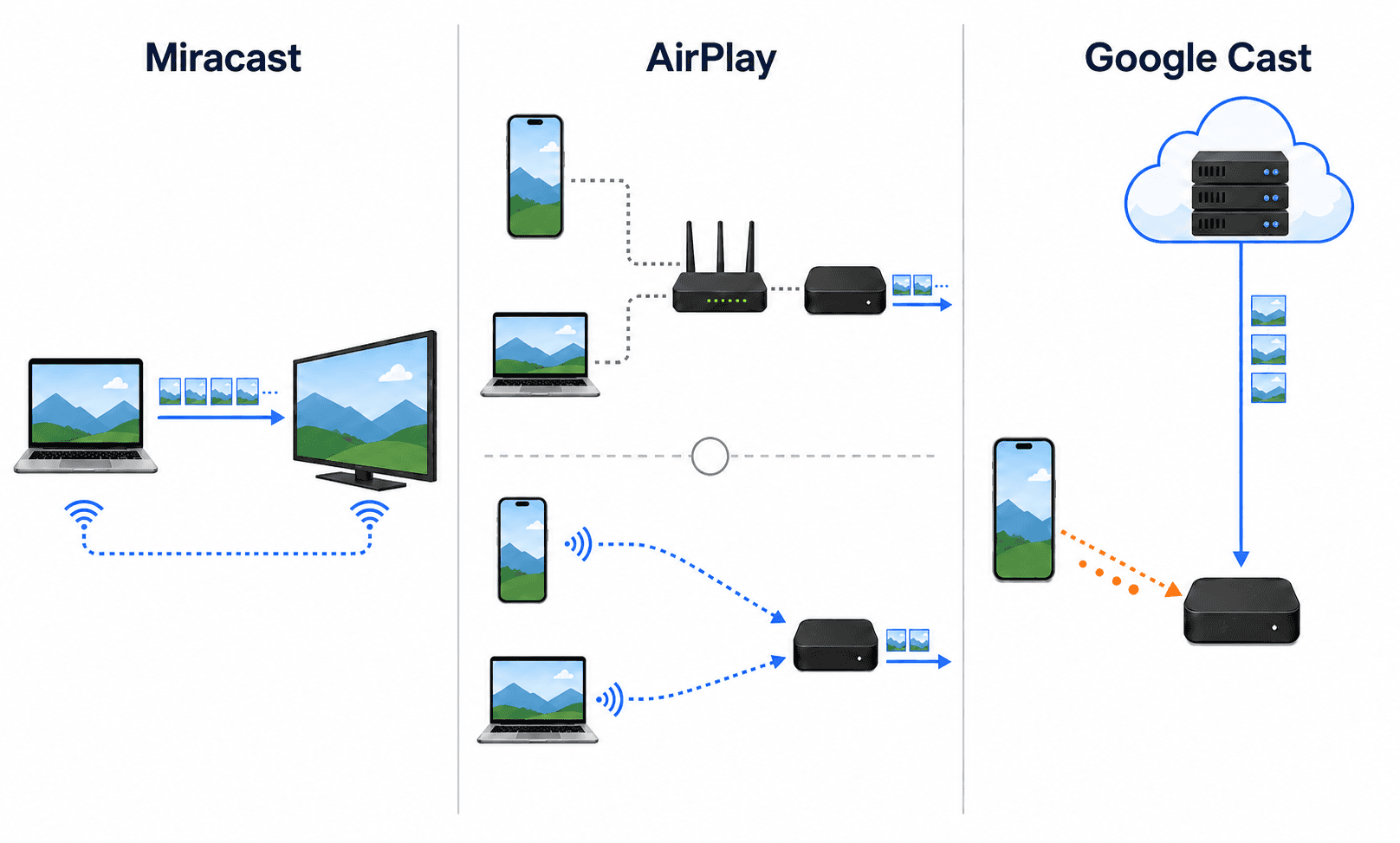
How Miracast works
Miracast is a wireless display standard based on Wi-Fi Direct. It defines a connection between a source and a receiving display, often called a sink.
The source captures and encodes its display output. The sink receives that video and presents it on a TV, projector, or monitor.
Microsoft describes Miracast as a peer-to-peer wireless display system. Windows includes a Miracast stack for compatible hardware. Microsoft's Miracast documentation explains the implementation.
On a compatible Windows 11 PC, Windows + K opens the wireless display panel. The graphics driver and wireless hardware must support the required functions.
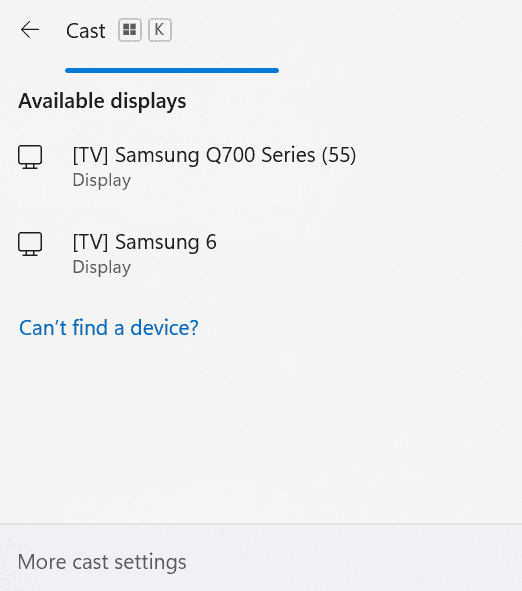
Windows requires hardware-accelerated H.264 encoding for its Miracast sender implementation. HEVC support is recommended for higher resolutions and more efficient compression, but it is not universal. Microsoft's wireless projection requirements list these codec requirements.
Protected streaming media may also require HDCP 2.x support. A receiver can therefore show the desktop but fail when protected video starts.
Miracast normally uses Wi-Fi Direct. Current Windows systems can also use Miracast over Infrastructure in compatible environments.
Discovery may begin through the peer-to-peer process before Windows routes the projection stream across an existing secure network. If that route fails, the system can fall back to Wi-Fi Direct. Microsoft's Miracast over Infrastructure guide describes the process.
This distinction matters during troubleshooting. Finding a receiver and transporting the video are separate stages. A display may appear in the device list even when the later connection fails.
How AirPlay works
AirPlay is Apple's technology for streaming audio, video, and photos. It can also mirror an Apple device's screen.
An iPhone or iPad can send media through an AirPlay control inside a supported app. Screen Mirroring in Control Center sends a live view of the device instead.
Mac users have similar choices. They can stream from compatible apps or mirror a display.
Apple lists Apple TV, compatible smart TVs, and supported Macs as AirPlay destinations. Apple's AirPlay guide distinguishes media streaming from screen mirroring.
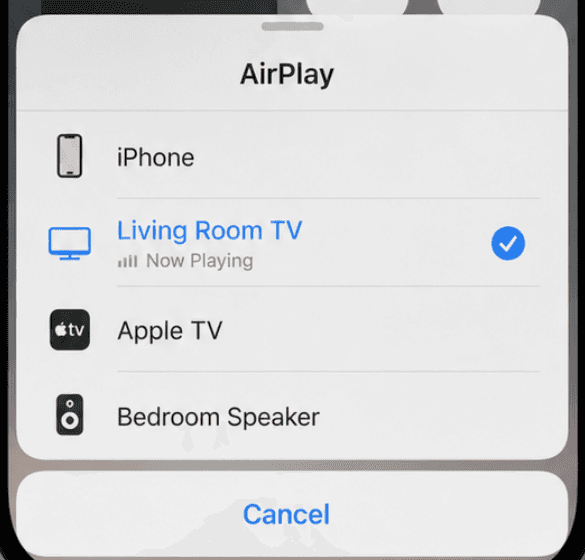
For normal consumer use, Apple tells users to place the source and receiver on the same Wi-Fi network. Compatible Apple TV models can also support peer-to-peer AirPlay.
In that mode, nearby Apple devices use Bluetooth Low Energy for discovery. They then create a temporary Wi-Fi connection for the session. The devices do not need to join the same infrastructure network.
Peer-to-peer support should not be assumed for every smart TV with AirPlay. Apple's deployment documentation describes specific Apple TV and operating system requirements. Apple's AirPlay deployment guide provides the details.
AirPlay works best when the sender is an iPhone, iPad, or Mac. Windows and Android do not offer the same native sender experience.
AirPlay 2 also includes audio features such as multiroom playback. Those functions should not be used to infer the latency or quality of screen mirroring.
How Google Cast works
Google Cast is a sender and receiver platform. It supports Android, iOS, and web sender apps, along with receiver software on Google streaming devices and compatible TVs.
Chromecast remains a common search term, but the hardware line is discontinued. Google TV Streamer is the current replacement and retains casting support. Google's product announcement states that it replaces Chromecast.
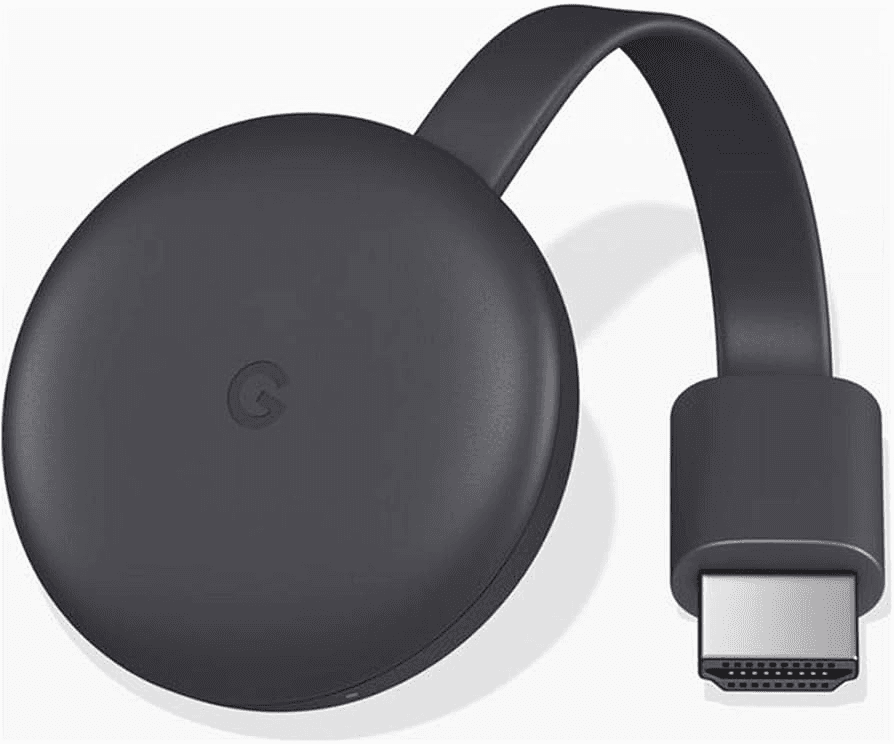
App casting is the main Google Cast experience. A user taps the Cast button, selects a receiver, and starts a session.
The receiver then handles the media according to the app's Cast implementation. The phone remains available for pausing, seeking, volume control, and queue changes.
An iPhone can act as a sender when its app supports Google Cast. This does not give iOS a system-wide Cast function equivalent to AirPlay Screen Mirroring.
Chrome can send one browser tab or an entire computer screen. Tab casting keeps other windows private. Full screen casting keeps the computer involved throughout the session.
Audio behavior differs between these modes. Google notes that sound may remain on the computer during full screen casting. Tab casting is often more suitable when audio should play on the TV. Google's Chrome casting guide explains the available sources.
Supported Android devices can also cast one app or the whole screen. Google describes a direct connection between the Android sender and receiver during screen casting.
Both devices must still meet the local network requirements. They should use the same SSID, and access point isolation must be disabled. Google's Android casting guidance lists these conditions.
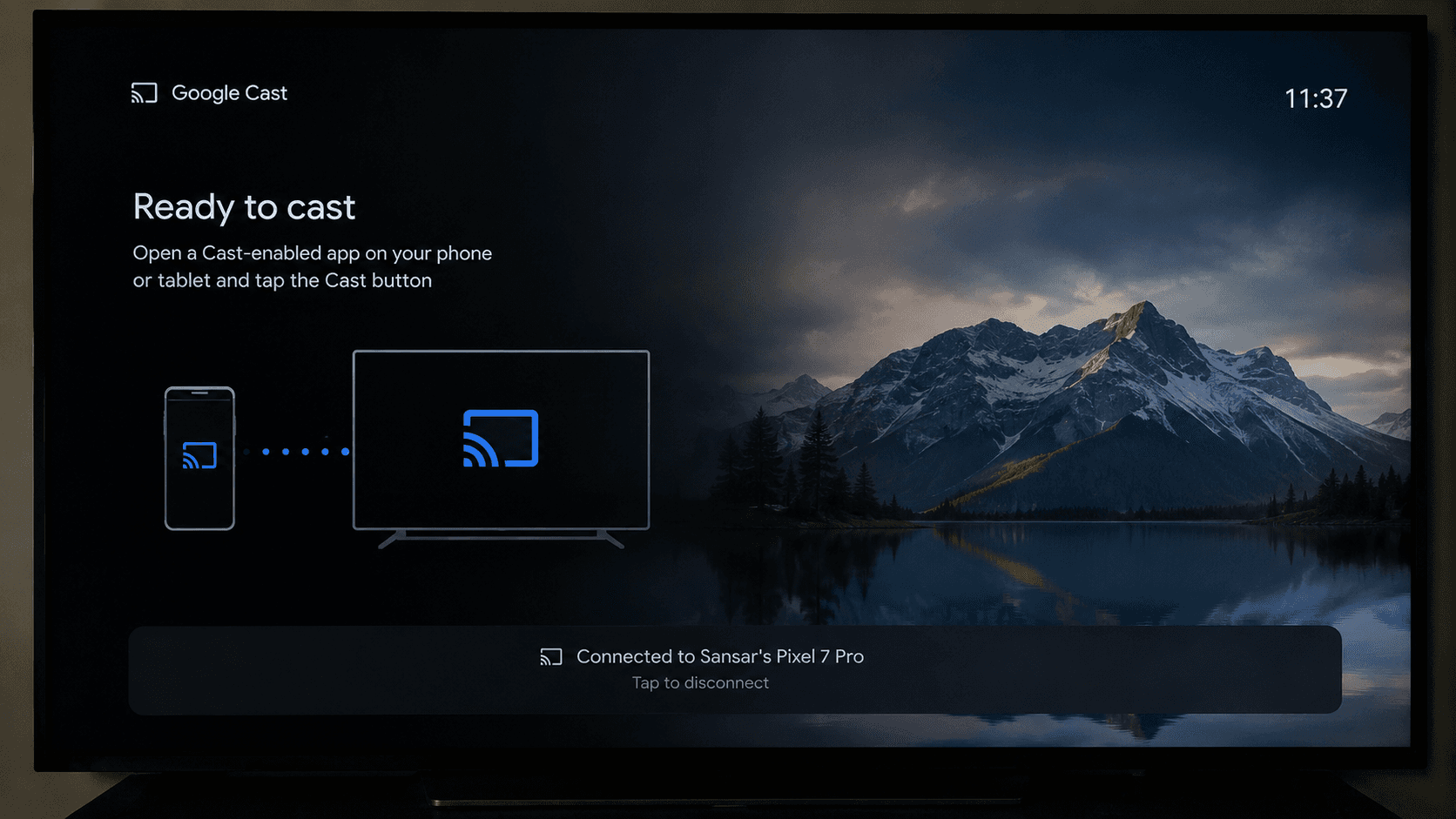
How Miracast works
Miracast is a wireless display standard based on Wi-Fi Direct. It defines a connection between a source and a receiving display, often called a sink.
The source captures and encodes its display output. The sink receives that video and presents it on a TV, projector, or monitor.
Microsoft describes Miracast as a peer-to-peer wireless display system. Windows includes a Miracast stack for compatible hardware. Microsoft's Miracast documentation explains the implementation.
On a compatible Windows 11 PC, Windows + K opens the wireless display panel. The graphics driver and wireless hardware must support the required functions.
Windows requires hardware-accelerated H.264 encoding for its Miracast sender implementation. HEVC support is recommended for higher resolutions and more efficient compression, but it is not universal. Microsoft's wireless projection requirements list these codec requirements.
Protected streaming media may also require HDCP 2.x support. A receiver can therefore show the desktop but fail when protected video starts.
Miracast normally uses Wi-Fi Direct. Current Windows systems can also use Miracast over Infrastructure in compatible environments.
Discovery may begin through the peer-to-peer process before Windows routes the projection stream across an existing secure network. If that route fails, the system can fall back to Wi-Fi Direct. Microsoft's Miracast over Infrastructure guide describes the process.
This distinction matters during troubleshooting. Finding a receiver and transporting the video are separate stages. A display may appear in the device list even when the later connection fails.
How AirPlay works
AirPlay is Apple's technology for streaming audio, video, and photos. It can also mirror an Apple device's screen.
An iPhone or iPad can send media through an AirPlay control inside a supported app. Screen Mirroring in Control Center sends a live view of the device instead.
Mac users have similar choices. They can stream from compatible apps or mirror a display.
Apple lists Apple TV, compatible smart TVs, and supported Macs as AirPlay destinations. Apple's AirPlay guide distinguishes media streaming from screen mirroring.
For normal consumer use, Apple tells users to place the source and receiver on the same Wi-Fi network. Compatible Apple TV models can also support peer-to-peer AirPlay.
In that mode, nearby Apple devices use Bluetooth Low Energy for discovery. They then create a temporary Wi-Fi connection for the session. The devices do not need to join the same infrastructure network.
Peer-to-peer support should not be assumed for every smart TV with AirPlay. Apple's deployment documentation describes specific Apple TV and operating system requirements. Apple's AirPlay deployment guide provides the details.
AirPlay works best when the sender is an iPhone, iPad, or Mac. Windows and Android do not offer the same native sender experience.
AirPlay 2 also includes audio features such as multiroom playback. Those functions should not be used to infer the latency or quality of screen mirroring.
How Google Cast works
Google Cast is a sender and receiver platform. It supports Android, iOS, and web sender apps, along with receiver software on Google streaming devices and compatible TVs.
Chromecast remains a common search term, but the hardware line is discontinued. Google TV Streamer is the current replacement and retains casting support. Google's product announcement states that it replaces Chromecast.
App casting is the main Google Cast experience. A user taps the Cast button, selects a receiver, and starts a session.
The receiver then handles the media according to the app's Cast implementation. The phone remains available for pausing, seeking, volume control, and queue changes.
An iPhone can act as a sender when its app supports Google Cast. This does not give iOS a system-wide Cast function equivalent to AirPlay Screen Mirroring.
Chrome can send one browser tab or an entire computer screen. Tab casting keeps other windows private. Full screen casting keeps the computer involved throughout the session.
Audio behavior differs between these modes. Google notes that sound may remain on the computer during full screen casting. Tab casting is often more suitable when audio should play on the TV. Google's Chrome casting guide explains the available sources.
Supported Android devices can also cast one app or the whole screen. Google describes a direct connection between the Android sender and receiver during screen casting.
Both devices must still meet the local network requirements. They should use the same SSID, and access point isolation must be disabled. Google's Android casting guidance lists these conditions.
How Miracast works
Miracast is a wireless display standard based on Wi-Fi Direct. It defines a connection between a source and a receiving display, often called a sink.
The source captures and encodes its display output. The sink receives that video and presents it on a TV, projector, or monitor.
Microsoft describes Miracast as a peer-to-peer wireless display system. Windows includes a Miracast stack for compatible hardware. Microsoft's Miracast documentation explains the implementation.
On a compatible Windows 11 PC, Windows + K opens the wireless display panel. The graphics driver and wireless hardware must support the required functions.
Windows requires hardware-accelerated H.264 encoding for its Miracast sender implementation. HEVC support is recommended for higher resolutions and more efficient compression, but it is not universal. Microsoft's wireless projection requirements list these codec requirements.
Protected streaming media may also require HDCP 2.x support. A receiver can therefore show the desktop but fail when protected video starts.
Miracast normally uses Wi-Fi Direct. Current Windows systems can also use Miracast over Infrastructure in compatible environments.
Discovery may begin through the peer-to-peer process before Windows routes the projection stream across an existing secure network. If that route fails, the system can fall back to Wi-Fi Direct. Microsoft's Miracast over Infrastructure guide describes the process.
This distinction matters during troubleshooting. Finding a receiver and transporting the video are separate stages. A display may appear in the device list even when the later connection fails.
How AirPlay works
AirPlay is Apple's technology for streaming audio, video, and photos. It can also mirror an Apple device's screen.
An iPhone or iPad can send media through an AirPlay control inside a supported app. Screen Mirroring in Control Center sends a live view of the device instead.
Mac users have similar choices. They can stream from compatible apps or mirror a display.
Apple lists Apple TV, compatible smart TVs, and supported Macs as AirPlay destinations. Apple's AirPlay guide distinguishes media streaming from screen mirroring.
For normal consumer use, Apple tells users to place the source and receiver on the same Wi-Fi network. Compatible Apple TV models can also support peer-to-peer AirPlay.
In that mode, nearby Apple devices use Bluetooth Low Energy for discovery. They then create a temporary Wi-Fi connection for the session. The devices do not need to join the same infrastructure network.
Peer-to-peer support should not be assumed for every smart TV with AirPlay. Apple's deployment documentation describes specific Apple TV and operating system requirements. Apple's AirPlay deployment guide provides the details.
AirPlay works best when the sender is an iPhone, iPad, or Mac. Windows and Android do not offer the same native sender experience.
AirPlay 2 also includes audio features such as multiroom playback. Those functions should not be used to infer the latency or quality of screen mirroring.
How Google Cast works
Google Cast is a sender and receiver platform. It supports Android, iOS, and web sender apps, along with receiver software on Google streaming devices and compatible TVs.
Chromecast remains a common search term, but the hardware line is discontinued. Google TV Streamer is the current replacement and retains casting support. Google's product announcement states that it replaces Chromecast.
App casting is the main Google Cast experience. A user taps the Cast button, selects a receiver, and starts a session.
The receiver then handles the media according to the app's Cast implementation. The phone remains available for pausing, seeking, volume control, and queue changes.
An iPhone can act as a sender when its app supports Google Cast. This does not give iOS a system-wide Cast function equivalent to AirPlay Screen Mirroring.
Chrome can send one browser tab or an entire computer screen. Tab casting keeps other windows private. Full screen casting keeps the computer involved throughout the session.
Audio behavior differs between these modes. Google notes that sound may remain on the computer during full screen casting. Tab casting is often more suitable when audio should play on the TV. Google's Chrome casting guide explains the available sources.
Supported Android devices can also cast one app or the whole screen. Google describes a direct connection between the Android sender and receiver during screen casting.
Both devices must still meet the local network requirements. They should use the same SSID, and access point isolation must be disabled. Google's Android casting guidance lists these conditions.
Technical comparison
Technical comparison
Technical comparison
Device compatibility
Compatibility depends on the sender, receiver, and sharing mode.
Sender | Miracast | AirPlay | Google Cast |
Windows PC | Native on compatible hardware | No equivalent native sender | Available through Chrome and supported apps |
Mac | No native Miracast sender | Native | Available through Chrome and supported apps |
iPhone or iPad | No native Miracast sender | Native | Available inside Cast-enabled apps |
Android phone | Varies by manufacturer | No native AirPlay sender | Broad support, with device-dependent screen casting |
Pixel phone | No Miracast sender | No native AirPlay sender | Native Google Cast path |
Chromebook | Not the normal projection path | No native AirPlay sender | Integrated with Chrome |
Pixel phones use Google Cast instead of Miracast for wireless projection. Pixel 8 and later models can also use a compatible USB-C cable for wired display output. Google's Pixel projection guide covers both routes.
The receiver must support the same technology. A Cast-enabled TV does not automatically accept Miracast. An AirPlay-compatible television may lack both alternatives.
Terms such as "wireless display," "screen share," and "casting" do not identify a protocol. Check the specifications for the exact television model.
Network architecture and discovery
Wireless projection usually has three stages:
The sender discovers a receiver.
Both devices negotiate a session.
The media or screen data follows the selected path.
Seeing a TV in the device list only proves that discovery worked.
Miracast normally uses Wi-Fi Direct for discovery and transport. Windows may move a compatible session onto an existing network.
AirPlay commonly uses Bonjour for local discovery. Apple TV can also advertise through Bluetooth and create a peer-to-peer connection.
Google Cast usually relies on the local network. Router settings that isolate clients may prevent a session.
Enterprise networks make these differences more visible. VLAN boundaries, multicast filtering, firewalls, and DNS configuration can affect discovery or transport.
A generic instruction to "check the Wi-Fi" is rarely enough. First determine whether discovery, negotiation, or media transport failed.
Latency and responsiveness
No protocol has one fixed latency figure.
Mirroring requires the source to capture, encode, transmit, decode, and display a changing screen. Each stage adds delay. Hardware acceleration helps, but it cannot remove every source of latency.
Miracast results depend on the graphics stack, codec, receiver buffer, and wireless path. AirPlay also varies by mode and receiver.
Google Cast app playback belongs in another category. The receiver may stream the media itself, so the phone's screen response does not determine playback latency.
Chrome desktop casting and Android screen casting perform more work on the sender. They may behave differently from a native Cast-enabled app on the same network.
Films and presentations tolerate some delay. Games, live music, and precision input have stricter requirements. A wired HDMI or DisplayPort connection remains safer when predictable response matters.
Video quality and codecs
Miracast commonly uses H.264. Windows can use HEVC when the sender and receiver support it.
HEVC can carry higher resolutions more efficiently, but support is negotiated. It should not be assumed from the Miracast name.
AirPlay uses different paths for streaming and mirroring. Apple does not publish one codec matrix that applies to every device and app.
Google Cast capabilities also vary by receiver. A streaming service can choose media based on the hardware, app, DRM system, and available bandwidth.
AV1 is not a universal feature of any of the three technologies. It may appear in a particular playback pipeline, but the protocol label does not guarantee it.
The same caution applies to 4K and 60 fps claims. A TV may play 4K video through an app while accepting a lower-resolution screen mirror.
Use a native Cast or AirPlay media control when one is available. Choose screen mirroring when you need to show the full interface.
Audio and content protection
Miracast can carry audio with the wireless display stream. Windows requires LPCM support in its current hardware guidance.
Protected content may need HDCP on both ends. A connection can work for the desktop yet display a black screen during protected playback.
AirPlay can send audio alone or with video. Google Cast sends audio to the receiver during normal app casting.
Chrome tab casting can include tab audio. Full desktop casting may handle sound differently.
These restrictions are not always connection failures. A service may allow playback through its receiver app while blocking generic screen capture.
Privacy and reliability
Full screen mirroring can expose notifications, messages, browser tabs, and file names. Do Not Disturb reduces the risk, but users should still close private content before connecting.
Single-app sharing provides more separation. Current Pixel devices can cast one app instead of the whole screen.
App-based casting also lets the phone return to its normal interface. Mirroring keeps the source involved, so sleep settings or a low battery can interrupt the session.
For connection problems, start by checking protocol compatibility. Next, identify which stage failed.
A missing receiver suggests a discovery issue. A visible receiver that refuses to connect points toward negotiation or network policy. Stuttering after connection usually involves the media path or wireless conditions.
If the session connects successfully but repeatedly drops, follow our dedicated screen mirroring disconnecting guide.
Device compatibility
Compatibility depends on the sender, receiver, and sharing mode.
Sender | Miracast | AirPlay | Google Cast |
Windows PC | Native on compatible hardware | No equivalent native sender | Available through Chrome and supported apps |
Mac | No native Miracast sender | Native | Available through Chrome and supported apps |
iPhone or iPad | No native Miracast sender | Native | Available inside Cast-enabled apps |
Android phone | Varies by manufacturer | No native AirPlay sender | Broad support, with device-dependent screen casting |
Pixel phone | No Miracast sender | No native AirPlay sender | Native Google Cast path |
Chromebook | Not the normal projection path | No native AirPlay sender | Integrated with Chrome |
Pixel phones use Google Cast instead of Miracast for wireless projection. Pixel 8 and later models can also use a compatible USB-C cable for wired display output. Google's Pixel projection guide covers both routes.
The receiver must support the same technology. A Cast-enabled TV does not automatically accept Miracast. An AirPlay-compatible television may lack both alternatives.
Terms such as "wireless display," "screen share," and "casting" do not identify a protocol. Check the specifications for the exact television model.
Network architecture and discovery
Wireless projection usually has three stages:
The sender discovers a receiver.
Both devices negotiate a session.
The media or screen data follows the selected path.
Seeing a TV in the device list only proves that discovery worked.
Miracast normally uses Wi-Fi Direct for discovery and transport. Windows may move a compatible session onto an existing network.
AirPlay commonly uses Bonjour for local discovery. Apple TV can also advertise through Bluetooth and create a peer-to-peer connection.
Google Cast usually relies on the local network. Router settings that isolate clients may prevent a session.
Enterprise networks make these differences more visible. VLAN boundaries, multicast filtering, firewalls, and DNS configuration can affect discovery or transport.
A generic instruction to "check the Wi-Fi" is rarely enough. First determine whether discovery, negotiation, or media transport failed.
Latency and responsiveness
No protocol has one fixed latency figure.
Mirroring requires the source to capture, encode, transmit, decode, and display a changing screen. Each stage adds delay. Hardware acceleration helps, but it cannot remove every source of latency.
Miracast results depend on the graphics stack, codec, receiver buffer, and wireless path. AirPlay also varies by mode and receiver.
Google Cast app playback belongs in another category. The receiver may stream the media itself, so the phone's screen response does not determine playback latency.
Chrome desktop casting and Android screen casting perform more work on the sender. They may behave differently from a native Cast-enabled app on the same network.
Films and presentations tolerate some delay. Games, live music, and precision input have stricter requirements. A wired HDMI or DisplayPort connection remains safer when predictable response matters.
Video quality and codecs
Miracast commonly uses H.264. Windows can use HEVC when the sender and receiver support it.
HEVC can carry higher resolutions more efficiently, but support is negotiated. It should not be assumed from the Miracast name.
AirPlay uses different paths for streaming and mirroring. Apple does not publish one codec matrix that applies to every device and app.
Google Cast capabilities also vary by receiver. A streaming service can choose media based on the hardware, app, DRM system, and available bandwidth.
AV1 is not a universal feature of any of the three technologies. It may appear in a particular playback pipeline, but the protocol label does not guarantee it.
The same caution applies to 4K and 60 fps claims. A TV may play 4K video through an app while accepting a lower-resolution screen mirror.
Use a native Cast or AirPlay media control when one is available. Choose screen mirroring when you need to show the full interface.
Audio and content protection
Miracast can carry audio with the wireless display stream. Windows requires LPCM support in its current hardware guidance.
Protected content may need HDCP on both ends. A connection can work for the desktop yet display a black screen during protected playback.
AirPlay can send audio alone or with video. Google Cast sends audio to the receiver during normal app casting.
Chrome tab casting can include tab audio. Full desktop casting may handle sound differently.
These restrictions are not always connection failures. A service may allow playback through its receiver app while blocking generic screen capture.
Privacy and reliability
Full screen mirroring can expose notifications, messages, browser tabs, and file names. Do Not Disturb reduces the risk, but users should still close private content before connecting.
Single-app sharing provides more separation. Current Pixel devices can cast one app instead of the whole screen.
App-based casting also lets the phone return to its normal interface. Mirroring keeps the source involved, so sleep settings or a low battery can interrupt the session.
For connection problems, start by checking protocol compatibility. Next, identify which stage failed.
A missing receiver suggests a discovery issue. A visible receiver that refuses to connect points toward negotiation or network policy. Stuttering after connection usually involves the media path or wireless conditions.
If the session connects successfully but repeatedly drops, follow our dedicated screen mirroring disconnecting guide.
Device compatibility
Compatibility depends on the sender, receiver, and sharing mode.
Sender | Miracast | AirPlay | Google Cast |
Windows PC | Native on compatible hardware | No equivalent native sender | Available through Chrome and supported apps |
Mac | No native Miracast sender | Native | Available through Chrome and supported apps |
iPhone or iPad | No native Miracast sender | Native | Available inside Cast-enabled apps |
Android phone | Varies by manufacturer | No native AirPlay sender | Broad support, with device-dependent screen casting |
Pixel phone | No Miracast sender | No native AirPlay sender | Native Google Cast path |
Chromebook | Not the normal projection path | No native AirPlay sender | Integrated with Chrome |
Pixel phones use Google Cast instead of Miracast for wireless projection. Pixel 8 and later models can also use a compatible USB-C cable for wired display output. Google's Pixel projection guide covers both routes.
The receiver must support the same technology. A Cast-enabled TV does not automatically accept Miracast. An AirPlay-compatible television may lack both alternatives.
Terms such as "wireless display," "screen share," and "casting" do not identify a protocol. Check the specifications for the exact television model.
Network architecture and discovery
Wireless projection usually has three stages:
The sender discovers a receiver.
Both devices negotiate a session.
The media or screen data follows the selected path.
Seeing a TV in the device list only proves that discovery worked.
Miracast normally uses Wi-Fi Direct for discovery and transport. Windows may move a compatible session onto an existing network.
AirPlay commonly uses Bonjour for local discovery. Apple TV can also advertise through Bluetooth and create a peer-to-peer connection.
Google Cast usually relies on the local network. Router settings that isolate clients may prevent a session.
Enterprise networks make these differences more visible. VLAN boundaries, multicast filtering, firewalls, and DNS configuration can affect discovery or transport.
A generic instruction to "check the Wi-Fi" is rarely enough. First determine whether discovery, negotiation, or media transport failed.
Latency and responsiveness
No protocol has one fixed latency figure.
Mirroring requires the source to capture, encode, transmit, decode, and display a changing screen. Each stage adds delay. Hardware acceleration helps, but it cannot remove every source of latency.
Miracast results depend on the graphics stack, codec, receiver buffer, and wireless path. AirPlay also varies by mode and receiver.
Google Cast app playback belongs in another category. The receiver may stream the media itself, so the phone's screen response does not determine playback latency.
Chrome desktop casting and Android screen casting perform more work on the sender. They may behave differently from a native Cast-enabled app on the same network.
Films and presentations tolerate some delay. Games, live music, and precision input have stricter requirements. A wired HDMI or DisplayPort connection remains safer when predictable response matters.
Video quality and codecs
Miracast commonly uses H.264. Windows can use HEVC when the sender and receiver support it.
HEVC can carry higher resolutions more efficiently, but support is negotiated. It should not be assumed from the Miracast name.
AirPlay uses different paths for streaming and mirroring. Apple does not publish one codec matrix that applies to every device and app.
Google Cast capabilities also vary by receiver. A streaming service can choose media based on the hardware, app, DRM system, and available bandwidth.
AV1 is not a universal feature of any of the three technologies. It may appear in a particular playback pipeline, but the protocol label does not guarantee it.
The same caution applies to 4K and 60 fps claims. A TV may play 4K video through an app while accepting a lower-resolution screen mirror.
Use a native Cast or AirPlay media control when one is available. Choose screen mirroring when you need to show the full interface.
Audio and content protection
Miracast can carry audio with the wireless display stream. Windows requires LPCM support in its current hardware guidance.
Protected content may need HDCP on both ends. A connection can work for the desktop yet display a black screen during protected playback.
AirPlay can send audio alone or with video. Google Cast sends audio to the receiver during normal app casting.
Chrome tab casting can include tab audio. Full desktop casting may handle sound differently.
These restrictions are not always connection failures. A service may allow playback through its receiver app while blocking generic screen capture.
Privacy and reliability
Full screen mirroring can expose notifications, messages, browser tabs, and file names. Do Not Disturb reduces the risk, but users should still close private content before connecting.
Single-app sharing provides more separation. Current Pixel devices can cast one app instead of the whole screen.
App-based casting also lets the phone return to its normal interface. Mirroring keeps the source involved, so sleep settings or a low battery can interrupt the session.
For connection problems, start by checking protocol compatibility. Next, identify which stage failed.
A missing receiver suggests a discovery issue. A visible receiver that refuses to connect points toward negotiation or network policy. Stuttering after connection usually involves the media path or wireless conditions.
If the session connects successfully but repeatedly drops, follow our dedicated screen mirroring disconnecting guide.
Which option should you choose?
Which option should you choose?
Which option should you choose?
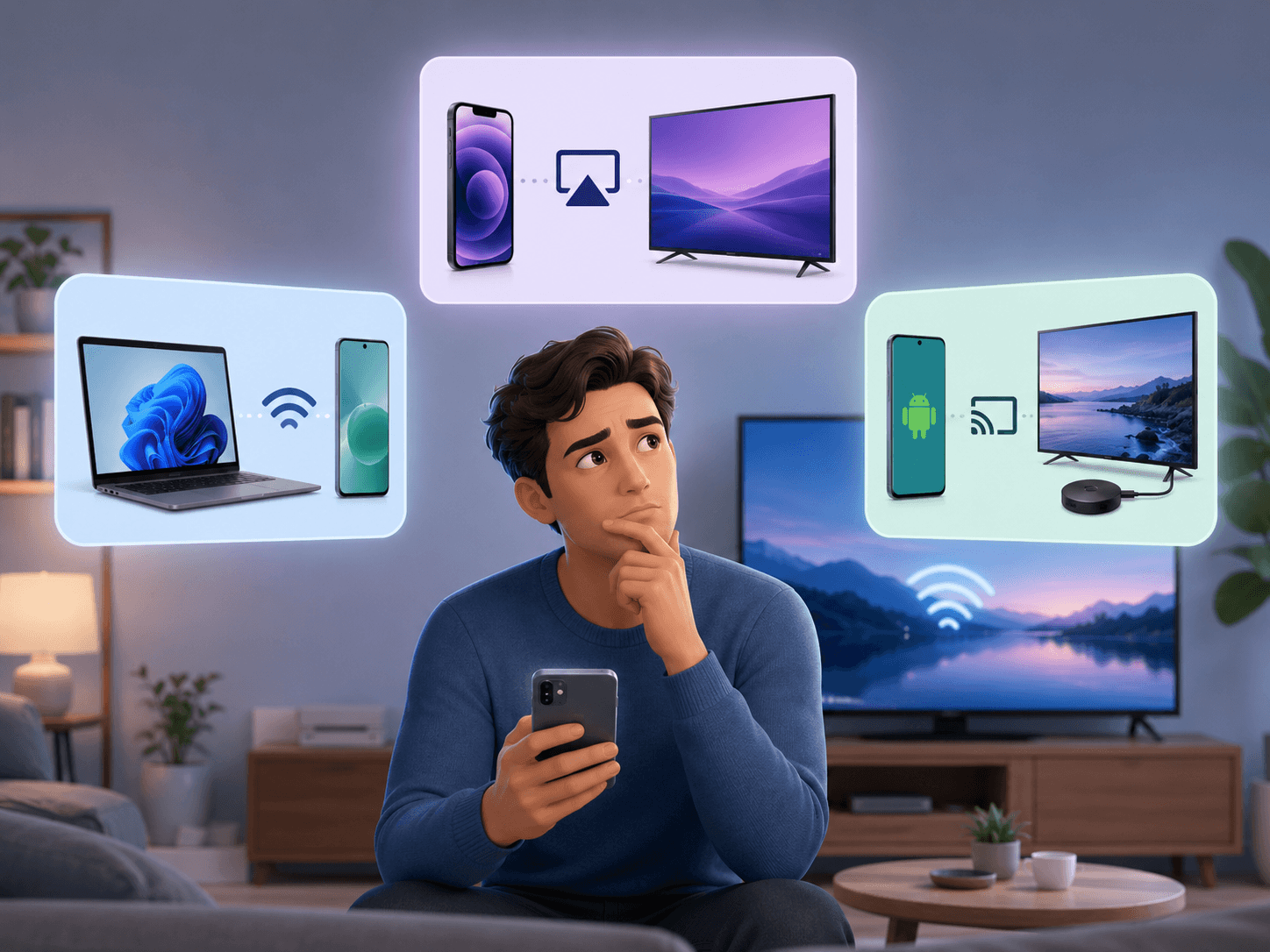
Choose Miracast when you use a compatible Windows PC and need the entire desktop. It suits presentations, documents, and software interfaces without built-in casting.
Pick AirPlay when your main devices are an iPhone, iPad, or Mac. It provides system-level media streaming and screen mirroring.
Use Google Cast for supported media apps, Android devices, Chrome, and Google TV receivers. It is especially useful when the receiver can manage playback.
Mixed-device homes and meeting rooms need more planning. They often combine Windows, macOS, iOS, Android, and ChromeOS.
For mixed-device setups, compare cross-platform options in our roundup of the best screen mirroring apps.
In that setting, forcing every user onto one protocol creates friction. A cross-platform receiver can provide several routes to the same display.
The best choice is the one that matches the sender, receiver, network, and content path.
Once you have chosen a protocol, follow our complete beginner's guide to screen mirroring for step-by-step setup on iPhone, Android, Windows, and Mac.
Choose Miracast when you use a compatible Windows PC and need the entire desktop. It suits presentations, documents, and software interfaces without built-in casting.
Pick AirPlay when your main devices are an iPhone, iPad, or Mac. It provides system-level media streaming and screen mirroring.
Use Google Cast for supported media apps, Android devices, Chrome, and Google TV receivers. It is especially useful when the receiver can manage playback.
Mixed-device homes and meeting rooms need more planning. They often combine Windows, macOS, iOS, Android, and ChromeOS.
For mixed-device setups, compare cross-platform options in our roundup of the best screen mirroring apps.
In that setting, forcing every user onto one protocol creates friction. A cross-platform receiver can provide several routes to the same display.
The best choice is the one that matches the sender, receiver, network, and content path.
Once you have chosen a protocol, follow our complete beginner's guide to screen mirroring for step-by-step setup on iPhone, Android, Windows, and Mac.
Choose Miracast when you use a compatible Windows PC and need the entire desktop. It suits presentations, documents, and software interfaces without built-in casting.
Pick AirPlay when your main devices are an iPhone, iPad, or Mac. It provides system-level media streaming and screen mirroring.
Use Google Cast for supported media apps, Android devices, Chrome, and Google TV receivers. It is especially useful when the receiver can manage playback.
Mixed-device homes and meeting rooms need more planning. They often combine Windows, macOS, iOS, Android, and ChromeOS.
For mixed-device setups, compare cross-platform options in our roundup of the best screen mirroring apps.
In that setting, forcing every user onto one protocol creates friction. A cross-platform receiver can provide several routes to the same display.
The best choice is the one that matches the sender, receiver, network, and content path.
Once you have chosen a protocol, follow our complete beginner's guide to screen mirroring for step-by-step setup on iPhone, Android, Windows, and Mac.
Frequently asked questions
Frequently asked questions
Frequently asked questions
Is Miracast the same as Chromecast?
No. Miracast is a wireless display standard based on Wi-Fi Direct. Chromecast was Google's hardware family, while Google Cast is the platform used for casting. Chromecast production ended in 2024, but Google Cast continues.
Is AirPlay better than Google Cast?
AirPlay is usually simpler for Apple devices. Google Cast works across Android, iOS apps, and the web, but the app must support it. The better option depends on whether you need media playback or full screen mirroring.
Which one has the lowest latency?
There is no reliable winner across all devices. Latency depends on the sharing mode, codec, hardware, receiver buffer, and network. Native media casting should not be compared directly with a live screen mirror.
Does Miracast require Wi-Fi?
Miracast uses Wi-Fi technology. Its standard connection uses Wi-Fi Direct, so a router is not always required. Windows can also carry compatible Miracast sessions over an existing secure network.
Can an iPhone use Miracast?
An iPhone does not provide native Miracast output. It uses AirPlay for system-level screen mirroring. A Miracast-only display requires another compatible receiver or software layer.
Can Google Cast mirror an entire screen?
Supported Android devices can cast an app or the whole screen. Chrome can also cast a computer screen. These modes differ from app casting and may have different audio or performance behavior.
Can one TV support Miracast, AirPlay, and Google Cast?
Some smart TVs support all three, but support varies by model, region, and firmware. Check the exact protocol names in the TV specifications. A general label such as "screen sharing" is not enough.
Is Miracast the same as Chromecast?
No. Miracast is a wireless display standard based on Wi-Fi Direct. Chromecast was Google's hardware family, while Google Cast is the platform used for casting. Chromecast production ended in 2024, but Google Cast continues.
Is AirPlay better than Google Cast?
AirPlay is usually simpler for Apple devices. Google Cast works across Android, iOS apps, and the web, but the app must support it. The better option depends on whether you need media playback or full screen mirroring.
Which one has the lowest latency?
There is no reliable winner across all devices. Latency depends on the sharing mode, codec, hardware, receiver buffer, and network. Native media casting should not be compared directly with a live screen mirror.
Does Miracast require Wi-Fi?
Miracast uses Wi-Fi technology. Its standard connection uses Wi-Fi Direct, so a router is not always required. Windows can also carry compatible Miracast sessions over an existing secure network.
Can an iPhone use Miracast?
An iPhone does not provide native Miracast output. It uses AirPlay for system-level screen mirroring. A Miracast-only display requires another compatible receiver or software layer.
Can Google Cast mirror an entire screen?
Supported Android devices can cast an app or the whole screen. Chrome can also cast a computer screen. These modes differ from app casting and may have different audio or performance behavior.
Can one TV support Miracast, AirPlay, and Google Cast?
Some smart TVs support all three, but support varies by model, region, and firmware. Check the exact protocol names in the TV specifications. A general label such as "screen sharing" is not enough.
Is Miracast the same as Chromecast?
No. Miracast is a wireless display standard based on Wi-Fi Direct. Chromecast was Google's hardware family, while Google Cast is the platform used for casting. Chromecast production ended in 2024, but Google Cast continues.
Is AirPlay better than Google Cast?
AirPlay is usually simpler for Apple devices. Google Cast works across Android, iOS apps, and the web, but the app must support it. The better option depends on whether you need media playback or full screen mirroring.
Which one has the lowest latency?
There is no reliable winner across all devices. Latency depends on the sharing mode, codec, hardware, receiver buffer, and network. Native media casting should not be compared directly with a live screen mirror.
Does Miracast require Wi-Fi?
Miracast uses Wi-Fi technology. Its standard connection uses Wi-Fi Direct, so a router is not always required. Windows can also carry compatible Miracast sessions over an existing secure network.
Can an iPhone use Miracast?
An iPhone does not provide native Miracast output. It uses AirPlay for system-level screen mirroring. A Miracast-only display requires another compatible receiver or software layer.
Can Google Cast mirror an entire screen?
Supported Android devices can cast an app or the whole screen. Chrome can also cast a computer screen. These modes differ from app casting and may have different audio or performance behavior.
Can one TV support Miracast, AirPlay, and Google Cast?
Some smart TVs support all three, but support varies by model, region, and firmware. Check the exact protocol names in the TV specifications. A general label such as "screen sharing" is not enough.
Final verdict
Final verdict
Final verdict
Miracast, AirPlay, and Google Cast produce a similar result through different technical paths.
Miracast focuses on wireless display projection. AirPlay combines streaming and mirroring for Apple devices. Google Cast separates sender control from receiver playback in supported apps, while also offering screen-sharing modes.
Check the sender first, then the receiver. Finally, decide whether you need media playback or a copy of the entire display.
That sequence avoids most compatibility mistakes. It also gives a more useful answer than choosing a protocol from its logo alone.
Miracast, AirPlay, and Google Cast produce a similar result through different technical paths.
Miracast focuses on wireless display projection. AirPlay combines streaming and mirroring for Apple devices. Google Cast separates sender control from receiver playback in supported apps, while also offering screen-sharing modes.
Check the sender first, then the receiver. Finally, decide whether you need media playback or a copy of the entire display.
That sequence avoids most compatibility mistakes. It also gives a more useful answer than choosing a protocol from its logo alone.
Miracast, AirPlay, and Google Cast produce a similar result through different technical paths.
Miracast focuses on wireless display projection. AirPlay combines streaming and mirroring for Apple devices. Google Cast separates sender control from receiver playback in supported apps, while also offering screen-sharing modes.
Check the sender first, then the receiver. Finally, decide whether you need media playback or a copy of the entire display.
That sequence avoids most compatibility mistakes. It also gives a more useful answer than choosing a protocol from its logo alone.
Table of content
Table of content


Still Need a Hand?
Still Need a Hand?
Still Need a Hand?
Explore more reviews, step-by-step guides, and troubleshooting tips—or contact us if you could not find the answer you needed.
Explore more reviews, step-by-step guides, and troubleshooting tips—or contact us if you could not find the answer you needed.
Explore more reviews, step-by-step guides, and troubleshooting tips—or contact us if you could not find the answer you needed.