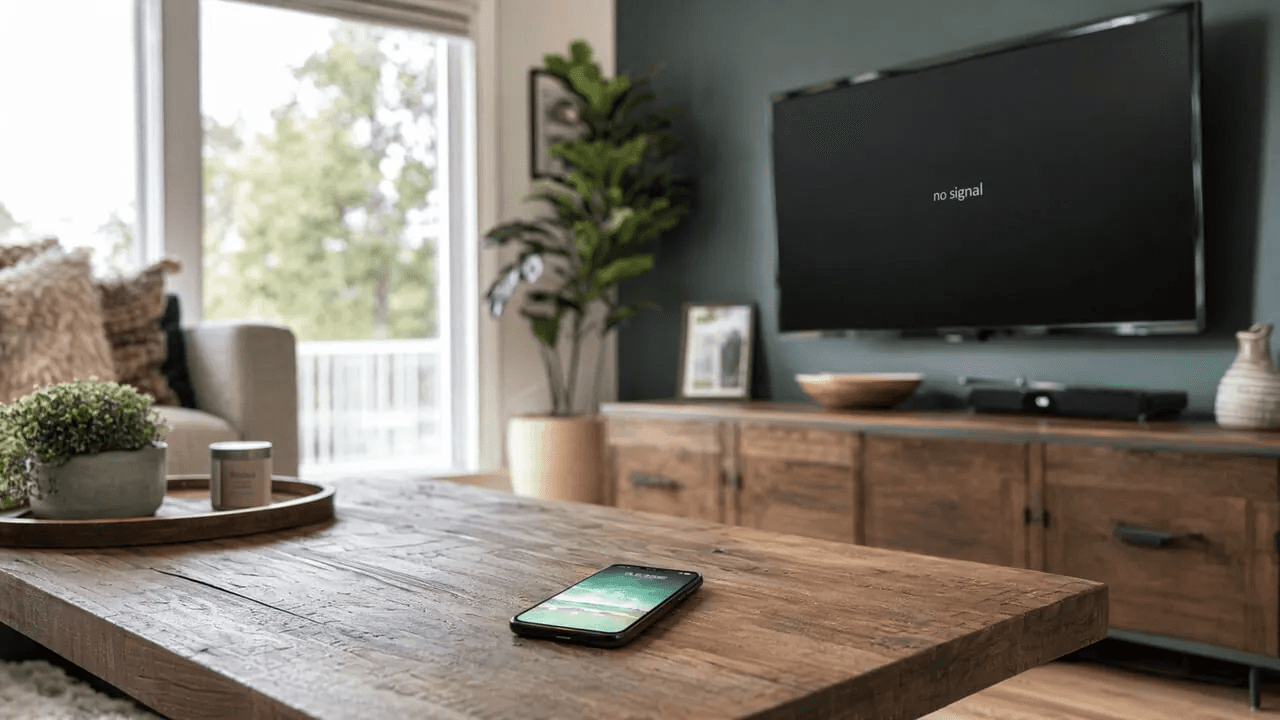
Screen Mirroring Troubleshooting: A Problem-by-Problem Fix Guide
Screen Mirroring Troubleshooting: A Problem-by-Problem Fix Guide
Screen Mirroring Troubleshooting: A Problem-by-Problem Fix Guide
Screen mirroring not working? Fix connection issues, disconnections, lag, no sound, and black screens with quick tests and practical next steps.
Screen mirroring not working? Fix connection issues, disconnections, lag, no sound, and black screens with quick tests and practical next steps.
Screen mirroring not working? Fix connection issues, disconnections, lag, no sound, and black screens with quick tests and practical next steps.
Start with what happens on the TV: does the connection never start, drop after connecting, lag, lose sound, or show a black screen? Each symptom calls for a different check. Use the table to jump to yours, or run the quick checklist first if you haven’t checked the basics.
Start with what happens on the TV: does the connection never start, drop after connecting, lag, lose sound, or show a black screen? Each symptom calls for a different check. Use the table to jump to yours, or run the quick checklist first if you haven’t checked the basics.
Start with what happens on the TV: does the connection never start, drop after connecting, lag, lose sound, or show a black screen? Each symptom calls for a different check. Use the table to jump to yours, or run the quick checklist first if you haven’t checked the basics.
What’s Your Screen Mirroring Problem?
What’s Your Screen Mirroring Problem?
What’s Your Screen Mirroring Problem?
What happens | Where to start |
The TV never appears, or the connection won’t start | |
The picture appears, then the session ends | |
The connection stays active, but movement stutters or feels delayed | |
The picture works, but audio is missing or plays elsewhere | |
The session connects, but the screen or video area stays black |
If the picture is visible but soft or blocky, use our blurry or pixelated screen mirroring guide. For black bars, cropped edges, or stretching, see screen mirroring not full screen—those are picture-fitting issues, not a black screen.

What happens | Where to start |
The TV never appears, or the connection won’t start | |
The picture appears, then the session ends | |
The connection stays active, but movement stutters or feels delayed | |
The picture works, but audio is missing or plays elsewhere | |
The session connects, but the screen or video area stays black |
If the picture is visible but soft or blocky, use our blurry or pixelated screen mirroring guide. For black bars, cropped edges, or stretching, see screen mirroring not full screen—those are picture-fitting issues, not a black screen.
What happens | Where to start |
The TV never appears, or the connection won’t start | |
The picture appears, then the session ends | |
The connection stays active, but movement stutters or feels delayed | |
The picture works, but audio is missing or plays elsewhere | |
The session connects, but the screen or video area stays black |
If the picture is visible but soft or blocky, use our blurry or pixelated screen mirroring guide. For black bars, cropped edges, or stretching, see screen mirroring not full screen—those are picture-fitting issues, not a black screen.
5-Step Quick-Fix Checklist for Screen Mirroring
5-Step Quick-Fix Checklist for Screen Mirroring
5-Step Quick-Fix Checklist for Screen Mirroring
For most home-network AirPlay and Google Cast setups, first check that both devices can communicate on the local network. Miracast typically uses Wi-Fi Direct; other paths, including Miracast over Infrastructure and peer-to-peer AirPlay, require supported device combinations and settings. The right network check depends on the method and receiver.
Check the receiver and input. Open the TV’s receiving mode for the method you’re using. If a separate receiver plugs into HDMI, make sure it has power and select that HDMI input.
Check the connection path. For home-network mirroring, confirm the sender and receiver can communicate on the local network; a guest network may keep them apart. For Miracast, keep Wi-Fi enabled on the sender. Sharing a frequency band is not a universal requirement.
Restart the sender and receiver. End the session, restart both devices, then reconnect. For a separate streaming device, restart its power—not just its HDMI connection.
Install available supported updates. Check the sender’s system software, the TV or receiver firmware, and any mirroring app. Windows setups may also need the manufacturer’s Wi-Fi and graphics drivers.
Check the receiving prompt or error. Approve the connection or enter the code shown on the TV. If it still fails, note the exact message and use the matching symptom below. On a managed network, ask the administrator about access restrictions rather than disabling security controls.
Change one thing at a time and repeat the same test so you can tell what helped.
For most home-network AirPlay and Google Cast setups, first check that both devices can communicate on the local network. Miracast typically uses Wi-Fi Direct; other paths, including Miracast over Infrastructure and peer-to-peer AirPlay, require supported device combinations and settings. The right network check depends on the method and receiver.
Check the receiver and input. Open the TV’s receiving mode for the method you’re using. If a separate receiver plugs into HDMI, make sure it has power and select that HDMI input.
Check the connection path. For home-network mirroring, confirm the sender and receiver can communicate on the local network; a guest network may keep them apart. For Miracast, keep Wi-Fi enabled on the sender. Sharing a frequency band is not a universal requirement.
Restart the sender and receiver. End the session, restart both devices, then reconnect. For a separate streaming device, restart its power—not just its HDMI connection.
Install available supported updates. Check the sender’s system software, the TV or receiver firmware, and any mirroring app. Windows setups may also need the manufacturer’s Wi-Fi and graphics drivers.
Check the receiving prompt or error. Approve the connection or enter the code shown on the TV. If it still fails, note the exact message and use the matching symptom below. On a managed network, ask the administrator about access restrictions rather than disabling security controls.
Change one thing at a time and repeat the same test so you can tell what helped.
For most home-network AirPlay and Google Cast setups, first check that both devices can communicate on the local network. Miracast typically uses Wi-Fi Direct; other paths, including Miracast over Infrastructure and peer-to-peer AirPlay, require supported device combinations and settings. The right network check depends on the method and receiver.
Check the receiver and input. Open the TV’s receiving mode for the method you’re using. If a separate receiver plugs into HDMI, make sure it has power and select that HDMI input.
Check the connection path. For home-network mirroring, confirm the sender and receiver can communicate on the local network; a guest network may keep them apart. For Miracast, keep Wi-Fi enabled on the sender. Sharing a frequency band is not a universal requirement.
Restart the sender and receiver. End the session, restart both devices, then reconnect. For a separate streaming device, restart its power—not just its HDMI connection.
Install available supported updates. Check the sender’s system software, the TV or receiver firmware, and any mirroring app. Windows setups may also need the manufacturer’s Wi-Fi and graphics drivers.
Check the receiving prompt or error. Approve the connection or enter the code shown on the TV. If it still fails, note the exact message and use the matching symptom below. On a managed network, ask the administrator about access restrictions rather than disabling security controls.
Change one thing at a time and repeat the same test so you can tell what helped.
Screen Mirroring Won’t Connect
Screen Mirroring Won’t Connect
Screen Mirroring Won’t Connect
Search again with the TV’s receiving mode open. If the TV is missing, check its model documentation for the method you’re using, then enable that receiver mode; AirPlay, Google Cast, and Miracast are not interchangeable. If both devices support the method but discovery still fails, check the connection path in the checklist above.
If the TV appears but won’t connect, look at the receiver for an approval request, pairing code, or error. Complete the prompt and retry; if it fails, keep the exact error for the next check.
If available, try a second compatible phone or computer with the same receiver and mirroring method. If it connects but the first device does not, focus next on the first device’s settings and compatibility; this narrows the search but does not prove that device is faulty. Continue with our device-by-device screen mirroring fixes.
Search again with the TV’s receiving mode open. If the TV is missing, check its model documentation for the method you’re using, then enable that receiver mode; AirPlay, Google Cast, and Miracast are not interchangeable. If both devices support the method but discovery still fails, check the connection path in the checklist above.
If the TV appears but won’t connect, look at the receiver for an approval request, pairing code, or error. Complete the prompt and retry; if it fails, keep the exact error for the next check.
If available, try a second compatible phone or computer with the same receiver and mirroring method. If it connects but the first device does not, focus next on the first device’s settings and compatibility; this narrows the search but does not prove that device is faulty. Continue with our device-by-device screen mirroring fixes.
Search again with the TV’s receiving mode open. If the TV is missing, check its model documentation for the method you’re using, then enable that receiver mode; AirPlay, Google Cast, and Miracast are not interchangeable. If both devices support the method but discovery still fails, check the connection path in the checklist above.
If the TV appears but won’t connect, look at the receiver for an approval request, pairing code, or error. Complete the prompt and retry; if it fails, keep the exact error for the next check.
If available, try a second compatible phone or computer with the same receiver and mirroring method. If it connects but the first device does not, focus next on the first device’s settings and compatibility; this narrows the search but does not prove that device is faulty. Continue with our device-by-device screen mirroring fixes.
Screen Mirroring Keeps Disconnecting
Screen Mirroring Keeps Disconnecting
Screen Mirroring Keeps Disconnecting
If the picture appears and the session later ends, repeat a short test with the sender nearby, awake, and in the same app. Then check whether locking the screen or switching apps triggers the drop.
If it drops only after locking or switching, keep the sender awake for the session and check the device or mirroring app’s documented background-running restrictions. If it drops even while awake, repeat closer to the receiver to test whether distance affects stability. A fixed interval alone is not a reason to change DHCP settings. Continue with the screen mirroring keeps disconnecting guide.
If the picture appears and the session later ends, repeat a short test with the sender nearby, awake, and in the same app. Then check whether locking the screen or switching apps triggers the drop.
If it drops only after locking or switching, keep the sender awake for the session and check the device or mirroring app’s documented background-running restrictions. If it drops even while awake, repeat closer to the receiver to test whether distance affects stability. A fixed interval alone is not a reason to change DHCP settings. Continue with the screen mirroring keeps disconnecting guide.
If the picture appears and the session later ends, repeat a short test with the sender nearby, awake, and in the same app. Then check whether locking the screen or switching apps triggers the drop.
If it drops only after locking or switching, keep the sender awake for the session and check the device or mirroring app’s documented background-running restrictions. If it drops even while awake, repeat closer to the receiver to test whether distance affects stability. A fixed interval alone is not a reason to change DHCP settings. Continue with the screen mirroring keeps disconnecting guide.
Screen Mirroring Is Laggy or Stuttering
Screen Mirroring Is Laggy or Stuttering
Screen Mirroring Is Laggy or Stuttering
With the session connected, compare the same movement on the sender and TV. Pause an active large download or backup, then repeat.
If both screens stutter, close an actively demanding, unneeded app and retest the source. If pausing downloads helps, leave those transfers paused during mirroring. If only the TV remains delayed while motion is otherwise smooth, test its supported Game Mode or low-latency picture setting on the receiver’s input; built-in mirroring may not offer one. That setting addresses display processing, not wireless dropouts.
If a third-party mirroring app offers resolution or bitrate controls, lower one setting at a time and repeat the same test. If stuttering improves, keep the lower setting for the session, accepting the trade-off in picture quality. Continue with our guide to fix screen mirroring lag.

With the session connected, compare the same movement on the sender and TV. Pause an active large download or backup, then repeat.
If both screens stutter, close an actively demanding, unneeded app and retest the source. If pausing downloads helps, leave those transfers paused during mirroring. If only the TV remains delayed while motion is otherwise smooth, test its supported Game Mode or low-latency picture setting on the receiver’s input; built-in mirroring may not offer one. That setting addresses display processing, not wireless dropouts.
If a third-party mirroring app offers resolution or bitrate controls, lower one setting at a time and repeat the same test. If stuttering improves, keep the lower setting for the session, accepting the trade-off in picture quality. Continue with our guide to fix screen mirroring lag.
With the session connected, compare the same movement on the sender and TV. Pause an active large download or backup, then repeat.
If both screens stutter, close an actively demanding, unneeded app and retest the source. If pausing downloads helps, leave those transfers paused during mirroring. If only the TV remains delayed while motion is otherwise smooth, test its supported Game Mode or low-latency picture setting on the receiver’s input; built-in mirroring may not offer one. That setting addresses display processing, not wireless dropouts.
If a third-party mirroring app offers resolution or bitrate controls, lower one setting at a time and repeat the same test. If stuttering improves, keep the lower setting for the session, accepting the trade-off in picture quality. Continue with our guide to fix screen mirroring lag.
Screen Mirroring Has No Sound
Screen Mirroring Has No Sound
Screen Mirroring Has No Sound
With the picture visible, play a local video with known working audio, then compare it with the silent app. If only that app is silent, check its supported TV playback options and try its TV app when available; changing the whole connection is not the first step.
If neither has sound, unmute the TV and select the TV or receiver as the media output rather than the sender, headphones, or another speaker. Replay the local clip to check the result. If audio is still missing, continue with our screen mirroring no sound fixes.
With the picture visible, play a local video with known working audio, then compare it with the silent app. If only that app is silent, check its supported TV playback options and try its TV app when available; changing the whole connection is not the first step.
If neither has sound, unmute the TV and select the TV or receiver as the media output rather than the sender, headphones, or another speaker. Replay the local clip to check the result. If audio is still missing, continue with our screen mirroring no sound fixes.
With the picture visible, play a local video with known working audio, then compare it with the silent app. If only that app is silent, check its supported TV playback options and try its TV app when available; changing the whole connection is not the first step.
If neither has sound, unmute the TV and select the TV or receiver as the media output rather than the sender, headphones, or another speaker. Replay the local clip to check the result. If audio is still missing, continue with our screen mirroring no sound fixes.
Screen Mirroring Shows a Black Screen
Screen Mirroring Shows a Black Screen
Screen Mirroring Shows a Black Screen
Mirror a bright local photo, then return to the app that shows black. If the photo works, check the app’s supported playback options and use its TV app where available. This does not by itself prove an HDCP failure; Netflix, for example, does not support iPhone or iPad AirPlay or Screen Mirroring.

If the photo is also black, select the input for your receiver and check the sender’s display output. On Windows, choose Duplicate with Windows + P; on Mac, check whether the TV is an extended desktop instead. Retest the photo, then follow our screen mirroring black screen fixes if needed.
Mirror a bright local photo, then return to the app that shows black. If the photo works, check the app’s supported playback options and use its TV app where available. This does not by itself prove an HDCP failure; Netflix, for example, does not support iPhone or iPad AirPlay or Screen Mirroring.
If the photo is also black, select the input for your receiver and check the sender’s display output. On Windows, choose Duplicate with Windows + P; on Mac, check whether the TV is an extended desktop instead. Retest the photo, then follow our screen mirroring black screen fixes if needed.
Mirror a bright local photo, then return to the app that shows black. If the photo works, check the app’s supported playback options and use its TV app where available. This does not by itself prove an HDCP failure; Netflix, for example, does not support iPhone or iPad AirPlay or Screen Mirroring.
If the photo is also black, select the input for your receiver and check the sender’s display output. On Windows, choose Duplicate with Windows + P; on Mac, check whether the TV is an extended desktop instead. Retest the photo, then follow our screen mirroring black screen fixes if needed.
When to Stop Troubleshooting and Switch Methods
When to Stop Troubleshooting and Switch Methods
When to Stop Troubleshooting and Switch Methods
Switch methods when you’ve confirmed that the current one does not support your device combination or content—not simply because several restarts failed.
For a streaming service that restricts mirroring, use its TV app or another playback route the service explicitly supports. For presentations or local media, a supported wired video connection can remove wireless discovery and transmission from the setup. Check the sender’s video-output support, adapter, and display before buying: a different cable or mirroring app does not automatically resolve protected-content restrictions.
Switch methods when you’ve confirmed that the current one does not support your device combination or content—not simply because several restarts failed.
For a streaming service that restricts mirroring, use its TV app or another playback route the service explicitly supports. For presentations or local media, a supported wired video connection can remove wireless discovery and transmission from the setup. Check the sender’s video-output support, adapter, and display before buying: a different cable or mirroring app does not automatically resolve protected-content restrictions.
Switch methods when you’ve confirmed that the current one does not support your device combination or content—not simply because several restarts failed.
For a streaming service that restricts mirroring, use its TV app or another playback route the service explicitly supports. For presentations or local media, a supported wired video connection can remove wireless discovery and transmission from the setup. Check the sender’s video-output support, adapter, and display before buying: a different cable or mirroring app does not automatically resolve protected-content restrictions.
Table of content
Table of content


Still Need a Hand?
Still Need a Hand?
Still Need a Hand?
Explore more reviews, step-by-step guides, and troubleshooting tips—or contact us if you could not find the answer you needed.
Explore more reviews, step-by-step guides, and troubleshooting tips—or contact us if you could not find the answer you needed.
Explore more reviews, step-by-step guides, and troubleshooting tips—or contact us if you could not find the answer you needed.