
Why Is My Screen Mirroring Blurry or Pixelated? Quality Fixes That Work
Why Is My Screen Mirroring Blurry or Pixelated? Quality Fixes That Work
Why Is My Screen Mirroring Blurry or Pixelated? Quality Fixes That Work
Fix blurry or pixelated screen mirroring on AirPlay, Google Cast, and Miracast with practical tips for resolution, Wi-Fi, compression, and TV settings.
Fix blurry or pixelated screen mirroring on AirPlay, Google Cast, and Miracast with practical tips for resolution, Wi-Fi, compression, and TV settings.
Fix blurry or pixelated screen mirroring on AirPlay, Google Cast, and Miracast with practical tips for resolution, Wi-Fi, compression, and TV settings.

Your phone or laptop has connected to the TV, but the picture looks soft. Small text is difficult to read, photos lose detail, or moving scenes break into blocks.
A successful connection does not guarantee a sharp picture. Screen mirroring involves capturing an image, encoding it, transmitting it, and displaying it at another size. Quality can suffer at several points: the original content, the transmitted resolution, compression, the wireless connection, or the TV’s scaling.
Start by comparing a clear local photo and a text page on both screens. If everything looks soft, investigate resolution and scaling. If quality deteriorates mainly during movement, check transmission conditions and available quality settings.
Your phone or laptop has connected to the TV, but the picture looks soft. Small text is difficult to read, photos lose detail, or moving scenes break into blocks.
A successful connection does not guarantee a sharp picture. Screen mirroring involves capturing an image, encoding it, transmitting it, and displaying it at another size. Quality can suffer at several points: the original content, the transmitted resolution, compression, the wireless connection, or the TV’s scaling.
Start by comparing a clear local photo and a text page on both screens. If everything looks soft, investigate resolution and scaling. If quality deteriorates mainly during movement, check transmission conditions and available quality settings.
Your phone or laptop has connected to the TV, but the picture looks soft. Small text is difficult to read, photos lose detail, or moving scenes break into blocks.
A successful connection does not guarantee a sharp picture. Screen mirroring involves capturing an image, encoding it, transmitting it, and displaying it at another size. Quality can suffer at several points: the original content, the transmitted resolution, compression, the wireless connection, or the TV’s scaling.
Start by comparing a clear local photo and a text page on both screens. If everything looks soft, investigate resolution and scaling. If quality deteriorates mainly during movement, check transmission conditions and available quality settings.
Match the Symptom to the First Check
Match the Symptom to the First Check
Match the Symptom to the First Check
These patterns help prioritize troubleshooting; they do not prove a particular cause.
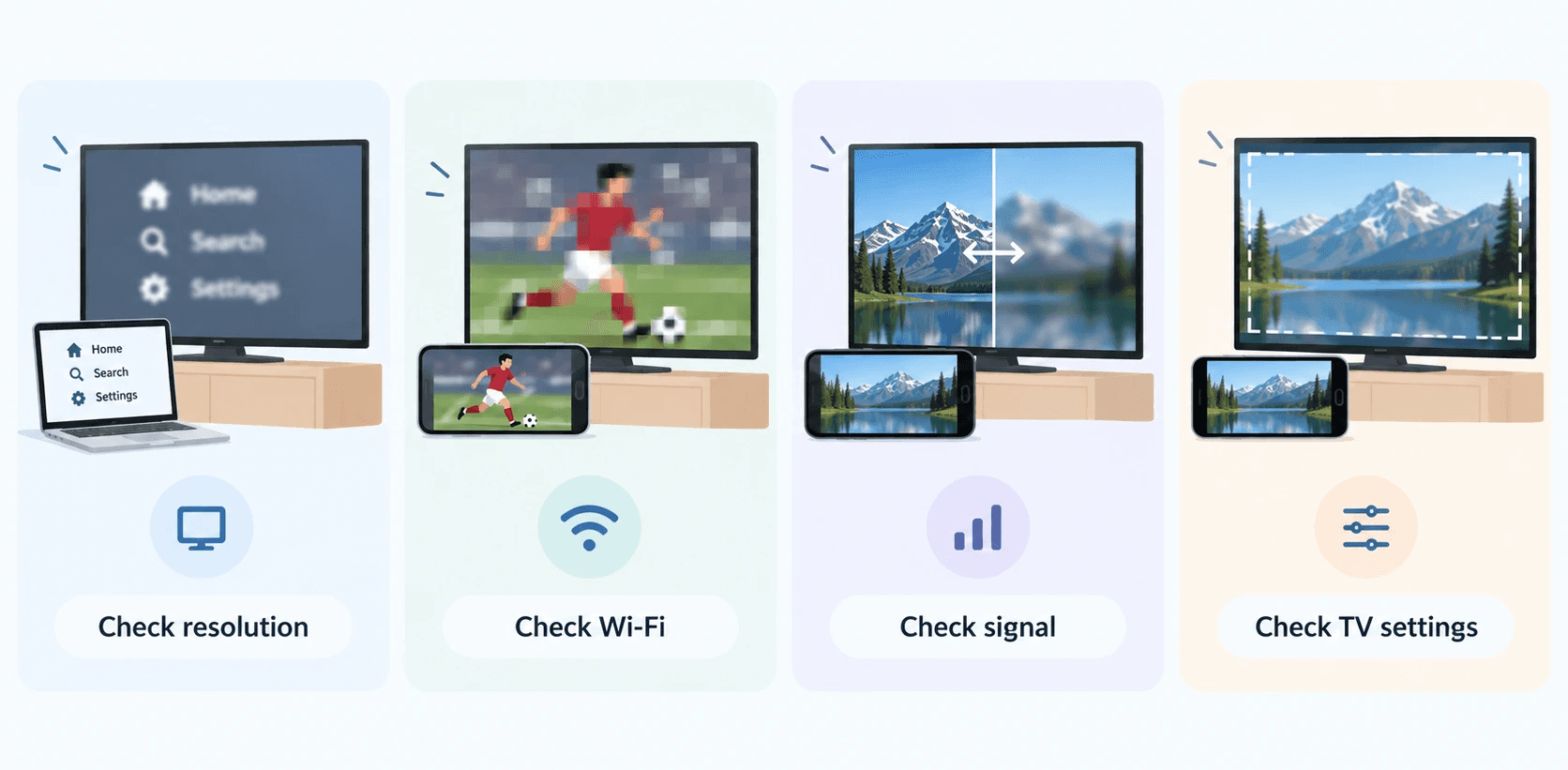
What you see | What to check first |
|---|---|
Text and icons remain blurry even when nothing moves | Output resolution and display scaling |
Video becomes blocky during movement | Compression, bitrate, and wireless conditions |
The picture alternates between sharp and soft | Changing transmission conditions or source-stream quality |
Only one video or app looks poor | That content’s quality and playback method |
The picture is stretched or cropped | TV zoom, aspect ratio, and overscan |
Change one setting at a time, then repeat the same test. Otherwise, it becomes difficult to identify what actually helped.
These patterns help prioritize troubleshooting; they do not prove a particular cause.
What you see | What to check first |
|---|---|
Text and icons remain blurry even when nothing moves | Output resolution and display scaling |
Video becomes blocky during movement | Compression, bitrate, and wireless conditions |
The picture alternates between sharp and soft | Changing transmission conditions or source-stream quality |
Only one video or app looks poor | That content’s quality and playback method |
The picture is stretched or cropped | TV zoom, aspect ratio, and overscan |
Change one setting at a time, then repeat the same test. Otherwise, it becomes difficult to identify what actually helped.
These patterns help prioritize troubleshooting; they do not prove a particular cause.
What you see | What to check first |
|---|---|
Text and icons remain blurry even when nothing moves | Output resolution and display scaling |
Video becomes blocky during movement | Compression, bitrate, and wireless conditions |
The picture alternates between sharp and soft | Changing transmission conditions or source-stream quality |
Only one video or app looks poor | That content’s quality and playback method |
The picture is stretched or cropped | TV zoom, aspect ratio, and overscan |
Change one setting at a time, then repeat the same test. Otherwise, it becomes difficult to identify what actually helped.
1. Check Whether the Original Content Is Already Blurry
1. Check Whether the Original Content Is Already Blurry
1. Check Whether the Original Content Is Already Blurry
Before changing your network, open the same content on the sending device.
Use a locally stored, detailed photograph rather than a thumbnail or a picture inside a messaging app. Then try a page containing small text and a short local video. This gives you three useful comparisons: still detail, text clarity, and movement.
If the original already looks poor when enlarged, mirroring cannot restore missing detail. If local content looks clear but a streamed video does not, investigate that video’s playback quality before changing the entire mirroring setup.
Recent user reports illustrate why this distinction matters. In a December 2025 AirPlay discussion, a user initially thought a workaround had restored 4K playback, then amended the post because smoke and snow scenes remained blurry. That was a personal observation, not a measured resolution test or a confirmed quality fix.
Getting a picture back and getting a clear picture are separate outcomes.
Before changing your network, open the same content on the sending device.
Use a locally stored, detailed photograph rather than a thumbnail or a picture inside a messaging app. Then try a page containing small text and a short local video. This gives you three useful comparisons: still detail, text clarity, and movement.
If the original already looks poor when enlarged, mirroring cannot restore missing detail. If local content looks clear but a streamed video does not, investigate that video’s playback quality before changing the entire mirroring setup.
Recent user reports illustrate why this distinction matters. In a December 2025 AirPlay discussion, a user initially thought a workaround had restored 4K playback, then amended the post because smoke and snow scenes remained blurry. That was a personal observation, not a measured resolution test or a confirmed quality fix.
Getting a picture back and getting a clear picture are separate outcomes.
Before changing your network, open the same content on the sending device.
Use a locally stored, detailed photograph rather than a thumbnail or a picture inside a messaging app. Then try a page containing small text and a short local video. This gives you three useful comparisons: still detail, text clarity, and movement.
If the original already looks poor when enlarged, mirroring cannot restore missing detail. If local content looks clear but a streamed video does not, investigate that video’s playback quality before changing the entire mirroring setup.
Recent user reports illustrate why this distinction matters. In a December 2025 AirPlay discussion, a user initially thought a workaround had restored 4K playback, then amended the post because smoke and snow scenes remained blurry. That was a personal observation, not a measured resolution test or a confirmed quality fix.
Getting a picture back and getting a clear picture are separate outcomes.
2. For Video, Compare In-App Casting With Screen Mirroring
2. For Video, Compare In-App Casting With Screen Mirroring
2. For Video, Compare In-App Casting With Screen Mirroring
If your goal is to watch a video, check whether its player offers an AirPlay or Cast button. Compare that option with mirroring your entire screen.
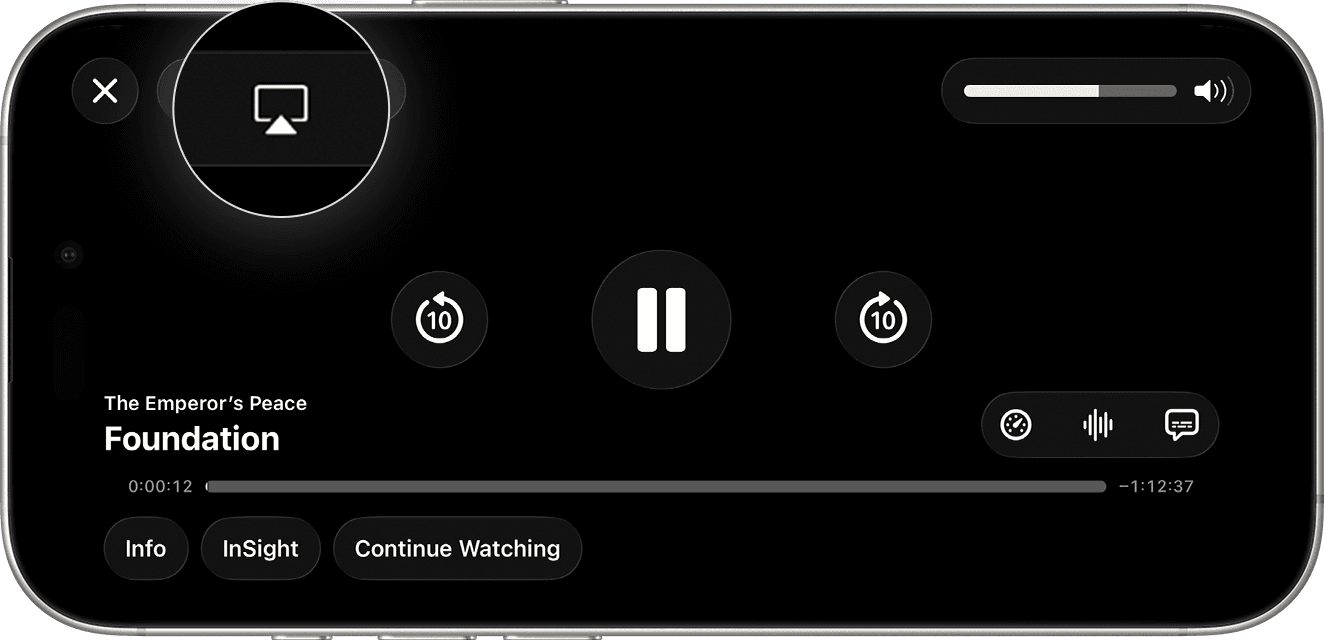
Apple’s May 2026 AirPlay guide treats video streaming and screen mirroring as separate workflows: one begins inside the video app, while the other uses Screen Mirroring in Control Centre. They should not be assumed to deliver identical results.
For Google Cast, similarly distinguish the player’s Cast control from sharing an Android screen or a browser desktop. AirServer’s November 2025 technical guide documents both mirroring and supported in-app casting on its receivers, with different capabilities and restrictions.
Try the same scene using each available method. A clearer result through in-app playback gives you a practical alternative when you only need the video.
A January 2026 user report described one iPhone producing clear, full-screen TV playback while another device appeared to mirror the phone literally, with poorer quality. The report does not establish the cause, but it reinforces a useful check: confirm that both devices are actually using comparable playback modes.
If your goal is to watch a video, check whether its player offers an AirPlay or Cast button. Compare that option with mirroring your entire screen.
Apple’s May 2026 AirPlay guide treats video streaming and screen mirroring as separate workflows: one begins inside the video app, while the other uses Screen Mirroring in Control Centre. They should not be assumed to deliver identical results.
For Google Cast, similarly distinguish the player’s Cast control from sharing an Android screen or a browser desktop. AirServer’s November 2025 technical guide documents both mirroring and supported in-app casting on its receivers, with different capabilities and restrictions.
Try the same scene using each available method. A clearer result through in-app playback gives you a practical alternative when you only need the video.
A January 2026 user report described one iPhone producing clear, full-screen TV playback while another device appeared to mirror the phone literally, with poorer quality. The report does not establish the cause, but it reinforces a useful check: confirm that both devices are actually using comparable playback modes.
If your goal is to watch a video, check whether its player offers an AirPlay or Cast button. Compare that option with mirroring your entire screen.
Apple’s May 2026 AirPlay guide treats video streaming and screen mirroring as separate workflows: one begins inside the video app, while the other uses Screen Mirroring in Control Centre. They should not be assumed to deliver identical results.
For Google Cast, similarly distinguish the player’s Cast control from sharing an Android screen or a browser desktop. AirServer’s November 2025 technical guide documents both mirroring and supported in-app casting on its receivers, with different capabilities and restrictions.
Try the same scene using each available method. A clearer result through in-app playback gives you a practical alternative when you only need the video.
A January 2026 user report described one iPhone producing clear, full-screen TV playback while another device appeared to mirror the phone literally, with poorer quality. The report does not establish the cause, but it reinforces a useful check: confirm that both devices are actually using comparable playback modes.
3. Improve the Connection That Carries the Picture
3. Improve the Connection That Carries the Picture
3. Improve the Connection That Carries the Picture
A fast internet speed test does not measure the entire path between your device and the receiving screen.
Your internet connection matters when fetching online content. The local connection also matters when transporting the mirrored image. A strong result for one does not guarantee a strong result for the other.
Try these comparisons:
Move the sending device closer to the receiver.
For mirroring through your home network, test with both devices closer to the router.
Temporarily pause large downloads or backups sharing the wireless network.
If supported, compare a strong 5 GHz connection with your current connection.
If the receiver supports Ethernet for this mirroring mode, test a wired network connection to it.
Treat these as experiments, not guaranteed fixes. Keep the same content playing and look for a repeatable improvement.
Miracast needs particular care: it can use a direct wireless link or, on supported setups, the existing network. Cisco’s August 2026 Miracast guidance explains these paths and notes that infrastructure-based sharing on its systems tends to provide higher media quality. Connecting your laptop to a different router band therefore does not necessarily change a separate Miracast link.
A fast internet speed test does not measure the entire path between your device and the receiving screen.
Your internet connection matters when fetching online content. The local connection also matters when transporting the mirrored image. A strong result for one does not guarantee a strong result for the other.
Try these comparisons:
Move the sending device closer to the receiver.
For mirroring through your home network, test with both devices closer to the router.
Temporarily pause large downloads or backups sharing the wireless network.
If supported, compare a strong 5 GHz connection with your current connection.
If the receiver supports Ethernet for this mirroring mode, test a wired network connection to it.
Treat these as experiments, not guaranteed fixes. Keep the same content playing and look for a repeatable improvement.
Miracast needs particular care: it can use a direct wireless link or, on supported setups, the existing network. Cisco’s August 2026 Miracast guidance explains these paths and notes that infrastructure-based sharing on its systems tends to provide higher media quality. Connecting your laptop to a different router band therefore does not necessarily change a separate Miracast link.
A fast internet speed test does not measure the entire path between your device and the receiving screen.
Your internet connection matters when fetching online content. The local connection also matters when transporting the mirrored image. A strong result for one does not guarantee a strong result for the other.
Try these comparisons:
Move the sending device closer to the receiver.
For mirroring through your home network, test with both devices closer to the router.
Temporarily pause large downloads or backups sharing the wireless network.
If supported, compare a strong 5 GHz connection with your current connection.
If the receiver supports Ethernet for this mirroring mode, test a wired network connection to it.
Treat these as experiments, not guaranteed fixes. Keep the same content playing and look for a repeatable improvement.
Miracast needs particular care: it can use a direct wireless link or, on supported setups, the existing network. Cisco’s August 2026 Miracast guidance explains these paths and notes that infrastructure-based sharing on its systems tends to provide higher media quality. Connecting your laptop to a different router band therefore does not necessarily change a separate Miracast link.
4. Check the Transmitted Resolution and TV Scaling
4. Check the Transmitted Resolution and TV Scaling
4. Check the Transmitted Resolution and TV Scaling
A 4K television can display a lower-resolution signal. Its panel specification does not tell you the resolution being captured and transmitted.
Check the sending device’s display settings and any available receiver information. Distinguish the mirror stream’s resolution from the receiver’s HDMI output: a receiver can output a 4K signal without every image inside it containing native 4K detail.
On Windows, open Settings → System → Display, identify the connected display, and inspect the available resolution and scaling options. Start with the recommended settings where available. On a Mac, open System Settings → Displays and select the receiving display.
For text-heavy work, compare a supported higher resolution before lowering it. If the text becomes too small, adjust text size or scaling separately where possible.
Also check the television for zoom, overscan, or aspect-ratio settings. Apple’s April 2026 display guide recommends looking for controls such as screen fit, computer mode, zoom, and format when the image does not fit correctly.
Preserve the image’s proportions. Stretching a phone’s portrait screen to fill a widescreen television does not add detail.
A 4K television can display a lower-resolution signal. Its panel specification does not tell you the resolution being captured and transmitted.
Check the sending device’s display settings and any available receiver information. Distinguish the mirror stream’s resolution from the receiver’s HDMI output: a receiver can output a 4K signal without every image inside it containing native 4K detail.
On Windows, open Settings → System → Display, identify the connected display, and inspect the available resolution and scaling options. Start with the recommended settings where available. On a Mac, open System Settings → Displays and select the receiving display.
For text-heavy work, compare a supported higher resolution before lowering it. If the text becomes too small, adjust text size or scaling separately where possible.
Also check the television for zoom, overscan, or aspect-ratio settings. Apple’s April 2026 display guide recommends looking for controls such as screen fit, computer mode, zoom, and format when the image does not fit correctly.
Preserve the image’s proportions. Stretching a phone’s portrait screen to fill a widescreen television does not add detail.
A 4K television can display a lower-resolution signal. Its panel specification does not tell you the resolution being captured and transmitted.
Check the sending device’s display settings and any available receiver information. Distinguish the mirror stream’s resolution from the receiver’s HDMI output: a receiver can output a 4K signal without every image inside it containing native 4K detail.
On Windows, open Settings → System → Display, identify the connected display, and inspect the available resolution and scaling options. Start with the recommended settings where available. On a Mac, open System Settings → Displays and select the receiving display.
For text-heavy work, compare a supported higher resolution before lowering it. If the text becomes too small, adjust text size or scaling separately where possible.
Also check the television for zoom, overscan, or aspect-ratio settings. Apple’s April 2026 display guide recommends looking for controls such as screen fit, computer mode, zoom, and format when the image does not fit correctly.
Preserve the image’s proportions. Stretching a phone’s portrait screen to fill a widescreen television does not add detail.
5. Adjust Quality Settings According to the Symptom
5. Adjust Quality Settings According to the Symptom
5. Adjust Quality Settings According to the Symptom
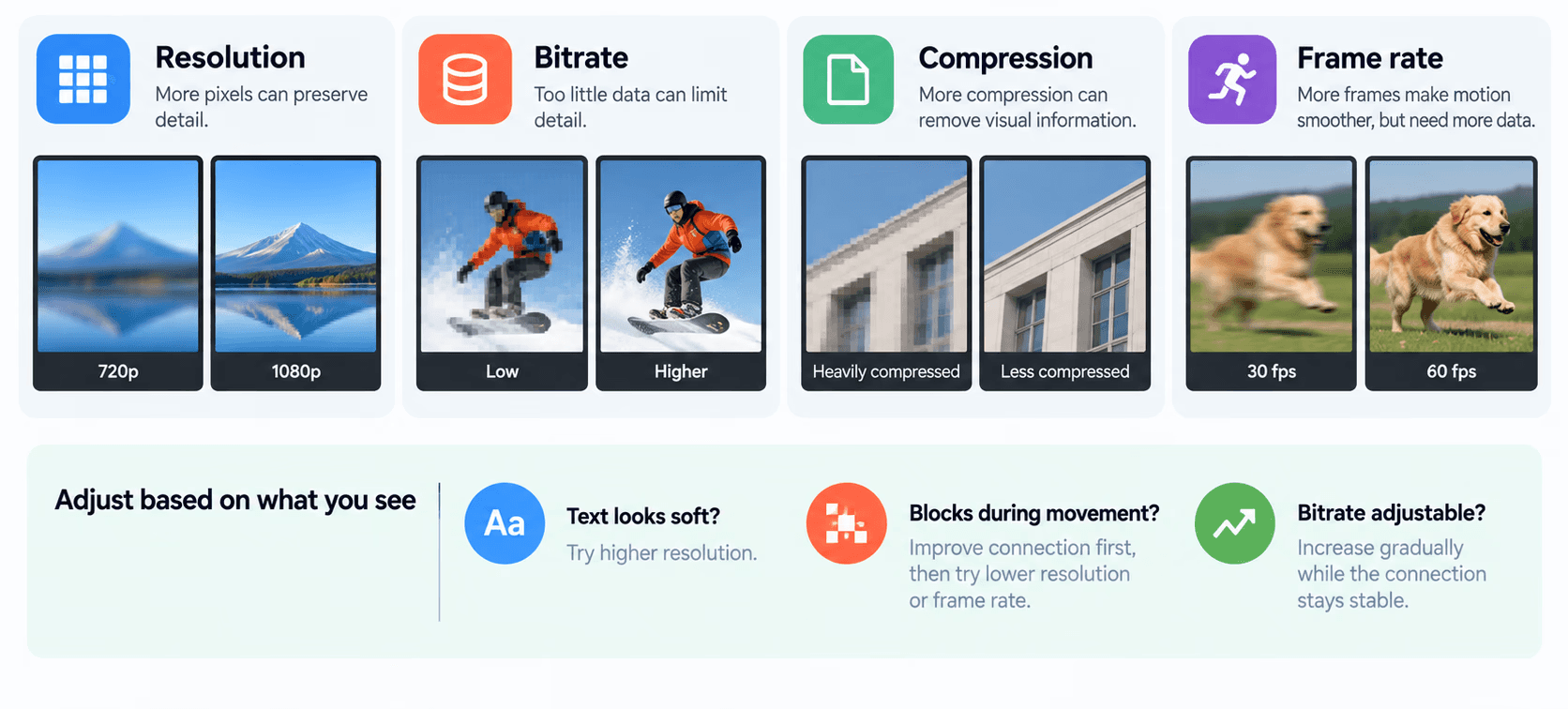
Resolution is only part of picture quality. Four concepts explain why increasing every setting can backfire:
Resolution describes the number of pixels in the image. More pixels can preserve more detail, provided the rest of the system can handle them.
Bitrate describes how much encoded video data is sent each second. At otherwise comparable settings, too little data can limit detail.
Compression reduces the data required. Lossy compression can discard visual information, making blocks or smeared textures more noticeable.
Throughput is the data rate the connection actually sustains. It differs from an advertised router speed or internet plan.
Frame rate adds another demand: more frames must be encoded and delivered each second. Cisco’s February 2025 RoomOS technical guide explicitly describes the trade-off between resolution and frame rate when encoding transmitted video. Its particular controls concern conference transmission, but the trade-off explains why “maximum everything” is not a universal quality strategy.
If your mirroring software offers quality controls, use the symptom to choose a test:
For consistently soft text, try higher resolution or a quality-focused preset.
For blocks during movement, improve the connection first, then compare a lower resolution or frame rate.
If bitrate is adjustable, increase it gradually only while the connection remains stable.
There is no single best bitrate for every device and codec. Many built-in mirroring interfaces do not expose one.
A lower-resolution stream may look cleaner during movement while showing less static detail. Judge the result against what you actually need to display.
Resolution is only part of picture quality. Four concepts explain why increasing every setting can backfire:
Resolution describes the number of pixels in the image. More pixels can preserve more detail, provided the rest of the system can handle them.
Bitrate describes how much encoded video data is sent each second. At otherwise comparable settings, too little data can limit detail.
Compression reduces the data required. Lossy compression can discard visual information, making blocks or smeared textures more noticeable.
Throughput is the data rate the connection actually sustains. It differs from an advertised router speed or internet plan.
Frame rate adds another demand: more frames must be encoded and delivered each second. Cisco’s February 2025 RoomOS technical guide explicitly describes the trade-off between resolution and frame rate when encoding transmitted video. Its particular controls concern conference transmission, but the trade-off explains why “maximum everything” is not a universal quality strategy.
If your mirroring software offers quality controls, use the symptom to choose a test:
For consistently soft text, try higher resolution or a quality-focused preset.
For blocks during movement, improve the connection first, then compare a lower resolution or frame rate.
If bitrate is adjustable, increase it gradually only while the connection remains stable.
There is no single best bitrate for every device and codec. Many built-in mirroring interfaces do not expose one.
A lower-resolution stream may look cleaner during movement while showing less static detail. Judge the result against what you actually need to display.
Resolution is only part of picture quality. Four concepts explain why increasing every setting can backfire:
Resolution describes the number of pixels in the image. More pixels can preserve more detail, provided the rest of the system can handle them.
Bitrate describes how much encoded video data is sent each second. At otherwise comparable settings, too little data can limit detail.
Compression reduces the data required. Lossy compression can discard visual information, making blocks or smeared textures more noticeable.
Throughput is the data rate the connection actually sustains. It differs from an advertised router speed or internet plan.
Frame rate adds another demand: more frames must be encoded and delivered each second. Cisco’s February 2025 RoomOS technical guide explicitly describes the trade-off between resolution and frame rate when encoding transmitted video. Its particular controls concern conference transmission, but the trade-off explains why “maximum everything” is not a universal quality strategy.
If your mirroring software offers quality controls, use the symptom to choose a test:
For consistently soft text, try higher resolution or a quality-focused preset.
For blocks during movement, improve the connection first, then compare a lower resolution or frame rate.
If bitrate is adjustable, increase it gradually only while the connection remains stable.
There is no single best bitrate for every device and codec. Many built-in mirroring interfaces do not expose one.
A lower-resolution stream may look cleaner during movement while showing less static detail. Judge the result against what you actually need to display.
6. Update the Devices, Then Repeat the Comparison
6. Update the Devices, Then Repeat the Comparison
6. Update the Devices, Then Repeat the Comparison
If the problem began after a software change, or one sending device looks much worse than another, record that pattern before making further adjustments.
Check for updates to the sending device, the mirroring app, and the TV or receiver firmware. On Windows, also check your computer manufacturer’s graphics and Wi-Fi driver updates.
Apple’s September 2025 AirPlay troubleshooting guidance recommends current software and restarting the relevant devices. These are reasonable troubleshooting steps, but the guidance does not promise that an update will resolve every picture-quality problem.
Afterward, repeat your original photo, text, and video tests. If only one app remains affected, focus on that app’s playback behavior rather than repeatedly resetting the network.
If the problem began after a software change, or one sending device looks much worse than another, record that pattern before making further adjustments.
Check for updates to the sending device, the mirroring app, and the TV or receiver firmware. On Windows, also check your computer manufacturer’s graphics and Wi-Fi driver updates.
Apple’s September 2025 AirPlay troubleshooting guidance recommends current software and restarting the relevant devices. These are reasonable troubleshooting steps, but the guidance does not promise that an update will resolve every picture-quality problem.
Afterward, repeat your original photo, text, and video tests. If only one app remains affected, focus on that app’s playback behavior rather than repeatedly resetting the network.
If the problem began after a software change, or one sending device looks much worse than another, record that pattern before making further adjustments.
Check for updates to the sending device, the mirroring app, and the TV or receiver firmware. On Windows, also check your computer manufacturer’s graphics and Wi-Fi driver updates.
Apple’s September 2025 AirPlay troubleshooting guidance recommends current software and restarting the relevant devices. These are reasonable troubleshooting steps, but the guidance does not promise that an update will resolve every picture-quality problem.
Afterward, repeat your original photo, text, and video tests. If only one app remains affected, focus on that app’s playback behavior rather than repeatedly resetting the network.
7. Use a Supported Wired Connection as a Comparison
7. Use a Supported Wired Connection as a Comparison
7. Use a Supported Wired Connection as a Comparison
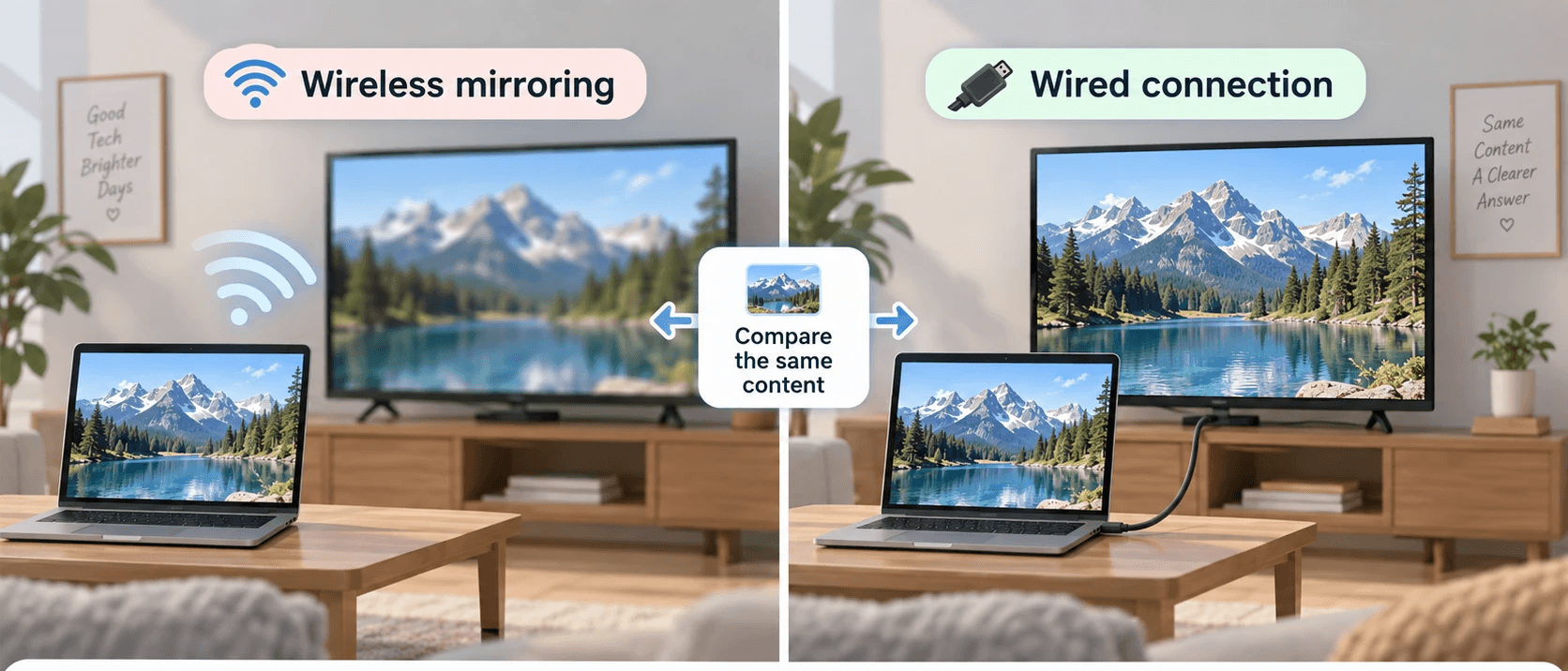
If your phone, tablet, or computer supports video output, try a compatible wired connection to the same screen.
Check the device and adapter specifications first. Having a USB-C connector alone does not establish which video-output features are supported.
Use the same content and, where possible, comparable output settings. A sharper wired result points toward the wireless mirroring path as something worth investigating, but it does not identify a single component.
If both methods look equally soft, revisit the source content, output resolution, and TV scaling. Wired output still has device, adapter, and display limitations; buying another cable is not automatically the answer.
If your phone, tablet, or computer supports video output, try a compatible wired connection to the same screen.
Check the device and adapter specifications first. Having a USB-C connector alone does not establish which video-output features are supported.
Use the same content and, where possible, comparable output settings. A sharper wired result points toward the wireless mirroring path as something worth investigating, but it does not identify a single component.
If both methods look equally soft, revisit the source content, output resolution, and TV scaling. Wired output still has device, adapter, and display limitations; buying another cable is not automatically the answer.
If your phone, tablet, or computer supports video output, try a compatible wired connection to the same screen.
Check the device and adapter specifications first. Having a USB-C connector alone does not establish which video-output features are supported.
Use the same content and, where possible, comparable output settings. A sharper wired result points toward the wireless mirroring path as something worth investigating, but it does not identify a single component.
If both methods look equally soft, revisit the source content, output resolution, and TV scaling. Wired output still has device, adapter, and display limitations; buying another cable is not automatically the answer.
Frequently Asked Questions
Frequently Asked Questions
Frequently Asked Questions
Why is screen mirroring blurry even with fast Wi-Fi?
The bottleneck may be elsewhere: source quality, encoding, negotiated resolution, or display scaling. Also, a high internet speed-test result does not establish the throughput of a direct wireless or local mirroring connection. Compare local content and different playback methods before assuming you need faster broadband.
Why does my 4K TV show a low-quality mirrored picture?
The receiver’s capabilities and connection mode matter. For example, Cisco’s August 2026 documentation distinguishes 4K support between infrastructure and Wi-Fi Direct modes on its devices. That is a product-specific example of why a television’s resolution alone cannot guarantee a 4K mirror stream.
Should I lower the resolution to improve quality?
Try it when movement causes blockiness or the connection struggles. For a stable picture with blurry text, check whether the resolution is already too low instead. Compare the same material after each change, and keep the setting that improves your actual use case.
The most useful fix is the one that addresses where detail is being lost. Start with the source, compare playback methods, then check transmission and display settings—one change at a time.
Why is screen mirroring blurry even with fast Wi-Fi?
The bottleneck may be elsewhere: source quality, encoding, negotiated resolution, or display scaling. Also, a high internet speed-test result does not establish the throughput of a direct wireless or local mirroring connection. Compare local content and different playback methods before assuming you need faster broadband.
Why does my 4K TV show a low-quality mirrored picture?
The receiver’s capabilities and connection mode matter. For example, Cisco’s August 2026 documentation distinguishes 4K support between infrastructure and Wi-Fi Direct modes on its devices. That is a product-specific example of why a television’s resolution alone cannot guarantee a 4K mirror stream.
Should I lower the resolution to improve quality?
Try it when movement causes blockiness or the connection struggles. For a stable picture with blurry text, check whether the resolution is already too low instead. Compare the same material after each change, and keep the setting that improves your actual use case.
The most useful fix is the one that addresses where detail is being lost. Start with the source, compare playback methods, then check transmission and display settings—one change at a time.
Why is screen mirroring blurry even with fast Wi-Fi?
The bottleneck may be elsewhere: source quality, encoding, negotiated resolution, or display scaling. Also, a high internet speed-test result does not establish the throughput of a direct wireless or local mirroring connection. Compare local content and different playback methods before assuming you need faster broadband.
Why does my 4K TV show a low-quality mirrored picture?
The receiver’s capabilities and connection mode matter. For example, Cisco’s August 2026 documentation distinguishes 4K support between infrastructure and Wi-Fi Direct modes on its devices. That is a product-specific example of why a television’s resolution alone cannot guarantee a 4K mirror stream.
Should I lower the resolution to improve quality?
Try it when movement causes blockiness or the connection struggles. For a stable picture with blurry text, check whether the resolution is already too low instead. Compare the same material after each change, and keep the setting that improves your actual use case.
The most useful fix is the one that addresses where detail is being lost. Start with the source, compare playback methods, then check transmission and display settings—one change at a time.
Table of content
Table of content


Still Need a Hand?
Still Need a Hand?
Still Need a Hand?
Explore more reviews, step-by-step guides, and troubleshooting tips—or contact us if you could not find the answer you needed.
Explore more reviews, step-by-step guides, and troubleshooting tips—or contact us if you could not find the answer you needed.
Explore more reviews, step-by-step guides, and troubleshooting tips—or contact us if you could not find the answer you needed.