
Why Is Screen Mirroring Not Full Screen? Fix Black Bars, Cropping, and Stretching
Why Is Screen Mirroring Not Full Screen? Fix Black Bars, Cropping, and Stretching
Why Is Screen Mirroring Not Full Screen? Fix Black Bars, Cropping, and Stretching
Learn why screen mirroring shows black bars, cropped edges, or stretched images and how to choose the right display mode.
Learn why screen mirroring shows black bars, cropped edges, or stretched images and how to choose the right display mode.
Learn why screen mirroring shows black bars, cropped edges, or stretched images and how to choose the right display mode.
If the image is visible but does not fill your TV or monitor, the problem is usually aspect ratio or display scaling—not a failed mirroring connection. Removing black bars is not always an improvement: it may crop part of the image or stretch it out of proportion.
The right goal is to choose the view that preserves what matters most. In some setups, black bars are the correct result because they keep the full image visible and correctly shaped.
Goal | Likely result | Trade-off |
Preserve the full image and correct proportions | Black bars | The picture may not fill the full panel |
Fill more of the display | Zoom or Fill | Edges can be cropped |
Force the picture to fill the panel | Stretch | The image can be distorted |
If the image is visible but does not fill your TV or monitor, the problem is usually aspect ratio or display scaling—not a failed mirroring connection. Removing black bars is not always an improvement: it may crop part of the image or stretch it out of proportion.
The right goal is to choose the view that preserves what matters most. In some setups, black bars are the correct result because they keep the full image visible and correctly shaped.
Goal | Likely result | Trade-off |
Preserve the full image and correct proportions | Black bars | The picture may not fill the full panel |
Fill more of the display | Zoom or Fill | Edges can be cropped |
Force the picture to fill the panel | Stretch | The image can be distorted |
If the image is visible but does not fill your TV or monitor, the problem is usually aspect ratio or display scaling—not a failed mirroring connection. Removing black bars is not always an improvement: it may crop part of the image or stretch it out of proportion.
The right goal is to choose the view that preserves what matters most. In some setups, black bars are the correct result because they keep the full image visible and correctly shaped.
Goal | Likely result | Trade-off |
Preserve the full image and correct proportions | Black bars | The picture may not fill the full panel |
Fill more of the display | Zoom or Fill | Edges can be cropped |
Force the picture to fill the panel | Stretch | The image can be distorted |
What do you see? Use this quick decision tree
What do you see? Use this quick decision tree
What do you see? Use this quick decision tree
Start with the symptom you can see, rather than changing settings at random.
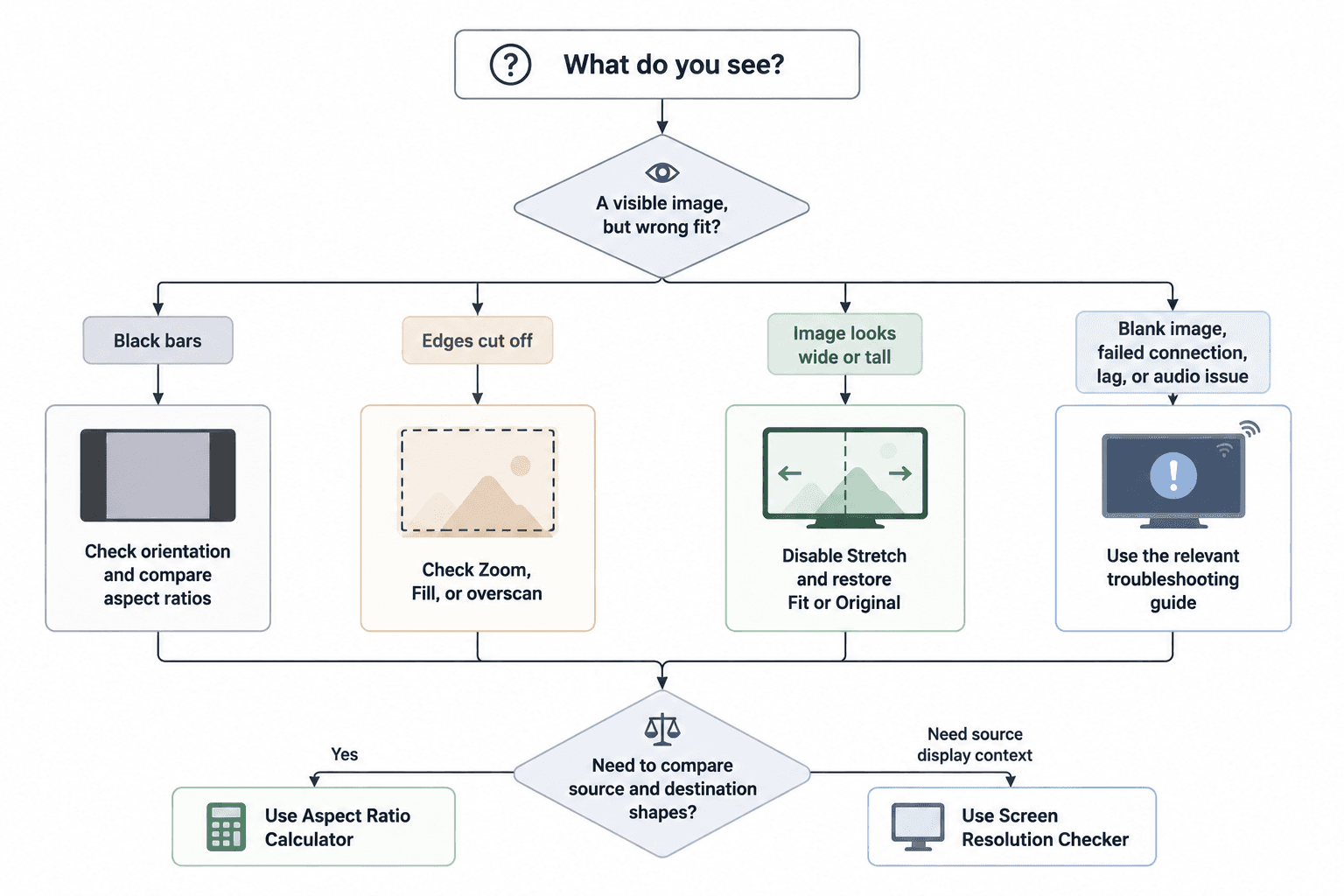
Black bars: The full image is visible, but it does not occupy the entire display.
Cropping: Edges, subtitles, buttons, the taskbar, or other content are missing.
Stretching: Faces, circles, or text look unnaturally wide or tall.
A picture with bars may already be displayed correctly. A cropped or stretched picture usually needs a setting changed.
Start with the symptom you can see, rather than changing settings at random.
Black bars: The full image is visible, but it does not occupy the entire display.
Cropping: Edges, subtitles, buttons, the taskbar, or other content are missing.
Stretching: Faces, circles, or text look unnaturally wide or tall.
A picture with bars may already be displayed correctly. A cropped or stretched picture usually needs a setting changed.
Start with the symptom you can see, rather than changing settings at random.
Black bars: The full image is visible, but it does not occupy the entire display.
Cropping: Edges, subtitles, buttons, the taskbar, or other content are missing.
Stretching: Faces, circles, or text look unnaturally wide or tall.
A picture with bars may already be displayed correctly. A cropped or stretched picture usually needs a setting changed.
Why “full screen” is not always the best result
Why “full screen” is not always the best result
Why “full screen” is not always the best result
A TV, phone, laptop, app, and video do not always use the same shape. That shape is the aspect ratio: the relationship between width and height. Most modern TVs use 16:9, vertical video is often 9:16, and many laptops use 16:10 or 3:2. Phone displays vary by model.
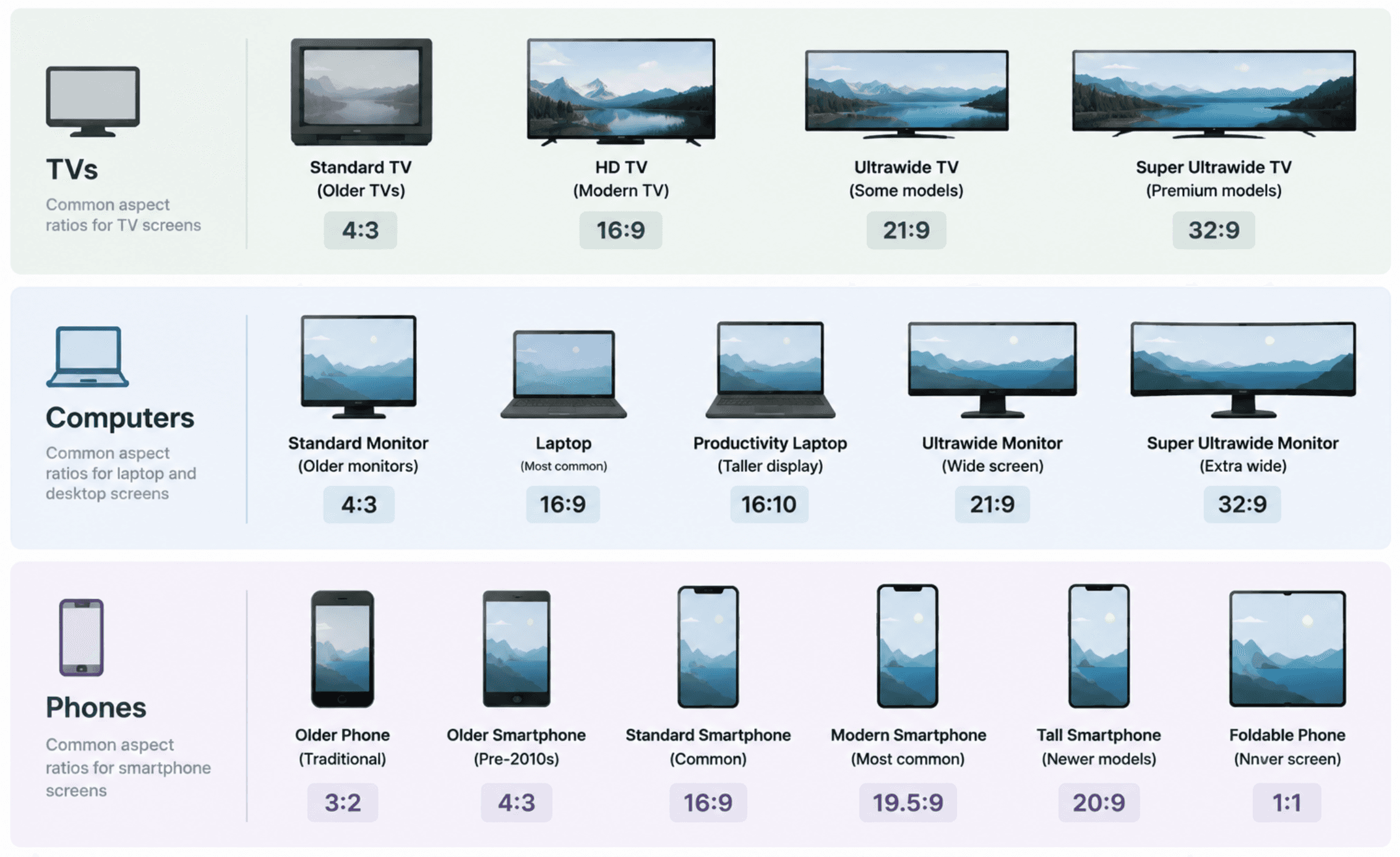
Fitting the image usually means accepting one of three trade-offs: show the complete image with unused space around it, enlarge it to fill more of the display and crop the edges, or stretch it to fill the panel. Different shapes cannot match without accepting at least one of those trade-offs.
Black bars at the top and bottom are often called letterboxing; bars at the sides are often called pillarboxing. They can be normal when the receiver fits the whole source image without distortion. Keeping them is usually the right choice for presentations, menus, documents, video calls, and anything where every on-screen detail matters.
A TV, phone, laptop, app, and video do not always use the same shape. That shape is the aspect ratio: the relationship between width and height. Most modern TVs use 16:9, vertical video is often 9:16, and many laptops use 16:10 or 3:2. Phone displays vary by model.
Fitting the image usually means accepting one of three trade-offs: show the complete image with unused space around it, enlarge it to fill more of the display and crop the edges, or stretch it to fill the panel. Different shapes cannot match without accepting at least one of those trade-offs.
Black bars at the top and bottom are often called letterboxing; bars at the sides are often called pillarboxing. They can be normal when the receiver fits the whole source image without distortion. Keeping them is usually the right choice for presentations, menus, documents, video calls, and anything where every on-screen detail matters.
A TV, phone, laptop, app, and video do not always use the same shape. That shape is the aspect ratio: the relationship between width and height. Most modern TVs use 16:9, vertical video is often 9:16, and many laptops use 16:10 or 3:2. Phone displays vary by model.
Fitting the image usually means accepting one of three trade-offs: show the complete image with unused space around it, enlarge it to fill more of the display and crop the edges, or stretch it to fill the panel. Different shapes cannot match without accepting at least one of those trade-offs.
Black bars at the top and bottom are often called letterboxing; bars at the sides are often called pillarboxing. They can be normal when the receiver fits the whole source image without distortion. Keeping them is usually the right choice for presentations, menus, documents, video calls, and anything where every on-screen detail matters.
Black bars: check orientation, then compare aspect ratios
Black bars: check orientation, then compare aspect ratios
Black bars: check orientation, then compare aspect ratios
First, rotate the sending device if the content supports it. A vertical phone mirrored to a horizontal TV will naturally leave large bars at the sides. Moving the phone into landscape, then reopening or rotating the app, can use more of the TV without changing the picture’s proportions.
Bars can also come from the content itself. A video, photo, browser tab, or app may use a different shape from both your phone and your TV. Likewise, a 16:10 or 3:2 laptop mirrored to a 16:9 TV can retain small borders even though the connection is working correctly.
If you are playing supported media rather than showing your whole interface, try the app’s Cast or AirPlay control where available. Apple distinguishes streaming video from Screen Mirroring in its AirPlay guidance, and our guide to screen sharing a phone to a TV explains how those routes differ on iPhone and Android. This may give the receiver a better-suited media path, but it does not guarantee that every video will fill the screen.
If the mismatch is unclear, compare the source and destination dimensions with the Aspect Ratio Calculator. Enter the width and height for each screen using the same unit, then compare the exact ratios. A familiar label such as 16:9 is useful context, but the exact mathematical ratio shows whether the screens have the same shape.
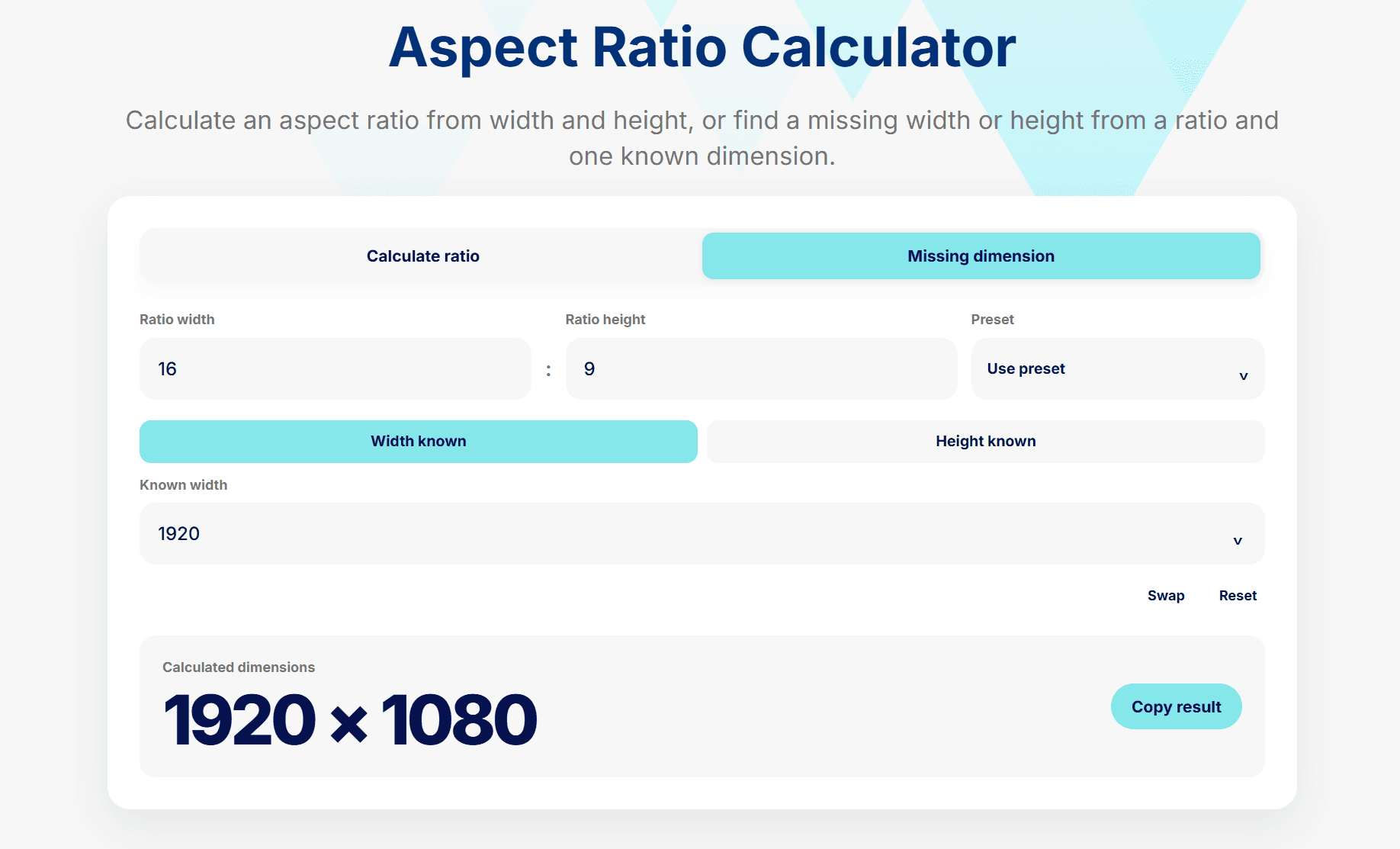
The calculator compares dimensions only. It does not test compatibility, measure picture quality, or guarantee that a phone, computer, or receiver can output a different shape.
Try this order:
Rotate the source to landscape if the content supports it.
Select Fit, Original, Screen Fit, or a similar proportional mode.
Compare aspect ratios only if the bars are still unexplained.
Keep the proportional mode when the alternative would remove subtitles, buttons, or important image detail. Some phones, apps, receivers, and mirroring methods offer a supported full-screen or 16:9 option, but availability varies by device, software, and connection method.
First, rotate the sending device if the content supports it. A vertical phone mirrored to a horizontal TV will naturally leave large bars at the sides. Moving the phone into landscape, then reopening or rotating the app, can use more of the TV without changing the picture’s proportions.
Bars can also come from the content itself. A video, photo, browser tab, or app may use a different shape from both your phone and your TV. Likewise, a 16:10 or 3:2 laptop mirrored to a 16:9 TV can retain small borders even though the connection is working correctly.
If you are playing supported media rather than showing your whole interface, try the app’s Cast or AirPlay control where available. Apple distinguishes streaming video from Screen Mirroring in its AirPlay guidance, and our guide to screen sharing a phone to a TV explains how those routes differ on iPhone and Android. This may give the receiver a better-suited media path, but it does not guarantee that every video will fill the screen.
If the mismatch is unclear, compare the source and destination dimensions with the Aspect Ratio Calculator. Enter the width and height for each screen using the same unit, then compare the exact ratios. A familiar label such as 16:9 is useful context, but the exact mathematical ratio shows whether the screens have the same shape.
The calculator compares dimensions only. It does not test compatibility, measure picture quality, or guarantee that a phone, computer, or receiver can output a different shape.
Try this order:
Rotate the source to landscape if the content supports it.
Select Fit, Original, Screen Fit, or a similar proportional mode.
Compare aspect ratios only if the bars are still unexplained.
Keep the proportional mode when the alternative would remove subtitles, buttons, or important image detail. Some phones, apps, receivers, and mirroring methods offer a supported full-screen or 16:9 option, but availability varies by device, software, and connection method.
First, rotate the sending device if the content supports it. A vertical phone mirrored to a horizontal TV will naturally leave large bars at the sides. Moving the phone into landscape, then reopening or rotating the app, can use more of the TV without changing the picture’s proportions.
Bars can also come from the content itself. A video, photo, browser tab, or app may use a different shape from both your phone and your TV. Likewise, a 16:10 or 3:2 laptop mirrored to a 16:9 TV can retain small borders even though the connection is working correctly.
If you are playing supported media rather than showing your whole interface, try the app’s Cast or AirPlay control where available. Apple distinguishes streaming video from Screen Mirroring in its AirPlay guidance, and our guide to screen sharing a phone to a TV explains how those routes differ on iPhone and Android. This may give the receiver a better-suited media path, but it does not guarantee that every video will fill the screen.
If the mismatch is unclear, compare the source and destination dimensions with the Aspect Ratio Calculator. Enter the width and height for each screen using the same unit, then compare the exact ratios. A familiar label such as 16:9 is useful context, but the exact mathematical ratio shows whether the screens have the same shape.
The calculator compares dimensions only. It does not test compatibility, measure picture quality, or guarantee that a phone, computer, or receiver can output a different shape.
Try this order:
Rotate the source to landscape if the content supports it.
Select Fit, Original, Screen Fit, or a similar proportional mode.
Compare aspect ratios only if the bars are still unexplained.
Keep the proportional mode when the alternative would remove subtitles, buttons, or important image detail. Some phones, apps, receivers, and mirroring methods offer a supported full-screen or 16:9 option, but availability varies by device, software, and connection method.
Cropped edges: check Zoom, Fill, and overscan
Cropped edges: check Zoom, Fill, and overscan
Cropped edges: check Zoom, Fill, and overscan
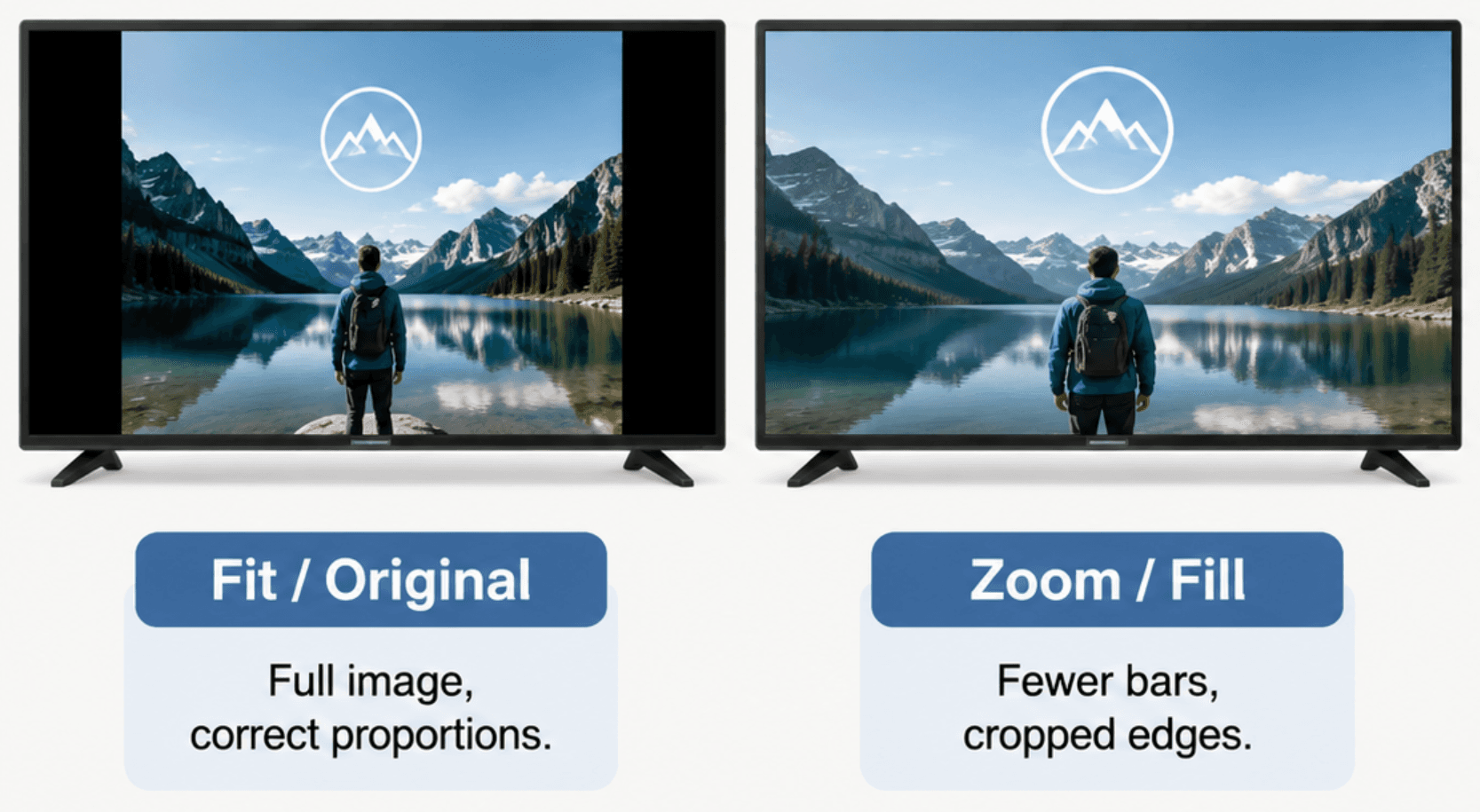
Cropping means that part of a visible image is missing. You might notice clipped subtitles, app controls at the edge of the screen, missing desktop borders, or a taskbar that is only partly visible.
Try this order: Check whether Zoom, Fill, or Wide is active, switch to a mode that shows the whole input, then check for overscan if edges are still missing.
On the receiving display, look for a picture-size or display-fit mode that shows the entire incoming image. Depending on the device, it may be called Fit, Original, Screen Fit, Just Scan, 1:1, or Full Pixel. Names differ by manufacturer, so follow what the option does rather than expecting one menu label.
Zoom, Fill, and Wide modes enlarge the picture to cover more of the panel. They can remove bars, but they commonly remove content from the edges. Use them only when you have checked that captions, controls, and important image details remain visible.
Overscan can create the same symptom on some TV and HDMI setups by enlarging the incoming image beyond the visible panel edges. Common fit-to-screen labels vary by manufacturer. If one restores the missing edges, leave that mode enabled. If your receiver does not provide a relevant control, check the sending device, adapter, or receiver documentation instead of compensating with Stretch.
Cropping means that part of a visible image is missing. You might notice clipped subtitles, app controls at the edge of the screen, missing desktop borders, or a taskbar that is only partly visible.
Try this order: Check whether Zoom, Fill, or Wide is active, switch to a mode that shows the whole input, then check for overscan if edges are still missing.
On the receiving display, look for a picture-size or display-fit mode that shows the entire incoming image. Depending on the device, it may be called Fit, Original, Screen Fit, Just Scan, 1:1, or Full Pixel. Names differ by manufacturer, so follow what the option does rather than expecting one menu label.
Zoom, Fill, and Wide modes enlarge the picture to cover more of the panel. They can remove bars, but they commonly remove content from the edges. Use them only when you have checked that captions, controls, and important image details remain visible.
Overscan can create the same symptom on some TV and HDMI setups by enlarging the incoming image beyond the visible panel edges. Common fit-to-screen labels vary by manufacturer. If one restores the missing edges, leave that mode enabled. If your receiver does not provide a relevant control, check the sending device, adapter, or receiver documentation instead of compensating with Stretch.
Cropping means that part of a visible image is missing. You might notice clipped subtitles, app controls at the edge of the screen, missing desktop borders, or a taskbar that is only partly visible.
Try this order: Check whether Zoom, Fill, or Wide is active, switch to a mode that shows the whole input, then check for overscan if edges are still missing.
On the receiving display, look for a picture-size or display-fit mode that shows the entire incoming image. Depending on the device, it may be called Fit, Original, Screen Fit, Just Scan, 1:1, or Full Pixel. Names differ by manufacturer, so follow what the option does rather than expecting one menu label.
Zoom, Fill, and Wide modes enlarge the picture to cover more of the panel. They can remove bars, but they commonly remove content from the edges. Use them only when you have checked that captions, controls, and important image details remain visible.
Overscan can create the same symptom on some TV and HDMI setups by enlarging the incoming image beyond the visible panel edges. Common fit-to-screen labels vary by manufacturer. If one restores the missing edges, leave that mode enabled. If your receiver does not provide a relevant control, check the sending device, adapter, or receiver documentation instead of compensating with Stretch.
Stretched image: restore the correct proportions
Stretched image: restore the correct proportions
Stretched image: restore the correct proportions
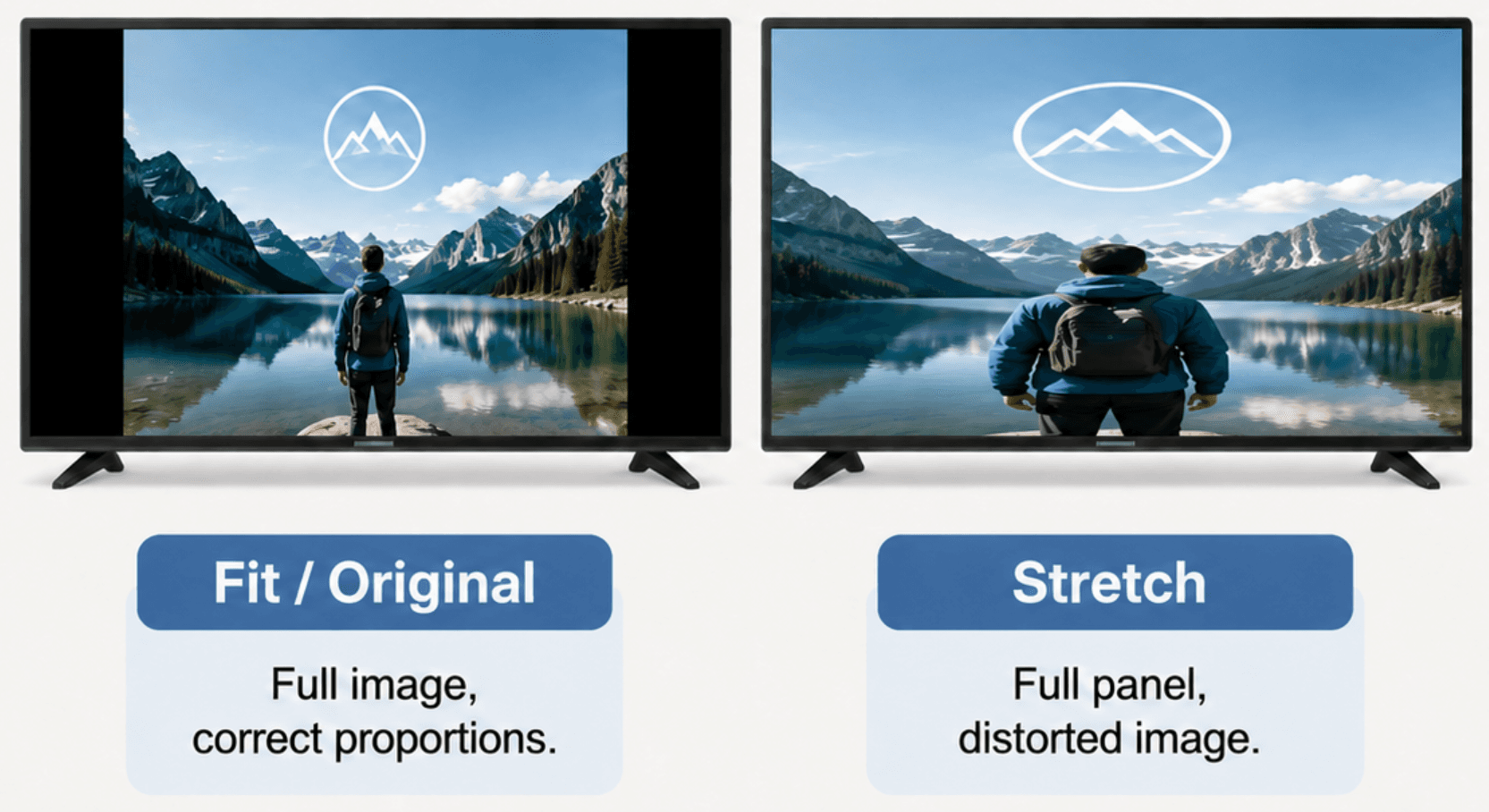
If people look too wide or too tall, circles look oval, or text looks compressed, the display is not preserving the source aspect ratio.
Try this order: Select Original, Fit, or Screen Fit; disable Stretch, Wide, or a forced 16:9 mode; then recheck the source orientation and any video player fit/fill control.
A vertical source on a horizontal TV should have bars rather than a distorted image. A proportion-preserving mirror can leave black space where the source and destination shapes differ; that is generally preferable to stretching the picture to fill the panel.
If people look too wide or too tall, circles look oval, or text looks compressed, the display is not preserving the source aspect ratio.
Try this order: Select Original, Fit, or Screen Fit; disable Stretch, Wide, or a forced 16:9 mode; then recheck the source orientation and any video player fit/fill control.
A vertical source on a horizontal TV should have bars rather than a distorted image. A proportion-preserving mirror can leave black space where the source and destination shapes differ; that is generally preferable to stretching the picture to fill the panel.
If people look too wide or too tall, circles look oval, or text looks compressed, the display is not preserving the source aspect ratio.
Try this order: Select Original, Fit, or Screen Fit; disable Stretch, Wide, or a forced 16:9 mode; then recheck the source orientation and any video player fit/fill control.
A vertical source on a horizontal TV should have bars rather than a distorted image. A proportion-preserving mirror can leave black space where the source and destination shapes differ; that is generally preferable to stretching the picture to fill the panel.
Check the sender only when you need more context
Check the sender only when you need more context
Check the sender only when you need more context
If you need a reference point for the sending device, use the Screen Resolution Checker. It shows the screen size, browser viewport, pixel scale, orientation, and aspect ratio reported by your browser.
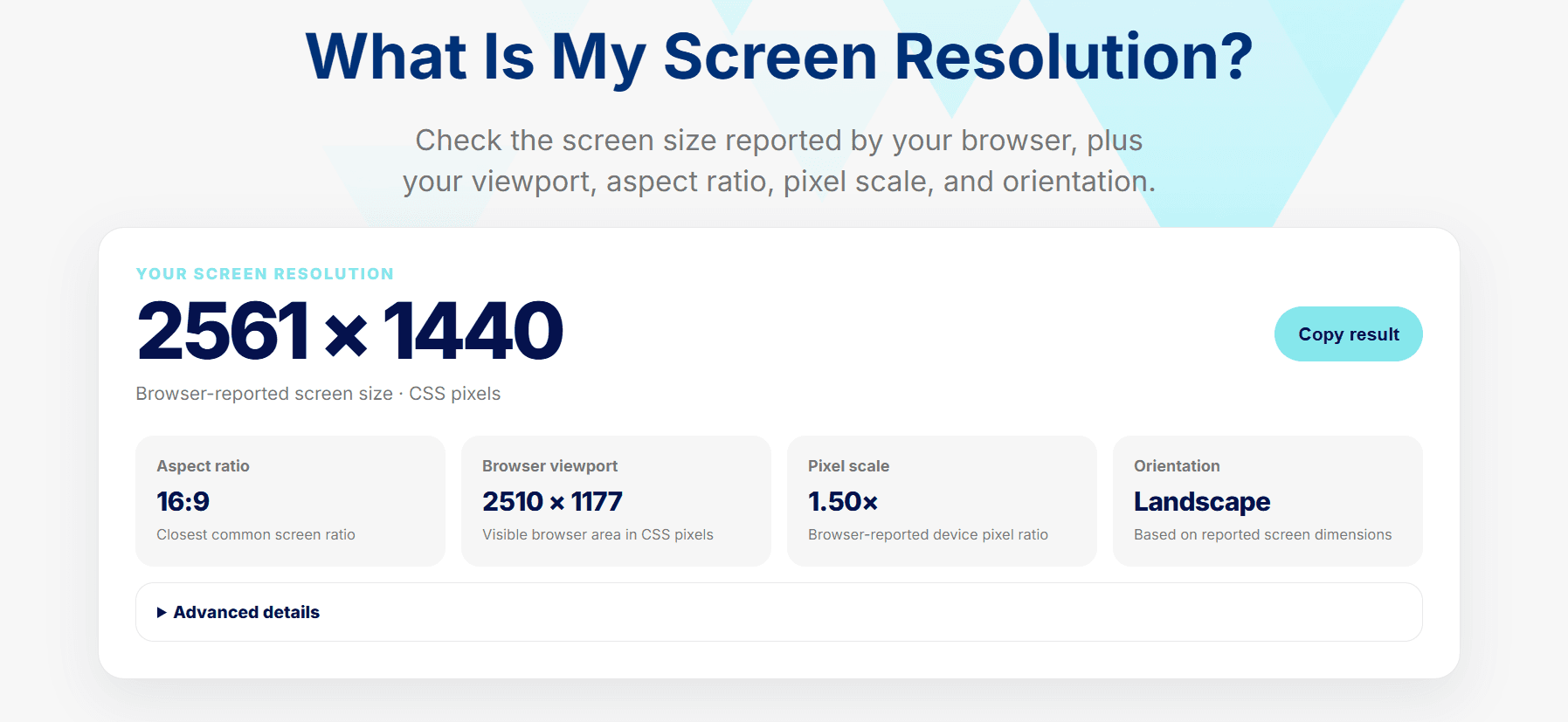
Do not treat that result as the device’s actual display resolution or native panel resolution. Browser-reported CSS-pixel values can differ from the panel and from the resolution sent through mirroring because of zoom, operating-system scaling, privacy behavior, or external-display settings.
If you need a reference point for the sending device, use the Screen Resolution Checker. It shows the screen size, browser viewport, pixel scale, orientation, and aspect ratio reported by your browser.
Do not treat that result as the device’s actual display resolution or native panel resolution. Browser-reported CSS-pixel values can differ from the panel and from the resolution sent through mirroring because of zoom, operating-system scaling, privacy behavior, or external-display settings.
If you need a reference point for the sending device, use the Screen Resolution Checker. It shows the screen size, browser viewport, pixel scale, orientation, and aspect ratio reported by your browser.
Do not treat that result as the device’s actual display resolution or native panel resolution. Browser-reported CSS-pixel values can differ from the panel and from the resolution sent through mirroring because of zoom, operating-system scaling, privacy behavior, or external-display settings.
When this is not a full-screen fitting problem
When this is not a full-screen fitting problem
When this is not a full-screen fitting problem
This guide is for a visible image that is fitted incorrectly. Use a different troubleshooting path if the image is completely black or empty, the TV cannot be found, the connection will not start, it keeps disconnecting, playback stutters, or audio is missing or routed to the wrong device.
For those issues, see the screen mirroring not working fix guide. A black screen is different from black bars: black bars usually mean a visible image is being fitted within a differently shaped display.
Choose Fit or Original when you need the complete image and correct proportions. Choose Zoom or Fill only when cropped edges are acceptable. Avoid Stretch unless distortion is acceptable. When the source and destination have different shapes, black bars can be the correct outcome.
This guide is for a visible image that is fitted incorrectly. Use a different troubleshooting path if the image is completely black or empty, the TV cannot be found, the connection will not start, it keeps disconnecting, playback stutters, or audio is missing or routed to the wrong device.
For those issues, see the screen mirroring not working fix guide. A black screen is different from black bars: black bars usually mean a visible image is being fitted within a differently shaped display.
Choose Fit or Original when you need the complete image and correct proportions. Choose Zoom or Fill only when cropped edges are acceptable. Avoid Stretch unless distortion is acceptable. When the source and destination have different shapes, black bars can be the correct outcome.
This guide is for a visible image that is fitted incorrectly. Use a different troubleshooting path if the image is completely black or empty, the TV cannot be found, the connection will not start, it keeps disconnecting, playback stutters, or audio is missing or routed to the wrong device.
For those issues, see the screen mirroring not working fix guide. A black screen is different from black bars: black bars usually mean a visible image is being fitted within a differently shaped display.
Choose Fit or Original when you need the complete image and correct proportions. Choose Zoom or Fill only when cropped edges are acceptable. Avoid Stretch unless distortion is acceptable. When the source and destination have different shapes, black bars can be the correct outcome.
Table of content
Table of content

Still Need a Hand?
Still Need a Hand?
Still Need a Hand?
Explore more reviews, step-by-step guides, and troubleshooting tips—or contact us if you could not find the answer you needed.
Explore more reviews, step-by-step guides, and troubleshooting tips—or contact us if you could not find the answer you needed.
Explore more reviews, step-by-step guides, and troubleshooting tips—or contact us if you could not find the answer you needed.