
Screen Mirroring No Sound? How to Fix Audio on Your TV
Screen Mirroring No Sound? How to Fix Audio on Your TV
Screen Mirroring No Sound? How to Fix Audio on Your TV
No sound when screen mirroring? Check audio output, TV settings, Bluetooth devices, and app-specific playback options to get sound back on your TV.
No sound when screen mirroring? Check audio output, TV settings, Bluetooth devices, and app-specific playback options to get sound back on your TV.
No sound when screen mirroring? Check audio output, TV settings, Bluetooth devices, and app-specific playback options to get sound back on your TV.
When screen mirroring shows a picture on your TV but no sound, common causes include the wrong audio output, muted volume, TV or receiver sound settings, or a Bluetooth accessory that is still receiving the audio. Start with the quick checks below before changing your whole connection setup. If sound fails in only one streaming app, the cause may be that app’s playback or content restrictions—not a setting you can change on the phone or computer.
When screen mirroring shows a picture on your TV but no sound, common causes include the wrong audio output, muted volume, TV or receiver sound settings, or a Bluetooth accessory that is still receiving the audio. Start with the quick checks below before changing your whole connection setup. If sound fails in only one streaming app, the cause may be that app’s playback or content restrictions—not a setting you can change on the phone or computer.
When screen mirroring shows a picture on your TV but no sound, common causes include the wrong audio output, muted volume, TV or receiver sound settings, or a Bluetooth accessory that is still receiving the audio. Start with the quick checks below before changing your whole connection setup. If sound fails in only one streaming app, the cause may be that app’s playback or content restrictions—not a setting you can change on the phone or computer.
Try These Quick Fixes First
Try These Quick Fixes First
Try These Quick Fixes First
Work through these checks in order. They take little time and often reveal where the audio went.
Turn up the volume on both ends. Check the sending device and the TV or receiver. Make sure neither is muted.
Pause, then resume playback. If that changes nothing, end the mirroring session and connect again.
Check the sending device’s audio destination. It may still be playing through the phone, laptop, headphones, or another speaker instead of the TV.
Check the TV or receiver. Confirm the right input is active, its own volume is up, and it has not switched sound to a soundbar, Bluetooth device, or another output.
Disconnect audio accessories temporarily. Bluetooth headphones, speakers, HDMI adapters, USB-C hubs, and docks can take over audio even while the picture stays on the TV.
Try a different app or a local media file. If sound works elsewhere, the mirroring connection itself is probably not the main issue.
Do not change several settings at once. Test sound after each check so you can tell what fixed it.
Work through these checks in order. They take little time and often reveal where the audio went.
Turn up the volume on both ends. Check the sending device and the TV or receiver. Make sure neither is muted.
Pause, then resume playback. If that changes nothing, end the mirroring session and connect again.
Check the sending device’s audio destination. It may still be playing through the phone, laptop, headphones, or another speaker instead of the TV.
Check the TV or receiver. Confirm the right input is active, its own volume is up, and it has not switched sound to a soundbar, Bluetooth device, or another output.
Disconnect audio accessories temporarily. Bluetooth headphones, speakers, HDMI adapters, USB-C hubs, and docks can take over audio even while the picture stays on the TV.
Try a different app or a local media file. If sound works elsewhere, the mirroring connection itself is probably not the main issue.
Do not change several settings at once. Test sound after each check so you can tell what fixed it.
Work through these checks in order. They take little time and often reveal where the audio went.
Turn up the volume on both ends. Check the sending device and the TV or receiver. Make sure neither is muted.
Pause, then resume playback. If that changes nothing, end the mirroring session and connect again.
Check the sending device’s audio destination. It may still be playing through the phone, laptop, headphones, or another speaker instead of the TV.
Check the TV or receiver. Confirm the right input is active, its own volume is up, and it has not switched sound to a soundbar, Bluetooth device, or another output.
Disconnect audio accessories temporarily. Bluetooth headphones, speakers, HDMI adapters, USB-C hubs, and docks can take over audio even while the picture stays on the TV.
Try a different app or a local media file. If sound works elsewhere, the mirroring connection itself is probably not the main issue.
Do not change several settings at once. Test sound after each check so you can tell what fixed it.
Check Where Your Device Is Sending Audio
Check Where Your Device Is Sending Audio
Check Where Your Device Is Sending Audio
Video and audio do not always take the same route. A TV can show your screen while your phone or computer still sends sound somewhere else. During an active mirroring session, check the current media or system output and select the TV, receiver, or display you actually want to hear.
Device | Where to check the audio output |
iPhone / iPad | Control Center or the active playback output selector |
Android | Media output or audio-device selector during the session |
Windows PC | Settings > System > Sound > Output |
Mac | Sound output settings or Control Center |
On an iPhone or iPad, use Apple’s AirPlay audio controls in Control Center to choose a compatible audio destination.
On a Mac, choose the intended device under System Settings > Sound > Output; Apple’s sound-output guidance covers display speakers, AirPlay devices, and USB audio devices there.
On Windows, go to Settings > System > Sound > Output and select the device that should play the sound.
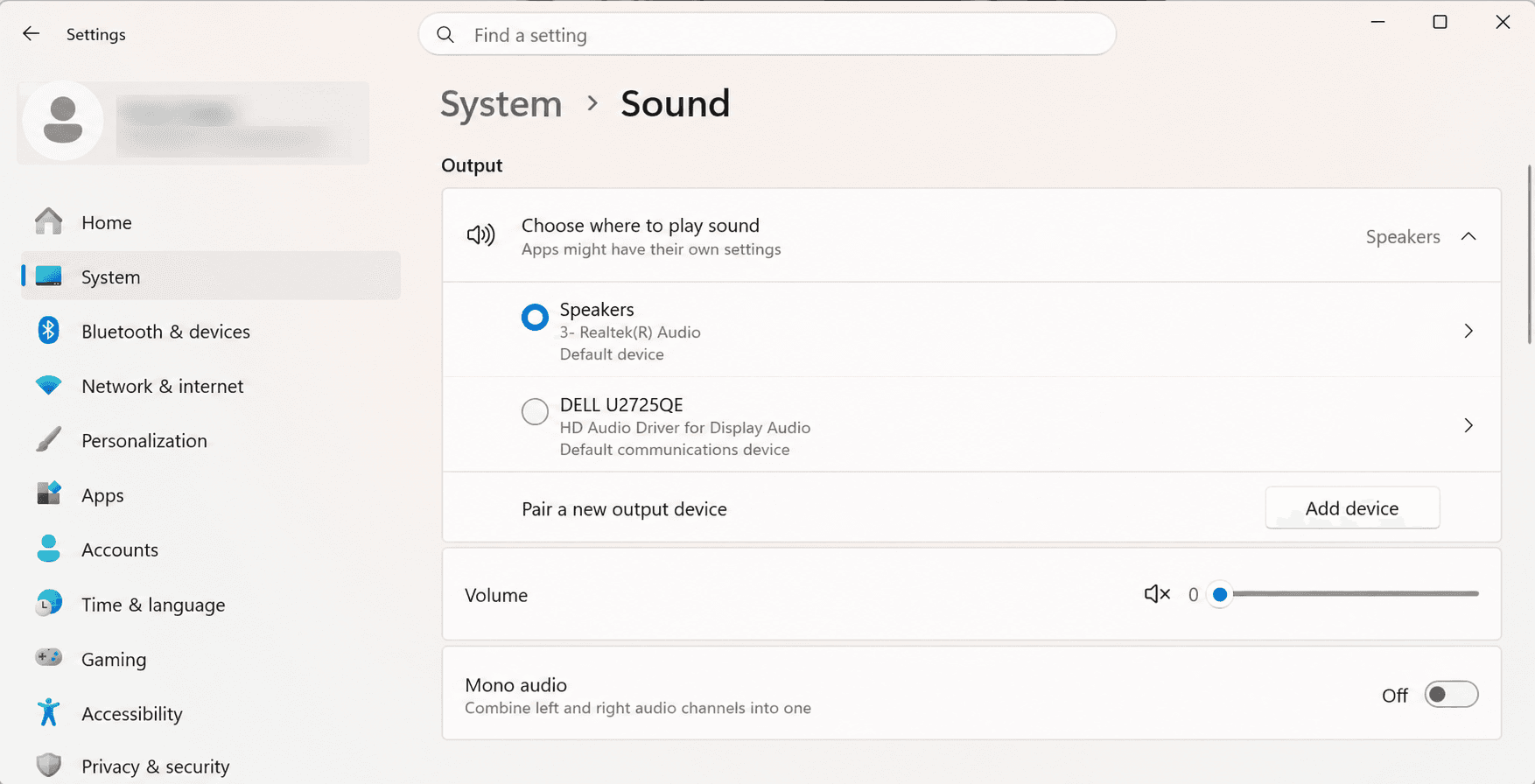
The labels and exact steps vary across Android brands and Windows versions, so focus on the result rather than a particular menu name: the TV, receiver, or intended display must be the active audio destination. If the display appears in your video settings but not your sound settings, it may be showing an image without handling the audio for that connection.
Bluetooth can also redirect the audio. Headphones or a nearby speaker can remain connected and receive sound even after the screen is mirrored to a TV. Disconnect them temporarily or switch the media output back to the TV before assuming the mirroring feature has failed.
If you use an HDMI adapter, USB-C hub, or dock, include it in the check. The accessory may become the audio route, and not every adapter or display connection exposes audio in the same way. Confirm that the accessory is recognized and selected as the intended output before troubleshooting deeper.
Video and audio do not always take the same route. A TV can show your screen while your phone or computer still sends sound somewhere else. During an active mirroring session, check the current media or system output and select the TV, receiver, or display you actually want to hear.
Device | Where to check the audio output |
iPhone / iPad | Control Center or the active playback output selector |
Android | Media output or audio-device selector during the session |
Windows PC | Settings > System > Sound > Output |
Mac | Sound output settings or Control Center |
On an iPhone or iPad, use Apple’s AirPlay audio controls in Control Center to choose a compatible audio destination.
On a Mac, choose the intended device under System Settings > Sound > Output; Apple’s sound-output guidance covers display speakers, AirPlay devices, and USB audio devices there.
On Windows, go to Settings > System > Sound > Output and select the device that should play the sound.
The labels and exact steps vary across Android brands and Windows versions, so focus on the result rather than a particular menu name: the TV, receiver, or intended display must be the active audio destination. If the display appears in your video settings but not your sound settings, it may be showing an image without handling the audio for that connection.
Bluetooth can also redirect the audio. Headphones or a nearby speaker can remain connected and receive sound even after the screen is mirrored to a TV. Disconnect them temporarily or switch the media output back to the TV before assuming the mirroring feature has failed.
If you use an HDMI adapter, USB-C hub, or dock, include it in the check. The accessory may become the audio route, and not every adapter or display connection exposes audio in the same way. Confirm that the accessory is recognized and selected as the intended output before troubleshooting deeper.
Video and audio do not always take the same route. A TV can show your screen while your phone or computer still sends sound somewhere else. During an active mirroring session, check the current media or system output and select the TV, receiver, or display you actually want to hear.
Device | Where to check the audio output |
iPhone / iPad | Control Center or the active playback output selector |
Android | Media output or audio-device selector during the session |
Windows PC | Settings > System > Sound > Output |
Mac | Sound output settings or Control Center |
On an iPhone or iPad, use Apple’s AirPlay audio controls in Control Center to choose a compatible audio destination.
On a Mac, choose the intended device under System Settings > Sound > Output; Apple’s sound-output guidance covers display speakers, AirPlay devices, and USB audio devices there.
On Windows, go to Settings > System > Sound > Output and select the device that should play the sound.
The labels and exact steps vary across Android brands and Windows versions, so focus on the result rather than a particular menu name: the TV, receiver, or intended display must be the active audio destination. If the display appears in your video settings but not your sound settings, it may be showing an image without handling the audio for that connection.
Bluetooth can also redirect the audio. Headphones or a nearby speaker can remain connected and receive sound even after the screen is mirrored to a TV. Disconnect them temporarily or switch the media output back to the TV before assuming the mirroring feature has failed.
If you use an HDMI adapter, USB-C hub, or dock, include it in the check. The accessory may become the audio route, and not every adapter or display connection exposes audio in the same way. Confirm that the accessory is recognized and selected as the intended output before troubleshooting deeper.
Check the TV, Receiver, or External Audio Setup
Check the TV, Receiver, or External Audio Setup
Check the TV, Receiver, or External Audio Setup
Once the sender is pointed at the right destination, check the receiving side. Start with the simple items: confirm the TV or receiver is on the input carrying the mirrored picture, turn up its volume, and make sure mute is off.
Then look for another output that may have taken over. A paired Bluetooth device, soundbar, AV receiver, or external speakers can change where the TV sends sound. If you normally use a soundbar, make sure it is powered on and selected as expected; if you do not, temporarily choose the TV’s built-in speakers where that option is available.
HDMI-connected equipment can add another handoff point. A TV may be receiving the picture while a receiver or soundbar is expected to handle audio. Check the active input and the audio-output choice on the relevant device rather than changing every setting in the chain. The goal is not to rebuild your home-theater setup—it is to confirm that the device showing the mirrored image has a valid path for sound.
If an external audio device is part of the setup, test with the simplest available route first. For example, temporarily use the TV speakers. If audio returns, reconnect the soundbar or receiver and check its own input and output choices.
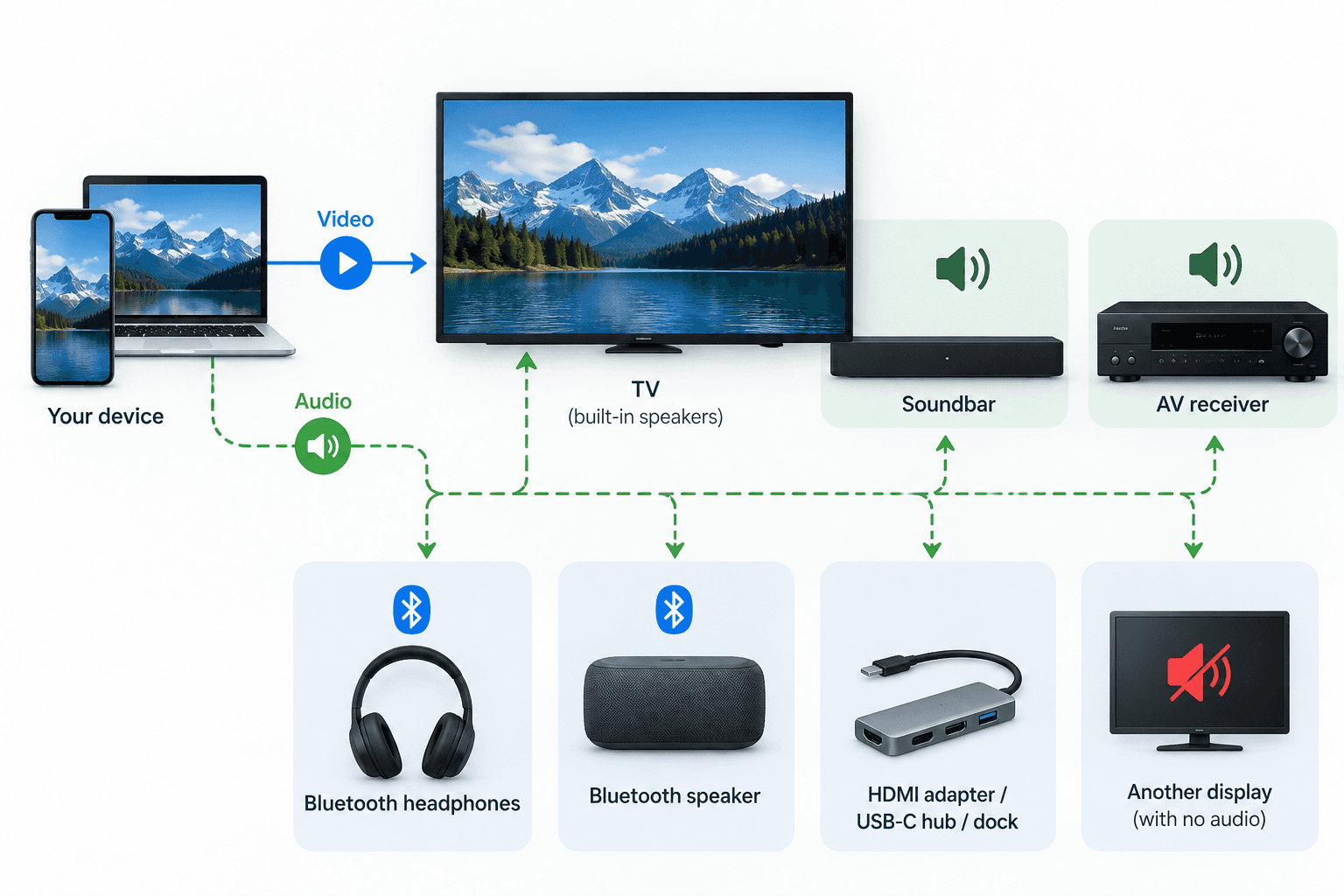
Once the sender is pointed at the right destination, check the receiving side. Start with the simple items: confirm the TV or receiver is on the input carrying the mirrored picture, turn up its volume, and make sure mute is off.
Then look for another output that may have taken over. A paired Bluetooth device, soundbar, AV receiver, or external speakers can change where the TV sends sound. If you normally use a soundbar, make sure it is powered on and selected as expected; if you do not, temporarily choose the TV’s built-in speakers where that option is available.
HDMI-connected equipment can add another handoff point. A TV may be receiving the picture while a receiver or soundbar is expected to handle audio. Check the active input and the audio-output choice on the relevant device rather than changing every setting in the chain. The goal is not to rebuild your home-theater setup—it is to confirm that the device showing the mirrored image has a valid path for sound.
If an external audio device is part of the setup, test with the simplest available route first. For example, temporarily use the TV speakers. If audio returns, reconnect the soundbar or receiver and check its own input and output choices.
Once the sender is pointed at the right destination, check the receiving side. Start with the simple items: confirm the TV or receiver is on the input carrying the mirrored picture, turn up its volume, and make sure mute is off.
Then look for another output that may have taken over. A paired Bluetooth device, soundbar, AV receiver, or external speakers can change where the TV sends sound. If you normally use a soundbar, make sure it is powered on and selected as expected; if you do not, temporarily choose the TV’s built-in speakers where that option is available.
HDMI-connected equipment can add another handoff point. A TV may be receiving the picture while a receiver or soundbar is expected to handle audio. Check the active input and the audio-output choice on the relevant device rather than changing every setting in the chain. The goal is not to rebuild your home-theater setup—it is to confirm that the device showing the mirrored image has a valid path for sound.
If an external audio device is part of the setup, test with the simplest available route first. For example, temporarily use the TV speakers. If audio returns, reconnect the soundbar or receiver and check its own input and output choices.
Rule Out App-Specific Playback Limits
Rule Out App-Specific Playback Limits
Rule Out App-Specific Playback Limits
First, check whether the problem occurs everywhere or only in one app. Play a different video, a local media file, or another source. If sound works elsewhere, that points more toward an app-specific issue than a general audio-routing failure.
When the problem occurs only in one streaming app, the app may require a supported playback or casting method. Check that service’s own device and casting support before continuing to change system audio settings.
Use the service’s supported playback option when one is available—for example, its own cast control or native TV app. Repeatedly resetting your devices is unlikely to clarify an issue that appears only within one service.
First, check whether the problem occurs everywhere or only in one app. Play a different video, a local media file, or another source. If sound works elsewhere, that points more toward an app-specific issue than a general audio-routing failure.
When the problem occurs only in one streaming app, the app may require a supported playback or casting method. Check that service’s own device and casting support before continuing to change system audio settings.
Use the service’s supported playback option when one is available—for example, its own cast control or native TV app. Repeatedly resetting your devices is unlikely to clarify an issue that appears only within one service.
First, check whether the problem occurs everywhere or only in one app. Play a different video, a local media file, or another source. If sound works elsewhere, that points more toward an app-specific issue than a general audio-routing failure.
When the problem occurs only in one streaming app, the app may require a supported playback or casting method. Check that service’s own device and casting support before continuing to change system audio settings.
Use the service’s supported playback option when one is available—for example, its own cast control or native TV app. Repeatedly resetting your devices is unlikely to clarify an issue that appears only within one service.
If You Still Have No Sound, Match the Fix to Your Setup
If You Still Have No Sound, Match the Fix to Your Setup
If You Still Have No Sound, Match the Fix to Your Setup
Use this as a quick way to return to the relevant check rather than repeating the whole process.
What you observe | Go to |
Sound plays on the phone or computer, not the TV | Audio output on the sending device |
Sound plays through headphones or a speaker | Bluetooth and external-audio checks |
No audio in one streaming app only | App-specific playback limits |
No audio anywhere, including other apps | TV/receiver and external-audio setup |
Picture also starts failing or the device cannot be found | General mirroring connection guide |
If the picture stays stable but sound fails only with one specific device pair after these checks, use the Mirroring Compatibility Checker to confirm the available connection methods for that setup. If the picture also fails or the device disappears, move to the broader device-by-device screen mirroring fix guide, because the problem is no longer audio-only.
Use this as a quick way to return to the relevant check rather than repeating the whole process.
What you observe | Go to |
Sound plays on the phone or computer, not the TV | Audio output on the sending device |
Sound plays through headphones or a speaker | Bluetooth and external-audio checks |
No audio in one streaming app only | App-specific playback limits |
No audio anywhere, including other apps | TV/receiver and external-audio setup |
Picture also starts failing or the device cannot be found | General mirroring connection guide |
If the picture stays stable but sound fails only with one specific device pair after these checks, use the Mirroring Compatibility Checker to confirm the available connection methods for that setup. If the picture also fails or the device disappears, move to the broader device-by-device screen mirroring fix guide, because the problem is no longer audio-only.
Use this as a quick way to return to the relevant check rather than repeating the whole process.
What you observe | Go to |
Sound plays on the phone or computer, not the TV | Audio output on the sending device |
Sound plays through headphones or a speaker | Bluetooth and external-audio checks |
No audio in one streaming app only | App-specific playback limits |
No audio anywhere, including other apps | TV/receiver and external-audio setup |
Picture also starts failing or the device cannot be found | General mirroring connection guide |
If the picture stays stable but sound fails only with one specific device pair after these checks, use the Mirroring Compatibility Checker to confirm the available connection methods for that setup. If the picture also fails or the device disappears, move to the broader device-by-device screen mirroring fix guide, because the problem is no longer audio-only.
Table of content
Table of content


Still Need a Hand?
Still Need a Hand?
Still Need a Hand?
Explore more reviews, step-by-step guides, and troubleshooting tips—or contact us if you could not find the answer you needed.
Explore more reviews, step-by-step guides, and troubleshooting tips—or contact us if you could not find the answer you needed.
Explore more reviews, step-by-step guides, and troubleshooting tips—or contact us if you could not find the answer you needed.