
How to Screen Mirror iPhone to Android TV (2026 Guide)
Learn how to screen mirror your iPhone to any Android TV using AirPlay 2, third-party apps, or HDMI — step-by-step with troubleshooting tips.
iPhone and Android TV run on entirely different ecosystems — Apple’s iOS uses AirPlay, while Android TV relies on Google Cast — but you can still mirror your iPhone screen to an Android TV using AirPlay 2 (on supported models), third-party receiver apps, or a wired HDMI adapter. Below is a practical, step-by-step guide to each method, plus a comparison table and troubleshooting tips.
For other phone, computer, and TV combinations, see our complete guide to screen mirroring.
Can You Screen Mirror an iPhone to an Android TV?
Yes.
There is no native AirPlay receiver on most Android TVs, but several reliable pathways exist. The right method depends on your TV model, and how important latency-free performance is to you.
Newer Google TV models from Sony, TCL, and Hisense increasingly ship with AirPlay 2 support added by the manufacturer — so if your TV was made after 2019, native mirroring may already work without any extra software. Older Android TVs need a receiver app or a cable.
Method 1: Use Built-In AirPlay 2 (Supported TVs Only)
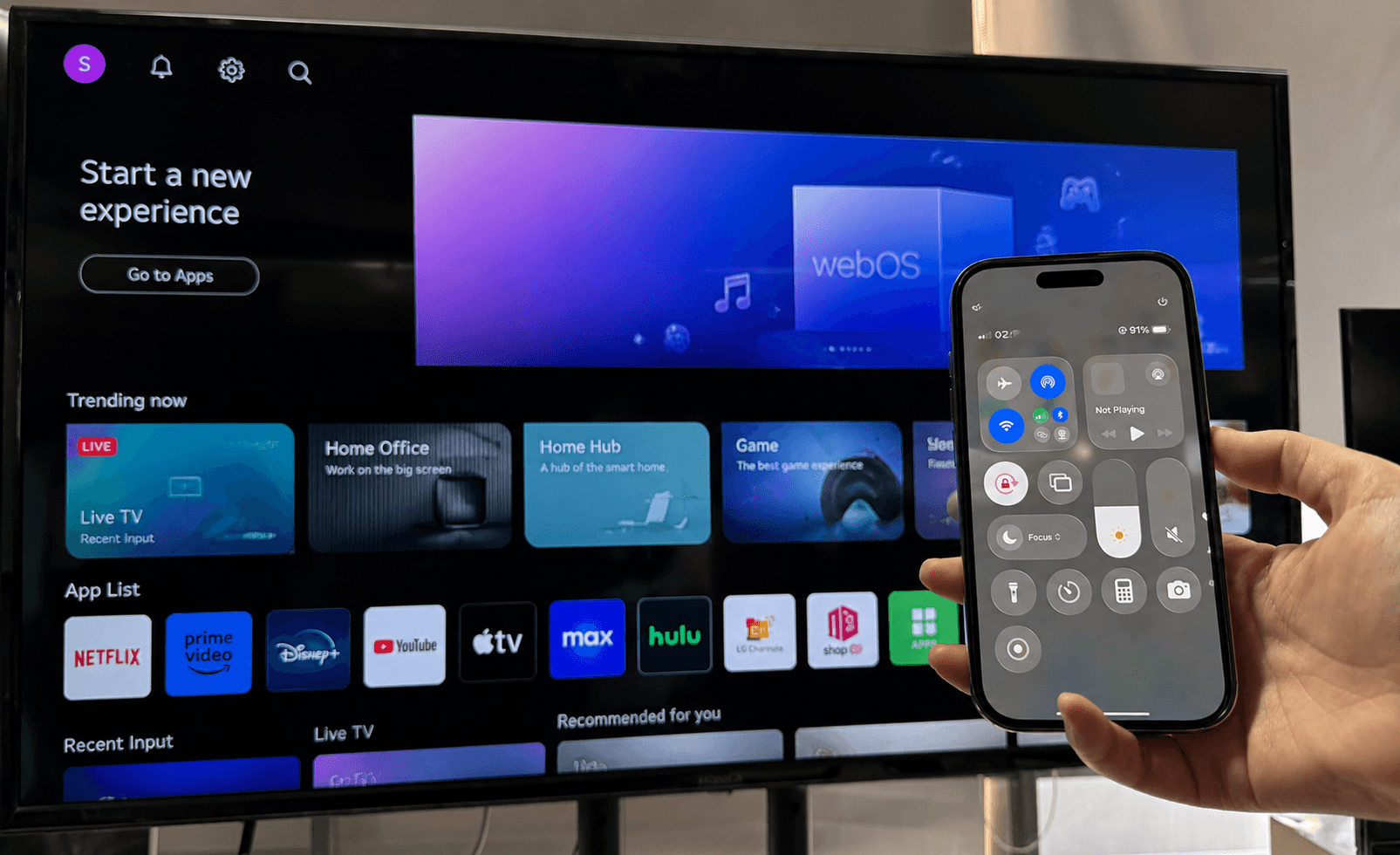
The simplest method requires no downloads. Certain Android TV and Google TV models — primarily from Sony, TCL, and Hisense — include AirPlay 2 support at the system level. Sony confirms that all Google TV models support Apple AirPlay 2 and HomeKit (learn more →).
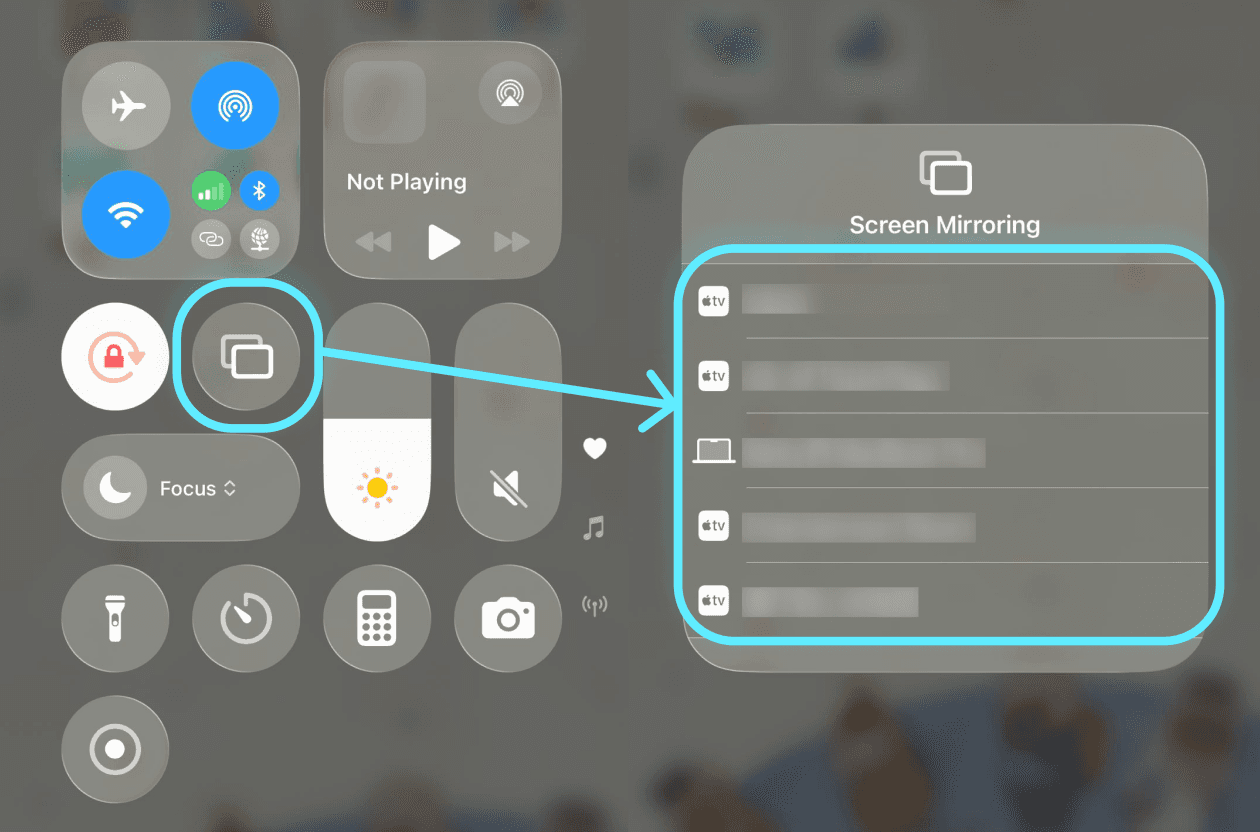
How to check if your TV supports AirPlay 2:
Open Control Center on your iPhone (swipe down from the top-right corner), tap Screen Mirroring, and look for your TV in the list. If it appears, your TV is AirPlay-compatible.
Steps to mirror:
Make sure your iPhone and Android TV are connected to the same Wi-Fi network.
On your iPhone, open Control Center and tap the Screen Mirroring icon (two overlapping rectangles).
Select your Android TV from the list.
Enter the AirPlay code displayed on your TV screen if prompted.
Your iPhone screen now mirrors to the TV. To stop, reopen Screen Mirroring and tap Stop Mirroring.
This method delivers the best quality and lowest latency because it uses Apple’s own protocol end to end. If your TV doesn’t appear in the Screen Mirroring list, move on to the methods below.
Method 2: Use a Third-Party Mirroring App
When your Android TV lacks AirPlay 2 support, a third-party receiver app installed directly on the TV can bridge the gap. These apps act as an AirPlay or DLNA receiver, letting your iPhone detect the TV as a mirroring destination.
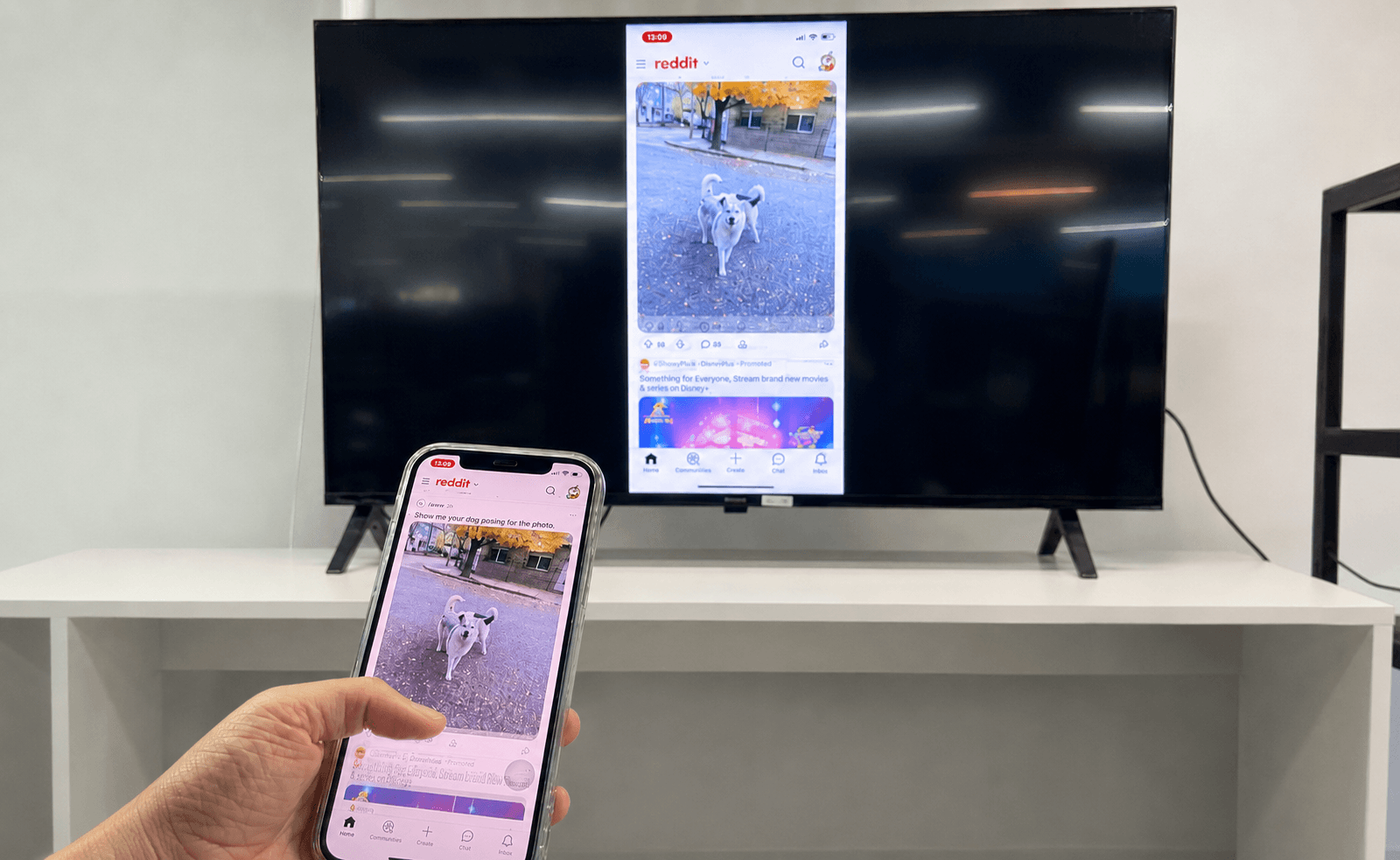
How it works:
Open the Google Play Store on your Android TV and install a screen mirroring receiver app.
Launch the app on your TV — it runs in the foreground and waits for incoming connections.
On your iPhone, open Control Center → Screen Mirroring, and your TV should now appear as an available device.
Tap it to start mirroring.
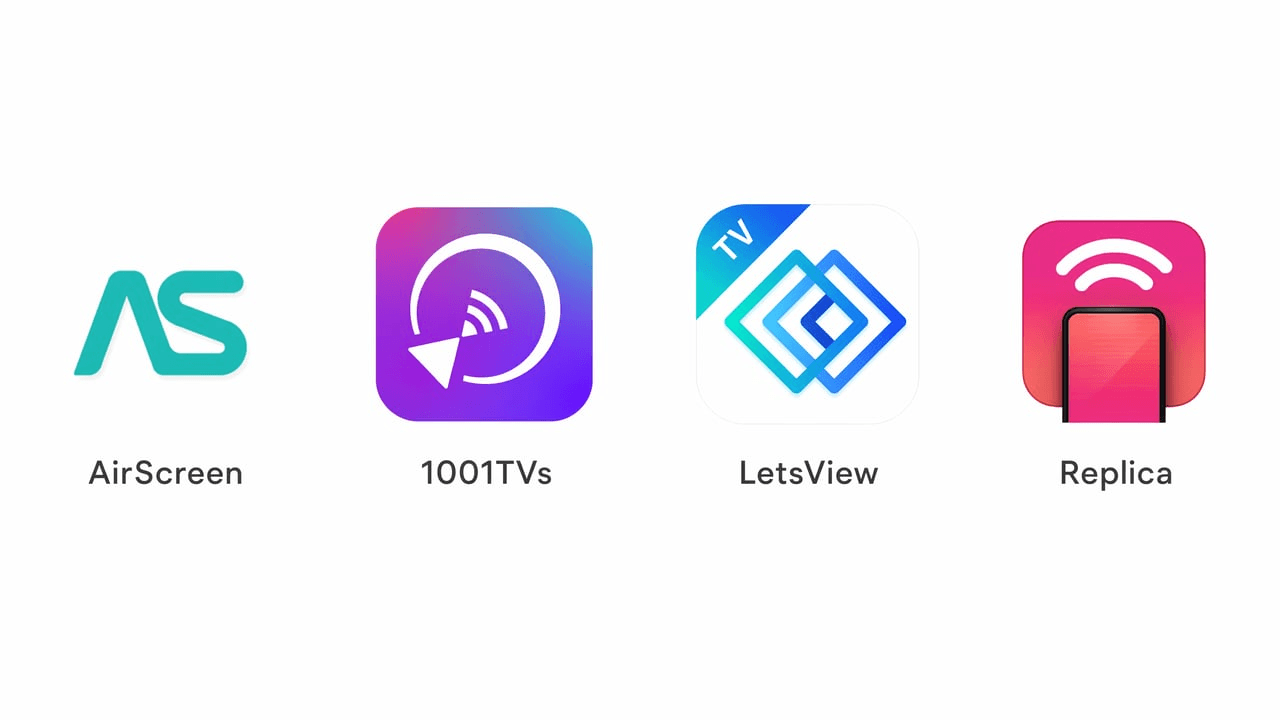
Several receiver apps are available on the Google Play Store for Android TV.
AirScreen is one of the most popular free options — it creates an AirPlay receiver on your TV so your iPhone detects it natively through Control Center.
1001TVs or LetsView takes a slightly broader approach: instead of acting only as an AirPlay receiver, it pairs a sender app on your iPhone with a receiver on your TV, which enables extras like file transfer, video casting, and browser mirroring alongside standard screen mirroring. This kind of apps are ususally compatible with major Android TV brands including Google TV, Xiaomi, Sony, TCL, Hisense, and Philips, and keeps all screen data on your local network.
If you’d rather not install anything on your TV, Replica is a simpler alternative — it runs entirely on your iPhone and mirrors to the TV with a setup as clean and easy as built-in AirPlay.
The advantage of these dedicated apps over basic AirPlay receivers is broader device compatibility and extra features — file sharing, multi-device casting, and in some cases browser mirroring — which is useful if you regularly share content from mixed devices to the same TV. Most offer a free tier, so it’s worth trying two or three to see which performs best on your network.
Method 3: Wired HDMI Connection
For a guaranteed stable, zero-latency connection — ideal for gaming, live presentations, or environments with unreliable Wi-Fi — a wired connection is the most reliable option.
What you need:
A Lightning to Digital AV Adapter (or USB-C to HDMI adapter for iPhone 15 and newer).
A standard HDMI cable.
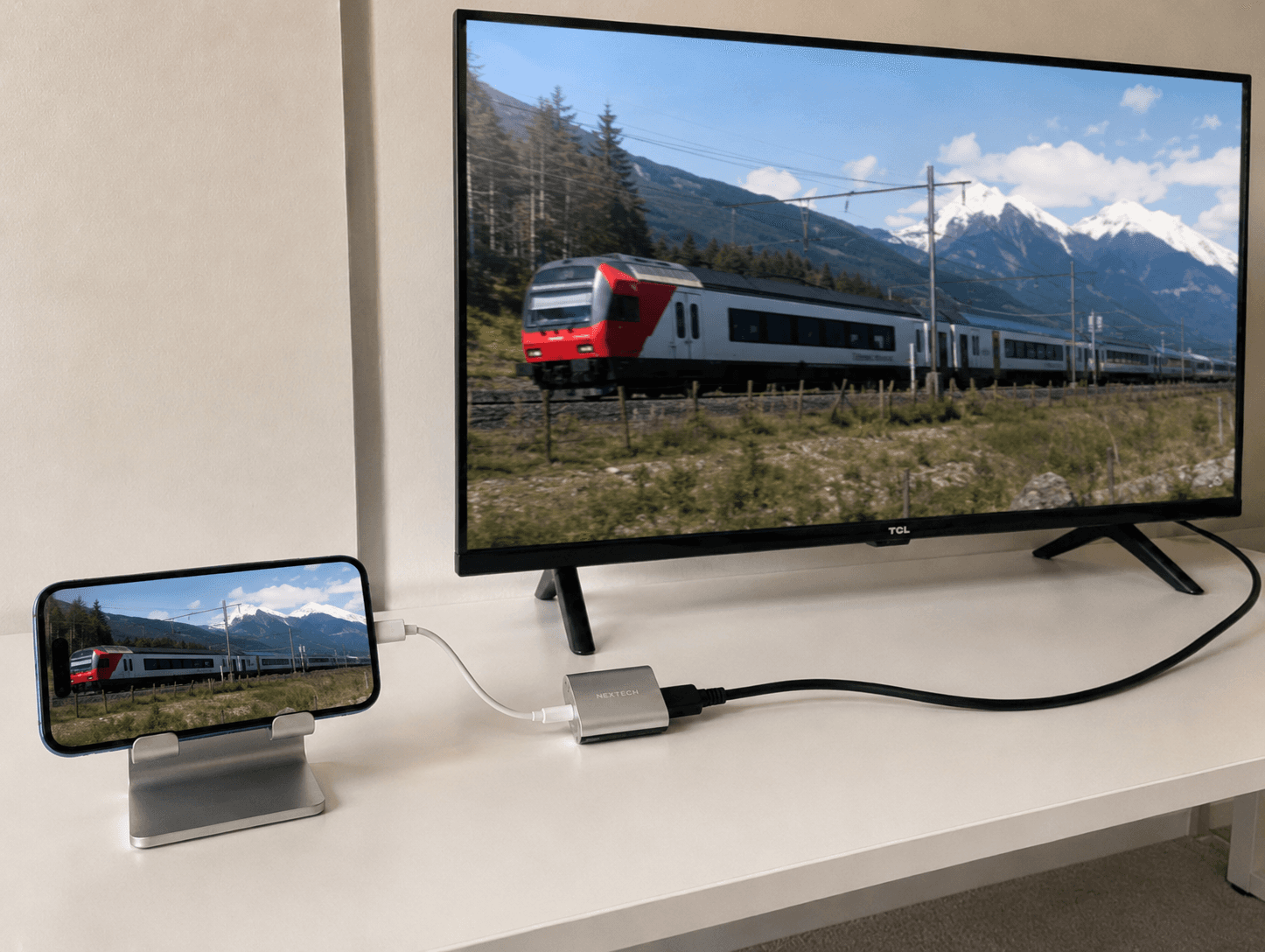
Steps:
Connect the adapter to your iPhone's charging port.
Plug one end of the HDMI cable into the adapter and the other into an HDMI port on your Android TV.
Use your TV remote to switch to the corresponding HDMI input.
Your iPhone screen mirrors instantly — no setup, no Wi-Fi, no pairing.
This method bypasses all network-related issues and supports simultaneous charging through the adapter's pass-through Lightning port. The trade-off is that you're physically tethered to the TV.
Method Comparison at a Glance
Method | Requires Extra Hardware | Image Quality | Latency | Best For |
|---|---|---|---|---|
AirPlay 2 (built-in) | No | High | Low | Supported TVs, everyday use |
Third-party app | No (free app) | Medium-High | Low-Medium | Older TVs without AirPlay |
HDMI adapter + cable | Yes | Highest | None | Gaming, presentations, weak Wi-Fi |
Troubleshooting Common Issues
iPhone doesn't detect the TV:
Confirm both devices are on the same Wi-Fi network (not a guest network or cellular hotspot).
Restart both the iPhone and the TV.
On the TV, make sure the receiver app is running in the foreground — background apps often stop accepting connections.
Mirroring is laggy or stutters:
Move your router closer to the TV or switch to a 5 GHz Wi-Fi band.
Close other bandwidth-heavy apps on your iPhone.
If problems persist, switch to a wired HDMI connection.
No audio on the TV:
Some receiver apps handle video but not audio. Check the app's settings or try a different app.
Make sure your iPhone isn't routed to a Bluetooth device — in Control Center, verify the audio output is set to the TV.
AirPlay code not appearing:
On supported Sony and TCL TVs, go to Settings → Device Preferences → Apple AirPlay and HomeKit and ensure AirPlay is enabled.
FAQs
Can I mirror my iPhone to an Android TV without an app?
Yes, if your TV supports AirPlay 2 natively. Sony, TCL, and Hisense Google TV models from 2019 onward typically include AirPlay 2 support. Open Control Center on your iPhone, tap Screen Mirroring, and select your TV. If it doesn’t appear, you’ll need a receiver app or a wired connection.
Does every Android TV support AirPlay?
No. AirPlay 2 is a manufacturer-added feature, not a standard part of Android TV. Most Sony Google TV models support it, and select TCL and Hisense models do as well. Check your TV’s settings menu or specification sheet for “AirPlay 2” or “Works with Apple AirPlay.”
Is there a free app to mirror iPhone to Android TV?
Yes. Apps like AirScreen offer a free tier, and 1001TVs provides a free trial with mirroring features. Most free versions include basic screen mirroring; advanced features like file transfer or multi-device casting may require a paid subscription.
Which method gives the best quality?
A wired HDMI connection delivers the highest image quality with zero latency. Among wireless methods, native AirPlay 2 provides the best balance of quality and stability. Third-party apps are a close second on well-configured networks.
Can I mirror my entire iPhone screen, or only specific apps?
Full-screen mirroring is possible with AirPlay 2, third-party receiver apps, and HDMI. Individual app casting (via the cast button in apps like YouTube) only sends that app’s content — not your whole screen — but typically offers better video quality for streaming.
Table of content


Still Need a Hand?
Explore more reviews, step-by-step guides, and troubleshooting tips—or contact us if you could not find the answer you needed.