
How to Cast a Laptop to a TV Wirelessly: Windows and Mac
Mirror your Windows or Mac laptop to your TV wirelessly. Miracast (Win+K), AirPlay, or Chrome Cast — pick the method your devices support.
Putting your laptop screen on the TV doesn't have to mean digging out a cable. On a Windows laptop, press the Windows logo key + K and pick your TV from the list — the TV needs Miracast support, or a Miracast dongle plugged into its HDMI port. On a Mac, open Control Center, click Screen Mirroring, and choose your AirPlay-compatible TV. And if your TV runs Chromecast or Google TV, you can cast straight from Chrome on either laptop. The right method depends on what your laptop and TV support, so checking that first saves the most time.
First, Confirm What Your Laptop and TV Support
The right method depends on the combination you own, so check that first. If you're new to screen mirroring, our complete beginner's guide walks through all three methods before you pick one.
Windows laptop: Press the Windows logo key + K. If Windows reports that your PC doesn't support Miracast, move on to another method. If the TV is missing from the list but you get no such warning, check the TV's Miracast support and its receiver mode.
Mac laptop: A smart TV does not automatically support AirPlay. Check the TV's settings or its official model support page before assuming it will work.
Your setup | Recommended first method |
Windows laptop + Miracast-capable TV | Miracast (Win + K) |
Mac laptop + AirPlay 2 TV | AirPlay (Control Center → Screen Mirroring) |
Windows or Mac + Chromecast / Google TV | Google Cast (Chrome) |
No supported method on the TV | See the alternatives below |
One network note, and it applies per method rather than to everything: Miracast uses Wi-Fi Direct, so it does not need a shared home network — Wi-Fi simply has to be enabled. AirPlay and Google Cast require both devices on the same Wi-Fi network. (For the technical differences between the three, see our Miracast vs AirPlay vs Chromecast comparison.)
Windows: Use the Built-in Wireless Display (Miracast)
Miracast is built into Windows and mirrors your screen to a TV that supports it. TVs may label the receiving mode "Screen Mirroring" or "Wireless Display," though the exact name varies by brand.
On the TV, open its screen-mirroring / wireless-display input and confirm the TV is discoverable.
On the laptop, press the Windows logo key + K and select the TV from the list.
After connecting, press the Windows logo key + P to choose a projection mode: PC screen only, Duplicate, Extend, or Second screen only.
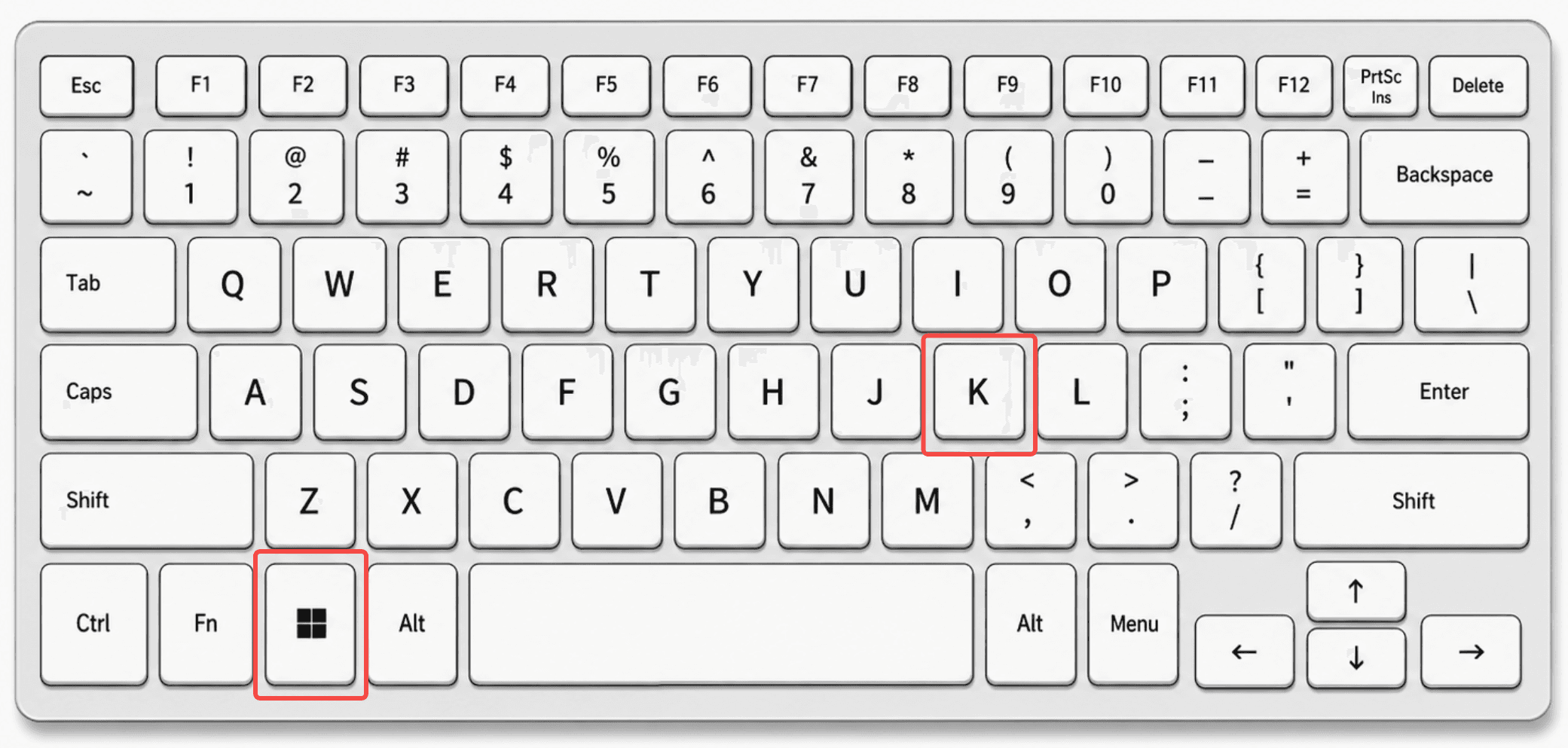
Because Miracast runs over Wi-Fi Direct, you don't need both devices on the same home network — Wi-Fi just has to be on. If your TV has no Miracast support, plug a Miracast adapter (dongle) into its HDMI port to add it.
Mac: Use AirPlay to Mirror Your Screen
If your TV supports AirPlay 2, mirroring your Mac is quick.
Confirm the TV supports AirPlay and is on the same Wi-Fi network as the Mac.
Click the Control Center icon in the menu bar, click Screen Mirroring, and choose your TV. (On older macOS versions, the Screen Mirroring option may appear directly in the menu bar.)
If prompted, enter the four-digit code shown on the TV.
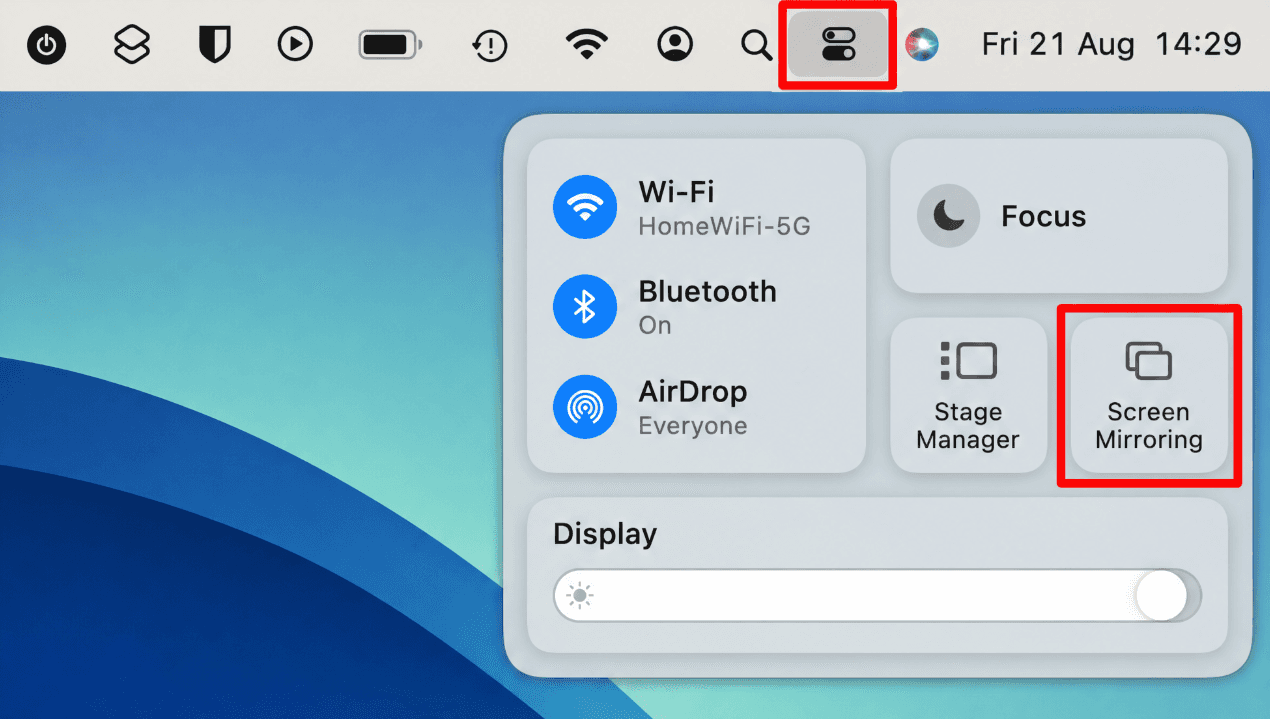
AirPlay 2 requires macOS Mojave 10.14.5 or later. Once connected, the Mac can mirror its full screen or use the TV as an extended display.
Google Cast: Cast from Chrome (Windows and Mac)
If your TV has Chromecast or Google TV built in, this is a direct path from either laptop.
Connect the laptop and the Chromecast / Google TV device to the same Wi-Fi network.
In Chrome, click the three-dot menu → Cast…, then choose Cast tab or Cast desktop and select your TV.
When you're done, stop casting from the Cast icon next to the address bar.
There's an important difference in how casting behaves. On Cast-enabled sites such as YouTube or Netflix, the Google streaming device plays the media directly — no load on your computer, and you can keep working or even close the lid. Ordinary tab casting streams the entire browser tab, requires a lot of computer power, keeps the laptop on, and is limited to a maximum of 720p. On macOS 15 or later, grant Chrome access in System Settings before casting.
When No Native Path Fits: Alternatives and Quick Fixes
If none of the built-in methods work, a few options can close the gap.
Streaming players. A compatible streaming player such as Roku or Fire TV may add AirPlay, Miracast, or app-based receiving support depending on the model and software — check the device's specs before relying on it.
Third-party mirroring apps. Cross-platform apps like 1001TVs can help when no native path applies. Only use one with compatibility you have verified; they are not a universal answer.
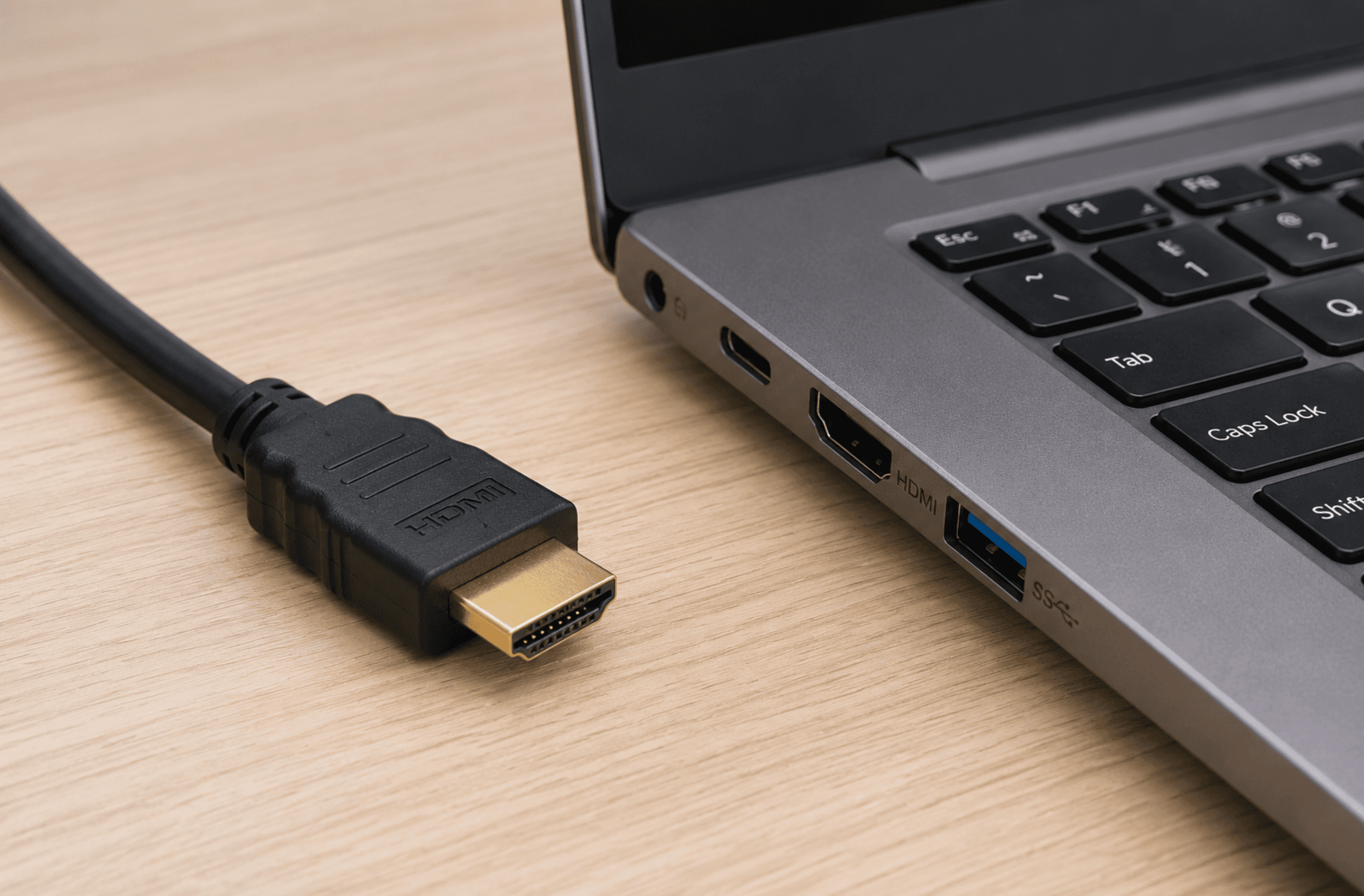
HDMI (wired fallback). If no wireless standard fits, use HDMI or a compatible video adapter such as USB-C to HDMI. HDMI carries video and audio and is generally more stable and lower-latency than wireless mirroring.
If you still can't connect, try these first: confirm the TV's wireless-display mode is on; for AirPlay and Google Cast, confirm both devices are on the same Wi-Fi (for Miracast, Wi-Fi enabled and both devices supporting it); update the Wi-Fi driver on Windows; and restart the devices if needed. Persistent problems — dropped connections, no audio, black screens, or blurry output — are a separate troubleshooting topic.
Table of content


Still Need a Hand?
Explore more reviews, step-by-step guides, and troubleshooting tips—or contact us if you could not find the answer you needed.