AirDroid Cast Review: Is It the Best Screen Mirroring App in 2026?
AirDroid Cast Review: Is It the Best Screen Mirroring App in 2026?
AirDroid Cast Review: Is It the Best Screen Mirroring App in 2026?
In-depth AirDroid Cast review: we test wireless, remote & USB mirroring, remote control, and pricing across platforms. See if it's the best screen mirroring app in 2026.
In-depth AirDroid Cast review: we test wireless, remote & USB mirroring, remote control, and pricing across platforms. See if it's the best screen mirroring app in 2026.
In-depth AirDroid Cast review: we test wireless, remote & USB mirroring, remote control, and pricing across platforms. See if it's the best screen mirroring app in 2026.
AirDroid Cast is a cross-platform screen mirroring app developed by Sand Studio. It lets you cast Android, iOS, Windows, and Mac screens to another device via wireless LAN, AirPlay, USB cable, or remote internet. The app supports up to 5 simultaneous device mirrors, two-way audio, and remote control of mobile devices from a computer.
In our 5 Best Screen Mirroring Apps 2026 roundup, AirDroid Cast ranked #1 as Best Overall. It stands out for offering local, remote, and USB mirroring in one tool — plus a browser-based receiver that some competitors lack.
We evaluated AirDroid Cast across its three connection modes, on multiple device platforms, and in real-world scenarios — from casual casting to remote control and cross-network mirroring.
AirDroid Cast is a cross-platform screen mirroring app developed by Sand Studio. It lets you cast Android, iOS, Windows, and Mac screens to another device via wireless LAN, AirPlay, USB cable, or remote internet. The app supports up to 5 simultaneous device mirrors, two-way audio, and remote control of mobile devices from a computer.
In our 5 Best Screen Mirroring Apps 2026 roundup, AirDroid Cast ranked #1 as Best Overall. It stands out for offering local, remote, and USB mirroring in one tool — plus a browser-based receiver that some competitors lack.
We evaluated AirDroid Cast across its three connection modes, on multiple device platforms, and in real-world scenarios — from casual casting to remote control and cross-network mirroring.
AirDroid Cast is a cross-platform screen mirroring app developed by Sand Studio. It lets you cast Android, iOS, Windows, and Mac screens to another device via wireless LAN, AirPlay, USB cable, or remote internet. The app supports up to 5 simultaneous device mirrors, two-way audio, and remote control of mobile devices from a computer.
In our 5 Best Screen Mirroring Apps 2026 roundup, AirDroid Cast ranked #1 as Best Overall. It stands out for offering local, remote, and USB mirroring in one tool — plus a browser-based receiver that some competitors lack.
We evaluated AirDroid Cast across its three connection modes, on multiple device platforms, and in real-world scenarios — from casual casting to remote control and cross-network mirroring.
AirDroid Cast Core Features
AirDroid Cast Core Features
AirDroid Cast Core Features
Cross-Platform Screen Mirroring
AirDroid Cast works across Android, iOS, Windows, and macOS. You can mirror a phone to a computer, a computer to another computer, or a phone to an Android TV.
Sender | Receiver | Supported |
Android | Windows / Mac | ✅ |
iOS | Windows / Mac | ✅ (AirPlay) |
Windows | Windows / Mac | ✅ |
Mac | Windows / Mac | ✅ |
Android / iOS | Android TV | ✅ (needs AirDroid Cast TV) |
Android / iOS | Browser | ✅ (Cast Web, no install) |
If you’re trying to mirror an iPhone to an Android TV — a common pain point since AirPlay doesn’t work natively — AirDroid Cast is one of the third-party apps that can bridge this gap.
Three Connection Modes: Wireless, Remote & USB
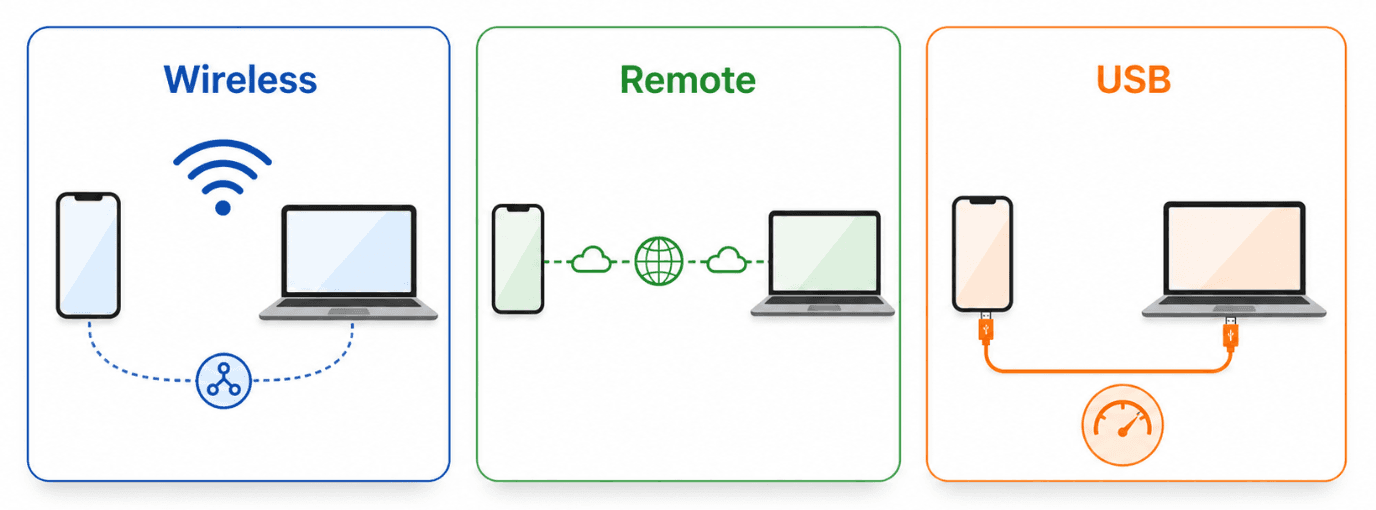
AirDroid Cast offers three ways to connect, which is more than most competitors:
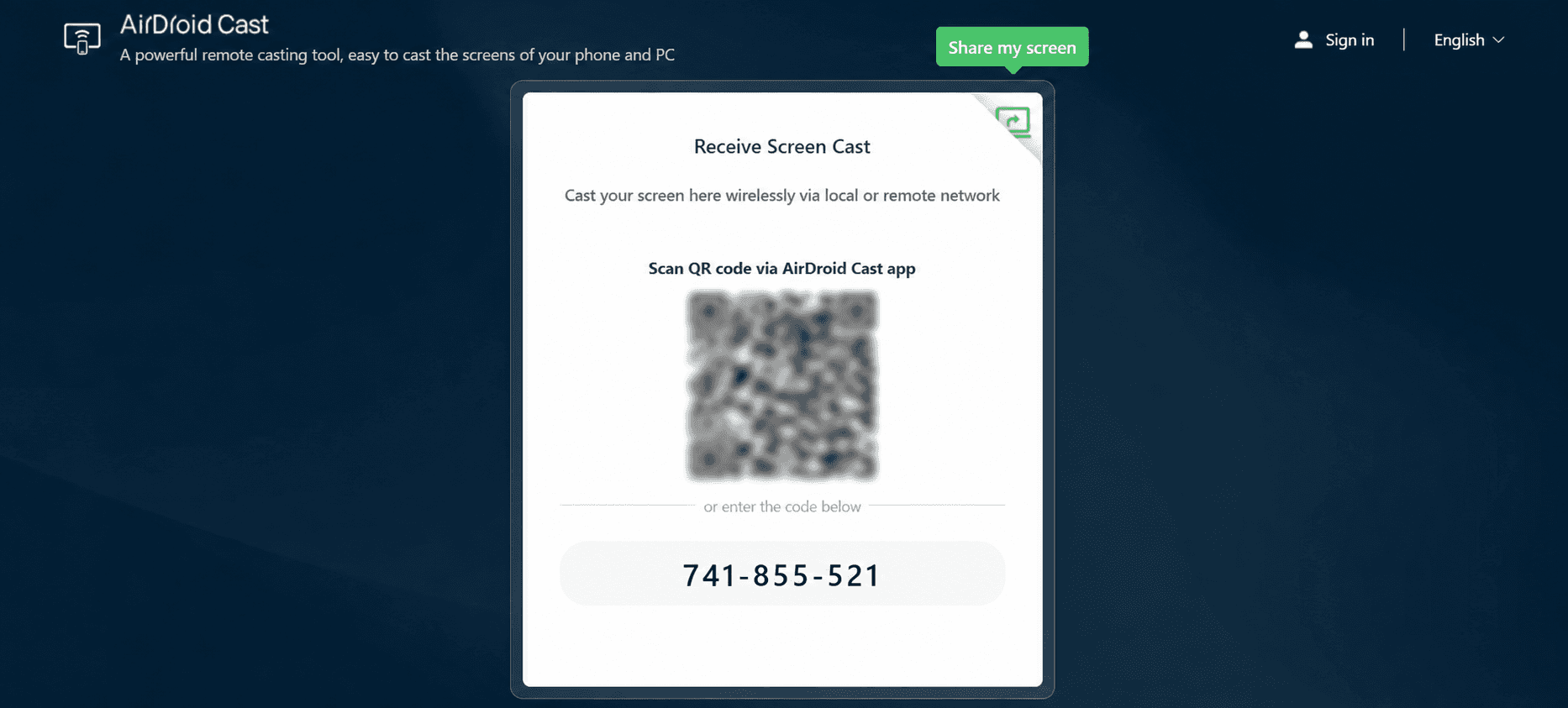
Wireless (WiFi/LAN): Pair via QR code or 9-digit Cast Code. Free on the same network with no time limit. iOS devices can also use AirPlay to cast directly to a Windows or Mac running AirDroid Cast, no extra setup needed.
Remote (Internet): Cast to devices on a completely different network — useful for remote meetings, tech support, and cross-location collaboration. AirDroid uses P2P (peer-to-peer) direct connection by default, so screen data flows directly between devices. Only when P2P fails due to network restrictions does it fall back to a relay server. Requires a Basic plan or above.
USB Cable: A wired option that delivers the best frame rate. It also supports Screen Off mode on Android, so your phone screen can stay dark while casting.
One limitation: USB mode supports only one screen at a time.
Remote Control: Control Android & iOS from PC
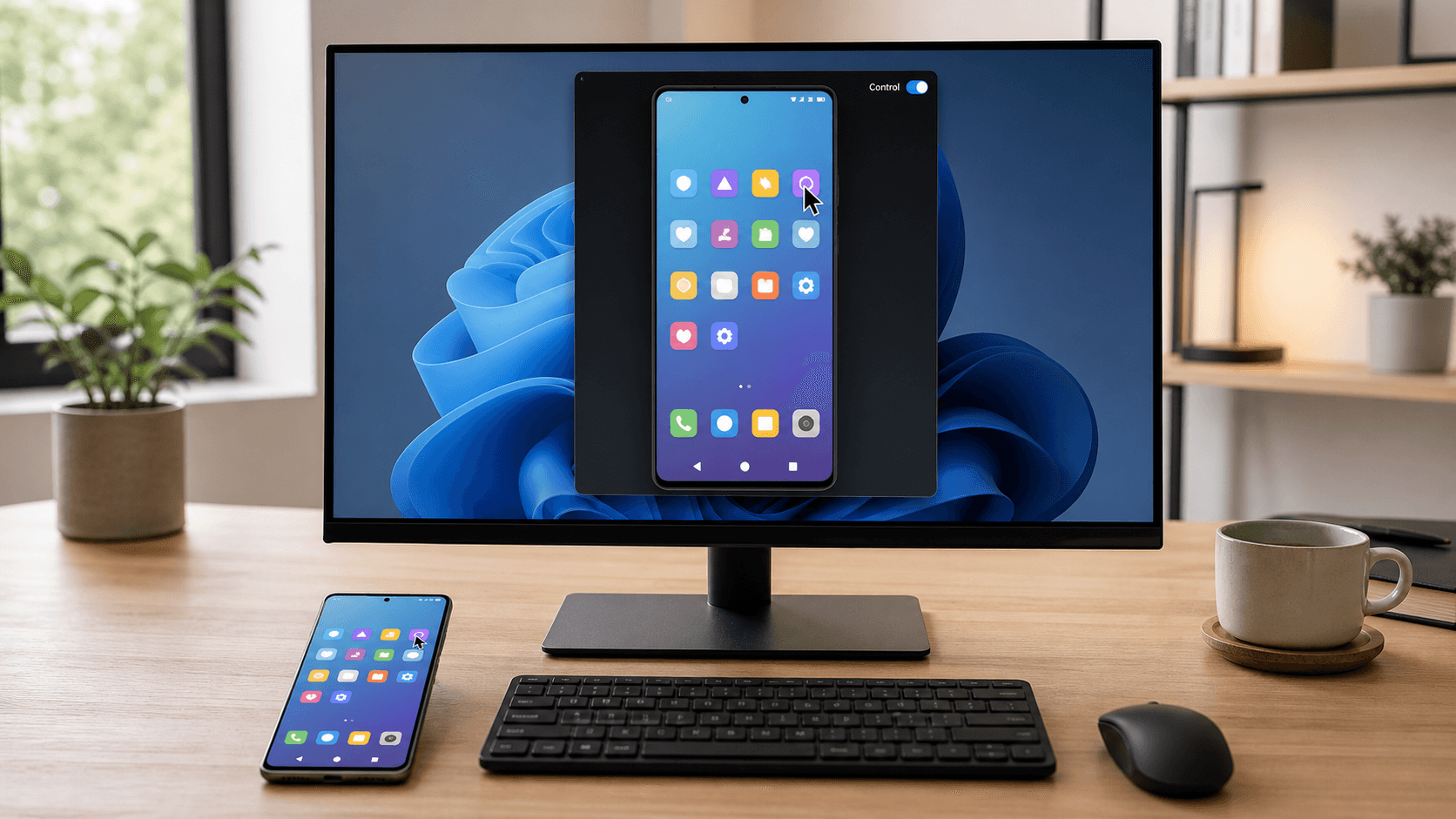
The Standard plan ($3.49/month) unlocks remote control of both Android and iOS devices from your computer. You can click, scroll, type, and use gestures with your mouse and keyboard.
On Android, you’ll need to install the free AirDroid Control Add-On. Once enabled, you can open apps, send texts, and play games — all from your desktop.
One important distinction: Android control works over both WLAN (same network) and remote networks. iOS control, however, relies on Bluetooth and only works when both devices are on the same WLAN — it cannot be used remotely.
In our testing, mouse control feels “slightly sluggish, but that’s normal when mirroring.” Keyboard input has “a fraction of a second delay” but works well overall.
Multi-Screen Mirroring
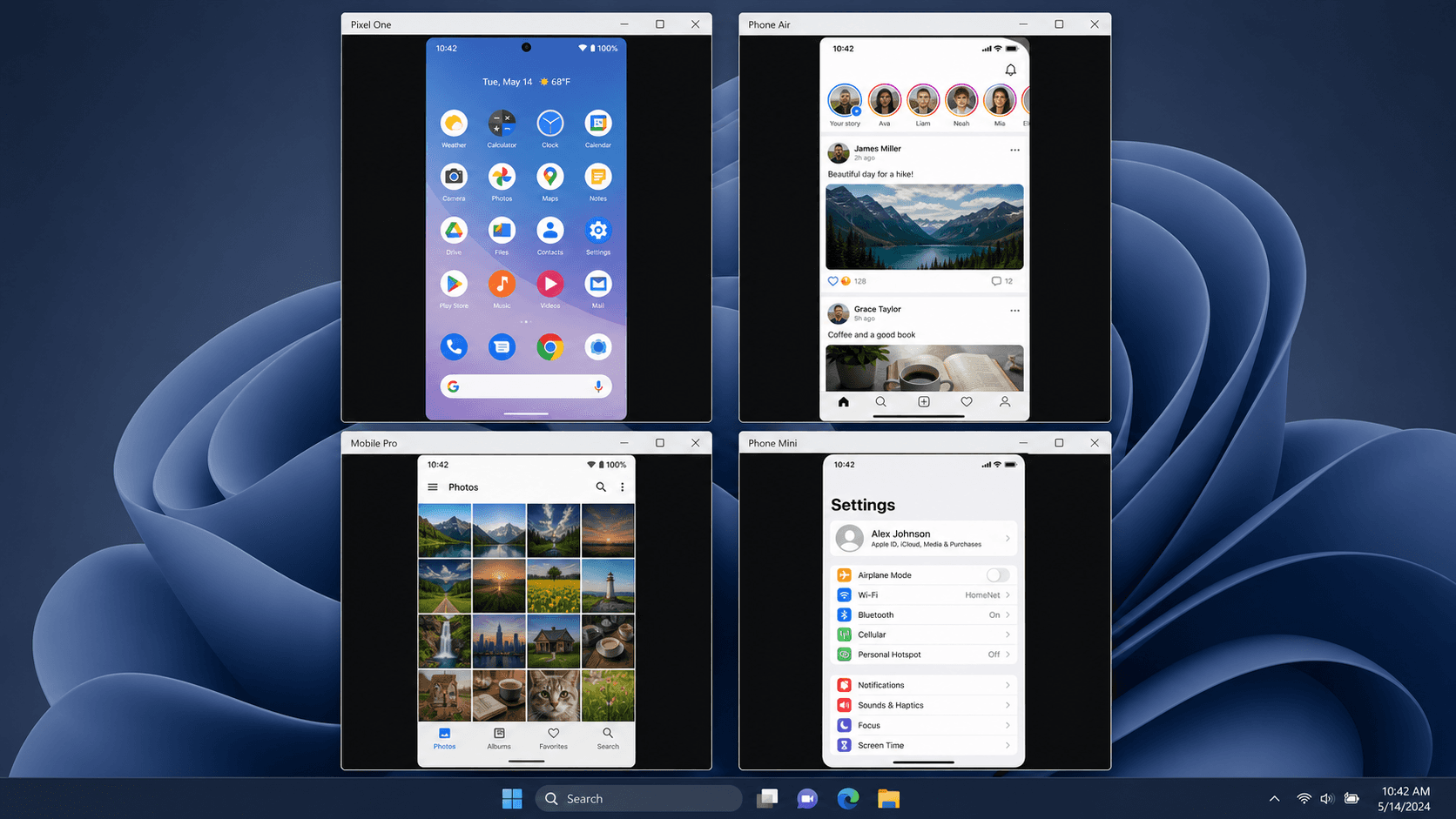
AirDroid Cast can receive multiple device screens on one computer at the same time. The limit depends on the connection method:
Wireless (WLAN): Up to 5 devices (Android + iOS).
AirPlay: Up to 4 iOS devices.
USB: Only 1 screen at a time.
This is handy for meetings where multiple attendees share slides, or for multiplayer gaming sessions.
Two-Way Audio & Sound Delivery
AirDroid Cast supports two-way voice communication — you can speak through your PC microphone and the other side hears it. However, there’s an important platform difference:
iOS: Transmits both media sound (music, video audio) and microphone to the computer.
Android: Only transmits microphone audio. Media sound from Android does not carry over to the computer.
This means if you’re casting an Android phone to watch a video on a bigger screen, you won’t hear the video’s audio on your PC. iOS users don’t have this limitation.
AirDroid Cast Web (Browser-Based, No Install)
Visit webcast.airdroid.com and enter a cast code to start mirroring — no desktop installation required. It works in Chrome, Safari, Edge, and Yandex.
This is ideal for meetings and presentations where you can’t install software on the receiving device. However, the web version does not support remote control.
Cross-Platform Screen Mirroring
AirDroid Cast works across Android, iOS, Windows, and macOS. You can mirror a phone to a computer, a computer to another computer, or a phone to an Android TV.
Sender | Receiver | Supported |
Android | Windows / Mac | ✅ |
iOS | Windows / Mac | ✅ (AirPlay) |
Windows | Windows / Mac | ✅ |
Mac | Windows / Mac | ✅ |
Android / iOS | Android TV | ✅ (needs AirDroid Cast TV) |
Android / iOS | Browser | ✅ (Cast Web, no install) |
If you’re trying to mirror an iPhone to an Android TV — a common pain point since AirPlay doesn’t work natively — AirDroid Cast is one of the third-party apps that can bridge this gap.
Three Connection Modes: Wireless, Remote & USB
AirDroid Cast offers three ways to connect, which is more than most competitors:
Wireless (WiFi/LAN): Pair via QR code or 9-digit Cast Code. Free on the same network with no time limit. iOS devices can also use AirPlay to cast directly to a Windows or Mac running AirDroid Cast, no extra setup needed.
Remote (Internet): Cast to devices on a completely different network — useful for remote meetings, tech support, and cross-location collaboration. AirDroid uses P2P (peer-to-peer) direct connection by default, so screen data flows directly between devices. Only when P2P fails due to network restrictions does it fall back to a relay server. Requires a Basic plan or above.
USB Cable: A wired option that delivers the best frame rate. It also supports Screen Off mode on Android, so your phone screen can stay dark while casting.
One limitation: USB mode supports only one screen at a time.
Remote Control: Control Android & iOS from PC
The Standard plan ($3.49/month) unlocks remote control of both Android and iOS devices from your computer. You can click, scroll, type, and use gestures with your mouse and keyboard.
On Android, you’ll need to install the free AirDroid Control Add-On. Once enabled, you can open apps, send texts, and play games — all from your desktop.
One important distinction: Android control works over both WLAN (same network) and remote networks. iOS control, however, relies on Bluetooth and only works when both devices are on the same WLAN — it cannot be used remotely.
In our testing, mouse control feels “slightly sluggish, but that’s normal when mirroring.” Keyboard input has “a fraction of a second delay” but works well overall.
Multi-Screen Mirroring
AirDroid Cast can receive multiple device screens on one computer at the same time. The limit depends on the connection method:
Wireless (WLAN): Up to 5 devices (Android + iOS).
AirPlay: Up to 4 iOS devices.
USB: Only 1 screen at a time.
This is handy for meetings where multiple attendees share slides, or for multiplayer gaming sessions.
Two-Way Audio & Sound Delivery
AirDroid Cast supports two-way voice communication — you can speak through your PC microphone and the other side hears it. However, there’s an important platform difference:
iOS: Transmits both media sound (music, video audio) and microphone to the computer.
Android: Only transmits microphone audio. Media sound from Android does not carry over to the computer.
This means if you’re casting an Android phone to watch a video on a bigger screen, you won’t hear the video’s audio on your PC. iOS users don’t have this limitation.
AirDroid Cast Web (Browser-Based, No Install)
Visit webcast.airdroid.com and enter a cast code to start mirroring — no desktop installation required. It works in Chrome, Safari, Edge, and Yandex.
This is ideal for meetings and presentations where you can’t install software on the receiving device. However, the web version does not support remote control.
Cross-Platform Screen Mirroring
AirDroid Cast works across Android, iOS, Windows, and macOS. You can mirror a phone to a computer, a computer to another computer, or a phone to an Android TV.
Sender | Receiver | Supported |
Android | Windows / Mac | ✅ |
iOS | Windows / Mac | ✅ (AirPlay) |
Windows | Windows / Mac | ✅ |
Mac | Windows / Mac | ✅ |
Android / iOS | Android TV | ✅ (needs AirDroid Cast TV) |
Android / iOS | Browser | ✅ (Cast Web, no install) |
If you’re trying to mirror an iPhone to an Android TV — a common pain point since AirPlay doesn’t work natively — AirDroid Cast is one of the third-party apps that can bridge this gap.
Three Connection Modes: Wireless, Remote & USB
AirDroid Cast offers three ways to connect, which is more than most competitors:
Wireless (WiFi/LAN): Pair via QR code or 9-digit Cast Code. Free on the same network with no time limit. iOS devices can also use AirPlay to cast directly to a Windows or Mac running AirDroid Cast, no extra setup needed.
Remote (Internet): Cast to devices on a completely different network — useful for remote meetings, tech support, and cross-location collaboration. AirDroid uses P2P (peer-to-peer) direct connection by default, so screen data flows directly between devices. Only when P2P fails due to network restrictions does it fall back to a relay server. Requires a Basic plan or above.
USB Cable: A wired option that delivers the best frame rate. It also supports Screen Off mode on Android, so your phone screen can stay dark while casting.
One limitation: USB mode supports only one screen at a time.
Remote Control: Control Android & iOS from PC
The Standard plan ($3.49/month) unlocks remote control of both Android and iOS devices from your computer. You can click, scroll, type, and use gestures with your mouse and keyboard.
On Android, you’ll need to install the free AirDroid Control Add-On. Once enabled, you can open apps, send texts, and play games — all from your desktop.
One important distinction: Android control works over both WLAN (same network) and remote networks. iOS control, however, relies on Bluetooth and only works when both devices are on the same WLAN — it cannot be used remotely.
In our testing, mouse control feels “slightly sluggish, but that’s normal when mirroring.” Keyboard input has “a fraction of a second delay” but works well overall.
Multi-Screen Mirroring
AirDroid Cast can receive multiple device screens on one computer at the same time. The limit depends on the connection method:
Wireless (WLAN): Up to 5 devices (Android + iOS).
AirPlay: Up to 4 iOS devices.
USB: Only 1 screen at a time.
This is handy for meetings where multiple attendees share slides, or for multiplayer gaming sessions.
Two-Way Audio & Sound Delivery
AirDroid Cast supports two-way voice communication — you can speak through your PC microphone and the other side hears it. However, there’s an important platform difference:
iOS: Transmits both media sound (music, video audio) and microphone to the computer.
Android: Only transmits microphone audio. Media sound from Android does not carry over to the computer.
This means if you’re casting an Android phone to watch a video on a bigger screen, you won’t hear the video’s audio on your PC. iOS users don’t have this limitation.
AirDroid Cast Web (Browser-Based, No Install)
Visit webcast.airdroid.com and enter a cast code to start mirroring — no desktop installation required. It works in Chrome, Safari, Edge, and Yandex.
This is ideal for meetings and presentations where you can’t install software on the receiving device. However, the web version does not support remote control.
Performance: Real-World Testing Results
Performance: Real-World Testing Results
Performance: Real-World Testing Results
Below we break down how AirDroid Cast performs across each connection mode and usage scenario, drawing on our testing and cross-referenced user feedback.
Connection Modes and Quality Settings
AirDroid Cast offers three connection methods (wireless, remote, USB) as described above. The app automatically negotiates quality based on your connection type and network conditions. AirDroid Cast Web runs in supported browsers for view-only receiving without the desktop client.
Note: AirDroid’s parent app, AirDroid Personal, offers a “General Mode” (faster connection, lower frame rate) and “Dynamic Mode” (auto-adjusts quality to reduce lag) in its AirMirror feature. AirDroid Cast does not publicly document equivalent manual mode settings — quality adjustment appears to be handled automatically.
Wireless Performance
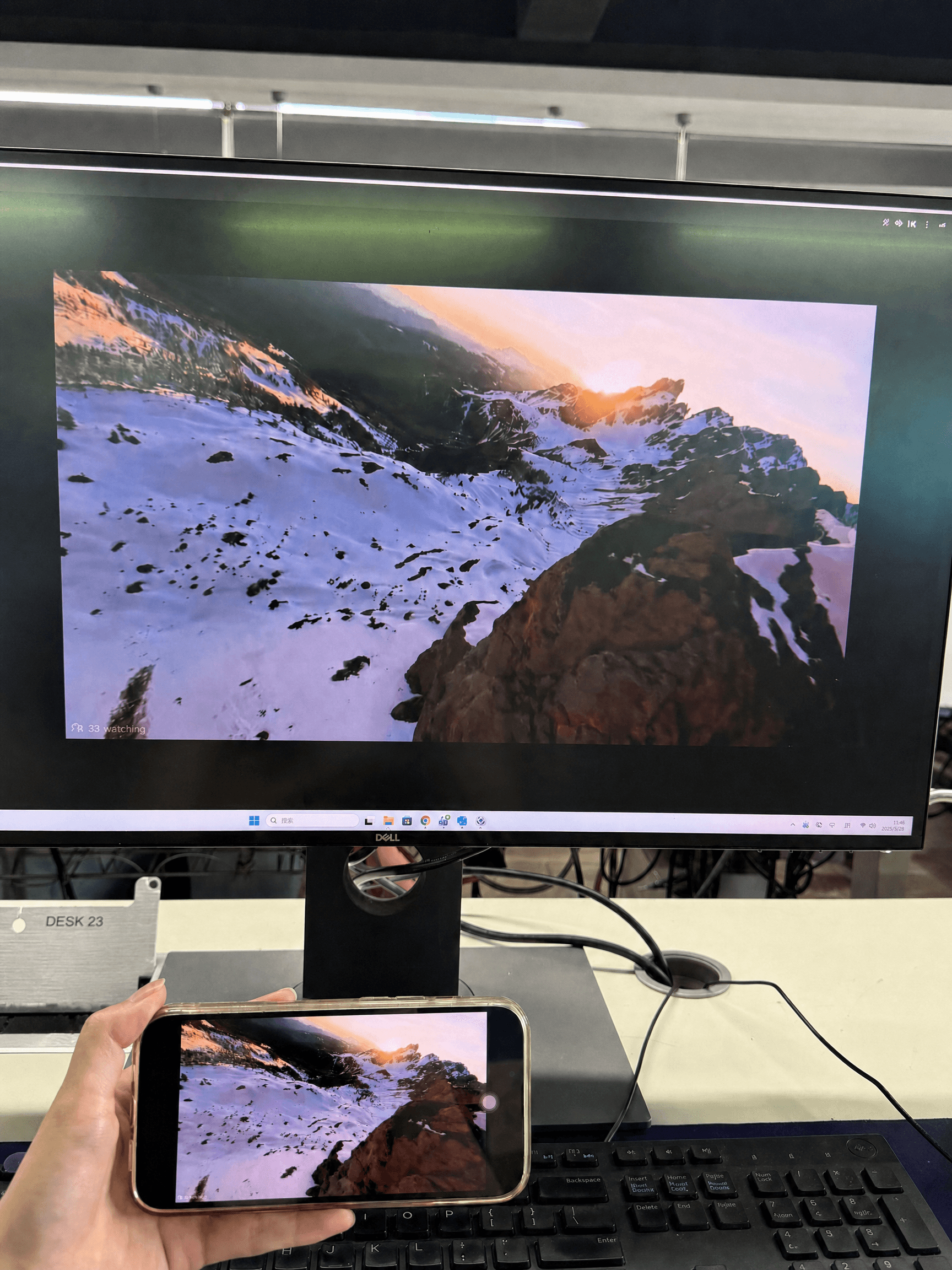
Over a standard WiFi connection, AirDroid Cast handles everyday apps — YouTube, email, social media — with no noticeable delay. Swiping between screens introduces a slight delay, though it’s not disruptive for normal use. Fast-paced games are where the lag becomes most visible; if gaming is your primary use case, switch to USB for a better frame rate.
YouTube casting occasionally shows slight blurring during motion-heavy scenes. Overall image quality is a step below the phone’s native screen but remains clearly visible and usable. Browser-based casting via Cast Web produces image quality on par with the desktop client.
USB Connection Performance
Switching to USB makes a noticeable difference. The wired connection delivers smooth playback with “no sluggishness” and noticeably better video quality — no skips or stutters. For local mirroring, especially gaming or media-heavy tasks, USB is the recommended mode.
AirDroid promotes USB as delivering “ultra-low latency.” Our testing confirms USB is the smoothest mode, though the advantage is most apparent in latency-sensitive tasks like gaming rather than everyday use.
Remote Control Input Experience
When using remote control from your PC:
Mouse control: Feels “slightly sluggish, but that’s normal when mirroring.” It’s usable for swiping, opening apps, and even casual gaming.
Keyboard input: There’s “a fraction of a second delay” between typing and the character appearing on-screen. Overall it’s a smooth experience for text entry and navigation.
Remote (Cross-Network) Performance
Cross-network casting takes slightly longer to establish the initial connection — expected, since the app needs to negotiate the P2P tunnel. Once connected, however, performance is virtually indistinguishable from same-network mirroring. Latency and image quality hold up well as long as both ends have a stable internet connection.
DRM Content Compatibility
This is a known pain point. DRM-protected content from Netflix, Disney+, and similar services shows a black screen when mirrored. Chrome Stats user reviews confirm this behavior across multiple devices.
This is a protocol-level restriction, not an AirDroid Cast-specific bug. YouTube, web videos, and local media files cast normally.
Common Performance Issues
Across user feedback channels, the most frequently reported issues are:
Issue | Details |
Connection failures | Some users experience frequent connection drops, especially over remote networks |
Streaming quality | Video quality can degrade during casting, particularly on unstable networks |
DRM black screen | Copyright-protected content shows a black screen when mirrored |
Audio issues | Some users can’t control volume or get sound during casting |
Below we break down how AirDroid Cast performs across each connection mode and usage scenario, drawing on our testing and cross-referenced user feedback.
Connection Modes and Quality Settings
AirDroid Cast offers three connection methods (wireless, remote, USB) as described above. The app automatically negotiates quality based on your connection type and network conditions. AirDroid Cast Web runs in supported browsers for view-only receiving without the desktop client.
Note: AirDroid’s parent app, AirDroid Personal, offers a “General Mode” (faster connection, lower frame rate) and “Dynamic Mode” (auto-adjusts quality to reduce lag) in its AirMirror feature. AirDroid Cast does not publicly document equivalent manual mode settings — quality adjustment appears to be handled automatically.
Wireless Performance
Over a standard WiFi connection, AirDroid Cast handles everyday apps — YouTube, email, social media — with no noticeable delay. Swiping between screens introduces a slight delay, though it’s not disruptive for normal use. Fast-paced games are where the lag becomes most visible; if gaming is your primary use case, switch to USB for a better frame rate.
YouTube casting occasionally shows slight blurring during motion-heavy scenes. Overall image quality is a step below the phone’s native screen but remains clearly visible and usable. Browser-based casting via Cast Web produces image quality on par with the desktop client.
USB Connection Performance
Switching to USB makes a noticeable difference. The wired connection delivers smooth playback with “no sluggishness” and noticeably better video quality — no skips or stutters. For local mirroring, especially gaming or media-heavy tasks, USB is the recommended mode.
AirDroid promotes USB as delivering “ultra-low latency.” Our testing confirms USB is the smoothest mode, though the advantage is most apparent in latency-sensitive tasks like gaming rather than everyday use.
Remote Control Input Experience
When using remote control from your PC:
Mouse control: Feels “slightly sluggish, but that’s normal when mirroring.” It’s usable for swiping, opening apps, and even casual gaming.
Keyboard input: There’s “a fraction of a second delay” between typing and the character appearing on-screen. Overall it’s a smooth experience for text entry and navigation.
Remote (Cross-Network) Performance
Cross-network casting takes slightly longer to establish the initial connection — expected, since the app needs to negotiate the P2P tunnel. Once connected, however, performance is virtually indistinguishable from same-network mirroring. Latency and image quality hold up well as long as both ends have a stable internet connection.
DRM Content Compatibility
This is a known pain point. DRM-protected content from Netflix, Disney+, and similar services shows a black screen when mirrored. Chrome Stats user reviews confirm this behavior across multiple devices.
This is a protocol-level restriction, not an AirDroid Cast-specific bug. YouTube, web videos, and local media files cast normally.
Common Performance Issues
Across user feedback channels, the most frequently reported issues are:
Issue | Details |
Connection failures | Some users experience frequent connection drops, especially over remote networks |
Streaming quality | Video quality can degrade during casting, particularly on unstable networks |
DRM black screen | Copyright-protected content shows a black screen when mirrored |
Audio issues | Some users can’t control volume or get sound during casting |
Below we break down how AirDroid Cast performs across each connection mode and usage scenario, drawing on our testing and cross-referenced user feedback.
Connection Modes and Quality Settings
AirDroid Cast offers three connection methods (wireless, remote, USB) as described above. The app automatically negotiates quality based on your connection type and network conditions. AirDroid Cast Web runs in supported browsers for view-only receiving without the desktop client.
Note: AirDroid’s parent app, AirDroid Personal, offers a “General Mode” (faster connection, lower frame rate) and “Dynamic Mode” (auto-adjusts quality to reduce lag) in its AirMirror feature. AirDroid Cast does not publicly document equivalent manual mode settings — quality adjustment appears to be handled automatically.
Wireless Performance
Over a standard WiFi connection, AirDroid Cast handles everyday apps — YouTube, email, social media — with no noticeable delay. Swiping between screens introduces a slight delay, though it’s not disruptive for normal use. Fast-paced games are where the lag becomes most visible; if gaming is your primary use case, switch to USB for a better frame rate.
YouTube casting occasionally shows slight blurring during motion-heavy scenes. Overall image quality is a step below the phone’s native screen but remains clearly visible and usable. Browser-based casting via Cast Web produces image quality on par with the desktop client.
USB Connection Performance
Switching to USB makes a noticeable difference. The wired connection delivers smooth playback with “no sluggishness” and noticeably better video quality — no skips or stutters. For local mirroring, especially gaming or media-heavy tasks, USB is the recommended mode.
AirDroid promotes USB as delivering “ultra-low latency.” Our testing confirms USB is the smoothest mode, though the advantage is most apparent in latency-sensitive tasks like gaming rather than everyday use.
Remote Control Input Experience
When using remote control from your PC:
Mouse control: Feels “slightly sluggish, but that’s normal when mirroring.” It’s usable for swiping, opening apps, and even casual gaming.
Keyboard input: There’s “a fraction of a second delay” between typing and the character appearing on-screen. Overall it’s a smooth experience for text entry and navigation.
Remote (Cross-Network) Performance
Cross-network casting takes slightly longer to establish the initial connection — expected, since the app needs to negotiate the P2P tunnel. Once connected, however, performance is virtually indistinguishable from same-network mirroring. Latency and image quality hold up well as long as both ends have a stable internet connection.
DRM Content Compatibility
This is a known pain point. DRM-protected content from Netflix, Disney+, and similar services shows a black screen when mirrored. Chrome Stats user reviews confirm this behavior across multiple devices.
This is a protocol-level restriction, not an AirDroid Cast-specific bug. YouTube, web videos, and local media files cast normally.
Common Performance Issues
Across user feedback channels, the most frequently reported issues are:
Issue | Details |
Connection failures | Some users experience frequent connection drops, especially over remote networks |
Streaming quality | Video quality can degrade during casting, particularly on unstable networks |
DRM black screen | Copyright-protected content shows a black screen when mirrored |
Audio issues | Some users can’t control volume or get sound during casting |
Quick Start: 3 Steps to Begin Casting
Quick Start: 3 Steps to Begin Casting
Quick Start: 3 Steps to Begin Casting
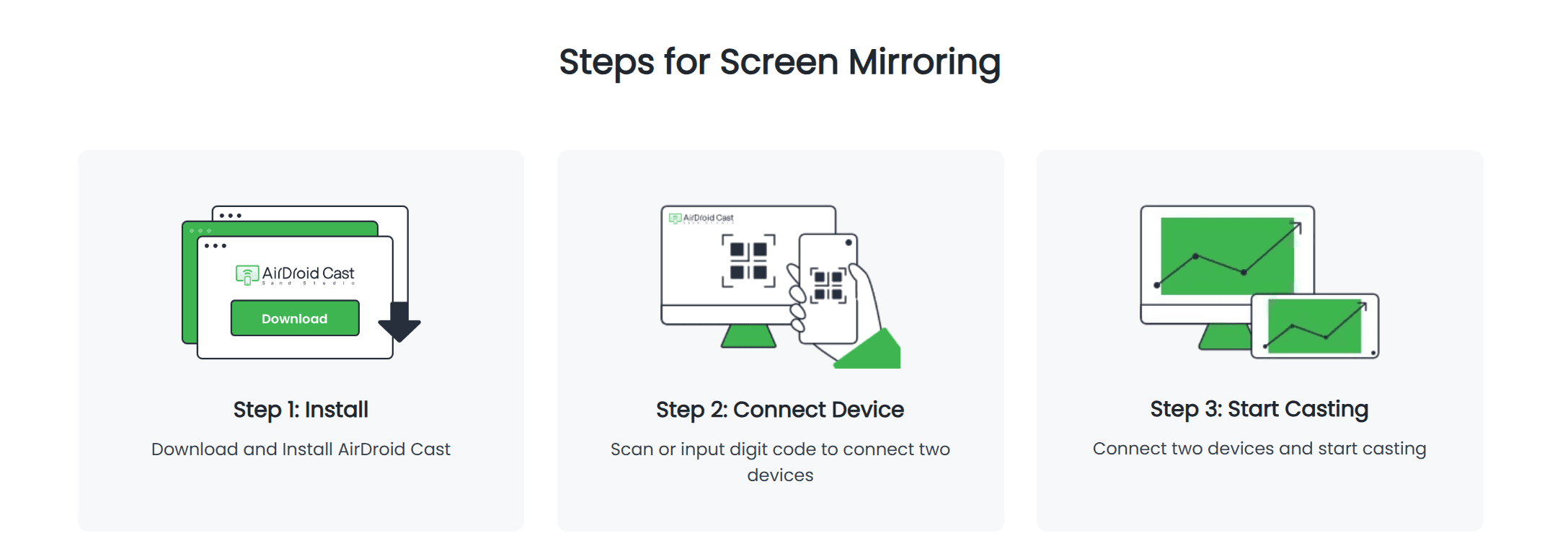
Step 1: Download & Install
Install AirDroid Cast on your phone from the App Store or Google Play. On the receiving device, download the desktop client — or just open webcast.airdroid.com in a browser.
Step 2: Connect Devices
Option A: Scan the QR code shown on the receiver's screen.
Option B: Enter the 9-digit Cast Code.
Option C (USB): Connect via USB cable. Enable USB Debugging on Android, or trust the device on iOS.
Step 3: Start Casting
The receiver confirms the connection and casting begins. To use remote control, upgrade to the Standard plan and enable the Control feature on the receiving end.
Step 1: Download & Install
Install AirDroid Cast on your phone from the App Store or Google Play. On the receiving device, download the desktop client — or just open webcast.airdroid.com in a browser.
Step 2: Connect Devices
Option A: Scan the QR code shown on the receiver's screen.
Option B: Enter the 9-digit Cast Code.
Option C (USB): Connect via USB cable. Enable USB Debugging on Android, or trust the device on iOS.
Step 3: Start Casting
The receiver confirms the connection and casting begins. To use remote control, upgrade to the Standard plan and enable the Control feature on the receiving end.
Step 1: Download & Install
Install AirDroid Cast on your phone from the App Store or Google Play. On the receiving device, download the desktop client — or just open webcast.airdroid.com in a browser.
Step 2: Connect Devices
Option A: Scan the QR code shown on the receiver's screen.
Option B: Enter the 9-digit Cast Code.
Option C (USB): Connect via USB cable. Enable USB Debugging on Android, or trust the device on iOS.
Step 3: Start Casting
The receiver confirms the connection and casting begins. To use remote control, upgrade to the Standard plan and enable the Control feature on the receiving end.
Pros and Cons
Pros and Cons
Pros and Cons
Pros
Three connection modes. Wireless, remote, and USB cover nearly every mirroring scenario. Not all competitors offer all three in a single app.
Remote control for both Android and iOS. AirDroid Cast supports controlling both platforms from your PC — though iOS control is limited to same-network (Bluetooth) connections.
Free tier with no time limit. Same-WiFi mirroring is free and unlimited. LetsView is also free, but AirDroid Cast adds USB and remote network options on paid plans.
Browser-based receiver. Cast Web means the receiving device needs no installation — perfect for meetings.
Multi-device mirroring. Up to 5 devices via wireless or 4 via AirPlay. ApowerMirror supports 4.
Two-way voice communication. You can talk both ways during remote sessions, useful for support and collaboration.
Cons
DRM content black screen. Netflix, Disney+, and similar services show a black screen when mirrored. This is a protocol limitation, but users feel it.
Free version feels limited. USB, remote mirroring, and remote control all require paid plans. Some users feel core features are paywalled.
Remote stability varies. Cross-network casting depends on P2P. When it falls back to relay, latency and quality drop noticeably.
Subscription cancellation issues. Some users report trouble canceling subscriptions smoothly.
Android media sound not transmitted. When casting an Android device, only microphone audio carries to the computer — not media sound (music, video). iOS doesn't have this limitation. Users wanting to watch videos from their Android phone on a bigger PC screen will need a separate audio solution.
iOS remote control is local-only. iOS control relies on Bluetooth, so it only works when both devices are on the same WLAN. You can't remotely control an iPhone from a different network, unlike Android.
Pros
Three connection modes. Wireless, remote, and USB cover nearly every mirroring scenario. Not all competitors offer all three in a single app.
Remote control for both Android and iOS. AirDroid Cast supports controlling both platforms from your PC — though iOS control is limited to same-network (Bluetooth) connections.
Free tier with no time limit. Same-WiFi mirroring is free and unlimited. LetsView is also free, but AirDroid Cast adds USB and remote network options on paid plans.
Browser-based receiver. Cast Web means the receiving device needs no installation — perfect for meetings.
Multi-device mirroring. Up to 5 devices via wireless or 4 via AirPlay. ApowerMirror supports 4.
Two-way voice communication. You can talk both ways during remote sessions, useful for support and collaboration.
Cons
DRM content black screen. Netflix, Disney+, and similar services show a black screen when mirrored. This is a protocol limitation, but users feel it.
Free version feels limited. USB, remote mirroring, and remote control all require paid plans. Some users feel core features are paywalled.
Remote stability varies. Cross-network casting depends on P2P. When it falls back to relay, latency and quality drop noticeably.
Subscription cancellation issues. Some users report trouble canceling subscriptions smoothly.
Android media sound not transmitted. When casting an Android device, only microphone audio carries to the computer — not media sound (music, video). iOS doesn't have this limitation. Users wanting to watch videos from their Android phone on a bigger PC screen will need a separate audio solution.
iOS remote control is local-only. iOS control relies on Bluetooth, so it only works when both devices are on the same WLAN. You can't remotely control an iPhone from a different network, unlike Android.
Pros
Three connection modes. Wireless, remote, and USB cover nearly every mirroring scenario. Not all competitors offer all three in a single app.
Remote control for both Android and iOS. AirDroid Cast supports controlling both platforms from your PC — though iOS control is limited to same-network (Bluetooth) connections.
Free tier with no time limit. Same-WiFi mirroring is free and unlimited. LetsView is also free, but AirDroid Cast adds USB and remote network options on paid plans.
Browser-based receiver. Cast Web means the receiving device needs no installation — perfect for meetings.
Multi-device mirroring. Up to 5 devices via wireless or 4 via AirPlay. ApowerMirror supports 4.
Two-way voice communication. You can talk both ways during remote sessions, useful for support and collaboration.
Cons
DRM content black screen. Netflix, Disney+, and similar services show a black screen when mirrored. This is a protocol limitation, but users feel it.
Free version feels limited. USB, remote mirroring, and remote control all require paid plans. Some users feel core features are paywalled.
Remote stability varies. Cross-network casting depends on P2P. When it falls back to relay, latency and quality drop noticeably.
Subscription cancellation issues. Some users report trouble canceling subscriptions smoothly.
Android media sound not transmitted. When casting an Android device, only microphone audio carries to the computer — not media sound (music, video). iOS doesn't have this limitation. Users wanting to watch videos from their Android phone on a bigger PC screen will need a separate audio solution.
iOS remote control is local-only. iOS control relies on Bluetooth, so it only works when both devices are on the same WLAN. You can't remotely control an iPhone from a different network, unlike Android.
Pricing and Value
Pricing and Value
Pricing and Value
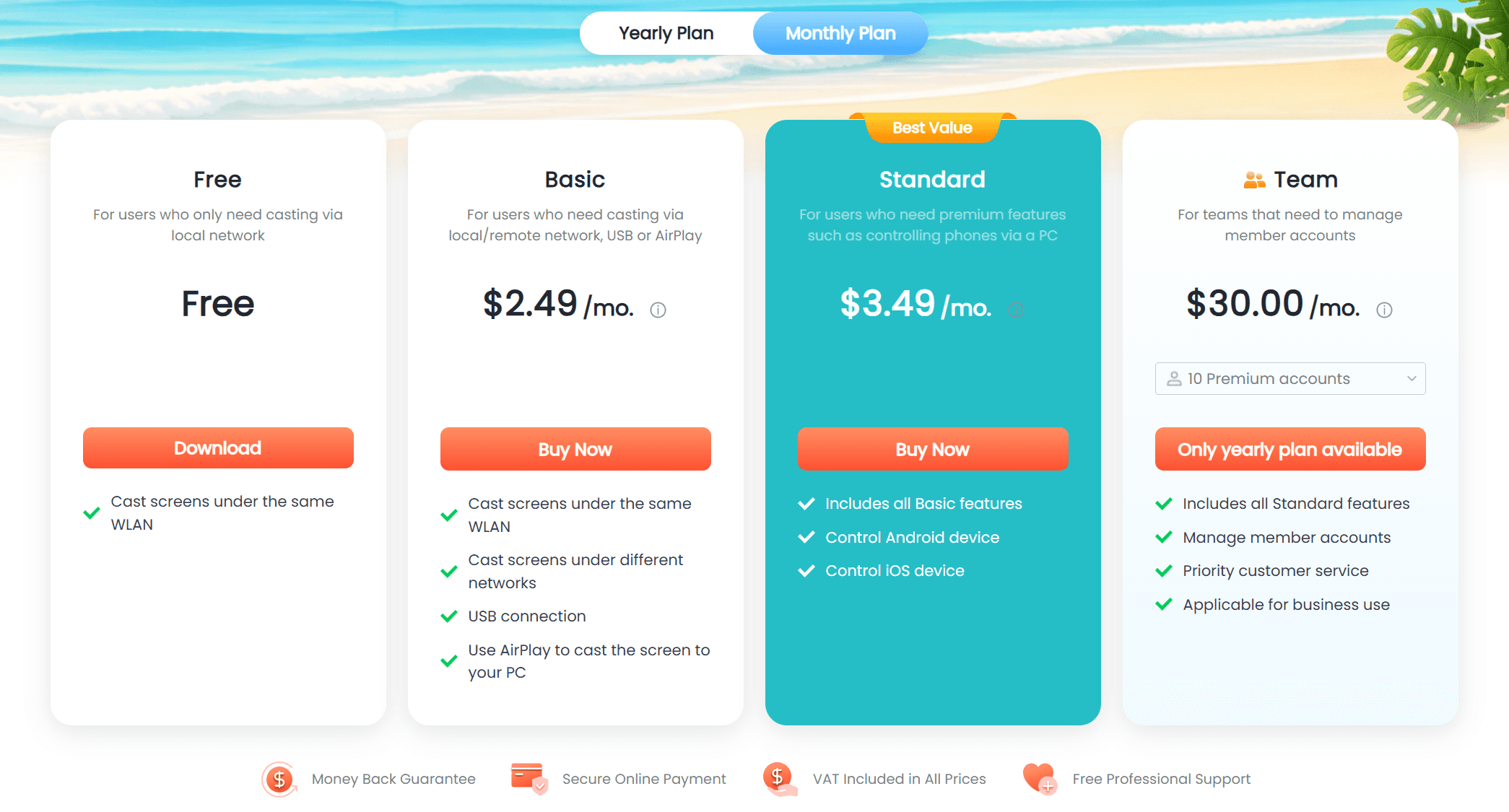
Pricing Table
Plan | Price | Key Features | Best For |
Free | $0 | Same-WiFi mirroring, no time limit | Light use, same-room casting |
Basic | $2.49/month | Everything in Free, plus cross-network remote, USB, AirPlay receiving | Remote casting or wired connection |
Standard | $3.49/month | Everything in Basic, plus Android/iOS remote control | Controlling your phone from PC |
Enterprise | Contact sales | Everything in Standard, plus member management and priority support | Business teams |
Annual billing offers a discount of up to 35%. Standard costs $29.99/year (about $2.50/month). Each device or account gets one free trial, which auto-converts to a paid subscription when it ends.
Is AirDroid Cast Worth Paying For?
The free tier is genuinely useful — unlimited same-WiFi mirroring with no time cap. If you only need to cast your phone screen to a laptop in the same room, you may never need to upgrade.
Where the paid plans earn their keep is in the features that no free competitor matches all at once: USB connection for lag-free local casting, cross-network remote mirroring for accessing devices anywhere, and remote control of both Android and iOS from your desktop. At $2.49/month (Basic) or $3.49/month (Standard), it is priced lower than ApowerMirror ($19.95/month) but comparable in yearly cost to 1001TVs ($19.99/year), which focuses on local mirroring without cross-network features.
For users who need remote control, the Standard plan at $29.99/year unlocks the full feature set. The Enterprise plan adds team management and priority support for organizations that need multi-seat deployment.
Not sure whether AirDroid Cast’s paid features justify the upgrade? Our free vs. paid screen mirroring apps comparison shows what you gain compared with LetsView, scrcpy, 1001TVs, and ApowerMirror.
Pricing Table
Plan | Price | Key Features | Best For |
Free | $0 | Same-WiFi mirroring, no time limit | Light use, same-room casting |
Basic | $2.49/month | Everything in Free, plus cross-network remote, USB, AirPlay receiving | Remote casting or wired connection |
Standard | $3.49/month | Everything in Basic, plus Android/iOS remote control | Controlling your phone from PC |
Enterprise | Contact sales | Everything in Standard, plus member management and priority support | Business teams |
Annual billing offers a discount of up to 35%. Standard costs $29.99/year (about $2.50/month). Each device or account gets one free trial, which auto-converts to a paid subscription when it ends.
Is AirDroid Cast Worth Paying For?
The free tier is genuinely useful — unlimited same-WiFi mirroring with no time cap. If you only need to cast your phone screen to a laptop in the same room, you may never need to upgrade.
Where the paid plans earn their keep is in the features that no free competitor matches all at once: USB connection for lag-free local casting, cross-network remote mirroring for accessing devices anywhere, and remote control of both Android and iOS from your desktop. At $2.49/month (Basic) or $3.49/month (Standard), it is priced lower than ApowerMirror ($19.95/month) but comparable in yearly cost to 1001TVs ($19.99/year), which focuses on local mirroring without cross-network features.
For users who need remote control, the Standard plan at $29.99/year unlocks the full feature set. The Enterprise plan adds team management and priority support for organizations that need multi-seat deployment.
Not sure whether AirDroid Cast’s paid features justify the upgrade? Our free vs. paid screen mirroring apps comparison shows what you gain compared with LetsView, scrcpy, 1001TVs, and ApowerMirror.
Pricing Table
Plan | Price | Key Features | Best For |
Free | $0 | Same-WiFi mirroring, no time limit | Light use, same-room casting |
Basic | $2.49/month | Everything in Free, plus cross-network remote, USB, AirPlay receiving | Remote casting or wired connection |
Standard | $3.49/month | Everything in Basic, plus Android/iOS remote control | Controlling your phone from PC |
Enterprise | Contact sales | Everything in Standard, plus member management and priority support | Business teams |
Annual billing offers a discount of up to 35%. Standard costs $29.99/year (about $2.50/month). Each device or account gets one free trial, which auto-converts to a paid subscription when it ends.
Is AirDroid Cast Worth Paying For?
The free tier is genuinely useful — unlimited same-WiFi mirroring with no time cap. If you only need to cast your phone screen to a laptop in the same room, you may never need to upgrade.
Where the paid plans earn their keep is in the features that no free competitor matches all at once: USB connection for lag-free local casting, cross-network remote mirroring for accessing devices anywhere, and remote control of both Android and iOS from your desktop. At $2.49/month (Basic) or $3.49/month (Standard), it is priced lower than ApowerMirror ($19.95/month) but comparable in yearly cost to 1001TVs ($19.99/year), which focuses on local mirroring without cross-network features.
For users who need remote control, the Standard plan at $29.99/year unlocks the full feature set. The Enterprise plan adds team management and priority support for organizations that need multi-seat deployment.
Not sure whether AirDroid Cast’s paid features justify the upgrade? Our free vs. paid screen mirroring apps comparison shows what you gain compared with LetsView, scrcpy, 1001TVs, and ApowerMirror.
Final Verdict
Final Verdict
Final Verdict
Scorecard
Dimension | Score (out of 5) | Notes |
Feature completeness | 4.7 | Three modes + remote control + browser — most complete |
Ease of use | 4.2 | QR/Code pairing is simple; USB debugging is a hurdle for beginners |
Performance | 4 | USB is near-zero latency; wireless is smooth for daily use, games show delay |
Value for money | 4.5 | $2.49–3.49/month; competitive vs. ApowerMirror |
Stability | 3.8 | Solid locally; remote and DRM scenarios have known issues |
Cross-platform | 4.5 | Android, iOS, Windows, Mac, and browser all covered |
Overall | 4.3 | Most feature-complete mirroring tool; remote control is the key selling point |
The Bottom Line
AirDroid Cast is the best overall screen mirroring app for users who need a single tool for both local and remote mirroring with device control. At $2.49–$3.49/month, it offers the most feature-complete package in its price range. However, users who only need local mirroring should also consider LetsView (free) or 1001TVs (from $19.99/year), which prioritize stable same-network casting without the remote features AirDroid Cast offers.
Scorecard
Dimension | Score (out of 5) | Notes |
Feature completeness | 4.7 | Three modes + remote control + browser — most complete |
Ease of use | 4.2 | QR/Code pairing is simple; USB debugging is a hurdle for beginners |
Performance | 4 | USB is near-zero latency; wireless is smooth for daily use, games show delay |
Value for money | 4.5 | $2.49–3.49/month; competitive vs. ApowerMirror |
Stability | 3.8 | Solid locally; remote and DRM scenarios have known issues |
Cross-platform | 4.5 | Android, iOS, Windows, Mac, and browser all covered |
Overall | 4.3 | Most feature-complete mirroring tool; remote control is the key selling point |
The Bottom Line
AirDroid Cast is the best overall screen mirroring app for users who need a single tool for both local and remote mirroring with device control. At $2.49–$3.49/month, it offers the most feature-complete package in its price range. However, users who only need local mirroring should also consider LetsView (free) or 1001TVs (from $19.99/year), which prioritize stable same-network casting without the remote features AirDroid Cast offers.
Scorecard
Dimension | Score (out of 5) | Notes |
Feature completeness | 4.7 | Three modes + remote control + browser — most complete |
Ease of use | 4.2 | QR/Code pairing is simple; USB debugging is a hurdle for beginners |
Performance | 4 | USB is near-zero latency; wireless is smooth for daily use, games show delay |
Value for money | 4.5 | $2.49–3.49/month; competitive vs. ApowerMirror |
Stability | 3.8 | Solid locally; remote and DRM scenarios have known issues |
Cross-platform | 4.5 | Android, iOS, Windows, Mac, and browser all covered |
Overall | 4.3 | Most feature-complete mirroring tool; remote control is the key selling point |
The Bottom Line
AirDroid Cast is the best overall screen mirroring app for users who need a single tool for both local and remote mirroring with device control. At $2.49–$3.49/month, it offers the most feature-complete package in its price range. However, users who only need local mirroring should also consider LetsView (free) or 1001TVs (from $19.99/year), which prioritize stable same-network casting without the remote features AirDroid Cast offers.
FAQ
FAQ
FAQ
Is AirDroid Cast free?
AirDroid Cast offers a free tier with unlimited screen mirroring between devices on the same WiFi network. Remote mirroring, USB connection, AirPlay receiving, and remote control require a paid plan starting at $2.49/month (Basic) or $3.49/month (Standard).
Can AirDroid Cast control iPhone from PC?
Yes. The Standard plan ($3.49/month) supports remote control of iOS devices from a Windows or Mac computer. You can click, scroll, and type on your iPhone or iPad through your desktop. However, iOS control uses Bluetooth and only works when both devices are on the same WLAN — it cannot be used across different networks, unlike Android control.
Does AirDroid Cast work without WiFi?
AirDroid Cast works without WiFi using a USB cable connection, which also provides the lowest latency. The free tier requires devices on the same local network. For cross-network remote mirroring, both devices need an internet connection (Basic plan or above).
Does AirDroid Cast support casting DRM content?
No. DRM-protected content from Netflix, Disney+, and similar services will show a black screen when mirrored. This is a protocol-level restriction, not an AirDroid Cast-specific bug. YouTube, web videos, and local media files cast normally.
How many devices can AirDroid Cast mirror simultaneously?
AirDroid Cast supports mirroring up to 5 devices (iOS and Android) to a single computer at once via wireless. AirPlay mode supports up to 4 iOS devices. USB connection is limited to one screen at a time.
Can I use AirDroid Cast on a browser without installing software?
Yes. AirDroid Cast Web lets you receive screen mirrors in a browser without installing desktop software. It supports Chrome, Safari, Edge, and Yandex. However, the web version does not support remote control.
Is AirDroid Cast safe to use?
AirDroid Cast uses SSL encryption for data transmission and P2P direct connection for remote sessions. Screen data flows directly between devices rather than through servers. However, some users have raised concerns about payment page polish and subscription cancellation, so review the terms before purchasing.
Is AirDroid Cast free?
AirDroid Cast offers a free tier with unlimited screen mirroring between devices on the same WiFi network. Remote mirroring, USB connection, AirPlay receiving, and remote control require a paid plan starting at $2.49/month (Basic) or $3.49/month (Standard).
Can AirDroid Cast control iPhone from PC?
Yes. The Standard plan ($3.49/month) supports remote control of iOS devices from a Windows or Mac computer. You can click, scroll, and type on your iPhone or iPad through your desktop. However, iOS control uses Bluetooth and only works when both devices are on the same WLAN — it cannot be used across different networks, unlike Android control.
Does AirDroid Cast work without WiFi?
AirDroid Cast works without WiFi using a USB cable connection, which also provides the lowest latency. The free tier requires devices on the same local network. For cross-network remote mirroring, both devices need an internet connection (Basic plan or above).
Does AirDroid Cast support casting DRM content?
No. DRM-protected content from Netflix, Disney+, and similar services will show a black screen when mirrored. This is a protocol-level restriction, not an AirDroid Cast-specific bug. YouTube, web videos, and local media files cast normally.
How many devices can AirDroid Cast mirror simultaneously?
AirDroid Cast supports mirroring up to 5 devices (iOS and Android) to a single computer at once via wireless. AirPlay mode supports up to 4 iOS devices. USB connection is limited to one screen at a time.
Can I use AirDroid Cast on a browser without installing software?
Yes. AirDroid Cast Web lets you receive screen mirrors in a browser without installing desktop software. It supports Chrome, Safari, Edge, and Yandex. However, the web version does not support remote control.
Is AirDroid Cast safe to use?
AirDroid Cast uses SSL encryption for data transmission and P2P direct connection for remote sessions. Screen data flows directly between devices rather than through servers. However, some users have raised concerns about payment page polish and subscription cancellation, so review the terms before purchasing.
Is AirDroid Cast free?
AirDroid Cast offers a free tier with unlimited screen mirroring between devices on the same WiFi network. Remote mirroring, USB connection, AirPlay receiving, and remote control require a paid plan starting at $2.49/month (Basic) or $3.49/month (Standard).
Can AirDroid Cast control iPhone from PC?
Yes. The Standard plan ($3.49/month) supports remote control of iOS devices from a Windows or Mac computer. You can click, scroll, and type on your iPhone or iPad through your desktop. However, iOS control uses Bluetooth and only works when both devices are on the same WLAN — it cannot be used across different networks, unlike Android control.
Does AirDroid Cast work without WiFi?
AirDroid Cast works without WiFi using a USB cable connection, which also provides the lowest latency. The free tier requires devices on the same local network. For cross-network remote mirroring, both devices need an internet connection (Basic plan or above).
Does AirDroid Cast support casting DRM content?
No. DRM-protected content from Netflix, Disney+, and similar services will show a black screen when mirrored. This is a protocol-level restriction, not an AirDroid Cast-specific bug. YouTube, web videos, and local media files cast normally.
How many devices can AirDroid Cast mirror simultaneously?
AirDroid Cast supports mirroring up to 5 devices (iOS and Android) to a single computer at once via wireless. AirPlay mode supports up to 4 iOS devices. USB connection is limited to one screen at a time.
Can I use AirDroid Cast on a browser without installing software?
Yes. AirDroid Cast Web lets you receive screen mirrors in a browser without installing desktop software. It supports Chrome, Safari, Edge, and Yandex. However, the web version does not support remote control.
Is AirDroid Cast safe to use?
AirDroid Cast uses SSL encryption for data transmission and P2P direct connection for remote sessions. Screen data flows directly between devices rather than through servers. However, some users have raised concerns about payment page polish and subscription cancellation, so review the terms before purchasing.
Table of content
Table of content


Still Need a Hand?
Still Need a Hand?
Still Need a Hand?
Explore more reviews, step-by-step guides, and troubleshooting tips—or contact us if you could not find the answer you needed.
Explore more reviews, step-by-step guides, and troubleshooting tips—or contact us if you could not find the answer you needed.
Explore more reviews, step-by-step guides, and troubleshooting tips—or contact us if you could not find the answer you needed.