Screen Mirroring Troubleshooting: A Problem-by-Problem Fix Guide (2026)
Screen Mirroring Troubleshooting: A Problem-by-Problem Fix Guide (2026)
Screen Mirroring Troubleshooting: A Problem-by-Problem Fix Guide (2026)
Screen mirroring not working? Diagnose by symptom: won't connect, keeps dropping, lag, no sound, or black screen. Quick fixes and when to switch methods.
Screen mirroring not working? Diagnose by symptom: won't connect, keeps dropping, lag, no sound, or black screen. Quick fixes and when to switch methods.
Screen mirroring not working? Diagnose by symptom: won't connect, keeps dropping, lag, no sound, or black screen. Quick fixes and when to switch methods.
Screen mirroring troubleshooting means diagnosing and fixing wireless display problems. Connection failures, disconnections, lag, missing audio, black screens. You identify the symptom first, then apply targeted fixes for your specific device combination and protocol.
Screen mirroring fails for three reasons. Network problems, device compatibility gaps, or software glitches. Some issues are easier to solve by looking at your device combination first. Others make more sense when you start from the symptom. This guide takes the symptom-first path. Identify what's going wrong, understand why it's happening, then go to the right fix.
New to screen mirroring entirely? Start with our complete beginner's guide.
Screen mirroring troubleshooting means diagnosing and fixing wireless display problems. Connection failures, disconnections, lag, missing audio, black screens. You identify the symptom first, then apply targeted fixes for your specific device combination and protocol.
Screen mirroring fails for three reasons. Network problems, device compatibility gaps, or software glitches. Some issues are easier to solve by looking at your device combination first. Others make more sense when you start from the symptom. This guide takes the symptom-first path. Identify what's going wrong, understand why it's happening, then go to the right fix.
New to screen mirroring entirely? Start with our complete beginner's guide.
Screen mirroring troubleshooting means diagnosing and fixing wireless display problems. Connection failures, disconnections, lag, missing audio, black screens. You identify the symptom first, then apply targeted fixes for your specific device combination and protocol.
Screen mirroring fails for three reasons. Network problems, device compatibility gaps, or software glitches. Some issues are easier to solve by looking at your device combination first. Others make more sense when you start from the symptom. This guide takes the symptom-first path. Identify what's going wrong, understand why it's happening, then go to the right fix.
New to screen mirroring entirely? Start with our complete beginner's guide.
Quick Diagnosis: What's Your Problem?
Quick Diagnosis: What's Your Problem?
Quick Diagnosis: What's Your Problem?
Most screen mirroring problems fall into five categories. Can't connect at all. Connects but keeps dropping. Works but lags or stutters. Screen shows but no sound. Black or blank screen. Use the table below to identify your symptom, then jump to the matching section.
What's your screen mirroring problem?
Your symptom | Most common cause |
Can't connect at all | Network, protocol mismatch, or outdated software |
Connects but keeps dropping | Wi-Fi band switching, NAT timeout, or power management |
Works but laggy or stuttering | Insufficient bandwidth or 2.4GHz congestion |
Screen shows but no sound | Audio routing, DRM restrictions, or Bluetooth interference |
Black or blank screen | HDCP protection, resolution mismatch, or driver issue |
Can't see your TV in the mirroring menu at all? That's usually a cross-platform compatibility issue, not a symptom. Our device-by-device fix guide covers those scenarios in depth.
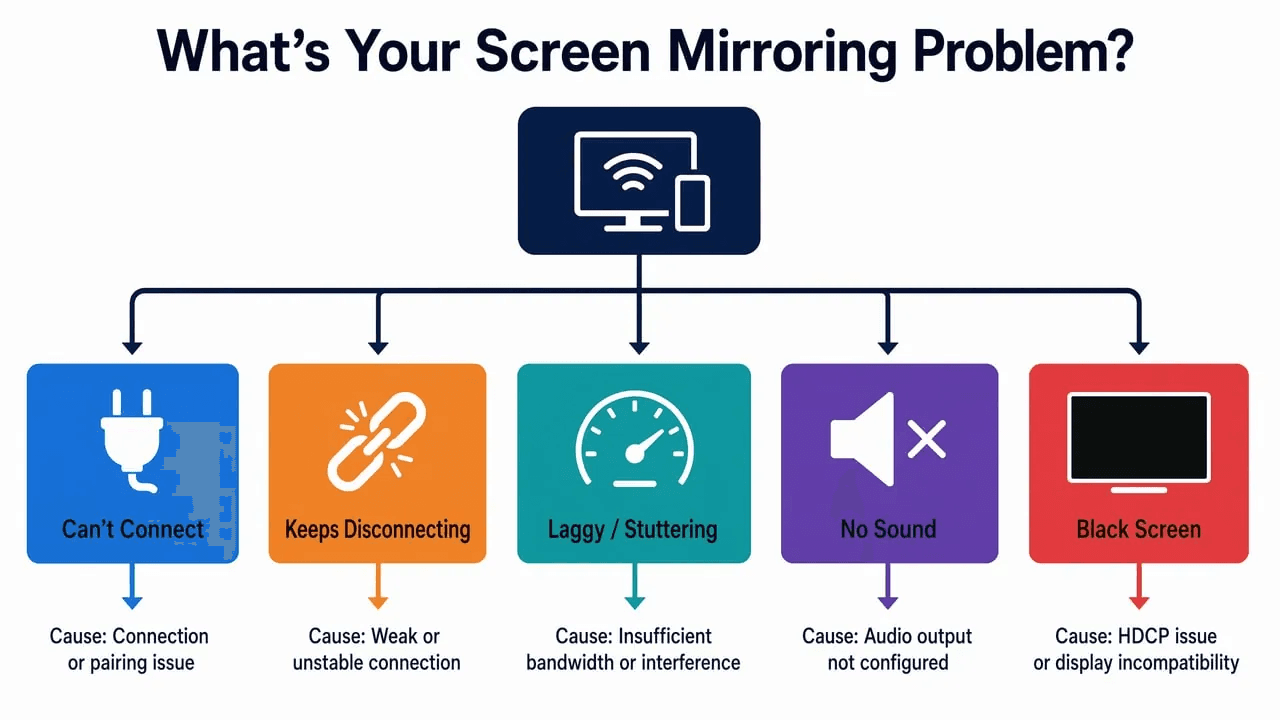
Most screen mirroring problems fall into five categories. Can't connect at all. Connects but keeps dropping. Works but lags or stutters. Screen shows but no sound. Black or blank screen. Use the table below to identify your symptom, then jump to the matching section.
What's your screen mirroring problem?
Your symptom | Most common cause |
Can't connect at all | Network, protocol mismatch, or outdated software |
Connects but keeps dropping | Wi-Fi band switching, NAT timeout, or power management |
Works but laggy or stuttering | Insufficient bandwidth or 2.4GHz congestion |
Screen shows but no sound | Audio routing, DRM restrictions, or Bluetooth interference |
Black or blank screen | HDCP protection, resolution mismatch, or driver issue |
Can't see your TV in the mirroring menu at all? That's usually a cross-platform compatibility issue, not a symptom. Our device-by-device fix guide covers those scenarios in depth.
Most screen mirroring problems fall into five categories. Can't connect at all. Connects but keeps dropping. Works but lags or stutters. Screen shows but no sound. Black or blank screen. Use the table below to identify your symptom, then jump to the matching section.
What's your screen mirroring problem?
Your symptom | Most common cause |
Can't connect at all | Network, protocol mismatch, or outdated software |
Connects but keeps dropping | Wi-Fi band switching, NAT timeout, or power management |
Works but laggy or stuttering | Insufficient bandwidth or 2.4GHz congestion |
Screen shows but no sound | Audio routing, DRM restrictions, or Bluetooth interference |
Black or blank screen | HDCP protection, resolution mismatch, or driver issue |
Can't see your TV in the mirroring menu at all? That's usually a cross-platform compatibility issue, not a symptom. Our device-by-device fix guide covers those scenarios in depth.
Screen Mirroring Won't Connect
Screen Mirroring Won't Connect
Screen Mirroring Won't Connect
When screen mirroring won't connect, the cause is almost always one of four things. Devices on different Wi-Fi networks, AP isolation blocking discovery, outdated software, or a protocol mismatch. Start with the 5-Step Quick-Fix Checklist below, then work through the specific causes.
In our experience, the majority of "won't connect" failures trace back to network issues. Specifically, devices that appear to be on the same Wi-Fi but aren't. The rest split between outdated software and protocol mismatches.
The four most common causes
Cause | How to identify it | Quick fix |
Different Wi-Fi networks or bands | Check Wi-Fi settings on both devices. Are they on the exact same SSID? | Connect both to the same network and same band (2.4GHz or 5GHz) |
AP/Client Isolation | Common on hotel, office, or school Wi-Fi. Devices have internet but can't see each other | Log into your router and disable AP/Client Isolation, or use a phone hotspot |
Outdated OS or firmware | One device hasn't been updated in months. TV firmware is several versions behind | Update OS on your phone/laptop and firmware on your TV |
Protocol mismatch | iPhone trying to reach a non-AirPlay TV, or Android trying to reach Apple TV | Use a third-party app, or add a compatible streaming device (Chromecast, Apple TV) |
Protocol mismatch: the silent killer
This is the one that frustrates users the most. Everything looks like it should work. Both devices are on. Both are on the same Wi-Fi. Both support "screen mirroring." But they speak different languages.
AirPlay, Chromecast, and Miracast are not interchangeable. An iPhone cannot mirror to a TV that only supports Miracast, no matter how many times you restart both devices.
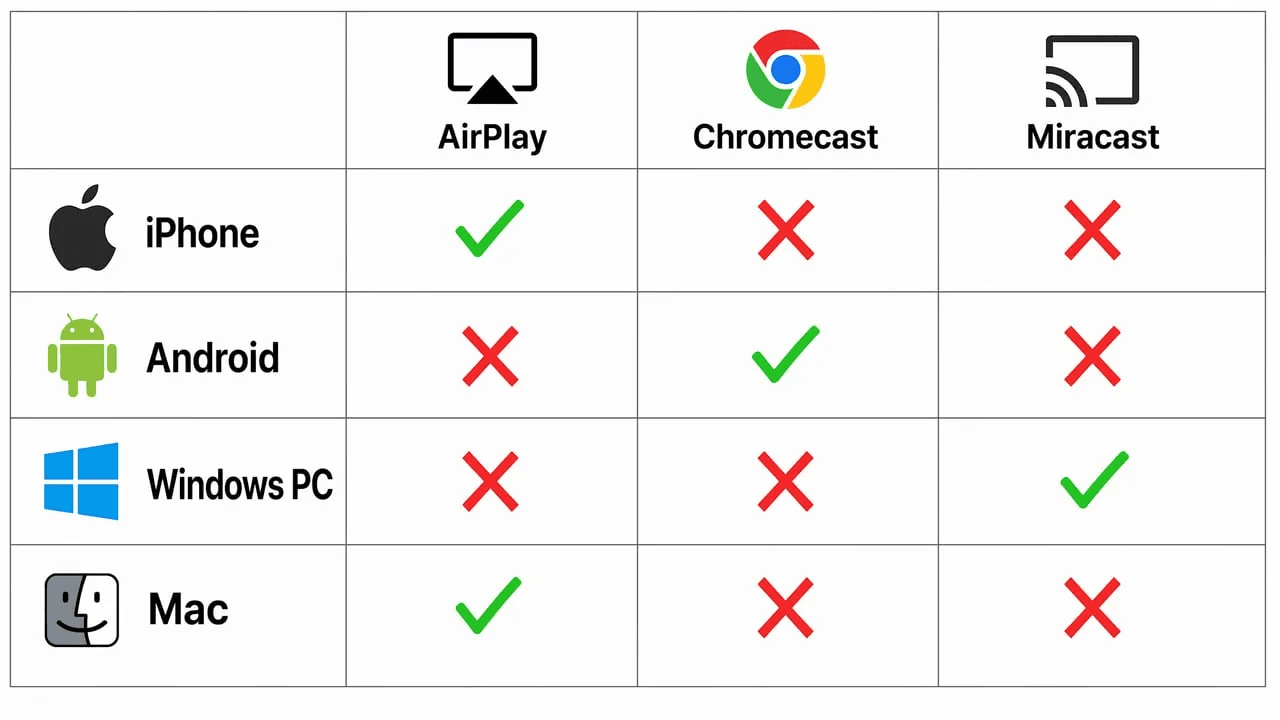
If your phone and TV are from different ecosystems, a third-party mirroring app is usually the fastest bridge. Apps like AirDroid Cast and 1001TVs work across platforms because they use their own discovery and streaming protocol rather than relying on the built-in one. For a full comparison of which app works best for your device combination, see our 5 Best Screen Mirroring Apps 2026 guide.
When "can't connect" is actually a network problem in disguise
Both devices can show the same Wi-Fi network name and still not communicate. This happens when:
Your router broadcasts separate SSIDs for 2.4GHz and 5GHz, and each device connected to a different one with isolation enabled between bands
A VPN is running on your phone. It reroutes traffic through a remote server, breaking the local discovery protocols that mirroring depends on
A firewall or parental control on the router is blocking the ports used for device discovery. AirPlay and modern Chromecast devices both use mDNS on UDP port 5353. Older first-generation Chromecasts also used SSDP on UDP port 1900
Turn off your VPN, disable any router-level firewalls temporarily, and try again. On a network you don't control (hotel, office, dorm), AP isolation is almost certainly the culprit. Use your phone's hotspot instead.
When screen mirroring won't connect, the cause is almost always one of four things. Devices on different Wi-Fi networks, AP isolation blocking discovery, outdated software, or a protocol mismatch. Start with the 5-Step Quick-Fix Checklist below, then work through the specific causes.
In our experience, the majority of "won't connect" failures trace back to network issues. Specifically, devices that appear to be on the same Wi-Fi but aren't. The rest split between outdated software and protocol mismatches.
The four most common causes
Cause | How to identify it | Quick fix |
Different Wi-Fi networks or bands | Check Wi-Fi settings on both devices. Are they on the exact same SSID? | Connect both to the same network and same band (2.4GHz or 5GHz) |
AP/Client Isolation | Common on hotel, office, or school Wi-Fi. Devices have internet but can't see each other | Log into your router and disable AP/Client Isolation, or use a phone hotspot |
Outdated OS or firmware | One device hasn't been updated in months. TV firmware is several versions behind | Update OS on your phone/laptop and firmware on your TV |
Protocol mismatch | iPhone trying to reach a non-AirPlay TV, or Android trying to reach Apple TV | Use a third-party app, or add a compatible streaming device (Chromecast, Apple TV) |
Protocol mismatch: the silent killer
This is the one that frustrates users the most. Everything looks like it should work. Both devices are on. Both are on the same Wi-Fi. Both support "screen mirroring." But they speak different languages.
AirPlay, Chromecast, and Miracast are not interchangeable. An iPhone cannot mirror to a TV that only supports Miracast, no matter how many times you restart both devices.
If your phone and TV are from different ecosystems, a third-party mirroring app is usually the fastest bridge. Apps like AirDroid Cast and 1001TVs work across platforms because they use their own discovery and streaming protocol rather than relying on the built-in one. For a full comparison of which app works best for your device combination, see our 5 Best Screen Mirroring Apps 2026 guide.
When "can't connect" is actually a network problem in disguise
Both devices can show the same Wi-Fi network name and still not communicate. This happens when:
Your router broadcasts separate SSIDs for 2.4GHz and 5GHz, and each device connected to a different one with isolation enabled between bands
A VPN is running on your phone. It reroutes traffic through a remote server, breaking the local discovery protocols that mirroring depends on
A firewall or parental control on the router is blocking the ports used for device discovery. AirPlay and modern Chromecast devices both use mDNS on UDP port 5353. Older first-generation Chromecasts also used SSDP on UDP port 1900
Turn off your VPN, disable any router-level firewalls temporarily, and try again. On a network you don't control (hotel, office, dorm), AP isolation is almost certainly the culprit. Use your phone's hotspot instead.
When screen mirroring won't connect, the cause is almost always one of four things. Devices on different Wi-Fi networks, AP isolation blocking discovery, outdated software, or a protocol mismatch. Start with the 5-Step Quick-Fix Checklist below, then work through the specific causes.
In our experience, the majority of "won't connect" failures trace back to network issues. Specifically, devices that appear to be on the same Wi-Fi but aren't. The rest split between outdated software and protocol mismatches.
The four most common causes
Cause | How to identify it | Quick fix |
Different Wi-Fi networks or bands | Check Wi-Fi settings on both devices. Are they on the exact same SSID? | Connect both to the same network and same band (2.4GHz or 5GHz) |
AP/Client Isolation | Common on hotel, office, or school Wi-Fi. Devices have internet but can't see each other | Log into your router and disable AP/Client Isolation, or use a phone hotspot |
Outdated OS or firmware | One device hasn't been updated in months. TV firmware is several versions behind | Update OS on your phone/laptop and firmware on your TV |
Protocol mismatch | iPhone trying to reach a non-AirPlay TV, or Android trying to reach Apple TV | Use a third-party app, or add a compatible streaming device (Chromecast, Apple TV) |
Protocol mismatch: the silent killer
This is the one that frustrates users the most. Everything looks like it should work. Both devices are on. Both are on the same Wi-Fi. Both support "screen mirroring." But they speak different languages.
AirPlay, Chromecast, and Miracast are not interchangeable. An iPhone cannot mirror to a TV that only supports Miracast, no matter how many times you restart both devices.
If your phone and TV are from different ecosystems, a third-party mirroring app is usually the fastest bridge. Apps like AirDroid Cast and 1001TVs work across platforms because they use their own discovery and streaming protocol rather than relying on the built-in one. For a full comparison of which app works best for your device combination, see our 5 Best Screen Mirroring Apps 2026 guide.
When "can't connect" is actually a network problem in disguise
Both devices can show the same Wi-Fi network name and still not communicate. This happens when:
Your router broadcasts separate SSIDs for 2.4GHz and 5GHz, and each device connected to a different one with isolation enabled between bands
A VPN is running on your phone. It reroutes traffic through a remote server, breaking the local discovery protocols that mirroring depends on
A firewall or parental control on the router is blocking the ports used for device discovery. AirPlay and modern Chromecast devices both use mDNS on UDP port 5353. Older first-generation Chromecasts also used SSDP on UDP port 1900
Turn off your VPN, disable any router-level firewalls temporarily, and try again. On a network you don't control (hotel, office, dorm), AP isolation is almost certainly the culprit. Use your phone's hotspot instead.
Screen Mirroring Keeps Disconnecting
Screen Mirroring Keeps Disconnecting
Screen Mirroring Keeps Disconnecting
Frequent disconnections typically stem from Wi-Fi band switching, router NAT timeouts, DHCP lease expiration, power management, or VPN interference. The pattern of disconnection tells you which cause is yours. Fixed intervals, after movement, after switching apps. Each points to a different root cause.
Disconnections are different from "can't connect." Your devices find each other. The mirroring session starts. Then it drops. Sometimes after 30 seconds, sometimes after 20 minutes. The timing is your biggest diagnostic clue.
Five disconnection patterns and their root causes
Disconnection pattern | Likely root cause | First fix to try |
Drops at fixed intervals (every 5 to 10 minutes) | Router NAT table timeout or DHCP lease expiry | Set a static IP for your mirroring devices; extend DHCP lease time in router settings |
Drops after you physically move around | Wi-Fi roaming. Your phone switches between APs or mesh nodes | Lock your phone to the 5GHz band closest to the TV; disable auto-switch |
Drops when you switch to another app | OS power management or battery saver killing the mirroring background process | Disable battery saver / Low Power Mode; lock the mirroring app in memory |
Drops when multiple devices are mirroring | Bandwidth saturation. The network can't sustain multiple streams | Reduce mirroring resolution; switch one device to a wired connection |
Drops only with one specific device | Hardware or driver issue on that device | Update Wi-Fi and graphics drivers; test with a different device to confirm |
For the complete step-by-step process, see our 7 reliable fixes for screen mirroring that keeps disconnecting.
The most overlooked fix: power management
Aggressive power management is a common cause of "it works for five minutes then drops" on both Android and Windows. Android manufacturers especially tune their battery savers to kill background network processes. Screen mirroring is exactly the kind of background network process they target.
On Android: go to Settings, then Apps, then your mirroring app, then Battery, and select "Unrestricted." On Windows: open Device Manager, find Network Adapters, right-click your Wi-Fi adapter, go to Properties, then Power Management, and uncheck "Allow the computer to turn off this device to save power." On iPhone: Settings, Battery, disable Low Power Mode while mirroring.
Router settings that stabilize connections
If the disconnection pattern points to a network cause, these three router changes make the biggest difference:
Enable QoS (Quality of Service) and prioritize traffic from your mirroring devices by MAC address
Lock both devices to the same Wi-Fi band. 5GHz for lower latency, 2.4GHz for longer range. Don't let the router auto-switch them mid-session
Check DHCP lease time. Most consumer routers default to 24 hours, which is fine for typical use. But guest networks and some ISP-provided routers use lease times as short as 1 to 2 hours. If your mirroring sessions drop at regular intervals, a short DHCP lease may be expiring mid-session. Set a static IP for your mirroring devices, or extend the lease time to 24 hours or longer
Frequent disconnections typically stem from Wi-Fi band switching, router NAT timeouts, DHCP lease expiration, power management, or VPN interference. The pattern of disconnection tells you which cause is yours. Fixed intervals, after movement, after switching apps. Each points to a different root cause.
Disconnections are different from "can't connect." Your devices find each other. The mirroring session starts. Then it drops. Sometimes after 30 seconds, sometimes after 20 minutes. The timing is your biggest diagnostic clue.
Five disconnection patterns and their root causes
Disconnection pattern | Likely root cause | First fix to try |
Drops at fixed intervals (every 5 to 10 minutes) | Router NAT table timeout or DHCP lease expiry | Set a static IP for your mirroring devices; extend DHCP lease time in router settings |
Drops after you physically move around | Wi-Fi roaming. Your phone switches between APs or mesh nodes | Lock your phone to the 5GHz band closest to the TV; disable auto-switch |
Drops when you switch to another app | OS power management or battery saver killing the mirroring background process | Disable battery saver / Low Power Mode; lock the mirroring app in memory |
Drops when multiple devices are mirroring | Bandwidth saturation. The network can't sustain multiple streams | Reduce mirroring resolution; switch one device to a wired connection |
Drops only with one specific device | Hardware or driver issue on that device | Update Wi-Fi and graphics drivers; test with a different device to confirm |
For the complete step-by-step process, see our 7 reliable fixes for screen mirroring that keeps disconnecting.
The most overlooked fix: power management
Aggressive power management is a common cause of "it works for five minutes then drops" on both Android and Windows. Android manufacturers especially tune their battery savers to kill background network processes. Screen mirroring is exactly the kind of background network process they target.
On Android: go to Settings, then Apps, then your mirroring app, then Battery, and select "Unrestricted." On Windows: open Device Manager, find Network Adapters, right-click your Wi-Fi adapter, go to Properties, then Power Management, and uncheck "Allow the computer to turn off this device to save power." On iPhone: Settings, Battery, disable Low Power Mode while mirroring.
Router settings that stabilize connections
If the disconnection pattern points to a network cause, these three router changes make the biggest difference:
Enable QoS (Quality of Service) and prioritize traffic from your mirroring devices by MAC address
Lock both devices to the same Wi-Fi band. 5GHz for lower latency, 2.4GHz for longer range. Don't let the router auto-switch them mid-session
Check DHCP lease time. Most consumer routers default to 24 hours, which is fine for typical use. But guest networks and some ISP-provided routers use lease times as short as 1 to 2 hours. If your mirroring sessions drop at regular intervals, a short DHCP lease may be expiring mid-session. Set a static IP for your mirroring devices, or extend the lease time to 24 hours or longer
Frequent disconnections typically stem from Wi-Fi band switching, router NAT timeouts, DHCP lease expiration, power management, or VPN interference. The pattern of disconnection tells you which cause is yours. Fixed intervals, after movement, after switching apps. Each points to a different root cause.
Disconnections are different from "can't connect." Your devices find each other. The mirroring session starts. Then it drops. Sometimes after 30 seconds, sometimes after 20 minutes. The timing is your biggest diagnostic clue.
Five disconnection patterns and their root causes
Disconnection pattern | Likely root cause | First fix to try |
Drops at fixed intervals (every 5 to 10 minutes) | Router NAT table timeout or DHCP lease expiry | Set a static IP for your mirroring devices; extend DHCP lease time in router settings |
Drops after you physically move around | Wi-Fi roaming. Your phone switches between APs or mesh nodes | Lock your phone to the 5GHz band closest to the TV; disable auto-switch |
Drops when you switch to another app | OS power management or battery saver killing the mirroring background process | Disable battery saver / Low Power Mode; lock the mirroring app in memory |
Drops when multiple devices are mirroring | Bandwidth saturation. The network can't sustain multiple streams | Reduce mirroring resolution; switch one device to a wired connection |
Drops only with one specific device | Hardware or driver issue on that device | Update Wi-Fi and graphics drivers; test with a different device to confirm |
For the complete step-by-step process, see our 7 reliable fixes for screen mirroring that keeps disconnecting.
The most overlooked fix: power management
Aggressive power management is a common cause of "it works for five minutes then drops" on both Android and Windows. Android manufacturers especially tune their battery savers to kill background network processes. Screen mirroring is exactly the kind of background network process they target.
On Android: go to Settings, then Apps, then your mirroring app, then Battery, and select "Unrestricted." On Windows: open Device Manager, find Network Adapters, right-click your Wi-Fi adapter, go to Properties, then Power Management, and uncheck "Allow the computer to turn off this device to save power." On iPhone: Settings, Battery, disable Low Power Mode while mirroring.
Router settings that stabilize connections
If the disconnection pattern points to a network cause, these three router changes make the biggest difference:
Enable QoS (Quality of Service) and prioritize traffic from your mirroring devices by MAC address
Lock both devices to the same Wi-Fi band. 5GHz for lower latency, 2.4GHz for longer range. Don't let the router auto-switch them mid-session
Check DHCP lease time. Most consumer routers default to 24 hours, which is fine for typical use. But guest networks and some ISP-provided routers use lease times as short as 1 to 2 hours. If your mirroring sessions drop at regular intervals, a short DHCP lease may be expiring mid-session. Set a static IP for your mirroring devices, or extend the lease time to 24 hours or longer
Screen Mirroring Is Laggy or Stuttering
Screen Mirroring Is Laggy or Stuttering
Screen Mirroring Is Laggy or Stuttering
Lag comes from insufficient network bandwidth, Wi-Fi congestion on 2.4GHz, high encoding overhead, or background apps consuming resources. Switching to 5GHz Wi-Fi, closing bandwidth-heavy apps, and adjusting quality settings are the fastest fixes.
Lag is measured in milliseconds. The delay between an action on your phone and its appearance on the TV. Below 50ms feels instant. 50 to 150ms is noticeable but usable for presentations and photos. Above 200ms, gaming becomes impossible and even video playback feels out of sync.
In our lab testing, we measured latency across different configurations:
Latency comparison: what actually helps
Fix | Typical latency | Setup difficulty |
2.4GHz Wi-Fi (baseline) | 100 to 200ms | None |
Switch to 5GHz Wi-Fi | 30 to 80ms | Easy |
Enable router QoS for mirroring devices | 20 to 40% reduction from baseline | Medium |
Lower resolution from 1080p to 720p | 30 to 50% reduction | Easy |
Use USB wired mode (if your app supports it) | Under 10ms | Easy |
HDMI cable (bypass wireless entirely) | 0ms added latency | Easy |
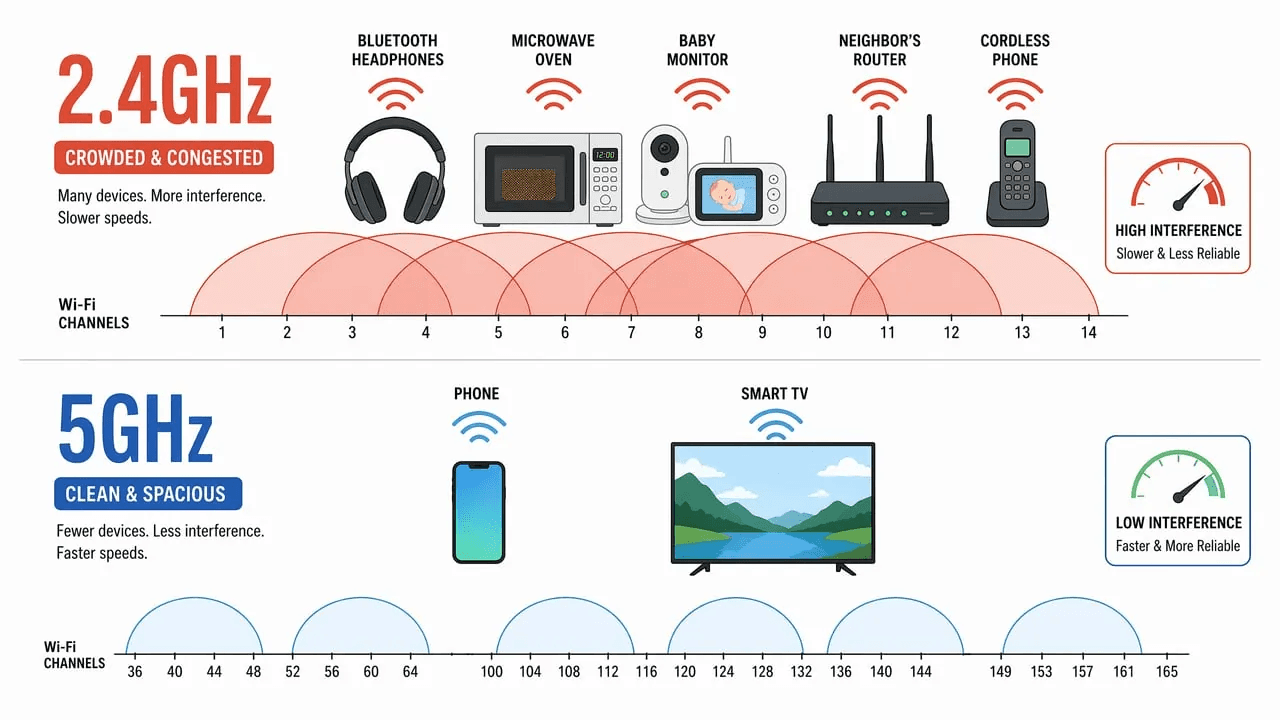
The biggest latency reduction comes from switching to 5GHz Wi-Fi. The 2.4GHz band is crowded. Bluetooth devices, microwave ovens, neighbors' routers, baby monitors. All share it. 5GHz has more channels, less interference, and higher throughput. If your router supports it and both devices have 5GHz radios, this one change often cuts lag in half.
Background apps eat your bandwidth
Your phone's background processes are the second biggest lag contributor. Cloud photos syncing, app updates downloading, music streaming in another app. All compete for the same network bandwidth your mirroring session needs.
Before you start mirroring, close every app you're not actively using. On iPhone, check that iCloud Photos isn't syncing (Settings, Photos, toggle off "Sync this iPhone" temporarily). On Android, pause Play Store auto-updates.
When your app's quality settings are the problem
Many third-party mirroring apps default to the highest quality setting your network can theoretically support. That's often higher than what it can sustainably support. If you experience intermittent lag spikes, lower the resolution or bitrate in your app's settings.
Dropping from 1080p to 720p is barely visible on most TVs from normal viewing distance. But it reduces the bandwidth requirement by more than half. Free tiers of some apps also cap resolution and frame rate. Upgrading or switching apps may resolve persistent lag.
For the full step-by-step fix guide, see our 10 proven solutions to fix screen mirroring lag.
Lag comes from insufficient network bandwidth, Wi-Fi congestion on 2.4GHz, high encoding overhead, or background apps consuming resources. Switching to 5GHz Wi-Fi, closing bandwidth-heavy apps, and adjusting quality settings are the fastest fixes.
Lag is measured in milliseconds. The delay between an action on your phone and its appearance on the TV. Below 50ms feels instant. 50 to 150ms is noticeable but usable for presentations and photos. Above 200ms, gaming becomes impossible and even video playback feels out of sync.
In our lab testing, we measured latency across different configurations:
Latency comparison: what actually helps
Fix | Typical latency | Setup difficulty |
2.4GHz Wi-Fi (baseline) | 100 to 200ms | None |
Switch to 5GHz Wi-Fi | 30 to 80ms | Easy |
Enable router QoS for mirroring devices | 20 to 40% reduction from baseline | Medium |
Lower resolution from 1080p to 720p | 30 to 50% reduction | Easy |
Use USB wired mode (if your app supports it) | Under 10ms | Easy |
HDMI cable (bypass wireless entirely) | 0ms added latency | Easy |
The biggest latency reduction comes from switching to 5GHz Wi-Fi. The 2.4GHz band is crowded. Bluetooth devices, microwave ovens, neighbors' routers, baby monitors. All share it. 5GHz has more channels, less interference, and higher throughput. If your router supports it and both devices have 5GHz radios, this one change often cuts lag in half.
Background apps eat your bandwidth
Your phone's background processes are the second biggest lag contributor. Cloud photos syncing, app updates downloading, music streaming in another app. All compete for the same network bandwidth your mirroring session needs.
Before you start mirroring, close every app you're not actively using. On iPhone, check that iCloud Photos isn't syncing (Settings, Photos, toggle off "Sync this iPhone" temporarily). On Android, pause Play Store auto-updates.
When your app's quality settings are the problem
Many third-party mirroring apps default to the highest quality setting your network can theoretically support. That's often higher than what it can sustainably support. If you experience intermittent lag spikes, lower the resolution or bitrate in your app's settings.
Dropping from 1080p to 720p is barely visible on most TVs from normal viewing distance. But it reduces the bandwidth requirement by more than half. Free tiers of some apps also cap resolution and frame rate. Upgrading or switching apps may resolve persistent lag.
For the full step-by-step fix guide, see our 10 proven solutions to fix screen mirroring lag.
Lag comes from insufficient network bandwidth, Wi-Fi congestion on 2.4GHz, high encoding overhead, or background apps consuming resources. Switching to 5GHz Wi-Fi, closing bandwidth-heavy apps, and adjusting quality settings are the fastest fixes.
Lag is measured in milliseconds. The delay between an action on your phone and its appearance on the TV. Below 50ms feels instant. 50 to 150ms is noticeable but usable for presentations and photos. Above 200ms, gaming becomes impossible and even video playback feels out of sync.
In our lab testing, we measured latency across different configurations:
Latency comparison: what actually helps
Fix | Typical latency | Setup difficulty |
2.4GHz Wi-Fi (baseline) | 100 to 200ms | None |
Switch to 5GHz Wi-Fi | 30 to 80ms | Easy |
Enable router QoS for mirroring devices | 20 to 40% reduction from baseline | Medium |
Lower resolution from 1080p to 720p | 30 to 50% reduction | Easy |
Use USB wired mode (if your app supports it) | Under 10ms | Easy |
HDMI cable (bypass wireless entirely) | 0ms added latency | Easy |
The biggest latency reduction comes from switching to 5GHz Wi-Fi. The 2.4GHz band is crowded. Bluetooth devices, microwave ovens, neighbors' routers, baby monitors. All share it. 5GHz has more channels, less interference, and higher throughput. If your router supports it and both devices have 5GHz radios, this one change often cuts lag in half.
Background apps eat your bandwidth
Your phone's background processes are the second biggest lag contributor. Cloud photos syncing, app updates downloading, music streaming in another app. All compete for the same network bandwidth your mirroring session needs.
Before you start mirroring, close every app you're not actively using. On iPhone, check that iCloud Photos isn't syncing (Settings, Photos, toggle off "Sync this iPhone" temporarily). On Android, pause Play Store auto-updates.
When your app's quality settings are the problem
Many third-party mirroring apps default to the highest quality setting your network can theoretically support. That's often higher than what it can sustainably support. If you experience intermittent lag spikes, lower the resolution or bitrate in your app's settings.
Dropping from 1080p to 720p is barely visible on most TVs from normal viewing distance. But it reduces the bandwidth requirement by more than half. Free tiers of some apps also cap resolution and frame rate. Upgrading or switching apps may resolve persistent lag.
For the full step-by-step fix guide, see our 10 proven solutions to fix screen mirroring lag.
Screen Mirroring Has No Sound
Screen Mirroring Has No Sound
Screen Mirroring Has No Sound
Missing audio comes from five root causes. Incorrect audio output routing, missing app audio permissions, DRM copyright restrictions, system audio configuration issues, or Bluetooth interference. The content type you're mirroring is your fastest diagnostic clue. Home screen vs. Netflix.
No-sound problems split into two categories. "No sound on anything" and "no sound only on certain apps." That split tells you immediately where to look.
The 10-second diagnostic test
Mirror your phone's home screen first. Do you hear the notification sounds? Do system sounds come through the TV?
Home screen has sound, but Netflix/Disney+/HBO Max don't. DRM is blocking audio. Streaming apps use HDCP (High-bandwidth Digital Content Protection) to prevent unauthorized copying. Some mirroring paths don't fully support HDCP, so the app silences the audio rather than risk piracy. This is not a bug you can fix. It's a deliberate restriction. Solutions: use a wired HDMI connection (which fully supports HDCP), use the app's built-in Cast button instead of system mirroring (Casting sends the stream directly and may handle HDCP differently), or switch to a mirroring app with explicit HDCP support.
No sound on any content, including your home screen. The problem is in your audio routing or permissions, not DRM. Work through the fixes below.
Audio routing fixes by platform
Platform | Where to check | What to fix |
iPhone / iPad | Control Center, tap the AirPlay icon in the audio widget | Make sure audio is routed to the TV, not the iPhone speaker |
Mac | System Settings, Sound, Output | Select your TV or Apple TV as the output device |
Android | Settings, Connected devices, your TV, check audio output | Some Android skins route audio to the phone by default. Toggle "use external audio" |
Windows | Settings, System, Sound, Output | Select the wireless display or TV as the output device |
App permissions and Bluetooth interference
On iOS, screen mirroring apps need Local Network permission to send audio. Go to Settings, Privacy & Security, Local Network, and make sure your mirroring app has access. On Android, check that the app has microphone permission. Some apps route audio through the mic channel.
Bluetooth is a hidden culprit in many no-sound cases we see. Headphones or speakers paired to your phone can hijack the audio output, even if you're not actively using them. Bluetooth and 2.4GHz Wi-Fi share the same radio spectrum, so a Bluetooth connection can also cause audio stuttering on 2.4GHz mirroring.
Turn off Bluetooth temporarily and test the audio. If it works, you've found your cause. Switch your mirroring to 5GHz Wi-Fi and you can usually re-enable Bluetooth without conflict.
Missing audio comes from five root causes. Incorrect audio output routing, missing app audio permissions, DRM copyright restrictions, system audio configuration issues, or Bluetooth interference. The content type you're mirroring is your fastest diagnostic clue. Home screen vs. Netflix.
No-sound problems split into two categories. "No sound on anything" and "no sound only on certain apps." That split tells you immediately where to look.
The 10-second diagnostic test
Mirror your phone's home screen first. Do you hear the notification sounds? Do system sounds come through the TV?
Home screen has sound, but Netflix/Disney+/HBO Max don't. DRM is blocking audio. Streaming apps use HDCP (High-bandwidth Digital Content Protection) to prevent unauthorized copying. Some mirroring paths don't fully support HDCP, so the app silences the audio rather than risk piracy. This is not a bug you can fix. It's a deliberate restriction. Solutions: use a wired HDMI connection (which fully supports HDCP), use the app's built-in Cast button instead of system mirroring (Casting sends the stream directly and may handle HDCP differently), or switch to a mirroring app with explicit HDCP support.
No sound on any content, including your home screen. The problem is in your audio routing or permissions, not DRM. Work through the fixes below.
Audio routing fixes by platform
Platform | Where to check | What to fix |
iPhone / iPad | Control Center, tap the AirPlay icon in the audio widget | Make sure audio is routed to the TV, not the iPhone speaker |
Mac | System Settings, Sound, Output | Select your TV or Apple TV as the output device |
Android | Settings, Connected devices, your TV, check audio output | Some Android skins route audio to the phone by default. Toggle "use external audio" |
Windows | Settings, System, Sound, Output | Select the wireless display or TV as the output device |
App permissions and Bluetooth interference
On iOS, screen mirroring apps need Local Network permission to send audio. Go to Settings, Privacy & Security, Local Network, and make sure your mirroring app has access. On Android, check that the app has microphone permission. Some apps route audio through the mic channel.
Bluetooth is a hidden culprit in many no-sound cases we see. Headphones or speakers paired to your phone can hijack the audio output, even if you're not actively using them. Bluetooth and 2.4GHz Wi-Fi share the same radio spectrum, so a Bluetooth connection can also cause audio stuttering on 2.4GHz mirroring.
Turn off Bluetooth temporarily and test the audio. If it works, you've found your cause. Switch your mirroring to 5GHz Wi-Fi and you can usually re-enable Bluetooth without conflict.
Missing audio comes from five root causes. Incorrect audio output routing, missing app audio permissions, DRM copyright restrictions, system audio configuration issues, or Bluetooth interference. The content type you're mirroring is your fastest diagnostic clue. Home screen vs. Netflix.
No-sound problems split into two categories. "No sound on anything" and "no sound only on certain apps." That split tells you immediately where to look.
The 10-second diagnostic test
Mirror your phone's home screen first. Do you hear the notification sounds? Do system sounds come through the TV?
Home screen has sound, but Netflix/Disney+/HBO Max don't. DRM is blocking audio. Streaming apps use HDCP (High-bandwidth Digital Content Protection) to prevent unauthorized copying. Some mirroring paths don't fully support HDCP, so the app silences the audio rather than risk piracy. This is not a bug you can fix. It's a deliberate restriction. Solutions: use a wired HDMI connection (which fully supports HDCP), use the app's built-in Cast button instead of system mirroring (Casting sends the stream directly and may handle HDCP differently), or switch to a mirroring app with explicit HDCP support.
No sound on any content, including your home screen. The problem is in your audio routing or permissions, not DRM. Work through the fixes below.
Audio routing fixes by platform
Platform | Where to check | What to fix |
iPhone / iPad | Control Center, tap the AirPlay icon in the audio widget | Make sure audio is routed to the TV, not the iPhone speaker |
Mac | System Settings, Sound, Output | Select your TV or Apple TV as the output device |
Android | Settings, Connected devices, your TV, check audio output | Some Android skins route audio to the phone by default. Toggle "use external audio" |
Windows | Settings, System, Sound, Output | Select the wireless display or TV as the output device |
App permissions and Bluetooth interference
On iOS, screen mirroring apps need Local Network permission to send audio. Go to Settings, Privacy & Security, Local Network, and make sure your mirroring app has access. On Android, check that the app has microphone permission. Some apps route audio through the mic channel.
Bluetooth is a hidden culprit in many no-sound cases we see. Headphones or speakers paired to your phone can hijack the audio output, even if you're not actively using them. Bluetooth and 2.4GHz Wi-Fi share the same radio spectrum, so a Bluetooth connection can also cause audio stuttering on 2.4GHz mirroring.
Turn off Bluetooth temporarily and test the audio. If it works, you've found your cause. Switch your mirroring to 5GHz Wi-Fi and you can usually re-enable Bluetooth without conflict.
Screen Mirroring Shows a Black Screen
Screen Mirroring Shows a Black Screen
Screen Mirroring Shows a Black Screen
A black screen usually means HDCP copyright protection is blocking video. Or your display resolution doesn't match the TV. Or graphics drivers are outdated. Or the app lacks necessary permissions. If your home screen mirrors fine but streaming apps show black, DRM is the cause.
This is the most alarming symptom. It looks like something is seriously broken. But in most cases, the connection is fine. The video path is being blocked. The key is figuring out where in the chain the block happens.
Test with your home screen first
This is the most important diagnostic step for black screen issues. Mirror your phone's home screen. Not an app, not a video. Just the home screen with its icons and wallpaper.
If your home screen displays normally on the TV, the connection and video path are working. The black screen only appears in specific apps. That's DRM. Netflix, Disney+, HBO Max, Apple TV+, and Hulu all use HDCP to prevent content from being captured during mirroring. When HDCP detects an unauthenticated display path, it blocks the video while sometimes allowing audio through.
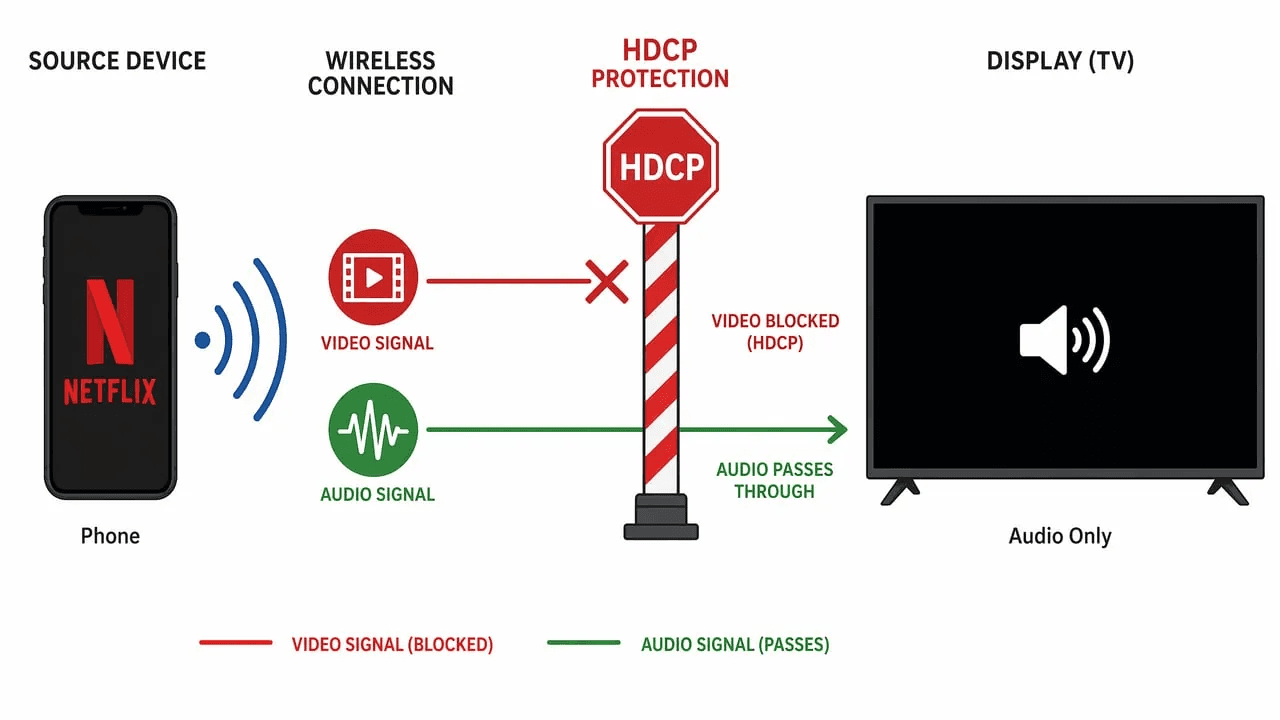
DRM black screen solutions:
Use an HDMI cable instead of wireless mirroring. Wired HDMI connections fully support HDCP
Use the app's built-in Cast button instead of system-level screen mirroring. Casting establishes a direct stream that may handle HDCP differently
Try a different mirroring app. Some apps explicitly support HDCP passthrough
On iPhone, make sure you're using "Screen Mirroring" from Control Center, not AirPlay audio from inside a music app. That can produce a black screen with audio only
If your home screen is also black, the problem is in the display chain itself. Resolution, drivers, or permissions.
Resolution and driver fixes
Platform | Fix |
iPhone / iPad | iOS doesn't expose a direct AirPlay resolution setting. If the TV can't handle 1080p from an older iPhone, try a third-party mirroring app that lets you manually set output resolution, or use an HDMI adapter instead of wireless |
Android | Check developer options for "Cast resolution" or "Wireless display resolution." Some Samsung phones default to a resolution the TV can't process |
Windows | Settings, System, Display, Advanced Display, lower to 1920x1080. Also update your graphics driver. Intel Wi-Fi driver bugs are a common Miracast black screen cause |
Mac | System Settings, Displays, select your TV, try a lower resolution. Make sure you're mirroring, not extending the desktop. Extending is a common mistake that produces a black screen on the TV |
The Miracast "not supported" black screen
On Windows, a black screen can also mean your PC's Wi-Fi hardware doesn't fully support Miracast, even though it connected. Run dxdiag (Windows key + R, type dxdiag), click "Save All Information," and search the file for "Miracast." If it says "Not Available," your hardware doesn't support it. No driver update will fix this. Switch to a third-party mirroring app or use an HDMI cable.
For a more detailed walkthrough, see our screen mirroring black screen fix guide, which covers app restrictions, display settings, drivers, permissions, HDMI and HDCP issues, and platform-specific fixes.
A black screen usually means HDCP copyright protection is blocking video. Or your display resolution doesn't match the TV. Or graphics drivers are outdated. Or the app lacks necessary permissions. If your home screen mirrors fine but streaming apps show black, DRM is the cause.
This is the most alarming symptom. It looks like something is seriously broken. But in most cases, the connection is fine. The video path is being blocked. The key is figuring out where in the chain the block happens.
Test with your home screen first
This is the most important diagnostic step for black screen issues. Mirror your phone's home screen. Not an app, not a video. Just the home screen with its icons and wallpaper.
If your home screen displays normally on the TV, the connection and video path are working. The black screen only appears in specific apps. That's DRM. Netflix, Disney+, HBO Max, Apple TV+, and Hulu all use HDCP to prevent content from being captured during mirroring. When HDCP detects an unauthenticated display path, it blocks the video while sometimes allowing audio through.
DRM black screen solutions:
Use an HDMI cable instead of wireless mirroring. Wired HDMI connections fully support HDCP
Use the app's built-in Cast button instead of system-level screen mirroring. Casting establishes a direct stream that may handle HDCP differently
Try a different mirroring app. Some apps explicitly support HDCP passthrough
On iPhone, make sure you're using "Screen Mirroring" from Control Center, not AirPlay audio from inside a music app. That can produce a black screen with audio only
If your home screen is also black, the problem is in the display chain itself. Resolution, drivers, or permissions.
Resolution and driver fixes
Platform | Fix |
iPhone / iPad | iOS doesn't expose a direct AirPlay resolution setting. If the TV can't handle 1080p from an older iPhone, try a third-party mirroring app that lets you manually set output resolution, or use an HDMI adapter instead of wireless |
Android | Check developer options for "Cast resolution" or "Wireless display resolution." Some Samsung phones default to a resolution the TV can't process |
Windows | Settings, System, Display, Advanced Display, lower to 1920x1080. Also update your graphics driver. Intel Wi-Fi driver bugs are a common Miracast black screen cause |
Mac | System Settings, Displays, select your TV, try a lower resolution. Make sure you're mirroring, not extending the desktop. Extending is a common mistake that produces a black screen on the TV |
The Miracast "not supported" black screen
On Windows, a black screen can also mean your PC's Wi-Fi hardware doesn't fully support Miracast, even though it connected. Run dxdiag (Windows key + R, type dxdiag), click "Save All Information," and search the file for "Miracast." If it says "Not Available," your hardware doesn't support it. No driver update will fix this. Switch to a third-party mirroring app or use an HDMI cable.
For a more detailed walkthrough, see our screen mirroring black screen fix guide, which covers app restrictions, display settings, drivers, permissions, HDMI and HDCP issues, and platform-specific fixes.
A black screen usually means HDCP copyright protection is blocking video. Or your display resolution doesn't match the TV. Or graphics drivers are outdated. Or the app lacks necessary permissions. If your home screen mirrors fine but streaming apps show black, DRM is the cause.
This is the most alarming symptom. It looks like something is seriously broken. But in most cases, the connection is fine. The video path is being blocked. The key is figuring out where in the chain the block happens.
Test with your home screen first
This is the most important diagnostic step for black screen issues. Mirror your phone's home screen. Not an app, not a video. Just the home screen with its icons and wallpaper.
If your home screen displays normally on the TV, the connection and video path are working. The black screen only appears in specific apps. That's DRM. Netflix, Disney+, HBO Max, Apple TV+, and Hulu all use HDCP to prevent content from being captured during mirroring. When HDCP detects an unauthenticated display path, it blocks the video while sometimes allowing audio through.
DRM black screen solutions:
Use an HDMI cable instead of wireless mirroring. Wired HDMI connections fully support HDCP
Use the app's built-in Cast button instead of system-level screen mirroring. Casting establishes a direct stream that may handle HDCP differently
Try a different mirroring app. Some apps explicitly support HDCP passthrough
On iPhone, make sure you're using "Screen Mirroring" from Control Center, not AirPlay audio from inside a music app. That can produce a black screen with audio only
If your home screen is also black, the problem is in the display chain itself. Resolution, drivers, or permissions.
Resolution and driver fixes
Platform | Fix |
iPhone / iPad | iOS doesn't expose a direct AirPlay resolution setting. If the TV can't handle 1080p from an older iPhone, try a third-party mirroring app that lets you manually set output resolution, or use an HDMI adapter instead of wireless |
Android | Check developer options for "Cast resolution" or "Wireless display resolution." Some Samsung phones default to a resolution the TV can't process |
Windows | Settings, System, Display, Advanced Display, lower to 1920x1080. Also update your graphics driver. Intel Wi-Fi driver bugs are a common Miracast black screen cause |
Mac | System Settings, Displays, select your TV, try a lower resolution. Make sure you're mirroring, not extending the desktop. Extending is a common mistake that produces a black screen on the TV |
The Miracast "not supported" black screen
On Windows, a black screen can also mean your PC's Wi-Fi hardware doesn't fully support Miracast, even though it connected. Run dxdiag (Windows key + R, type dxdiag), click "Save All Information," and search the file for "Miracast." If it says "Not Available," your hardware doesn't support it. No driver update will fix this. Switch to a third-party mirroring app or use an HDMI cable.
For a more detailed walkthrough, see our screen mirroring black screen fix guide, which covers app restrictions, display settings, drivers, permissions, HDMI and HDCP issues, and platform-specific fixes.
5-Step Quick-Fix Checklist for Screen Mirroring
5-Step Quick-Fix Checklist for Screen Mirroring
5-Step Quick-Fix Checklist for Screen Mirroring
Before diving into symptom-specific troubleshooting, run these five checks. They resolve the majority of screen mirroring problems in under five minutes.
Our device-by-device fix guide covers these steps in more detail. Here's the fast version:
Same Wi-Fi? Both devices, same network, same band. Not just same internet. Same local network.
Restart both devices. Unplug the TV for 30 seconds, not just standby. Restart your phone or laptop.
Update everything. OS, TV firmware, mirroring apps. Outdated software is the second most common cause after network issues.
Check TV input. TV must be on the Smart TV home screen or mirroring input, not sitting on HDMI 1.
Disable VPN, battery saver, Bluetooth. All three interfere with mirroring in different ways. Turn them off, test, then re-enable one at a time.
Before diving into symptom-specific troubleshooting, run these five checks. They resolve the majority of screen mirroring problems in under five minutes.
Our device-by-device fix guide covers these steps in more detail. Here's the fast version:
Same Wi-Fi? Both devices, same network, same band. Not just same internet. Same local network.
Restart both devices. Unplug the TV for 30 seconds, not just standby. Restart your phone or laptop.
Update everything. OS, TV firmware, mirroring apps. Outdated software is the second most common cause after network issues.
Check TV input. TV must be on the Smart TV home screen or mirroring input, not sitting on HDMI 1.
Disable VPN, battery saver, Bluetooth. All three interfere with mirroring in different ways. Turn them off, test, then re-enable one at a time.
Before diving into symptom-specific troubleshooting, run these five checks. They resolve the majority of screen mirroring problems in under five minutes.
Our device-by-device fix guide covers these steps in more detail. Here's the fast version:
Same Wi-Fi? Both devices, same network, same band. Not just same internet. Same local network.
Restart both devices. Unplug the TV for 30 seconds, not just standby. Restart your phone or laptop.
Update everything. OS, TV firmware, mirroring apps. Outdated software is the second most common cause after network issues.
Check TV input. TV must be on the Smart TV home screen or mirroring input, not sitting on HDMI 1.
Disable VPN, battery saver, Bluetooth. All three interfere with mirroring in different ways. Turn them off, test, then re-enable one at a time.
When to Stop Troubleshooting and Switch Methods
When to Stop Troubleshooting and Switch Methods
When to Stop Troubleshooting and Switch Methods
Sometimes the problem isn’t a bug. It’s that you’re using the wrong method for your device combination. If you’ve tried the fixes above and the same symptom keeps coming back, switching approaches can save hours of frustration.
Your symptom | If this keeps happening | Switch to | Why |
Can’t connect (any method) | Multiple fixes tried, still fails | HDMI cable | A wired connection bypasses all wireless protocol and network issues |
Lag or stutter | Latency stays above 200ms after all fixes | HDMI cable or USB wired mode | All wireless mirroring adds some delay. Only cables achieve near-zero latency |
Keeps disconnecting | Network fixes don’t hold | Third-party app with USB mode | App-based wired mirroring is immune to Wi-Fi instability |
Black screen (DRM) | Streaming apps always show black | Cast instead of mirror | Casting sends the stream directly to the TV, which may handle HDCP differently |
Any symptom | Nothing works | Different mirroring app | Some apps handle specific device combinations better than the built-in protocol |
Ready to try a different approach? Our 5 Best Screen Mirroring Apps 2026 comparison covers the top options with real-world performance data, pricing, and which app works best for each device combination. Sometimes the fastest fix is simply switching to an app that was built for your specific setup.
Sometimes the problem isn’t a bug. It’s that you’re using the wrong method for your device combination. If you’ve tried the fixes above and the same symptom keeps coming back, switching approaches can save hours of frustration.
Your symptom | If this keeps happening | Switch to | Why |
Can’t connect (any method) | Multiple fixes tried, still fails | HDMI cable | A wired connection bypasses all wireless protocol and network issues |
Lag or stutter | Latency stays above 200ms after all fixes | HDMI cable or USB wired mode | All wireless mirroring adds some delay. Only cables achieve near-zero latency |
Keeps disconnecting | Network fixes don’t hold | Third-party app with USB mode | App-based wired mirroring is immune to Wi-Fi instability |
Black screen (DRM) | Streaming apps always show black | Cast instead of mirror | Casting sends the stream directly to the TV, which may handle HDCP differently |
Any symptom | Nothing works | Different mirroring app | Some apps handle specific device combinations better than the built-in protocol |
Ready to try a different approach? Our 5 Best Screen Mirroring Apps 2026 comparison covers the top options with real-world performance data, pricing, and which app works best for each device combination. Sometimes the fastest fix is simply switching to an app that was built for your specific setup.
Sometimes the problem isn’t a bug. It’s that you’re using the wrong method for your device combination. If you’ve tried the fixes above and the same symptom keeps coming back, switching approaches can save hours of frustration.
Your symptom | If this keeps happening | Switch to | Why |
Can’t connect (any method) | Multiple fixes tried, still fails | HDMI cable | A wired connection bypasses all wireless protocol and network issues |
Lag or stutter | Latency stays above 200ms after all fixes | HDMI cable or USB wired mode | All wireless mirroring adds some delay. Only cables achieve near-zero latency |
Keeps disconnecting | Network fixes don’t hold | Third-party app with USB mode | App-based wired mirroring is immune to Wi-Fi instability |
Black screen (DRM) | Streaming apps always show black | Cast instead of mirror | Casting sends the stream directly to the TV, which may handle HDCP differently |
Any symptom | Nothing works | Different mirroring app | Some apps handle specific device combinations better than the built-in protocol |
Ready to try a different approach? Our 5 Best Screen Mirroring Apps 2026 comparison covers the top options with real-world performance data, pricing, and which app works best for each device combination. Sometimes the fastest fix is simply switching to an app that was built for your specific setup.
Frequently Asked Questions
Frequently Asked Questions
Frequently Asked Questions
Why is my screen mirroring not working?
Screen mirroring stops working when devices aren't on the same Wi-Fi network, when AP isolation blocks device discovery, when software is outdated, or when there's a protocol mismatch between your phone and TV. Run the 5-Step Quick-Fix Checklist first. It resolves most failures in under five minutes.
Why does screen mirroring work fine one day and break the next?
The most common cause is an automatic update. Your phone OS, TV firmware, or router firmware updated overnight and reset a setting, replaced a driver, or changed a network configuration. Samsung TVs are known to silently disable mirroring settings after firmware updates. Check what changed recently and re-enable any settings that were reset.
How do I know if the problem is my phone, my TV, or my router?
Try mirroring from a second phone or laptop to the same TV. If the second device works, the problem is your original phone. If both devices fail, try mirroring to a different TV or use your phone's hotspot instead of your home Wi-Fi. If that works, your router is the culprit.
Why does screen mirroring show a black screen?
A black screen typically means HDCP copyright protection is blocking video output. Or your resolution doesn't match the TV. Or graphics drivers need updating. If your home screen mirrors fine but streaming apps show black, DRM is the cause. Lowering resolution or testing non-protected content confirms the diagnosis.
Should I factory reset my TV or router to fix screen mirroring?
Try it only as a last resort. A factory reset wipes all your settings, saved Wi-Fi passwords, and app configurations. Most mirroring problems can be fixed by restarting both devices, updating software, or adjusting a single setting. If you've exhausted every fix in this guide and mirroring still fails, a reset may clear a corrupted configuration that other steps can't reach.
What's the fastest way to fix screen mirroring when I'm in a hurry?
Run the 5-Step Quick-Fix Checklist. Same Wi-Fi, restart both devices, update software, check TV input, disable VPN and battery saver. If you have less than two minutes, just restart both devices and make sure they're on the same Wi-Fi network. That alone fixes more than half of all mirroring failures.
Why is my screen mirroring not working?
Screen mirroring stops working when devices aren't on the same Wi-Fi network, when AP isolation blocks device discovery, when software is outdated, or when there's a protocol mismatch between your phone and TV. Run the 5-Step Quick-Fix Checklist first. It resolves most failures in under five minutes.
Why does screen mirroring work fine one day and break the next?
The most common cause is an automatic update. Your phone OS, TV firmware, or router firmware updated overnight and reset a setting, replaced a driver, or changed a network configuration. Samsung TVs are known to silently disable mirroring settings after firmware updates. Check what changed recently and re-enable any settings that were reset.
How do I know if the problem is my phone, my TV, or my router?
Try mirroring from a second phone or laptop to the same TV. If the second device works, the problem is your original phone. If both devices fail, try mirroring to a different TV or use your phone's hotspot instead of your home Wi-Fi. If that works, your router is the culprit.
Why does screen mirroring show a black screen?
A black screen typically means HDCP copyright protection is blocking video output. Or your resolution doesn't match the TV. Or graphics drivers need updating. If your home screen mirrors fine but streaming apps show black, DRM is the cause. Lowering resolution or testing non-protected content confirms the diagnosis.
Should I factory reset my TV or router to fix screen mirroring?
Try it only as a last resort. A factory reset wipes all your settings, saved Wi-Fi passwords, and app configurations. Most mirroring problems can be fixed by restarting both devices, updating software, or adjusting a single setting. If you've exhausted every fix in this guide and mirroring still fails, a reset may clear a corrupted configuration that other steps can't reach.
What's the fastest way to fix screen mirroring when I'm in a hurry?
Run the 5-Step Quick-Fix Checklist. Same Wi-Fi, restart both devices, update software, check TV input, disable VPN and battery saver. If you have less than two minutes, just restart both devices and make sure they're on the same Wi-Fi network. That alone fixes more than half of all mirroring failures.
Why is my screen mirroring not working?
Screen mirroring stops working when devices aren't on the same Wi-Fi network, when AP isolation blocks device discovery, when software is outdated, or when there's a protocol mismatch between your phone and TV. Run the 5-Step Quick-Fix Checklist first. It resolves most failures in under five minutes.
Why does screen mirroring work fine one day and break the next?
The most common cause is an automatic update. Your phone OS, TV firmware, or router firmware updated overnight and reset a setting, replaced a driver, or changed a network configuration. Samsung TVs are known to silently disable mirroring settings after firmware updates. Check what changed recently and re-enable any settings that were reset.
How do I know if the problem is my phone, my TV, or my router?
Try mirroring from a second phone or laptop to the same TV. If the second device works, the problem is your original phone. If both devices fail, try mirroring to a different TV or use your phone's hotspot instead of your home Wi-Fi. If that works, your router is the culprit.
Why does screen mirroring show a black screen?
A black screen typically means HDCP copyright protection is blocking video output. Or your resolution doesn't match the TV. Or graphics drivers need updating. If your home screen mirrors fine but streaming apps show black, DRM is the cause. Lowering resolution or testing non-protected content confirms the diagnosis.
Should I factory reset my TV or router to fix screen mirroring?
Try it only as a last resort. A factory reset wipes all your settings, saved Wi-Fi passwords, and app configurations. Most mirroring problems can be fixed by restarting both devices, updating software, or adjusting a single setting. If you've exhausted every fix in this guide and mirroring still fails, a reset may clear a corrupted configuration that other steps can't reach.
What's the fastest way to fix screen mirroring when I'm in a hurry?
Run the 5-Step Quick-Fix Checklist. Same Wi-Fi, restart both devices, update software, check TV input, disable VPN and battery saver. If you have less than two minutes, just restart both devices and make sure they're on the same Wi-Fi network. That alone fixes more than half of all mirroring failures.
Table of content
Table of content


Still Need a Hand?
Still Need a Hand?
Still Need a Hand?
Explore more reviews, step-by-step guides, and troubleshooting tips—or contact us if you could not find the answer you needed.
Explore more reviews, step-by-step guides, and troubleshooting tips—or contact us if you could not find the answer you needed.
Explore more reviews, step-by-step guides, and troubleshooting tips—or contact us if you could not find the answer you needed.