
Best AirPlay Receiver Apps for Android TV in 2026
Best AirPlay Receiver Apps for Android TV in 2026
Best AirPlay Receiver Apps for Android TV in 2026
Compare the best AirPlay receiver apps for Android TV in 2026. Learn how AirScreen, AirPin PRO, AirDroid Cast TV, and others handle iPhone screen mirroring.
Compare the best AirPlay receiver apps for Android TV in 2026. Learn how AirScreen, AirPin PRO, AirDroid Cast TV, and others handle iPhone screen mirroring.
Compare the best AirPlay receiver apps for Android TV in 2026. Learn how AirScreen, AirPin PRO, AirDroid Cast TV, and others handle iPhone screen mirroring.
If your TV runs Android TV or Google TV, the best way to receive AirPlay from an iPhone, iPad, or Mac depends on the workflow you need. Some apps aim to make the TV appear in Apple’s Screen Mirroring menu as an AirPlay receiver. Others mirror an Apple device to the TV through their own app, a QR code, or a cast code.
That distinction matters. A general screen-mirroring app can still be useful, but it is not automatically a replacement for a direct AirPlay receiver. Before you install anything, decide whether you need full-screen mirroring, media streaming, or a broader cross-platform sharing tool.
If your TV runs Android TV or Google TV, the best way to receive AirPlay from an iPhone, iPad, or Mac depends on the workflow you need. Some apps aim to make the TV appear in Apple’s Screen Mirroring menu as an AirPlay receiver. Others mirror an Apple device to the TV through their own app, a QR code, or a cast code.
That distinction matters. A general screen-mirroring app can still be useful, but it is not automatically a replacement for a direct AirPlay receiver. Before you install anything, decide whether you need full-screen mirroring, media streaming, or a broader cross-platform sharing tool.
If your TV runs Android TV or Google TV, the best way to receive AirPlay from an iPhone, iPad, or Mac depends on the workflow you need. Some apps aim to make the TV appear in Apple’s Screen Mirroring menu as an AirPlay receiver. Others mirror an Apple device to the TV through their own app, a QR code, or a cast code.
That distinction matters. A general screen-mirroring app can still be useful, but it is not automatically a replacement for a direct AirPlay receiver. Before you install anything, decide whether you need full-screen mirroring, media streaming, or a broader cross-platform sharing tool.
The best AirPlay receiver options for Android TV at a glance
The best AirPlay receiver options for Android TV at a glance
The best AirPlay receiver options for Android TV at a glance
Before comparing apps, check three things:
Does your television or streaming device run Android TV or Google TV and support the receiver app’s installation path?
Do you need screen mirroring, media streaming, or both?
Do you want a direct AirPlay receiver, or are you comfortable using a companion app or cast-code workflow?
App | Best-fit scenario | Connection approach | What to verify before relying on it |
AirScreen | A mixed-device household that wants one receiver for multiple protocols | Direct-receiver approach advertised for AirPlay and other protocols | Current Android TV availability, discovery from your Apple device, and plan limits |
AirPin PRO | Users who want an established multi-protocol Android receiver | AirPlay/DLNA receiver approach | Current Android TV listing, iPhone/iPad/Mac discovery, and current purchase model |
PigeonCast | Users willing to test an additional casting option | Advertises AirPlay alongside other casting methods | Whether its Android TV receiver workflow works consistently for the intended AirPlay task |
AirDroid Cast TV | Presentations or screen sharing when you also value flexible connection methods | TV receiver with AirPlay, app, and cast-code connection modes | Android TV compatibility, the connection method available on your setup, and any version or plan constraints |
The table is a shortlist, not a performance ranking. An app should earn a recommendation only after it is installed on the target TV, appears through the expected connection path, and completes the exact task you need.
Before comparing apps, check three things:
Does your television or streaming device run Android TV or Google TV and support the receiver app’s installation path?
Do you need screen mirroring, media streaming, or both?
Do you want a direct AirPlay receiver, or are you comfortable using a companion app or cast-code workflow?
App | Best-fit scenario | Connection approach | What to verify before relying on it |
AirScreen | A mixed-device household that wants one receiver for multiple protocols | Direct-receiver approach advertised for AirPlay and other protocols | Current Android TV availability, discovery from your Apple device, and plan limits |
AirPin PRO | Users who want an established multi-protocol Android receiver | AirPlay/DLNA receiver approach | Current Android TV listing, iPhone/iPad/Mac discovery, and current purchase model |
PigeonCast | Users willing to test an additional casting option | Advertises AirPlay alongside other casting methods | Whether its Android TV receiver workflow works consistently for the intended AirPlay task |
AirDroid Cast TV | Presentations or screen sharing when you also value flexible connection methods | TV receiver with AirPlay, app, and cast-code connection modes | Android TV compatibility, the connection method available on your setup, and any version or plan constraints |
The table is a shortlist, not a performance ranking. An app should earn a recommendation only after it is installed on the target TV, appears through the expected connection path, and completes the exact task you need.
Before comparing apps, check three things:
Does your television or streaming device run Android TV or Google TV and support the receiver app’s installation path?
Do you need screen mirroring, media streaming, or both?
Do you want a direct AirPlay receiver, or are you comfortable using a companion app or cast-code workflow?
App | Best-fit scenario | Connection approach | What to verify before relying on it |
AirScreen | A mixed-device household that wants one receiver for multiple protocols | Direct-receiver approach advertised for AirPlay and other protocols | Current Android TV availability, discovery from your Apple device, and plan limits |
AirPin PRO | Users who want an established multi-protocol Android receiver | AirPlay/DLNA receiver approach | Current Android TV listing, iPhone/iPad/Mac discovery, and current purchase model |
PigeonCast | Users willing to test an additional casting option | Advertises AirPlay alongside other casting methods | Whether its Android TV receiver workflow works consistently for the intended AirPlay task |
AirDroid Cast TV | Presentations or screen sharing when you also value flexible connection methods | TV receiver with AirPlay, app, and cast-code connection modes | Android TV compatibility, the connection method available on your setup, and any version or plan constraints |
The table is a shortlist, not a performance ranking. An app should earn a recommendation only after it is installed on the target TV, appears through the expected connection path, and completes the exact task you need.
What to check before installing an AirPlay receiver on Android TV
What to check before installing an AirPlay receiver on Android TV
What to check before installing an AirPlay receiver on Android TV
Start with the receiver device. Android TV and Google TV are platforms, not guarantees that every television has the same app catalog or supports every receiver app. Check your TV model, OS version, and the app’s current listing before choosing a route.
Next, put the Apple device and TV on the same local network. Apple’s AirPlay guidance likewise starts with a shared Wi-Fi connection between the sender and receiver. Discovery can fail when either device is on guest Wi-Fi, a hotspot, a VPN, or a network that isolates clients from one another. Mesh Wi-Fi can also complicate discovery when the router treats devices on separate bands or nodes differently.
Then decide what you actually want to send. Screen mirroring duplicates your iPhone, iPad, or Mac display. Media streaming sends compatible video, photos, or audio to a receiver. An app may handle one of these workflows more consistently than the other, so “supports AirPlay” is not enough information on its own.
Finally, do not assume that a successful photo or local-video test predicts results with every streaming service. Protected video can behave differently because of the service’s content-protection rules. If you need a responsive display for competitive gaming or live control, HDMI is usually the more suitable route.
If your TV already has native AirPlay support, start there. You may not need a receiver app at all.

Start with the receiver device. Android TV and Google TV are platforms, not guarantees that every television has the same app catalog or supports every receiver app. Check your TV model, OS version, and the app’s current listing before choosing a route.
Next, put the Apple device and TV on the same local network. Apple’s AirPlay guidance likewise starts with a shared Wi-Fi connection between the sender and receiver. Discovery can fail when either device is on guest Wi-Fi, a hotspot, a VPN, or a network that isolates clients from one another. Mesh Wi-Fi can also complicate discovery when the router treats devices on separate bands or nodes differently.
Then decide what you actually want to send. Screen mirroring duplicates your iPhone, iPad, or Mac display. Media streaming sends compatible video, photos, or audio to a receiver. An app may handle one of these workflows more consistently than the other, so “supports AirPlay” is not enough information on its own.
Finally, do not assume that a successful photo or local-video test predicts results with every streaming service. Protected video can behave differently because of the service’s content-protection rules. If you need a responsive display for competitive gaming or live control, HDMI is usually the more suitable route.
If your TV already has native AirPlay support, start there. You may not need a receiver app at all.
Start with the receiver device. Android TV and Google TV are platforms, not guarantees that every television has the same app catalog or supports every receiver app. Check your TV model, OS version, and the app’s current listing before choosing a route.
Next, put the Apple device and TV on the same local network. Apple’s AirPlay guidance likewise starts with a shared Wi-Fi connection between the sender and receiver. Discovery can fail when either device is on guest Wi-Fi, a hotspot, a VPN, or a network that isolates clients from one another. Mesh Wi-Fi can also complicate discovery when the router treats devices on separate bands or nodes differently.
Then decide what you actually want to send. Screen mirroring duplicates your iPhone, iPad, or Mac display. Media streaming sends compatible video, photos, or audio to a receiver. An app may handle one of these workflows more consistently than the other, so “supports AirPlay” is not enough information on its own.
Finally, do not assume that a successful photo or local-video test predicts results with every streaming service. Protected video can behave differently because of the service’s content-protection rules. If you need a responsive display for competitive gaming or live control, HDMI is usually the more suitable route.
If your TV already has native AirPlay support, start there. You may not need a receiver app at all.
How we evaluate AirPlay receiver apps
How we evaluate AirPlay receiver apps
How we evaluate AirPlay receiver apps
We compare AirPlay receiver apps based on more than advertised protocol support. A candidate needs a supported Android TV or Google TV installation path and should be evaluated by the connection workflow it provides, including whether Apple devices can discover the receiver, how setup works, and what limitations apply.
Because compatibility can vary by TV model, app version, network environment, and AirPlay use case, recommendations should be based on the specific workflow being evaluated rather than feature lists alone.
We compare AirPlay receiver apps based on more than advertised protocol support. A candidate needs a supported Android TV or Google TV installation path and should be evaluated by the connection workflow it provides, including whether Apple devices can discover the receiver, how setup works, and what limitations apply.
Because compatibility can vary by TV model, app version, network environment, and AirPlay use case, recommendations should be based on the specific workflow being evaluated rather than feature lists alone.
We compare AirPlay receiver apps based on more than advertised protocol support. A candidate needs a supported Android TV or Google TV installation path and should be evaluated by the connection workflow it provides, including whether Apple devices can discover the receiver, how setup works, and what limitations apply.
Because compatibility can vary by TV model, app version, network environment, and AirPlay use case, recommendations should be based on the specific workflow being evaluated rather than feature lists alone.
AirPlay receiver apps for Android TV
AirPlay receiver apps for Android TV
AirPlay receiver apps for Android TV
AirScreen — a direct-receiver candidate for mixed-device homes
AirScreen belongs on the shortlist if you want one TV-side app that may cover more than Apple’s ecosystem. Best fit: mixed-device households where iPhones, Android phones, and laptops all need to share the same screen. As our hands-on AirScreen review for Android TV explains, it runs on the receiver side and is designed to accept AirPlay, Google Cast, and DLNA destinations without requiring a separate AirScreen app on the sending device.
Choose AirScreen if your main requirement is a multi-protocol receiver and you are prepared to verify the AirPlay workflow on your own Android TV hardware. Before depending on it, confirm that the installed version appears from your Apple device, that it handles the kind of content you want to send, and that any free-plan limits are acceptable.
Skip it if you only need a one-off presentation and would rather use a code-based sharing tool, or if your TV already has native AirPlay. Our review covers its receiver-side setup, everyday sharing use cases, and limits around latency or protected content.

AirPin PRO — an established AirPlay and DLNA receiver option
AirPin PRO is another direct-receiver candidate worth checking for Android TV users. Best fit: users who prefer a traditional AirPlay/DLNA receiver approach for a TV, set-top box, or projector. Its product description positions it as a receiver for Android TV, set-top boxes, and projectors, with AirPlay used to share compatible media and, where supported, screen content from iPhone, iPad, and Mac devices.
Choose AirPin PRO if you want to evaluate an AirPlay receiver that also covers DLNA and other sharing scenarios. Its suitability still depends on the current version available on your device, not simply on an older app description. Confirm that the receiver installs on your TV, is discoverable from the Apple device you use, and reconnects reliably after a restart.
Skip it if you cannot confirm a supported installation path for your Android TV model or if you need a workflow that works across different networks. A direct AirPlay receiver is generally designed for local-network use first.

PigeonCast — a cross-platform receiver option for flexible setups
PigeonCast is a cross-platform casting app that advertises AirPlay, Google Cast, and screen-mirroring support, with an Android TV version that should be evaluated for the specific receiver workflow you need.
Best fit: users comparing an additional cross-platform option across Apple, Android, or computer devices. Confirm the exact Apple-to-Android-TV workflow you plan to use, including first discovery, full-screen mirroring, and reconnecting after the receiver restarts.
The practical question is whether your iPhone, iPad, or Mac can find and use the TV receiver for the kind of sharing you need. Confirming this on your own TV and network helps you choose between it and the other options in this guide.

AirDroid Cast TV — useful when flexibility matters as much as AirPlay
AirDroid Cast TV is worth considering when the goal is broader screen sharing rather than a receiver dedicated only to local AirPlay. Best fit: meetings, presentations, and multi-device environments where a TV-side receiver and several connection routes are useful. It provides AirPlay-related, app-based, and cast-code workflows, so it is best understood as a flexible cross-platform sharing tool rather than a single-purpose receiver.
Choose AirDroid Cast TV if you need flexibility across device types or expect to use QR codes, cast codes, or other connection methods in addition to AirPlay. For a closer look at the trade-offs, including its cross-platform mirroring workflow, see MirrorScreen’s AirDroid Cast review. That makes it especially relevant for meetings, classrooms, and homes with several platforms.
Before relying on it, confirm that your Android TV version is supported and test the connection route you plan to use on your own network. Its feature overview describes both local and remote connection options, but availability can differ by feature, plan, TV model, and network configuration.
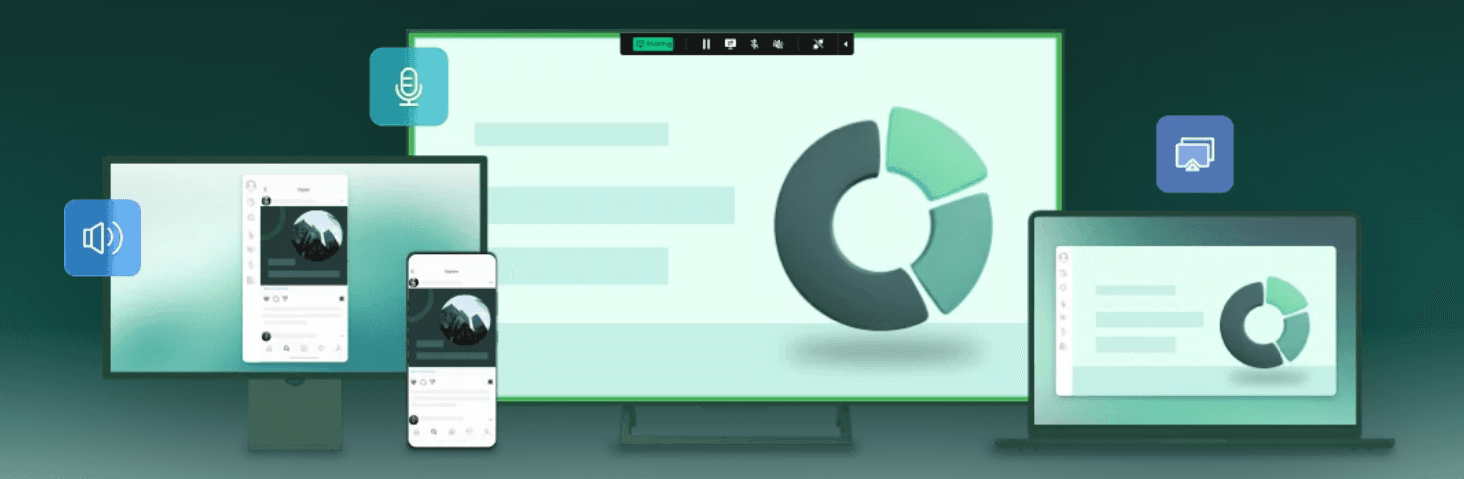
AirScreen — a direct-receiver candidate for mixed-device homes
AirScreen belongs on the shortlist if you want one TV-side app that may cover more than Apple’s ecosystem. Best fit: mixed-device households where iPhones, Android phones, and laptops all need to share the same screen. As our hands-on AirScreen review for Android TV explains, it runs on the receiver side and is designed to accept AirPlay, Google Cast, and DLNA destinations without requiring a separate AirScreen app on the sending device.
Choose AirScreen if your main requirement is a multi-protocol receiver and you are prepared to verify the AirPlay workflow on your own Android TV hardware. Before depending on it, confirm that the installed version appears from your Apple device, that it handles the kind of content you want to send, and that any free-plan limits are acceptable.
Skip it if you only need a one-off presentation and would rather use a code-based sharing tool, or if your TV already has native AirPlay. Our review covers its receiver-side setup, everyday sharing use cases, and limits around latency or protected content.
AirPin PRO — an established AirPlay and DLNA receiver option
AirPin PRO is another direct-receiver candidate worth checking for Android TV users. Best fit: users who prefer a traditional AirPlay/DLNA receiver approach for a TV, set-top box, or projector. Its product description positions it as a receiver for Android TV, set-top boxes, and projectors, with AirPlay used to share compatible media and, where supported, screen content from iPhone, iPad, and Mac devices.
Choose AirPin PRO if you want to evaluate an AirPlay receiver that also covers DLNA and other sharing scenarios. Its suitability still depends on the current version available on your device, not simply on an older app description. Confirm that the receiver installs on your TV, is discoverable from the Apple device you use, and reconnects reliably after a restart.
Skip it if you cannot confirm a supported installation path for your Android TV model or if you need a workflow that works across different networks. A direct AirPlay receiver is generally designed for local-network use first.
PigeonCast — a cross-platform receiver option for flexible setups
PigeonCast is a cross-platform casting app that advertises AirPlay, Google Cast, and screen-mirroring support, with an Android TV version that should be evaluated for the specific receiver workflow you need.
Best fit: users comparing an additional cross-platform option across Apple, Android, or computer devices. Confirm the exact Apple-to-Android-TV workflow you plan to use, including first discovery, full-screen mirroring, and reconnecting after the receiver restarts.
The practical question is whether your iPhone, iPad, or Mac can find and use the TV receiver for the kind of sharing you need. Confirming this on your own TV and network helps you choose between it and the other options in this guide.
AirDroid Cast TV — useful when flexibility matters as much as AirPlay
AirDroid Cast TV is worth considering when the goal is broader screen sharing rather than a receiver dedicated only to local AirPlay. Best fit: meetings, presentations, and multi-device environments where a TV-side receiver and several connection routes are useful. It provides AirPlay-related, app-based, and cast-code workflows, so it is best understood as a flexible cross-platform sharing tool rather than a single-purpose receiver.
Choose AirDroid Cast TV if you need flexibility across device types or expect to use QR codes, cast codes, or other connection methods in addition to AirPlay. For a closer look at the trade-offs, including its cross-platform mirroring workflow, see MirrorScreen’s AirDroid Cast review. That makes it especially relevant for meetings, classrooms, and homes with several platforms.
Before relying on it, confirm that your Android TV version is supported and test the connection route you plan to use on your own network. Its feature overview describes both local and remote connection options, but availability can differ by feature, plan, TV model, and network configuration.
AirScreen — a direct-receiver candidate for mixed-device homes
AirScreen belongs on the shortlist if you want one TV-side app that may cover more than Apple’s ecosystem. Best fit: mixed-device households where iPhones, Android phones, and laptops all need to share the same screen. As our hands-on AirScreen review for Android TV explains, it runs on the receiver side and is designed to accept AirPlay, Google Cast, and DLNA destinations without requiring a separate AirScreen app on the sending device.
Choose AirScreen if your main requirement is a multi-protocol receiver and you are prepared to verify the AirPlay workflow on your own Android TV hardware. Before depending on it, confirm that the installed version appears from your Apple device, that it handles the kind of content you want to send, and that any free-plan limits are acceptable.
Skip it if you only need a one-off presentation and would rather use a code-based sharing tool, or if your TV already has native AirPlay. Our review covers its receiver-side setup, everyday sharing use cases, and limits around latency or protected content.
AirPin PRO — an established AirPlay and DLNA receiver option
AirPin PRO is another direct-receiver candidate worth checking for Android TV users. Best fit: users who prefer a traditional AirPlay/DLNA receiver approach for a TV, set-top box, or projector. Its product description positions it as a receiver for Android TV, set-top boxes, and projectors, with AirPlay used to share compatible media and, where supported, screen content from iPhone, iPad, and Mac devices.
Choose AirPin PRO if you want to evaluate an AirPlay receiver that also covers DLNA and other sharing scenarios. Its suitability still depends on the current version available on your device, not simply on an older app description. Confirm that the receiver installs on your TV, is discoverable from the Apple device you use, and reconnects reliably after a restart.
Skip it if you cannot confirm a supported installation path for your Android TV model or if you need a workflow that works across different networks. A direct AirPlay receiver is generally designed for local-network use first.
PigeonCast — a cross-platform receiver option for flexible setups
PigeonCast is a cross-platform casting app that advertises AirPlay, Google Cast, and screen-mirroring support, with an Android TV version that should be evaluated for the specific receiver workflow you need.
Best fit: users comparing an additional cross-platform option across Apple, Android, or computer devices. Confirm the exact Apple-to-Android-TV workflow you plan to use, including first discovery, full-screen mirroring, and reconnecting after the receiver restarts.
The practical question is whether your iPhone, iPad, or Mac can find and use the TV receiver for the kind of sharing you need. Confirming this on your own TV and network helps you choose between it and the other options in this guide.
AirDroid Cast TV — useful when flexibility matters as much as AirPlay
AirDroid Cast TV is worth considering when the goal is broader screen sharing rather than a receiver dedicated only to local AirPlay. Best fit: meetings, presentations, and multi-device environments where a TV-side receiver and several connection routes are useful. It provides AirPlay-related, app-based, and cast-code workflows, so it is best understood as a flexible cross-platform sharing tool rather than a single-purpose receiver.
Choose AirDroid Cast TV if you need flexibility across device types or expect to use QR codes, cast codes, or other connection methods in addition to AirPlay. For a closer look at the trade-offs, including its cross-platform mirroring workflow, see MirrorScreen’s AirDroid Cast review. That makes it especially relevant for meetings, classrooms, and homes with several platforms.
Before relying on it, confirm that your Android TV version is supported and test the connection route you plan to use on your own network. Its feature overview describes both local and remote connection options, but availability can differ by feature, plan, TV model, and network configuration.
Which option should you choose?
Which option should you choose?
Which option should you choose?
Choose an app only after it has been verified to appear through Apple’s normal AirPlay or Screen Mirroring controls on your Android TV setup. Verify that exact path before committing to a plan or relying on it for an event.
Choose AirDroid Cast TV when you need a broader presentation or cross-device sharing tool and value more than one connection method. Its TV-side receiver and flexible connection options make it a practical fit for users who need to share across several device types.
Choose your TV’s built-in AirPlay support when it is available. Choose HDMI when low latency and predictable responsiveness matter more than wireless convenience.
Choose an app only after it has been verified to appear through Apple’s normal AirPlay or Screen Mirroring controls on your Android TV setup. Verify that exact path before committing to a plan or relying on it for an event.
Choose AirDroid Cast TV when you need a broader presentation or cross-device sharing tool and value more than one connection method. Its TV-side receiver and flexible connection options make it a practical fit for users who need to share across several device types.
Choose your TV’s built-in AirPlay support when it is available. Choose HDMI when low latency and predictable responsiveness matter more than wireless convenience.
Choose an app only after it has been verified to appear through Apple’s normal AirPlay or Screen Mirroring controls on your Android TV setup. Verify that exact path before committing to a plan or relying on it for an event.
Choose AirDroid Cast TV when you need a broader presentation or cross-device sharing tool and value more than one connection method. Its TV-side receiver and flexible connection options make it a practical fit for users who need to share across several device types.
Choose your TV’s built-in AirPlay support when it is available. Choose HDMI when low latency and predictable responsiveness matter more than wireless convenience.
Quick setup checklist for AirPlay on Android TV
Quick setup checklist for AirPlay on Android TV
Quick setup checklist for AirPlay on Android TV
Install the chosen receiver app from the supported source for your TV.
Open the app on the TV and enable its AirPlay receiver mode if it has one.
Connect the TV and Apple device to the same local Wi-Fi network.
On an iPhone or iPad, open Control Center and select Screen Mirroring. On a Mac, use the AirPlay or Screen Mirroring control.

Select the receiver name shown by the TV app and complete any on-screen code prompt.
If the receiver is missing, restart the app and both devices, turn off VPN or hotspot connections for the test, and check guest-network or client-isolation settings.
For app-specific setup instructions, use the developer’s current guide. If discovery still fails, work through MirrorScreen’s device-by-device screen mirroring fixes before repeatedly changing unrelated TV settings.
Install the chosen receiver app from the supported source for your TV.
Open the app on the TV and enable its AirPlay receiver mode if it has one.
Connect the TV and Apple device to the same local Wi-Fi network.
On an iPhone or iPad, open Control Center and select Screen Mirroring. On a Mac, use the AirPlay or Screen Mirroring control.
Select the receiver name shown by the TV app and complete any on-screen code prompt.
If the receiver is missing, restart the app and both devices, turn off VPN or hotspot connections for the test, and check guest-network or client-isolation settings.
For app-specific setup instructions, use the developer’s current guide. If discovery still fails, work through MirrorScreen’s device-by-device screen mirroring fixes before repeatedly changing unrelated TV settings.
Install the chosen receiver app from the supported source for your TV.
Open the app on the TV and enable its AirPlay receiver mode if it has one.
Connect the TV and Apple device to the same local Wi-Fi network.
On an iPhone or iPad, open Control Center and select Screen Mirroring. On a Mac, use the AirPlay or Screen Mirroring control.
Select the receiver name shown by the TV app and complete any on-screen code prompt.
If the receiver is missing, restart the app and both devices, turn off VPN or hotspot connections for the test, and check guest-network or client-isolation settings.
For app-specific setup instructions, use the developer’s current guide. If discovery still fails, work through MirrorScreen’s device-by-device screen mirroring fixes before repeatedly changing unrelated TV settings.
FAQ
FAQ
FAQ
Can Android TV receive AirPlay without an app?
Some televisions include native AirPlay support, while many Android TV and Google TV devices do not. Check the TV’s settings and manufacturer documentation first. If native AirPlay is absent, a compatible receiver app can provide a local-network alternative.
Why can’t my iPhone find the Android TV receiver?
First, make sure the receiver app is open on the TV and both devices are on the same non-guest local network. Then temporarily disable VPNs and hotspots, restart the TV app and iPhone, and check whether the router isolates wireless clients. If the app is a companion-app solution rather than a direct receiver, use its required code or pairing flow instead of the iPhone’s Screen Mirroring picker.
Can an AirPlay receiver app play Netflix, Disney+, or other protected video?
Do not assume it can. Protected-content playback can behave differently from photos, local files, web video, or ordinary screen mirroring. Test the specific service you care about before paying for a receiver app, and use an official TV app or a wired method when the service’s protection rules block wireless playback.
Can Android TV receive AirPlay without an app?
Some televisions include native AirPlay support, while many Android TV and Google TV devices do not. Check the TV’s settings and manufacturer documentation first. If native AirPlay is absent, a compatible receiver app can provide a local-network alternative.
Why can’t my iPhone find the Android TV receiver?
First, make sure the receiver app is open on the TV and both devices are on the same non-guest local network. Then temporarily disable VPNs and hotspots, restart the TV app and iPhone, and check whether the router isolates wireless clients. If the app is a companion-app solution rather than a direct receiver, use its required code or pairing flow instead of the iPhone’s Screen Mirroring picker.
Can an AirPlay receiver app play Netflix, Disney+, or other protected video?
Do not assume it can. Protected-content playback can behave differently from photos, local files, web video, or ordinary screen mirroring. Test the specific service you care about before paying for a receiver app, and use an official TV app or a wired method when the service’s protection rules block wireless playback.
Can Android TV receive AirPlay without an app?
Some televisions include native AirPlay support, while many Android TV and Google TV devices do not. Check the TV’s settings and manufacturer documentation first. If native AirPlay is absent, a compatible receiver app can provide a local-network alternative.
Why can’t my iPhone find the Android TV receiver?
First, make sure the receiver app is open on the TV and both devices are on the same non-guest local network. Then temporarily disable VPNs and hotspots, restart the TV app and iPhone, and check whether the router isolates wireless clients. If the app is a companion-app solution rather than a direct receiver, use its required code or pairing flow instead of the iPhone’s Screen Mirroring picker.
Can an AirPlay receiver app play Netflix, Disney+, or other protected video?
Do not assume it can. Protected-content playback can behave differently from photos, local files, web video, or ordinary screen mirroring. Test the specific service you care about before paying for a receiver app, and use an official TV app or a wired method when the service’s protection rules block wireless playback.
Choose for the workflow, not the longest feature list
Choose for the workflow, not the longest feature list
Choose for the workflow, not the longest feature list
The right Android TV AirPlay option is the one that completes your actual task: direct Screen Mirroring, media streaming, or wider cross-platform sharing. Confirm the receiver path on your TV, test it on your own Wi-Fi, and check plan limits before relying on it. A short successful test is more useful than a long feature list that does not match how you plan to connect.
The right Android TV AirPlay option is the one that completes your actual task: direct Screen Mirroring, media streaming, or wider cross-platform sharing. Confirm the receiver path on your TV, test it on your own Wi-Fi, and check plan limits before relying on it. A short successful test is more useful than a long feature list that does not match how you plan to connect.
The right Android TV AirPlay option is the one that completes your actual task: direct Screen Mirroring, media streaming, or wider cross-platform sharing. Confirm the receiver path on your TV, test it on your own Wi-Fi, and check plan limits before relying on it. A short successful test is more useful than a long feature list that does not match how you plan to connect.
Table of content
Table of content


Still Need a Hand?
Still Need a Hand?
Still Need a Hand?
Explore more reviews, step-by-step guides, and troubleshooting tips—or contact us if you could not find the answer you needed.
Explore more reviews, step-by-step guides, and troubleshooting tips—or contact us if you could not find the answer you needed.
Explore more reviews, step-by-step guides, and troubleshooting tips—or contact us if you could not find the answer you needed.