
AirScreen Review 2026: Is It a Good AirPlay Receiver for Android TV?
AirScreen Review 2026: Is It a Good AirPlay Receiver for Android TV?
AirScreen Review 2026: Is It a Good AirPlay Receiver for Android TV?
AirScreen review 2026: See how it works as an AirPlay receiver for Android TV, plus compatibility, Free vs Pro, privacy, limits, and verdict.
AirScreen review 2026: See how it works as an AirPlay receiver for Android TV, plus compatibility, Free vs Pro, privacy, limits, and verdict.
AirScreen review 2026: See how it works as an AirPlay receiver for Android TV, plus compatibility, Free vs Pro, privacy, limits, and verdict.
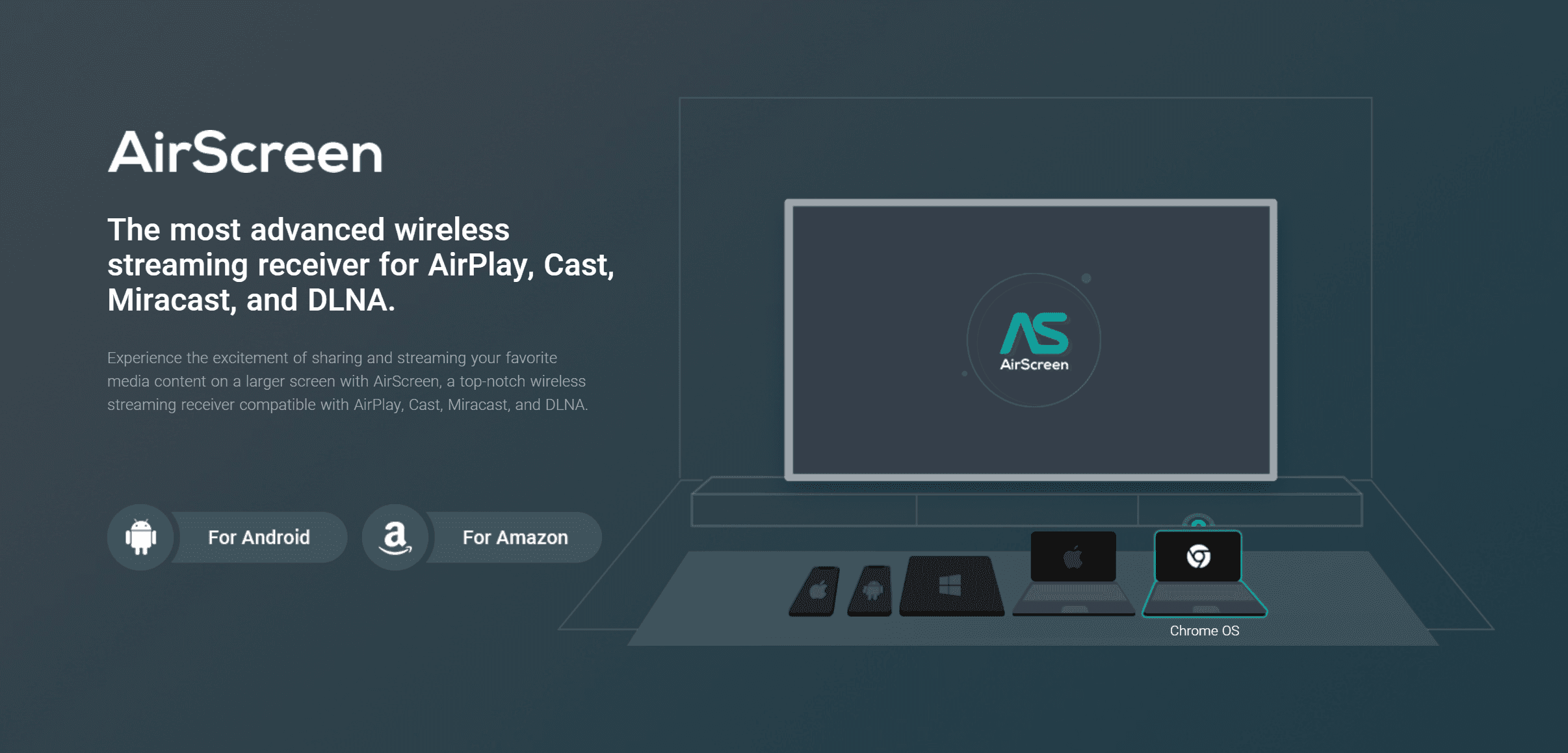
AirScreen is one of the more practical ways to add AirPlay receiving to an Android TV or Google TV device. Instead of requiring an app on every phone or computer, it runs on the TV-side device as a wireless streaming receiver for AirPlay, Cast, and DLNA. Its listing also mentions Miracast, but notes that Miracast has been disabled since Android Oreo (8.0), so it should not be a reason to choose the app for a current Android TV setup. That still makes AirScreen useful in mixed-device homes where an iPhone, iPad, or Mac needs to share a screen with an Android-based TV.
AirScreen is a reasonable option to consider for casual mirroring, photos, presentations, and general media sharing, especially if you want to try an AirPlay receiver without adding new hardware. It is less compelling if you need guaranteed compatibility, consistently low latency, or a fully documented local-only data path. Ionitech notes that some Android phones, tablets, and Android TV models may not be fully supported, so the free version is best treated as a compatibility check before you pay.
Quick verdict: Choose AirScreen if you want a receiver-side AirPlay option on Android TV or Google TV and your main use is everyday mirroring or media sharing. Think twice if you need a proven gaming-grade response time, dependable playback for every protected streaming service, or a privacy guarantee beyond the developer's published claims.
AirScreen is one of the more practical ways to add AirPlay receiving to an Android TV or Google TV device. Instead of requiring an app on every phone or computer, it runs on the TV-side device as a wireless streaming receiver for AirPlay, Cast, and DLNA. Its listing also mentions Miracast, but notes that Miracast has been disabled since Android Oreo (8.0), so it should not be a reason to choose the app for a current Android TV setup. That still makes AirScreen useful in mixed-device homes where an iPhone, iPad, or Mac needs to share a screen with an Android-based TV.
AirScreen is a reasonable option to consider for casual mirroring, photos, presentations, and general media sharing, especially if you want to try an AirPlay receiver without adding new hardware. It is less compelling if you need guaranteed compatibility, consistently low latency, or a fully documented local-only data path. Ionitech notes that some Android phones, tablets, and Android TV models may not be fully supported, so the free version is best treated as a compatibility check before you pay.
Quick verdict: Choose AirScreen if you want a receiver-side AirPlay option on Android TV or Google TV and your main use is everyday mirroring or media sharing. Think twice if you need a proven gaming-grade response time, dependable playback for every protected streaming service, or a privacy guarantee beyond the developer's published claims.
AirScreen is one of the more practical ways to add AirPlay receiving to an Android TV or Google TV device. Instead of requiring an app on every phone or computer, it runs on the TV-side device as a wireless streaming receiver for AirPlay, Cast, and DLNA. Its listing also mentions Miracast, but notes that Miracast has been disabled since Android Oreo (8.0), so it should not be a reason to choose the app for a current Android TV setup. That still makes AirScreen useful in mixed-device homes where an iPhone, iPad, or Mac needs to share a screen with an Android-based TV.
AirScreen is a reasonable option to consider for casual mirroring, photos, presentations, and general media sharing, especially if you want to try an AirPlay receiver without adding new hardware. It is less compelling if you need guaranteed compatibility, consistently low latency, or a fully documented local-only data path. Ionitech notes that some Android phones, tablets, and Android TV models may not be fully supported, so the free version is best treated as a compatibility check before you pay.
Quick verdict: Choose AirScreen if you want a receiver-side AirPlay option on Android TV or Google TV and your main use is everyday mirroring or media sharing. Think twice if you need a proven gaming-grade response time, dependable playback for every protected streaming service, or a privacy guarantee beyond the developer's published claims.
What AirScreen does on Android TV
What AirScreen does on Android TV
What AirScreen does on Android TV
AirScreen turns an Android TV or Google TV device into a wireless receiver. Once it is installed and running on the TV-side device, compatible senders can look for it as an AirPlay, Cast, or DLNA destination. The developer says the sender does not need a separate AirScreen installation, which is the app's main convenience advantage over solutions that require companion software on both ends.
For Apple users, the AirPlay part is the main draw. It gives an iPhone, iPad, or Mac another possible destination when the television platform does not offer the native AirPlay support they want. AirScreen's official site lists support across iOS, macOS, Android, ChromeOS, and Windows, though the meaningful question is still whether your exact sender, TV device, software version, and network work together.
It is also worth separating screen mirroring from media playback. Mirroring puts what is on the phone, tablet, or computer screen onto the TV. Media playback may use an app's own casting or streaming behavior instead. A successful photo slideshow or presentation does not automatically predict how a subscription video app, a long session, or a real-time game will behave.
If AirScreen does not appear in the AirPlay picker, our screen mirroring not working guide covers the same-network checks and common discovery fixes before you rule the app out.
AirScreen turns an Android TV or Google TV device into a wireless receiver. Once it is installed and running on the TV-side device, compatible senders can look for it as an AirPlay, Cast, or DLNA destination. The developer says the sender does not need a separate AirScreen installation, which is the app's main convenience advantage over solutions that require companion software on both ends.
For Apple users, the AirPlay part is the main draw. It gives an iPhone, iPad, or Mac another possible destination when the television platform does not offer the native AirPlay support they want. AirScreen's official site lists support across iOS, macOS, Android, ChromeOS, and Windows, though the meaningful question is still whether your exact sender, TV device, software version, and network work together.
It is also worth separating screen mirroring from media playback. Mirroring puts what is on the phone, tablet, or computer screen onto the TV. Media playback may use an app's own casting or streaming behavior instead. A successful photo slideshow or presentation does not automatically predict how a subscription video app, a long session, or a real-time game will behave.
If AirScreen does not appear in the AirPlay picker, our screen mirroring not working guide covers the same-network checks and common discovery fixes before you rule the app out.
AirScreen turns an Android TV or Google TV device into a wireless receiver. Once it is installed and running on the TV-side device, compatible senders can look for it as an AirPlay, Cast, or DLNA destination. The developer says the sender does not need a separate AirScreen installation, which is the app's main convenience advantage over solutions that require companion software on both ends.
For Apple users, the AirPlay part is the main draw. It gives an iPhone, iPad, or Mac another possible destination when the television platform does not offer the native AirPlay support they want. AirScreen's official site lists support across iOS, macOS, Android, ChromeOS, and Windows, though the meaningful question is still whether your exact sender, TV device, software version, and network work together.
It is also worth separating screen mirroring from media playback. Mirroring puts what is on the phone, tablet, or computer screen onto the TV. Media playback may use an app's own casting or streaming behavior instead. A successful photo slideshow or presentation does not automatically predict how a subscription video app, a long session, or a real-time game will behave.
If AirScreen does not appear in the AirPlay picker, our screen mirroring not working guide covers the same-network checks and common discovery fixes before you rule the app out.
AirScreen performance and compatibility: what to expect
AirScreen performance and compatibility: what to expect
AirScreen performance and compatibility: what to expect
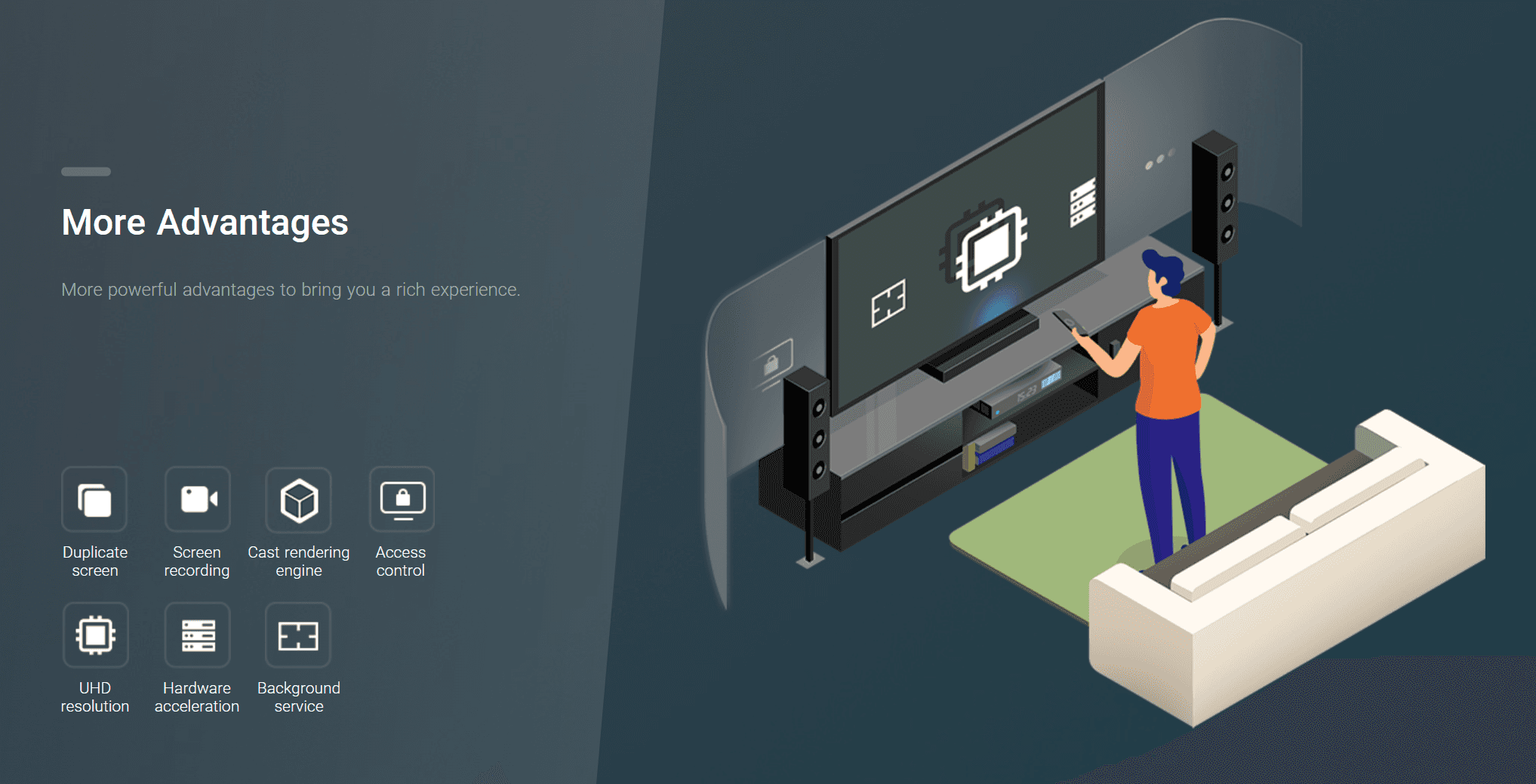
AirScreen is built for everyday wireless sharing: it can receive AirPlay, Cast, and DLNA content, while its feature set includes hardware acceleration, UHD-resolution support, screen recording, and a background service. In practical terms, it is most relevant for sending photos, videos, browser content, and presentations from a phone or computer to a larger screen.
Wireless mirroring depends on the sender, receiver, and local network. Image quality can vary with those conditions rather than remaining fixed at one resolution. AirScreen is therefore a better match for ordinary viewing and sharing than for a use case that requires a guaranteed 4K output or a gaming-grade latency target.
Discovery and first connection
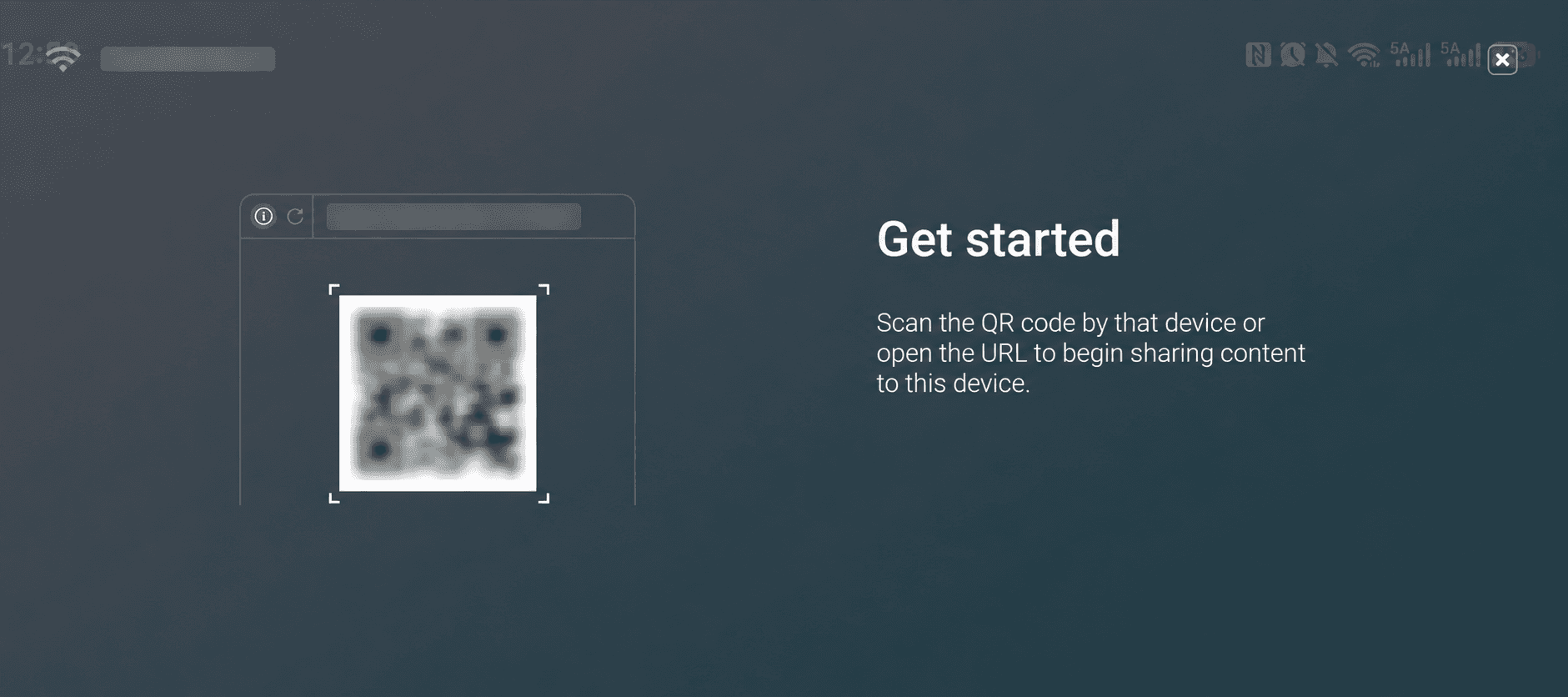
Setup is simple in principle: install AirScreen on the Android TV or Google TV device, open the app, then select the receiver from your phone, tablet, or computer's usual sharing menu. The sender does not need a separate AirScreen app.
For the smoothest start, keep the sender and receiver on the same local network, avoid guest Wi‑Fi networks that isolate devices, and update both devices before connecting. Compatibility is worth checking early—especially on older TV hardware.
Stability, picture quality, and latency
AirScreen makes the most sense for casual video viewing, photos, web browsing, and presentations, where wireless convenience matters more than tightly controlled latency. The app supports hardware acceleration and UHD resolution, but the quality you see will still be shaped by the sender device, receiver hardware, Wi‑Fi conditions, and the content being shared.
For competitive games, live music work, or any task where a small delay is disruptive, a wired HDMI connection is the more dependable option. AirScreen is designed to make screen sharing easier, not to replace a dedicated low-latency display connection.
Compatibility and content limits
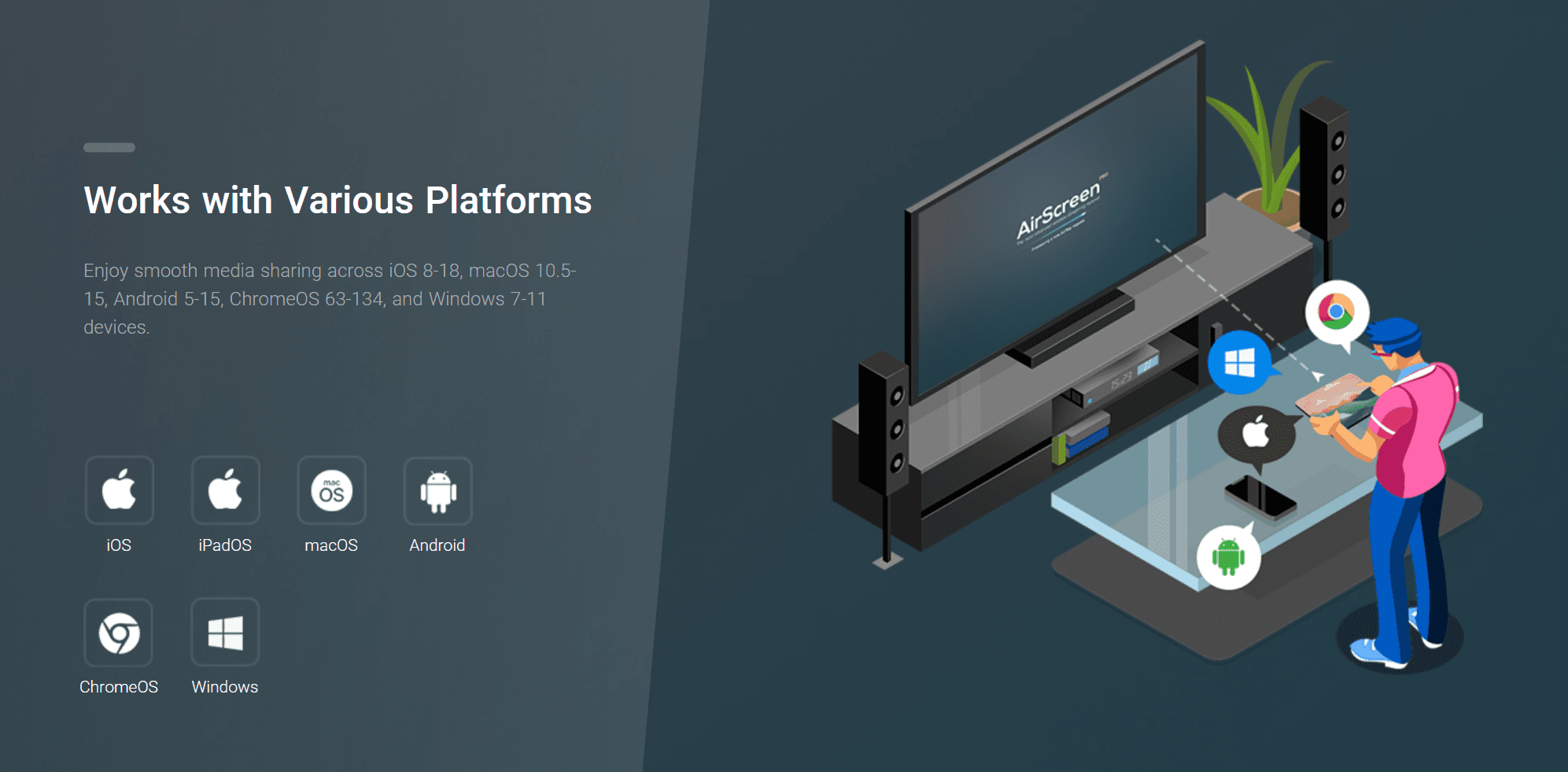
AirScreen supports senders across iOS, macOS, Android, ChromeOS, and Windows, making it useful in households with more than one device ecosystem. For current Android TV setups, the relevant receiver options are AirPlay, Cast, and DLNA.
Protected streaming services are a separate consideration. AirScreen says it added Widevine DRM support in 2022, but successful playback can still depend on the streaming provider, sender app, receiver hardware, and the device's DRM certification level. If a particular subscription service is central to your setup, try that service before committing to a paid plan.
AirScreen is built for everyday wireless sharing: it can receive AirPlay, Cast, and DLNA content, while its feature set includes hardware acceleration, UHD-resolution support, screen recording, and a background service. In practical terms, it is most relevant for sending photos, videos, browser content, and presentations from a phone or computer to a larger screen.
Wireless mirroring depends on the sender, receiver, and local network. Image quality can vary with those conditions rather than remaining fixed at one resolution. AirScreen is therefore a better match for ordinary viewing and sharing than for a use case that requires a guaranteed 4K output or a gaming-grade latency target.
Discovery and first connection
Setup is simple in principle: install AirScreen on the Android TV or Google TV device, open the app, then select the receiver from your phone, tablet, or computer's usual sharing menu. The sender does not need a separate AirScreen app.
For the smoothest start, keep the sender and receiver on the same local network, avoid guest Wi‑Fi networks that isolate devices, and update both devices before connecting. Compatibility is worth checking early—especially on older TV hardware.
Stability, picture quality, and latency
AirScreen makes the most sense for casual video viewing, photos, web browsing, and presentations, where wireless convenience matters more than tightly controlled latency. The app supports hardware acceleration and UHD resolution, but the quality you see will still be shaped by the sender device, receiver hardware, Wi‑Fi conditions, and the content being shared.
For competitive games, live music work, or any task where a small delay is disruptive, a wired HDMI connection is the more dependable option. AirScreen is designed to make screen sharing easier, not to replace a dedicated low-latency display connection.
Compatibility and content limits
AirScreen supports senders across iOS, macOS, Android, ChromeOS, and Windows, making it useful in households with more than one device ecosystem. For current Android TV setups, the relevant receiver options are AirPlay, Cast, and DLNA.
Protected streaming services are a separate consideration. AirScreen says it added Widevine DRM support in 2022, but successful playback can still depend on the streaming provider, sender app, receiver hardware, and the device's DRM certification level. If a particular subscription service is central to your setup, try that service before committing to a paid plan.
AirScreen is built for everyday wireless sharing: it can receive AirPlay, Cast, and DLNA content, while its feature set includes hardware acceleration, UHD-resolution support, screen recording, and a background service. In practical terms, it is most relevant for sending photos, videos, browser content, and presentations from a phone or computer to a larger screen.
Wireless mirroring depends on the sender, receiver, and local network. Image quality can vary with those conditions rather than remaining fixed at one resolution. AirScreen is therefore a better match for ordinary viewing and sharing than for a use case that requires a guaranteed 4K output or a gaming-grade latency target.
Discovery and first connection
Setup is simple in principle: install AirScreen on the Android TV or Google TV device, open the app, then select the receiver from your phone, tablet, or computer's usual sharing menu. The sender does not need a separate AirScreen app.
For the smoothest start, keep the sender and receiver on the same local network, avoid guest Wi‑Fi networks that isolate devices, and update both devices before connecting. Compatibility is worth checking early—especially on older TV hardware.
Stability, picture quality, and latency
AirScreen makes the most sense for casual video viewing, photos, web browsing, and presentations, where wireless convenience matters more than tightly controlled latency. The app supports hardware acceleration and UHD resolution, but the quality you see will still be shaped by the sender device, receiver hardware, Wi‑Fi conditions, and the content being shared.
For competitive games, live music work, or any task where a small delay is disruptive, a wired HDMI connection is the more dependable option. AirScreen is designed to make screen sharing easier, not to replace a dedicated low-latency display connection.
Compatibility and content limits
AirScreen supports senders across iOS, macOS, Android, ChromeOS, and Windows, making it useful in households with more than one device ecosystem. For current Android TV setups, the relevant receiver options are AirPlay, Cast, and DLNA.
Protected streaming services are a separate consideration. AirScreen says it added Widevine DRM support in 2022, but successful playback can still depend on the streaming provider, sender app, receiver hardware, and the device's DRM certification level. If a particular subscription service is central to your setup, try that service before committing to a paid plan.
AirScreen Free vs Pro: is it worth upgrading?
AirScreen Free vs Pro: is it worth upgrading?
AirScreen Free vs Pro: is it worth upgrading?
AirScreen is available as a free download, with Pro offered as a recurring subscription rather than a documented one-time purchase. AirScreen's support information lists monthly and yearly subscription options; a second simultaneous device requires a separate Pro Plus or additional-device license, depending on the store. Exact prices, trials, and available features can vary by store and region, so check the in-app purchase screen before subscribing.
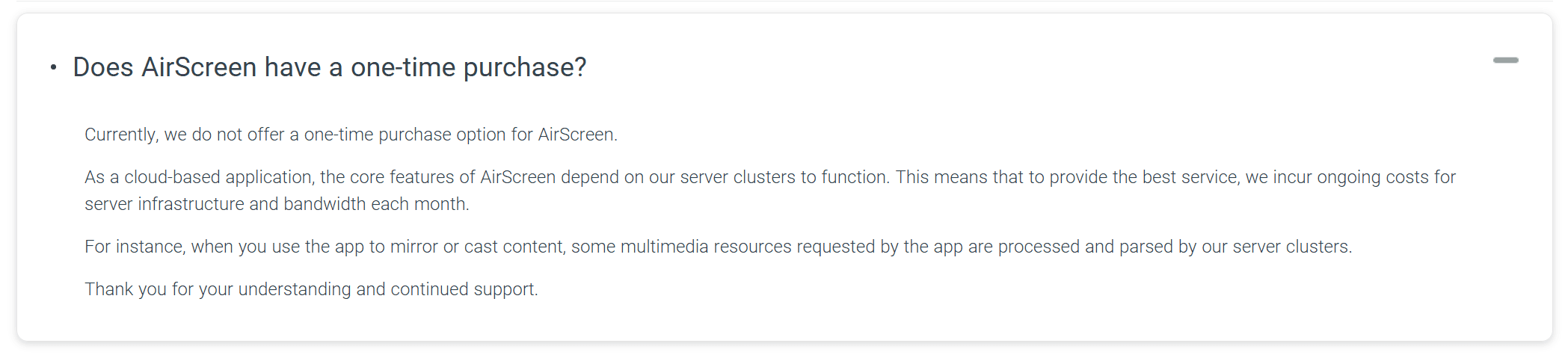
For most readers, the free tier has a clear job: verify whether AirScreen is discoverable and usable with the devices and content that matter to you. If it connects consistently and the restrictions do not interfere with your normal viewing, the case for Pro is limited. The app is already doing the core job you installed it for.
Pro becomes more relevant when a confirmed free-tier limitation affects repeated use. For example, ads or another restriction may matter more to someone who uses AirScreen frequently than to someone who only mirrors occasionally. Check the current in-app purchase screen to confirm that the feature you need is included before upgrading.
Consider Pro when… | Stay on Free when… |
A verified paid feature removes a friction point you encounter regularly. | Basic discovery and playback already meet your needs. |
You use the TV receiver often enough that ads or prompts materially disrupt the experience. | You only mirror occasionally or for short sessions. |
The live purchase screen confirms a feature you need at a price you accept. | The listed benefits are unclear, unavailable on your device, or not worth the current cost. |
AirScreen is available as a free download, with Pro offered as a recurring subscription rather than a documented one-time purchase. AirScreen's support information lists monthly and yearly subscription options; a second simultaneous device requires a separate Pro Plus or additional-device license, depending on the store. Exact prices, trials, and available features can vary by store and region, so check the in-app purchase screen before subscribing.
For most readers, the free tier has a clear job: verify whether AirScreen is discoverable and usable with the devices and content that matter to you. If it connects consistently and the restrictions do not interfere with your normal viewing, the case for Pro is limited. The app is already doing the core job you installed it for.
Pro becomes more relevant when a confirmed free-tier limitation affects repeated use. For example, ads or another restriction may matter more to someone who uses AirScreen frequently than to someone who only mirrors occasionally. Check the current in-app purchase screen to confirm that the feature you need is included before upgrading.
Consider Pro when… | Stay on Free when… |
A verified paid feature removes a friction point you encounter regularly. | Basic discovery and playback already meet your needs. |
You use the TV receiver often enough that ads or prompts materially disrupt the experience. | You only mirror occasionally or for short sessions. |
The live purchase screen confirms a feature you need at a price you accept. | The listed benefits are unclear, unavailable on your device, or not worth the current cost. |
AirScreen is available as a free download, with Pro offered as a recurring subscription rather than a documented one-time purchase. AirScreen's support information lists monthly and yearly subscription options; a second simultaneous device requires a separate Pro Plus or additional-device license, depending on the store. Exact prices, trials, and available features can vary by store and region, so check the in-app purchase screen before subscribing.
For most readers, the free tier has a clear job: verify whether AirScreen is discoverable and usable with the devices and content that matter to you. If it connects consistently and the restrictions do not interfere with your normal viewing, the case for Pro is limited. The app is already doing the core job you installed it for.
Pro becomes more relevant when a confirmed free-tier limitation affects repeated use. For example, ads or another restriction may matter more to someone who uses AirScreen frequently than to someone who only mirrors occasionally. Check the current in-app purchase screen to confirm that the feature you need is included before upgrading.
Consider Pro when… | Stay on Free when… |
A verified paid feature removes a friction point you encounter regularly. | Basic discovery and playback already meet your needs. |
You use the TV receiver often enough that ads or prompts materially disrupt the experience. | You only mirror occasionally or for short sessions. |
The live purchase screen confirms a feature you need at a price you accept. | The listed benefits are unclear, unavailable on your device, or not worth the current cost. |
Is AirScreen safe? Privacy and permissions
Is AirScreen safe? Privacy and permissions
Is AirScreen safe? Privacy and permissions
AirScreen's official site and Google Play listing say that it uses encrypted transfers, and its website names AES, RSA, and SHA among its privacy-protection materials. This is a developer statement about the product's security design; it is not the same thing as an independent audit of every network request or every mode of use.
That distinction matters for the common question, “Does AirScreen keep everything local?” Encryption does not by itself establish the complete path taken by media, analytics, account, or remote-mode traffic across every platform and version. For that reason, AirScreen should not be described as a guaranteed local-only solution.
For typical living-room mirroring, the practical approach is to install AirScreen from an official store, keep the app and TV software updated, review the permissions and privacy disclosures shown for your store and device, and share only content you are comfortable sending through a third-party receiver app. If you require a verified local-only data path for sensitive work or media, choose a solution backed by a documented network-path assessment rather than relying on a marketing claim alone.

AirScreen's official site and Google Play listing say that it uses encrypted transfers, and its website names AES, RSA, and SHA among its privacy-protection materials. This is a developer statement about the product's security design; it is not the same thing as an independent audit of every network request or every mode of use.
That distinction matters for the common question, “Does AirScreen keep everything local?” Encryption does not by itself establish the complete path taken by media, analytics, account, or remote-mode traffic across every platform and version. For that reason, AirScreen should not be described as a guaranteed local-only solution.
For typical living-room mirroring, the practical approach is to install AirScreen from an official store, keep the app and TV software updated, review the permissions and privacy disclosures shown for your store and device, and share only content you are comfortable sending through a third-party receiver app. If you require a verified local-only data path for sensitive work or media, choose a solution backed by a documented network-path assessment rather than relying on a marketing claim alone.
AirScreen's official site and Google Play listing say that it uses encrypted transfers, and its website names AES, RSA, and SHA among its privacy-protection materials. This is a developer statement about the product's security design; it is not the same thing as an independent audit of every network request or every mode of use.
That distinction matters for the common question, “Does AirScreen keep everything local?” Encryption does not by itself establish the complete path taken by media, analytics, account, or remote-mode traffic across every platform and version. For that reason, AirScreen should not be described as a guaranteed local-only solution.
For typical living-room mirroring, the practical approach is to install AirScreen from an official store, keep the app and TV software updated, review the permissions and privacy disclosures shown for your store and device, and share only content you are comfortable sending through a third-party receiver app. If you require a verified local-only data path for sensitive work or media, choose a solution backed by a documented network-path assessment rather than relying on a marketing claim alone.
Verdict: Is AirScreen worth using on Android TV?
Verdict: Is AirScreen worth using on Android TV?
Verdict: Is AirScreen worth using on Android TV?
AirScreen is a reasonable option to try for Android TV and Google TV owners who need an AirPlay receiver without adding extra hardware. Its appeal is that it combines AirPlay, Cast, and DLNA receiving in one TV-side app and lets you check compatibility through the free route.
Choose AirScreen if you mainly want to mirror an iPhone, iPad, or Mac to a compatible Android TV or Google TV device for everyday photos, video, browsing, or presentations.
Skip AirScreen if your TV model fails the initial compatibility check, you need every protected streaming app to work, or your use case depends on reliably minimal latency.
Upgrade to Premium if the current in-app offer clearly removes a limitation you have already encountered and the price makes sense for how often you use the receiver.
The bottom line is straightforward: install AirScreen from an official source, try it with the sender device and content you actually use, and let that experience—not the broad protocol list—decide whether to keep it free, upgrade, or switch. If AirScreen is not the right fit, see our best screen mirroring apps of 2026 for broader alternatives.
AirScreen is a reasonable option to try for Android TV and Google TV owners who need an AirPlay receiver without adding extra hardware. Its appeal is that it combines AirPlay, Cast, and DLNA receiving in one TV-side app and lets you check compatibility through the free route.
Choose AirScreen if you mainly want to mirror an iPhone, iPad, or Mac to a compatible Android TV or Google TV device for everyday photos, video, browsing, or presentations.
Skip AirScreen if your TV model fails the initial compatibility check, you need every protected streaming app to work, or your use case depends on reliably minimal latency.
Upgrade to Premium if the current in-app offer clearly removes a limitation you have already encountered and the price makes sense for how often you use the receiver.
The bottom line is straightforward: install AirScreen from an official source, try it with the sender device and content you actually use, and let that experience—not the broad protocol list—decide whether to keep it free, upgrade, or switch. If AirScreen is not the right fit, see our best screen mirroring apps of 2026 for broader alternatives.
AirScreen is a reasonable option to try for Android TV and Google TV owners who need an AirPlay receiver without adding extra hardware. Its appeal is that it combines AirPlay, Cast, and DLNA receiving in one TV-side app and lets you check compatibility through the free route.
Choose AirScreen if you mainly want to mirror an iPhone, iPad, or Mac to a compatible Android TV or Google TV device for everyday photos, video, browsing, or presentations.
Skip AirScreen if your TV model fails the initial compatibility check, you need every protected streaming app to work, or your use case depends on reliably minimal latency.
Upgrade to Premium if the current in-app offer clearly removes a limitation you have already encountered and the price makes sense for how often you use the receiver.
The bottom line is straightforward: install AirScreen from an official source, try it with the sender device and content you actually use, and let that experience—not the broad protocol list—decide whether to keep it free, upgrade, or switch. If AirScreen is not the right fit, see our best screen mirroring apps of 2026 for broader alternatives.
Table of content
Table of content


Still Need a Hand?
Still Need a Hand?
Still Need a Hand?
Explore more reviews, step-by-step guides, and troubleshooting tips—or contact us if you could not find the answer you needed.
Explore more reviews, step-by-step guides, and troubleshooting tips—or contact us if you could not find the answer you needed.
Explore more reviews, step-by-step guides, and troubleshooting tips—or contact us if you could not find the answer you needed.