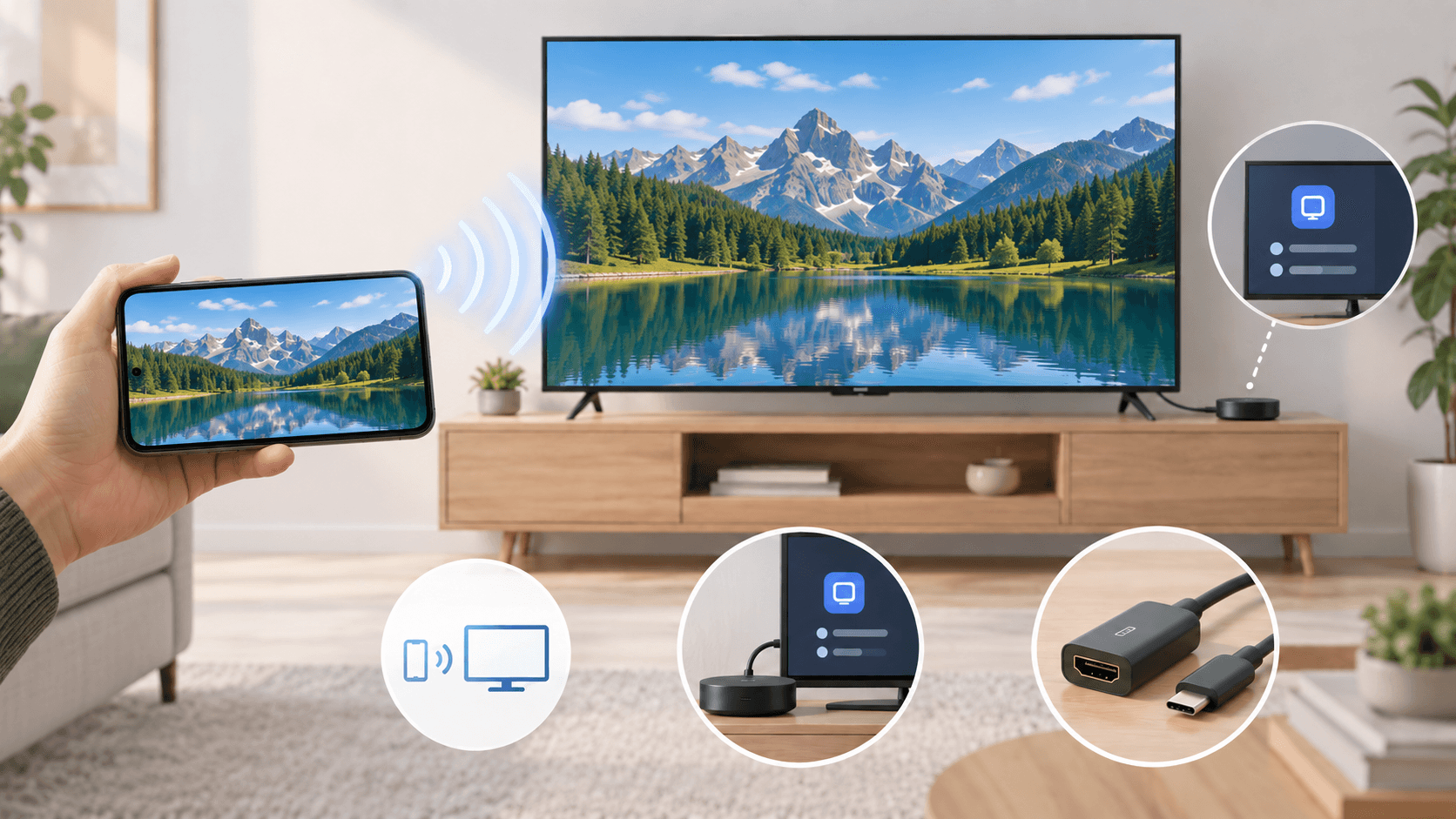
How to Screen Mirror Android to TV: 3 Ways to Connect
Mirror Android to your TV with built-in wireless casting, a receiver app, or HDMI—plus simple compatibility tips to choose the right method.
To screen mirror an Android phone to a TV, start with the TV or streaming device’s built-in wireless option. If the TV cannot receive Android mirroring directly, a screen mirroring receiver app can turn it into a destination for your phone’s screen—provided the app supports both devices. If wireless mirroring is not an option, HDMI can work when your phone supports external video output.
The simple model is this: your Android phone is the sender because it sends its screen. Your TV or streaming device is the receiver because it displays that screen. The right method depends on what the receiver can accept and what the sender can send.
Method | Best when | What you need | Main trade-off |
Built-in wireless mirroring | Your TV or streaming device already supports a compatible screen-sharing feature | Compatible phone and receiver; usually the required network connection | Support and menu names vary by device |
Screen mirroring receiver app | Your TV cannot receive Android mirroring directly, but can run a compatible app | A supported TV or streaming platform and app | Compatibility, ads, pricing, and protected-video support vary |
HDMI | You want a wired alternative and your phone supports video output | Compatible phone, adapter/cable, and TV HDMI input | A USB-C port alone does not guarantee video output |
Before choosing a method
Try the built-in wireless option first. If your TV does not appear, make sure its screen-sharing feature is on and that both devices are connected as required—often to the same local Wi-Fi network. Guest or isolated networks can stop them from finding each other. For broader setup basics, see our complete beginner’s guide to screen mirroring.
Method 1: Use your TV’s built-in wireless screen-mirroring option
This is usually the first route to try when your TV or an attached streaming device already supports a screen-sharing method that works with your Android phone. It requires the fewest extra parts, and it keeps the setup focused on the devices you already own.
The exact wording on your phone may not match another Android device. Look for a screen-sharing control in Quick Settings, Settings, or the phone maker’s connected-device menu. Your TV may also need its screen-sharing input or receiving mode open before it appears on the phone. For a Pixel-specific example of casting a full screen or a single app, see Google’s Pixel screen-projection guide.
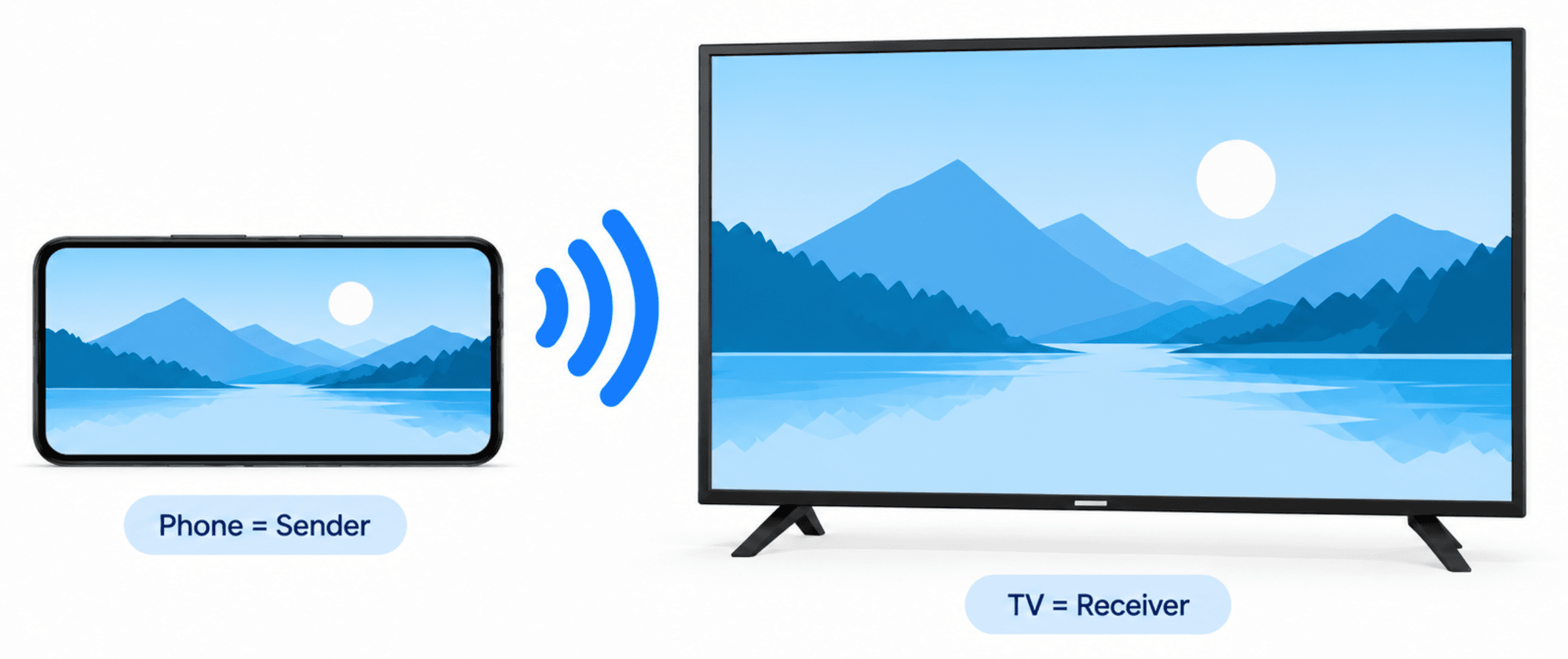
Steps to mirror your Android screen wirelessly
Turn on the TV or streaming device. If it has a screen-sharing input, receiver mode, or source selection, open it first.
Connect the phone and receiver to the required network. For many wireless methods, this is the same local Wi-Fi network.
On your Android phone, open the screen-mirroring or screen-sharing control. The label varies by device, so look for an option that refers to sharing, mirroring, or casting the screen.
Wait for available devices to appear, then select the TV or streaming device you want to use.
Approve any prompt shown on the phone or TV. Your phone display should then appear on the TV.
When you are finished, stop the session from the phone’s mirroring or casting control.
Full-screen mirroring is not always the same as tapping a Cast icon inside a video app. Full-screen mirroring reproduces what is on the phone display, including navigation and notifications. App-level casting may send only the selected media to the TV, leaving the phone available for other tasks. When an app supports casting and you only want to watch its video, that can be the cleaner option.
If your TV does not show up
Check the basics before trying another method. Confirm that the TV is in the correct receiving mode, that the phone and TV meet the network requirement for the feature you are using, and that both devices support the same kind of wireless connection.
If the TV still does not appear after those checks, do not assume every app or cable will bypass the compatibility issue. Move to the receiver-app method if your TV platform supports one, or use HDMI if your phone has confirmed video-output support.
Method 2: Use a screen mirroring receiver app when your TV cannot receive Android mirroring directly
A screen mirroring receiver app is easier to understand once you know the two roles. Your phone is the sender: it sends its screen. Your TV or streaming device is the receiver: it is the destination that displays the screen.
If your TV cannot receive Android mirroring directly, a compatible receiver app can let the TV or streaming device take on that receiver role. Instead of adding another hardware device, the app provides a software-based receiving option. This is also a common option when you want to mirror Android to a TV without adding a Chromecast or other streaming device. It is useful when the TV has a compatible app platform but lacks the wireless receiving feature your phone expects.
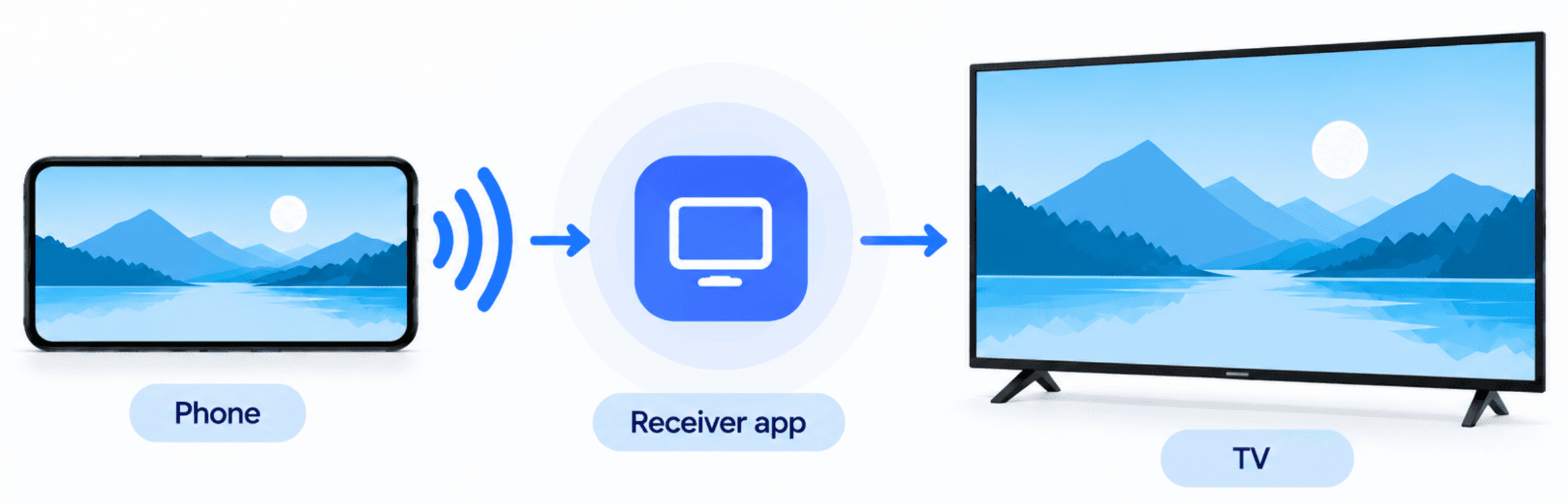
When this route makes sense
Use this route when your TV does not have a workable built-in screen-mirroring option but can install or run an app designed to receive a phone screen. It can also help when a connected streaming device offers a compatible app even though the TV itself does not.
Before installing, make sure the app supports your Android phone as the sender and your TV or streaming platform as the receiver. An app may support one kind of phone-to-TV connection but not another.
General setup path
Install a compatible screen mirroring receiver app on the TV or connected streaming device.
Open the app and complete any setup it requires. The goal is to make the TV or streaming device available as a destination for the phone.
Connect the phone and receiver according to the app’s requirements. This commonly involves the same local network, but follow the app’s own setup guidance.
Start screen mirroring from the Android phone, or follow the app’s documented sender flow if it provides one.
Before using the setup for a meeting, presentation, or long viewing session, check that audio, orientation, and video behave as expected.
Choose for compatibility, not name recognition
Do not choose a receiver app only because it is familiar or appears high in a store search. Check four things first:
Does it support your Android phone as the sender?
Does it support your TV or streaming-device platform as the receiver?
Are its pricing, ads, or feature limits acceptable for the way you plan to use it?
Does it state limitations for protected video or particular apps?
A receiver app can make the TV the destination for your phone screen, but it cannot remove every limitation of the phone, TV platform, or content service. Some receiver apps are designed specifically to help TVs receive phone screens without additional hardware. If you specifically need an AirPlay receiver for Android TV, use a dedicated comparison of that category rather than treating this general Android guide as an app ranking. For a broader explanation of how Cast, Miracast, and AirPlay differ, see our technical comparison of the three.
Method 3: Connect Android to TV with HDMI
HDMI is the wired alternative when wireless mirroring is unavailable, unreliable, or not appropriate for the situation. It can be useful for local media and presentations because it does not depend on a wireless screen-sharing receiver.
The key condition is phone support. Your phone must be able to output video to an external display; a USB-C charging port alone does not guarantee that. Check your model’s display-output support before buying an adapter or cable.
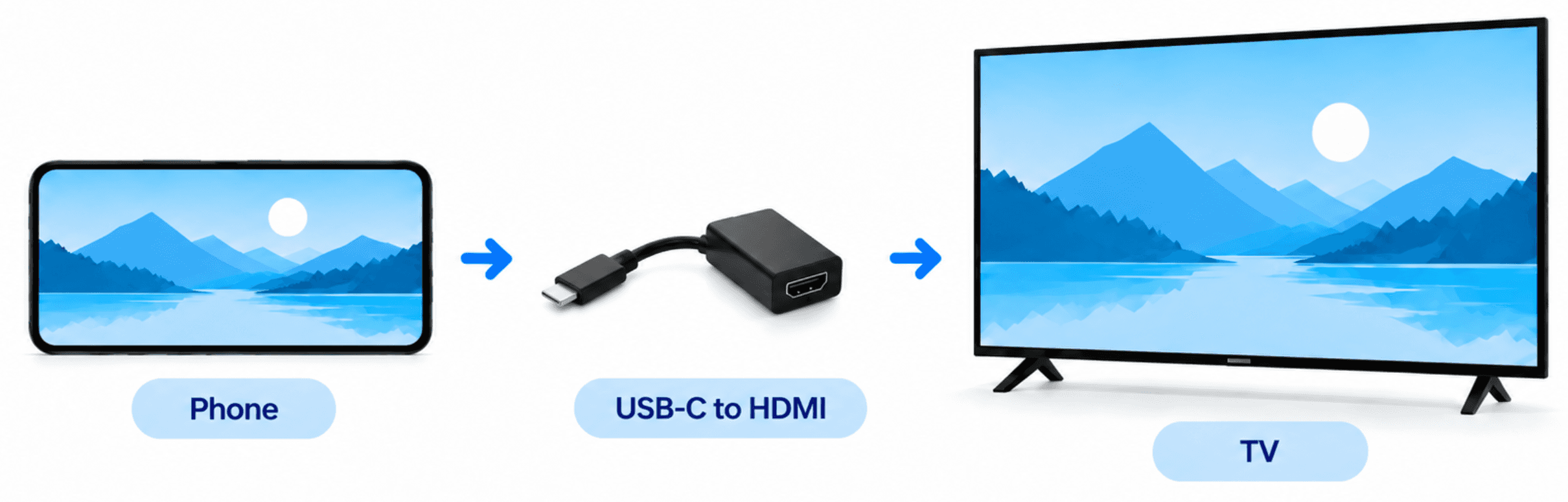
What you need
An Android phone with confirmed external-display or video-output support.
A compatible USB-C-to-HDMI adapter or cable. Some accessories require power passthrough to operate correctly.
An open HDMI port on the TV.
The TV set to the HDMI input that matches the port you are using.
Steps to connect Android to a TV with HDMI
Connect the compatible adapter or cable to the phone.
Connect the HDMI end to the TV.
Select the matching HDMI input on the TV.
If the adapter requires power, connect it using the accessory’s instructions.
Unlock the phone and respond to any display prompt. Confirm that the TV shows the image and that audio is playing through the expected output.
If there is no picture, work through the connection in order. Verify that the phone supports video output, that the adapter and cable are compatible with that phone, that the TV is on the correct HDMI input, and that any required adapter power is connected.
If mirroring still will not work
Restart the phone and TV or streaming device, then reconnect using the method’s required setup. Check that the TV is on the right input or that the receiver app is open. For wireless methods, verify the required network relationship and make sure the devices can discover each other.
If the connection succeeds but the picture is blurry, audio is missing, or the session drops, use our screen mirroring troubleshooting guide rather than changing several settings at once.
FAQ
Can I screen mirror Android to a TV without Wi-Fi?
Sometimes. A compatible HDMI setup does not rely on Wi-Fi for the phone-to-TV display connection. Wireless methods may require the phone and receiver to share a local network, or they may use another device-specific connection method. Check the requirements for the exact wireless feature or app you are using.
Why can I cast a video app but not mirror my whole Android screen?
Casting inside an app and full-screen mirroring are different actions. An in-app Cast button may send only the video or audio to a supported receiver, while full-screen mirroring asks the receiver to display your entire phone screen. A TV can support one path without supporting the other, so check which receiver function your TV or streaming device provides.
Does every USB-C Android phone work with HDMI?
No. A USB-C connector does not guarantee external video output. Whether HDMI works depends on the phone’s hardware and software support, plus a compatible adapter or cable. Verify your exact phone model with the manufacturer before purchasing accessories.
Table of content


Still Need a Hand?
Explore more reviews, step-by-step guides, and troubleshooting tips—or contact us if you could not find the answer you needed.