Does Screen Mirroring Stay on Your Local Network? A Privacy and Data-Path Test
Does Screen Mirroring Stay on Your Local Network? A Privacy and Data-Path Test
Does Screen Mirroring Stay on Your Local Network? A Privacy and Data-Path Test
Does screen mirroring send your screen over the internet? We explain the three kinds of data involved, which methods stay inside your home, and how to check your own setup in ten minutes.
Does screen mirroring send your screen over the internet? We explain the three kinds of data involved, which methods stay inside your home, and how to check your own setup in ten minutes.
Does screen mirroring send your screen over the internet? We explain the three kinds of data involved, which methods stay inside your home, and how to check your own setup in ten minutes.
If you mirror your phone to a TV on the same Wi-Fi, the picture itself almost certainly never leaves your home. That isn't the same as saying the app never talks to the internet, and mixing up those two ideas is why the answers online contradict each other. Two cases really do send your session out of the house: casting a video link, and the "remote" or browser modes that connect through an outside server. Here's what each does, and how to check yours.
If you mirror your phone to a TV on the same Wi-Fi, the picture itself almost certainly never leaves your home. That isn't the same as saying the app never talks to the internet, and mixing up those two ideas is why the answers online contradict each other. Two cases really do send your session out of the house: casting a video link, and the "remote" or browser modes that connect through an outside server. Here's what each does, and how to check yours.
If you mirror your phone to a TV on the same Wi-Fi, the picture itself almost certainly never leaves your home. That isn't the same as saying the app never talks to the internet, and mixing up those two ideas is why the answers online contradict each other. Two cases really do send your session out of the house: casting a video link, and the "remote" or browser modes that connect through an outside server. Here's what each does, and how to check yours.
Your screen isn't the only thing being sent
Your screen isn't the only thing being sent
Your screen isn't the only thing being sent
When you mirror, three separate things travel at the same time. They go to different places, which is why one yes-or-no answer never fits.
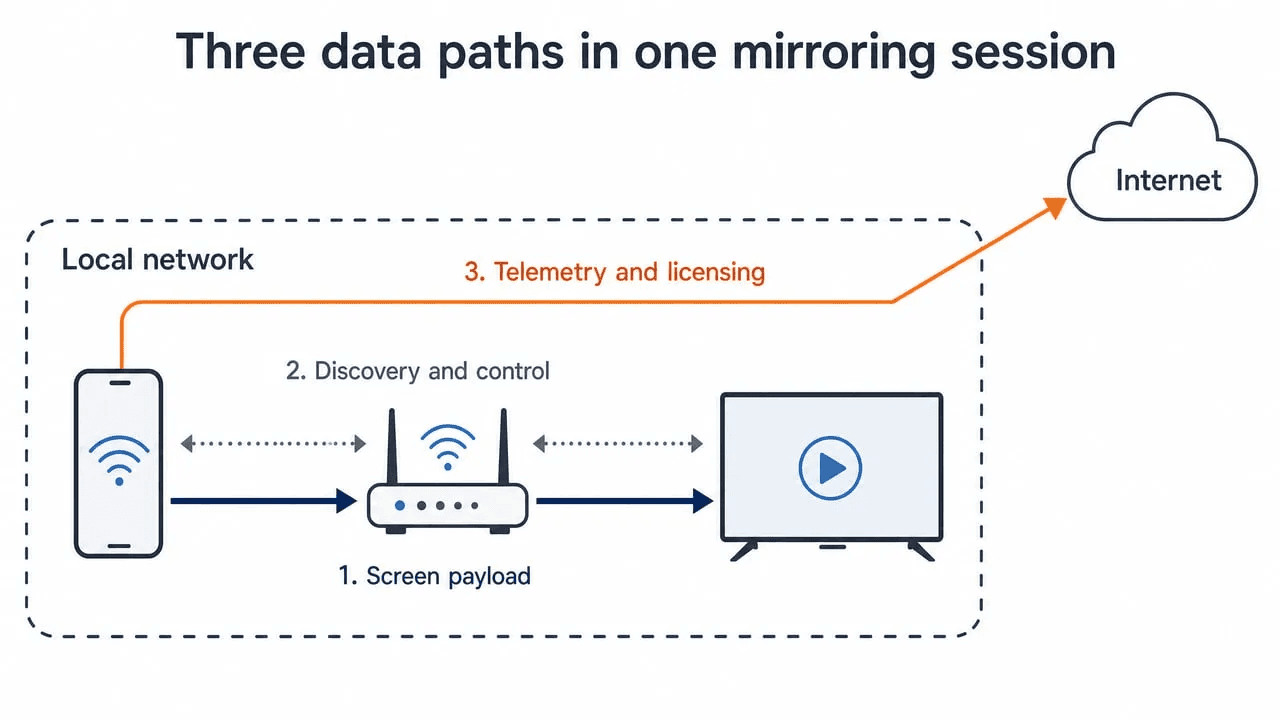
The picture and sound. This is what you actually care about. On same-Wi-Fi methods, your phone compresses it and sends it straight to the TV across your own network.
The chatter between devices. Before anything appears, the two devices have to find each other and agree to connect. That means announcing themselves on your network. It stays inside your home, but it is a bit like calling your name across a room: anything else connected to that Wi-Fi can hear the device names.
The app's own traffic. Separately, the app may check your subscription, report a crash, or send usage statistics. That does go to the internet, even while your screen is going nowhere near it.
So "your screen data stays local" is a claim about the first one. That's usually true, and it's not the whole picture. The better question is which of the three you actually care about.
When you mirror, three separate things travel at the same time. They go to different places, which is why one yes-or-no answer never fits.
The picture and sound. This is what you actually care about. On same-Wi-Fi methods, your phone compresses it and sends it straight to the TV across your own network.
The chatter between devices. Before anything appears, the two devices have to find each other and agree to connect. That means announcing themselves on your network. It stays inside your home, but it is a bit like calling your name across a room: anything else connected to that Wi-Fi can hear the device names.
The app's own traffic. Separately, the app may check your subscription, report a crash, or send usage statistics. That does go to the internet, even while your screen is going nowhere near it.
So "your screen data stays local" is a claim about the first one. That's usually true, and it's not the whole picture. The better question is which of the three you actually care about.
When you mirror, three separate things travel at the same time. They go to different places, which is why one yes-or-no answer never fits.
The picture and sound. This is what you actually care about. On same-Wi-Fi methods, your phone compresses it and sends it straight to the TV across your own network.
The chatter between devices. Before anything appears, the two devices have to find each other and agree to connect. That means announcing themselves on your network. It stays inside your home, but it is a bit like calling your name across a room: anything else connected to that Wi-Fi can hear the device names.
The app's own traffic. Separately, the app may check your subscription, report a crash, or send usage statistics. That does go to the internet, even while your screen is going nowhere near it.
So "your screen data stays local" is a claim about the first one. That's usually true, and it's not the whole picture. The better question is which of the three you actually care about.
Which methods stay in your home
Which methods stay in your home
Which methods stay in your home
Method | Where your screen goes | Needs internet? | Worth knowing |
|---|---|---|---|
AirPlay on the same Wi-Fi | Stays in your home | No | Can also link devices directly, with no network |
Casting your screen or a browser tab | Stays in your home | No | Your device does the work |
Casting a video link | TV pulls it from the internet | Yes | Your phone can leave the house |
Mirroring app, local mode | Stays in your home | No | App's own traffic is separate |
Browser or "remote" mode | Either direct or via an outside server | Often | Same button, different result per network |
Miracast, Wi-Fi Direct, HDMI cable | Straight between the two devices | No | Skips your router completely |
Look at the middle column. These aren't small variations on one thing. One of them cannot work without the internet, another needs no network at all — yet people call them all "screen mirroring."
How we tested this
We ran each method on one Wi-Fi network, watched the router's traffic log, and recorded what the phone connected to and how much data moved. If you repeat this, note your app version, phone and TV software versions, country, and the date — any of those can change the answer.
The most convincing test is also the simplest. Start mirroring, then unplug the internet cable (WAN cable) from your router, leaving Wi-Fi on. If the picture keeps going, it was most likely not using the internet. That proves more than any privacy policy.
One catch will ruin that test if you skip it: turn mobile data off on your phone first. iPhones fall back to cellular when Wi-Fi has no working internet — Wi-Fi Assist is on by default — and most Android phones have an equivalent setting. Leave it on and a session that appears to survive may simply have switched to cellular behind your back.
Three honest limits. This shows where data went and how much, not what was in it, because the traffic is scrambled. A few methods aren't every app and TV. And seeing no outside server on our network doesn't prove one is never used.
One more thing to know before copying our method: a session that works across two networks hasn't necessarily gone out to the internet. Apple's own documentation says AirPlay devices "don't need to be on the same network, or on any network at all" — they can find each other over Bluetooth and open a direct Wi-Fi link. Miracast and Wi-Fi Direct behave the same way. Those paths skip your router entirely, which is more private, not less.
Method | Where your screen goes | Needs internet? | Worth knowing |
|---|---|---|---|
AirPlay on the same Wi-Fi | Stays in your home | No | Can also link devices directly, with no network |
Casting your screen or a browser tab | Stays in your home | No | Your device does the work |
Casting a video link | TV pulls it from the internet | Yes | Your phone can leave the house |
Mirroring app, local mode | Stays in your home | No | App's own traffic is separate |
Browser or "remote" mode | Either direct or via an outside server | Often | Same button, different result per network |
Miracast, Wi-Fi Direct, HDMI cable | Straight between the two devices | No | Skips your router completely |
Look at the middle column. These aren't small variations on one thing. One of them cannot work without the internet, another needs no network at all — yet people call them all "screen mirroring."
How we tested this
We ran each method on one Wi-Fi network, watched the router's traffic log, and recorded what the phone connected to and how much data moved. If you repeat this, note your app version, phone and TV software versions, country, and the date — any of those can change the answer.
The most convincing test is also the simplest. Start mirroring, then unplug the internet cable (WAN cable) from your router, leaving Wi-Fi on. If the picture keeps going, it was most likely not using the internet. That proves more than any privacy policy.
One catch will ruin that test if you skip it: turn mobile data off on your phone first. iPhones fall back to cellular when Wi-Fi has no working internet — Wi-Fi Assist is on by default — and most Android phones have an equivalent setting. Leave it on and a session that appears to survive may simply have switched to cellular behind your back.
Three honest limits. This shows where data went and how much, not what was in it, because the traffic is scrambled. A few methods aren't every app and TV. And seeing no outside server on our network doesn't prove one is never used.
One more thing to know before copying our method: a session that works across two networks hasn't necessarily gone out to the internet. Apple's own documentation says AirPlay devices "don't need to be on the same network, or on any network at all" — they can find each other over Bluetooth and open a direct Wi-Fi link. Miracast and Wi-Fi Direct behave the same way. Those paths skip your router entirely, which is more private, not less.
Method | Where your screen goes | Needs internet? | Worth knowing |
|---|---|---|---|
AirPlay on the same Wi-Fi | Stays in your home | No | Can also link devices directly, with no network |
Casting your screen or a browser tab | Stays in your home | No | Your device does the work |
Casting a video link | TV pulls it from the internet | Yes | Your phone can leave the house |
Mirroring app, local mode | Stays in your home | No | App's own traffic is separate |
Browser or "remote" mode | Either direct or via an outside server | Often | Same button, different result per network |
Miracast, Wi-Fi Direct, HDMI cable | Straight between the two devices | No | Skips your router completely |
Look at the middle column. These aren't small variations on one thing. One of them cannot work without the internet, another needs no network at all — yet people call them all "screen mirroring."
How we tested this
We ran each method on one Wi-Fi network, watched the router's traffic log, and recorded what the phone connected to and how much data moved. If you repeat this, note your app version, phone and TV software versions, country, and the date — any of those can change the answer.
The most convincing test is also the simplest. Start mirroring, then unplug the internet cable (WAN cable) from your router, leaving Wi-Fi on. If the picture keeps going, it was most likely not using the internet. That proves more than any privacy policy.
One catch will ruin that test if you skip it: turn mobile data off on your phone first. iPhones fall back to cellular when Wi-Fi has no working internet — Wi-Fi Assist is on by default — and most Android phones have an equivalent setting. Leave it on and a session that appears to survive may simply have switched to cellular behind your back.
Three honest limits. This shows where data went and how much, not what was in it, because the traffic is scrambled. A few methods aren't every app and TV. And seeing no outside server on our network doesn't prove one is never used.
One more thing to know before copying our method: a session that works across two networks hasn't necessarily gone out to the internet. Apple's own documentation says AirPlay devices "don't need to be on the same network, or on any network at all" — they can find each other over Bluetooth and open a direct Wi-Fi link. Miracast and Wi-Fi Direct behave the same way. Those paths skip your router entirely, which is more private, not less.
The one case that really does use the internet
The one case that really does use the internet
The one case that really does use the internet
People use "casting" for two different things, and only one keeps your data at home.
Casting your screen means your device captures the display and sends it to the TV. Google requires both devices on the same Wi-Fi for this.
Casting a video link works differently. Your phone doesn't send the video at all — it hands the TV a web address and the TV downloads it. Your phone becomes a remote control.
You've probably already seen the proof. Start a YouTube video on the TV, then walk out the front door with your phone: it keeps playing, because your phone was never carrying it. That's the genuine "yes, this uses the internet" case, and the data comes out of your TV's connection, not your phone's.
People use "casting" for two different things, and only one keeps your data at home.
Casting your screen means your device captures the display and sends it to the TV. Google requires both devices on the same Wi-Fi for this.
Casting a video link works differently. Your phone doesn't send the video at all — it hands the TV a web address and the TV downloads it. Your phone becomes a remote control.
You've probably already seen the proof. Start a YouTube video on the TV, then walk out the front door with your phone: it keeps playing, because your phone was never carrying it. That's the genuine "yes, this uses the internet" case, and the data comes out of your TV's connection, not your phone's.
People use "casting" for two different things, and only one keeps your data at home.
Casting your screen means your device captures the display and sends it to the TV. Google requires both devices on the same Wi-Fi for this.
Casting a video link works differently. Your phone doesn't send the video at all — it hands the TV a web address and the TV downloads it. Your phone becomes a remote control.
You've probably already seen the proof. Start a YouTube video on the TV, then walk out the front door with your phone: it keeps playing, because your phone was never carrying it. That's the genuine "yes, this uses the internet" case, and the data comes out of your TV's connection, not your phone's.
What a "stays local" promise actually covers
What a "stays local" promise actually covers
What a "stays local" promise actually covers
Let's take take 1001 TVs as an example of a mirroring app.
The website says: "All screen data stays within your local network — never uploads to internet." ⓘ The privacy policy says that when you mirror, the app "may access to the local network where your device is located, and collect device information in the local network (including hardware model, manufacturer, device decoder, MAC, IMEI and other information)."ⓘ
That looks like a contradiction. It isn't. The first sentence is about your screen; the second is about device details and the app's own traffic — the other two paths from the top of this article.
Here's the part that applies to every mirroring app: a promise that your screen stays local can be completely true while information about your devices still reaches the company. If your worry is someone watching your screen, that promise covers it. If your worry is a company building a list of the gadgets in your house, it doesn't.
Let's take take 1001 TVs as an example of a mirroring app.
The website says: "All screen data stays within your local network — never uploads to internet." ⓘ The privacy policy says that when you mirror, the app "may access to the local network where your device is located, and collect device information in the local network (including hardware model, manufacturer, device decoder, MAC, IMEI and other information)."ⓘ
That looks like a contradiction. It isn't. The first sentence is about your screen; the second is about device details and the app's own traffic — the other two paths from the top of this article.
Here's the part that applies to every mirroring app: a promise that your screen stays local can be completely true while information about your devices still reaches the company. If your worry is someone watching your screen, that promise covers it. If your worry is a company building a list of the gadgets in your house, it doesn't.
Let's take take 1001 TVs as an example of a mirroring app.
The website says: "All screen data stays within your local network — never uploads to internet." ⓘ The privacy policy says that when you mirror, the app "may access to the local network where your device is located, and collect device information in the local network (including hardware model, manufacturer, device decoder, MAC, IMEI and other information)."ⓘ
That looks like a contradiction. It isn't. The first sentence is about your screen; the second is about device details and the app's own traffic — the other two paths from the top of this article.
Here's the part that applies to every mirroring app: a promise that your screen stays local can be completely true while information about your devices still reaches the company. If your worry is someone watching your screen, that promise covers it. If your worry is a company building a list of the gadgets in your house, it doesn't.
Why "remote" and browser modes are different
Why "remote" and browser modes are different
Why "remote" and browser modes are different
If a browser or account-based feature works when your two devices are on different networks, it isn't keeping everything at home — the data has to pass through something in the middle. (The exception is short-range direct links like peer-to-peer AirPlay or Wi-Fi Direct, which cross no network at all.)
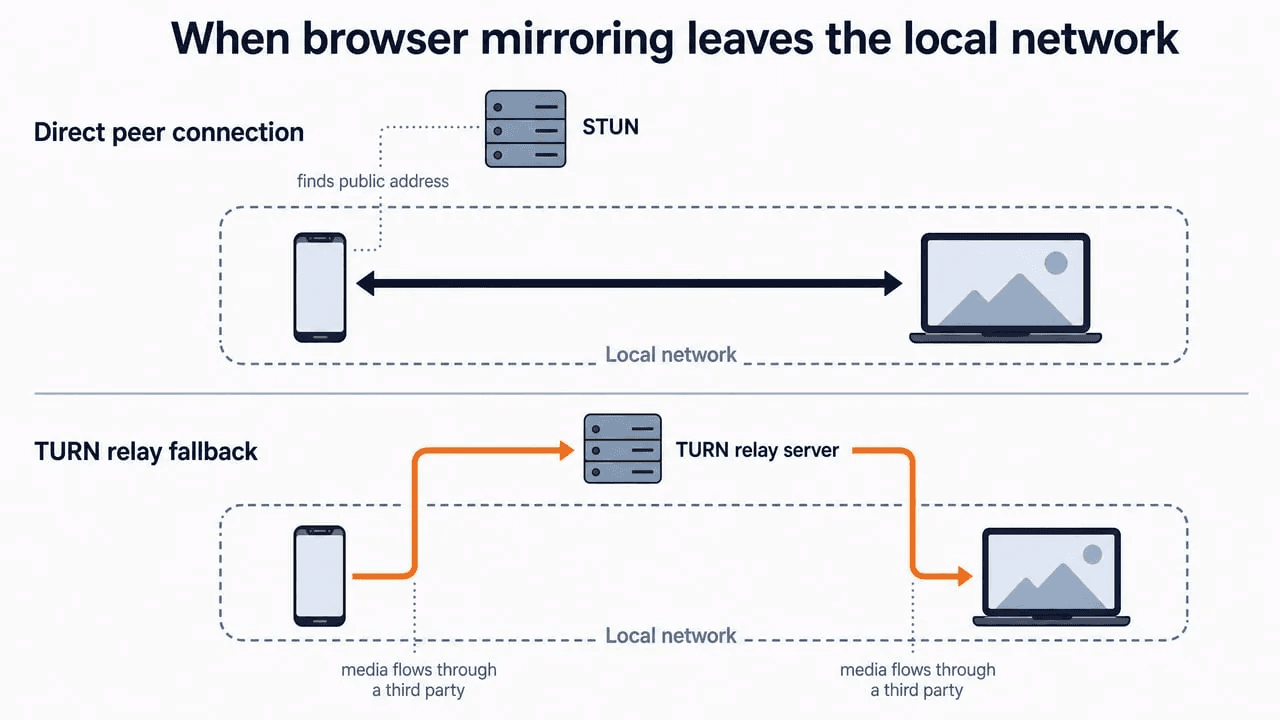
Browser-based mirroring usually uses a technology called WebRTC. It first tries to connect the two devices directly. When your router won't allow that, it falls back to routing everything through an outside computer called a relay server.
This is the uncomfortable bit: the same app, same version, same button can stay in your home on one Wi-Fi network and route through a stranger's server on another — and nothing on screen tells you which just happened. So if a feature works across two different networks, assume it can leave your home until you've checked yours.
If a browser or account-based feature works when your two devices are on different networks, it isn't keeping everything at home — the data has to pass through something in the middle. (The exception is short-range direct links like peer-to-peer AirPlay or Wi-Fi Direct, which cross no network at all.)
Browser-based mirroring usually uses a technology called WebRTC. It first tries to connect the two devices directly. When your router won't allow that, it falls back to routing everything through an outside computer called a relay server.
This is the uncomfortable bit: the same app, same version, same button can stay in your home on one Wi-Fi network and route through a stranger's server on another — and nothing on screen tells you which just happened. So if a feature works across two different networks, assume it can leave your home until you've checked yours.
If a browser or account-based feature works when your two devices are on different networks, it isn't keeping everything at home — the data has to pass through something in the middle. (The exception is short-range direct links like peer-to-peer AirPlay or Wi-Fi Direct, which cross no network at all.)
Browser-based mirroring usually uses a technology called WebRTC. It first tries to connect the two devices directly. When your router won't allow that, it falls back to routing everything through an outside computer called a relay server.
This is the uncomfortable bit: the same app, same version, same button can stay in your home on one Wi-Fi network and route through a stranger's server on another — and nothing on screen tells you which just happened. So if a feature works across two different networks, assume it can leave your home until you've checked yours.
What those permission pop-ups don't tell you
What those permission pop-ups don't tell you
What those permission pop-ups don't tell you
It's natural to assume a permission describes what an app then does. It doesn't.
On iPhone, iPad and Mac, the "local network" pop-up controls whether an app may look for devices on your Wi-Fi. Apps must explain why they want it and list what they're searching for. Casting apps need it on iOS 14 and later just to see your TV. It does not limit internet access — refusing it usually stops the app finding your TV, not uploads.
On Android, you must approve screen recording every single time; an app can't quietly reuse your last approval, and on Android 14 and later it must show an ongoing notification while capturing.
The rule worth remembering: permissions control what an app may do, not where the data goes. Neither system ever tells you the destination, which is why the check below is worth more than any pop-up.
It's natural to assume a permission describes what an app then does. It doesn't.
On iPhone, iPad and Mac, the "local network" pop-up controls whether an app may look for devices on your Wi-Fi. Apps must explain why they want it and list what they're searching for. Casting apps need it on iOS 14 and later just to see your TV. It does not limit internet access — refusing it usually stops the app finding your TV, not uploads.
On Android, you must approve screen recording every single time; an app can't quietly reuse your last approval, and on Android 14 and later it must show an ongoing notification while capturing.
The rule worth remembering: permissions control what an app may do, not where the data goes. Neither system ever tells you the destination, which is why the check below is worth more than any pop-up.
It's natural to assume a permission describes what an app then does. It doesn't.
On iPhone, iPad and Mac, the "local network" pop-up controls whether an app may look for devices on your Wi-Fi. Apps must explain why they want it and list what they're searching for. Casting apps need it on iOS 14 and later just to see your TV. It does not limit internet access — refusing it usually stops the app finding your TV, not uploads.
On Android, you must approve screen recording every single time; an app can't quietly reuse your last approval, and on Android 14 and later it must show an ongoing notification while capturing.
The rule worth remembering: permissions control what an app may do, not where the data goes. Neither system ever tells you the destination, which is why the check below is worth more than any pop-up.
Check your own setup in ten minutes
Check your own setup in ten minutes
Check your own setup in ten minutes
Turn mobile data off. Do this before anything else, or your phone will quietly switch to cellular the moment the Wi-Fi loses internet and every result below becomes meaningless.
Unplug the internet. Start mirroring, then disconnect the WAN cable at your router, leaving Wi-Fi on. Still working? Your screen is staying home. No tools needed.
Then try two networks. Put the devices on separate Wi-Fi networks. If it still works, one of two things is happening: it's going through an outside server, or the devices bypassed both networks and linked up directly. Turn Bluetooth off and move to another room — a direct link is short-range and will drop, while a relayed one keeps going.
Look at your router's traffic page. A steady upload lasting exactly as long as your session is your screen leaving. Tiny bursts every few minutes are just the app checking in.
Check data usage — Android only. Android counts Wi-Fi usage per app. iPhone's Cellular screen only counts cellular, so it will read zero for local mirroring no matter what happens. On iPhone, rely on the router instead.
Turn off any VPN first, or it will scramble all of the above. And keep a sense of scale: a few kilobytes is not your screen; a steady stream of megabytes going out is.
If you're showing something genuinely private, an HDMI cable or a direct device-to-device connection is safest — it isn't a matter of trusting anyone. And treat browser or remote modes as leaving your home until you've tested them on the network you actually use.
Turn mobile data off. Do this before anything else, or your phone will quietly switch to cellular the moment the Wi-Fi loses internet and every result below becomes meaningless.
Unplug the internet. Start mirroring, then disconnect the WAN cable at your router, leaving Wi-Fi on. Still working? Your screen is staying home. No tools needed.
Then try two networks. Put the devices on separate Wi-Fi networks. If it still works, one of two things is happening: it's going through an outside server, or the devices bypassed both networks and linked up directly. Turn Bluetooth off and move to another room — a direct link is short-range and will drop, while a relayed one keeps going.
Look at your router's traffic page. A steady upload lasting exactly as long as your session is your screen leaving. Tiny bursts every few minutes are just the app checking in.
Check data usage — Android only. Android counts Wi-Fi usage per app. iPhone's Cellular screen only counts cellular, so it will read zero for local mirroring no matter what happens. On iPhone, rely on the router instead.
Turn off any VPN first, or it will scramble all of the above. And keep a sense of scale: a few kilobytes is not your screen; a steady stream of megabytes going out is.
If you're showing something genuinely private, an HDMI cable or a direct device-to-device connection is safest — it isn't a matter of trusting anyone. And treat browser or remote modes as leaving your home until you've tested them on the network you actually use.
Turn mobile data off. Do this before anything else, or your phone will quietly switch to cellular the moment the Wi-Fi loses internet and every result below becomes meaningless.
Unplug the internet. Start mirroring, then disconnect the WAN cable at your router, leaving Wi-Fi on. Still working? Your screen is staying home. No tools needed.
Then try two networks. Put the devices on separate Wi-Fi networks. If it still works, one of two things is happening: it's going through an outside server, or the devices bypassed both networks and linked up directly. Turn Bluetooth off and move to another room — a direct link is short-range and will drop, while a relayed one keeps going.
Look at your router's traffic page. A steady upload lasting exactly as long as your session is your screen leaving. Tiny bursts every few minutes are just the app checking in.
Check data usage — Android only. Android counts Wi-Fi usage per app. iPhone's Cellular screen only counts cellular, so it will read zero for local mirroring no matter what happens. On iPhone, rely on the router instead.
Turn off any VPN first, or it will scramble all of the above. And keep a sense of scale: a few kilobytes is not your screen; a steady stream of megabytes going out is.
If you're showing something genuinely private, an HDMI cable or a direct device-to-device connection is safest — it isn't a matter of trusting anyone. And treat browser or remote modes as leaving your home until you've tested them on the network you actually use.
FAQ
FAQ
FAQ
Does screen mirroring use my mobile data?
Not the same-Wi-Fi methods. Casting a video link uses your TV's internet, not your phone's. The one real exception is mirroring over your phone's hotspot, where your phone is the network and everything counts against your allowance.
Can my internet provider or landlord see what I'm mirroring?
Anything staying inside your home never reaches your provider. Other people on the same Wi-Fi can see your device names and how much data is moving, but not what's on your screen. Scrambling and destination are separate questions — one doesn't guarantee the other.
Does mirroring work with no internet at all?
Yes — AirPlay, same-network app mirroring, Miracast, Wi-Fi Direct and HDMI all work with the internet completely off, which is exactly how you can prove they stay local. The two that stop are casting a video link and any remote or browser mode that relies on an outside server.
Why do I keep reading that mirroring "never touches the internet"?
Because that claim is usually about the picture only, and it's usually right about the picture. It's the app's own traffic — licence checks, crash reports, device details — that the claim quietly leaves out.
Does screen mirroring use my mobile data?
Not the same-Wi-Fi methods. Casting a video link uses your TV's internet, not your phone's. The one real exception is mirroring over your phone's hotspot, where your phone is the network and everything counts against your allowance.
Can my internet provider or landlord see what I'm mirroring?
Anything staying inside your home never reaches your provider. Other people on the same Wi-Fi can see your device names and how much data is moving, but not what's on your screen. Scrambling and destination are separate questions — one doesn't guarantee the other.
Does mirroring work with no internet at all?
Yes — AirPlay, same-network app mirroring, Miracast, Wi-Fi Direct and HDMI all work with the internet completely off, which is exactly how you can prove they stay local. The two that stop are casting a video link and any remote or browser mode that relies on an outside server.
Why do I keep reading that mirroring "never touches the internet"?
Because that claim is usually about the picture only, and it's usually right about the picture. It's the app's own traffic — licence checks, crash reports, device details — that the claim quietly leaves out.
Does screen mirroring use my mobile data?
Not the same-Wi-Fi methods. Casting a video link uses your TV's internet, not your phone's. The one real exception is mirroring over your phone's hotspot, where your phone is the network and everything counts against your allowance.
Can my internet provider or landlord see what I'm mirroring?
Anything staying inside your home never reaches your provider. Other people on the same Wi-Fi can see your device names and how much data is moving, but not what's on your screen. Scrambling and destination are separate questions — one doesn't guarantee the other.
Does mirroring work with no internet at all?
Yes — AirPlay, same-network app mirroring, Miracast, Wi-Fi Direct and HDMI all work with the internet completely off, which is exactly how you can prove they stay local. The two that stop are casting a video link and any remote or browser mode that relies on an outside server.
Why do I keep reading that mirroring "never touches the internet"?
Because that claim is usually about the picture only, and it's usually right about the picture. It's the app's own traffic — licence checks, crash reports, device details — that the claim quietly leaves out.
Table of content
Table of content


Still Need a Hand?
Still Need a Hand?
Still Need a Hand?
Explore more reviews, step-by-step guides, and troubleshooting tips—or contact us if you could not find the answer you needed.
Explore more reviews, step-by-step guides, and troubleshooting tips—or contact us if you could not find the answer you needed.
Explore more reviews, step-by-step guides, and troubleshooting tips—or contact us if you could not find the answer you needed.